Thinking of moving your website from one host to another?
The questions you’re asking yourself probably include: “Will I be able to migrate all that data on my own?“, “Will the site work correctly on the new server?“, and “How much downtime must I sacrifice during the switch?“.
Before we give you the answers, here is a quick tip: Any anxiety surrounding the switch can be alleviated if you decide to move to a reliable provider like ScalaHosting.
Every hosting solution we offer, even the cheapest shared plan, includes free migration for all your existing projects. After your new ScalaHosting account has been activated, post a support ticket and provide us with the login credentials for your old server. You can even specify a date and time for the migration.
Our experienced technicians will do the rest and even double-check to make sure everything works.
You don’t need to lift so much as a finger.
That said, if you want to get stuck in and do it all yourself, we have all the information you need. Our guide will show you how to complete the data transfer without even a second of downtime.
TL;DR – Zero-Downtime Website Migration Made Simple

With the right approach, you can move your entire website – files, databases, settings, etc. – smoothly and securely, without interrupting the service. Here’s what you need to do:
- Keep your old hosting account active to avoid downtime. Your domain must also be pointed to the old server during the migration.
- Download the website files from your old hosting account. You can use an FTP client or the File Manager in your control panel.
- Export the database from your old hosting account. If your control panel doesn’t have a specialized utility for this, you can use phpMyAdmin or phpPgAdmin.
- Upload the files to the new hosting account and set up a new database. You’ll need a user account with access to the new database.
- Import the data into the new database and edit your web application’s configuration. You must ensure that your website works with the correct database.
- Test the migrated website. You have to edit your computer’s hosts file to access it.
- Point your domain to the new server. The new DNS settings may take a few hours to propagate globally.
Some of you may already be starting to realize that the process isn’t as complicated as it appears at first. Let’s delve into the details.
Prerequisites
So, what do you need to successfully move your site from one server to another?
Your old hosting account – Don’t rush to cancel your old hosting service. If you want to migrate the website with zero downtime, the old server must be up and running during the transfer.
Your new hosting account – This should go without saying, but the destination hosting account must be active. You must be able to modify files via FTP or through a File Manager in your control panel, and you’ll also need tools that help you create and edit databases.
Your domain name – If you want to complete the transfer without downtime, your domain must remain active and pointed to your old hosting account during the process. Only when all the data has been transferred will you update its DNS settings and configure it to resolve to the new server.
Technical skills – Modern websites are complex ecosystems of files, databases, plugins, templates, and various other components that must work in unison. Migrating them sounds like a complex job, but the process is fairly straightforward and requires no specialized technical background.
Time – The time you’ll need to move your website from one server to another depends mainly on the site’s size and complexity. The migration itself usually takes less than an hour. You may need to set aside some time for testing, though, and don’t forget that the domain may take a few hours before it starts resolving to the new server.
Download Your Website Files From The Old Server
We should point out that there is a way of moving files directly between the old and the new server. In fact, this approach can save you some time.
However, it requires SSH access as well as a reasonable understanding of Linux commands and communication protocols like SCP or Rsync. Today’s article aims to find the easiest, not the fastest, way to migrate a website, so we’ll stick with the simpler method of downloading the files from your old hosting account to your computer and then uploading them to the new server.
There are two ways you can go about downloading the files.
1. Through an FTP client
FTP (File Transfer Protocol) allows you to upload, download, and manage files on a remote server. The most user-friendly way to use it is through an FTP client. There are many apps out there, but by far, the most popular one is FileZilla. The application has been around for over two decades now. It’s completely free to use and available for Windows, macOS, and Linux.
By default, FileZilla uses FTP, but this is not the only supported protocol, and not necessarily the one you should use, either.
If your hosting account supports SSH access, you’d be better off using SFTP. That way, the connection between your computer and the server is encrypted, and your data in transit is protected.
FileZilla’s top ribbon is where you enter your login credentials.

In the Host field, enter the IP address of your old server. If you’re using SFTP, add sftp:// before it. In the Username and Password fields, enter the SSH login credentials for your account (usually the same as the ones for your control panel). If you’re establishing a regular FTP connection, the username and password for any FTP account you’ve created should work.
The default ports for FTP and SFTP are 21 and 22, respectively. If your host uses custom ones, you’ll have to specify them in the Port field. After you click Quickconnect, FileZilla will connect to your server.
With the connection established, we can focus on the two panes below. The one on the left shows the contents of your local computer’s hard drive. On the right-hand side, you’ll see the files and folders in your hosting account.
First, select the location on your local computer where you’ll temporarily store copies of your site’s files before you upload them to the new server. Ideally, you’ll want to create a new folder, especially for them (e.g., C:\site-files\). Conveniently, it’s even possible to set it up straight from FileZilla.
On the right, navigate to your site’s document root folder. Usually, it’s called public_html, and it holds all your site’s files and folders. To download them, click inside the window, press Ctrl+a, and hit Enter.
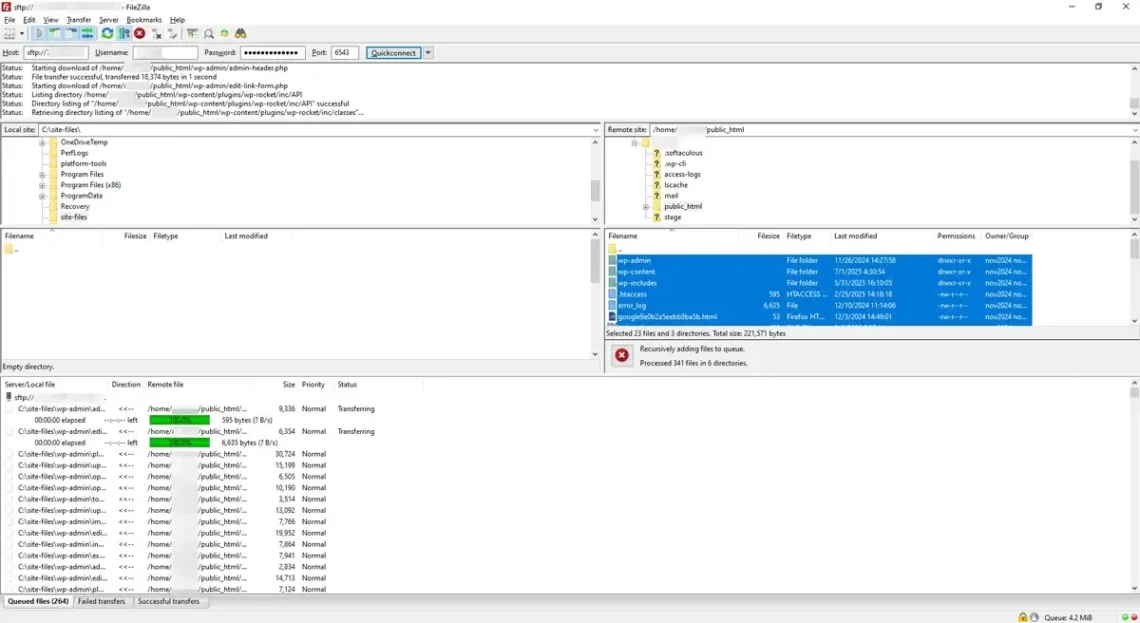
Note that FileZilla downloads copies of your site’s files and folders. The original ones remain on the server, so your website stays functional.
Once all the data is downloaded, FileZilla will display a notification telling you that the process is successful. You can close the FTP client for now.
2. Via the File Manager
Most web hosting control panels come with built-in file managers. The idea behind these tools is to allow you to manage the data on your hosting account through your browser. The interface differs slightly from control panel to control panel, but they’re all pretty easy to get used to.
In SPanel, ScalaHosting’s unique server management platform, the File Manager is accessible from the User Interface homepage. When you open it, you’ll see the contents of your home directory, including the public_html folder, which you need to open.
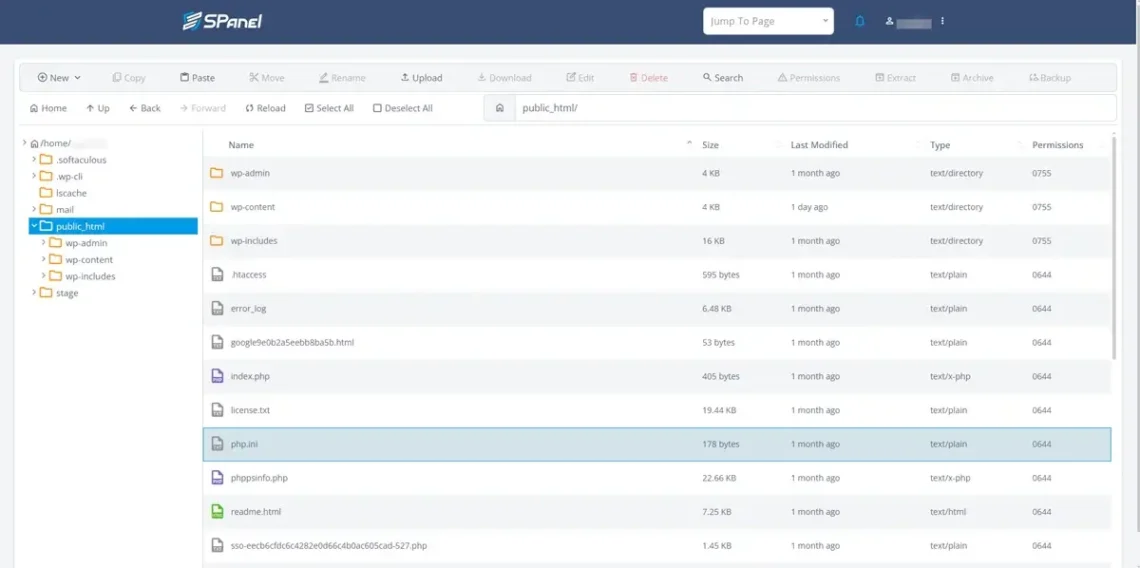
The File Manager doesn’t allow you to download files and folders in bulk. Instead, you can put everything in a ZIP archive and transfer the compressed data.
Press Ctrl+a to select all the items in your document root directory and click Archive. SPanel asks you what type of compression you want and whether you’d like password protection. After you click Create archive, SPanel compresses the data and drops the file in the public_html folder. Using the Download button, you can save the archive on your local computer.
Yet again, this doesn’t interfere with your website’s operation. There might be a small pickup in server load while SPanel is archiving the data, but it should cause no problems visible to the user.
Export the Database
A modern website can’t work without a database. The files dictate the business logic and the appearance of the pages, but the database stores data like content, login credentials, and other user—and administrator-generated data.
Our next job is to export all that vital information from the database on your old server. Once again, you have two options.
1. Through the SPanel interface
SPanel gives you all the tools to create and manage MySQL and PostgreSQL databases.
Among the features you’re given is the ability to export data straight from the User Interface. The database management utilities are available on the homepage.
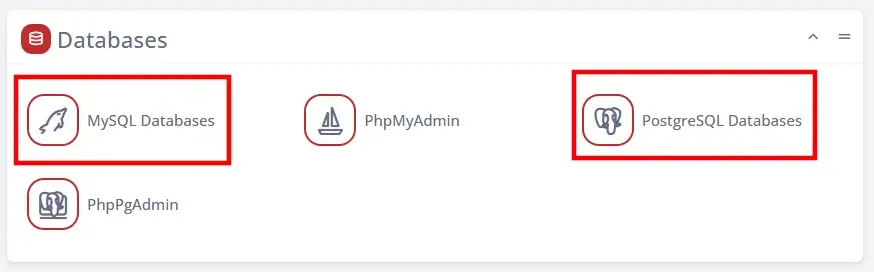
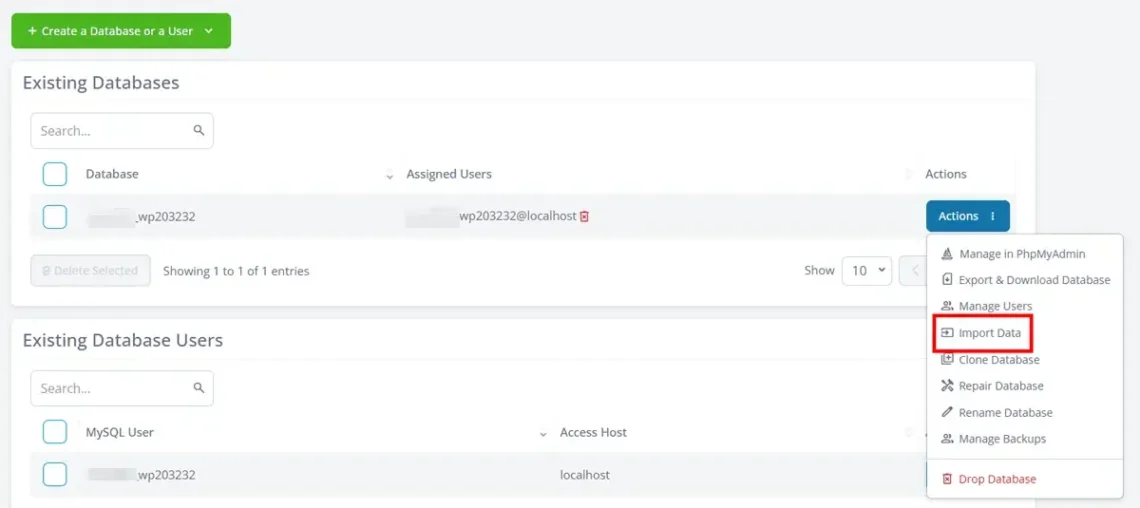
SPanel shows you a list of all the databases hosted on your account. If you have a single website, you’ll likely have just one. Click the Actions drop-down and select Export & Download Database.
Remember that if you have a large database, the export process may take a while and consume significant server resources. SPanel will warn you of this before you proceed.
In addition, changes to the database made between this point and when your domain starts resolving to the new server will be saved on the old server, and you may need to replicate them manually later on.
Because of all this, while you will complete the migration without any downtime, it’s still a good idea to perform the migration during the quiet hours of the day, when traffic is at a minimum.
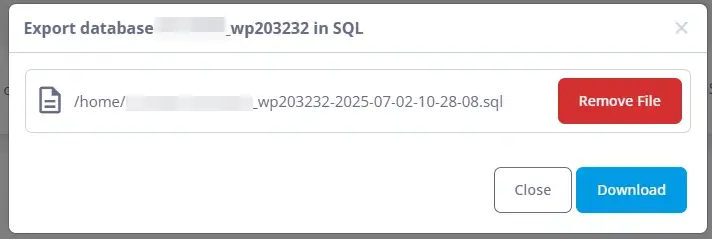
After you confirm that you want to export the database, SPanel takes the data structure and everything in it and puts it in an SQL file, which is saved in your account’s home directory (not in public_html).
You can download it from the pop-up window that appears when the export is complete or access it later through the File Manager.
2. Via phpMyAdmin/pgpMyAdmin
The functionality described above isn’t available in all control panels. For example, if you use cPanel, all database management tasks are done via phpMyAdmin and phpPgAdmin for MySQL and PostgreSQL, respectively.
The two tools have been around for a while now, and they offer a relatively intuitive interface that, among other things, allows you to export data from your databases into SQL files. Because most websites use MySQL databases, we’ll use phpMyAdmin in our example. The steps for phpPgAdmin are pretty much identical, though.
Once you open phpMyAdmin’s homepage, you’ll see a menu on the left with all the databases hosted on your account. Click on the one you want to migrate and go to the Export tab.
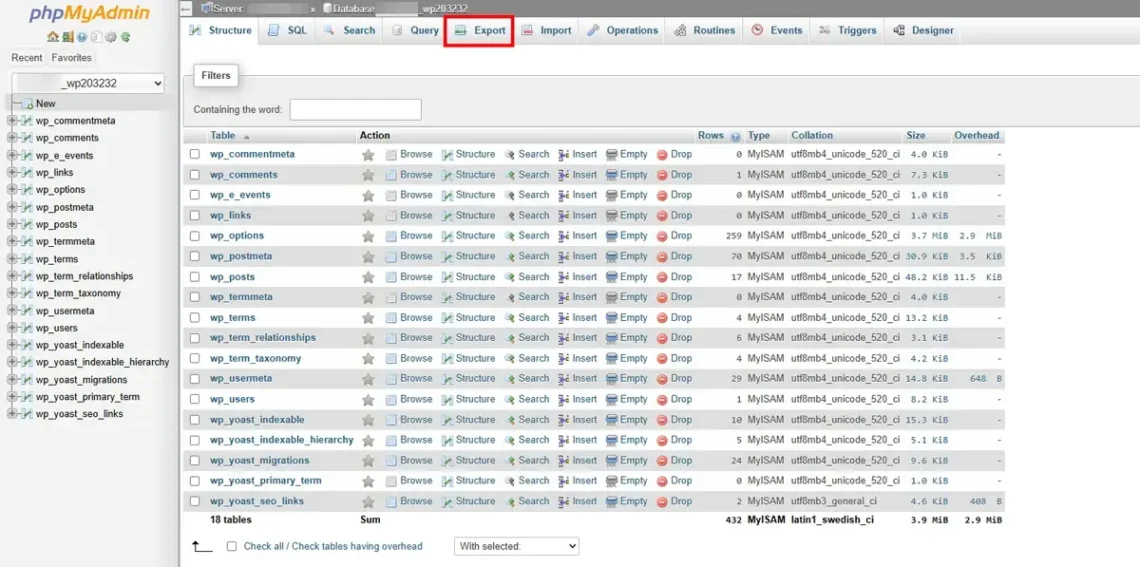
The default options should work for you in phpMyAdmin.
If you’re using phpPgAdmin, make sure you export both the data and the structure and set the format to SQL. DO NOT select the Drop checkbox, as this will delete your current database.
Both phpMyAdmin and phpPgAdmin allow you to download the exported SQL file straight to your computer.
Upload The Files To Your New Account
Your new hosting account is already up and running, so it’s time to upload your site’s files to it. Yet again, it’s up to you to decide how you’ll do it.
1. Through an FTP client
Unless you’ve done some work with it in the meantime, opening FileZilla right now shows you the copies of the site’s files you downloaded earlier.
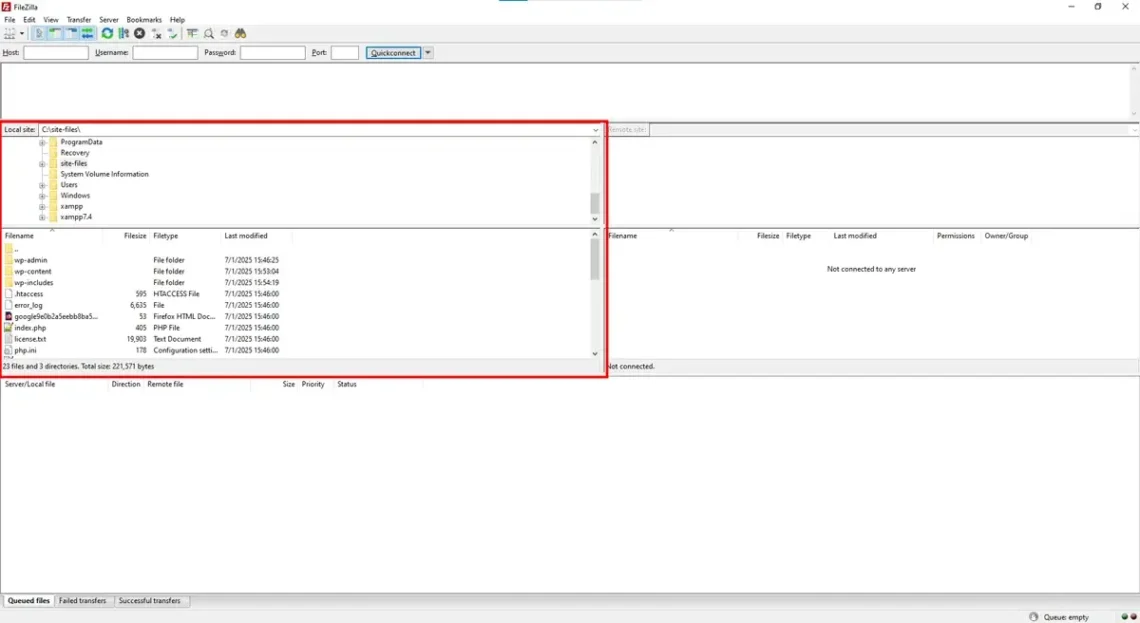
Use your login credentials to connect to the new server. Again, if possible, it’s better to use SFTP rather than FTP.
In the right-hand pane, navigate to the public_html folder, which should be empty because this is a new account. The procedure is the same as when we downloaded the files from the old server: Select all the items in the left-hand pane and press Enter.
The upload will start immediately, and when it’s finished, FileZilla will notify you.
2. Through the File Manager
Uploading your site’s files through the File Manager is just as straightforward. Log in to your new hosting account’s control panel and use the File Manager to navigate to the public_html folder.
Click the Upload button and select the archive file you downloaded from your old hosting account.
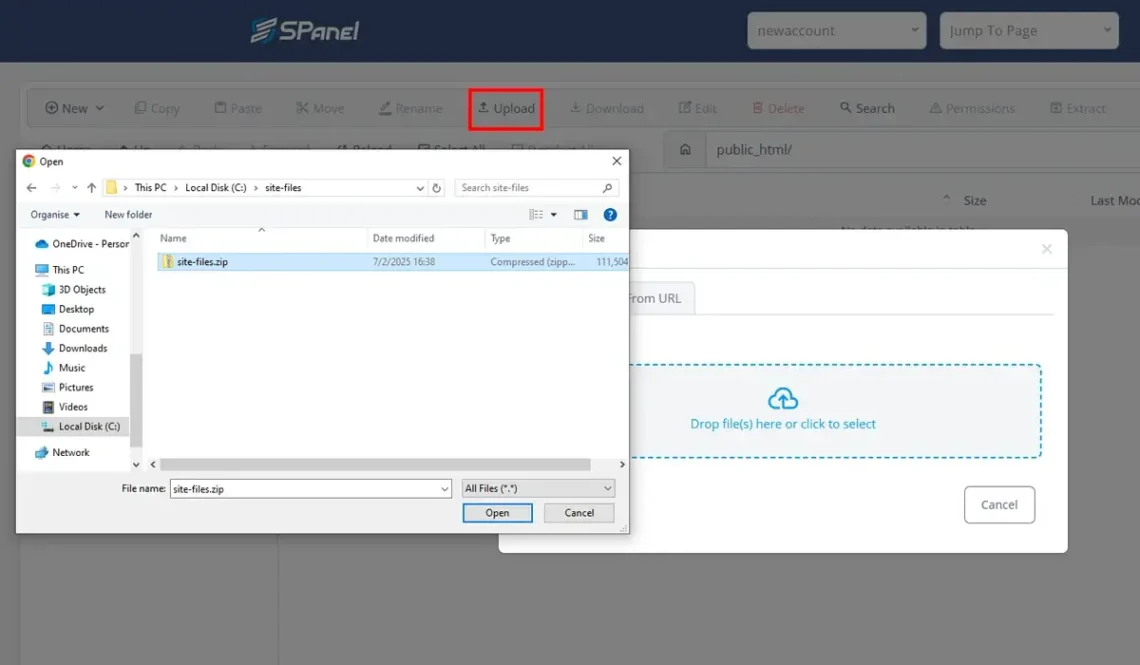
If the archive is bigger, you may need to wait a few minutes for the upload to complete. When it’s done, right-click on the ZIP file and click Extract.
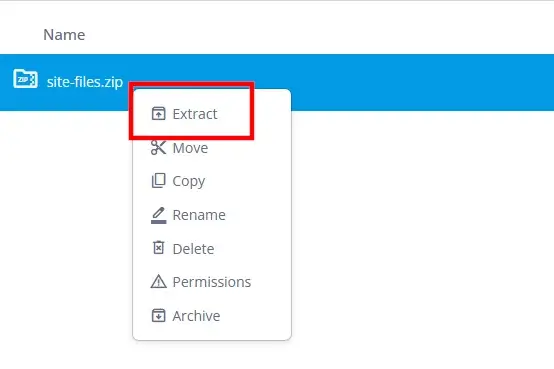
Most File Managers ask for an extraction path. Make sure the files end up in the public_html folder. How long you’ll need to wait depends mainly on the archive’s size. For reference, a relatively clean WordPress installation with a few plugins is extracted in less than a minute.
Create a New Database and User
The SQL file we downloaded during the previous step contains your site’s data. To transfer it, we must set up a new database at your new hosting account and import the information inside. Before we do that, however, a few words about how databases generally work.
Here is how you do it with SPanel.
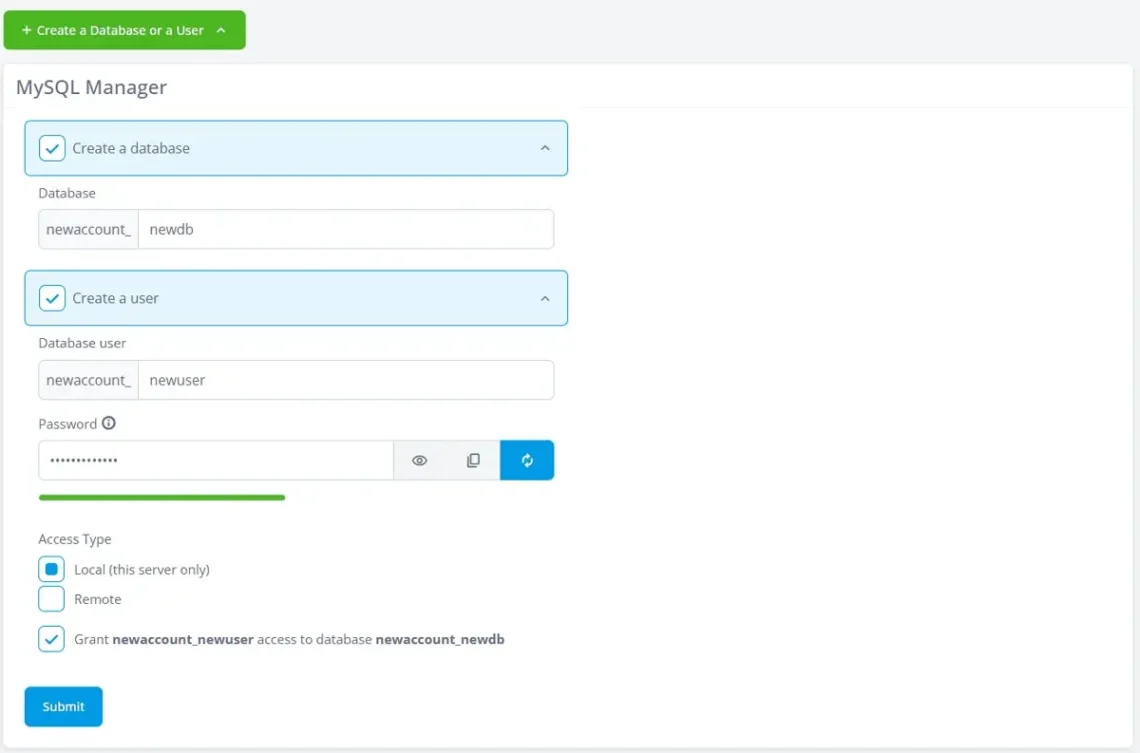
On the homepage of SPanel’s User Interface, you need to find the utility that manages your databases.
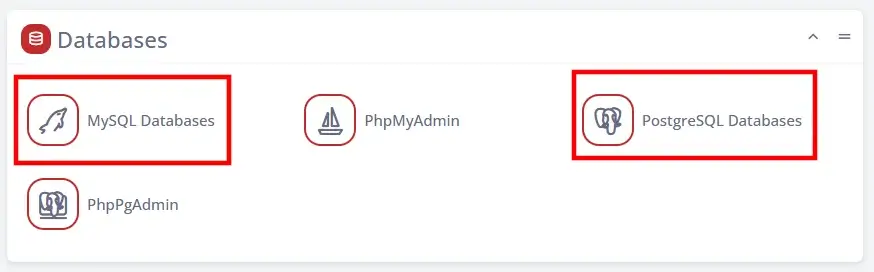
Since this is a new account, you likely have no databases. The button for creating one is clearly visible.
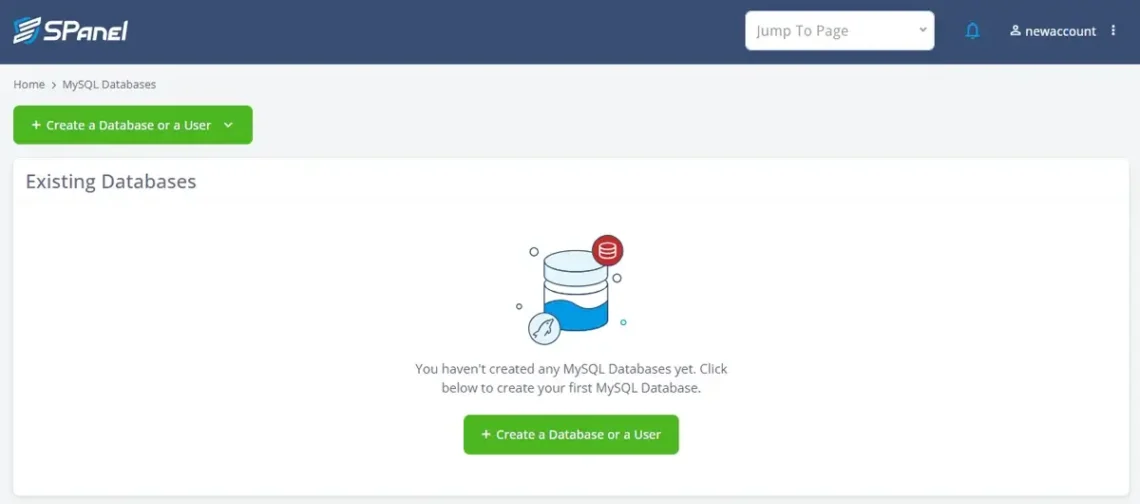
The interface is about as straightforward as they come. Choose a name for your new database and then select the Create a user checkbox. Enter the user account’s username and pick a password for it. You can have SPanel generate a password for you or choose one yourself.
In both cases, make sure the password is strong and don’t forget to write it down, as you’ll need it in a minute.
By default, the Grant access to database checkbox is selected. Make sure it stays that way and click Submit.
Import The Data Into The New Database
The SQL file you downloaded from your old server contains your site data as well as SQL instructions telling the database engine how to recreate its structure. To do all this on the new server, you have to import the file into the new database.
Yet again, if you’re using SPanel, you can do it straight from the User Interface. For everyone else, there’s phpMyAdmin and phpPgAdmin.
1. Through the SPanel interface
You don’t need to leave the page you were on during the previous step. The database you just created is on the Existing Databases list. Next to it, there’s an Actions drop-down, and the option you need is Import Data.
The Upload the database from your computer checkbox is selected, and all you need to do is find the SQL file you downloaded from your old server.

In a few minutes, all the data should be successfully imported.
2. Through phpMyAdmin/phpPgAdmin
If you don’t use SPanel, you’ll have to import the SQL file through phpMyAdmin or phpPgAdmin. This time, there are more significant differences between the two.
- phpMyAdmin
After you open the phpMyAdmin homepage, select your database from the menu on the left and then click the Import tab.
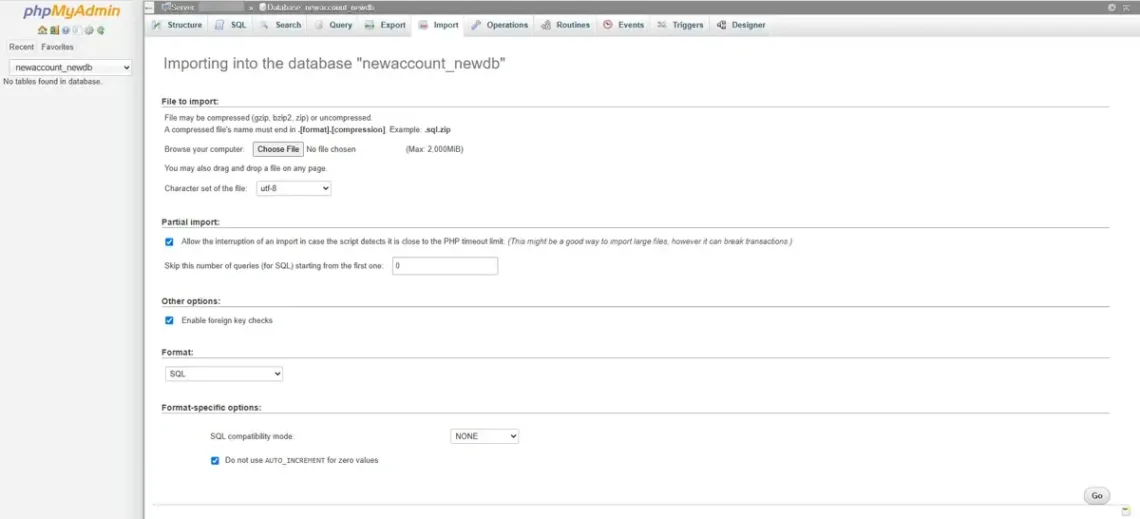
The Choose File button allows you to navigate to the exported SQL file and upload it to the server. The rest of the settings should work for you in their default state. When you’re ready, click the Go button to import the data.
- phpPgAdmin
In phpPgAdmin, the list of available databases is also on the left. The difference is that there is no Import tab. You need to open the SQL section and click Choose File to select the SQL file from your old server. Then, click the Execute button to import the data and the structure.

Configure Your Website to Work With The New Database
Both the files and the database are on your new hosting account. It’s now time to ensure the two can work together.
Sounds like a tricky task, but in reality, it’s a simple matter of editing a few lines in the web application’s main configuration file. You effectively need to tell your app what the database is called and what login credentials (remember when we said you need to write them down?) it needs to use to access it.
The trouble is, many people don’t know where to look for the main configuration file and what they need to modify inside it. Below, you’ll find instructions covering some of the world’s most popular website-building platforms.
- WordPress
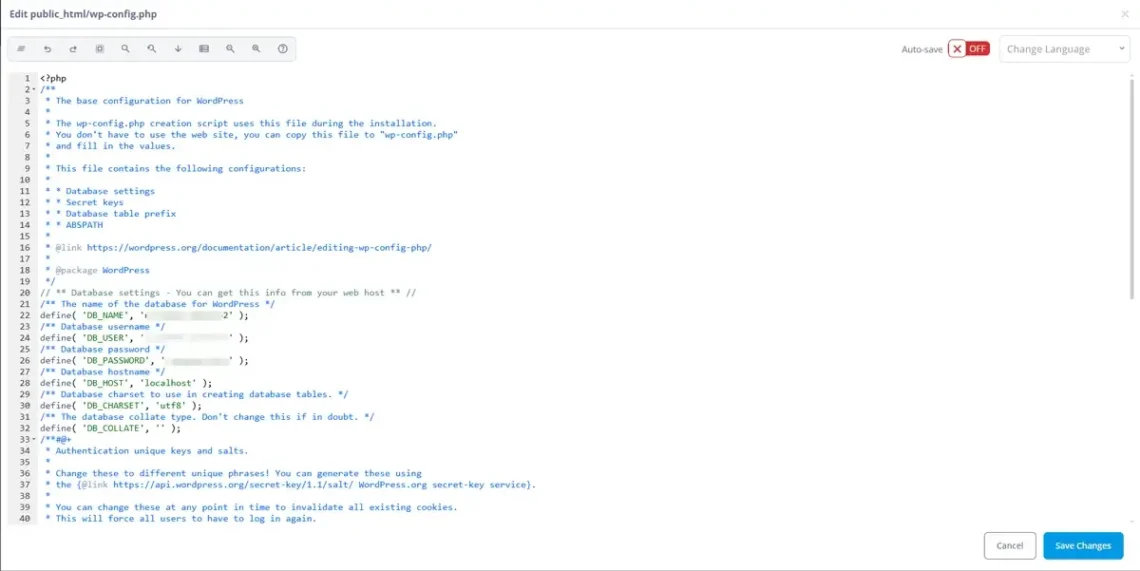
WordPress’s main configuration file is wp-config.php, and it’s in the website’s document root folder (public_html). The lines you need to edit are:
define(‘DB_NAME’, ‘your_database_name’);
define(‘DB_USER’, ‘your_database_user’);
define(‘DB_PASSWORD’, ‘your_database_password’);
define(‘DB_HOST’, ‘localhost’); // or IP/domain
- Joomla
Joomla’s configuration is handled by a file called configuration.php located in the document root folder. The lines you need to modify are:
public $host = ‘localhost’;
public $user = ‘your_database_user’;
public $password = ‘your_database_password’;
public $db = ‘your_database_name’;
- Drupal
In Drupal, the file you’re looking for is sites/default/settings.php, and the lines that require modification are:
$databases[‘default’][‘default’] = array (
‘driver’ => ‘mysql’, // or pgsql
‘database’ => ‘your_database_name’,
‘username’ => ‘your_database_user’,
‘password’ => ‘your_database_password’,
‘host’ => ‘localhost’,
‘port’ => ‘3306’,
);
- Magento (Adobe Commerce)
The main configuration of one of the world’s most popular ecommerce platforms is handled by app/etc/env.php. The section of interest looks like this:
‘db’ => [
‘connection’ => [
‘default’ => [
‘host’ => ‘localhost’,
‘dbname’ => ‘your_database_name’,
‘username’ => ‘your_database_user’,
‘password’ => ‘your_database_password’,
‘model’ => ‘mysql4’,
‘engine’ => ‘innodb’,
‘initStatements’ => ‘SET NAMES utf8;’,
],
],
],
- PrestaShop
In PrestaShop, the database connection settings are defined in the following lines of the app/config/parameters.php file:
‘database_host’ => ‘localhost’,
‘database_name’ => ‘your_database_name’,
‘database_user’ => ‘your_database_user’,
‘database_password’ => ‘your_database_password’,
- OpenCart
In OpenCart, you have to edit two files: config.php and admin/config.php. The lines are:
define(‘DB_DRIVER’, ‘mysqli’);
define(‘DB_HOSTNAME’, ‘localhost’);
define(‘DB_USERNAME’, ‘your_database_user’);
define(‘DB_PASSWORD’, ‘your_database_password’);
define(‘DB_DATABASE’, ‘your_database_name’);
- phpBB
phpBB’s config.php file is located in the document root. The section dealing with the database connection is:
$dbhost = ‘localhost’;
$dbname = ‘your_database_name’;
$dbuser = ‘your_database_user’;
$dbpasswd = ‘your_database_password’;
- Moodle
Moodle’s primary configuration file is also called config.php and is in the document root directory. The lines you’re interested in are:
$CFG->dbtype = ‘mysqli’; // or pgsql
$CFG->dbhost = ‘localhost’;
$CFG->dbname = ‘your_database_name’;
$CFG->dbuser = ‘your_database_user’;
$CFG->dbpass = ‘your_database_password’;
The easiest way to modify these files is via the File Manager. Pretty much all solutions of this kind have a built-in text editor allowing you to make changes straight on the server – no need to download them, edit them locally, and re-upload them.
Before you open your site’s primary configuration file, it’s a good idea to create a backup.
Once the archive is created, you can double-click the file you need to modify and start editing it. A standard WordPress configuration file opened in SPanel’s File Manager looks like this.
Things could be a bit trickier for people who own a custom-made website. The good news is, the site’s original developer or another professional with sufficient programming skills should be able to guide you in the right direction.
Once you make the required changes, remember to clear the app’s cache to ensure they’re in effect. If you’ve been forced to modify any file permissions to edit the configuration files, make sure you return everything to its previous state.
Test The Website on The New Server
They say that manual testing is the mother of all testing, and indeed, in our particular case, there’s little you can do to automate the process of ensuring everything works on the new server.
You have to open the website on your new hosting account, click every button, use every feature, and double-check to ensure your interactions produce the required result. That way, when you point your domain to the new server, visitors will get the desired user experience.
But how can you test your site if the domain is still pointed to the old server? If you enter the URL, the global DNS system will redirect your browser to the old server.
There is a way around it, and it involves editing your computer’s hosts file.
The hosts file is a system file that maps domain names to specific IP addresses and acts as a local DNS system. When a browser or another application on your computer tries to access a particular domain, it first checks your hosts file to see if there’s an entry for it.
If there is, the request isn’t sent to the global domain name system and is instead forwarded straight to the specified IP address. Sometimes, the hosts file can be used to block access to specific domains, but more often, it’s employed for our purposes – bypassing DNS in order to test and develop a website.
The hosts file has no extension, but its contents are plain text and can be edited with any regular text editor.
Here are the exact steps depending on the operating system:
- WIndows
- Open the Start menu and type Notepad. When the Notepad app appears, right-click on it and select Run as administrator. A prompt will appear asking you if you allow Notepad to make changes to your computer. Agree to it. We need the administrative privileges because we’ll be editing a system file.
- Click File > Open and go to C:\Windows\System32\drivers\etc. Open the drop-down that says Text Documents (.txt) and change it to All Files (*.*).
- Open the hosts file, add a new line at the bottom, and enter the IP address of your new hosting account, followed by your domain (both with and without www.). E.g.:
123.123.123.123 mydomain.com www.mydomain.com
- Press Ctrl+s to save the changes and close Notepad.
- macOS and Linux
- Open the Terminal. Since both macOS and Linux are Unix-based, using the command line will be easier and faster.
- Use the text editor of your choice to open the hosts file, which is located in the /etc/ directory. You’ll need sudo privileges, so the command will look something like this:
$ sudo nano /etc/hosts
- Add a new line and enter the IP of your new hosting account, followed by your domain (both with and without www.). E.g.:
123.123.123.123 mydomain.com www.mydomain.com
- Save and close the text editor. With Nano, you’ll use Ctrl+o, followed by Ctrl+x.
- Flush the DNS cache. This isn’t mandatory but can ensure the changes you’ve made to the hosts file are in effect. In macOS, you can use:
$ sudo dscacheutil -flushcache; sudo killall -HUP mDNSResponder
Because there are many Linux distributions, your best bet is to restart the networking service with:
$ sudo service network-manager restart
With all this done, you can enter your domain in your computer’s browser, and it will load from your new hosting account. You can test everything without affecting the live site.
For example, you can leave comments, publish new posts, and test various other features. None of this will be visible to users because they’re still seeing the website on the old hosting account. Just don’t forget to undo your changes before you proceed to the next step.
Point Your Domain to The New IP Address
Now that you’re sure everything works, it’s time to make the migrated site available to everyone. You have to configure the domain to resolve to the new rather than the old hosting account.
When you signed up at your new host, you received a welcome email with details on how to get started. The message tells you that you need to point your domain to your new hosting account.
Typically, there are two options:
- Point the domain to the nameservers provided in the welcome email.
Every domain has a nameserver. In fact, for redundancy, better load balancing, and security, domains commonly have two nameservers.
A nameserver can be operated by your hosting provider, the domain registrar, or your Content Delivery Network. You can think of it as an old-fashioned address book. A nameserver can handle thousands (or even millions) of domains, and for each one, it keeps a collection of DNS records.
Every DNS record has a purpose. For example, one tells browsers where the website is hosted, another shows where incoming emails should arrive, a third one proves that outbound messages are legitimate, etc.
If you set the nameservers provided in your welcome email, all these records will be automatically set to work with your new hosting account. If you plan to rely on a single hosting account for everything, you won’t need to change any settings.
- Change the A record to point it to the correct IP
Sometimes, changing the nameserver isn’t an option, or at least, it’s not the best one. For example, if you use a content delivery network, your CDN provider will serve static data from multiple locations, so it must control the domain’s nameservers. At the same time, however, it should also redirect requests to the primary hosting server.
It does that via the A record. The A record maps your site to an IP address. So, to ensure visitors load your site from your new hosting account, you specify its IP as your domain’s A record.
Meanwhile, you can leave the nameservers under your CDN provider’s control and use them to modify other parts of your DNS configuration.
The exact steps for assigning new nameservers and changing the A records depend on the domain registrar and the provider hosting your DNS zone. Usually, there’s a graphic user interface, and the entire process is over within a minute or two. Here, for example, is what the DNS editor in SPanel looks like.
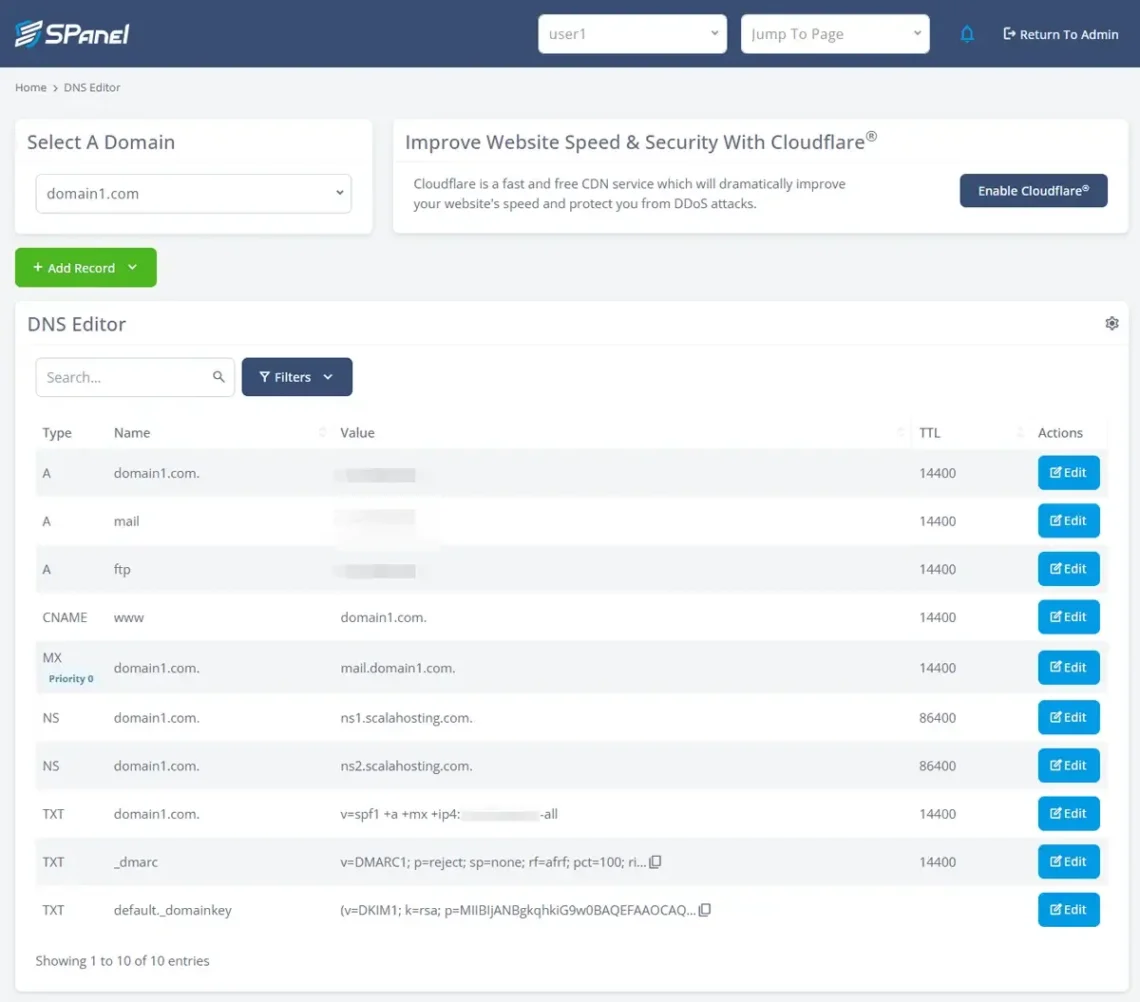
However, you must remember that every change to the domain’s DNS configuration must propagate globally. Usually, the new nameservers and DNS records are effective worldwide within a couple of hours, though in some cases, they could take up to a day to start resolving correctly everywhere.
To ensure you complete the migration with no downtime, your old hosting account must remain active until the propagation period ends. Hence, it’s probably best to leave it for another day before you close it.
Conclusion
Although it sounds daunting, migrating a website from one hosting provider to another without any service interruption isn’t that tricky.
Why, then, do we offer to do it for free?
We know that time is your most valuable commodity, and we want to ensure that your customer experience with us is satisfying from the very beginning. This is why data transfers with ScalaHosting are a breeze. The user simply files a formal request with their credentials, and our trained professionals take care of the rest. No hassle, no effort, no service interruptions!
If you want to learn more about our services, do not hesitate to contact our sales specialists.


FAQ
Q: How to manually migrate a website?
A: The process can be broken down into five main steps:
- Copying the files from the old server to the new one.
- Exporting data from the old database.
- Creating a new database and importing the data into it.
- Configuring the web application to work with the new database.
- Testing if the migration is successful.
- Pointing the domain to the new hosting account.
Q: How much time does it take to migrate a website?
A: The time it takes to transfer a website from one server to another depends on many factors, such as the size and complexity of the project, your experience and technical skills, etc. If you know what you’re doing and your site isn’t too big, the migration should take no more than an hour.
Q: How do I migrate my website with zero downtime?
A: The key is to keep your old hosting account active and your domain pointed to it until the end. That way, while you copy the files and migrate the database from the old server to the new one, website visitors will be able to browse your pages without even knowing that you’re moving them to a different location.
What is a VPS – Everything you need to know!