ON THIS PAGE
The WordPress admin login URL is your site’s address followed by /wp-admin, for example https://example.com/wp-admin. If WordPress runs in a subdirectory or on a subdomain, add that path first: example.com/blog/wp-admin or blog.example.com/wp-admin. On a server running SPanel, you can skip the wp-admin login page entirely, because the WordPress Manager signs you in to the WordPress Dashboard with one click and no password. Both methods are below, along with fixes for the most common login errors.
One-click login has two prerequisites:
- Access to SPanel’s User Interface
- A WordPress site installed through SPanel’s WordPress Manager or imported into it
If you don’t use SPanel, your WordPress username and password are all you need.
Log In to WordPress Admin With One Click From SPanel
SPanel’s WordPress Manager signs you in to any WordPress site on your account without asking for a WordPress password. SPanel’s WordPress Manager lists every WordPress installation on the account in one place, with a Login button next to each.
- Log in to SPanel’s User Interface.
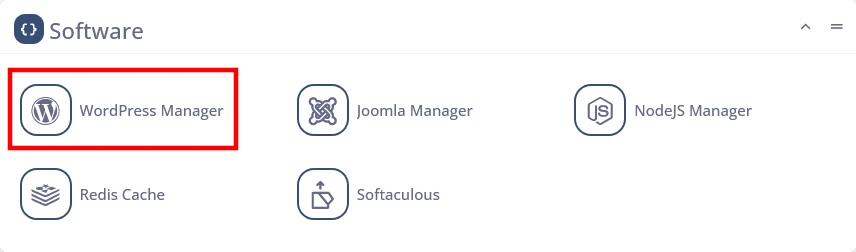
- In the Software section, click WordPress Manager.
- In the Existing WordPress Installations list, find the site under Install URL.
- Click Login in the Actions column.
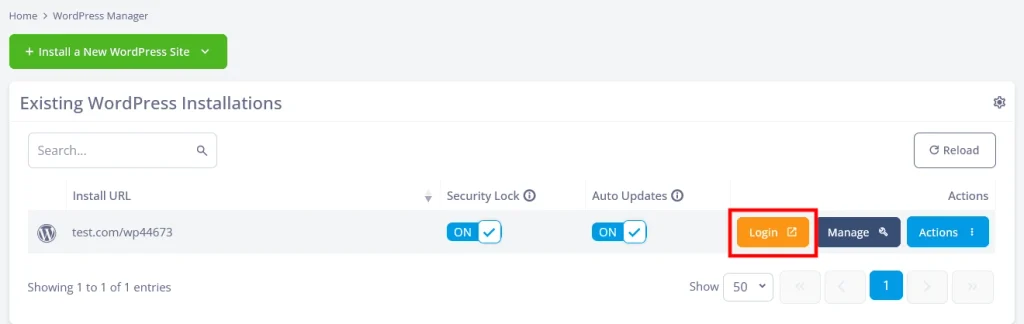
The WordPress Dashboard opens in a new browser tab, and you’re signed in as the site’s main administrator account.
Tip: If your account hosts many sites, type part of the domain into the Search field above the list to find the right installation faster.
How Is One-Click Login Different From the Login Form?
One-click login replaces the login URL, username, and password with a single button. The table below compares the two methods:
| Login form (/wp-admin) | One-click login (SPanel) | |
| What you need | The site’s login URL, username, and password | Access to SPanel’s User Interface |
| Steps | Open the URL, enter the username, enter the password, and click Log In | Click Login next to the site |
| Two-factor authentication (2FA) | Asks for a code if a 2FA plugin is active | Skipped |
| Custom login URL set by a plugin | You need to know the custom address | Not needed |
| Forgotten password | Reset email, which depends on the site’s email working | No WordPress password needed |
| Security Lock on | Works as usual | Works, no need to unlock |
| Several sites | A separate set of credentials for each site | One list of every site on the account |
| Account you sign in as | Whichever account you enter | The main administrator account (the oldest administrator account on imported sites) |
The more sites you manage, the bigger the difference. Instead of a separate username and password for every installation, you have one SPanel login and a list of sites. Each site’s Dashboard is a click away.
Note: One-click login skips WordPress’s own login checks, so your SPanel login protects every WordPress site in the list. Keep your SPanel password strong, and give SPanel access only to people who should have administrator rights on all of those sites.
Log In Through the wp-admin Login Page
The wp-admin login page works on any WordPress site, including when you’re away from SPanel. The address depends on where WordPress is installed:
| Address | What it opens | Example |
| /wp-admin | The Dashboard; signed-out visitors go to the login form first | https://example.com/wp-admin |
| /wp-login.php | The login form | https://example.com/wp-login.php |
| /login, /admin, /dashboard | /login opens the login form; /admin and /dashboard open the Dashboard | https://example.com/login |
| Subdirectory install | The Dashboard of WordPress installed in a folder | https://example.com/blog/wp-admin |
| Subdomain install | The Dashboard of WordPress installed on a subdomain | https://blog.example.com/wp-admin |
The /login, /admin, and /dashboard shortcuts are redirects built into WordPress that work only when the site uses pretty permalinks. SPanel’s WordPress Manager sets the /%postname%/ permalink structure on every new installation, so the shortcuts work on sites installed through it.
To log in through the form:
- Open your login URL, for example https://example.com/wp-admin.
- Enter your username or email address in the Username or Email Address field.
- Enter your password in the Password field.
- Optionally, select Remember Me to stay signed in on this device.
- Click Log In.
The WordPress Dashboard loads once WordPress accepts your credentials.
Tip: Bookmark the login URL so you don’t have to type it each time.
Troubleshooting
These three problems are common causes of failed wp-admin logins.
The Password Reset Email Never Arrives
Problem: You forgot the admin password, and the reset link from the Lost your password? page doesn’t reach your inbox.
Cause: WordPress sends the reset link by email, so the reset depends on the site’s email delivery working.
Solution: Use one-click login from the WordPress Manager, which needs no password. To set a new password for the main administrator account:
- In the WordPress Manager, click Actions next to the site.
- Select Change password.
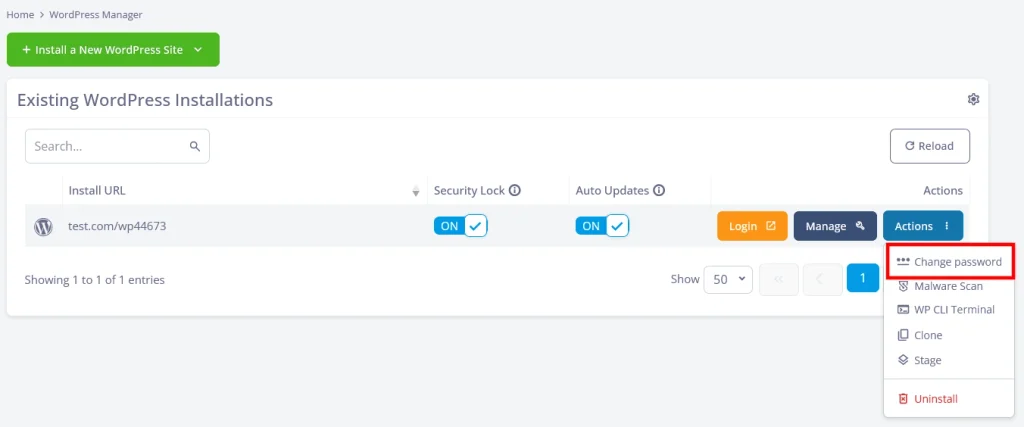
- Enter a new password in the Password field, or click the generate button to create one.
- Click Change.
The new password works on the wp-admin login page right away, and no email is involved.
wp-admin Returns a 404 Error
Problem: Opening /wp-admin or /wp-login.php shows a “Page not found” error.
Cause: WordPress runs in a subdirectory or on a subdomain, or a security plugin has moved the login page to a custom address.
Solution: Try the subdirectory and subdomain addresses from the table above. If a plugin changed the login URL, click Login in the WordPress Manager, which works regardless of the custom address, then look up the new address in that plugin’s settings. A hidden login page cuts down automated login attempts, but it’s one layer of protecting a WordPress site, not a replacement for strong passwords and regular updates.
The Login Page Keeps Reloading
Problem: You enter the correct username and password, and the login form reloads instead of opening the Dashboard.
Cause: Stale cookies or cached pages, or the WordPress Address (URL) and Site Address (URL) settings point to different addresses.
Solution: Clear the browser’s cookies for the site, or try a private browsing window. If the loop continues, check that both addresses under Settings > General match your domain. If you can’t reach the Dashboard to check them, ScalaHosting’s support team can correct the values for you.
Frequently Asked Questions
Q: Is wp-admin the Same as wp-login.php?
A: No. /wp-login.php is the login form, and /wp-admin is the admin area behind it. Visiting /wp-admin while signed out sends you to /wp-login.php, so both addresses lead to the Dashboard.
Q: Can You Log In to WordPress Admin Without a Password?
A: Yes, on a server running SPanel. The Login button in the WordPress Manager signs you in to the Dashboard with one click. Through the wp-admin login page, WordPress always asks for a username and password.
Q: Which WordPress Account Does the SPanel Login Button Use?
A: The Login button signs you in as the main administrator account created when WordPress was installed. On sites imported into the WordPress Manager, it uses the oldest administrator account. To work as a different user, sign in through the wp-admin login page with that user’s credentials.
Q: Does One-Click Login Work With Two-Factor Authentication Plugins?
A: Yes. One-click login skips the 2FA prompt along with the password, so access to the Dashboard depends on your SPanel login instead.
Q: Does the Login Button Work When Security Lock Is On?
A: Yes. You don’t need to turn off Security Lock before clicking Login. Security Lock blocks changes to the site’s WordPress files and doesn’t affect signing in.
Q: Does One-Click Login Work for Sites Moved From Another Host?
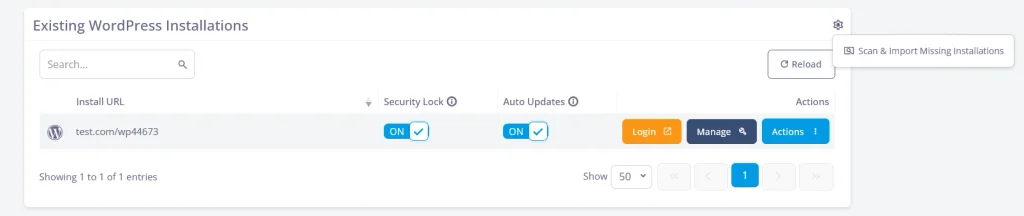
A: Yes, once the site appears in the WordPress Manager. After migrating a WordPress site, click the gear icon above the Existing WordPress Installations list and select Scan & Import Missing Installations. Each imported site gets a Login button that signs you in as its oldest administrator account.