

ON THIS PAGE
SPanel’s Admin Interface gives ScalaHosting server owners four tools for finding resource-heavy accounts: the accounts list shows quota, disk, and inode usage against each plan; the weekly Usage History shows each account’s CPU against its own limit and its limit-hit count; per-account CPU history charts any account’s load across the recorded dates; and the admin process viewer shows and stops running processes. Together they turn a monthly check into a five-minute routine, included free on every ScalaHosting managed VPS.
When “the site feels slow” lands in your inbox
“The site feels slow lately” is the least actionable sentence in hosting. Without data, the conversation goes in circles: maybe it’s a plugin, maybe the plan is too small, maybe it was one bad afternoon. Everyone guesses, someone upgrades anyway, and nobody learns anything.
The data is already there, because SPanel has been recording it. The weekly Usage History shows which accounts pressed against their CPU ceiling and how often. The per-account CPU history charts one account across the noisy neighbor problem the recorded dates, so “lately” resolves into a date and a time of day. A backup plugin pinning an account against its ceiling every afternoon looks exactly like that on the chart, and finding it takes under five minutes.
That’s the monthly resource review: a short pass through four Admin Interface screens that shows which accounts are heavy, how heavy, and what to do about it. Limits keep accounts inside their lane. This review is how you watch the lanes, setting plans from evidence instead of vibes and catching the account that quietly outgrew its plan before its neighbors feel it. In our guide to every SPanel package dial, you’ll see what each limit actually does.
Four tools, four questions
Each screen answers one question; run them in order.
| SPanel tool | The question it answers | What you do with it |
| Accounts list usage | Who is near the upper limit right now? | Scan quota, disk, and inodes against each plan |
| Weekly Usage History | Who ran hot over the last week? | Read CPU used vs each account’s limit, plus CPU Limit Hits |
| Per-account CPU history | When exactly was this account heavy? | Chart any account’s load across the recorded dates |
| Process viewer | What is running on the server right now? | Inspect or stop a single process |
SPanel samples every account’s CPU and memory continuously through the day and stores it by date, so the history is there when you need it.
The five-minute review, screen by screen
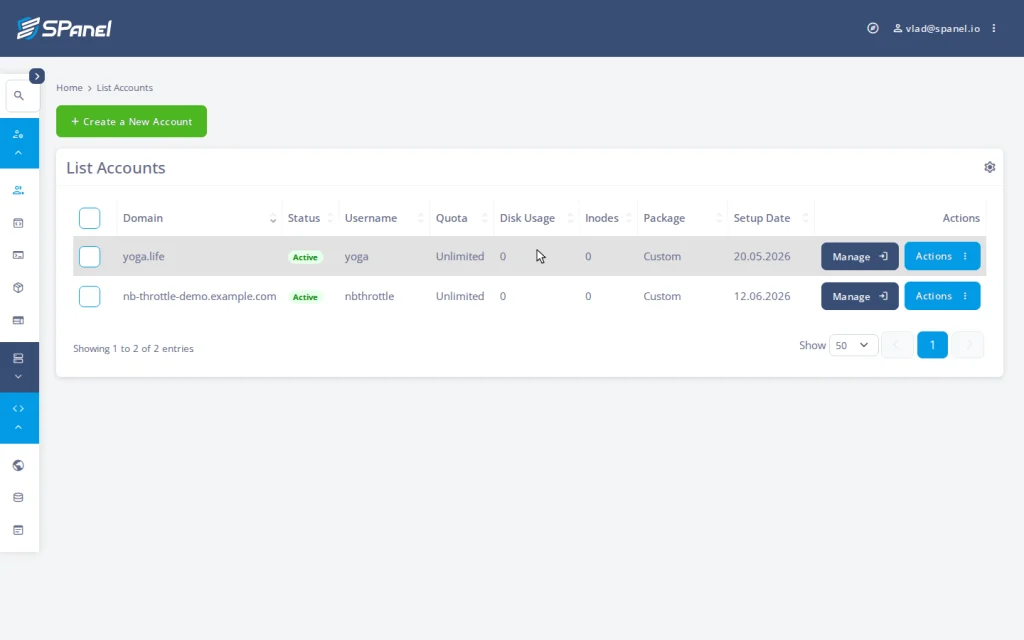
Step 1 – Scan the accounts list. Open Accounts Management → Manage Accounts. The columns show each account’s Quota, Disk Usage, and Inodes, next to its package, owner, and status. Sort by Disk Usage and your near-the-ceiling accounts rise to the top.
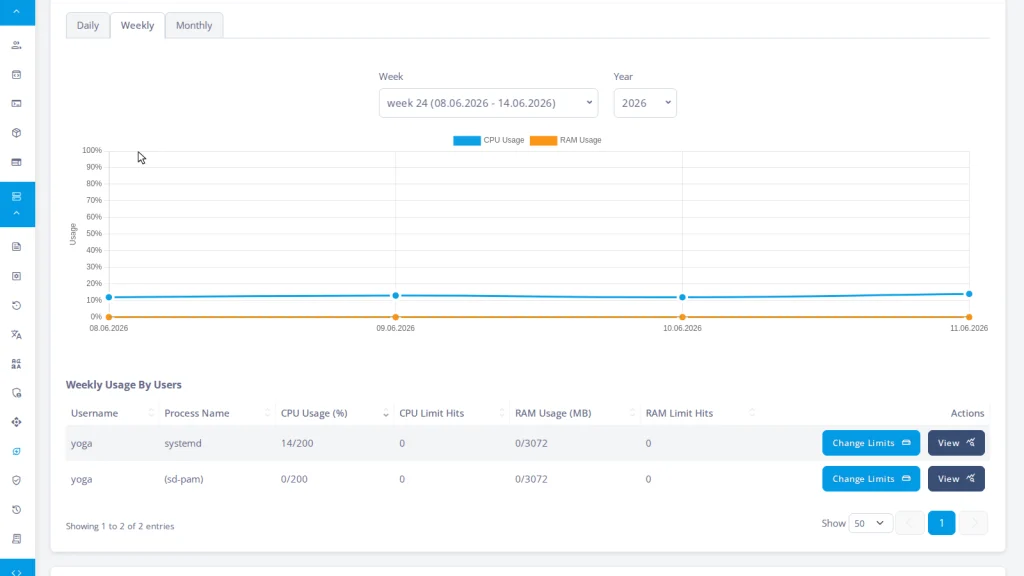
Step 2 – Scan the weekly Usage History. Open Resource Usage → Usage History and read the Weekly Usage By Users table. For the selected week it shows each account’s CPU usage against its own limit, how many times it hit that limit (the CPU Limit Hits column), and the same pair for RAM. Accounts high against their limit – especially any with limit hits – are the ones to open next.
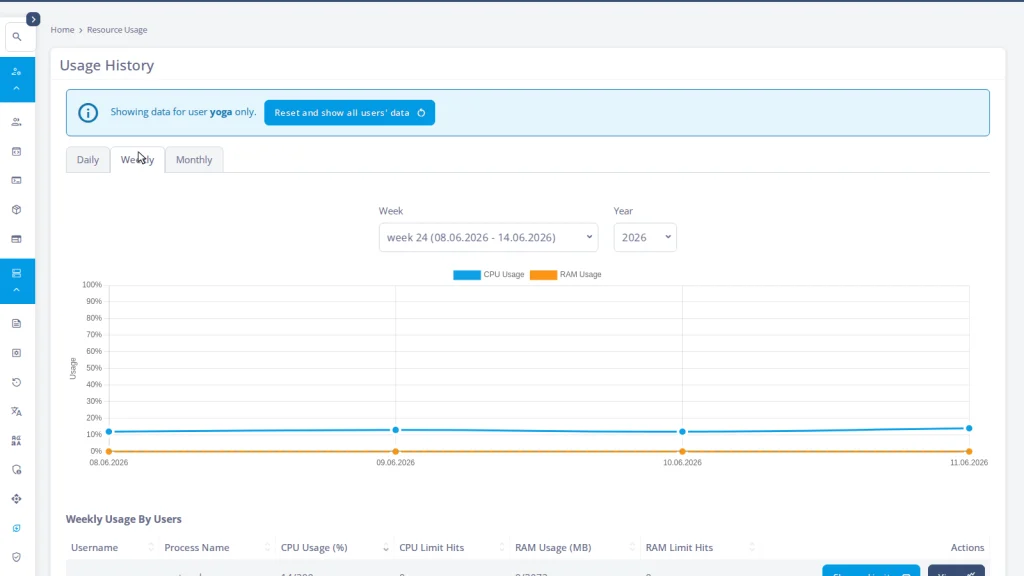
Step 3 – Pull the CPU history for a flagged account. Click View on the heaviest account’s row to open its own CPU history. The chart plots that account’s CPU (and RAM) by date across the period, the account’s ceiling drawn as a dashed line. A flat, low line is a healthy account. A line pinned near that ceiling every afternoon is a story: a scheduled job, a crawler, or a plugin doing too much.
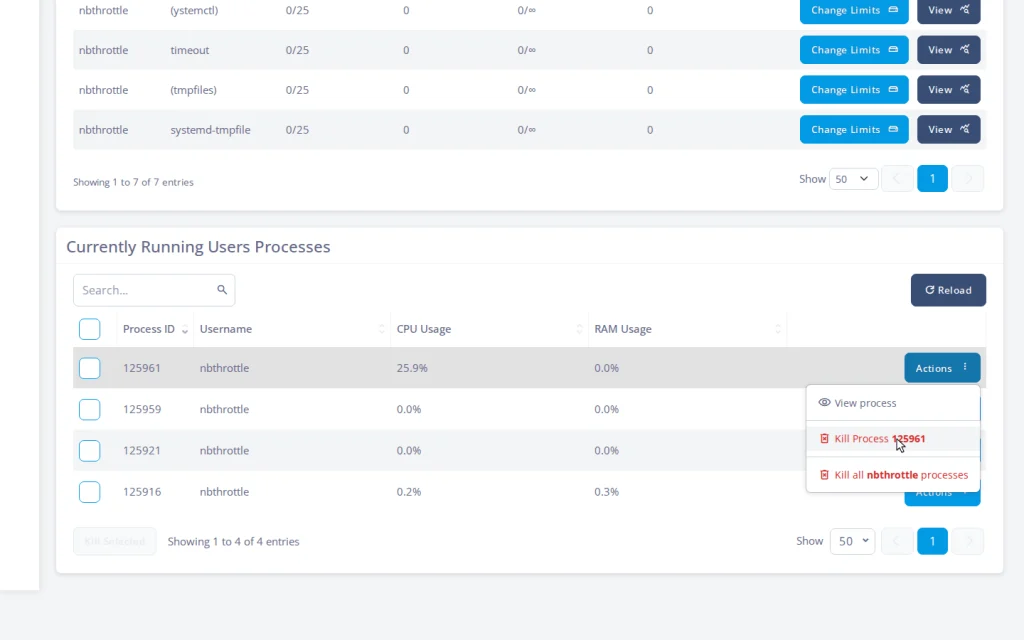
Step 4 – Look at what is running. Open Resource Usage → Currently Running Users Processes, the admin’s server-wide live process list – each row shows the process ID, the owning account, and its CPU and RAM use. Find the flagged account’s processes; if one is clearly the culprit and is hurting its neighbors this minute, stop that single process from the panel, no SSH session needed. Use it as a scalpel, not a habit. The goal is the conversation, not a kill switch.
Want to run this review on your own accounts? Every screen here ships with SPanel – included free on every ScalaHosting managed VPS, with no per-feature add-ons. Import your accounts and the whole toolkit is there for your first five-minute pass.
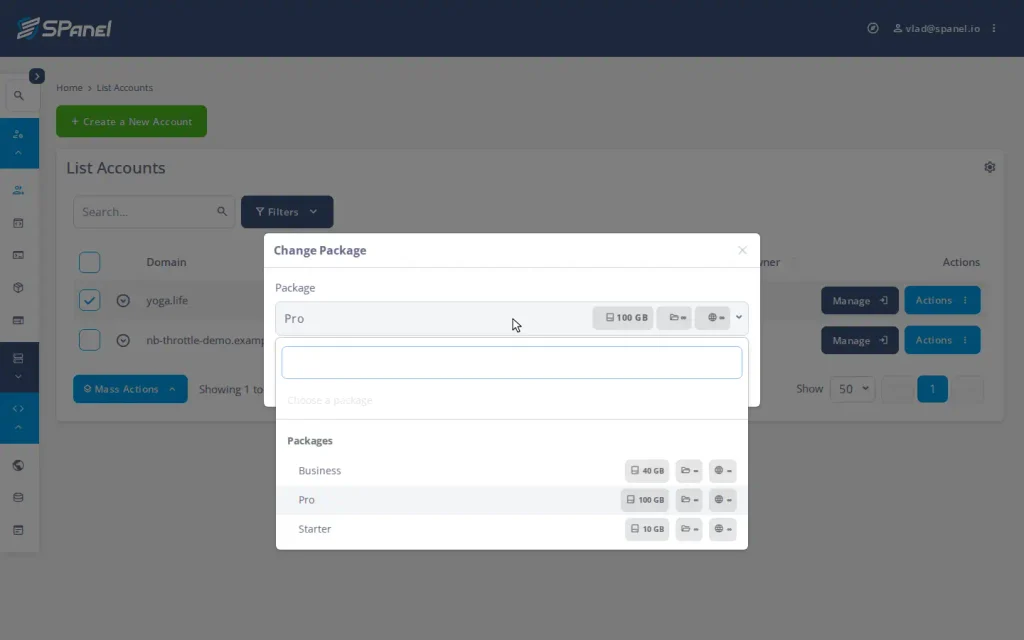
Step 5 – Act on the evidence. Now you have a decision, not a hunch. If the account has outgrown its plan, select it and use Mass Actions → Change Package to assign a larger plan; every limit re-applies in place, live, with no migration. A client who does not fit a named tier gets individual values instead, via Actions → Change Limits with Use Custom Limits enabled. If the cause is a runaway plugin, the data is your case for an optimization conversation. Moving a plan is one action that takes effect immediately.
Reading CPU numbers without panic
One number trips people up, so here’s a quick explanation: a CPU limit of 100 means one full core, 50 means half a core, and 200 means two cores. It is a share of a core, not of the whole server – so read CPU history against the account’s own ceiling.
And remember what the ceiling does. SPanel throttles at the CPU limit rather than killing anything: the site slows under its own excess load while every other account keeps full performance. A throttled account is not broken; it has hit the size of plan it pays for – the signal this review is built to catch, and the same containment that eliminates the noisy neighbor problem.
Set limits from data, defend them with data. The history is already recorded; you just have to read it.
Turning a review into a plan catalog
Run this monthly and patterns appear. The same three accounts at the top of the weekly Usage History are upgrade conversations waiting to happen. A site that is heavy only between 1 and 2 a.m. is a cron job, not a capacity problem. Over a few months this review becomes the input to your plan design.
FAQ
Q: How do I find which accounts use the most CPU on my server?
A: Open Resource Usage → Usage History and read the Weekly Usage By Users table: each account’s CPU against its own limit, plus a CPU Limit Hits count, for the selected week. Click View on an account to see its CPU history charted by date.
Q: What does a CPU reading of 100 mean?
A: One full core. 50 means half a core; 200 means two cores. It is a share of a core, not a percentage of the whole server.
Q: What happens to an account constantly over its CPU limit?
A: It is throttled, not killed. Its processes get only their share of CPU time, so the site slows under its own load while other accounts keep full performance. Persistent throttling is your cue to upgrade or fix the cause.
Q: Can I stop a runaway process without logging in over SSH?
A: Yes. The admin Currently Running Users Processes panel lists live processes server-wide and lets you stop a single process from the panel.
Q: Do I need CloudLinux to see this usage data?
A: No. The accounts list, Usage History, CPU history, and process viewer are part of SPanel, included free on every ScalaHosting managed VPS. SPanel’s per-account limits run on the Linux kernel’s own control groups; this is resource measurement and enforcement, not a separate filesystem product.
Q: An account outgrew its plan: what is the cleanest fix?
A: Assign it a larger package from Mass Actions → Change Package; every limit re-applies in place with no migration or downtime. For a client who does not fit a named tier, set individual values via Actions → Change Limits with Use Custom Limits enabled.
See it on a real server
The best way to judge whether this review fits how you work is to run it once on your own accounts. SPanel’s usage tooling grew partly from requests on Cloud Democracy, its public feature board; if there is a report or column you wish existed, ask there. The API behind these screens is in the SPanel documentation, and the kernel mechanism behind the limits in the cgroups v2 documentation.