
FTPS encrypts your FTP login and file transfers in transit, and an existing SPanel FTP account already supports it – you turn it on in your FTP client, not in SPanel. Open the account’s connection details in SPanel (server host, Port 21, username), then set your client to use explicit FTP over TLS on that same port. There is nothing extra to enable on the SPanel side.
Note that FTPS is not SFTP: FTPS is FTP-over-TLS on port 21, while SFTP is SSH-based on port 22.
Who this is for
This is for site owners and developers who want their FTP credentials and uploads encrypted in transit rather than sent in the clear. If you already have an FTP account in SPanel and connect with a tool like FileZilla, this guide shows how to switch that same account to encrypted transfers – no new account or plan required.
What problem this solves
Plain FTP sends your username, password, and every file as unencrypted text. Anyone watching the network between you and the server can read those credentials and intercept what you transfer – a real risk on shared Wi-Fi. FTPS wraps the same session in TLS, so both the login and the data are encrypted in transit.
How SPanel solves this
Your SPanel FTP account is the credential; encryption is a property of how the client connects to it. In the SPanel User Interface, go to FTP Accounts, find the account row (for example, the yoga FTP account in the screenshots), open the row Actions, and choose Connect an FTP client.
The dialog shows the three values you need: the FTP Server (host), Port: 21, and the Username, plus a note to use that account’s password. SPanel has no separate “FTPS” toggle – the server accepts an encrypted session on port 21 when your client asks for one. You copy these values into your client and select encryption there.
Why this is different in SPanel
Two details matter here. First, a standard SPanel FTP account works over explicit TLS with no extra setup on the SPanel side – the same host, port, and username handle both plain and encrypted sessions, so there is no second account to manage.
Second, because encryption is a client setting, you control the requirement: set your client to require explicit FTP over TLS and it refuses to fall back to an unencrypted connection. [CONFIRM CURRENT] that FTPS/TLS is enabled on the customer’s specific server.
Before you start
- Access to the SPanel User Interface (not the Admin Interface).
- An existing FTP account, with its password to hand. If you do not have one yet, create it first.
- An FTP client that supports explicit FTP over TLS, such as FileZilla.
- Confirmation that TLS is available on your server.
Step-by-step
- Find the account’s row, open its Actions, and choose Connect an FTP client. The connection dialog opens.
- Log in to the SPanel User Interface and open FTP Accounts. Your accounts appear in rows.
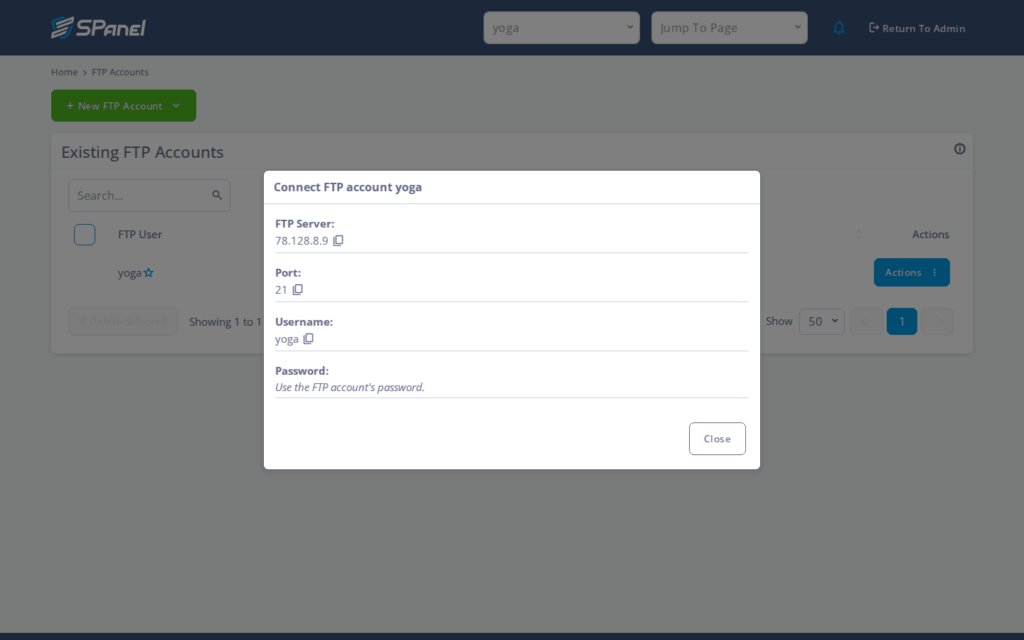
- Note the FTP Server (host), Port: 21, and Username shown in the dialog. The password is the FTP account’s own password, which is not displayed here.
- In your FTP client, create a new connection using those values: the host, port 21, and the username, with the account password.
- For the encryption setting, choose explicit FTP over TLS (sometimes labelled “Require explicit FTP over TLS”) and keep the port at 21. This is what turns a plain session into FTPS.
- Connect. On the first connection your client will likely show a certificate-trust prompt – accept it to continue. After that, your account’s files load over an encrypted session.
What happens behind the scenes
When your client requests explicit FTP over TLS, it connects on port 21 as usual, then asks the server to upgrade the session to TLS before any login is sent. From that point the username, password, and file contents are encrypted in transit. The account, its home directory, and its permissions stay the same – only the transport changed.
Limitations and edge cases
- FTPS is not SFTP. FTPS is FTP-over-TLS on port 21 (explicit); SFTP is an SSH-based protocol on port 22. They are different protocols. If a tool or teammate asks for “SFTP”, FTPS will not satisfy it – confirm which one is needed.
- An FTP sub-user is not an SSH/SFTP login. An FTP account, including a sub-user, only grants FTP access. It cannot log in over SSH or SFTP. For SSH-based access you need a separate SSH user.
- A certificate-trust prompt on the first connection is normal. The first time you connect with TLS, the client asks you to accept the server certificate. Accepting it once lets future connections proceed.
Troubleshooting
| Symptom | Likely cause | What to do |
| Connection refused or times out on port 21 | Client not set to explicit TLS, or TLS unavailable on the server | Confirm the client uses explicit FTP over TLS on port 21; verify TLS is enabled for your server. |
| Login fails with the correct username | Wrong password, or the host/username was mistyped | Re-copy the FTP Server and Username from the Connect dialog; re-enter the account password. |
| Certificate warning appears every connection | Certificate not trusted or saved by the client | Accept the certificate and choose to remember it, if your client offers that. |
| Client connects but without encryption | Encryption set to plain FTP or “if available” | Change the setting to require explicit FTP over TLS. |
When to use this / when not to use this
| Use this when | Skip or use something else when |
| You want FTP credentials and transfers encrypted in transit | You specifically need SFTP (SSH on port 22) |
| You already have an SPanel FTP account and a TLS-capable client | Your client only supports plain FTP and cannot be changed |
| You connect over shared or untrusted networks | TLS is not available on your server (confirm first) |
FAQ
Q: Do I need a separate account for FTPS?
A: No. The same account works with or without TLS. Encryption is a client setting, so you reuse the existing host, port 21, and username.
Q: Where do I turn on FTPS in SPanel?
A: There is no FTPS toggle in SPanel. You select explicit FTP over TLS in your client; SPanel only provides the host, port, and username through the Connect an FTP client dialog.
Q: Is FTPS the same as SFTP?
A: No. FTPS is FTP-over-TLS on port 21; SFTP is SSH-based on port 22. They are different protocols, and an FTP account does not provide SFTP access.
Q: Why does my client show a certificate prompt?
A: That prompt is normal on the first TLS connection. Accept the certificate; most clients let you remember it so it does not appear every time.
Q: Can an FTP sub-user use SFTP?
A: No. An FTP sub-user is an FTP login only. It cannot be used for SSH or SFTP; you would need a separate SSH user.
Q: What if FTPS will not connect at all?
A: Confirm the client uses explicit TLS on port 21. If it still fails, check that TLS is enabled on your server.
