
SPanel’s File Manager can bundle files into tar.gz or zip archives and extract them later from the browser. For sensitive files, use a password-protected tar.gz, which SPanel encrypts with AES-256-CBC and PBKDF2. Zip is useful for compatibility, but its native password protection is not the same as the stronger encrypted tar.gz option.
The one limit to take seriously: a lost archive password cannot be recovered – there is no reset, so store it safely first. Large jobs run in the background, with a one-click abort if a run drags on.
Who this is for
This guide is for anyone on a ScalaHosting managed VPS who needs to package, protect, or unpack files without opening a terminal – usually a small business owner, though agencies and WordPress developers use it too. You need the SPanel user interface and the files, not tar, zip, SSH, or an SFTP client. If the files are not on the server yet, upload them first – see below.
What problem this solves
Three everyday tasks hit the same wall.
You want to download a whole folder, not forty files one click at a time. You want to send a client a bundle a stranger cannot open if the email goes astray. Or a backup .zip is on the server and you need its contents back – without an SSH session for one command.
The old answer to all three was the shell – tar, zip, unzip over SSH. Fine if you live in a terminal. Most people do not, though, and reaching for SSH to pack a folder is a lot of friction, especially mid-task with a site down.
How SPanel solves this
SPanel puts archive and extract controls right in the file listing. To bundle files, select them, choose Archive, pick tar.gz or zip, and set a password if it is private; SPanel builds the archive into the current folder. To unpack one, select the archive and choose Extract; its contents land alongside it. A one-click abort stops a long job cleanly.
Why this is different in SPanel
Two specifics set archiving here apart.
- A password-protected tar.gz uses real AES-256-CBC encryption. The traditional “zip password” tools apply a token lock – known weaknesses make it crackable in minutes with free software. SPanel encrypts a password-protected tar.gz with AES-256-CBC, a standard, strong cipher, so the bundle is genuinely protected in transit and at rest. It is the difference between a desk-drawer lock and a real safe.
- Archive and extract run in the background, with a one-click abort. Packing a few config files is instant; packing a 20 GB media library is not – and a panel that blocks while it works is one you force-quit. SPanel runs the job server-side and lets you keep working; if it drags on, one click stops it.
Before you start
- You need to be signed in to the SPanel user interface on the account that owns the files.
- Write the archive password down first. A lost archive password is unrecoverable – neither SPanel nor ScalaHosting support can reset it, because the file is encrypted, not password-gated. Lose the password, lose the contents. It’s a good idea to use a password manager.
- Pick the format. Use tar.gz for strong AES-256-CBC encryption or a Linux/WordPress tree; use zip for the widest compatibility with Windows and macOS recipients.
- Very large archives take time. Start the job, let it run in the background, and abort to stop it.
Step-by-step
We will bundle a folder into a password-protected tar.gz, then extract a seeded zip.
- Open the File Manager and select what to bundle. In the SPanel user interface, open the File Manager and select the folder to package – a WordPress directory or the seeded kb-test docs. The Archive control becomes available.
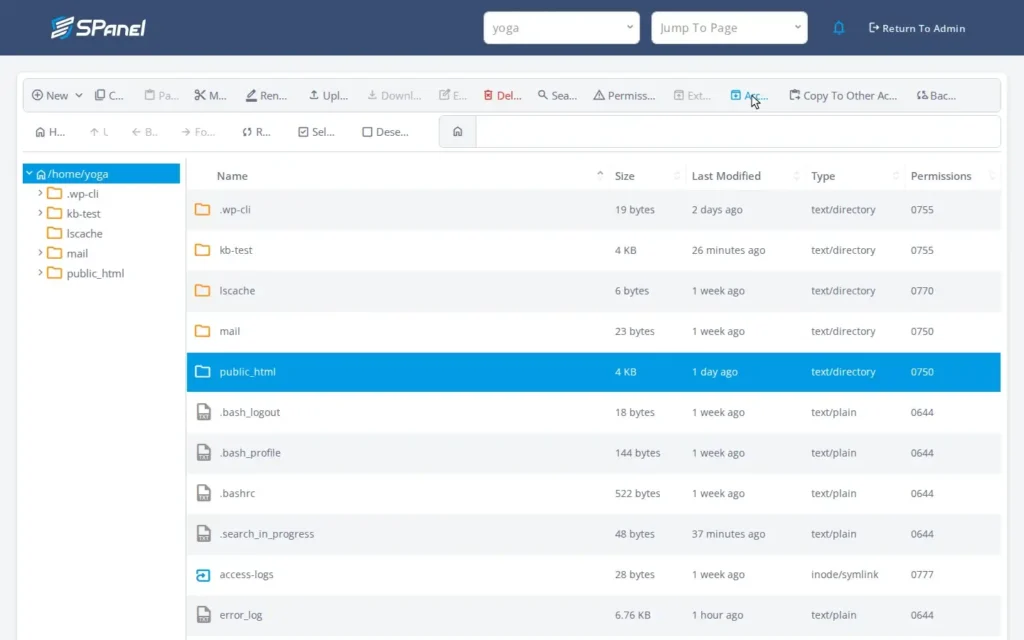
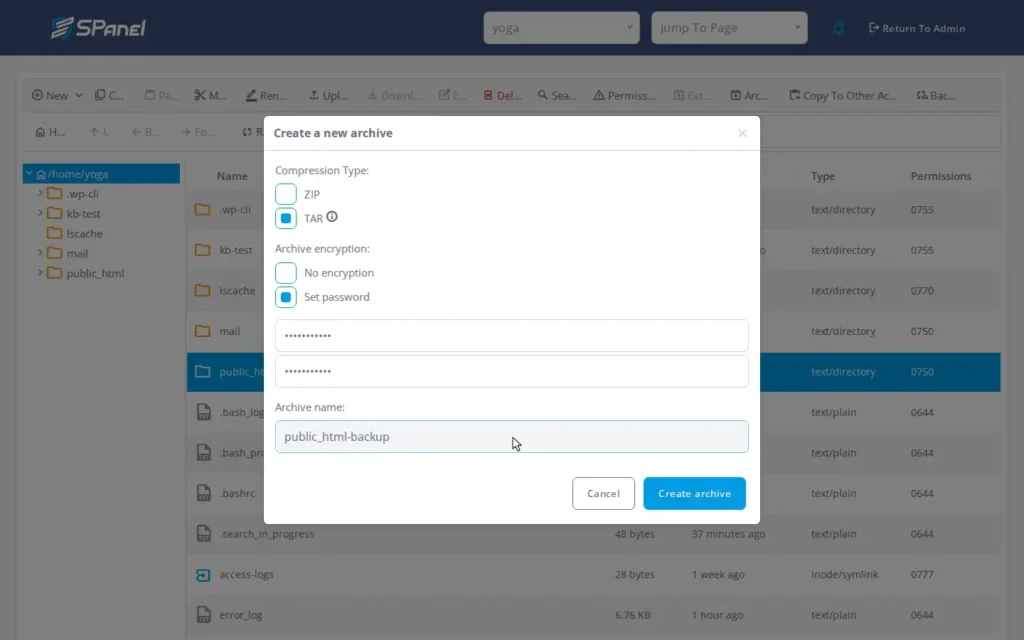
- Choose the format and set a password. Open the Archive dialog, choose tar.gz, and enter a password – for this demo, KbTest!2026. The password is what triggers AES-256-CBC encryption; confirm to start.
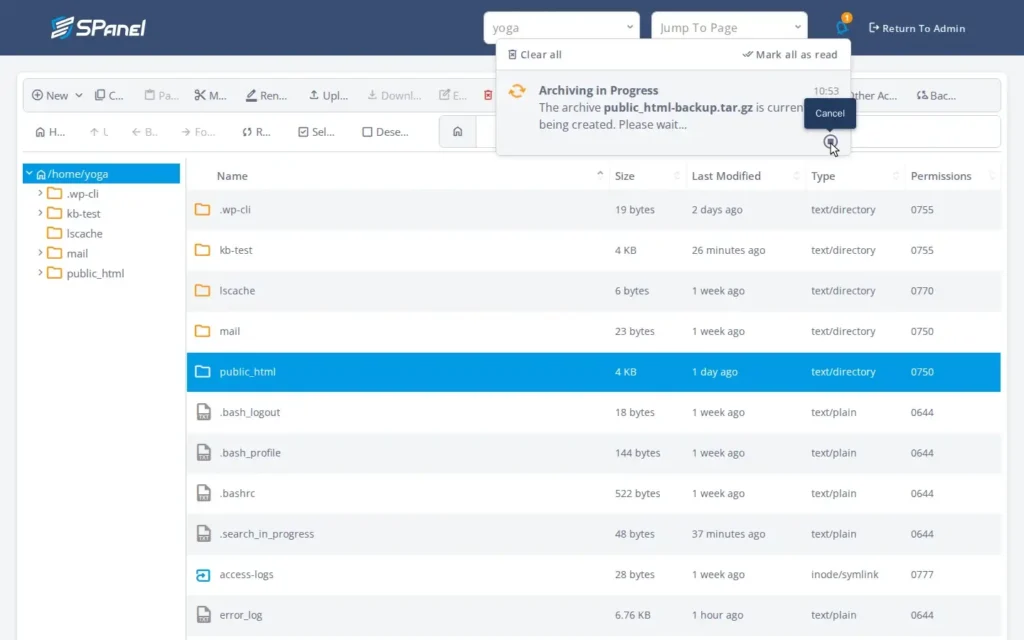
- Let it run, and note the abort control. SPanel builds the archive in the background and shows progress. An abort control is available from the moment it starts – one click stops it without freezing the panel.
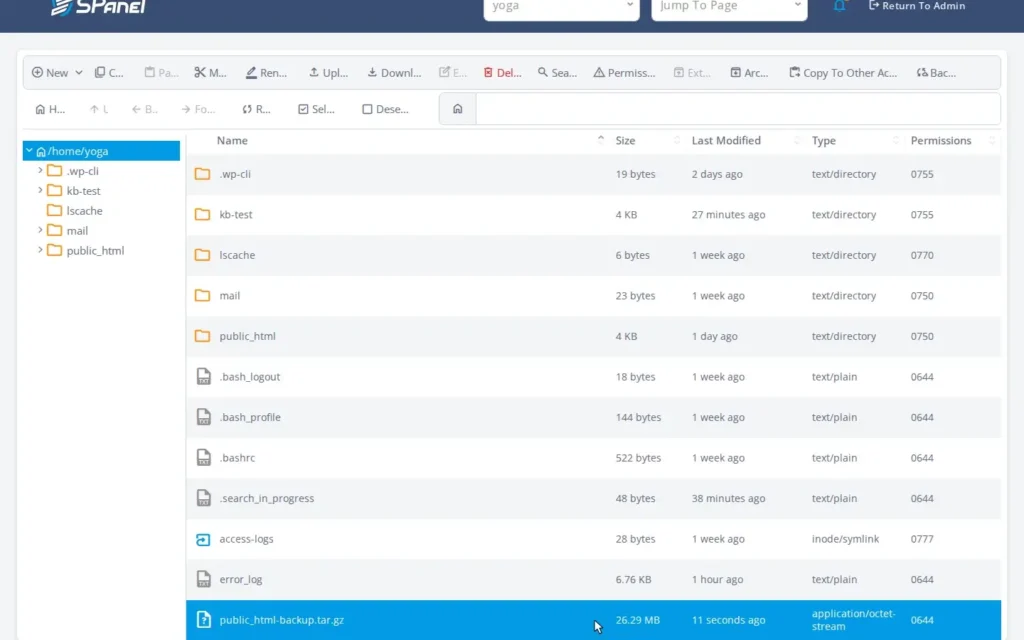
- Confirm the new archive is in the listing. When the job finishes, the new .tar.gz appears in the folder, ready to download. Opening it later asks for the password you set in Step 2.
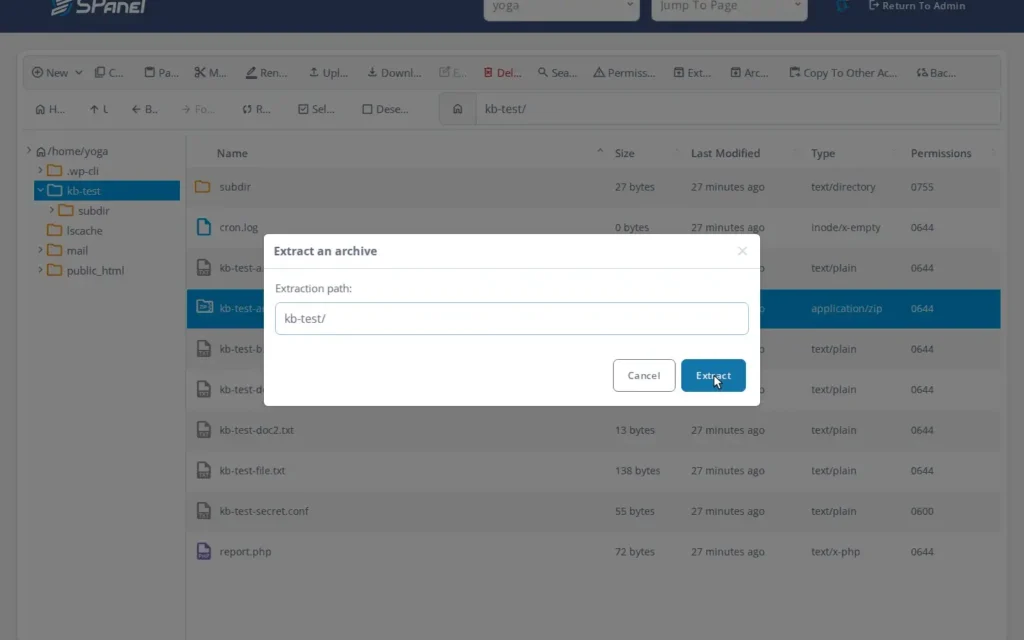
- Extract an archive. Now the reverse: select the seeded kb-test/kb-test-archive.zip, choose Extract, and SPanel unpacks it into the folder. A password-protected archive prompts for the password first.
What happens behind the scenes
The work runs on the server, as your account’s Unix user – not root The same boundary exists in SFTP or SSH: it reads only what your account can read and writes only where it can write. SPanel runs the archive in the background and shows that the operation is in progress.
For very large archives, do not expect detailed percentage progress; let it finish or use Abort if you need to stop it. When you set a password, encryption is applied at archive time – AES-256-CBC protects the tar.gz as it is written, so the bundle is encrypted the moment it lands in your folder.
Limitations and edge cases
The hard one bears repeating: a lost archive password is unrecoverable. No reset, no back door – encryption a support agent could undo would not be encryption. Save the password before you close the dialog.
Very large archives also take time; if a job runs long, use the abort rather than reloading.
And mind the format: only a password-protected tar.gz gets AES-256-CBC. An unencrypted tar.gz or zip is only a bundle. A password-protected zip gives basic portable protection, while password-protected tar.gz is the stronger encrypted option in SPanel.
Troubleshooting
| Symptom | Likely cause | What to do |
| You cannot open your archive – the password is lost | Encrypted passwords cannot be recovered | No reset; rebuild from the source with a new password you record |
| The archive job seems stuck | A very large folder is still packing | Let it finish, or abort and try a smaller selection |
| The .zip opens without asking for a password | It was created without a password | Re-create it with a password set; only then is it protected |
| A recipient on Windows cannot open your tar.gz | Many Windows setups lack a tar.gz tool | Send a zip for cross-platform compatibility |
| Extract fails partway | Not enough free space, or a corrupt archive | Free space or re-download, then retry |
When to use / when not to use
| Use File Manager archives when | Reach for another tool when |
| You want to download a whole folder as one file | You need scheduled, retained backups (use account backups) |
| You want a private bundle with real encryption (tar.gz + password) | You are syncing many files continuously (SFTP) |
| You are restoring a backup .zip without opening SSH | You want to edit one file, not a bundle (the File Manager editor) |
FAQ
Q: Is a password-protected archive in SPanel actually secure?
A: Yes, for tar.gz. It is encrypted with AES-256-CBC, a strong standard cipher – not the weak token password older zip tools use.
Q: What happens if I forget the archive password?
A: You lose access to the contents – the archive is encrypted, so there is no reset and support cannot open it. Store the password before you leave the dialog.
Q: Should I use tar.gz or zip?
A: Use tar.gz for strong encryption and Linux or WordPress trees; use zip for compatibility with Windows and macOS.
Q: Can I extract a .zip someone sent me?
A: Yes. Upload it, select it, and choose Extract. A password-protected archive asks for the password first.
For more on the tools above, see the SPanel documentation.
