FTP vs SFTP vs FTPS: The Complete Guide to File Transfers in sPanel

Your designer needs access to upload graphics. Your developer wants to deploy code to a staging directory. Your tutorial says to “just use the File Manager.” And the acronyms in the hosting docs – FTP, FTPS, SFTP – sound interchangeable enough that picking one feels like flipping a coin.
Here’s the kicker. They aren’t.
The differences between FTP vs SFTP vs FTPS matter. Some send your password across the network as readable text. Some encrypt the connection but require setup in your client. Some don’t use FTP at all and quietly assume you have SSH credentials. Pick the wrong one, and you either waste time or quietly hand your password to whoever’s on the same Wi-Fi.
This guide breaks down the four most common ways to move files on and off your hosting account – what each one does well, what each one fails at, and how to pick the right tool the first time.
For most SPanel users, SFTP is the best choice for your own file transfers, FTPS is the best choice when using FTP sub-users for scoped contractor access, and File Manager is the fastest option for quick browser-based edits. Plain FTP should be avoided unless a legacy tool requires it.
The Four Ways to Move Files to (and From) Your Hosting Account
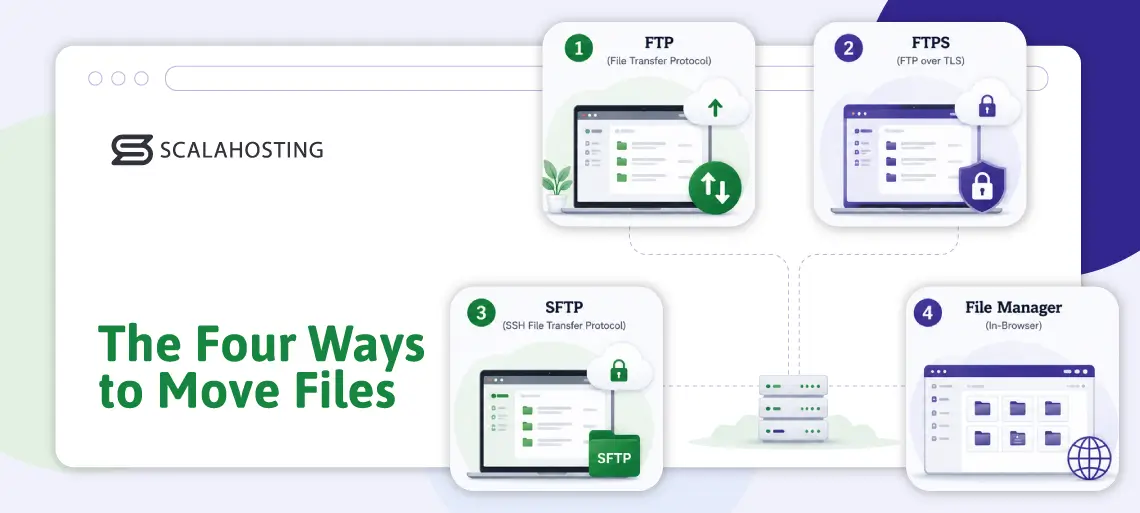
Every hosting account gives you more than one way to put files on the server. The four most common methods you’ll run into are plain FTP, FTPS, SFTP, and the in-browser File Manager that comes with your control panel.
Each one solves a slightly different problem:
- FTP (File Transfer Protocol) – the original method. A protocol designed in 1971 for moving files between computers. Still works. Still widely supported. Not encrypted in its default form.
- FTPS (FTP over TLS) – FTP, but with encryption layered on top. Same credentials, same client, encrypted traffic.
- SFTP (SSH File Transfer Protocol) – a different protocol entirely, despite the similar name. SFTP rides on SSH (the protocol used for command-line server access) and is encrypted by default.
- File Manager – the browser-based file interface inside your hosting control panel. No client to install, no credentials to share, no encryption to configure.
Here’s how the four stack up side by side:
| Method | Encryption | What You Need | Best For | Security Risk |
|---|---|---|---|---|
| FTP | None (plaintext) | FTP client + account credentials | Legacy software that only speaks FTP | High |
| FTPS | TLS-encrypted | FTP client (TLS enabled) + account credentials | Sharing scoped access with contractors | Low |
| SFTP | SSH-encrypted | SFTP-capable client + SSH credentials | Your own day-to-day file work | Low |
| File Manager | HTTPS (your browser) | Just your control panel login | Quick edits, occasional uploads, no setup | Low |
We’ll unpack each row across the next four sections. The short version: plain FTP is the one to think twice about, FTPS and SFTP are both solid for different reasons, and the File Manager is the right tool more often than people assume.
FTP – The Old Workhorse (and Why It’s Risky on Its Own)
FTP is the protocol that started it all. When the first servers needed a standardized way to swap files in the early 1970s, FTP was what they got. Half a century later, it’s still around, in some cases even without people realizing what it does (and doesn’t do) under the hood.
Here’s how plain FTP works in practice:
- You install an FTP client on your computer (FileZilla, WinSCP, Cyberduck, or similar).
- You enter your hosting server’s hostname, your FTP username, and your password.
- The client opens a connection to the server. You authenticate. You start moving files.
Simple. Familiar. Universally supported.
So what’s the catch?
Plain FTP doesn’t encrypt anything. Your username and password travel across the network as readable text. So does every file you upload or download. So does every command you send.
Even on trusted networks, FTPS or SFTP is the safer default. Plain FTP should be reserved for legacy tools that cannot use encrypted transfer. On a coffee shop’s open Wi-Fi, a hotel network, an airport hotspot, or any other shared connection where you don’t know who else is listening, plain FTP becomes a real liability. Anyone running basic packet-capture software on the same network can read your credentials directly off the wire.
The protocol itself isn’t broken. It was designed for a friendlier internet that didn’t yet exist as a public network. The problem is using it today, on networks where someone might actually be paying attention.
You’ll still encounter plain FTP in a few places: legacy software that doesn’t support anything newer, custom integrations built before encryption was the default, or third-party tools that just haven’t been updated. If you must use it, do so from a trusted network and rotate the password immediately afterward.
FTPS – FTP With Encryption Layered On
FTPS is the fix for plain FTP’s biggest weakness. Same protocol underneath, same commands, same client compatibility – but the connection itself is wrapped in TLS (Transport Layer Security), the same encryption layer that secures HTTPS.
In practice, that means your credentials no longer travel as plaintext. Your file contents don’t either. Anyone capturing network traffic sees encrypted noise instead of your password and data.
One thing trips people up here.
FTPS uses the exact same credentials you’d use for plain FTP. There’s no separate “FTPS account.” The encryption is something your FTP client negotiates with the server at the start of the connection. The username and password don’t change.
Turning FTPS on is a client-side setting. The exact wording varies by software:
- FileZilla: in the Site Manager, set Encryption to “Require explicit FTP over TLS.”
- Cyberduck: choose “FTP-SSL” instead of “FTP” when adding the connection.
- WinSCP: pick FTP as the protocol, then set Encryption to “TLS/SSL Explicit.”
The first time your client negotiates TLS, it may ask you to trust the server certificate. Verify that the certificate belongs to the expected server before accepting it.
FTPS sits in a useful middle ground. It keeps the FTP workflow you (and your tools, and your contractors) already know, but it kills the cleartext-credentials problem that makes plain FTP a liability. For most cases where someone hands you “the FTP credentials,” configuring FTPS in your client is the right move.
SFTP – The Modern Default for Your Own Access
SFTP looks like FTP. It even sounds like FTP. The name has FTP in it. But none of that matters as SFTP is a completely different protocol.
Here’s where it gets interesting.
SFTP doesn’t run on the FTP infrastructure at all. It runs on SSH (Secure Shell), the same protocol system administrators use to access a server’s command line. When you connect via SFTP, you’re using SSH credentials, going through the SSH port, and inheriting SSH’s security model.
What this gets you:
- Encryption by default. There’s no plain vs. secure version. SFTP is encrypted, full stop. No “use SFTP, but turn encryption on” step.
- One credential, two uses. The same username and password (or SSH key) that gets you shell access also gets you SFTP access. No separate FTP accounts to manage.
- Better authentication options. SSH supports key-based authentication, which is more secure than password authentication and can function as an effective two-factor when combined with a passphrase on the key.
For your own day-to-day file work – uploading a redesign, deploying changes, pulling backups, editing a config – SFTP is the right default. It’s encrypted, modern, and doesn’t require you to configure anything beyond your client.
There’s a catch most articles skip, though.
In SPanel’s standard customer workflow, SFTP uses the main account’s SSH credentials. For contractor access scoped to one directory, FTP sub-users with FTPS are the better fit.
For sharing scoped access with a contractor or an integration, SFTP isn’t actually the right tool. FTP sub-users with FTPS encryption are. But we’ll get there in two sections.
The File Manager – No Client, No Setup, Just a Browser
The File Manager is the option most people forget exists. It’s the file management screen inside your hosting control panel – a browser-based interface that lets you browse, edit, upload, download, archive, search, and rearrange files without ever opening an FTP client.
For a surprising range of jobs, it’s the fastest tool for the work.
What a well-built File Manager can do:
- Edit files in the browser. Open a config file, change a setting, save. No download-edit-reupload cycle.
- Upload from your computer or from a URL. Drag and drop from your desktop, or paste a URL and have the server fetch it directly. This is handy for grabbing software installers, since the download happens at server bandwidth rather than your home upload speed.
- Archive and unarchive. Compress a folder into a zip or tar.gz with a single click, optionally password-encrypted. Extract uploaded archives the same way.
- Search and find. Search by filename, or search inside files for a specific text string – across an entire site’s directory tree.
- Permissions in bulk. Set the correct permissions across an entire directory (the classic “0644 for files, 0755 for directories” WordPress fix) in a single operation.
When the File Manager is the right tool: you need to edit one file, you’re not at your usual computer, you don’t want to share FTP credentials, or you want to do something quick without setting up a client.
When it isn’t: bulk transfers of very large files where a dedicated client is faster, or syncing local development against the server (which an FTP/SFTP-aware editor handles better).
Most control panels include a File Manager. The quality varies wildly. A bad one is little more than a directory listing with upload and delete buttons. A good one handles symlink attacks correctly, runs operations as your account user (not as root), preserves file permissions on save, and copes with directories containing thousands of files without timing out.
FTP vs SFTP vs FTPS: Which One Should You Actually Use
Here’s the practical decision framework, free of acronym whiplash.
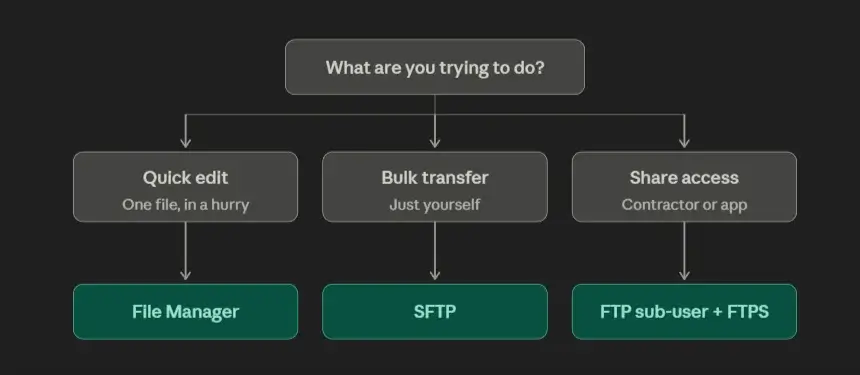
The framework in plain prose:
- You’re editing one file or making a quick change. Use the File Manager. It’s already there. No setup. No client. Two clicks and you’re editing.
- You’re moving a lot of files, and the account is yours. Use SFTP. It’s encrypted by default, uses your existing SSH credentials, and works with every modern file-transfer client – FileZilla, Cyberduck, Transmit, WinSCP, and others.
- You’re granting someone scoped access to a single folder. Create an FTP sub-user scoped to that folder. Have them configure their FTP client for FTPS so the connection is encrypted. When the project is done, delete the sub-user.
- You’re configuring software that only speaks FTP. Same answer – an FTP sub-user, with FTPS enabled on the client side. The software gets its own credentials. If it’s ever compromised, you rotate that one credential, and your main account stays untouched.
Plain FTP without encryption isn’t on this list for a reason. There’s almost always a better option.
The relative security risk across the four methods is stark when you look at it directly:
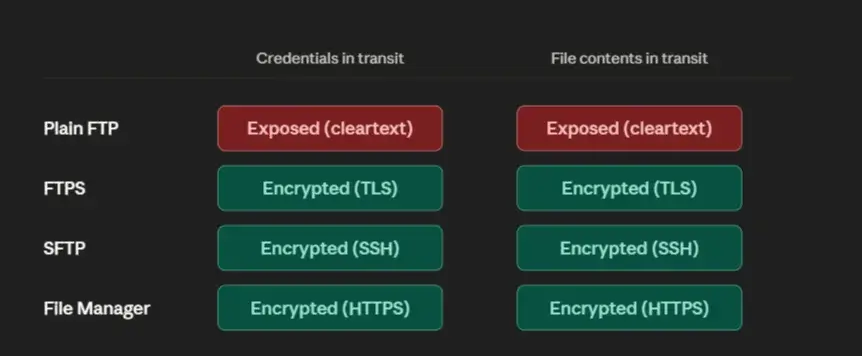
The chart says what the table couldn’t: the gap isn’t between three equally good options and a slightly worse one. It lies between one method that fundamentally doesn’t encrypt anything and three that do.
How to Share File Access Without Handing Over Your Main Password
Every business owner who’s hired help has run into this. Your designer needs to upload graphics. Your developer needs to deploy code. Your copywriter needs to update page content. The natural reflex is to hand over your hosting login.
Don’t.
Once your contractor has the main account password, they have access to everything – your email, your databases, your other websites, and your billing details. The risk isn’t necessarily that they’ll do something malicious. But there is always a chance that the password gets stored somewhere it shouldn’t, shared with a subcontractor, reused on a service that later has a breach, or just emailed across a network that wasn’t private.
The clean way to share access is with an FTP sub-user. Most hosting control panels let you create one in under a minute. You pick a username, set a password, choose the directory the sub-user is allowed to access, and hand over the credentials.
What the sub-user can do: browse, upload, download, and modify files inside the directory you scoped them to.
What the sub-user cannot do: see your email, touch your databases, view your other sites, access anything outside their scoped directory, or escalate into other parts of your account.
A few practices that turn this from “OK” into “actually good“:
- Use FTPS, not plain FTP, on the client side. Your sub-user works fine with either. The encrypted option costs nothing extra.
- Scope as tightly as you can. A designer needs public_html/wp-content/uploads, not public_html. Tighter scope, less damage if credentials leak.
- Rotate passwords periodically. Especially on long-running integrations. The username stays the same; only the password changes.
- Delete the sub-user when the project ends. Don’t leave dormant credentials around. Deletion takes one click and revokes access for all subsequent login attempts.
This is also where it’s worth reading up on broader securing your hosting account practices – credential hygiene is a small but meaningful piece of a wider security picture.
How ScalaHosting Approaches File Transfer
Most of the friction in file transfer comes from the gap between what a protocol can do and what your hosting environment actually supports. A panel that doesn’t expose FTP sub-user management forces you to handle that work through support tickets. A File Manager that times out when working with large directories pushes you back to a client you’d rather not install. A server that doesn’t support FTPS makes encryption a non-starter for some workflows.
At ScalaHosting, we’ve figured how to smoothen the file transfer process.
We’ve built SPanel, our in-house control panel, with all four methods working together on every account.
The File Manager handles the daily work – twelve distinct capabilities, including in-browser editing with original-permissions preservation, URL-based uploads (the server pulls the file at server bandwidth instead of your upload speed), password-encrypted archiving with AES-256-CBC, recursive permissions fixes, and cross-account file transfer for agency workflows. Every operation runs as your account user (not as root), which means the filesystem itself enforces what you can and can’t touch – the strongest security boundary available on a Linux system.
For sub-user management, SPanel runs Pure-FTPd, an open-source FTP server with a strong security record. Sub-users are virtual users – they exist in Pure-FTPd’s user database, not in the operating system. They have FTP access only, no SSH access, and no presence outside the FTP service. The system enforces a naming convention that prefixes every sub-user with the parent account’s username, which makes accidental cross-account access impossible at the naming layer. Path-traversal attempts (the classic trick someone might use to scope a sub-user outside their account) are blocked and logged.
FTPS is supported on the same Pure-FTPd server with the same credentials – clients negotiate TLS at connection time, no separate “FTPS account” required. SFTP uses your main account’s SSH credentials, encrypted by default through SSH.
All of this runs alongside SShield, our AI-powered security layer, which monitors for suspicious patterns across the server in real time and blocks 99.998% of known web attacks before they reach hosted sites. Strong credentials, encrypted transfers, scoped access, and real-time threat monitoring all reinforce each other – none of them is a complete answer alone.
The whole stack is included on every managed VPS plan, with no per-account fees, no per-sub-user fees, and no caps on the number of sub-users you can create.
To assist you with your file transfer needs, you have the entire ScalaHosting Support Team at your disposal. In case you need to transfer your website data from another account to Scala, they can take care of the entire process for you. Free of charge, of course. You specify the most convenient time for migration, and our experts will even test everything afterward to confirm the successful result.
Want to talk to a professional? Our Support Team contact is just a click away!
The Bottom Line
The choice between FTP vs SFTP vs FTPS isn’t really three options – it’s “encrypted or not.” For your own use, default to SFTP. For shared access, use an FTP sub-user with FTPS enabled in the client. For quick jobs, use the File Manager. Plain FTP is rarely the right answer in 2026.
Want a hosting setup where all four methods work out of the box, with FTP sub-users, FTPS, SFTP, and a properly engineered File Manager included? Explore our managed VPS plans – every tier ships with the full stack.

Frequently Asked Questions
Q: Is SFTP the Same as FTPS?
A: No. While they sound similar, they’re different protocols. FTPS is regular FTP with TLS encryption wrapped around it – same FTP commands, same server, encrypted connection. SFTP represents a file transfer carried over SSH and doesn’t use the FTP protocol at all. SFTP uses SSH credentials and the SSH port; FTPS uses FTP credentials and the FTP port with TLS.
Q: Should I Use FTP, FTPS, or SFTP?
A: For your own use, SFTP is generally the right choice. It’s encrypted by default, simple to configure, and uses your existing SSH credentials. For sharing scoped access with someone else, FTP sub-users configured with FTPS encryption in the client are the right tool, because they’re directory-scoped in a way SFTP isn’t. Plain FTP without encryption should be avoided whenever practical – credentials and content travel as cleartext, which is risky on any untrusted network.
Q: Can I Limit an FTP Sub-User to Just One Folder?
A: Yes. When you create the sub-user, you specify a home directory – the folder the sub-user is allowed to access. They can navigate and modify files inside that folder, but can’t move above it. Common scopes are the whole site (public_html), a media folder (public_html/wp-content/uploads), or a staging directory.
Q: Will Deleting an FTP Sub-User Delete the Files They Uploaded?
A: No. Files uploaded by an FTP sub-user are owned by the parent account, not the sub-user. Deleting the sub-user removes only the credential – the files stay. You can clean those up separately through the File Manager if you no longer need them.
Q: Why Is My FTP Client Timing Out When I Try to Connect?
A: Most FTP connection timeouts come from firewall issues with FTP’s data channel – it uses a separate connection that some firewalls block. Switching your client to passive mode (the default in most modern clients) fixes it in most cases. If FTP timeouts continue, try passive mode first. If the network blocks FTP-style data channels, SFTP is often simpler because it uses a single SSH connection.
Q: Can I Use Two-Factor Authentication With FTP?
A: Not directly. FTP doesn’t support 2FA cleanly. For 2FA-protected file access, use SFTP via your main account with SSH key-based authentication. SSH key-based authentication is stronger than password-only access, especially when the private key is protected with a passphrase. For FTP sub-users, the practical security measures are strong, unique passwords, FTPS encryption, and periodic rotation.