
In SPanel, open Domains, use a domain’s Actions menu to open Settings, and edit the Document Root field. Click Save. SPanel rewrites the web-server configuration so the domain serves from the new directory and keeps SSL renewals working. One important caveat: changing the document root does not move your files, so the target directory must already contain your site or the domain will return a 404 error.
Who this is for
This is for site owners who need a domain to serve from somewhere other than the default public_html – pointing a domain at a staging build, at a subfolder that holds a separate site, or at a framework’s public directory (the public or web folder that ships with many PHP frameworks). You manage this yourself from the SPanel UserInterface.
What problem this solves
By default a domain serves from public_html, but plenty of setups don’t live there. A PHP framework keeps its front controller in a public subfolder while the application code sits one level up, outside the web root for safety. A staging copy might sit in its own directory while you prepare a launch. The Document Root field lets you tell the domain which directory to serve, without editing server configuration by hand.
How SPanel solves this
Open Domains in SPanel. Each domain is listed in a row with an Actions menu; choosing Settings opens the dialog titled “Settings for <domain>”. The first field there is Document Root. It shows a fixed prefix of /home/<user>/ that you cannot edit, followed by an editable suffix that defaults to public_html. A Browse button lets you pick an existing directory instead of typing the path. After navigating to the correct directory, click Save.
Why this is different in SPanel
Two things happen automatically. First, SPanel rewrites the web-server vhost – both the LiteSpeed/Apache layer and Nginx – so the new root serves consistently across the stack. Second, SPanel fixes the Let’s Encrypt renewal webroot in the same action, so your certificate keeps renewing from the correct directory after the move. You don’t edit configuration files or re-run a certificate command yourself.
Before you start
- You need access to the SPanel User Interface for the account that owns the domain.
- Make sure the target directory already exists and contains your site files, including an index file. The change repoints the domain; it does not create or move anything.
- If you’re repointing a live domain, copy or move the files into the new directory first, so visitors never hit an empty folder.
- Use the Browse button for easier navigation to the correct document root folder.
Step-by-step
- In SPanel’s User Interface, go to Domains. You’ll see each domain listed with its current document root, which helps you confirm you’re editing the right one.
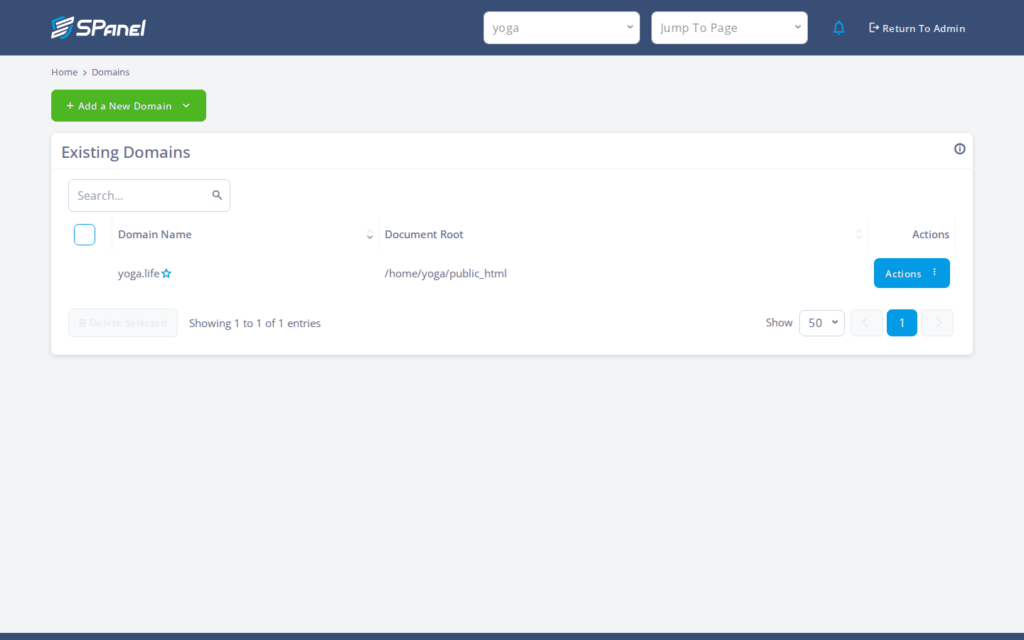
- Find the domain you want to change – in our example, yoga.life – and open its Actions menu, then choose Settings. The “Settings for <domain>” dialog opens with Document Root as the first field.
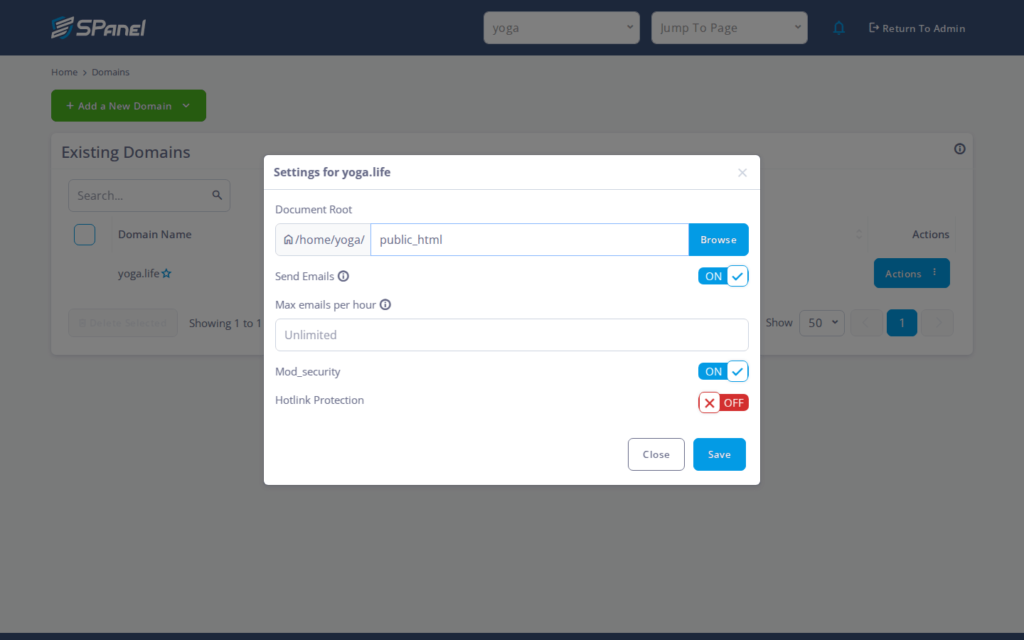
- Enter the correct path in the field. Type the directory name or click Browse to select the right one – for our example, the test target subdirectory that holds an index file. Double-check the path before continuing, since saving immediately changes what visitors see.
- Click Save. SPanel applies the change, rewrites the web-server configuration, and updates the Let’s Encrypt webroot. Reload the domain; you should see the site served from the new directory rather than public_html.
What happens behind the scenes
When you Save, SPanel updates the vhost that maps the domain to a directory on disk, across both the LiteSpeed/Apache and Nginx layers. Because the document root is part of how Let’s Encrypt validates a renewal, SPanel also repoints the certificate’s renewal webroot to match. The fixed /home/<user>/ prefix is a safety boundary: it keeps the served directory inside your own account, so you can’t point a domain at another user’s files.
Limitations and edge cases
- Changing the document root does not move your files. It only changes which directory the domain serves. If the new directory is empty or missing your index file, the site returns a 404 error. Copy your files into the target directory first.
- SSL renewal webroot is handled for you, but allow for brief propagation. SPanel updates the Let’s Encrypt webroot when the root changes, but give it a short window to settle before assuming a renewal problem. The certificate itself stays valid throughout.
Troubleshooting
| Symptom | Likely cause | What to do |
| Domain returns a 404 error after saving | The new directory is empty or has no index file | Move or copy your site files, including an index file, into the target directory |
| Site still serves the old content | Browser or server cache | Hard-refresh the page, or clear the cache, then reload |
| Wrong directory served | A typo in the suffix after /home/<user>/ | Reopen Settings and correct the Document Root, or use Browse to pick the right folder |
| Certificate renewal seems off shortly after a change | Webroot relocation is still propagating | Wait briefly, then recheck; the existing certificate stays valid meanwhile |
When to use this / when not to use this
| Use this when | Skip or use something else when |
| You want a domain to serve from a framework’s public directory | You just need to upload files to the existing root – use the File Manager |
| You’re pointing a domain at a staging subdirectory | You want to move files between folders – that’s a File Manager task |
| A subfolder holds a separate site you want the domain to serve | You haven’t placed any files in the target directory yet |
| You’re consolidating a site that lives outside public_html | The change would point outside your /home/<user>/ space – that isn’t allowed |
FAQ
Q: Does changing the document root move my website files?
A: No. It only changes which directory the domain serves. Put your files in the target directory first, or the site will return a 404 error.
Q: Will my SSL certificate break when I change the root?
A: The certificate stays valid. SPanel updates the Let’s Encrypt renewal webroot in the same action, though you should allow a short propagation window before assuming a renewal issue.
Q: Where do I find the Document Root field?
A: Open Domains, use the domain’s Actions menu, choose Settings, and it’s the first field in the “Settings for <domain>” dialog.
Q: Do I have to edit any configuration files myself?
A: No. SPanel rewrites the web-server vhost across the LiteSpeed/Apache and Nginx layers for you when you Save.
Q: Why does my domain show 404 right after I save?
A: Usually the new directory has no index file or no site files yet. Add them and reload.
Q: Can I change the root back to public_html later?
A: Yes. Reopen Settings, set the suffix back to public_html, and Save. The same rewrite and webroot update apply.
