
In SPanel, you manage an FTP sub-user from the FTP Accounts page. To rotate a password, open the row’s Actions menu and choose Change password. To remove access, tick the account’s checkbox and click Delete Selected, then confirm.
Note up front: deleting the sub-user removes its login but leaves the files in its home directory untouched, so cleanup is a separate step.
Who this is for
This is for site owners who gave a contractor, freelancer, or agency their own FTP login and now need to change that password or pull the access – because the project wrapped, credentials leaked, or it’s time for a routine rotation. You want to act on that one sub-user without disturbing your main account login or anyone else’s access.
What problem this solves
When a job ends, leaving a working FTP login in someone’s client is a standing risk. Sharing your main account password instead would be worse – you’d have to change your own credentials and re-point every tool you own. The narrow task is to change or revoke one contractor’s access without collateral damage, and SPanel’s per-account controls handle that directly.
How SPanel solves this
In SPanel, each FTP sub-user is a separate login listed on the FTP Accounts page. Every row has an Actions menu with two entries: Change password and Connect an FTP client.
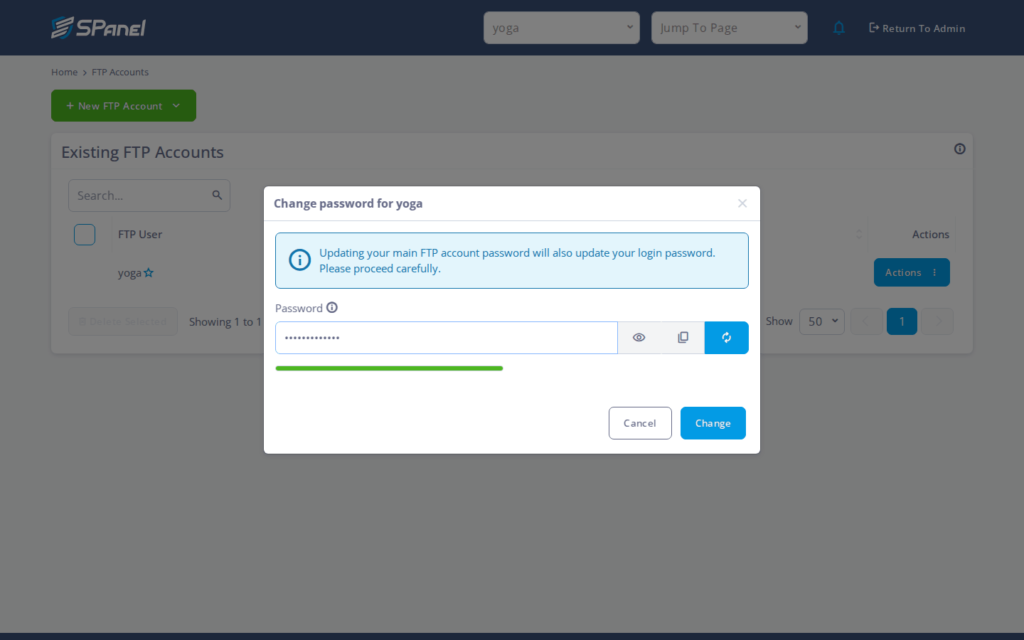
To rotate a password, open Actions and choose Change password. SPanel opens a dialog where you set the new password and save. The change applies to that sub-user only – your main account login is unaffected.
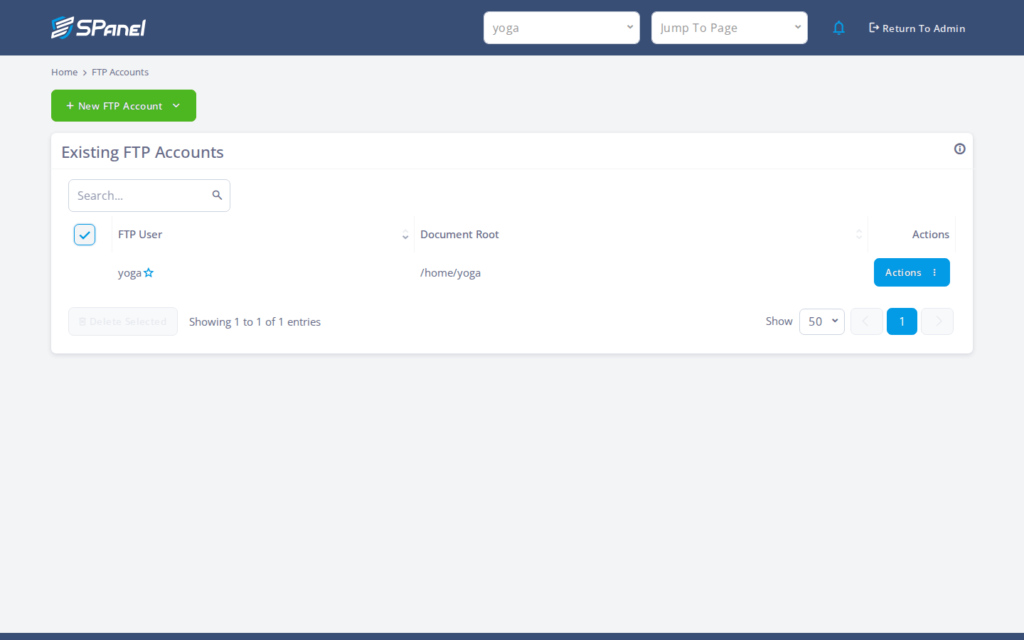
To revoke access, you don’t use the Actions menu. Select the account’s checkbox and click Delete Selected. SPanel asks you to confirm before removing the login. After you confirm, the sub-user disappears from the list and can no longer connect. There is no rename option; for a different username, delete the account and create a new one.
Why this is different in SPanel
Two details are worth calling out. First, credential management is scoped: you change or remove a single sub-user without touching the main account password or its files. The contractor’s login is its own object, so revoking it is a clean, contained action.
Second, a password change takes effect immediately for the next connection. There’s no propagation delay. The moment you save, the old password stops working. That matters when you’re rotating credentials after a possible leak.
Before you start
- Access to SPanel for the account that owns the FTP sub-user.
- Know which sub-user you’re acting on. The list uses the <account>_<subuser> namespace, so confirm the exact name first.
- For a password change, have a strong new password ready.
- Deletion is destructive with no undo. If the contractor uploaded files you still need, retrieve them first – deletion leaves the files but removes the login you’d use to reach them over FTP.
- To pause access temporarily, change the password rather than deleting.
Step-by-step
- Open SPanel and go to the FTP Accounts section. Find the row for the sub-user you want to change or remove – here, the sub-user created in the create-sub-user article.
- To change the password, open that row’s Actions menu. You’ll see Change password and Connect an FTP client.
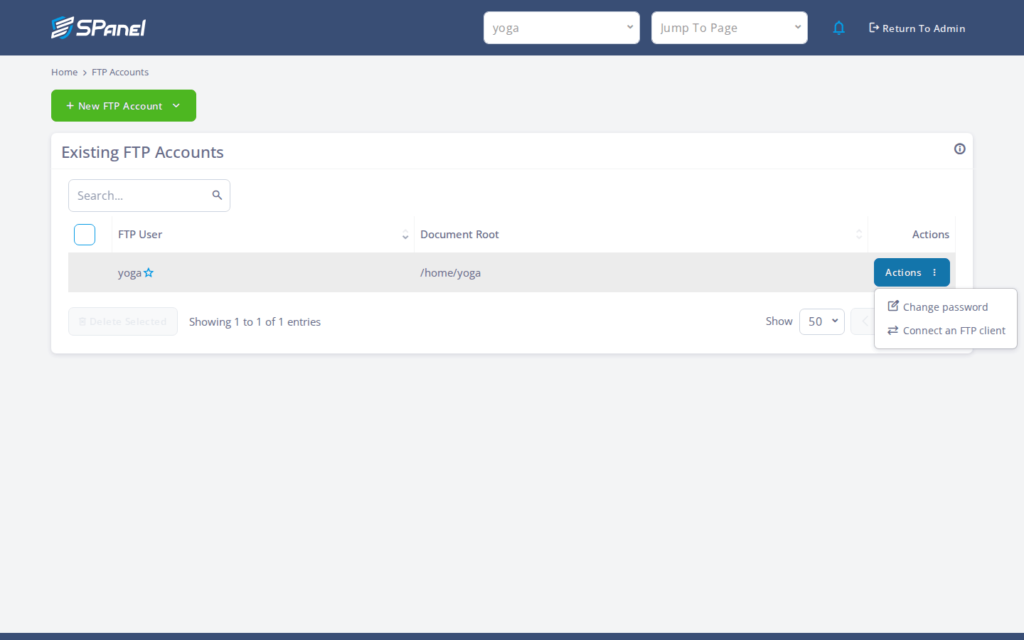
- Choose Change password. SPanel opens a dialog. Enter the new password and save. The dialog closes and the change is confirmed; the new password is required on the very next connection.
- To remove the sub-user instead, return to the FTP Accounts list.
Safety check first: confirm the right row, since deletion can’t be undone. Tick the account’s checkbox, then click Delete Selected. SPanel asks you to confirm. Approve the prompt, and the sub-user is removed and can no longer log in.
What happens behind the scenes
Each FTP sub-user is a self-contained login tied to a home directory on the server. Changing the password updates only that login’s credential, which is why your main account and other sub-users are unaffected and the change is live right away. Deleting the account removes the login record but leaves the home directory in place – the server treats your files as separate from the credential that reached them, so removing access never destroys data.
Limitations and edge cases
- Deleting the sub-user removes its login but does not delete the files in its home directory. Revoking access and cleaning up storage are separate tasks. If you need the files gone, remove them through File Manager or another login afterward.
- You cannot rename a sub-user. There’s no edit-name action in the Actions menu. To get a different name, delete the account and create a new one.
- The <account>_<subuser> namespace format still applies to any recreated user. A new sub-user is still prefixed with your account name, so plan the suffix and give the contractor the full namespaced login.
Troubleshooting
| Symptom | Likely cause | What to do |
| Contractor still connects after you changed the password | They saved the old password in their FTP client | The new password applies on the next connection; have them update the saved credential, or delete the account to fully revoke. |
| Can’t find a Rename action | SPanel has no rename for FTP sub-users | Delete the sub-user and recreate it with the new name. |
| Files remain after deleting the sub-user | Deletion removes the login, not the home directory | Remove the files separately through File Manager or another login. |
| Wrong account selected for deletion | Similar namespaced names in the list | Cancel the confirmation prompt, re-check the <account>_<subuser> name, then proceed. |
When to use this / when not to use this
| Use this when | Skip or use something else when |
| A contractor’s job ended and you want their access gone | You only need to pause access briefly – change the password instead |
| You suspect a sub-user’s password leaked | You want to free the storage too – delete, then clean up separately |
| You’re doing a routine credential rotation | You want a different username – delete and recreate, since there’s no rename |
| You need to revoke one login without touching your main account | You want to change your own main account FTP password |
FAQ
Q: Does changing the password disconnect an active session?
A: It changes the credential required for the next connection. An open session may continue until it ends; to be certain access is cut, delete the sub-user.
Q: Will deleting the sub-user delete its files?
A: No. Deletion removes the login only; the files in its home directory stay in place, so remove them separately if needed.
Q: Can I rename an FTP sub-user?
A: No. There’s no rename action. Delete the sub-user and create a new one with the name you want.
Q: How fast does a new password take effect?
A: Immediately. The next connection requires the new password; the old one stops working as soon as you save.
Q: Does changing a sub-user’s password affect my main account login?
A: No. Each sub-user is a separate login, so the change is scoped to that account and doesn’t touch your main credentials.
Q: Can I recover a deleted sub-user?
A: Not directly – there’s no undo action. You’d recreate it, and the recreated login still follows the <account>_<subuser> namespace format. To pause access without losing the account, change the password instead.
