
SPanel’s File Manager gives you two ways to get a file into your account without an FTP client – drag it in from your computer, or paste a URL and let the server fetch it. Open the File Manager, browse to your folder, then drop the file on the listing or paste a link into the Upload from URL field.
The URL option is the SPanel-specific trick: the download runs server-side with wget, so a 500 MB installer comes down at the server’s bandwidth, not your home upload speed. The main limit: that fetch is unauthenticated, so a URL needing a login, token, or signed link will not work – use SSH and curl.
Who this is for
This is for anyone on a ScalaHosting managed VPS who needs to put a file into their account, usually a small business owner adding a plugin ZIP or theme, though agencies and migrators know the URL trick too.
What problem this solves
You have a file that belongs on the server. Most panels leave one awkward way: open an FTP client, connect, and wait while it crawls up your home connection, far slower up than down.
The sharper version: a vendor hands you a link to a 500 MB installer. The native path downloads all 500 MB to your laptop, then pushes it back up – twice the transfer, through your slowest pipe. You should not be the middleman for a file two servers could hand off.
How SPanel solves this
SPanel puts both paths in the folder you are already viewing. Drag a file from your computer onto the listing, or paste a link into the Upload from URL field for a server-side fetch – either way it lands in the current directory, owned by your account.
Why this is different in SPanel
Two specifics set the SPanel upload apart from a plain FTP push.
- The URL upload runs at the server’s bandwidth. Paste a link and the fetch runs server-side with wget, over the server’s datacenter connection, not yours. A 500 MB installer that would crawl up your home line for an hour arrives in seconds; your connection stays free. Most panels make you the relay; SPanel lets the two servers talk directly.
- Every upload runs as your account user. The from-computer path stages files through a temporary area, then moves each one in as your Unix user, landing with the right ownership, validated independently. The filesystem decides what you can write, the same boundary as SFTP, so nothing can land owned by root or escape your account.
Before you start
- You must be signed in to the SPanel user interface on the destination account.
- The file is in the directory you are currently viewing. Browse to the destination first; for WordPress that is usually public_html/wp-content/uploads/.
- The from-computer path takes drag-and-drop or the file picker; have the file ready on your machine.
- The URL path needs a directly reachable, unauthenticated link. Paste it into a private browser tab first: if it downloads with no login, SPanel can fetch it.
Step-by-step
We will run both paths into a real WordPress folder, wp-content/uploads/: from the computer, then from a URL.
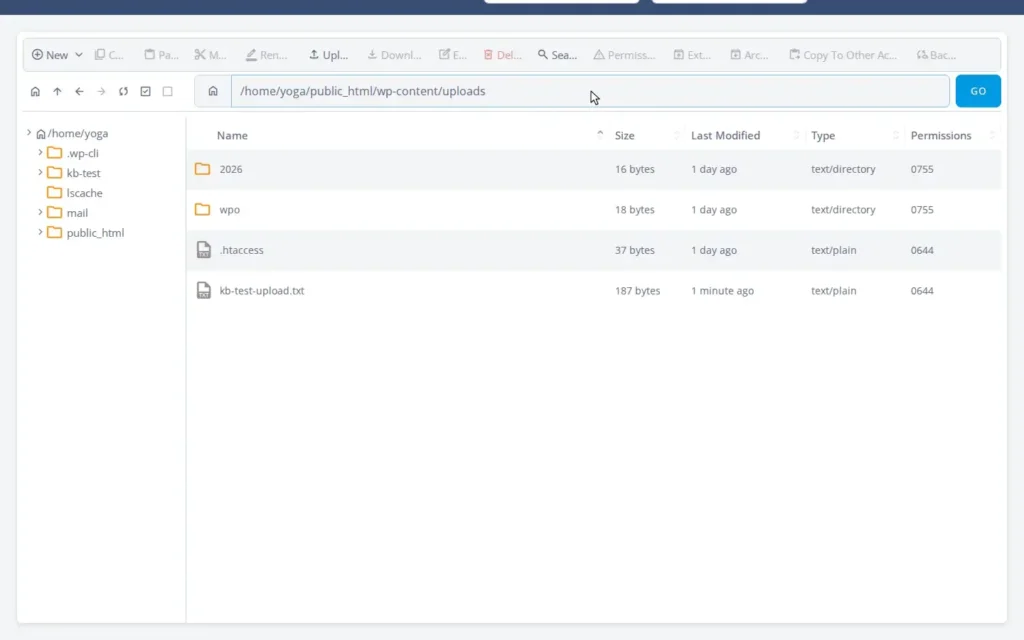
- Open the File Manager and browse to the destination. In the SPanel user interface, open the File Manager and go to public_html/wp-content/uploads/. The listing shows the folder and the upload entry point.
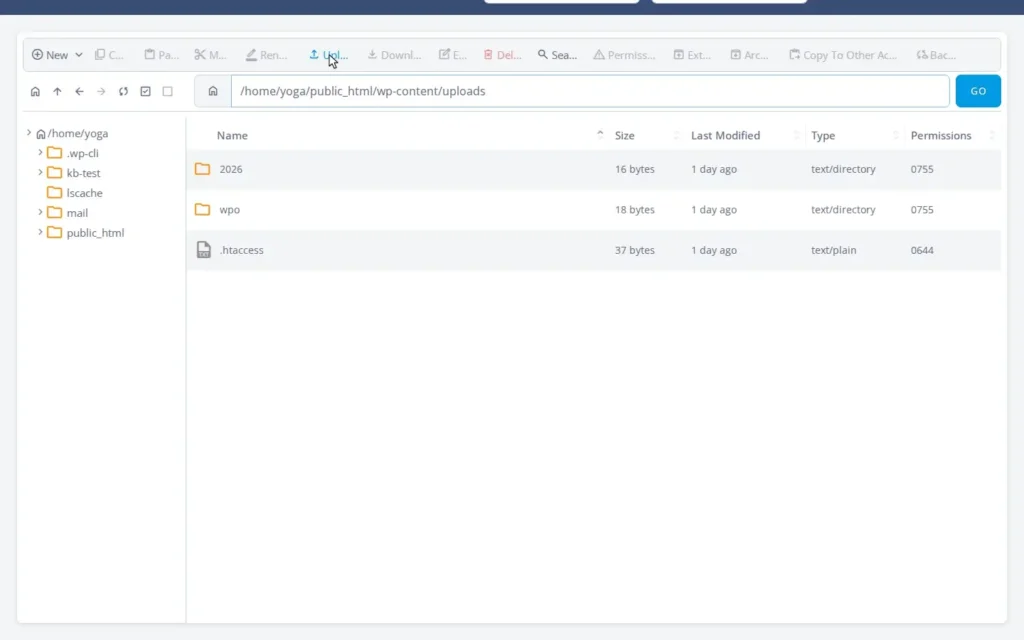
- Choose the file from your computer. Click Upload to open the Upload a file dialog, stay on the From Device tab, and pick kb-test-upload.txt – or drag it onto the dropzone.
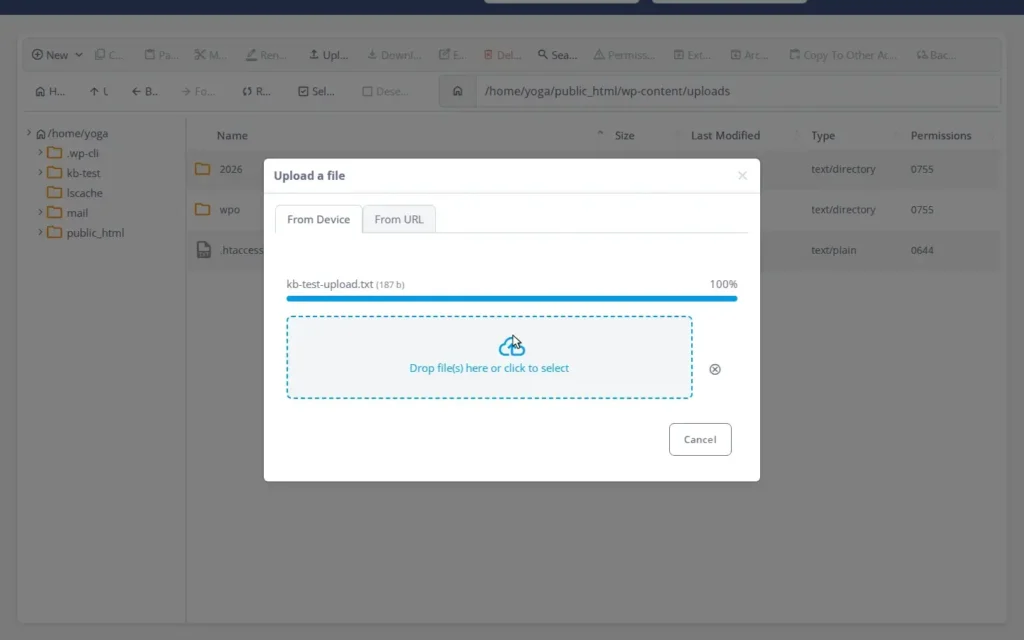
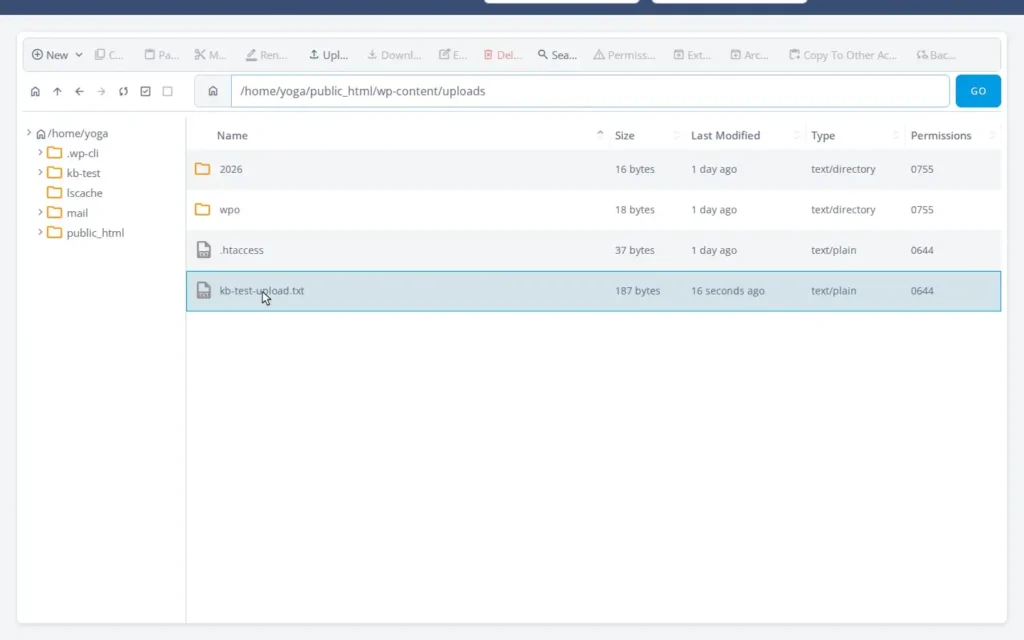
- Confirm it landed. When the transfer finishes, the listing refreshes and kb-test-upload.txt is there, owned by your account.
- Fill in the URL upload field. Switch to the From URL tab of the Upload a file dialog and paste https://yoga.life/kb-test-remote.txt into the File URL field. SPanel fetches it server-side, using the server’s connection, not yours.
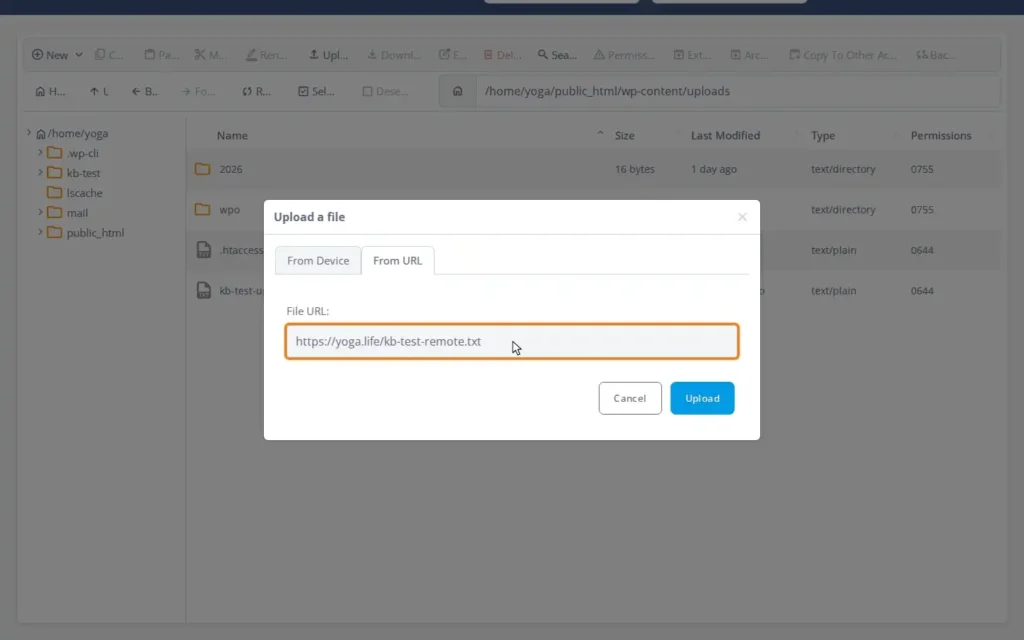
- Confirm the fetched file. Once the fetch completes, the listing refreshes and the file pulled from the URL sits in the current directory – never routed through your computer.
What happens behind the scenes
A from-computer upload stages through a temporary area, then lands as your Unix user, your ownership, never root’s. A URL upload skips your connection: SPanel runs wget on the server, downloading at server bandwidth straight into the current directory.
Limitations and edge cases
The URL upload is an unauthenticated fetch. It works for any link that downloads anonymously, but it cannot present credentials – so HTTP Basic Auth, API tokens, signed S3 links, and OAuth-gated downloads all fail, because wget has no way to log in. When a file needs authentication, use SSH and curl. The from-computer path is capped by your browser and upload speed – where the URL path or SFTP wins. Neither replaces SFTP for bulk work like syncing thousands of files.
Troubleshooting
| Symptom | Likely cause | What to do |
| “URL upload failed” or nothing arrives | The URL needs a login/token, or is unreachable | Open it in a private browser tab; if it asks you to sign in, use SSH + curl |
| The fetched file is tiny or an HTML page | The URL returned a login or error page, not the file | Confirm it downloads anonymously, then retry |
| A from-computer upload stalls or times out | The file is large and your upload speed is the bottleneck | Use the URL path, or move large files over SFTP |
When to use / when not to use
| Path | Best when | Not when |
| From your computer | A small file on your machine – a plugin ZIP, theme, or document | The file is huge and your upload is slow |
| From a URL | The file is at a public, anonymous link – especially a large installer | The link needs a login, token, or signed auth |
| SFTP / SSH | Bulk transfers, scripted syncs, or authenticated curl downloads | One file you could drop in or fetch by URL |
FAQ
Q: Can I upload a file from a URL?
A: Yes. Paste the link into the Upload from URL field and SPanel fetches it with wget, over the server’s connection, into the folder you are viewing – your computer is never in the path.
Q: Why did my URL upload fail?
A: Almost always because the link is not anonymously reachable – the fetch is unauthenticated, so anything behind a login, a token, or a signed link fails. Open it in a private browser tab: if it downloads with no sign-in, SPanel can fetch it; if not, use SSH and curl.
Q: Is URL upload faster than uploading from my computer?
A: For large files, usually. A URL upload runs at the server’s bandwidth; a from-computer upload is capped by your upload speed. For a 500 MB installer that is the difference between seconds and an hour.
