
In SPanel’s File Manager, select the file or folder, click the Permissions toolbar button, and adjust the owner/group/other read-write-execute checkboxes or type a numeric mode. SPanel applies the change as your account owner, so ownership stays correct. For most sites, files should be 644 and folders 755 – avoid 777, which is almost never needed and exposes your files.
Who this is for
This is for developers and site owners who hit a “permission denied” error, a 403, or a file an application cannot read or write. You have a specific file or folder – a config file, an upload directory, a PHP script – that needs correcting through SPanel rather than over SSH, without changing ownership or breaking other files.
What problem this solves
Wrong permissions break sites two ways. Too restrictive, and the web server or your application gets “permission denied” and the page fails. Too loose – 777 on everything – and any process on the server can read or rewrite your files, a real security exposure. You need to set a sensible mode on one item and confirm it took effect.
How SPanel solves this
File Manager handles permission changes through one dialog. Select the file or folder, then click the Permissions button on the toolbar – it carries a warning icon. The change-permissions dialog opens with a grid of read, write, and execute checkboxes for owner, group, and other, plus a numeric mode field.
The two views are linked: tick a box and the number updates; type a number and the boxes follow. Set the mode, confirm, and the dialog closes. The listing reflects the new permissions immediately.
Why this is different in SPanel
Two things are worth knowing. First, SPanel applies the change as your account owner, not as root. Your files keep the correct ownership, so you don’t create a new “owned by the wrong user” problem while fixing a permissions one.
Second, the dialog shows the checkbox grid and the numeric mode together and keeps them in sync. If you think in rwx boxes, use the boxes; if you think in 644, type 644. Seeing both views of the same value makes it harder to set something you didn’t intend.
Before you start
- Access to SPanel and the File Manager for the account that owns the files.
- Know the mode you want before opening the dialog: files 644, folders 755 in most cases.
- Changing the wrong item – or removing an execute bit something relies on – can take a feature offline. Note the current mode before you change it so you can revert.
Step-by-step
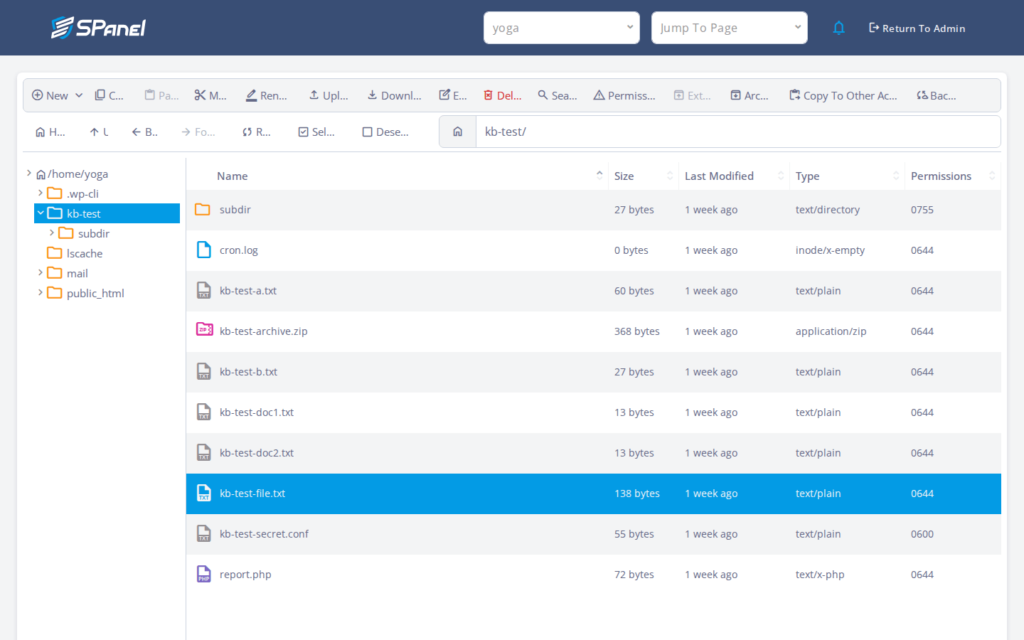
- Open File Manager and browse to the item. For this walkthrough we use kb-test-file.txt inside the kb-test folder. Click once to select it; the row highlights.
- Click the Permissions button on the toolbar – the one with the warning icon. The change-permissions dialog opens for the selected item.
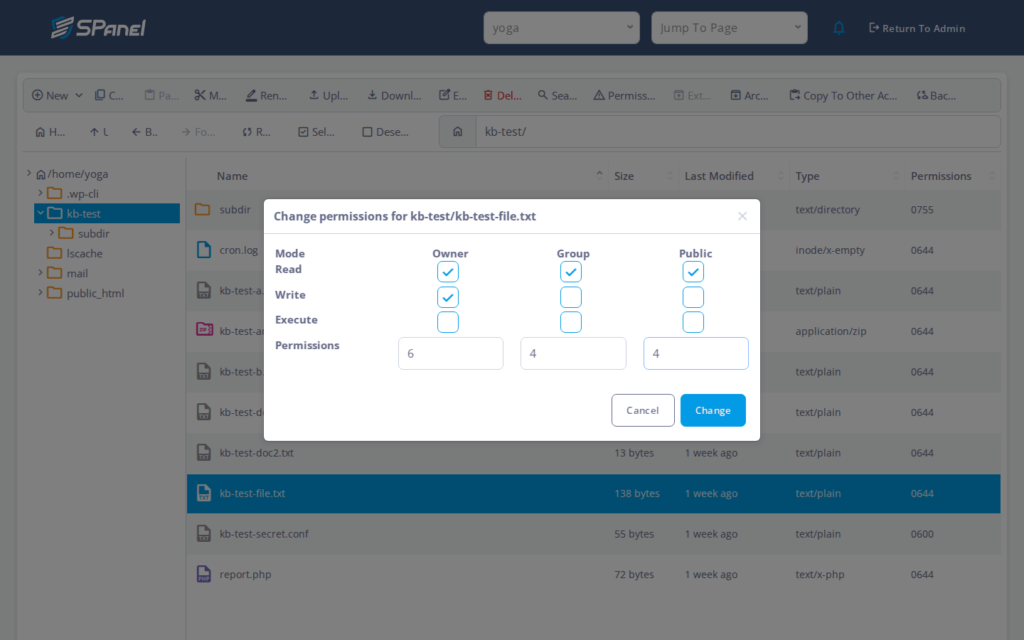
- Set the mode. Use the read/write/execute checkboxes for owner, group, and other, or type the numeric mode directly. For kb-test-file.txt, 644 is correct. The grid and the number stay in sync, so confirm both read as you expect.
- Safety check before you confirm: re-read the item name and the mode you’re about to set. A folder needs the execute bit (755) to be enterable; a file usually does not (644). If you’re changing a folder and want the same mode on what’s inside, select the Recursive (apply to all sub-directories and files inside selected) checkbox.
- Click Change. It closes the dialog and shows the new permissions. Reload or retry the failing operation; the “permission denied” error should be gone.
What happens behind the scenes
SPanel writes the change on the filesystem under your account, the same way a chmod would, but as the account owner rather than root – which is why ownership doesn’t shift underneath you. The numeric mode is the standard octal value, so 644 means what it means anywhere else: owner reads and writes, everyone else only reads. The contents don’t change; only who may read, write, or execute the item.
Limitations and edge cases
- Safe defaults matter. Files are normally 644, folders 755, PHP files usually 644. 777 grants write access to everyone and is unsafe – it’s rarely necessary, and if an app claims it needs 777, treat that as a prompt to check the app’s real requirement. Set 644/755 first and only loosen for a specific, documented need.
- Changes are not recursive by default. Setting a folder’s permissions does not change the files and subfolders inside it unless you select the Recursive checkbox. A single change touches a single item, so apply the mode to each item that needs it.
Troubleshooting
| Symptom | Likely cause | What to do |
| Still “permission denied” after changing the file | The parent folder lacks execute (755), so the file can’t be reached | Set the containing folder to 755 and retry |
| Folder won’t open or list its contents | Folder set to 644 instead of 755 – missing the execute bit | Change the folder back to 755 |
| Subfolders still have the old mode | The change applied to one item only, not recursively | Set each item, or use the recurse option [VERIFY UI LABEL] if available |
| Permissions button does nothing | No file or folder was selected first | Select an item, then click Permissions |
When to use this / when not to use this
| Use this when | Skip or use something else when |
| A file or folder needs a specific mode to fix an error | The real problem is wrong ownership, not permissions |
| You’re correcting an unsafe 777 back to 644/755 | You need to change hundreds of items and there’s no recurse option |
| You want the change applied as the account owner | The fix is application config, not filesystem permissions |
FAQ
Q: What permissions should a normal file have?
A: 644 for most files, including PHP files – owner reads and writes, everyone else reads only. Folders need 755 so they can be entered. Avoid 777 unless something specific and documented requires it.
Q: Why is my site still broken after I fixed the file?
A: Often the file is fine but its parent folder lacks the execute bit. A folder at 644 can’t be traversed; set it to 755 and retry.
Q: Does changing a folder’s permissions change the files inside it?
A: No. The change applies to the selected item only, unless the dialog offers a recursive/apply-to-subfolders option [VERIFY UI LABEL]. Otherwise, set each item individually.
Q: Is it safe to use 777 to make an error go away?
A: It fixes the symptom and creates a security problem – 777 lets any process write your files. Start at 644/755 and only loosen for a specific, confirmed need.
Q: Will changing permissions change who owns the file?
A: No. SPanel applies the change as your account owner; ownership stays unchanged.
Q: Why does a folder need execute permission?
A: The execute bit on a folder allows it to be entered and listed. That’s why folders use 755 and files use 644.
