
SPanel’s File Manager includes a Copy To Other Account toolbar button that copies a selected file or folder from one hosting account to another on the same server. Select the item, click Copy To Other Account, then choose the destination account and path. This works only when you have access to SPanel’s Admin Interface.
Who this is for
You manage more than one hosting account on the same ScalaHosting server – as a reseller, or as an admin handling several customers or staging copies. You need to move a folder, a backup, or a working directory from one account to another without downloading and re-uploading it. If you have access to SPanel’s User Interface for a single account only, this action will not be available to you.
What problem this solves
Moving files between two accounts the slow way means downloading from the source account and uploading to the destination, often over a connection that makes a multi-gigabyte folder painful. It also leaves you fixing ownership afterward, because files written by one account rarely behave correctly under another. Copy To Other Account keeps the transfer on the server and hands the ownership reset to SPanel, so you skip the round trip and the cleanup.
How SPanel solves this
In File Manager, you select the item you want to move and use the Copy To Other Account toolbar button. SPanel opens a dialog where you pick the destination account and path. You choose where the copy lands; nothing is renamed or merged automatically, and the original stays in place on the source account.
After you confirm, SPanel copies the item into the chosen account and re-owns it to that account’s user – no separate chown step or shell.
Why this is different in SPanel
Two things set this apart from a plain file copy. First, SPanel re-owns the transferred files to the destination user as they arrive, so there is no cross-account ownership leak – the destination does not end up with files it cannot read or that still belong to the source user. Second, if the selected item is a symlink pointing outside the source account, the transfer refuses to follow it rather than silently copying its target, which keeps a stray link from pulling another account’s data into the copy.
Before you start
- You need access to SPanel’s Admin Interface. The functionality is not available to individual account owners.
- Know the exact destination account and the path you want the copy to land in.
- The original is not removed, so there is nothing to back up – but confirm you have the right item selected before you copy, so you do not seed the wrong folder into a customer’s account.
- Confirm the destination account has enough disk space for the copy.
Step-by-step
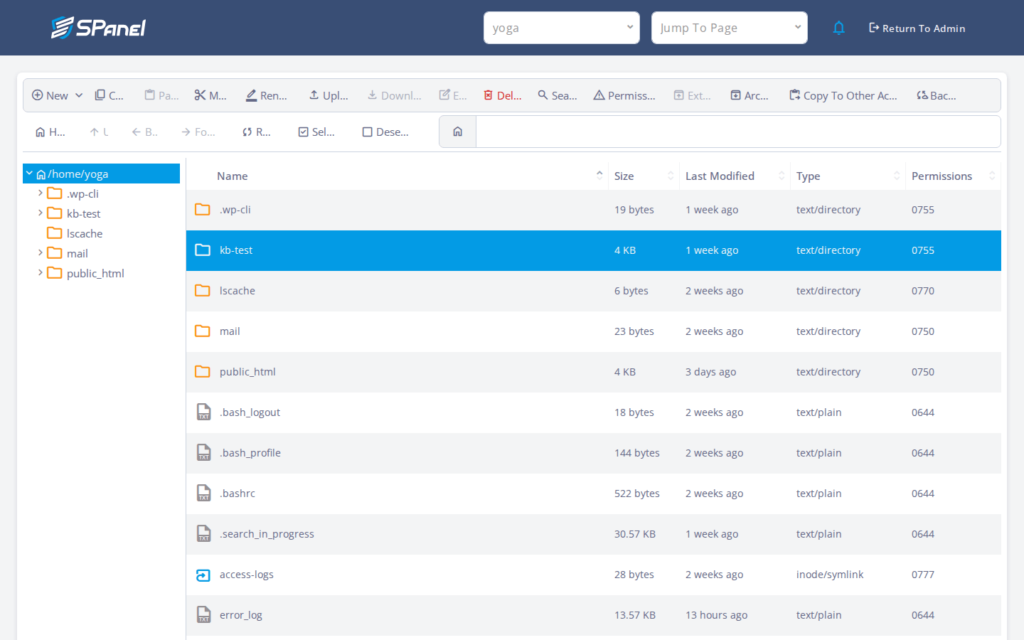
- Open File Manager on the source account and select the item you want to transfer – for this example, the kb-test folder on the account yoga. The row highlights and the toolbar actions become active.
- Click the Copy To Other Account button in the toolbar. SPanel opens a dialog for choosing where the copy goes.
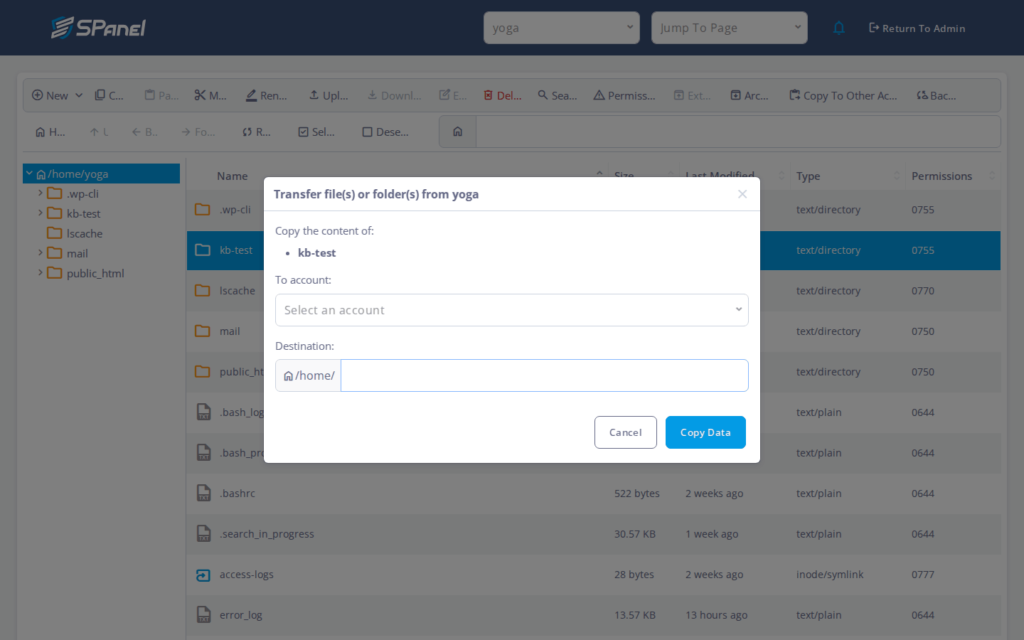
- Choose the destination account, then set the destination path where the item should land. Double-check both – this is where you can make a mistake and send the copy to the wrong place.
- Confirm the copy. SPanel copies the item into the destination account and resets its ownership to that account’s user. When it finishes, open the destination account’s File Manager and confirm the item is at the chosen path.
What happens behind the scenes
The copy stays on the server, so nothing leaves the machine and comes back. As SPanel writes the files into the destination account, it sets their ownership to the destination user – that is why you do not have to reset ownership afterward. The symlink refusal is part of the same step: a link pointing outside the source account is treated as unsafe to resolve, so the transfer stops instead of copying its target.
Limitations and edge cases
- Ownership is reset to the destination account. Arriving files belong to the destination user, not the source. This is what you want for a clean handoff, but any source-specific ownership is not preserved – plan for the files to behave as the destination’s own.
- Requires access to both accounts. The action depends on an admin or reseller context. A single end-user login cannot perform a cross-account copy; use an admin login or ask your administrator.
- Symlinks at the source are not followed. If your selection is or contains a symlink escaping the source account, the transfer refuses to follow it. Copy the real target directly.
Troubleshooting
| Symptom | Likely cause | What to do |
| Copy To Other Account is not in the toolbar | You are signed into a single end-user account | Sign in with an admin or reseller account that can reach both accounts |
| Destination account does not appear in the dialog | The login does not have access to that account | Use a context that manages both the source and destination accounts |
| A symlink in the selection was skipped | It points outside the source account and was refused | Select and copy the real target folder rather than the link |
When to use this / when not to use this
| Use this when | Skip or use something else when |
| Moving a folder between two accounts on the same server | The source and destination accounts are on different servers |
| You hold an admin or reseller login | You only have a single end-user account |
| You want ownership set for the destination automatically | You need to preserve the source account’s ownership exactly |
FAQ
Q: Does this delete the files from the source account?
A: No. Copy To Other Account leaves the original in place and copies the item into the destination account. Remove the source copy yourself afterward if you no longer need it.
Q: Can a regular end-user account use this?
A: No. The action requires access to SPanel’s Admin Interface. A single end-user login will not see it.
Q: Will the destination account be able to read the copied files?
A: Yes. SPanel resets ownership to the destination user as the files arrive, so they belong to that account rather than the source.
Q: Can I copy between accounts on two different servers?
A: No. This action copies between accounts on the same server. For a different server you would need another transfer method.
Q: Why did a symlink in my folder get skipped?
A: If the link points outside the source account, the transfer refuses to follow it as a security precaution. Copy the actual target directly instead.
Q: Why can’t I see a full transfer on the demo?
A: The demo server has only one customer account, so there is no second account to copy into. The destination picker is shown, but an end-to-end copy needs two accounts.
