
SPanel lets you turn on hotlink protection for a domain from the same Settings dialog where you set the document root and the WAF toggle. Go to Domains in SPanel’s User Interface, open the Actions drop-down menu, and select Settings. Flip the Hotlink Protection toggle to ON, and click Save. It is enforced at the web-server layer, so no plugin is required. The check is referer-based, though, so treat it as a way to cut casual bandwidth theft rather than a hard lock on your files.
Who this is for
You run a small or medium-sized site and you have noticed your images showing up on other people’s pages, served straight from your server. That hotlinking uses your bandwidth. This article is for the site owner who wants those embeds to stop loading without editing site code or installing a plugin.
What problem this solves
When another site embeds your image with a direct link, every visitor to their page downloads that file from your server. You pay for the transfer and get nothing back, and at scale this can significantly increase your bandwidth usage. Hotlink protection tells the web server to refuse image requests that come from pages on other domains, so the file only loads when your own site asks for it.
How SPanel solves this
Hotlink protection lives in the per-domain Settings dialog. In SPanel’s User Interface, go to Domains, open the Actions menu on the domain’s row, and click Settings. In the dialog you will see a Hotlink Protection ON/OFF toggle alongside the other domain settings. Switch it ON and click Save.
After you save, image requests that carry a referer from another domain are refused, while normal page loads on your own site keep working.
These controls are available to ScalaHosting customers in the same Settings dialog. Turning the toggle on reveals three of them.
- Allowed Extensions sets which file types are protected, jpg, jpeg, gif, png, and bmp by default, and you can add formats like webp or pdf.
- Allow direct access to all files decides whether requests with no referer, such as an image URL opened straight in the address bar, are allowed; with it off, SPanel blocks them.
- Redirect To URL sends blocked requests to a page of your choice, for example a watermark image, instead of returning a plain error.
Why this is different in SPanel
Two things stand out. First, the toggle sits in the same Settings dialog as the document root and the WAF (ModSecurity) toggle, so you manage it alongside the rest of a domain’s behavior instead of hunting through a separate module. Second, the rule runs at the web-server layer rather than inside your application, so it applies before WordPress or any other code runs and keeps working even if a plugin is disabled.
Before you start
- You need SPanel user access to the account that owns the domain.
- Confirm which domain you are protecting; the toggle is set per domain.
- Decide whether to allow direct browser access. Opening an image URL straight in the address bar sends no referer, and SPanel blocks these requests unless you turn on Allow direct access to all files (covered below).
- No backup is required – this setting is reversible with the same toggle.
Step-by-step
- Sign in to SPanel’s User Interface and open Domains. Locate the row for the domain you want to protect – in the screenshots this is yoga.life.
- On that row, open the Actions menu and click Settings. The domain Settings dialog opens, showing the document root, the WAF toggle, and the Hotlink Protection toggle.
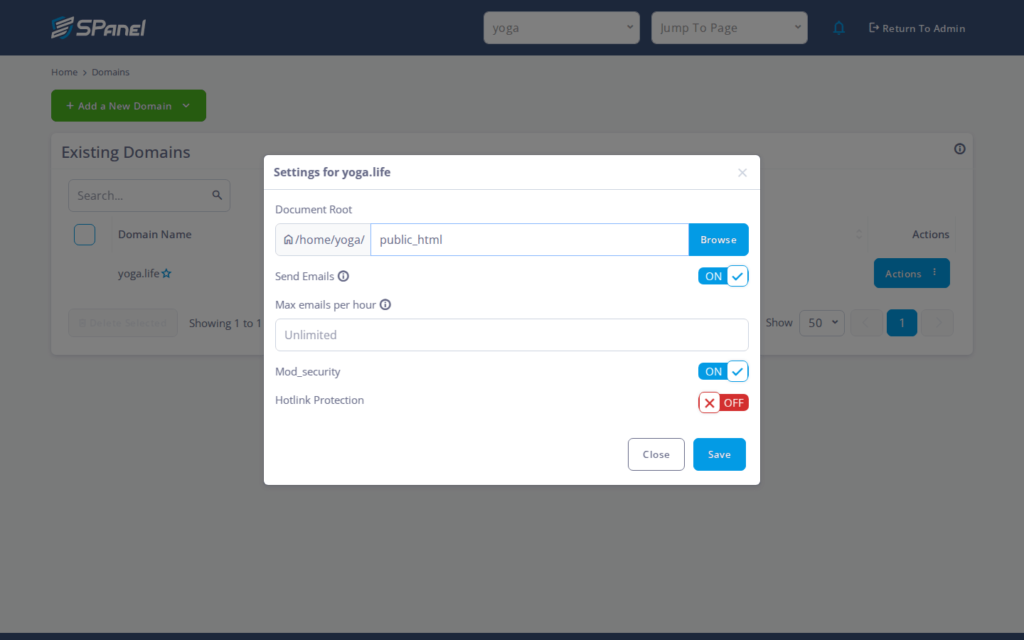
- Switch the Hotlink Protection toggle to ON. Before you save, confirm you are on the correct domain – this changes how that domain serves images to other sites.
- Set the protection options that appear once the toggle is on. Allowed Extensions lists the protected file types, jpg, jpeg, gif, png, and bmp by default; add others such as webp or pdf, or use Reset to restore the defaults. Turn on Allow direct access to all files if you want image URLs opened directly in a browser to keep working, since SPanel blocks those no-referer requests otherwise. Enter a Redirect To URL to send blocked requests to a specific page, such as a watermark image, instead of returning an error.
- Click Save. The dialog confirms the setting and the toggle stays ON. From this point, image requests carrying a referer from another domain are refused.
- Test it: load one of your pages and confirm images still appear, then request the same image with a referer from another domain and confirm it is blocked. When you are only testing, revert the toggle to OFF afterward, as we did on yoga.life.
What happens behind the scenes
When the toggle is ON, SPanel writes a rule into the web server’s configuration for that domain. The server then inspects the Referer header on requests for your assets, and if the referer points at another site, the request is refused before any of your application code runs. Because the check happens at the server layer, it costs almost nothing per request.
Limitations and edge cases
- It is referer-based, not bulletproof. The check trusts the Referer header, and a client can omit or spoof it, so a determined scraper can still pull your files. Use this to stop casual embedding, and pair it with other measures if an asset must stay private.
- Direct address-bar visits usually send no referer. Someone opening an image URL directly and some privacy tools, send an empty referer. The Allow direct access to all files setting decides what happens to these requests: with it off, SPanel blocks them; with it on, they load. Set it to match how you expect people to reach your images, and test before you rely on it.
- It reduces theft; it does not hard-secure assets. It lowers casual bandwidth use by other sites but is not access control. For genuinely sensitive files, keep them out of public web paths or put them behind authentication.
Troubleshooting
| Symptom | Likely cause | What to do |
| Images still load on the other site | Toggle not saved, or it is on a different domain | Reopen the domain’s Settings, confirm the toggle is ON, and Save again. |
| Your own pages show broken images | The site references images by a different hostname than the one protected | Make sure on-page image URLs use the protected domain, then retest. |
| A direct image link still opens | The request carried no referer | By default SPanel blocks no-referer requests; if direct links still open, the Allow direct access to all files setting is on. Turn it off to block them too. |
| Embeds blocked from a partner site you allow | All cross-domain referers are refused | SPanel matches the referer against your own domain only and offers no per-partner allow list, so you cannot permit a single outside site. To let a partner embed an asset, give them a copy to host themselves. |
When to use this / when not to use this
| Use this when | Skip or use something else when |
| Other sites embed your images and spend your bandwidth | The asset must be truly private – use authentication instead |
| You want a server-level rule with no plugin to maintain | You need to let specific outside sites embed your assets |
| You are fine cutting casual theft rather than stopping every scraper | You require guaranteed blocking against spoofed referers |
FAQ
Q: Does hotlink protection stop all image theft?
A: No. It checks the Referer header, which a client can omit or fake. It cuts casual embedding from other sites but will not stop a determined scraper.
Q: Where is the toggle in SPanel?
A: In the domain Settings dialog: Domains, then the row Actions menu, then Settings. The Hotlink Protection toggle sits with the document root and WAF toggle.
Q: Can I allow certain other sites to embed my images?
A: Not selectively. Once you turn the toggle on, the same dialog lets you choose which file extensions are protected, whether to allow direct browser access, and a redirect URL for blocked requests, but there is no field for permitting a specific outside site. The rule allows requests from your own domain (with and without www) and, optionally, requests that carry no referer. To let one partner embed an asset, give them a copy to host themselves.
Q: Will direct links to my images still work?
A: That depends on the Allow direct access to all files setting. By default SPanel blocks requests that carry no referer, including image URLs opened directly in the address bar, so direct links will not load. Turn that setting on if you want pasted or shared image URLs to keep working.
Q: Does this need a plugin or code change?
A: No. The rule is enforced at the web-server layer, so it works without any plugin inside WordPress or other software, and keeps working if plugins are disabled.
Q: Is the change reversible?
A: Yes. Flip the same Hotlink Protection toggle to OFF and Save to turn it back off. The setting is per domain, so enable it on each domain you want protected.
