
ON THIS PAGE
This article shows you how to create a PostgreSQL database and a database user in SPanel. SPanel creates the database and the user and connects them from a single page, and within minutes, you can have the database name, username, and password your application needs to connect. PostgreSQL is supported by SPanel, but it isn’t installed out of the box. Thanks to our server management platform, setting it up takes no more than a couple of clicks.
Prerequisites
- Access to SPanel. SPanel is available on every managed cloud VPS hosting plan from ScalaHosting.
- PostgreSQL installed on the server. If you don’t see PostgreSQL Databases in the Databases section of SPanel’s User Interface, you’ll have to install it from the Admin Interface.
- A free database slot in your hosting package. The database limit counts MariaDB and PostgreSQL databases together.
Install PostgreSQL on Your Server
PostgreSQL isn’t installed by default, because most websites, including every WordPress site, run on MariaDB. Leaving it out keeps memory and disk space free on servers that don’t need it. Skip this section if PostgreSQL is already installed.
- Log in to SPanel’s Admin Interface.
- In the left sidebar, find the Software section and click Database Server Manager.
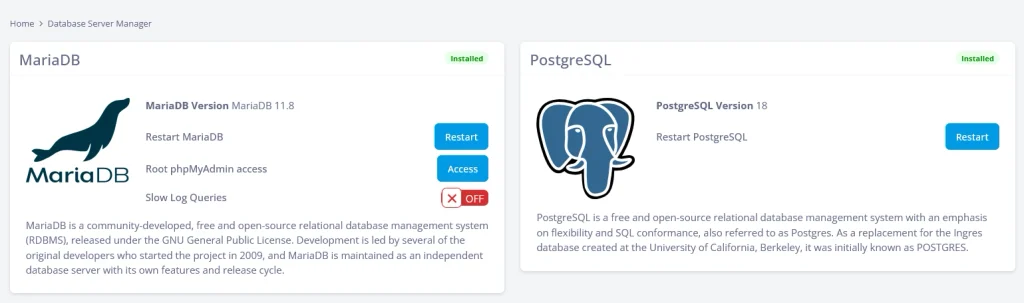
- Start the installation from the PostgreSQL card.
When the installation finishes, the PostgreSQL card shows an Installed badge and the PostgreSQL version. SPanel installs the latest PostgreSQL version together with phpPgAdmin, and every user account on the server can now create PostgreSQL databases and users.
Create the Database and User
The name of every PostgreSQL database and user in SPanel starts with your account username and an underscore, for example youraccount_appdb. SPanel fills in this prefix for you, so you only type the part after it.
- Log in to SPanel’s User Interface.
- In the Databases section, click PostgreSQL Databases.
- Click Create a Database or a User to open the PostgreSQL Manager form.
- Make sure Create a database is selected.
- Enter a name for the database in the Database field.
- Select the Create a user checkbox.
- Enter a name for the user in the Database user field.
- Enter a password in the Password field, or click the generate icon next to the field to create a random one.
- Click the copy icon and save the password somewhere safe. Your application needs it to connect.
- Under Access Type, leave Local (this server only) selected.
- Make sure Assign user to database is selected.
- Click Submit.
SPanel creates the database and grants the new user all privileges on it.
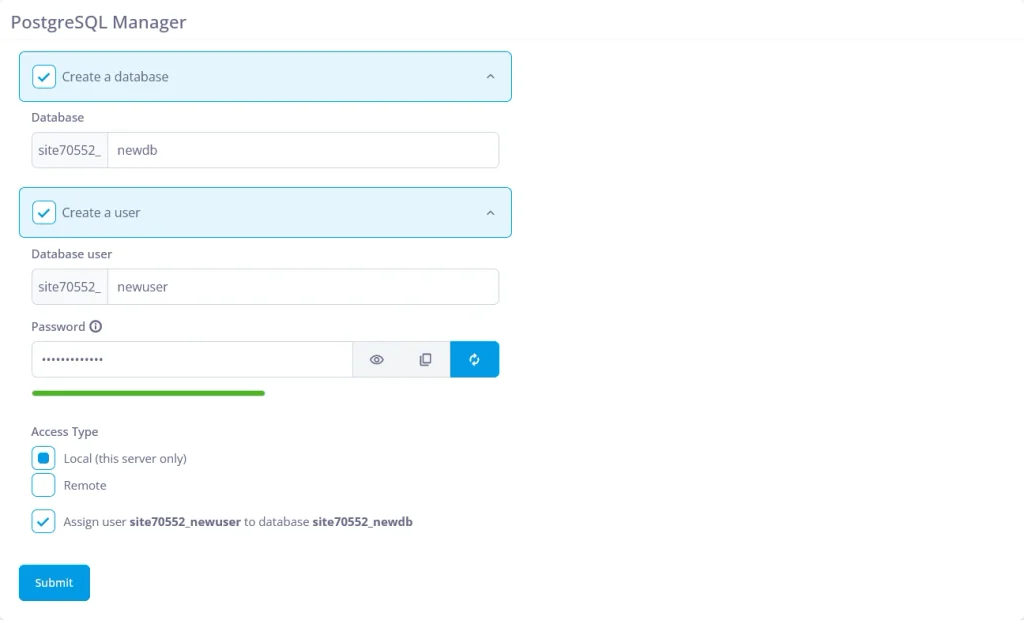
Tip: To create only a database or only a user, clear the checkbox for the one you don’t need before you click Submit.
Verify the Database and User
After you submit the form, the two tables below it update:
- Existing Databases lists the new database, with the user under Assigned Users in the format youraccount_appuser@localhost.
- Existing Database Users lists the new user, with Access Host set to localhost.
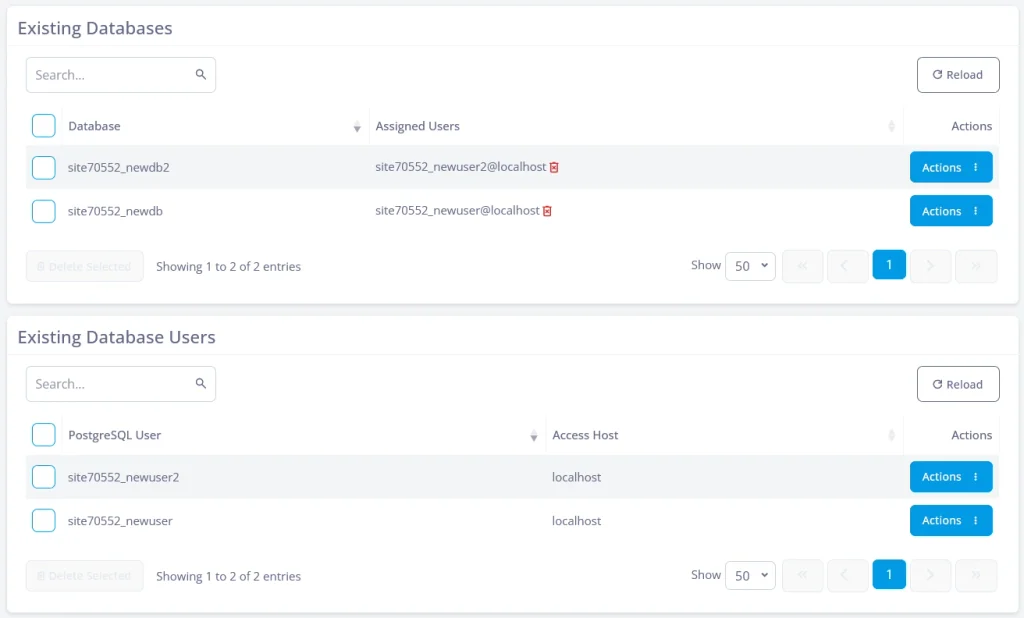
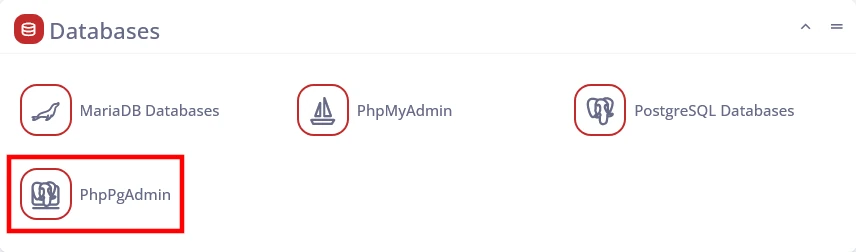
To look inside the database, click PhpPgAdmin in the Databases section of SPanel’s User Interface and log in with the new user’s credentials.
Connect Your Application
Your application needs five values to connect to the database. Applications running on the same server connect through localhost.
| Setting | Value |
| Host | localhost |
| Port | 5432 |
| Database name | The full name, including the prefix (e.g., youraccount_appdb) |
| Username | The full username, including the prefix (e.g., youraccount_appuser) |
| Password | The password you saved in step 9 |
For a Django project, the values go into the DATABASES setting in settings.py:
DATABASES = {
“default”: {
“ENGINE”: “django.db.backends.postgresql”,
“NAME”: “youraccount_appdb”,
“USER”: “youraccount_appuser”,
“PASSWORD”: os.environ[“DATABASE_PASSWORD”],
“HOST”: “localhost”,
“PORT”: “5432”,
}
}
For a Ruby on Rails application, they go into config/database.yml:
production:
adapter: postgresql
database: youraccount_appdb
username: youraccount_appuser
password: <%= ENV[“DATABASE_PASSWORD”] %>
host: localhost
port: 5432
Both examples read the password from an environment variable, so it stays out of your code repository.
Moving an application from another host? Import your existing PostgreSQL database into the new database before you point the application at it.
Troubleshooting
Problem: SPanel doesn’t create the database because the account has reached its database limit.
Cause: The database limit in your hosting package counts both MariaDB and PostgreSQL databases.
Solution: Delete a database you no longer use, or ask the server admin to raise the database limit in your account’s package.
Problem: PostgreSQL Databases doesn’t appear in the Databases section.
Cause: PostgreSQL isn’t installed on the server.
Solution: Install it from Database Server Manager in SPanel’s Admin Interface, or ask ScalaHosting’s support team to help you.
Problem: A database tool on your computer can’t connect to the database.
Cause: Users with the Local (this server only) access type accept connections from the server only.
Solution: Set up remote access for the user from your IP address, as described in the FAQ below.
Frequently Asked Questions
Q: Does SPanel Come With PostgreSQL Installed?
A: No. SPanel runs MariaDB by default, because WordPress and most PHP applications use it. The server admin can install the latest PostgreSQL version from Database Server Manager, and every account on the server can then use it.
Q: Do PostgreSQL Databases Count Toward My Database Limit?
A: Yes. The limit in your hosting package covers MariaDB and PostgreSQL databases combined. An account with a limit of 10 can have six MariaDB databases and four PostgreSQL databases, for example.
Q: What Happens to My Databases if I Delete a Database User?
A: They stay where they are. PostgreSQL refuses to delete a user that still owns a database, so SPanel first transfers that user’s databases to your main account user and then deletes the user.
Q: Can I Connect to the Database From My Own Computer?
A: Yes. Select Remote under Access Type when you create the user, and SPanel allows connections from the IP address you specify and opens the firewall for it. Remote PostgreSQL connections aren’t encrypted by default, so use TLS or an SSH tunnel for production data.
Q: Can I Create a PostgreSQL Database From the Command Line Instead?
A: Yes. The SPanel form is the quickest way, but our guide to managing PostgreSQL databases and users from the command line covers the psql commands if you prefer working in a terminal.
Q: How Do I Check How Big My PostgreSQL Database Is?
A: Run a size query in psql or open the database in phpPgAdmin. Our guide on how to check the size of your PostgreSQL databases walks through the commands.
