
SPanel’s File Manager finds things two ways without SSH or grep – by filename, or by the text inside your files. Both run in the browser, as your own account user, against your real site tree. Search one directory and SPanel answers synchronously, returning results the moment it finishes. Turn on a recursive search and it runs as a background job, streaming each match in as it finds it. One limit up front: matching is a case-insensitive substring match – no regular expressions, no glob wildcards – and each matching line is trimmed to 600 characters.
Who this is for
This is for anyone on a ScalaHosting managed VPS who needs to find a file or a string fast – usually a small business owner, though WordPress users and agency developers will know the need too. You need the SPanel user interface and an account with files, not SSH or command-line tools.
What problem this solves
A WordPress install is not a handful of files – a typical one runs to tens of thousands across wp-content, themes, plugins, and core. So when you need one – the readme naming a plugin’s version, the template printing a stray line – scrolling folder by folder is slow and easy to get wrong.
Finding a line of code is harder. Which file enqueues that script? Where is that deprecated function still called? On a server you would reach for grep – an SSH session and a shell prompt. Plenty of capable site owners are not comfortable there, and should not have to be to answer a question about their own site.
How SPanel solves this
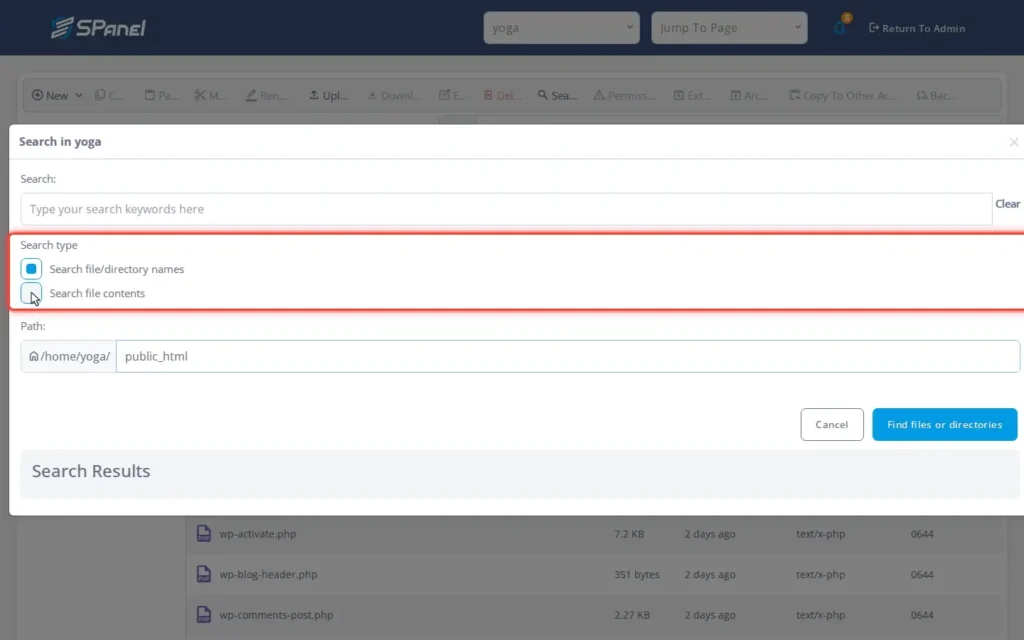
SPanel puts both searches where your files already are. Open the File Manager, browse to the directory you want to search from – public_html for a whole-site sweep – and open the Search control. Under Search type you pick what to match:
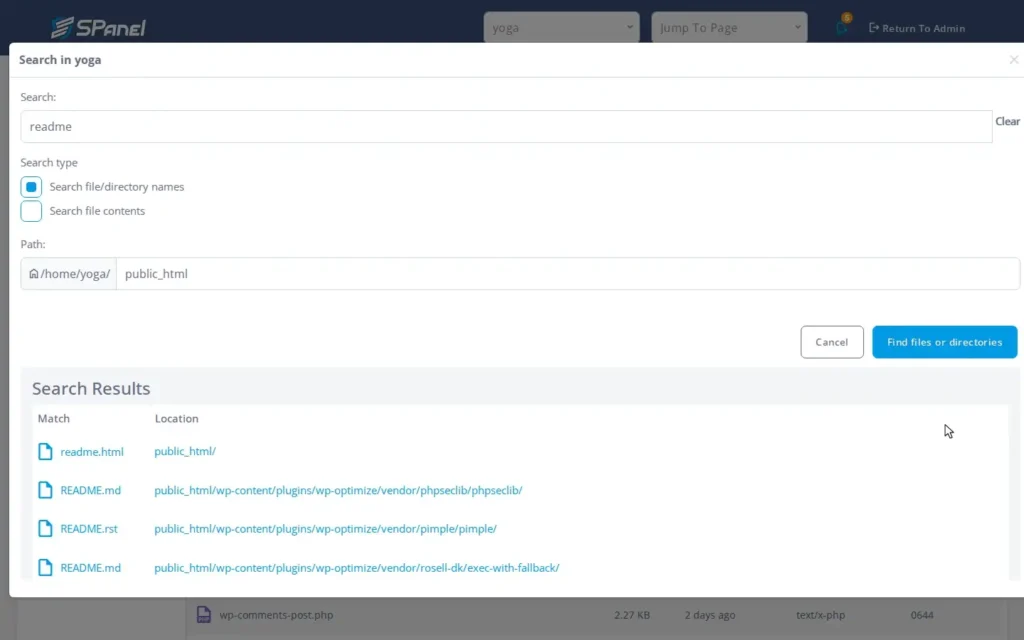
- Search file/directory names matches filenames. Type readme and SPanel lists every file whose name contains it.
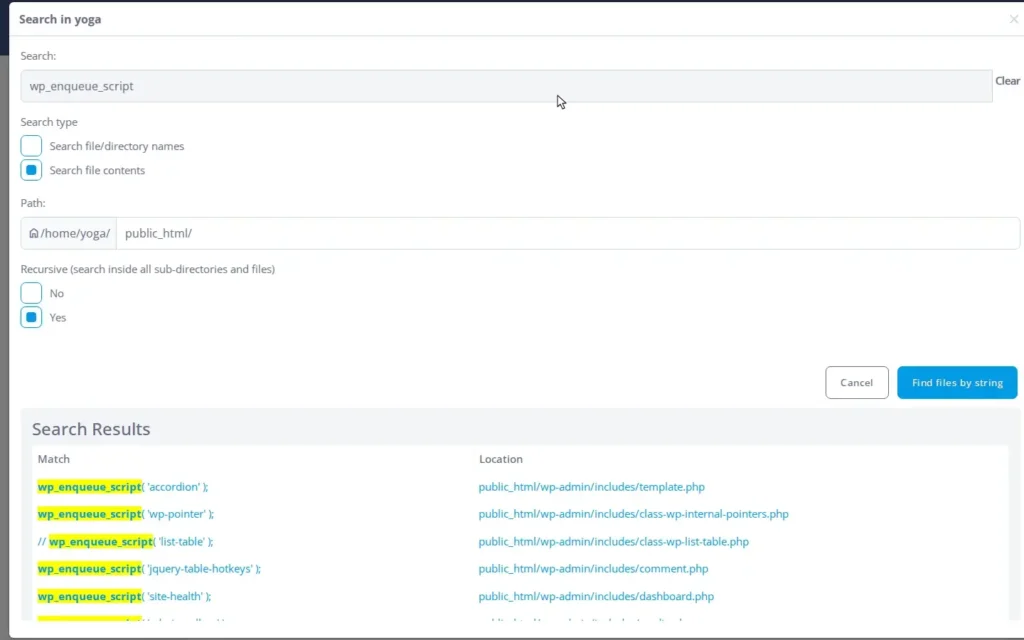
- Search file contents matches the text inside the files. Type wp_enqueue_script and SPanel lists every file containing it.
Then you choose how wide to look. A single-directory search runs synchronously and returns right away; a recursive search walks every subdirectory below, running in the background and streaming hits into the list as it finds them.
Why this is different in SPanel
Two specifics set this apart from a plain filter box.
A recursive search streams results as it finds them. Walking an entire WordPress tree takes real time, so SPanel runs the recursive search as a background job and feeds each match in the moment it turns up – you can start reading the first hits, and often find what you came for, long before it reaches the deepest folders. A single-directory search is small enough to return synchronously in one shot.
Both tools run as your account’s Unix user. The search reads files as your account user, not root, so it sees exactly what you can – your own files, nothing from another account. There is no separate index to fall stale: what SPanel searches is what is on disk right now, bounded by the same permissions as SSH.
Before you start
- Matching is a case-insensitive substring match. README and readme match the same files; enqueue matches wp_enqueue_script. No regular expressions and no glob wildcards – *.php is treated as the literal characters *.php, not “every PHP file.”
- Start from the right folder. Search runs from the directory you are in: begin in public_html for a whole-site search, deeper to keep a recursive search fast.
- You are signed in to the SPanel user interface on the account whose files you want to search.
Step-by-step
We will run two harmless, read-only searches: a find-by-name for readme, and a search-inside for the WordPress function wp_enqueue_script.
- Open the File Manager and go to the search entry point. In the SPanel user interface, open the File Manager and browse to public_html, the root of your WordPress install. Open the Search control; SPanel opens a Search in dialog with a Search type choice and a Path field already set to your current folder. The Path field shows the account path you are searching under. To search the whole site, use the relevant folder such as public_html; to narrow the search, enter a deeper folder path.
- Find a file by name. Choose Search file/directory names, type readme, and select Find files or directories. SPanel lists each matching file in a Match column with its folder in the Location column, so you know exactly where it lives.
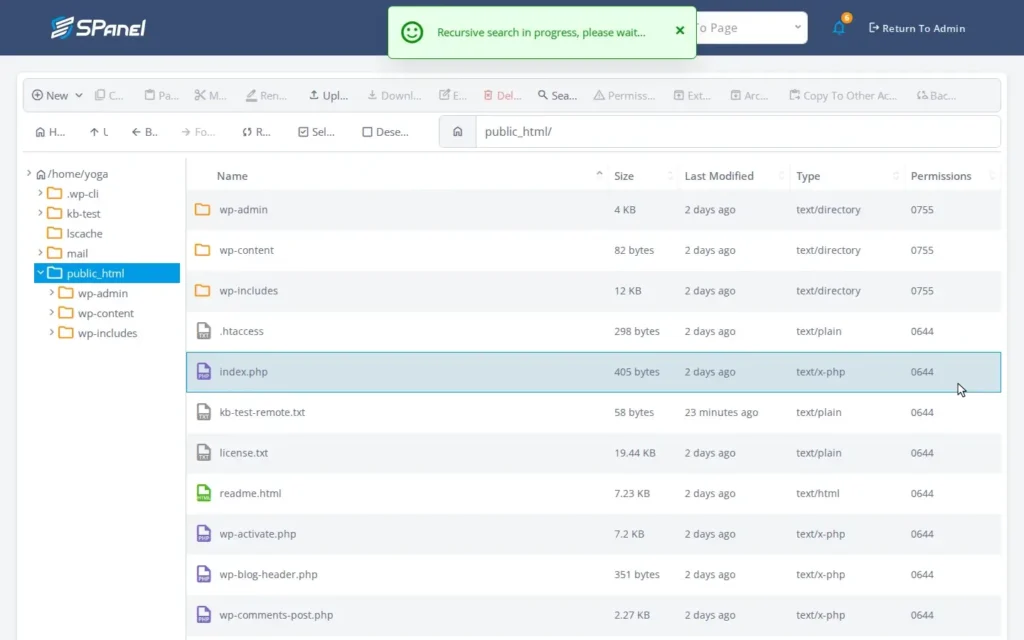
- Search for text inside files. Switch to Search file contents, type wp_enqueue_script, and under Recursive (search inside all sub-directories and files) choose Yes, then select Find files by string. Being recursive, it runs in the background – SPanel shows a Recursive search in progress, please wait… notice and streams matches in as it finds them.
- Read the in-file results. SPanel lists every file containing the string, each with its full path so you can open the right one. Long lines are trimmed to 600 characters, so a minified file does not flood the results.
What happens behind the scenes
A single-directory search is small, so SPanel runs it synchronously and returns the result at once. A recursive search could touch tens of thousands of files, so it runs as a background job that streams each hit back as it is found. In both modes the comparison is a plain case-insensitive substring test, and any matching line is truncated to 600 characters before reaching the results.
Limitations and edge cases
The match is a literal, case-insensitive substring – nothing more. That keeps it predictable, but rules out the power-user patterns: no regular expressions, no glob wildcards, no whole-word matching. A search for *.css looks for that literal text, not “every CSS file.” Each matching line is capped at 600 characters, so on a minified asset you see the start of it rather than the whole line. And a recursive search across a large tree takes time: early hits arrive quickly, but a full sweep is not instant. Start from a narrower folder to cut that down.
Troubleshooting
| Symptom | Likely cause | What to do |
| A search for *.php returns nothing | * is matched literally, not as a wildcard | Search the plain substring instead, such as .php |
| Find-by-name misses a file you can see | The name does not contain your text as a substring | Search a shorter fragment; case does not matter |
| A recursive search seems to hang | It is a background job still streaming hits | Read matches as they arrive, or start from a narrower folder |
| A matching line looks cut off | Lines are trimmed to 600 characters in the output | Open the file to see the full line in context |
When to use / when not to use
| Use File Manager search when | Reach for SSH / SFTP instead when |
| You need to locate a file by name without scrolling folders | You want regex, glob, or whole-word matching |
| You want to find which files contain a string | You need to pipe results into another command |
| You would rather not open a shell or install a client | You are scripting a search across many accounts |
FAQ
Q: Can I use wildcards like *.php or readme*?
A: No. Matching is a plain substring test, so * and ? are ordinary characters. Search the meaningful fragment – .php or readme – and SPanel matches any name or line containing it.
Q: Why are my results still coming in after a few seconds?
A: You ran a recursive search. SPanel runs those as a background job and streams matches as they are found, so they appear gradually. A single-directory search returns at once.
Q: Can the search see files in another account or as root?
A: No. It runs as your account’s Unix user, so it sees only the files your account can – the same boundary you would hit over SSH.
Q: Does search find text inside a PDF, image, or zip?
A: It matches a file’s raw bytes as text, so it is built for source and config files – not for reading words out of a PDF, image, or compressed archive.
