
SPanel’s File Manager lets you create, rename, move, copy, and delete files and folders from your browser, without an SSH session. Find it in SPanel’s User Interface under Files > File Manager, then use the toolbar buttons – New, Rename, Copy, Paste, Move, and Delete. Copy and Move follow a select-then-Paste model, and Delete asks you to confirm first. Note before you start: deletes are permanent. There’s no recycle bin, so’ve selected the correct item before you confirm.
Who this is for
This is for site owners and developers who manage their own account’s files and would rather not drop to a command line for routine changes – swapping a config file in public_html, tidying a staging folder, or renaming an upload before deployment. If you can sign in to SPanel, you can do all of it here.
What problem this solves
Most file housekeeping does not need SSH, FTP, or a terminal. You just want to make a file, rename it, copy one somewhere, move a directory, or delete something stale. Setting up a client or recalling shell commands for those small jobs is needless friction. The File Manager handles them in the interface you already use to run your account.
How SPanel solves this
Open the SPanel User Interface and go to Files > File Manager. A toolbar runs across the top: New, Copy, Paste, Move, Rename, Upload, Download, Edit, Delete, Permissions, Extract, Archive, Copy To Other Account, and Backup. Below it is your home directory listing. Single-click selects an item; double-clicking opens the folder or puts the file in the built-in editor.
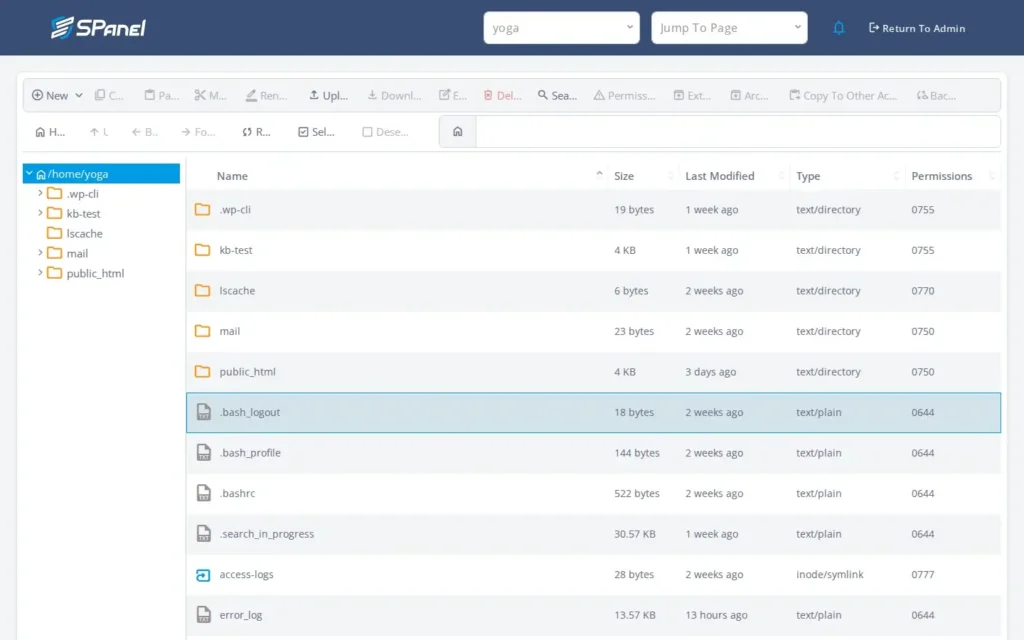
Step-by-step
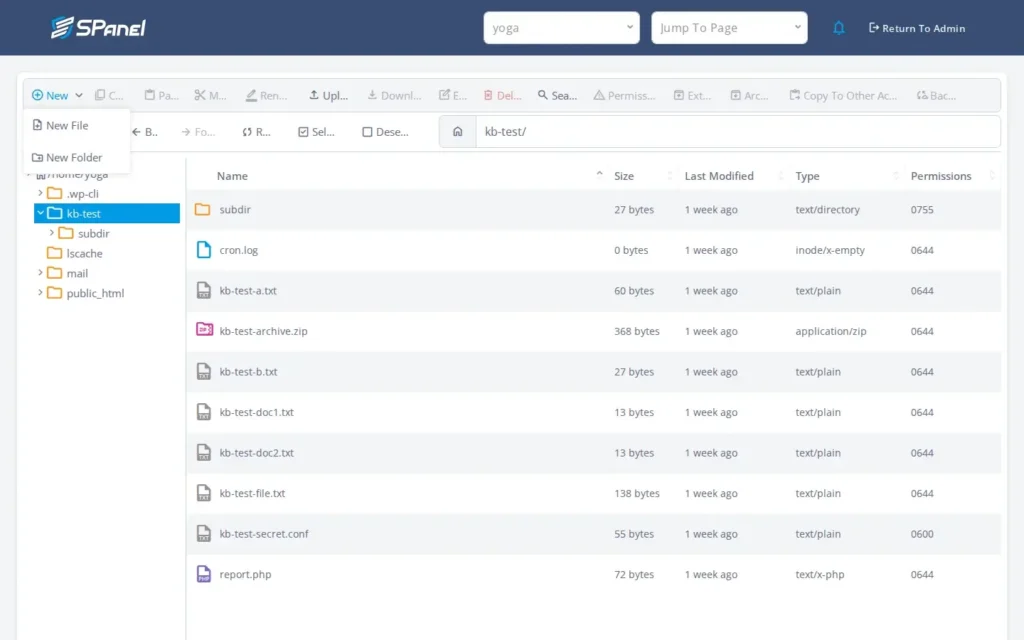
To create a new file or set up a new folder, double-click into the folder you want – say kb-test – and click New. The dialog lets you create a file or a folder; name a file kb-test-file.txt and confirm, and it appears in the listing.
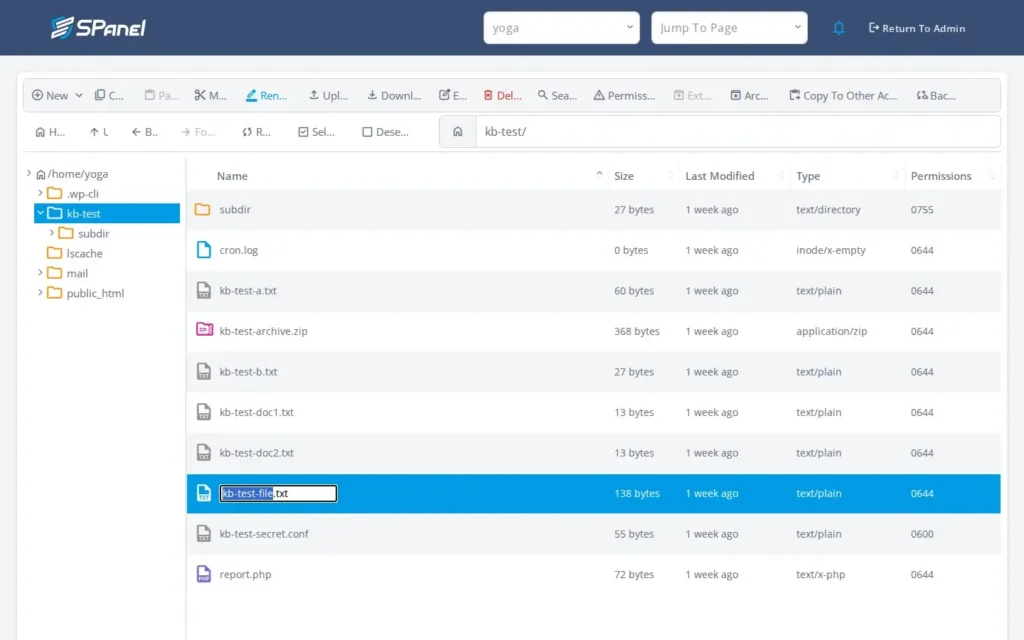
To rename, single-click the file to select it, then click Rename. The dialog opens with the current name; type the new one and confirm. The listing updates.
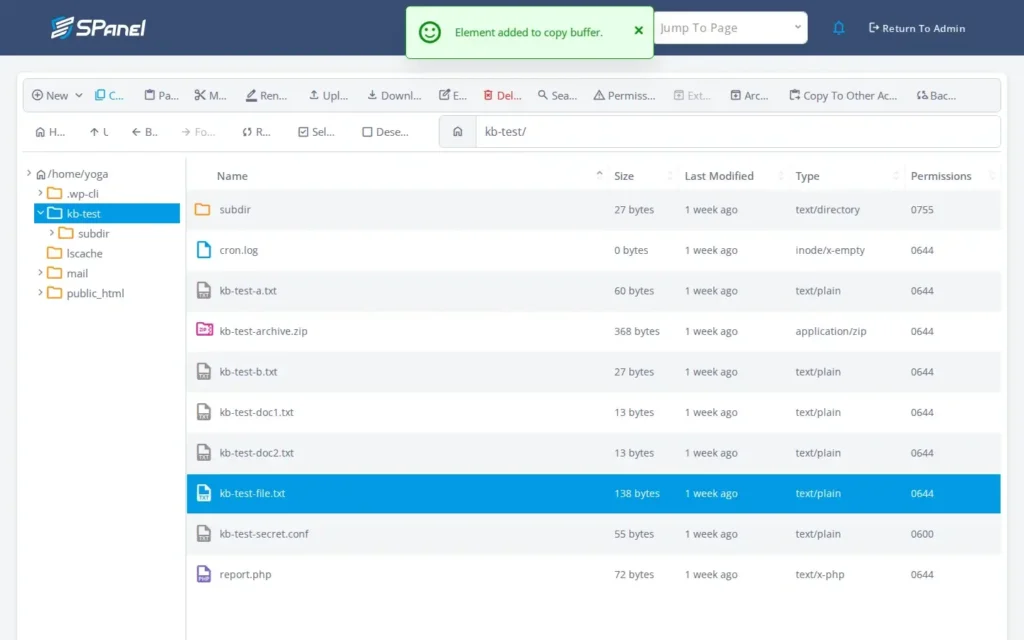
To copy, select the file and click Copy. SPanel holds it on a clipboard. Open the destination folder and click Paste, and a copy lands there while the original stays put.
To move, select the file and click Move, open the destination folder, and click Paste. The file is relocated rather than duplicated.
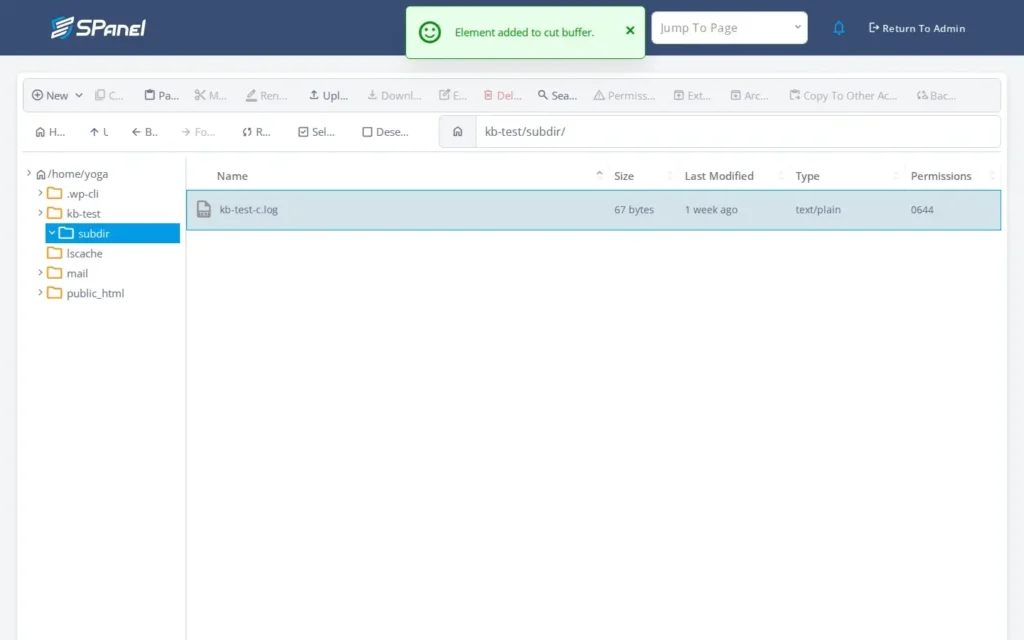
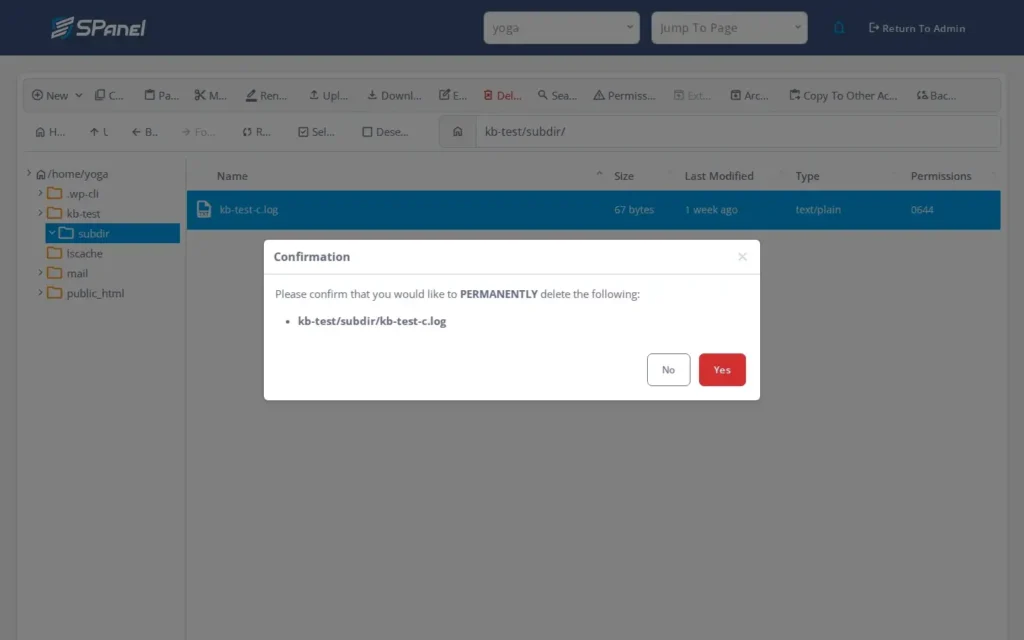
To delete, select the file and click Delete. SPanel asks you to confirm before removing anything – read the prompt and make sure the right item is selected before you agree.
Why this is different in SPanel
Two details set this apart. First, the File Manager runs your operations as the account owner, not as root, so a file you create keeps the correct ownership and you avoid permission issues later on. Second, it refuses operations that would act through a symlink pointing outside your account – the tool will not follow a link out of your files to touch something it should not, which keeps each account’s actions contained.
Before you start
- You need access to the SPanel User Interface for the account whose files you manage.
- You work at the user level – no root access needed.
- Know which folder you are in before creating or pasting; double-click selects the destination.
- Before any delete, confirm the right item is selected. Deleting is permanent in SPanel, so be sure you don’t erase something by accident.
What happens behind the scenes
Each action runs against your own account under your ownership, not the server’s root user – which is why a newly created file behaves correctly when your site reads it, with no ownership mismatch to fix afterward. The same boundary keeps the File Manager from acting through a symlink that escapes your account: operations stay inside /home/<your-account>. You get a browser tool’s convenience with the ownership you would expect on the shell.
Limitations and edge cases
- The built-in editor has a size cap of 5MB. What it means: very large files will not open in the Edit view. What to do instead: edit them another way – download the file, change it locally, and upload it again.
- Deletes are permanent – there is no recycle bin, which means: a confirmed Delete is not recoverable from within SPanel. What to do instead: read the confirmation prompt, and keep a copy or Backup of anything you are unsure about before removing it.
- One File Manager operation at a time – the clipboard holds one Copy or Move. What it means: starting a new one replaces what was on the clipboard. What to do instead: finish each Paste before selecting the next.
Troubleshooting
| Symptom | Likely cause | What to do |
| Paste does nothing | Nothing is on the clipboard yet | Select a file and click Copy or Move first, then Paste in the destination |
| Your copied item seems to have disappeared | A later Copy or Move replaced the clipboard | Re-select the item and Copy or Move it again before pasting |
| Double-click selects instead of opening | The item is a file, not a folder | Single-click selects files; only folders open on double-click |
| A deleted file is not where you left it | The Delete was confirmed and applied | Restore from your own Backup; there is no recycle bin |
When to use this / when not to use this
| Use this when | Do not use this when |
| Creating, renaming, or organizing files in your account | You need root-level changes outside your account |
| You want to avoid setting up SSH or an FTP client | You are editing a file above the editor size cap in place |
| Moving or copying items between your own folders | You require an undo or recycle bin for a delete |
| Making a quick fix to a small config or text file | You are scripting bulk operations across many files |
| Working entirely within /home/<your-account> | An operation would need to follow a symlink out of your account |
FAQ
Q: Where is the File Manager in SPanel?
A: In the SPanel user interface, under Files > File Manager. The toolbar and home directory listing load on the same screen.
Q: How do I create a new file or folder?
A: Open the folder you want, click New, and choose a file or folder in the dialog. Note that the built-in editor has a size cap of 5MB, so it suits text and config files rather than large assets.
Q: What is the difference between Copy and Move?
A: Copy leaves the original in place and pastes a duplicate; Move relocates the file so it no longer exists in the source. Both use Paste to complete the action.
Q: Why does Paste seem to forget what I copied?
A: The clipboard holds one Copy or Move at a time. Start a second before pasting the first and it replaces the old. Finish each Paste before starting another.
Q: Can I get a deleted file back?
A: Possibly not from inside SPanel – deletes are permanent with no recycle bin. Keep a copy or Backup of anything important before confirming a Delete.
Q: Do I need root access to manage my files?
A: No. The File Manager works at the user level and runs operations as the account owner, so created files keep the correct ownership.
Q: Why can’t I edit a particular file in the browser?
A: If your file is over 5MB, you won’t be able to edit it using the File Manager built-in editor. Download the file, edit it locally, and upload the new version.
Q: Can the File Manager reach files outside my account?
A: No. It refuses operations that would act through a symlink escaping your account, so actions stay inside your own directory.
