
SPanel has no separate “save output” setting for cron jobs. Instead, you append a standard shell redirect to the Command field itself — for example >> /home/USER/logs/cron.log 2>&1 — and the job writes its own log every time it runs. You create and permission the log directory yourself; SPanel does not manage a cron log file, and the file grows until you rotate it.
Who this is for
This is for developers and site owners running scheduled tasks on a managed VPS who need a record of what each job did. If a nightly backup, import, or cleanup script is failing silently, capturing its output is the fastest way to see the real error. It assumes you already have a working cron job and access to your account paths.
What problem this solves
A cron job that runs unattended produces output you never see. When it fails – a missing file, a permission error, a script that exits early – the failure happens in the background and leaves no trail, so you are left guessing whether it ran. Writing output to a log file gives you a timestamped record, so debugging is as easy as opening the file and having a look.
How SPanel solves this
There is no dedicated output toggle in SPanel’s cron interface. Output handling is just shell redirection you add to the Command field: take the command you already run, append a redirect pointing at a log file, then save. A typical command looks like:
/usr/bin/php /home/USER/scripts/backup.php >> /home/USER/logs/kb-test-cron.log 2>&1
The >> appends each run’s output rather than overwriting, and 2>&1 sends error output to the same place as standard output. After you save, the job runs on its schedule and writes to that file, which you open in the File Manager.
Why this is different in SPanel
First, each cron job row has an Actions menu with a Run Manually functionality, alongside Pause, Edit Cron, and Delete. Run Manually executes the job immediately and captures its output, so you can confirm the redirect works before trusting the schedule.
Second, because output handling is plain shell redirection in the Command field, you decide exactly where logs go and how they are named – each job can write to its own file.
Before you start
- Access to your SPanel user interface, where cron jobs are managed.
- A log directory that already exists – for example /home/USER/logs/ – writable by your account.
- The full command you want to schedule, tested so you know it runs.
- A log filename decided up front; the examples here use logs/kb-test-cron.log.
Step-by-step
- Open the cron job, or create a new one, and edit the Command field. Append the redirect to your existing command, keeping a single space before it: >> /home/USER/logs/kb-test-cron.log 2>&1. Leave the schedule fields unchanged.
- Create the log directory first if it does not exist. In File Manager, make a logs folder under your home directory so the path you redirect to is real and writable. If it is missing, the job cannot write.
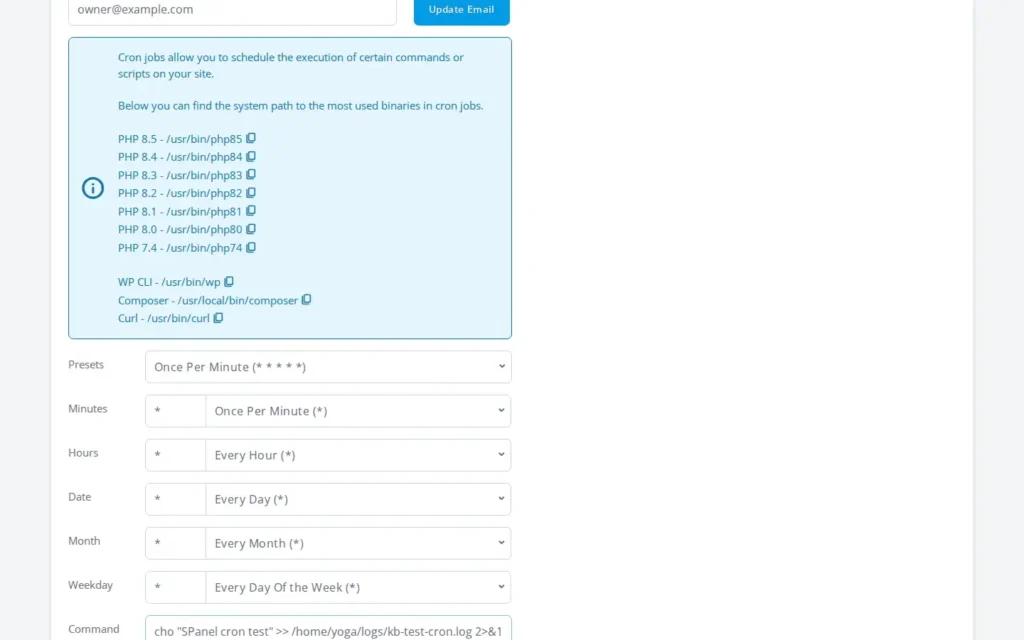
- Save the job. You should see it listed with your updated command. Nothing is written yet – the file is created on the first run.
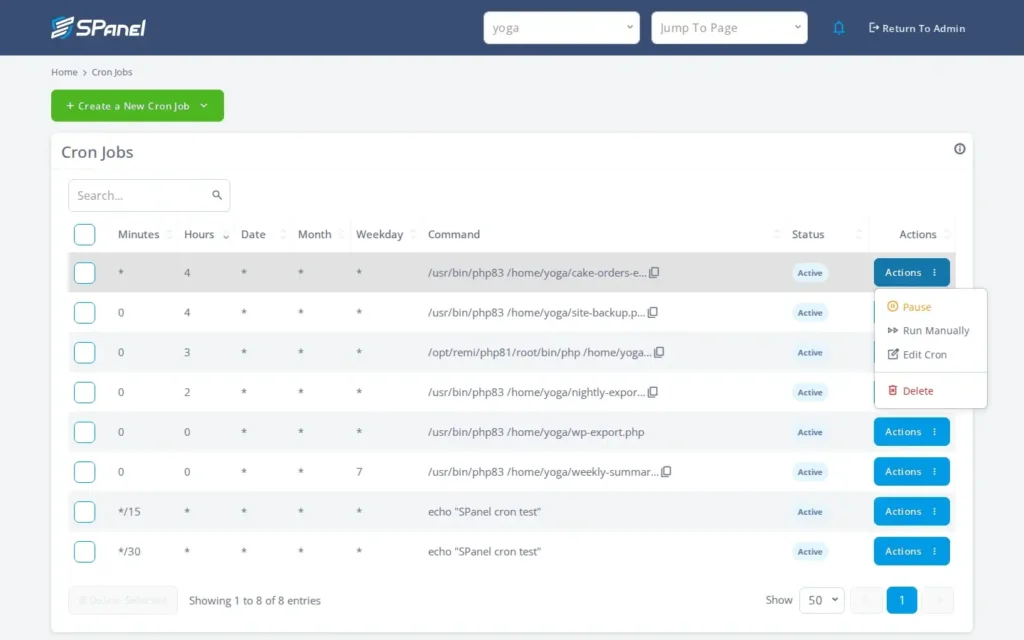
- Open the Actions drop-down and click Run Manually to execute the job now and capture its output, so you can verify the command before relying on the schedule. This runs the real command, so only do it when running on demand is safe.
- Open the log file in File Manager and confirm your output landed there. You should see what the script prints, plus any error messages, each run appended below the last.
What happens behind the scenes
There is no special logging engine involved. SPanel hands your command to the system’s cron runner exactly as you typed it, and the shell interprets >> and 2>&1 as it would on any Unix-like system. The log file lives at the path you chose, which is why you – not SPanel – must create it.
Limitations and edge cases
- You manage the log directory. SPanel does not maintain a separate cron log file. If the directory does not exist or is not writable, the redirect fails and you get no log. Create it before scheduling and don’t forget to set the correct permissions.
- The log grows without bound. Each run appends, so a frequent job produces an ever-larger file, and SPanel does not rotate it. Rotate or truncate it yourself – for example a second cron job that trims it.
- Errors are lost without 2>&1. A plain >> redirect captures standard output only. Error messages go to standard error, which is what you need when debugging, so always include 2>&1.
Troubleshooting
| Symptom | Likely cause | What to do |
| Log file is never created | Target directory missing or not writable | Create the logs directory and confirm your account can write to it |
| Output saved but no error text | Command uses >> without 2>&1 | Append 2>&1 to capture standard error too |
| Log file keeps growing very large | No rotation; every run appends | Schedule a separate job to truncate or archive it |
| Manual run logs, scheduled run does not | Relative paths in the scheduled context | Use absolute paths for the binary and the log file |
When to use this / when not to use this
| Use this when | Skip or use something else when |
| You need a persistent record of what a job did | You only want a one-off alert when a job fails |
| You are debugging a job that fails silently | You prefer the output emailed to you instead |
| You want full control over where logs are written | You do not want to manage file growth or rotation |
| You need both output and errors captured together | The job produces data too sensitive to write to disk |
FAQ
Q: Where should I position the log file?
A: A directory under your home path that already exists and is writable, such as /home/USER/logs/. SPanel does not create it, so make it first.
Q: Why 2>&1 and not just >>?
A: >> captures standard output only. 2>&1 adds standard error to the same file, which is usually where the failure message you are hunting for ends up.
Q: What is the difference between > and >>?
A: > overwrites the file on every run; >> appends. For a log you almost always want >> to keep the history of past runs.
Q: Does Run Manually replace scheduled runs?
A: No. Run Manually executes the job once, on demand, and captures its output for testing. The schedule still runs independently.
Q: How do I stop the log from filling the disk?
A: SPanel does not rotate it. Schedule a separate job to truncate or archive the file, or clear it in File Manager.
Q: My manual run worked but the scheduled run logged nothing – why?
A: The scheduled environment can differ from a manual run. Use absolute paths for both the command and the log file rather than a working directory.
