
SPanel’s File Manager has a built-in editor, so you can open a file, change a line, and save it from your browser – no SFTP client, no SSH session, no extra credentials. In the SPanel user interface, open the File Manager, select the file, choose Edit, make your change, and Save Changes. The key limit: the editor opens files up to 2 MB – anything larger needs SFTP or SSH. The reassuring part: SPanel reapplies the file’s original permissions on save, so a 0600 config stays 0600 and a 0755 script stays 0755. You cannot make a secret world-readable just by clicking edit.
Who this is for
This guide is for anyone on a ScalaHosting managed VPS who needs to change one file without a desktop tool – usually a small business owner flipping a config value, though WordPress users and agencies will know it too. You need the SPanel user interface and the file, not SSH or an SFTP client. New file? Upload it first – see the related guide below.
What problem this solves
You need to change one line – a redirect in .htaccess, a memory limit, a setting in wp-config.php. The change takes ten seconds; reaching it is the slow part. The old way: install FileZilla, find the SFTP host and key, connect, download, edit, re-upload.
There is even a worse case.
A bad plugin update locks you out of WordPress: the dashboard will not load, so you cannot disable the plugin the usual way. Recovery means a direct edit on the server – normally an SSH job. When the site is already down, you do not want to be hunting for credentials too.
How SPanel solves this
SPanel puts the editor where the files already are. Open the File Manager, browse to the file, and open it – the contents load in the browser. Change what you need, then Save Changes. That is the whole loop. Permissions are preserved automatically, so the edit changes the contents and nothing else.
Why this is different in SPanel
Two specifics make a browser edit here as safe as a careful SSH edit.
Your file’s permissions survive the save. Before SPanel writes your change, it reads the file’s current mode; after the save, it reapplies that exact mode. A 0600 credentials file stays 0600; a 0755 script stays 0755. The classic foot-gun: many web editors save with default permissions, quietly turning a private config world-readable. SPanel does not.
Every action runs as your account user. The editor reads and writes as your Unix user, not root. The filesystem decides what you can open and change – exactly the boundary you hit over SFTP or SSH. You cannot reach another account’s files, because your account cannot reach them at the OS level.
Before you start
- The editor opens files up to 2 MB. That covers configs, .htaccess, theme files, and most scripts. A large log or database dump will not open – use SFTP or SSH for those.
- There is no undo after you save. SPanel keeps no per-file version history, so a save overwrites the previous contents. For a risky edit, copy the file first and lean on daily backups.
- You are signed in to the SPanel user interface on the account that owns the file.
Step-by-step
We will make a harmless edit: one comment line in your theme’s style.css. A CSS comment changes nothing on the page, so it proves the loop safely.
Before editing files such as .htaccess, wp-config.php, or theme PHP files, make a copy first so you can quickly restore the original if the site breaks.
- Open the File Manager and find the file. In the SPanel user interface, open the File Manager and browse to public_html/wp-content/themes/<your-theme>/. The listing shows each file’s size, date, and permissions.
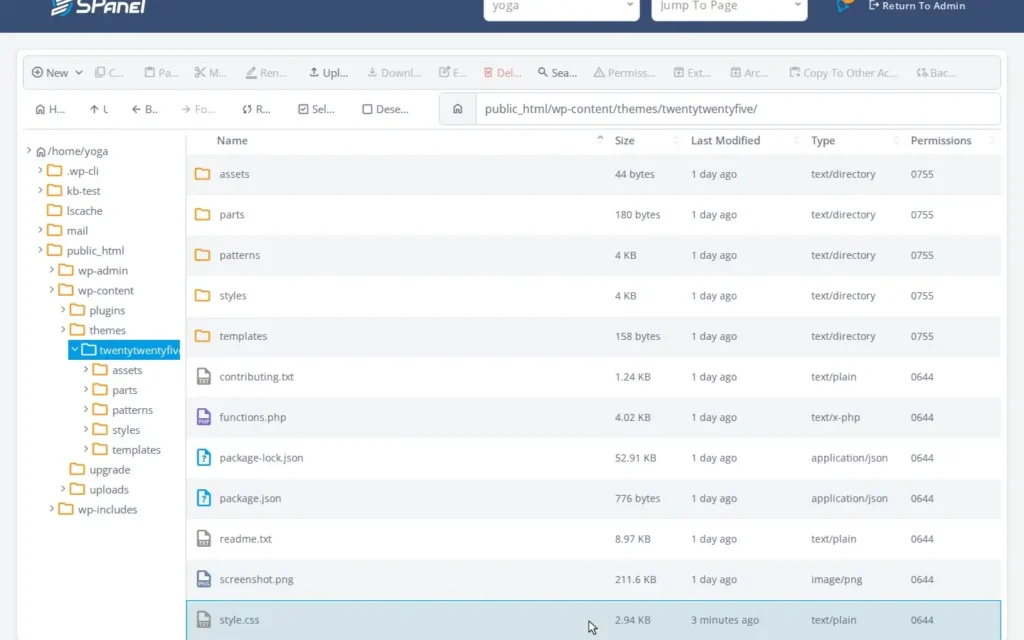
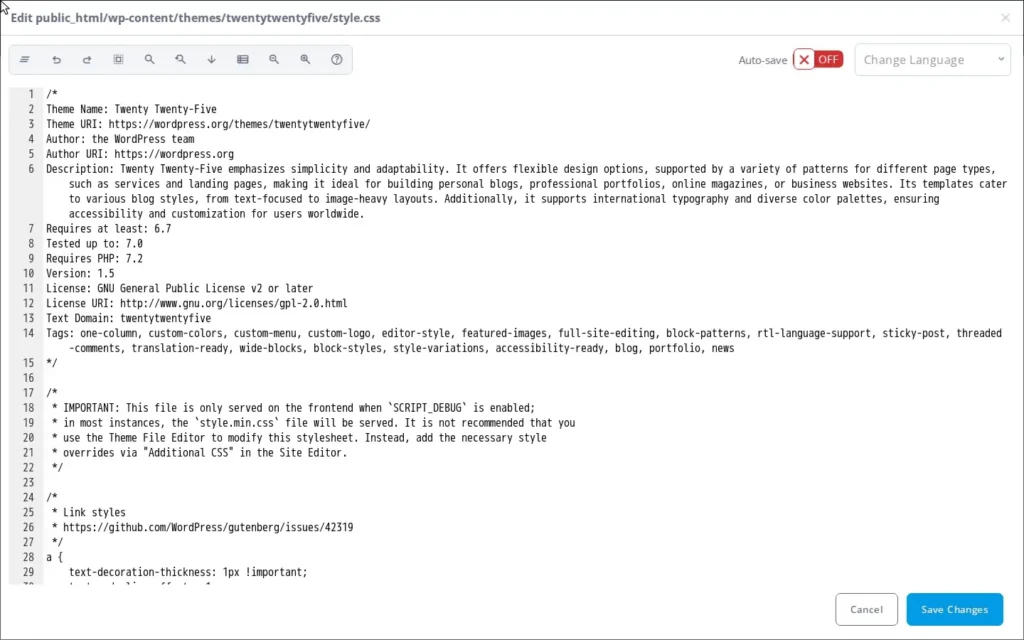
- Open the file in the editor. Select style.css and choose Edit. The contents load in the browser editor, ready to change.
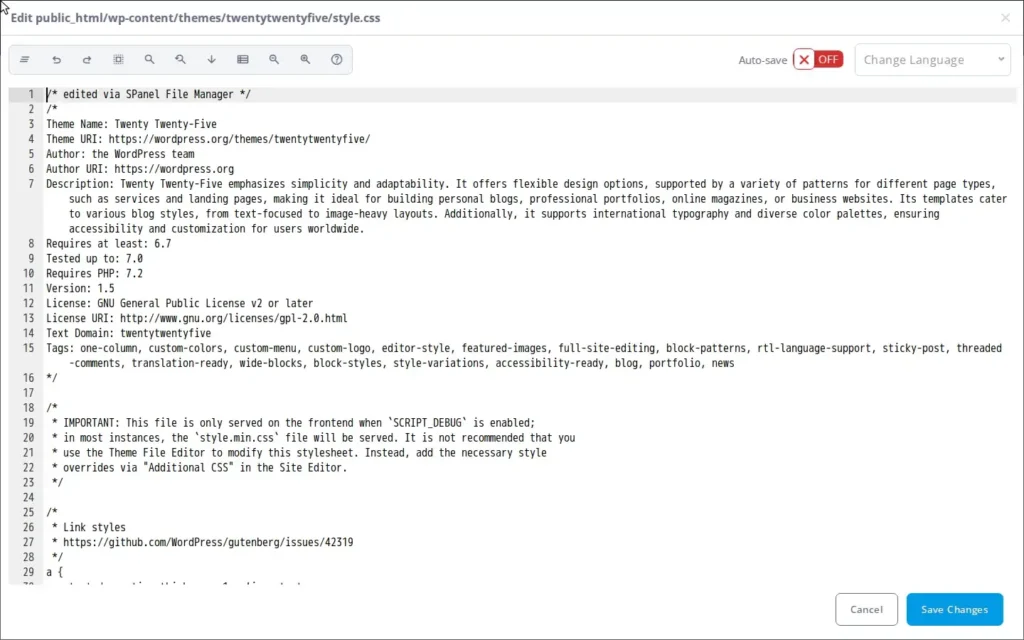
- Make your change. Add a comment line at the top, such as /* edited via SPanel File Manager */. The editor shows the change before you commit it.
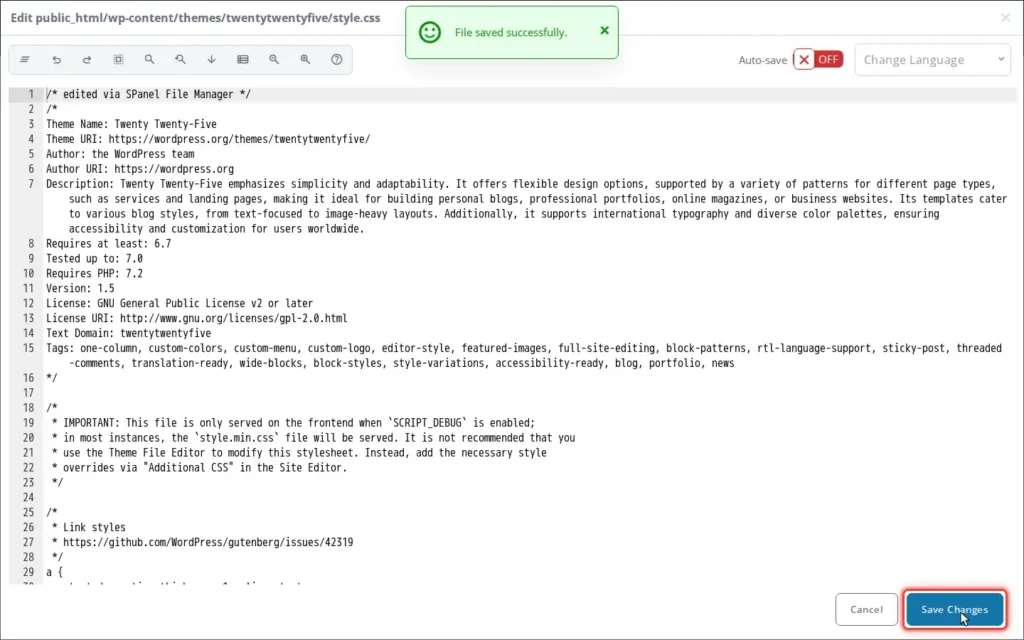
- Save. Click Save Changes. SPanel writes the file and shows a File saved successfully confirmation – your line is now live.
- Confirm the permissions did not change. For a safe test, use a harmless test file with restrictive permissions, such as 0600, then edit and save it. After saving, check the file’s permissions in the listing or properties view. The mode should remain the same.
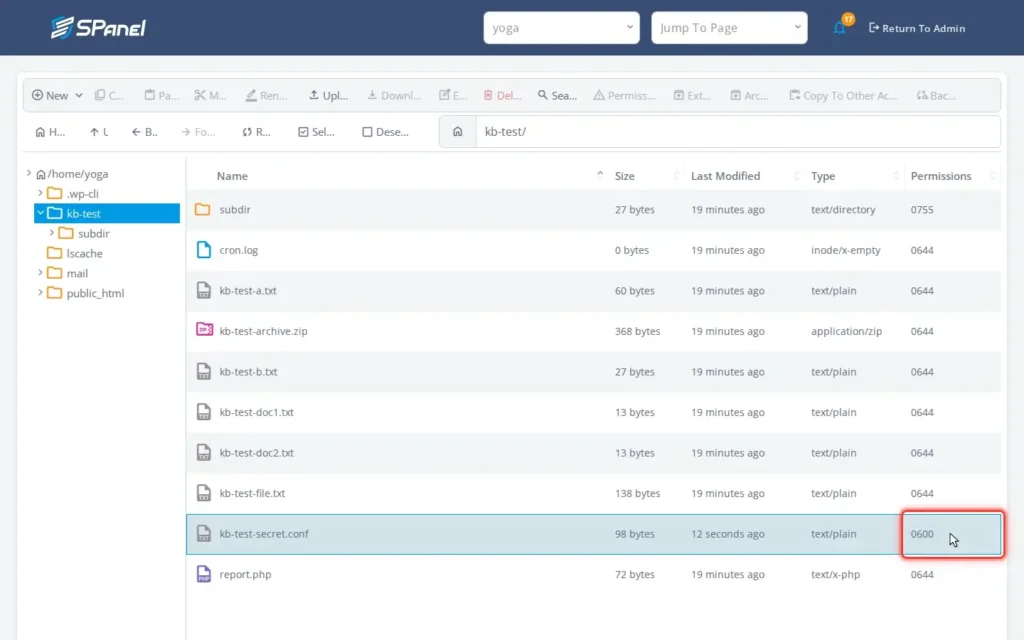
What happens behind the scenes
When you save, SPanel does two quiet things. It reapplies the file’s original permissions after the write – so a 0600 file stays 0600 and a 0755 file stays 0755 – and it runs the write as your account’s Unix user, not root, carrying exactly your account’s reach and no more. Those are the same filesystem rules SFTP and SSH obey.
Limitations and edge cases
The 2 MB editor cap is a hard limit – files above it do not open here; SFTP or SSH is the right tool for them. There is no version history and no undo once you save, so treat a save as final and keep a copy (or use Git) for anything you might roll back. The editor is for text: it will not render an image or preview a binary file.
Troubleshooting
| Symptom | Likely cause | What to do |
| The file will not open in the editor | Larger than 2 MB, or it is binary | Edit it over SFTP/SSH, or trim the file |
| You saved a wrong change and want it back | No per-file version history exists | Restore from a copy or daily backup |
| “Permission denied” on save | The file is not owned by your account user | Only your account’s files are writable here |
| Edits do not show on the live site | Browser or server cache serves the old file | Clear the cache and reload the page |
When to use / when not to use
| Use the File Manager editor when | Reach for SFTP/SSH instead when |
| A quick one-line change to a config, .htaccess, or theme file | The file is larger than 2 MB (logs, dumps, archives) |
| You want the file’s permissions left exactly as they are | You are moving or syncing many files at once |
| You would rather not install a desktop client | You need shell commands, not just a file edit |
FAQ
Q: Can I edit files without changing their permissions?
A: Yes – that is the default. SPanel reapplies the file’s mode after the save, so a 0600 file stays 0600 and a 0755 file stays 0755.
Q: Why can’t I open this file in the editor?
A: Usually size: the editor opens files up to 2 MB, and anything larger needs SFTP or SSH. Binary files such as images or archives also will not open as text.
Q: Is editing in the browser less secure than SFTP?
A: No. Every edit runs as your account’s Unix user, so the filesystem enforces the same boundary as SFTP or SSH – you can only touch your own files.
Q: Can I undo a save?
A: There is no built-in undo or version history. Keep a copy before a risky edit, use Git for tracked files, and rely on daily backups as a fallback.
