
SPanel runs cron jobs on a schedule you set through five plain fields – Minutes, Hours, Date, Month, Weekday – so the real decision is how often a job should fire without piling work onto your VPS. Match the frequency to how long the job takes and how fresh its output needs to be; hourly or daily is plenty for most maintenance. Cron’s smallest interval is one minute, and SPanel has no overlap lock, so a slow job run too often stacks up on itself.
Who this is for
You own or manage a small or medium ScalaHosting VPS, and you are setting up a scheduled task – a backup, a cache warmer, a feed import. You know what the command does; what you are unsure about is the schedule. This article is about picking a frequency that does the work without slowing the server down.
What problem this solves
It is easy to assume that more frequent means more up to date, but on a modestly sized VPS this can backfire. A job scheduled every minute that takes ninety seconds to finish starts a second copy before the first ends, then a third, until the server is overloaded. The fix is not a bigger server – it is a schedule that fits the work.
How SPanel solves this
In SPanel, open the Cron Jobs tool. The schedule is set through five fields – Minutes, Hours, Date, Month, Weekday – each with a preset dropdown plus a free-text box that defaults to *. A * means “every value,” so the more fields you pin to a specific value, the less often the job runs.
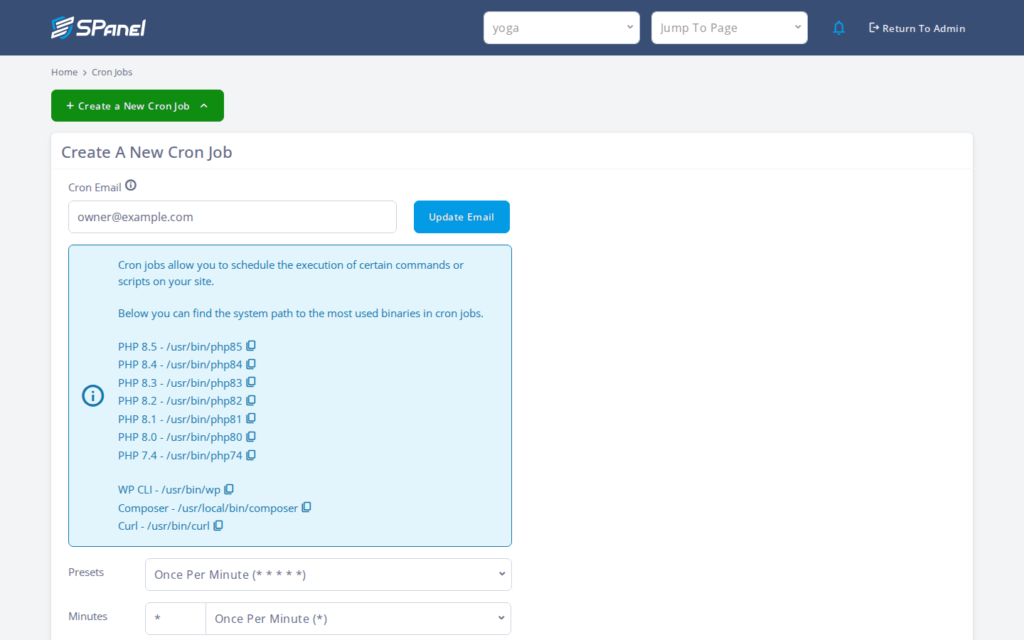
You don’t need to be fully aware of crontab syntax – simply pick a preset or type a value, enter your command, and save. Here are a few common patterns:
- 0 3 * * * – once a day at 03:00.
- */15 * * * * – every 15 minutes.
- 30 2 * * 1 – Mondays at 02:30.
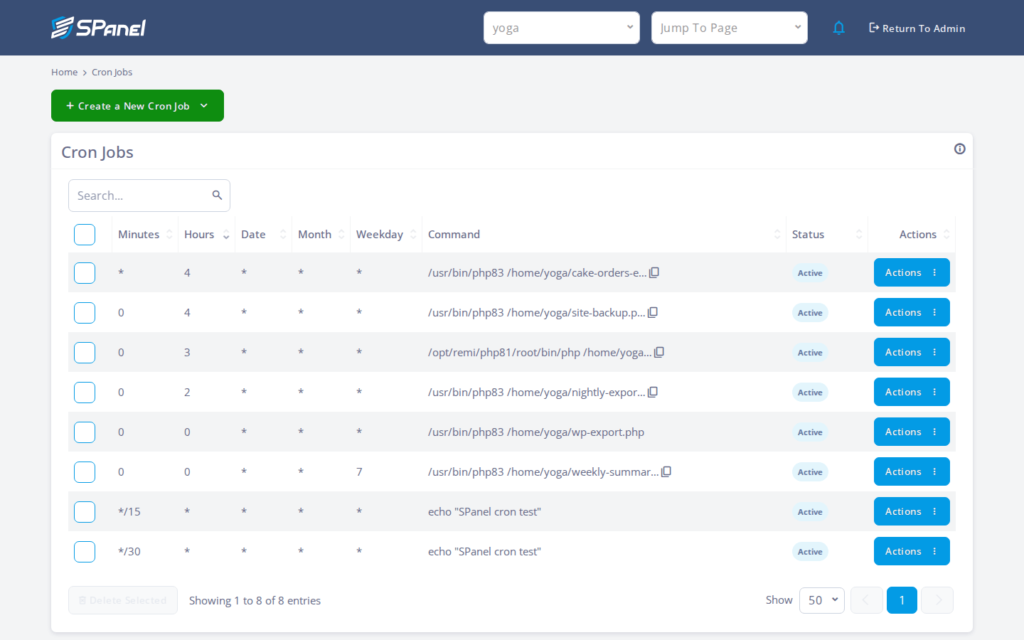
After saving, the job appears in your cron list with its schedule shown, so you can confirm it reads as intended.
Why this is different in SPanel
Two things make this easier to get right. The five fields are shown plainly with their own dropdowns, so you choose a frequency by reading labels rather than memorizing a crontab line. Scheduling also pairs with the Run Manually test and the empty-MAILTO default: you can trigger the job once to measure its runtime before committing to a frequency, and with MAILTO empty the job runs quietly instead of mailing you on every fire.
Before you start
- Access to the Cron Jobs area in your SPanel User Interface.
- The exact command you want to schedule, tested on its own first.
- A rough idea of how long the command takes – use the Run Manually test if you are not sure.
- For any job that writes or deletes data, confirm it points at safe test data before you schedule it.
Step-by-step
- Open the Cron Jobs tool. You should see the form with the five schedule fields, each set to * by default.
- Determine what frequency you need for the cron job. If the output must be current and the job is quick, every 15 minutes (*/15 * * * *) is reasonable; a nightly backup is ideally done once a day during quiet hours (0 3 * * *).
- Set the fields. Leave * where you want every value and pin the rest. For daily at 03:00, set Minutes to 0, Hours to 3, and leave the other three as *.
- Enter your command. Make sure the command is correct, especially if it involves writing or deleting data. If needed, do a test run to ensure everything is correct before you set the cron for the production environment.
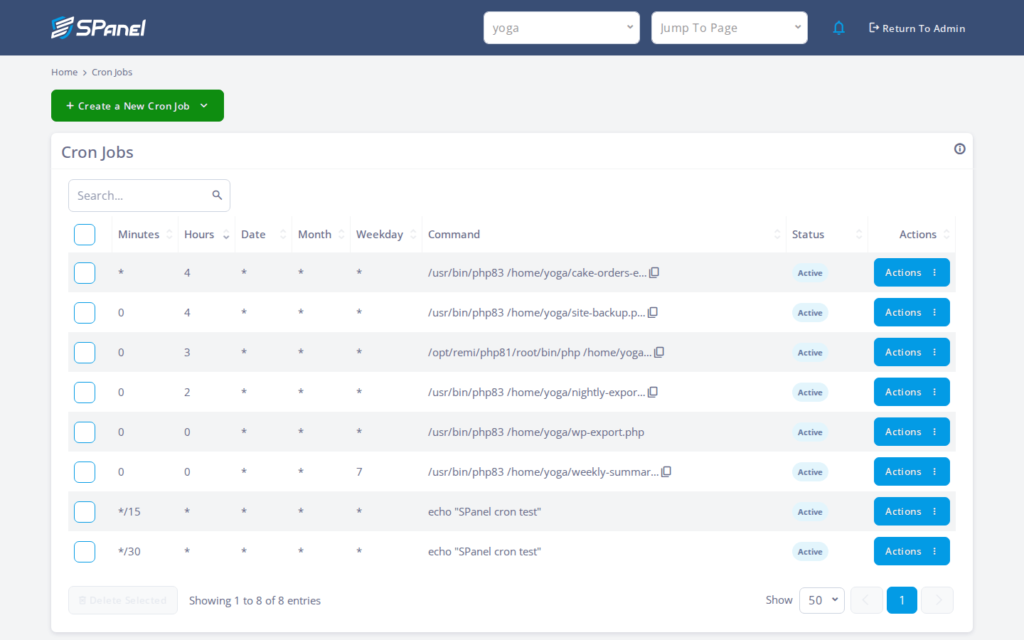
- Save the job. It now appears in your cron list with the schedule you set.
- Test it using the Run Manually in the Actions drop-down menu and take note of the runtime. If it is close to or longer than your interval, lengthen the interval so two copies never overlap.
What happens behind the scenes
SPanel writes your five-field choice into the system cron table for your account, and the scheduler fires the command at each matching minute. There’s no mechanism to monitor whether the previous run has finished – cron simply starts a new process on schedule. That is why the gap between runs, not the command itself, protects the server.
Limitations and edge cases
- One-minute minimum. Cron’s smallest granularity is one minute; there is no sub-minute schedule. If you need something every few seconds, a cron job is the wrong tool – use a long-running worker process instead.
- No overlap lock. SPanel does not stop a job from starting while a previous copy is still running, so a job that runs longer than its interval can stack up and start using excessive amounts of resources. Guard a long-running job with a lockfile – for example wrap the command with flock – so a new run skips itself while one is active.
Troubleshooting
| Symptom | Likely cause | What to do |
| Server load spikes on a regular interval | Job runs more often than it finishes, so copies overlap | Lengthen the interval; add a flock lockfile to the command |
| Job never seems to run | All five fields left at * plus a typo, or wrong command path | Re-check each field and the command; use Run Manually to test |
| Output is always stale | Interval too long for how fresh the data must be | Move to a shorter interval, e.g. */15 * * * *, if runtime allows |
When to use this / when not to use this
| Use this when | Skip or use something else when |
| A task repeats on a fixed clock schedule | The task must react instantly to an event |
| The job finishes well within its interval | Each run takes longer than the gap between runs |
| Once-a-minute or slower is fresh enough | You need sub-minute or near-real-time work |
FAQ
Q: What is the most frequent a cron job can run in SPanel?
A: Once per minute – cron has a one-minute floor, so * * * * * is as often as it gets. For anything finer, run a continuous process instead.
Q: Is running every minute safe?
A: Only if the job reliably finishes in well under a minute. With no overlap lock, a slow job at one-minute frequency starts stacking copies, so test the runtime first.
Q: How do I stop two copies of a job from overlapping?
A: Add a lockfile to the command, for example with flock, so a new run exits when an earlier one is still active. SPanel does not do this for you.
Q: How do I schedule a daily job?
A: Set Minutes and Hours to the time you want and leave Date, Month, and Weekday as *; 0 3 * * * runs once a day at 03:00.
Q: Will I get an email every time the job runs?
A: Not by default – MAILTO is empty, so jobs run quietly. Add a notification address yourself if you want one.
Q: Should backups run more often than daily?
A: Usually not on a small VPS – nightly in the quiet hours is a common choice, since more frequent backups add load and rarely improve recovery enough to justify it.
