
SPanel emails you when a scheduled job produces output by setting the crontab MAILTO address through the “Cron Email” field in Tools > Cron Jobs. Open the cron job form, type a notification address in “Cron Email”, and save. One caveat up front: this address is per-crontab, so it applies to every cron job that user runs, not a single job – and a job that prints nothing sends no email.
Who this is for
You run a site on a ScalaHosting managed VPS and have one or more scheduled jobs – a nightly backup, a feed importer, a cleanup task. You want to know when one prints output or fails, instead of finding out days later. This is for the site owner managing their own cron jobs in SPanel.
What problem this solves
Cron jobs are quiet by design. They run on schedule whether or not you are watching, and if a script produces an error, the failure usually lands in a log you never check. By the time a broken importer or failed backup surfaces, you have lost days of runs. A notification address means cron tells you when a job has something to report.
How SPanel solves this
The notification address lives in the same form you use to schedule a job. Open Tools > Cron Jobs, then click Create a New Cron Job. The form has a field labelled “Cron Email” with the placeholder “Enter notification email”; whatever you put there becomes the crontab MAILTO for that user.
Alongside it you set the schedule with the Minutes, Hours, Date, Month, and Weekday fields and the Command field. After you save, whenever any of your cron jobs writes output, cron mails it to that address.
Why this is different in SPanel
SPanel ships a fresh crontab with an empty MAILTO, so a new job does not mail output to user@hostname, a local address you would never see. You opt in by entering an address; nothing is sent until you decide to be notified.
The other difference is placement. You do not edit a separate configuration file to set up alerts; the notification address sits in the Cron Jobs graphical interface, next to the schedule and command, so setting it is part of creating the job.
Before you start
- Access to your SPanel User Interface (the user-level panel, not server administration).
- A monitored email address. Use a safe test address such as owner@example.com while you confirm delivery.
- At least one cron job to attach the notification to, or a test command ready to schedule.
- Note: changing “Cron Email” updates the MAILTO for all of your cron jobs, not just this one.
Step-by-step
- Click Cron Jobs on the homepage of SPanel’s User Interface. You see your existing cron jobs and the button to add one.
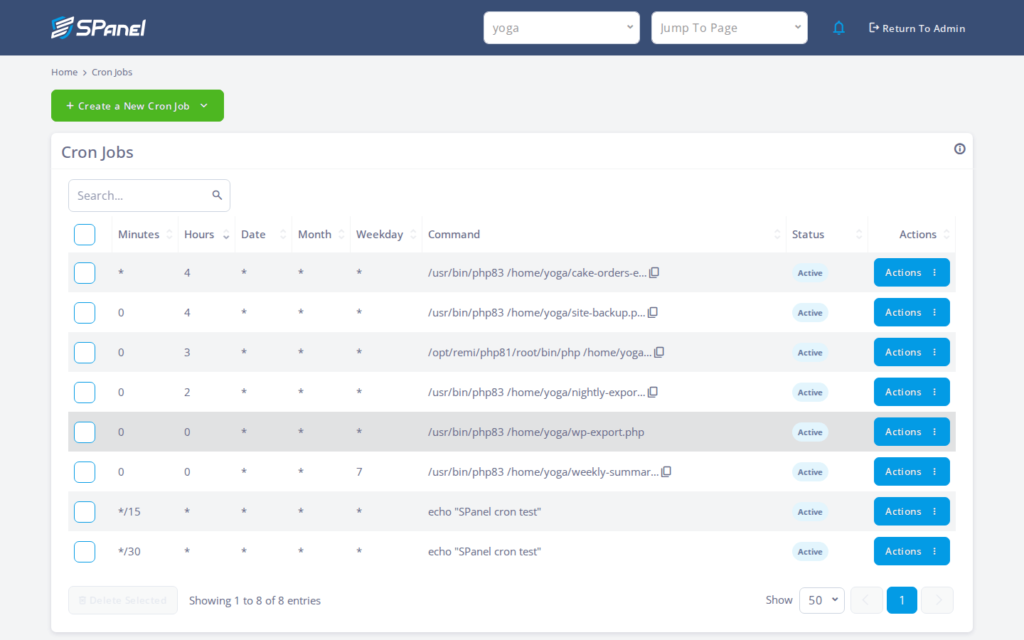
- Click Create a New Cron Job to open the form.
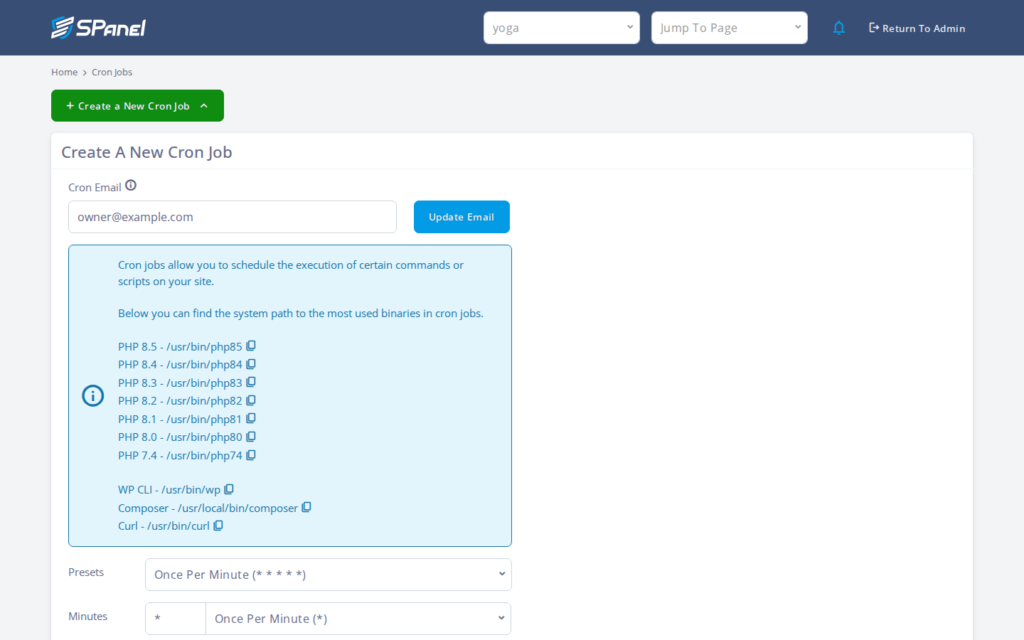
- In the Cron Email field, type the address that should receive notifications. This sets the MAILTO for your crontab.
- Set the schedule with the Minutes, Hours, Date, Month, and Weekday fields, using the preset dropdowns if you prefer not to type values.
- In the Command field, enter the command to run. To confirm notifications work, use a test cron job that runs echo “SPanel cron test”. Because it prints a line, cron has output to mail.
- Save the job. You return to the Cron Jobs list with your job shown. On its next scheduled run, you should receive an email containing the SPanel cron test line at the address you set.
What happens behind the scenes
The Cron Email value is written into your crontab as the MAILTO setting. Cron handles delivery: each time a job runs, it captures whatever the command writes to standard output or standard error, and if MAILTO is set and there is output, it mails that text to the address. You receive the raw output, and the setting covers every single job saved in your account.
Limitations and edge cases
- The notification email is per-crontab. It applies to all of that user’s jobs through MAILTO, not one individual job. You cannot route one job to a different address here. For per-job routing, have each command email its own output instead.
- A job that produces no output sends no email, because cron only mails when there is output. A silent successful run tells you nothing. If you want a heartbeat, make the command print a line, like the test job. To keep a record even when there is nothing to email, you can send cron output to a log file in SPanel.
- Delivery depends on the address you set and normal email deliverability. A typo, a full mailbox, or a spam filter can lose the message. Run the test job and confirm the email arrives before relying on it.
Troubleshooting
| Symptom | Likely cause | What to do |
| No email after a job runs | The job produced no output, so cron had nothing to send | Add a line of output (e.g. an echo) and check again |
| No email even from the test job | ‘Cron Email’ is empty or has a typo | Reopen the job, correct ‘Cron Email’, and save |
| Email goes to the wrong place | MAILTO is shared, so an earlier job set the address | Update ‘Cron Email’; it changes all your jobs |
| Email is missing or delayed | Spam filtering or normal deliverability | Check the spam folder and confirm the address gets other mail |
When to use this / when not to use this
| Use this when | Skip or use something else when |
| You want to be told when a job errors or prints output | You need different addresses for different jobs |
| Your jobs already print errors to standard output | Your jobs run silently and you cannot add output |
| You want alerts without an external monitoring tool | You need rich alerting, retries, or dashboards |
FAQ
Q: Does setting Cron Email notify me for every job?
A: Yes. The address is the crontab’s MAILTO, so it applies to all of that user’s cron jobs. You cannot limit it to one job from this field.
Q: Why did my successful job not send an email?
A: Cron only emails when a job produces output. A run that prints nothing sends no mail. Add a line of output if you want confirmation.
Q: Will SPanel email me by default if I do nothing?
A: No. SPanel ships a fresh crontab with an empty MAILTO, so notifications are off until you enter an address in ‘Cron Email’.
Q: Can I send different jobs to different email addresses?
A: Not through this field, because MAILTO covers the whole crontab. Have each command email its own output if you need per-job routing.
Q: How do I test that notifications work?
A: Schedule a job that runs echo “SPanel cron test”, set ‘Cron Email’, and wait for its next run. The printed line gives cron output to mail.
Q: What if the email never arrives?
A: Check the address for typos, look in the spam folder, and confirm the mailbox receives other mail. Delivery also depends on normal email deliverability.
