
SPanel’s form-based Cron Job Manager covers the three things you do most with scheduled tasks: add a job, change one in place, and remove one. In the SPanel user interface, open the Cron Jobs, then use the Create a New Cron Job form, Edit, or Delete on a job’s row.
The key limit: an edit or delete is an exact-match, in-place change to a single job line – no multi-select, no bulk edit – so each action touches only the job you picked and leaves the rest of your crontab alone. New jobs are quiet by default too: an empty MAILTO means adding a job does not start emailing its output.
Who this is for
This guide is for the person who runs scheduled tasks on a ScalaHosting managed VPS and wants to manage them without a terminal – usually a small business owner with a nightly backup or recurring report. Digital agencies and developers will find this operation useful as well. You do not need shell experience, only the SPanel user interface and a command to run on a schedule. To confirm a job works before trusting the schedule, see the related guide below.
What problem this solves
The old way to manage scheduled tasks is crontab -e over SSH: one shared file, every job on its own line, no guardrails. The danger is not writing a new line – it is everything around it. A stray keystroke on another row, a deleted character in a path, and a job that ran for months stops firing. One careless edit can break every job in the file – no warning, no undo.
How SPanel solves this
SPanel replaces the raw file with a form. Open the Cron Jobs Manager and your jobs appear as a list, one row each.
To add, fill in the five schedule fields and the command and save; to edit, open a row and change what you need – most often the schedule; to delete, remove a row after a confirmation. You work on one job at a time, and the form does the crontab editing, so the mistakes that break a hand-edited file never happen.
Why this is different in SPanel
Two specifics make this safer than a hand edit.
- Edit and delete are exact-match, single-line changes. When you edit a job, SPanel replaces only the line you selected; when you delete one, it removes only that line. Every other job stays byte-for-byte as it was. There is no multi-select and no bulk edit – which is the safety feature: you cannot affect a neighboring job by accident.
- New jobs are silent by default. A standard crontab emails the output of every run, so a fresh job on a busy schedule can flood your inbox. SPanel ships with an empty MAILTO – the cron setting that decides where output is emailed – so output goes nowhere and your added job runs quietly. Want the emails? Set MAILTO yourself; nothing arrives by surprise.
Before you start
You will need:
- A ScalaHosting managed VPS with SPanel, signed in to the SPanel user interface (not the admin area).
- The command to schedule, with full absolute paths – a relative path that works in your shell often fails under cron.
- A schedule in mind, such as “every day at 3 AM.” The next section shows how to write it in cron’s five fields.
Step-by-step
We will add a harmless job, change its schedule in place, then delete it.
The example has no application-side effects: it only appends one line to a test log file: /bin/echo “cron ran” >> /home/USER/kb-test/cron.log. Before adding the test cron job, create /home/USER/kb-test/ or replace the path with an existing directory in your account.
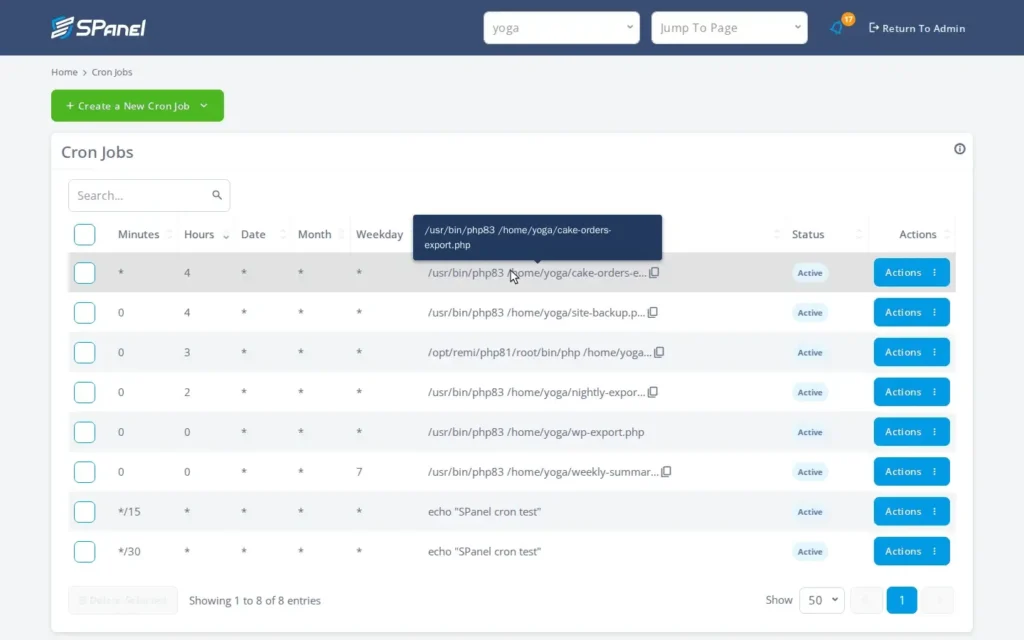
- In the SPanel user interface, open Cron Jobs Manager. Your jobs appear as a list with their schedules and commands.
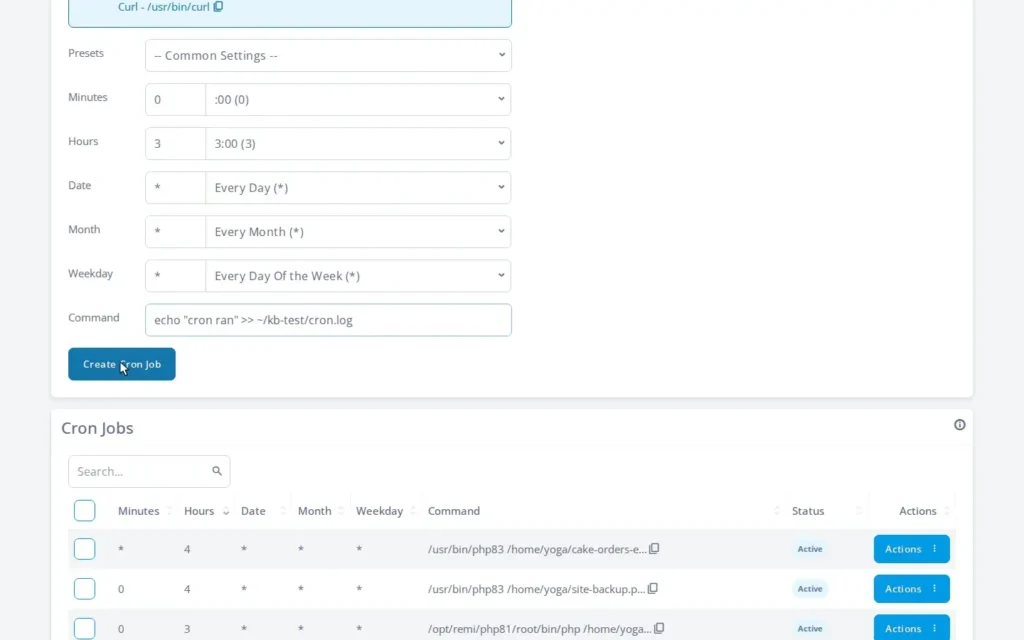
- Add a job. Fill in the five schedule fields and the command, then save. For “every day at 3:00 AM,” the schedule is 0 3 * * *, with the command echo “cron ran” >> ~/kb-test/cron.log.
The five schedule fields. Cron reads a schedule as five values in order: minute (0–59), hour (0–23), day-of-month (1–31), month (1–12), day-of-week (0–6, where 0 is Sunday). A * means “every.” A few examples:
- 0 3 * * * – every day at 3:00 AM.
- */15 * * * * – every 15 minutes, all day.
- 30 2 * * 1 – 2:30 AM every Monday.
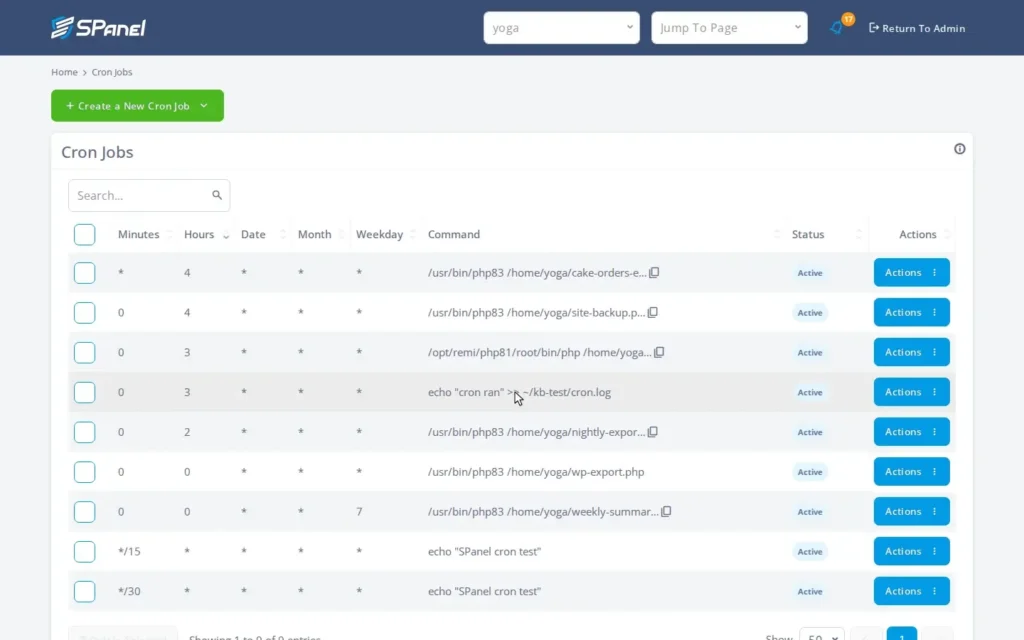
- Confirm the job was added. Save returns you to the list, where the new job appears as its own row.
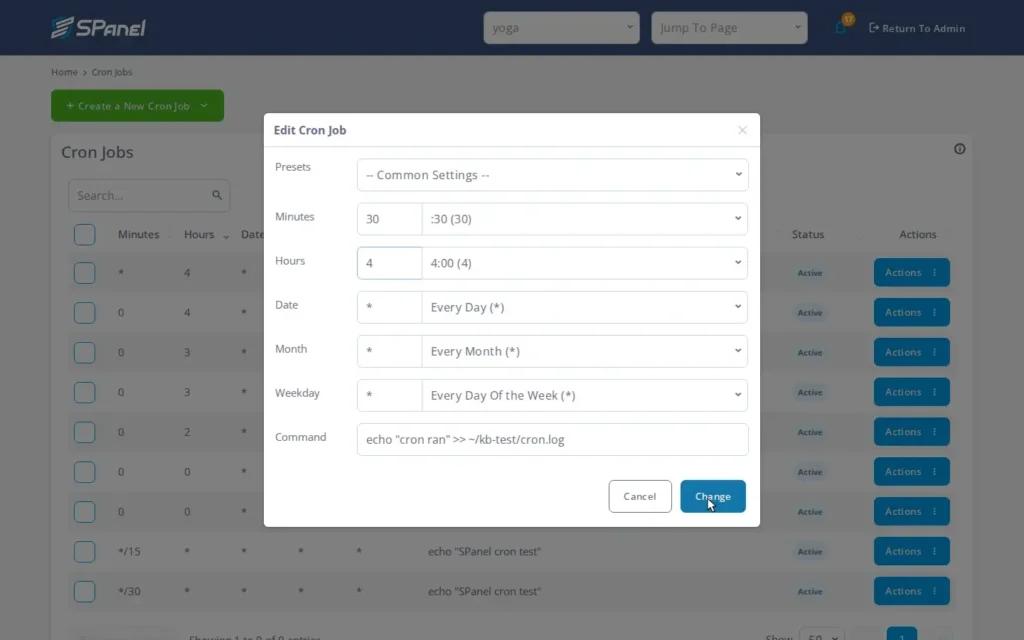
- Edit the job in place. Open Actions – Edit on the new job’s row. The form opens pre-filled. Change only the schedule – from 3:00 AM to 4:30 AM (minute 30, hour 4, the rest *) – and save.
- Confirm the edit, and that the rest are intact. Back in the list, the edited job shows its new schedule while every other job is unchanged – the exact-match edit touched one line and left the neighbors alone.
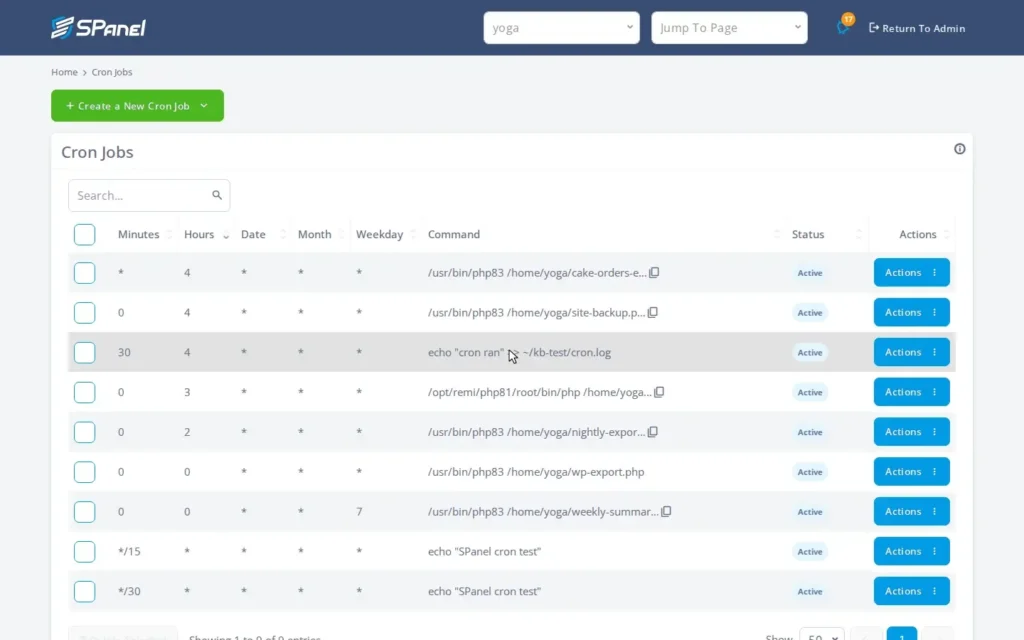
- Delete the job. Use Delete on its row and confirm. SPanel removes only that line, and the rest of your schedule is intact.
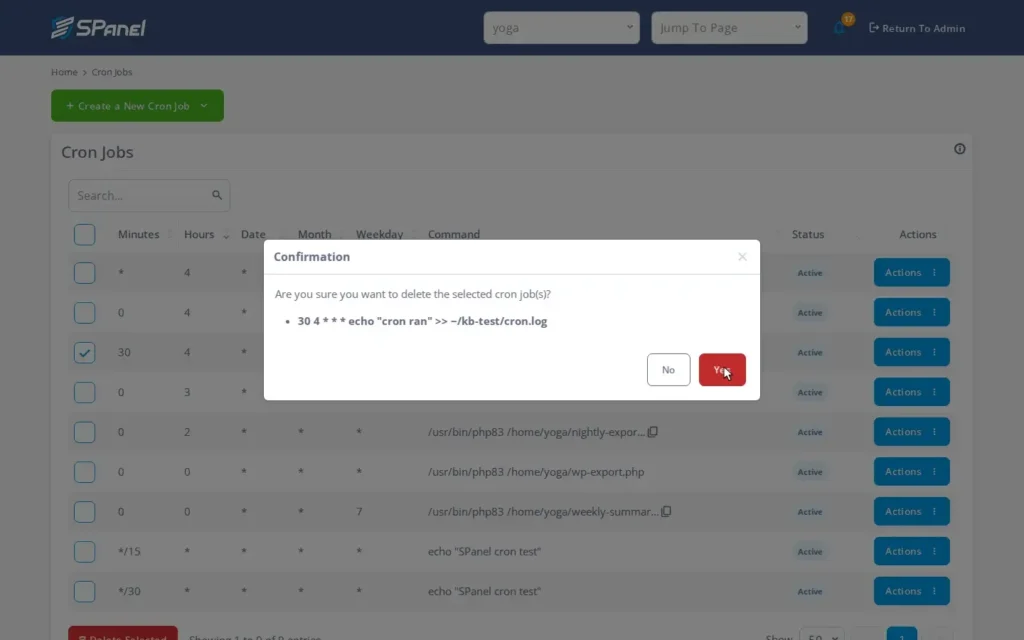
What happens behind the scenes
SPanel reads and writes your user’s crontab – the same file crontab -e opens. When you add, edit, or delete, it rewrites that file, replacing or removing only the targeted line and copying the rest through unchanged. That is why one action never disturbs a job you did not select.
Limitations and edge cases
You work one job at a time: no multi-select (five edits for five jobs) and no bulk delete. The panel manages the standard five-field schedule; it does not offer one-time “run once at this date” scheduling, automatic retries, or a drag-and-drop schedule builder. Because a fresh job is silent by default, “I added it but got no email” is expected, not a failure.
Troubleshooting
| Symptom | Likely cause | What to do |
| Added job never seems to run | Schedule fields are off, or the command uses a relative path | Re-check the five fields; use full absolute paths |
| No email after adding a job | Empty MAILTO default – output is not mailed | Expected; set MAILTO if you want emails |
| Edited the wrong job’s schedule | Two rows looked alike | Open the right row by its command; the others were untouched |
| Job still runs after you deleted it | Confirmation dismissed, or a duplicate line exists | Confirm the row is gone; delete any duplicate |
When to use / when not to use
| Use the Cron Job Manager when | Reach for something else when |
| You want to add, change, or remove a recurring task without SSH | You need a task to run exactly once at a future date |
| You want to change one job’s schedule and leave the rest alone | You want automatic retries or failure alerts on a job |
| You prefer a form over editing a raw crontab | You are confirming a brand-new job actually works (test it first) |
FAQ
Q: Will editing one cron job change the others?
A: No. SPanel matches the exact line of the job you opened and rewrites only that line. The others stay as they were.
Q: Can I edit or delete several jobs at once?
A: No. There is no multi-select or bulk edit – you work one job at a time. That is deliberate: an action cannot catch a job you did not mean to touch.
Q: Why didn’t I get an email when my new job ran?
A: No email is expected by default because SPanel uses an empty MAILTO= setting. To confirm the job actually runs, use the related “test a cron job before it runs” guide or check the job’s output/log file.
Q: Does deleting a job in SPanel remove it from the real crontab?
A: Yes. SPanel writes your real user crontab, so deleting a job removes that line from the file the scheduler reads.
