You send an important email – an invoice, a password reset, a welcome message – and it quietly lands in the recipient’s spam folder. Or it never arrives at all. The cause is usually invisible: your domain never proved the message was really coming from you.
That’s exactly what SPF, DKIM, and DMARC do. Get your SPF, DKIM, and DMARC set up right, and receiving mail servers will trust your messages enough to deliver them. Get one record wrong, and you can break email – sometimes the whole website – for an entire domain.
And every one of these records lives in your DNS, where a single typo does real damage.
How Email Authentication Works: SPF, DKIM, and DMARC Together
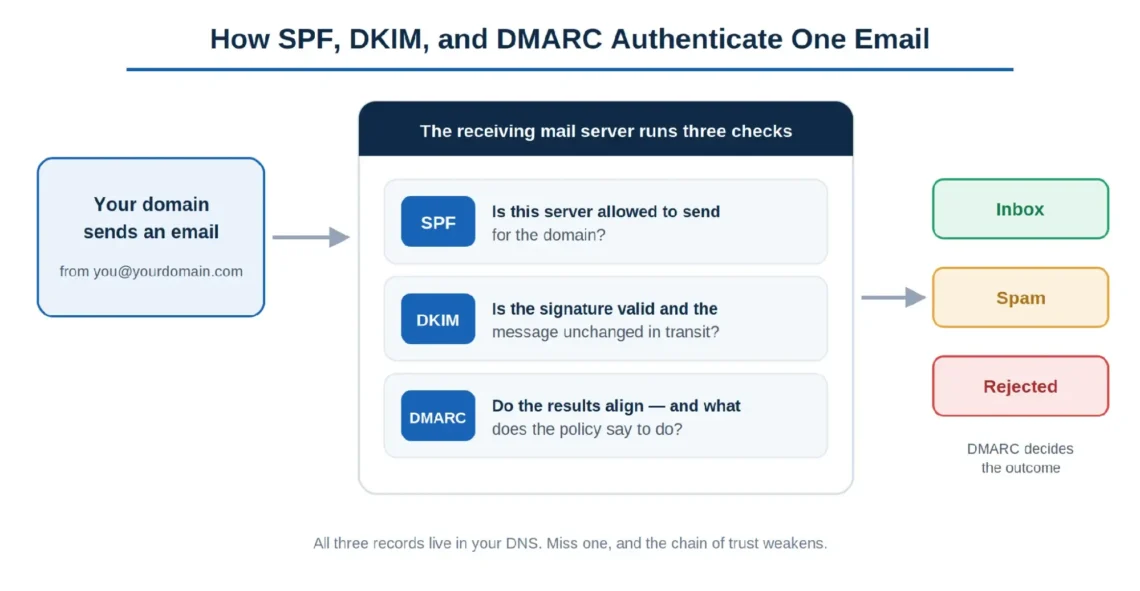
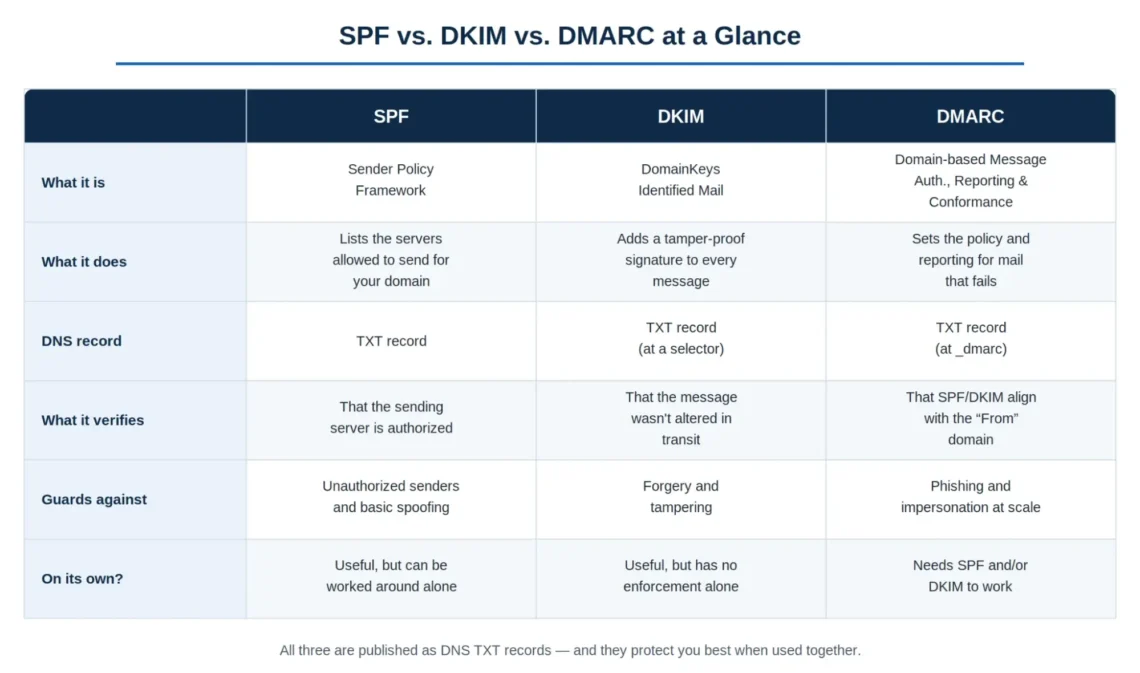
Email authentication is how a receiving mail server verifies that a message actually came from the domain it claims to be from. Three records do the work together: SPF lists the servers allowed to send for your domain, DKIM attaches a tamper-proof signature to every message, and DMARC tells receivers what to do when a message fails either check – and reports back to you.
Skip one and the chain weakens. SPF without DMARC can be worked around. DKIM without DMARC has no enforcement. The three are designed to work as a set, not à la carte.
Preventing Email Spoofing
Email spoofing is an attack where someone forges your sending address so a message looks like it came from you. SPF and DKIM shut most of it down. SPF publishes the exact list of servers permitted to send for your domain, so a message from anywhere else looks suspicious. DKIM signs each message cryptographically, so a forged or altered copy fails verification on arrival.
Mitigating Phishing Attacks
Phishing emails imitate a trusted sender to trick people into handing over data, credentials, or money. DMARC is the record that lets you fight back at scale. By setting a DMARC policy, you tell receiving servers to quarantine or reject mail that fails SPF and DKIM, before it reaches an inbox. DMARC also sends you reports, so you can spot who’s abusing your domain and tighten your setup.
Building Recipient Trust
Verified sender identity is the quiet engine behind deliverability and brand trust. People open, click, and reply more readily when a message is probably from who it claims to be – which matters most for the brands that live on email marketing and customer communication.
IMPORTANT: SPF, DKIM, and DMARC improve trust and reduce rejection/spam risk, but they do not guarantee inbox placement. Google says authenticated messages are “less likely” to be rejected or marked as spam, not guaranteed to land in the inbox.
Sender Policy Framework (SPF) Explained
Sender Policy Framework (SPF) is a DNS record that lists the mail servers and IP addresses allowed to send email for your domain. You publish an SPF record in your domain’s DNS. When your message arrives, the receiving server reads that record and checks whether the sending server is on your approved list. A match clears the SPF check; anything else looks unauthorized.
Say an employee emails a vendor. The vendor’s mail server reads your SPF record, confirms the sending server is authorized, and treats the message as legitimate. Anyone trying to send from your domain on an unlisted server gets flagged or rejected.
What an SPF Check Looks Like
An SPF check runs in three steps:
- You publish the record. Your SPF record lists every IP address and hostname allowed to send mail for your domain.
- The recipient’s server reads it. When your email arrives, the receiving server pulls your SPF record from the DNS and looks for the sending server.
- The server acts on the result. A pass moves the message along. A fail can mean spam-foldering, quarantine, or outright rejection.
How to Publish an SPF Record in Your DNS
Publishing an SPF record takes a few minutes in any DNS editor:
- Open your DNS settings. Log in to your hosting or DNS provider and find DNS management for your domain.
- Add a new TXT record. SPF data lives in a TXT record.
- Enter the SPF value. It starts with v=spf1, followed by the servers allowed to send. For example: v=spf1 ip4:192.0.2.1 include:mail.example.com -all permits that IP and mail server and tells receivers to reject everything else.
- Save and verify. Publish the record, then confirm it with an SPF checking tool. DNS changes can take time to propagate.
Start with a soft fail (~all) while you’re testing, then move to a hard fail (-all) once you’re confident every legitimate sender is listed.
DomainKeys Identified Mail (DKIM) Explained
DMARC connects SPF and DKIM to the visible From domain. A message passes DMARC when SPF or DKIM passes, and the authenticated domain aligns with the domain the recipient sees in the From field. If neither aligned check passes, the receiving server follows your DMARC policy: monitor, quarantine, or reject. DMARC rests on a few ideas:
- A key pair. Your sending server holds a private key and publishes the matching public key in your DNS.
- A signature on every message. The server signs each outgoing message with the private key.
- Verification on arrival. The receiver fetches your public key from DNS and checks the signature. A match proves the message is intact and really from your domain.
How DKIM Signs Your Emails
Here’s the signing process, start to finish:
- Generate the keys. Your mail server creates a private and public key pair and publishes the public key in DNS.
- Hash the message. The server creates a unique fingerprint of the message body and selected headers.
- Sign the hash. The private key signs that fingerprint, producing a DKIM-Signature header that travels with the message.
- Verify on the other side. The receiving server reads the selector in the signature, fetches the matching public key, and re-checks the fingerprint. If the two match, the message passes.
Domain-Based Message Authentication, Reporting, and Conformance (DMARC) Explained
DMARC (Domain-based Message Authentication, Reporting, and Conformance) ties SPF and DKIM together: it tells receiving servers what to do with mail that fails – deliver, quarantine, or reject – and emails you reports on what’s happening. It adds three things on top of SPF and DKIM:
- Policy. You choose how receivers treat failing mail: none, quarantine, or reject.
- Alignment. DMARC checks that the domain in the visible “From” address matches the domains verified by SPF and DKIM.
- Reporting. You receive aggregate reports showing who’s sending as your domain and whether they pass.
This isn’t optional housekeeping anymore. Google and Yahoo have required SPF, DKIM, and a DMARC policy from bulk senders since February 2024, and other providers are tightening in the same direction.
How to Configure a DMARC Policy
Set up DMARC the same way you set up SPF – as a DNS record:
- Create a DMARC TXT record. Add a TXT record at _dmarc.yourdomain.com.
- Set your policy and reporting address. For example: v=DMARC1; p=quarantine; rua=mailto:reports@yourdomain.com – version, policy, and where aggregate reports go.
- Confirm SPF and DKIM are live. DMARC depends on both, and on alignment with your “From” domain.
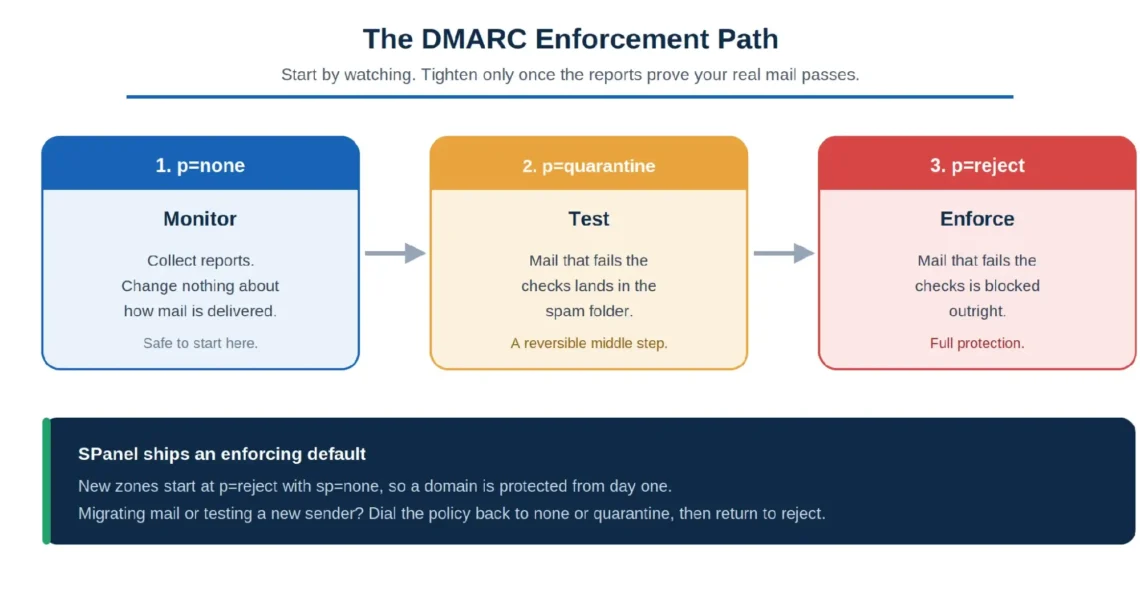
- Start at none, then tighten. Begin in monitoring mode, read the reports, and move to quarantine and then reject as you confirm your legitimate mail passes.
Why One Typo Can Break Your DNS (and How to Avoid It)
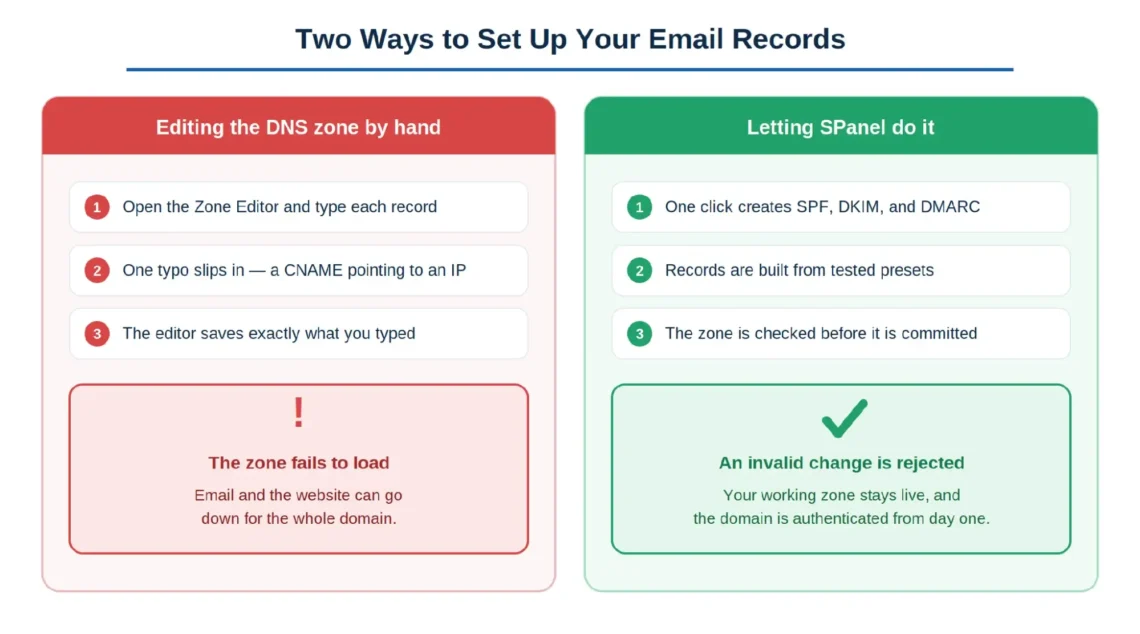
Every record we’ve covered lives in your DNS zone – and most DNS editors do exactly what you tell them, including saving a broken record.
A misformatted TXT entry, an SPF record with a stray character, a CNAME pointing at an IP address instead of a hostname – these don’t always fail politely. A malformed zone can stop the DNS server from loading it at all. When that happens, you don’t lose one record; you can lose email and the website for the whole domain at once.
A DNS editor that blindly saves whatever you type is one keystroke away from an outage.
This is where the panel you use matters.
Most control panels – cPanel included – give you a Zone Editor for adding records. The difference worth caring about is whether the panel checks your work before it goes live. SPanel does. Before it commits a zone change, it runs the underlying BIND zone files through a syntax check – the same kind of validation the DNS server itself uses. If an edit would break the zone, the change is rejected, and your existing, working zone stays in place.
Setting Up SPF, DKIM, and DMARC the Easy Way with SPanel
Yes – SPanel can set up SPF, DKIM, and DMARC for you automatically. When a domain’s DNS zone is created on our platform, the three records are generated from tested presets, so a new domain starts out authenticated instead of wide open. A single action gives you all three:
- SPF, built around your server’s own IP: v=spf1 +a +mx +ip4:your-server-ip -all.
- DKIM, with a key pair generated automatically and the public key published to your zone.
- DMARC, set to an enforcing policy from the start: v=DMARC1; p=reject; sp=none; rf=afrf; pct=100; ri=86400.
That default leans strict – p=reject enforces from day one, while sp=none leaves subdomains in monitoring. If you’re migrating mail or testing a new sending service, you can dial the policy back to none or quarantine, watch the reports, and return to reject once everything checks out.
Because the same platform validates the zone before committing, those auto-generated records are published correctly – no stray characters, no broken syntax. You get authentication that works on day one, on every managed VPS, at no extra cost.
SPanel can simplify email authentication by creating the core DNS records needed for domain-based email authentication and by giving users direct control over DNS records from the same hosting interface. For many domains hosted on ScalaHosting, this reduces the amount of manual DNS work needed for SPF, DKIM, and DMARC setup. If your domain also sends mail through third-party platforms such as Google Workspace, Microsoft 365, Mailchimp, Brevo, or a CRM, those senders still need to be added and verified before you tighten your DMARC policy.
On a Scala Managed VPS, you can also benefit from a dedicated IP (which ensures you are the only one using your IP address) and IP blacklist monitoring (where we monitor the popular email blacklists to ensure your address doesn’t fall into their negative statistics.
Naturally, all managed hosting users can also benefit from the knowledgeability of our technical support team. Should you have any questions or issues with the SPF/DKIM/DMARC setup and operation – contact our operators, and they will gladly help you out.
IMPORTANT: Many DNS editors simply let users add TXT records manually, while SPanel can create authentication records for domains and gives users DNS control inside the same hosting environment.
Benefits of Implementing SPF, DKIM, and DMARC
Together, the three records pay off in three clear ways:
| Benefit | What It Means |
|---|---|
| Better deliverability, less spam-foldering | Verified senders are trusted senders. SPF confirms the sending server and DKIM proves the message wasn’t altered, so legitimate mail is far less likely to be flagged as spam. |
| Stronger trust and brand protection | When recipients can confirm a message truly came from your domain, your brand is harder to impersonate, and your communication carries more weight. |
| Real defense against phishing and spoofing | A DMARC policy of quarantine or reject stops mail that fails the checks before it reaches an inbox, closing the door on the most common impersonation attacks. |
Authentication works best on top of a sender reputation you can trust. Sending from a provider with clean, well-maintained IPs – like ScalaHosting’s business email hosting – means your SPF, DKIM, and DMARC records are vouching for mail that’s already coming from a good neighborhood.
Conclusion
Email authentication isn’t a nice-to-have anymore – SPF, DKIM, and DMARC are the difference between mail that lands and mail that disappears. The riskiest part isn’t the concepts; it’s hand-editing the DNS records that make them work. Let a platform that validates your zone and generates the records for you handle that part, and you get the deliverability without the danger.


Frequently Asked Questions
Q: What Are the Best Practices for Email Authentication?
A: Keep your records current, simple, and aligned. Review SPF and DKIM regularly to add new senders and remove old ones, keep SPF under the 10-lookup limit, and use DKIM keys of at least 2,048 bits. Roll DMARC up gradually from monitoring to enforcement, and use identifier alignment so the verified domain matches your visible “From” address.
Q: What is the safest SPF, DKIM, and DMARC setup?
A: A safe setup uses SPF to list every approved sender, DKIM to sign outgoing messages, and DMARC to enforce alignment with the visible From domain. Start DMARC at p=none while reviewing reports, move to p=quarantine after legitimate senders pass, and use p=reject only when all business-critical mail sources are authenticated and aligned.
Q: How Do You Read DMARC Reports?
A: Start with the aggregate reports, which summarize how much of your mail passed or failed and where it came from. Look for patterns – especially legitimate sources that are failing, which usually point to a missing entry in SPF or DKIM. Use that signal to fix your records before you tighten the policy.
Q: How Do You Write an Effective SPF Record?
A: Begin with a soft fail (~all) while you test, then switch to a hard fail (-all) once every sender is listed. Use include: for third-party services like your email marketing platform so their mail passes too, and review the record periodically to keep it accurate.
Q: What Happens if a DNS Record Has a Typo?
A: It depends on your DNS editor. Many will save the broken record as-is, and a malformed zone can stop loading entirely – taking email and the website down with it. SPanel avoids this by validating the zone before it commits, so an invalid change is rejected and your working zone stays live.
Q: Does SPanel Set Up SPF, DKIM, and DMARC Automatically?
A: Yes. When a domain’s zone is created, SPanel generates SPF, DKIM, and DMARC records from presets, including a freshly created DKIM key pair. You get a domain that’s authenticated from the start, without hand-editing a single record.