SPanel Team Access, Permissions, and Activity Logs: The Complete Guide (2026)

SPanel gives a hosting account two layers of team access. In the Admin Interface you can create multiple admin accounts, each restricted to exactly the pages it needs.
In the User Interface you create sub-users with an exact set of per-page permissions. Around that sit two-factor authentication, API tokens with optional expiration and per-endpoint scoping, and activity logs your team can view but cannot delete.
The problem with one shared login
If you run the entire project yourself, a single control panel login does the job perfectly. However, the setup starts breaking down as soon as you hire a developer for a new feature you want to include, a designer for a new theme, and a marketing manager that has to overlook stuff like newsletters, traffic etc.
At this point, you have a total of four people (you included) working on the same website, and having them all share a single username and password is a bad call. For one, sharing the same login credentials is a security risk.
Furthermore, it’s much better if every team member has access only to the tools they need to do their job. That way, you won’t worry about the designer accidentally changing the domain’s DNS records or the marketing manager breaking the database.
SPanel can help you ensure that everyone can do their job efficiently and securely.
What team access controls does SPanel have?
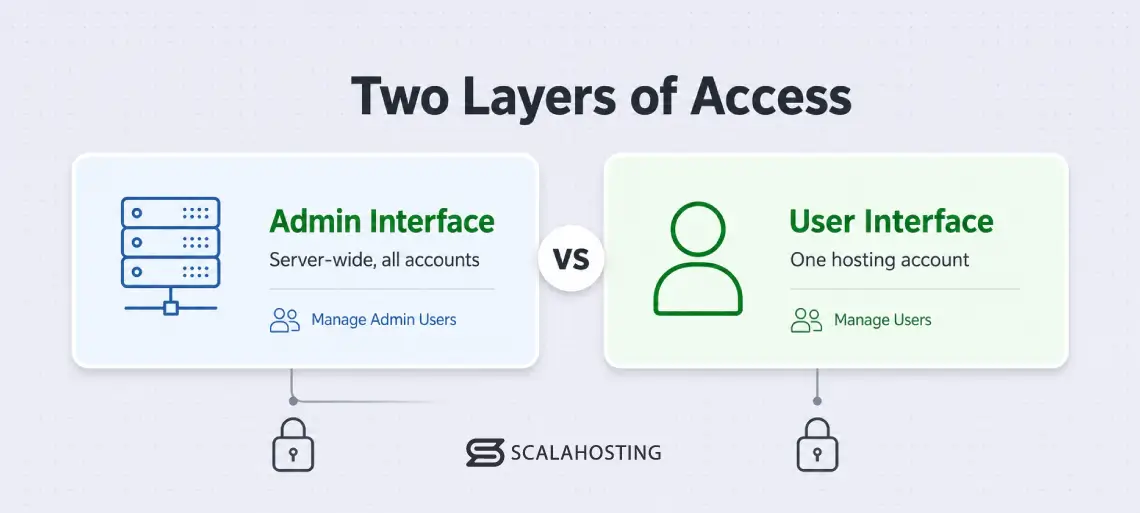
SPanel controls team access at two levels that mirror each other.
At the server level, the SPanel Admin Interface lets you create more than one admin account (a login that manages hosting accounts, packages, and server settings) and restrict each admin to specific pages and actions. At the single-account level, the SPanel User Interface lets an account owner create sub-users (additional logins to one hosting account), each granted an exact set of permissions, page by page.
Supporting those two layers: two-factor authentication (a login that needs a second proof beyond the password), API tokens for automating various processes, and activity logs that record what everyone did. Every piece is included free on every ScalaHosting managed VPS.
The organizing idea is following a policy of least privilege: give each person only the access their job needs, and no more. It’s the difference between one leaked password exposing your whole account and one leaked password exposing a single mailbox.
Scoped access also sits inside a managed environment, not a bare server. SShield monitors traffic and blocks attacks in real time across every hosting account on the machine, so least privilege becomes one layer of a managed security system rather than a standalone setting. You limit what a credential can reach; the platform watches what reaches it.
Why does sharing one login hurt a small business?
Three problems come bundled with a shared credential, and they get worse as you grow.
You lose accountability. When everyone logs in as the same user, the record of who did what collapses under a single name. If a setting changes and something breaks, you can’t tell whether it was the developer, the assistant, or a hacker who has stolen your password.
You lose containment. A shared login is a full-access login. The assistant who only touches the newsletter can also delete databases, edit DNS, and read every invoice in the file manager. Not because they will, but because a stolen or mistyped credential now reaches everything. One weak link exposes the whole account.
You lose clean offboarding. When a contractor leaves, the only way to revoke a shared password is to change it and redistribute it to everyone who remains. Miss one person and access lingers. Scope each person to their own login and offboarding is a single deletion: their credential stops working, and because you scoped it in the first place, you already know exactly what they could reach while they had it.
Least privilege fixes all three at once. The rest of this guide is how SPanel lets you apply it.
How do the two layers of SPanel access work?
Before the walkthroughs, hold the mental model: two layers, same idea, different scope.
| Admin accounts | Sub-users | |
|---|---|---|
| Interface | SPanel Admin Interface | SPanel User Interface |
| Scope | Server-wide (all hosting accounts, packages, settings) | One single hosting account |
| Who it’s for | Staff who run the server or provision accounts | Clients, contractors, teammates on one account |
| Scoped by | Per-admin page-level permissions | Per-sub-user page-level permissions |
| Created at | Manage Admin Users | Manage Users |
A person who understands one layer understands the other. The only real distinction is reach: admins work at the server level, sub-users work inside a single account. Pick the layer that matches how much of your world the person needs to touch.
How do multiple admin accounts work in SPanel?
An admin account is a login to the SPanel Admin Interface, the server-wide control layer. SPanel supports more than one, and you create and manage them under Server Management → Manage Admin Users. The inline create form is titled “Create Admin User.”
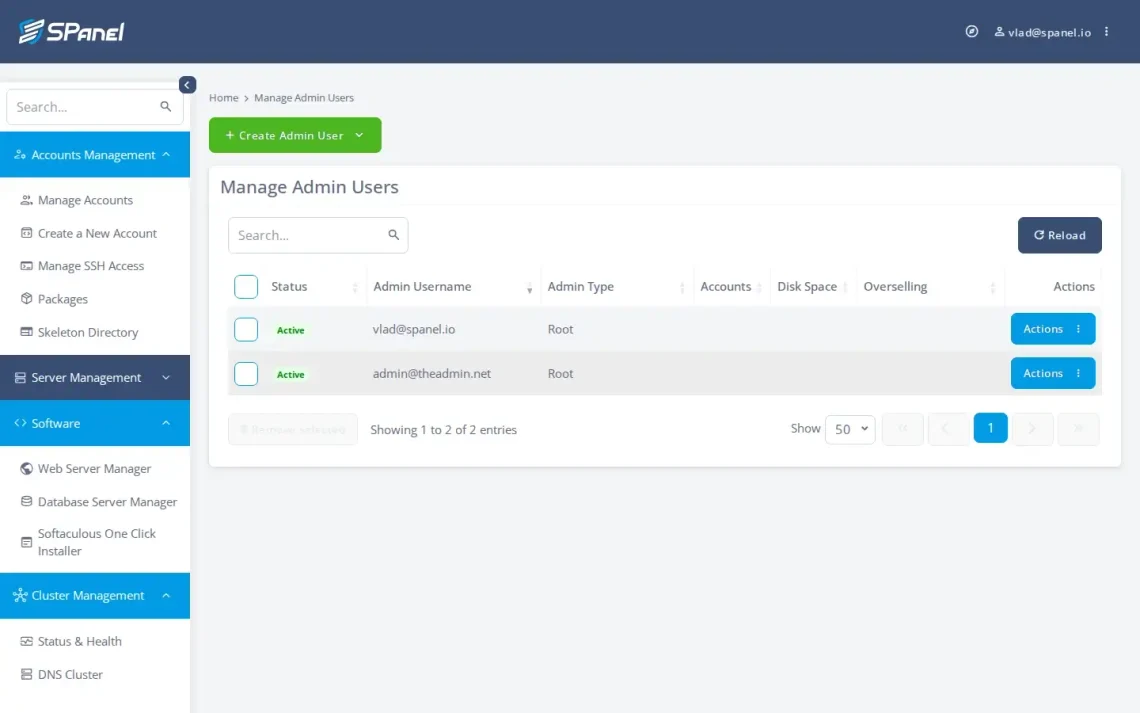
The part that makes this useful is the permission grid. When you open Create Admin User, you don’t pick a job title from a menu. You see individual page checkboxes grouped under category headings, and you select exactly the pages that admin should reach.
The categories are Accounts Management, Server Management, Software, and Cluster Management, each with its own pages. Accounts Management alone covers Manage Accounts, Create a New Account, Manage SSH Access, Packages, Skeleton Directory, and Manage API Tokens. There’s a “Full Access” toggle for a true full administrator and a “Reseller Admin” toggle for reseller setups.
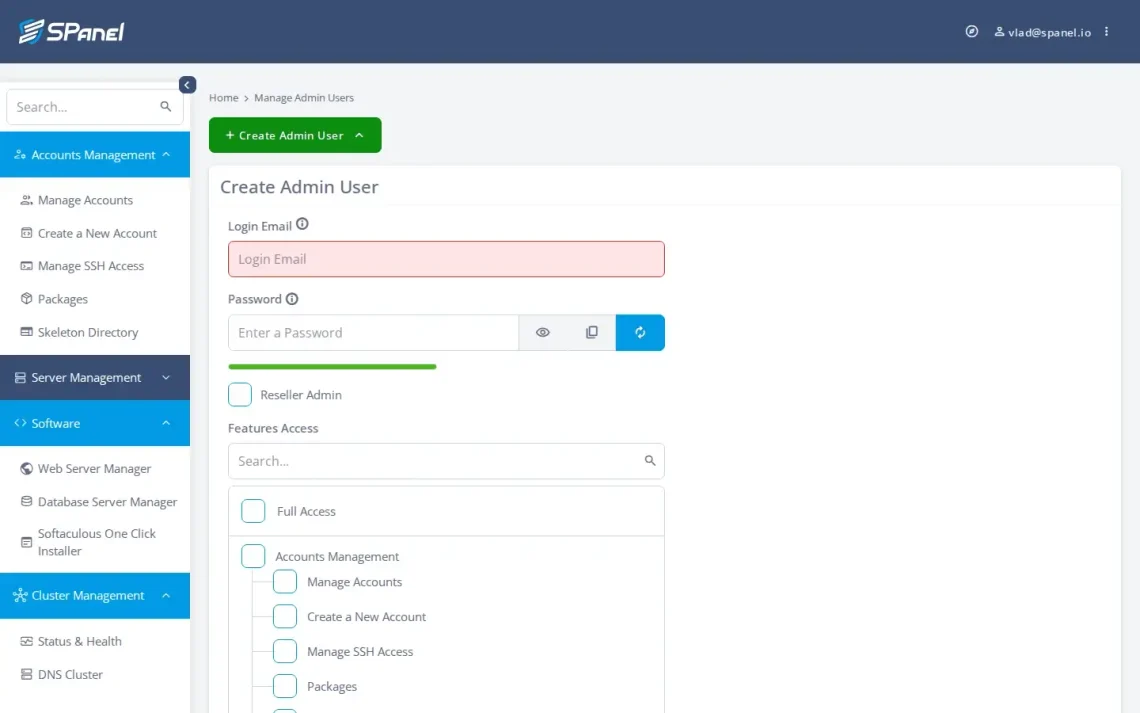
So the staff member who only provisions new hosting accounts gets the account-creation pages and nothing else. The person who only handles support gets the pages their job touches. This is genuinely granular access, but it’s worth naming it precisely: these are per-admin, page-level permission grants, composed one page at a time. SPanel does not ship pre-built named roles you assign by title. You build the equivalent by hand, per person, which is more work up front and more precise in the end.
Everything on this screen is also available through SPanel’s HTTP API (listadminusers, createadminuser, updateadminpermissions, removeadminuser, and more), so an agency provisioning access at scale can script it instead of clicking.
How do sub-users give limited access to one account?
Drop down a level. A sub-user is an extra login to a single hosting account’s SPanel User Interface, granted an exact permission set by that account’s owner. You create them under Manage Users accessible from the User Interface’s homepage. The form is “Add a New User,” and the resulting login is stored as <mainuser>_<subusername>.
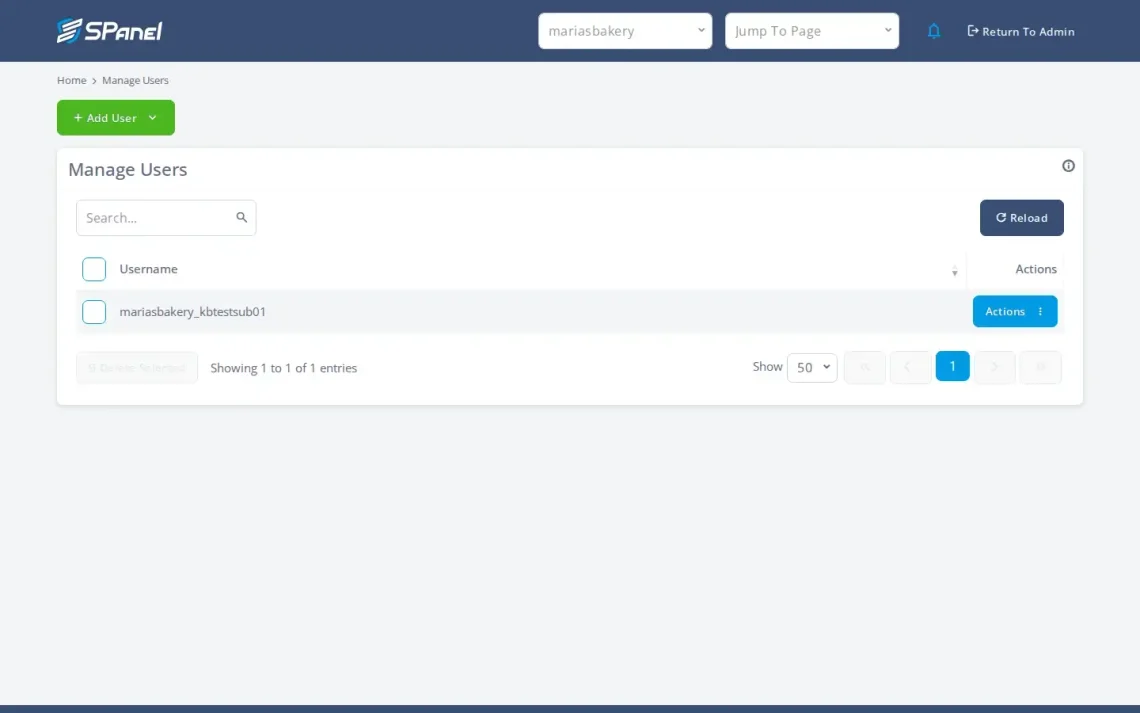
The permission grid works the same way as the admin side, with categories that match what a single account contains: Email, MariaDB Databases, Settings, Domains, Files, Tools, Software. Each expands to individual pages. The email category alone includes Email accounts, Forwarders, Webmail, Autoresponders, SpamAssassin, and Email filters. Under the MariaDB Databases category, you’ll find MySQL Databases and phpMyAdmin. So the two most common requests a business owner hears have clean answers:
“My client wants to manage their own email, nothing else.” Create a sub-user, check the email pages, leave everything else blank. They log in, run their mailboxes and forwarders, and never see the file manager or the DNS editor.
“A developer needs database access for this one project.” Create a sub-user with the mysql pages and nothing more. When the project ends, delete the sub-user. Their access is gone; nothing else on the account changed.
Usernames follow a rule the live UI enforces: 3 to 30 alphanumeric characters, and passwords must be at least 8 characters with at least one letter and one number. The same lifecycle (list, add, edit privileges, change password, delete) is available through the API for teams that automate onboarding.
How do you turn on two-factor authentication in SPanel?
Two-factor authentication (2FA) means that logging in takes two things: your password and a one-time code from an authenticator app. The idea is that a stolen password alone isn’t enough to get in. SPanel supports it in the interface, and the enrollment control lives in both interfaces. The feature must first be enabled from the Server Settings menu in the Admin Interface. From there, the server owner can also enforce 2FA for both admins and users. Once enabled, team members (both admins and users/sub-users) can configure and control two-factor authentication from Profile Settings → “Login Security” → “Two-Factor Authentication (2FA).”
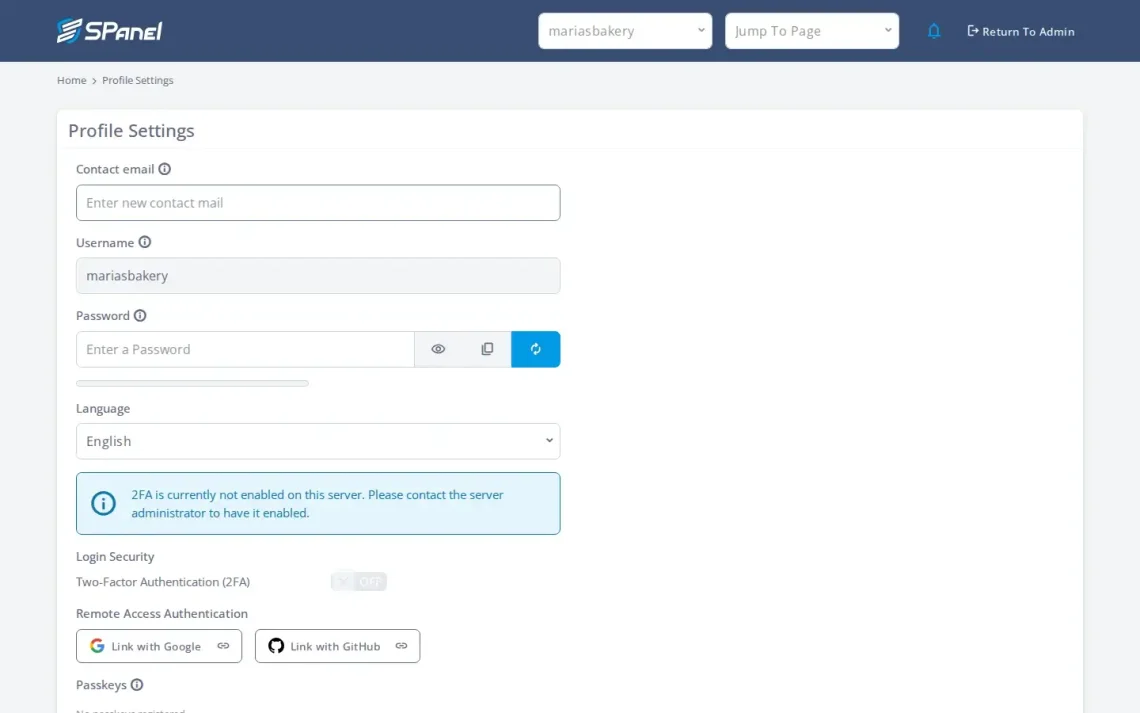
The method is an authenticator app using TOTP: Google Authenticator or any compatible app that generates rotating six-digit codes. There’s no SMS or email option, which is the right call: app-based codes don’t get intercepted the way SMS can.
Can you automate team access with API tokens?
Everything above is available through SPanel’s public HTTP API, authenticated with an API token, a credential you send with each request instead of a password. If you provision access from your own tooling, tokens are how you do it without hard-coding a human login. You generate them in the Admin Interface under Manage API Tokens (/accounts/apitokens) via “Create API Token.”
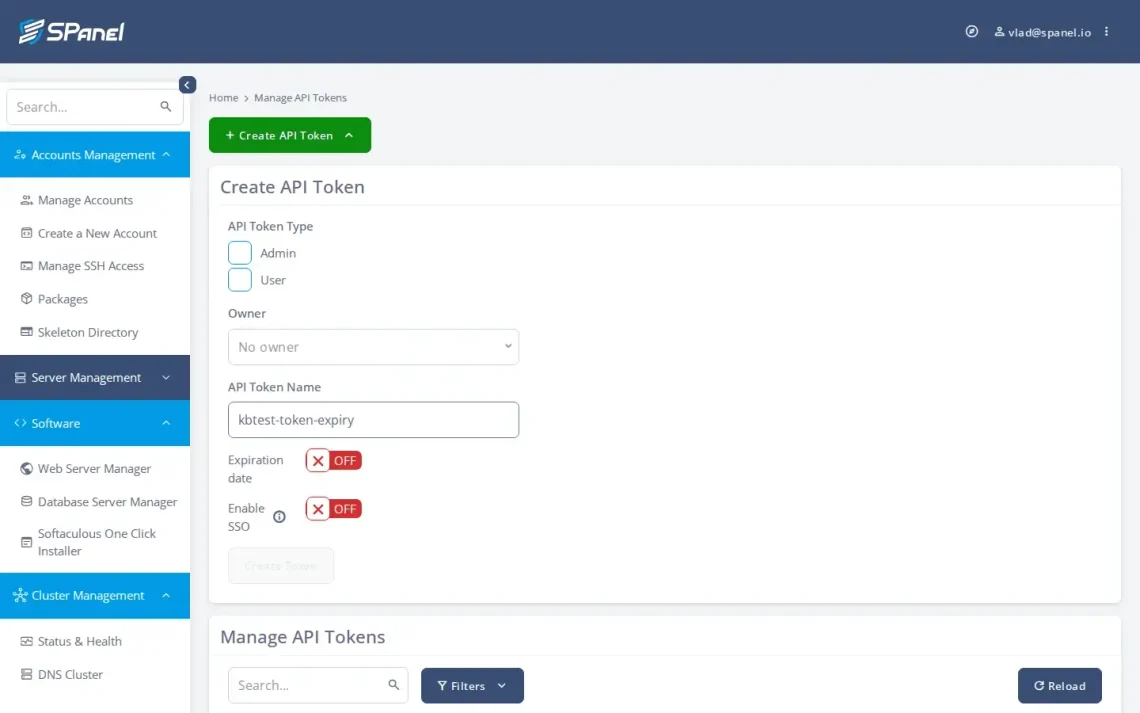
A token can be narrowed two independent ways, and both are worth using:
Optional expiration. The create form has an expiration toggle that’s off by default; leave it off and the token’s Expiration reads “Never.” Turn it on and you get a date picker. A token that expires on its own is one less credential to remember to revoke.
Per-endpoint privileges. Once you choose a Token Type (Admin or User), the form shows a privilege grid where every API endpoint has its own checkbox, labelled with the human name and the endpoint path (for example, “List Accounts accounts”). Admin tokens expose 50 endpoints; User tokens expose 191. An “Unrestricted (all)” shortcut selects everything, and that’s the default.
Both limits are opt-in. A token you don’t deliberately narrow is a full-access token of its type, with no expiry. In other words, SPanel lets you scope a token in time and in surface, but you have to choose to do it. For automation, the habit worth building is to give each token an expiration and check only the specific endpoints the script actually calls. The base endpoint for all of it is /spanel/api.php, documented in SPanel’s API documentation.
Where are the activity logs, and can you delete them?
An activity log is a record of the actions performed in the interface. In SPanel, those logs are stored centrally on the control server, away from your own hosting server. You can view them, but you can’t delete them.
The Admin Interface exposes Admin Activity Logs, the action trail, with columns for timestamp, source IP, admin username, the action taken (for example, “Accounts Management / Login As User”), and a status column.
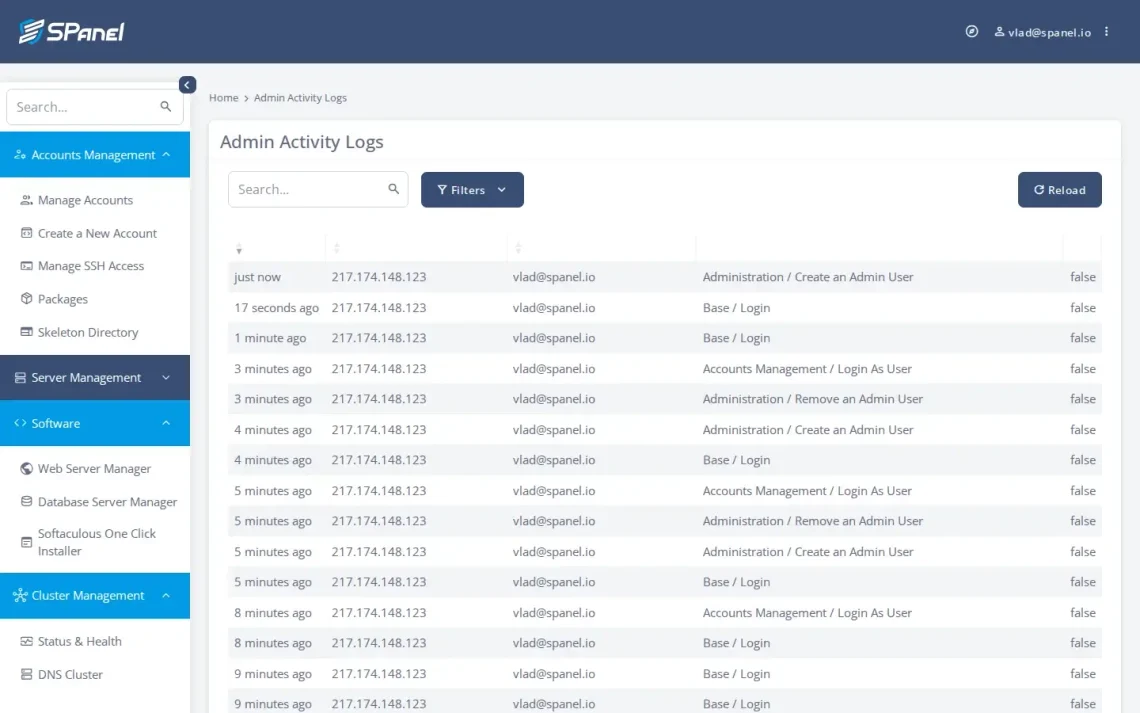
Two things make this genuinely useful for accountability. First, the record lives centrally on the control server, kept separate from the environment where the actions happened: logs stored off the customer’s own trail. Second, no view exposes a delete, clear, or purge control. So when a setting changes and you need to know who changed it, there’s a record you can read and nobody can quietly erase.
What SPanel team access does not do
Honesty is part of the pitch, so here’s the plain list of what these features don’t do. State these to yourself before you plan around them.
No named roles. SPanel has per-user, page-level permission grants, not preset role bundles like “Billing Manager” or “Read-Only Auditor” that you assign by name. You get the granularity to build the equivalent access by hand; there’s no role catalog to pick from.
No log export or streaming. The logs are viewable and non-deletable, stored centrally, and that’s it. No SIEM, syslog, or CEF feed, no forwarding, no download-to-external-store feature.
No auto-expiring logins. An admin account or sub-user doesn’t stop working on a schedule; access is added and removed deliberately. (Token expiration is a separate, real feature; a token’s lifetime is not the same as a login’s.)
None of these are dealbreakers for most teams; they’re boundaries, and knowing them keeps you from planning around a feature that isn’t there. If any of them is a must-have for you, the honest move is to request it on ScalaHosting’s public feature board, Cloud Democracy, where the roadmap is shaped by customer votes.
How do you set a sane access baseline today?
You don’t need to overhaul anything to get most of the benefit. Here’s a baseline that fits a typical small business and takes an afternoon.
- Stop sharing the main login. Decide who genuinely needs server-wide reach (usually just you or a lead admin), and keep the full-access admin account for them alone.
- Give server-side staff restricted admin accounts. For anyone who only provisions accounts or handles support, create an admin account and check only the pages their job touches.
- Give account-level people sub-users. For team members, create sub-users scoped to just their pages: email only, databases only, whatever fits.
- Turn on 2FA everywhere you can. Enroll your own logins first, then ask every teammate to do the same and confirm they did. SPanel’s Admin Interface also allows you to enforce 2FA for both admin- and user-level accounts.
- Scope your automation tokens. Any API token gets an expiration and only the endpoints its script needs, never the “Unrestricted (all)” default for a token that lives in a cron job.
- Use the log as your review habit. Once a quarter, and every time someone leaves, read the activity log to see what changed and confirm removed logins are gone.
Here’s an example of what a reasonable setup looks like:
| Person | Give them | Scoped to | Never give |
|---|---|---|---|
| You / lead admin | Full admin account | Everything | None |
| Provisioning staff | Restricted admin | Accounts Management pages | Server settings, firewall |
| Support contractor | Restricted admin | Support-relevant pages only | Account creation, SSH |
| Client (their site) | Sub-user | Email or the pages they own | Databases, files, DNS |
| Developer (one project) | Sub-user | File Manager, Git deployment, Database tooling | Everything else |
| Automation / tooling | API token | Specific endpoints, with expiry | Unrestricted, no-expiry token |
FAQ
Q: Can I have more than one admin in SPanel?
A: Yes. SPanel supports multiple admin accounts in the Admin Interface, and each one can be restricted to exactly which pages and actions it can use.
Q: Does SPanel have roles like “Administrator” or “Editor”?
A: Not as named roles. SPanel gives you per-user, page-level permission grants: you select the exact set of pages each admin or user can reach. It’s the same control you’d use to build a role, applied one person at a time, but there’s no preset role catalog.
Q: How do I give someone access to just email and nothing else?
A: Create a sub-user in that account’s User Interface, select the email pages in the permission grid, and leave the rest blank. They can manage mailboxes and forwarders and never see the database tools, File Manager, or DNS editor.
Q: Does SPanel support two-factor authentication?
A: Yes. Turn it on under Profile Settings → “Login Security” → “Two-Factor Authentication (2FA),” available in both the Admin and User interfaces. The method is an authenticator app (TOTP), such as Google Authenticator. There’s no SMS or email option.
Q: Do SPanel API tokens expire?
A: They can. Expiration is optional: the create form defaults to “Never,” and you can toggle on a date picker to set one. A separate control on the same form scopes which endpoints the token may call, so you can limit a token in both lifetime and surface.
Q: Where are the activity logs kept, and can I delete them?
A: They’re stored centrally on SPanel’s control (manage) server, off your own hosting server. You can view them; you cannot delete them. No delete, clear, or purge control is exposed anywhere in the log views.
Q: Can I export the logs to my own security tools?
A: Not currently. There’s no log export or streaming: no SIEM, syslog, or CEF integration. You view the logs within SPanel.
Q: How do I remove someone’s access when they leave?
A: Delete their admin account (Admin Interface) or their sub-user (User Interface). Their credentials stop working, and you can review the activity log to see what they touched while they had access.
Q: Is all of this an extra cost?
A: No. Every team-access feature here (multiple admins, sub-users, 2FA, API tokens, activity logs) is included free on every ScalaHosting managed VPS. There’s no per-seat fee and no add-on.
Set up access the right way from day one
If you’re already on a ScalaHosting managed VPS, everything in this guide is sitting in your control panel right now, waiting for an afternoon of setup. Start with step one, stop sharing the main login, and work down the table. You’ll trade a single fragile password for a set of scoped logins you can add, review, and remove one at a time.
Already on a ScalaHosting managed VPS? Open your panel and start with step one. Weighing the move? See what ships with ScalaHosting’s managed VPS plans: SPanel, scoped team access, and all of it included.