WordPress wouldn’t be the world’s most popular content management system if it weren’t fast enough. Unlike other applications of this kind, it has never been particularly resource-intensive, and it’s been around for well over two decades, so its developers have had plenty of time to clean the code and ensure it’s as optimized as possible.
Why, then, do some people experience performance issues with their WordPress projects?
The truth is, diagnosing and fixing the problem is often much easier than it seems.
Reasons For a Slow WordPress Website
While many elements play a role in determining a WordPress website’s performance, we can safely say that often, poor loading speeds are down to one (or more) of the following technical factors:
Outdated, unoptimized, and unused plugins
This is one of the leading causes of slow WordPress websites. Plugins often load additional scripts and stylesheets and can trigger a large number of database queries and background processes.
If a plugin is no longer maintained, it may rely on outdated code and deprecated functions, placing unnecessary overhead on your server without delivering the desired functionality. Even actively supported plugins can hurt performance if they load a large volume of code on every page, execute heavy database queries without caching, or rely on many scheduled tasks.
For example, let’s say you have a blog with a few hundred posts. You want to reach a much wider audience, so you install the WPML plugin and enable 15 languages. Automatically, the number of entries into your database grows fifteenfold. With every page load, the number of queries will increase dramatically, and so will the volume of PHP code WordPress has to process.
The effect on loading speeds?
There are obviously many factors at play, but we’ve seen a single plugin push loading times from ~0.4-0.6 seconds to 1.5-2.5 seconds.
Conflicts between plugins
Sometimes, a conflict between plugins has a pretty clear effect – your entire website crashes and becomes inaccessible. In other cases, the impact is less obvious. Two add-ons can override each other’s functionality, leading to redundant processing or error-handling loops.
They can also attempt to modify the same hooks, load duplicate libraries, or fire repeated identical database lookups. The errors may only be visible in the server logs (if at all), but the additional overhead will result in slower load times, CPU usage spikes, and inconsistent frontend behavior.
Security and performance-enhancing add-ons with overlapping functionality are particularly prone to this sort of behavior and can have the exact opposite effect of what you’re trying to achieve.
For example, if you have two caching plugins with similar features, you’ll have multiple scripts trying to minify JS and CSS code, combine files, generate cache, etc. On the one hand, this generates a lot of unnecessary data, and on the other, it generates dozens of queries and background processes that don’t really change your site’s behavior because their functions overlap.
Meanwhile, the resulting delay could amount to over a second.
External cURL and GET requests
This is yet another less obvious bottleneck. Many plugins and themes rely on external APIs for features such as licensing checks, analytics, payment processing, fonts, maps, and marketing integrations. These APIs are often essential for the functionality of the entire website, so you can’t just get rid of them. However, you shouldn’t ignore the effects they have on your site’s loading speeds.
The impact is significant mostly because WordPress is written in PHP, and PHP is a synchronous language – it executes tasks one by one and doesn’t proceed to the next step before it has completed the current one.
When a visitor opens your website, WordPress first loads the core functionality, then iterates through the active plugins and their features. Once the files are loaded, some of the plugins need to send data to their APIs using cURL payloads (or outgoing connections). WordPress sends cURL requests and waits for responses. Further code execution happens only after the response has been received and acknowledged.
Not every plugin sends data back to its developers’ infrastructure, but generally speaking, the more add-ons you install, the more external requests you have. Consequently, WordPress has to go through more steps to display the full page on the user’s screen. Let’s see how the delay accumulates.
A visitor accesses your WordPress-based online store, and the core functionality loads in under a second. Then, once WooCommerce starts loading, it sends some analytics data back to its developers, which takes about 0.05s. Elementor also gathers some usage statistics and sends them back to HQ, adding a further 0.05s. MonsterInsights is next, sending a few external GET requests to Google Analytics in order to fetch some data, which takes an additional 0.1-0.3s. Finally, HubSpot sends user-generated data, often to multiple external APIs, which can add up to a third of a second.
Add all these up, and you see how external connections from just a handful of plugins can effectively double your site’s loading times. And this is assuming all APIs work as expected. If they are slow to respond or go down altogether, the performance hit will be even more significant.
Diagnosing and Fixing a Slow WordPress Website
Performance issues can frustrate users, drag down conversion rates, and affect your site’s search engine rankings. Identifying the culprit and taking the necessary steps to resolve the issue should be a priority. It’s also essential to take the necessary precautions to avoid the same problems in the future. Here’s how to do it.
Use a code profiler plugin to identify the bottleneck
As always, the WordPress community is on hand to help. Code profiling plugins can extract and process large amounts of data about how your website operates under the hood, which can be invaluable for diagnosing performance issues.
Code profiling plugins can break down the loading process and generate detailed and easy-to-read reports that highlight potential bottlenecks. They analyze not only plugins and themes but also individual functions, scripts, classes, and methods.
You can see how many database queries and external API calls are launched with every page load, as well as where they come from. Below is a screenshot from the Code Profiler plugin. There are other alternatives, such as Query Monitor and F12-Profiler.
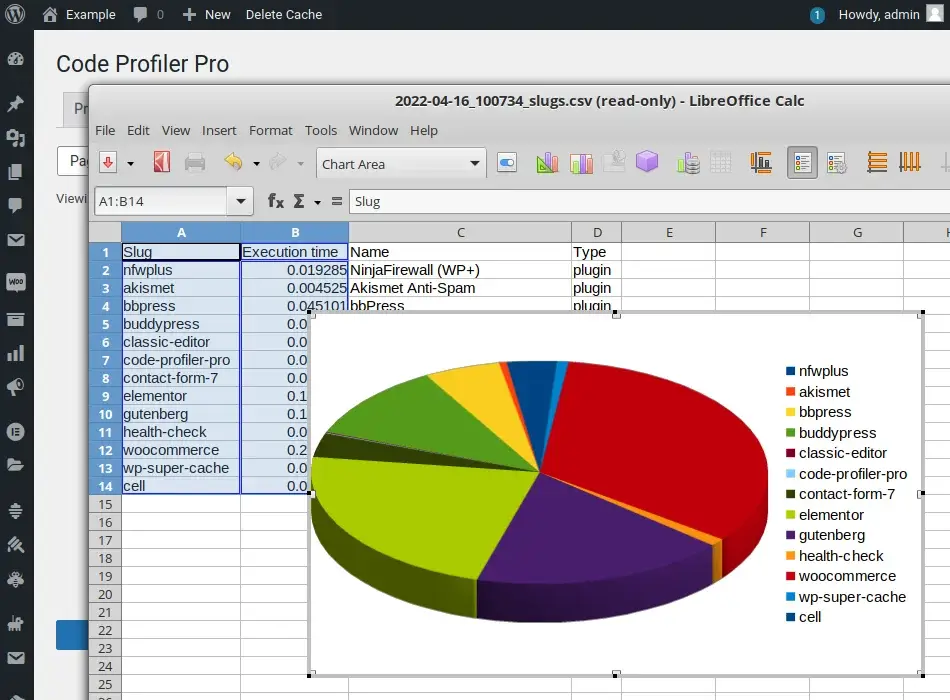
The reports are extremely extensive and can be used to identify both slow and conflicting plugins and themes. Based on the information they provide, you can decide whether to look for an alternative to the offending add-on, remove it altogether, or seek a custom fix.
Use a staging environment to test all plugins, themes, and updates
A staging environment lets you test every line of code before deploying to the live site. That way, you’ll be able to fix any potential performance issues without your site’s visitors even noticing them.
If you use SPanel, creating a staging environment for your WordPress website takes only a few seconds and requires absolutely no specialized technical skills. Simply go to SPanel’s User Interface and open the WordPress Manager. Click the Actions menu next to your WordPress installation, and select Stage.
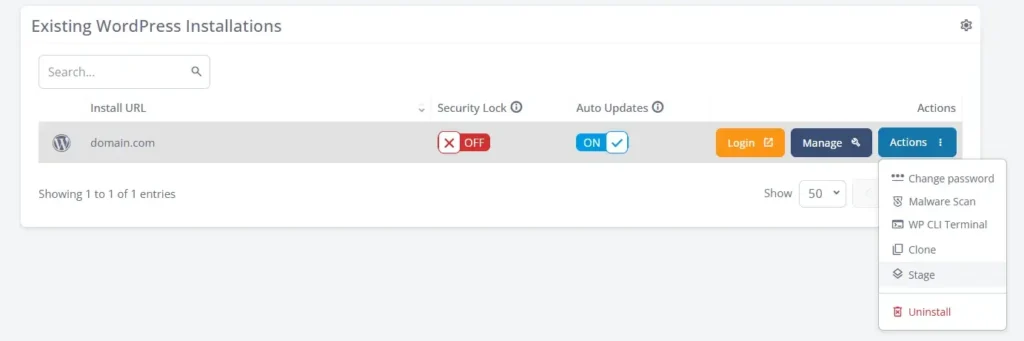
You have to choose the staging site’s URL, and SPanel handles the rest. You get an identical (but fully isolated) copy of your website that allows you to safely test new plugins, themes, and updates and ensure they all work as expected.
Regularly audit your plugins and remove the ones you don’t need
You can’t create a fully functional WordPress website without plugins. That said, the more plugins you have, the more external calls, functions, scripts, and database queries you’ll need to handle. There’s also a bigger chance of conflicts with other add-ons.
Over the course of your website’s development, some plugins may become obsolete. Be sure you check your list of add-ons regularly and uninstall the ones you no longer need. This will reduce your site’s storage requirements, remove some clutter from the database, and lower overall server load.
Optimize your site and hosting environment
Every WordPress user should consider installing a performance-enhancing plugin on their website. These add-ons offer a range of tools that can significantly improve your performance. However, if your site isn’t deployed in the correct hosting environment, you still won’t be able to extract all the performance WordPress has to offer.
For example, moving your site from a shared to a cloud VPS platform will provide WordPress with guaranteed resources, resulting in much faster, more consistent, and predictable loading speeds.
With one of ScalaHosting’s cloud VPS solutions, you’ll also be able to quickly switch from Apache to OpenLiteSpeed – a web server that processes requests both faster and more efficiently. Every VPS comes with OpenLiteSpeed pre-installed and can be enabled with a few clicks via the Web Server Manager in SPanel’s Admin Interface. You also take advantage of a unique utility that ensures all changes you make to your .htaccess file take effect automatically.
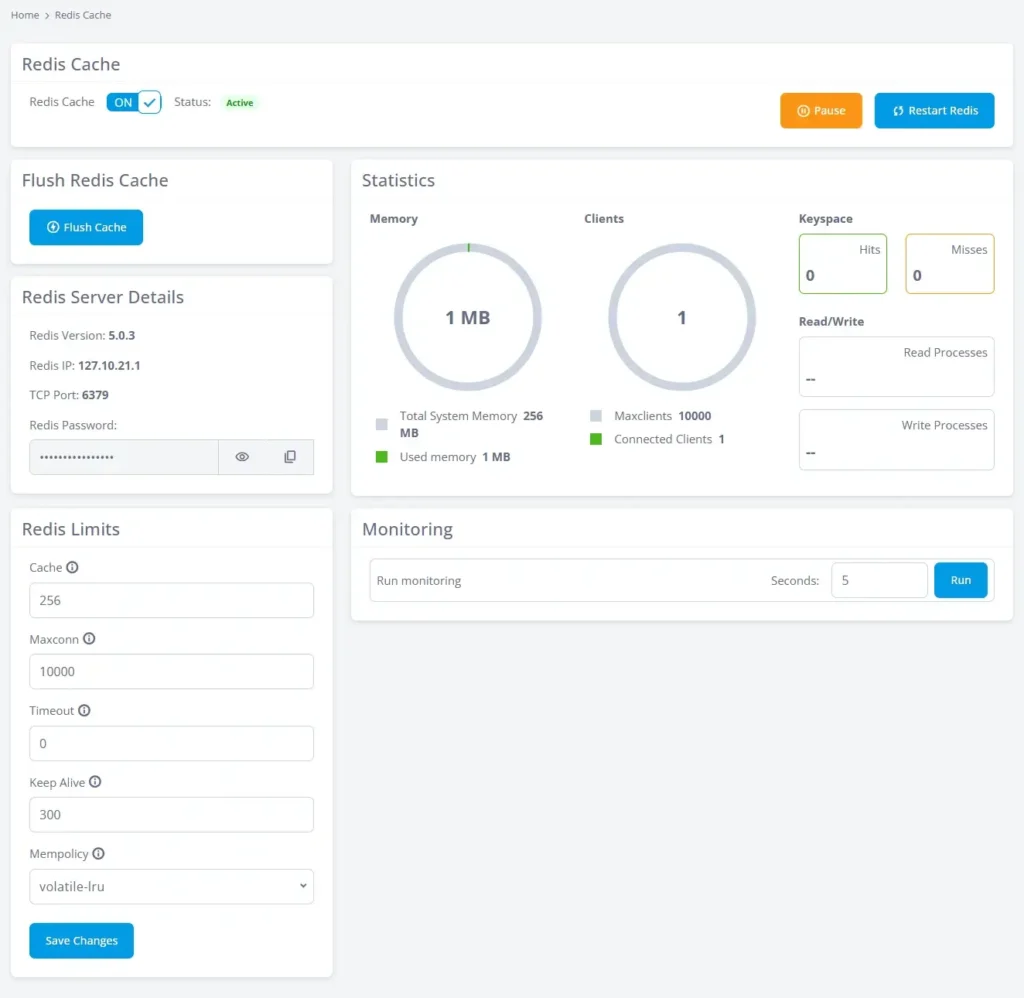
A free WordPress plugin called LiteSpeed Cache helps you get the most out of it, and when you combine it with additional caching technologies like Redis, for example, you’ll be able to give WordPress a proper boost. Yet again, Redis is fully integrated into SPanel thanks to the Redis Manager, which lets you enable and configure caching through a point-and-click interface. Click here to find out more about how it works.