
Accessing your inbox through a browser is easy – all you usually need to do is enter your email address and password. However, when setting up an email client, you’re asked for stuff like ports, protocols, and email hostnames.
If you’re a novice, it could all get confusing really quickly. Our goal today is to clear up some of the mist.
Email Hostname: What is it Exactly?
Before we get to the hostname, we must first understand what an email client is and how it works.
Imagine you have a personal assistant responsible for your regular snail mail. They periodically go to the post office to check whether there’s new mail for you, and if there is, they deliver it to your house. When you write a letter, they take it to the post office and instruct the clerks to send it to the correct destination.
Think of it this way: the post office becomes the email server, and the email client is your personal assistant.
The hostname? That’s the post office’s address.
Thanks to the hostname, your email client knows which server to connect to to check for new emails and send outbound messages.
Types of Email Hostnames
Usually, a single server handles all email communication. However, you sometimes need to manage multiple hostnames.
Why is that?
There are separate services for incoming and outgoing messages. Your email client must know how to communicate with both, so you have two types of hostnames.
Incoming mail hostnames
Your client uses the incoming mail hostname to open your inbox and retrieve its contents. Two major protocols can be used for this: IMAP and POP3.
IMAP
IMAP stands for Internet Message Access Protocol. Servers using it allow you to synchronize your emails across all your devices.
For example, email clients on your desktop computer and mobile phone are configured to retrieve your mail via IMAP. Your PC notifies you of a new message in your inbox. When you open it, its status is automatically changed to read both on the server and on your phone.
If you then use the email client on your phone to delete the message, it will also disappear from the server and your desktop computer.
POP3
POP3 (or Post Office Protocol version 3) is the other popular email protocol for incoming mail. With it, your emails aren’t synced across your devices.
So, if you use POP3 and open a new message on your desktop computer, this won’t change its unread status on your phone, and vice versa. Any changes you make to your inbox (reading, deleting, or moving messages in different folders) are only visible on the device you’re currently using.
IMAP vs POP3: Which is best?
Every technology has advantages and disadvantages. IMAP and POP3 are no exceptions.
POP3
- Pros
- Less reliance on the provider – POP3 downloads your emails to your device and keeps them there. If the server breaks, you still have local copies of your messages.
- Reduced storage usage – Email clients using POP3 can be configured to delete emails from the server after downloading them to your device, which allows you to save some server storage.
- Simplicity – Compared to IMAP, POP3 is more straightforward and has fewer features. This reduces the attack surface and makes the protocol slightly more secure.
- Cons
- Unsuitable for multiple devices – POP3 works well if you manage your inbox from a single device. However, if you need to manually sync the data across computers, phones, and tablets, you could be in for a bit of a nightmare.
- Sent mail is not stored on the server – If you want to keep track of your outbound communication, you need to configure your email client to store copies of your sent emails on your device.
- Your email communication depends on your device’s health – If you lose your device, you lose all of its data. With POP3, this could include some important emails.
IMAP
- Pros
- All data is stored on the server – You don’t need to worry about losing your emails after your computer or phone breaks. Your communication is stored on a server that is ideally backed up regularly and maintained by a team of professionals.
- Your emails are available on all your devices – IMAP allows you to simultaneously access and manage your emails from multiple devices. Nowadays, this could be essential when we need to communicate on the go.
- More features – IMAP supports server-side filtering and modern authentication mechanisms that can make email management easier and more secure.
- Cons
- Increased complexity – IMAP has been around for ages, and most service providers know how to use it. Still, compared to POP3, it’s a more complicated protocol, so any mistakes in its implementation could lead to vulnerabilities.
- Increased storage usage – Because IMAP syncs your emails across your devices, all data must remain stored on the server. This inevitably eats into your storage space.
- Server dependency – If the IMAP server goes down, you can’t receive new messages or access old ones until it’s brought back up again.
IMAP is the preferred protocol for most people, and it’s the protocol you should follow as well. You likely access your inbox from multiple devices, and it makes sense to ensure data is synced between them.
POP3 may be a good option if you have a single device and don’t trust your provider to store your data securely. If that’s the case, you have more than one reason to switch to a different service, though.
Outgoing mail hostnames
Your email client uses the outgoing mail hostname to contact the relevant service when you ask it to send an email. This time, you have one service and one protocol: SMTP or Simple Mail Transfer Protocol.
Different Providers, Different Setups
In some cases, you’ll have two separate mail hostnames: one for incoming messages, and one for outgoing mail (e.g., mail.example.com and smtp.example.com). Sometimes, you may have three hostnames: one for IMAP, one for POP3, and one for SMTP (e.g., imap.example.com, pop3.example.com, and smtp.example.com). It’s also possible to have a single hostname handling both inbound and outbound communication, regardless of the protocol (e.g., mail.example.com).
Sometimes, especially in a shared hosting environment, your email hostname will likely coincide with the server’s hostname. If you’re using a VPS, it’s more likely to contain your own domain name.
All these variations are the result of the differences in how hosting providers build their infrastructures. Usually, the goal is to simplify the process of setting up and managing email accounts, so hosts often try to configure their servers to work with a single hostname for all incoming and outgoing emails.
If you want a reliable email service, however, it’s best to double-check and ensure you’re using the correct configuration. How do you do that?
How Do I Discover My Domain’s Email Hostname(s)?
You have several options.
The welcome email you received upon signing up for a new hosting account contains all the required email settings.
If you’re a ScalaHosting customer, you don’t need to search for that welcome email in your inbox. All messages we send you are kept under the My Details > Email History menu in your Client Area.
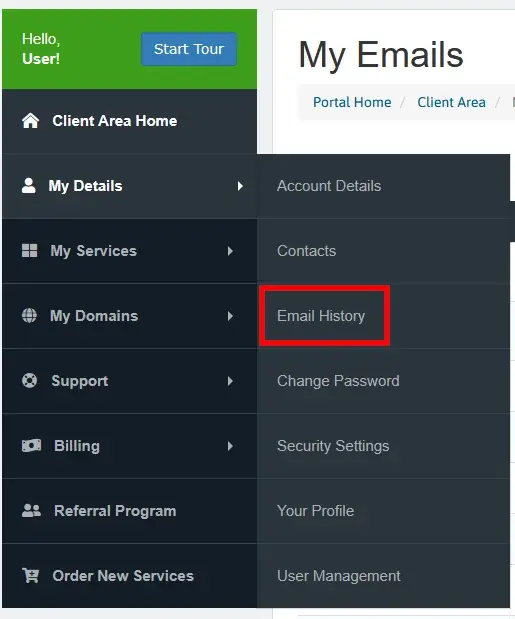
The welcome email is the first one you received from us, so it’s at the bottom of the list.
Of course, our technical support experts can also provide you with your hostname. They are available 24/7 via live chat and tickets and ready to assist you with any information you need.
If you want to learn more about our hassle-free email hosting service, do not hesitate to get in touch with our sales specialists, who are also available via the Start Chat button on our homepage. They’ll tell you everything you need to know about our email plans and will help you get started in no time.
You may also be able to find your hostname at the autoconfig.yourdomain.com subdomain. Some providers configure that URL to host an XML file containing, among other information, your hosting account’s incoming and outgoing mail servers, which usually coincide with the hostnames your email client needs.
Modern email clients can check for the existence of that XML file and automatically apply the correct settings.
However, not all providers set the autoconfig subdomain.
So, what do you do if you don’t have it?
How to Configure Your Email Client (Mozilla Thunderbird)
There are many email clients, each with its own user base. For example, most macOS users prefer to use Apple Mail, while Microsoft fans often stick with Outlook.
However, while they do have advantages, neither of these two solutions is as versatile as Mozilla Thunderbird. Thunderbird is free, has been around for over twenty years, and is available on all major operating systems. Because it’s so popular, we picked it to show you how to manage your new inbox on your computer.
If you use another client, the interface will be slightly different, but you should be able to see the same crucial fields and buttons.
The process starts on the homepage you see after you install Thunderbird. The very first button allows you to set up a new email account.

First, you’re asked for your full name and email address.

Thunderbird will try to find the correct email settings by itself. It has an extensive database of ISPs and email configurations. If yours is on it, Thunderbird will automatically know what hostnames to use.
For example, this is what you see when setting up a Gmail account.
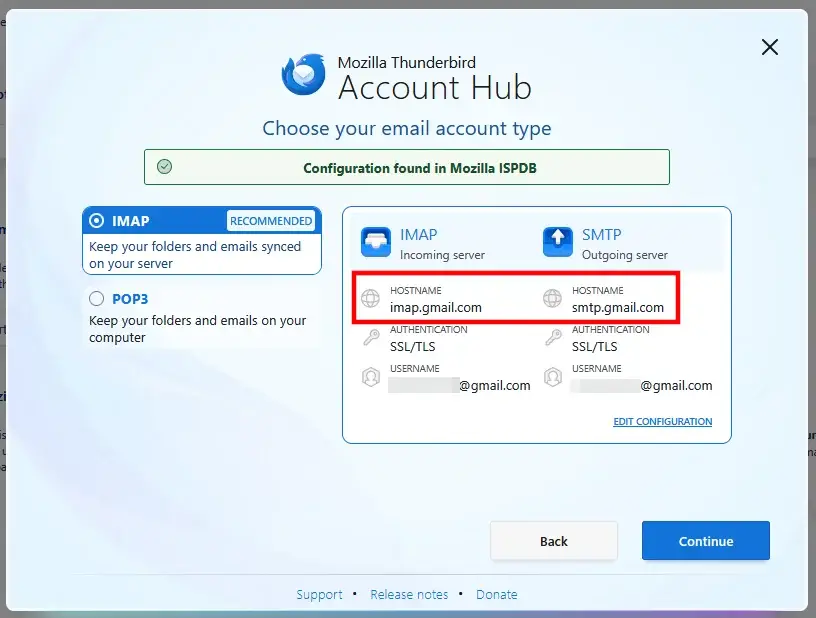
As you can see, the correct hostnames, encryption type, and networking ports are pre-configured. IMAP is the recommended protocol, but the settings for POP3 are also available. After you click Continue, you’ll be asked for your password and whether or not you’d like to sync additional services like address books and calendars.
However, if your email service provider isn’t available in Thunderbird’s database, you’ll have to enter the settings yourself. First, you’re asked about inbound communication. You have to choose the protocol (IMAP or POP3) and enter the incoming hostname.
Thunderbird can automatically detect the connection type and authentication mechanism. If your email client doesn’t have that functionality, you’ll need to configure those settings manually. ScalaHosting customers must choose the following:
POP3 connection: SSL/TLS at port 995
IMAP connection: SSL/TLS at port 993
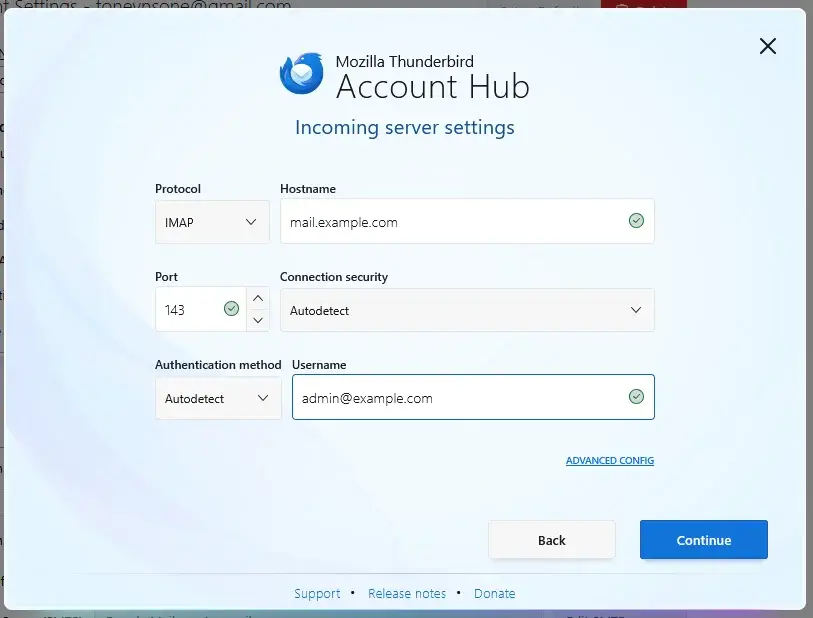
The steps for the outgoing settings are pretty much identical. You have to enter the outbound hostname in the respective field, and Thunderbird will try to figure out everything else. If it can’t, the settings are:
SMTP connection: SSL/TLS at port 465
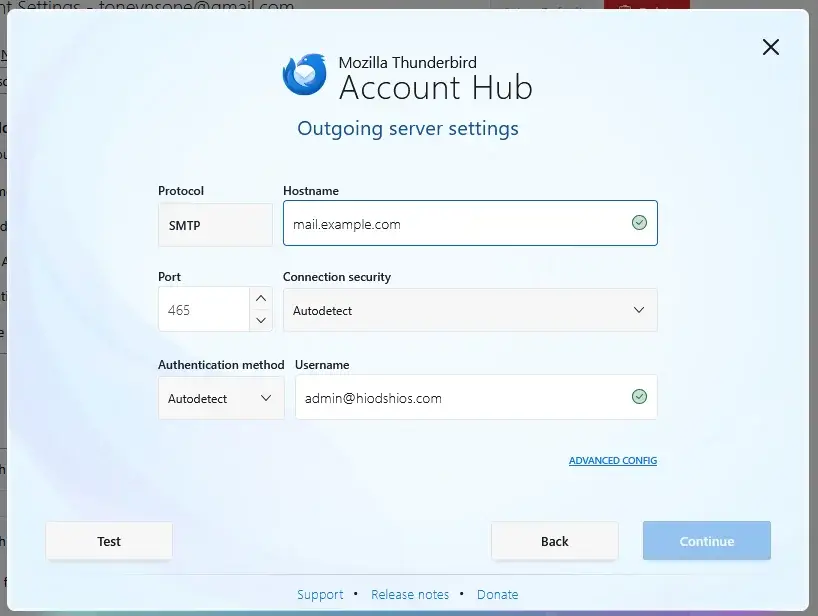
When ready, click Test. Thunderbird will try to connect to the server using the configured settings. If it gets a response, you can move forward. If not, you need to review the settings and ensure everything’s right.
Next, click Continue, enter your email account’s password, and you’re done.
Troubleshooting Email Hostname Problems
When modern email clients encounter an issue, they usually tell you exactly what it is. Even so, sometimes, identifying the problem may be trickier than it appears at first. There is a fairly straightforward troubleshooting checklist you can follow to fix any issues, though. Let’s have a look at it.
1. Double-check the hostname for typos
Your first job is to ensure the mistake isn’t on your end. Have a good look at the hostname you’ve assigned and ensure it matches the one in your welcome email. Sometimes, the smallest typo causes the biggest headaches.
2. Check whether the email server is up.
If the hostname is correct, you need to ensure your email service is active. If you’re hosting a website on the same account, you’ll probably try to open it first and see if it loads. However, just because the site is online doesn’t mean your emails are available.
Emails are sent and received thanks to a separate service that can shut down without affecting your site’s availability. If you have an SPanel server, you can easily see whether this has happened.
Log in to the Admin Interface, and go to Server Information. Open the Service Status tab and check the Status fields next to Exim Email Server and Dovecot POP3 and IMAP Server. If they’re running, the email service should be fine. If not, there is a Restart button next to each of them.

If you use a different control panel or don’t have access to SPanel’s Admin Interface, you can always contact your host’s support specialists and ask them whether everything’s fine on the email front.
If the email service runs normally, you may want to look for the problem elsewhere.
3. Verify the domain’s DNS resolution.
Incorrect DNS settings will result in two things:
- Inbound emails won’t arrive at the correct destination
- Your email client won’t be able to connect to the server
The easiest way to check if the domain is configured correctly is through the command line.
Open your operating system’s command-line utility and enter the nslookup command followed by your email hostname (e.g., nslookup mail.domain.com). If you have multiple hostnames, run the same command for each one.
In the output, under the Non-authoritative answer, you should be able to see your server’s IP address. If you don’t, you need to adjust your domain’s DNS settings. The exact steps depend on your domain registrar and/or hosting provider.
Remember that all changes to your domain’s DNS configuration need time to propagate globally. They could take up to a day to be fully active, though it’s usually done within a couple of hours.
4. Check the connection types and ports.
Email clients like Thunderbird can indeed detect the required connection type and network port automatically. However, they may not always get it right.
A TLS/SSL connection at its respective networking ports ensures that your computer and the mail server communicate through a secure, encrypted connection. Make sure your provider has configured its infrastructure to use it.
5. Check your computer’s firewall.
Modern firewalls usually recognize email clients and know what ports and connection types they use. However, with so many clients, firewall solutions, and configurations, you may be unable to connect to your email server because a security system is blocking your email application.
Open its configuration and ensure the client or its ports aren’t disabled.
