

ON THIS PAGE
SPanel already watches the SSL certificates it manages and sends an expiry warning through the Notifications Manager, so there is no on/off button to find. Your job is to know where certificate status lives – the ‘Expires At‘ date on the SSL Certificates page and the SSL Status column on the Website Monitoring page – and to confirm the alert can reach you.
One caveat up front: Тhis warning fires close to expiry [VERIFY] exact SSL-expiry warning window (~72h), so treat it as a safety net, not a 30-day planner.
Who this is for
This is for the owner of a small or medium site who never wants a visitor to hit a red “your connection is not private” warning. If you run one site or a handful of domains on a managed VPS and would rather not track renewal dates in a spreadsheet, this shows you where SPanel surfaces that information and how to make sure its alert reaches you.
What problem this solves
An expired certificate is invisible until it is catastrophic. Nothing looks wrong, then on the expiry date every browser starts blocking the site and customers assume you have been hacked. The usual fix is tracking renewal dates by hand – exactly the chore people forget. SPanel removes the need to remember by checking the certificates it manages and alerting you.
How SPanel solves this
The expiry check runs automatically in the back-end. There is no toggle to switch on and nothing to configure. What you do is confirm where status is shown and make sure the alert reaches you.
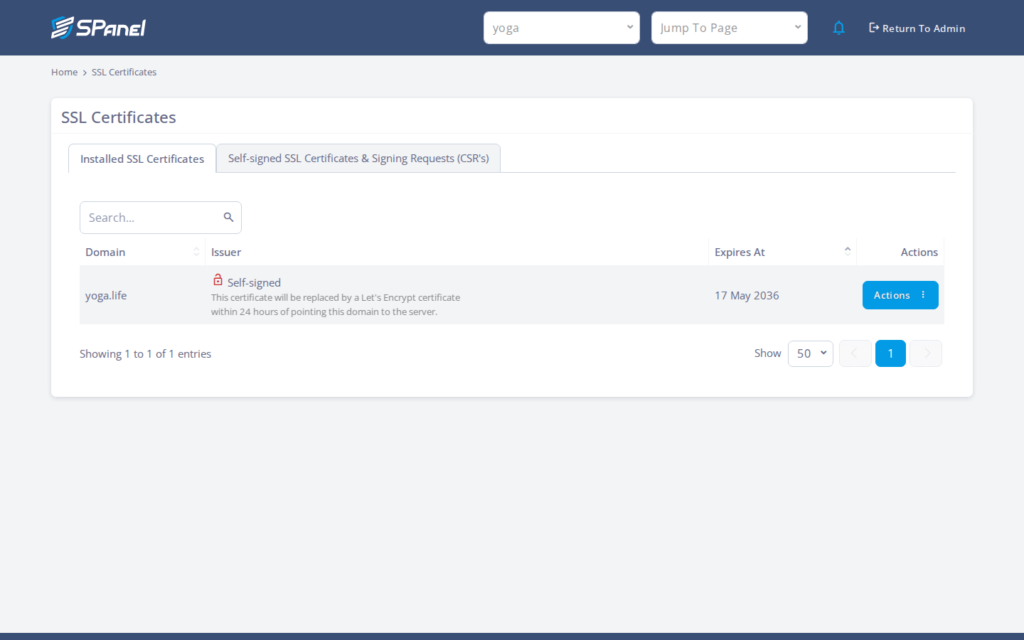
Open Tools > SSL Certificates. This page lists each domain’s certificate, its Issuer, and an Expires At date, so you can read the renewal deadline for every managed certificate at a glance.
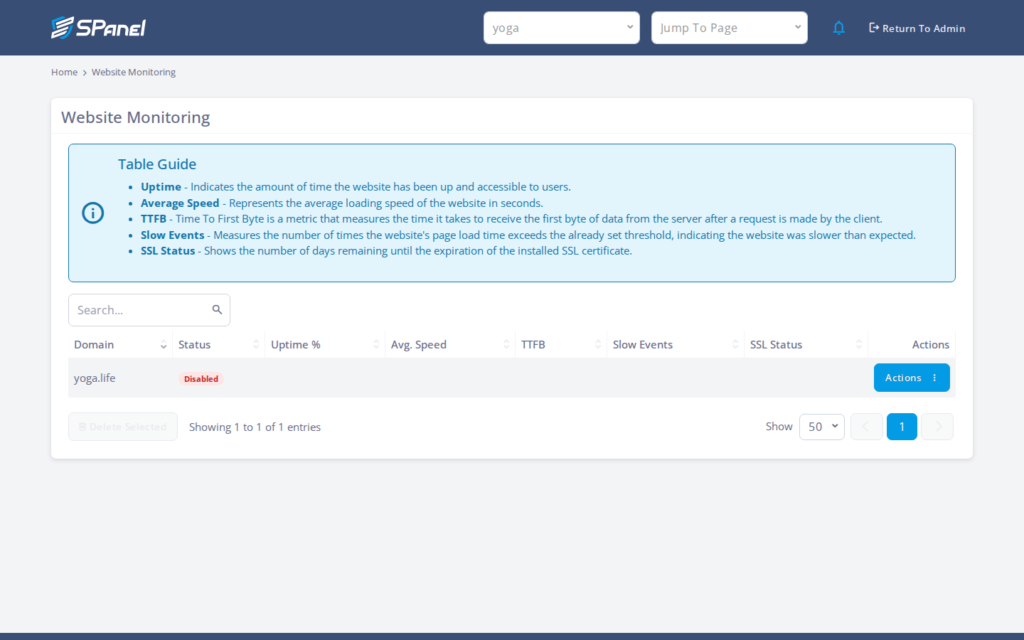
For a second view, the Website Monitoring page includes an SSL Status column, so certificate health sits next to whether the site is responding.
When a certificate nears expiry, SPanel raises the warning through the Notifications Manager, the same place your other server alerts arrive. The one thing SPanel cannot do is guarantee you read it, so make sure that channel points at an address you check.
Why this is different in SPanel
Two things stand out.
First, SSL-expiry alerting is built in and delivered through the Notifications Manager alongside your other server alerts – no third-party monitor, no cron job curling your own endpoint.
Second, expiry dates are visible per domain on the SSL Certificates page, so a glance at the ‘Expires At’ column tells you where every managed certificate stands without opening a terminal.
Before you start
- Access your SPanel user account (the standard user UI, not root or WHM).
- Your domain list in mind, so you can scan the ‘Expires At’ column for each.
- The Notifications Manager pointed at a mailbox you actually monitor.
- Nothing here is destructive – you are just reading statuses, not reissuing certificates.
Step-by-step
- Log in to SPanel with your user account and open Tools > SSL Certificates. You should see a row for each domain with its Issuer and an ‘Expires At’ date.
- Read the ‘Expires At’ column. Any date inside the next couple of weeks is worth a note; if a certificate auto-renews, the date usually rolls forward before then.
- Open the Website Monitoring page and find the SSL Status column, which shows certificate health beside the site’s response status.
- Open the Notifications Manager and confirm the address on file is one you read daily – [VERIFY UI LABEL] user-facing Notifications Manager channel for SSL alerts. A stale address is the most common reason an alert is “missed.”
- There is nothing to save and no switch to flip. Once the address is correct, the automatic check handles the rest for you.
What happens behind the scenes
SPanel periodically inspects the certificates it manages and compares each expiry date against the current time. When one is close enough, the system queues a notification and hands it to the Notifications Manager. Because the check is server-side and continuous, you do not schedule it or keep it running – the benefit is one fewer recurring task and a warning that arrives on its own.
Limitations and edge cases
- The warning is a late safety net. It fires within roughly 72 hours of expiry [VERIFY] exact SSL-expiry warning window (~72h) – not a 30-day planner. For long lead time on a manually managed certificate, set your own reminder from the ‘Expires At’ date.
- Auto-renewing Let’s Encrypt certificates usually renew first. These renew before this warning would fire, so most sites rarely see the alert. Treat its silence as healthy, not as proof the check is off.
- It covers certificates SPanel manages for your domains. A certificate managed outside SPanel is not part of this check, so track those yourself.
Troubleshooting
| Symptom | Likely cause | What to do |
| No expiry alert ever arrives | Notifications Manager address is wrong or unmonitored | Confirm the address and check spam; the alert only fires near expiry |
| ‘Expires At’ date looks stale | Auto-renewal has not run yet, or certificate is externally managed | Re-check after the renewal window; track external certificates separately |
| SSL Status column shows a problem | Certificate expired or was not issued for that domain | Open Tools > SSL Certificates and review that domain’s row |
| Certificate not listed at all | It is not managed by SPanel for that domain | Manage it in SPanel or monitor it with your own reminder |
When to use this / when not to use this
| Use this when | Skip or use something else when |
| You want a built-in last-line warning before a certificate lapses | You need 30-day-ahead renewal planning |
| Your certificates are managed by SPanel | The certificate is managed outside SPanel |
| You want certificate status beside uptime in one place | You require a custom alert window or escalation policy |
FAQ
Q: Is there a button to turn SSL expiry monitoring on?
A: No. The check runs automatically for the certificates under SPanel management. You confirm where status is shown and that the Notifications Manager can reach you, rather than enabling anything.
Q: How much warning will I get before a certificate expires?
A: The warning fires close to expiry, within roughly 72 hours [VERIFY] exact SSL-expiry warning window (~72h). Use the ‘Expires At’ date if you want more lead time.
Q: Where do I see when a certificate expires?
A: On the SSL Certificates page under Tools > SSL Certificates, in the ‘Expires At’ column. Each managed domain shows its Issuer and expiry date there.
Q: Will I get an alert if my Let’s Encrypt certificate auto-renews?
A: Usually not, because it renews before this warning would fire. Silence in that case means the renewal worked.
Q: Does this cover certificates I installed outside SPanel?
A: No. The check covers certificates SPanel manages for your domains. Anything managed elsewhere needs your own tracking.
Q: How does the alert reach me?
A: Through the Notifications Manager, the same channel your other server alerts use. Make sure the address on file is one you read regularly.