

ON THIS PAGE
In SPanel’s File Manager, select a single file with one click and use the Download toolbar button to save it to your computer. A folder cannot be downloaded as-is – use the Archive button to compress it into a ZIP or a TAR archive first, then download it. Both actions run against your own account files, and you can complete them from the same interface.
What is SPanel’s File Manager?
SPanel’s File Manager is the browser-based file interface for ScalaHosting accounts. It lets you browse, edit, upload, download, archive, and search files on your hosting account without an SFTP client or SSH access. Every operation runs as your account user, so the server’s own permissions decide what you can touch.
Who this is for
This is for account owners who need to download a specific file – a config file, a log, an exported database, a single image – to their own machine. It also covers anyone who wants a quick local copy of a folder, such as a backup of a project directory before editing it. You do not need shell access or an FTP client for one-off retrievals.
What problem this solves
You have a file on the server and you need it on your laptop. Opening an FTP client, entering credentials, and finding the right directory is more work than the task deserves when you only want one file. The other half of the problem is folders: a directory holds many files, and a browser download handles one file at a time. SPanel’s File Manager covers both from the interface.
How SPanel solves this
File Manager is the file browser inside SPanel’s User Interface. To download a single file, click on it once to select it, then click the Download toolbar button. Depending on your browser’s settings, the file is either sent straight to your default download location or you’re asked where to save it.
Folders work differently. You cannot download a folder directly. Instead, select the folder and use the Archive button to compress it into one file. SPanel creates the archive in the same directory; you then select that archive and use Download to retrieve it.
The Extract action can be used to reverse the process. You can upload an archive and use the Extract button to unpack it in the current directory. Those three buttons – Download, Archive, and Extract – are all you need for getting files and folders off the account.
Why this is different in SPanel
File Manager is part of SPanel and is included free on every ScalaHosting managed VPS, so there’s nothing to install or license. Three things set the download workflow apart. First, the download path is built against time-of-check-to-time-of-use attacks: SPanel refuses to read through symlinks, confirms the resolved path stays inside your account, and re-checks the file’s identity after opening it, so a swapped file is caught mid-transfer. Second, Archive and Extract run as background operations with state tracking – you can navigate away during a large compression and come back, or abort a job that’s taking too long. Third, password-protected archives use real encryption (AES-256-CBC with PBKDF2 for tar), not a token password field. These are the kinds of safeguards a casual “file manager checkbox” skips.
Before you start
- You need access to the SPanel User Interface for the account that holds the files.
- Know which file or folder you want and where it lives in the directory tree.
- For a folder, plan to Archive first – the download step works on the resulting archive, not the folder.
- For very large transfers, have an FTP/SFTP client ready as a fallback (see Limitations).
Step-by-step
- Click kb-test-file.txt once to select it. The row highlights and the Download toolbar button becomes available for the selected file.
- Open File Manager in SPanel and browse to the directory that holds your file. For this walkthrough, that is kb-test-file.txt and the kb-test folder.
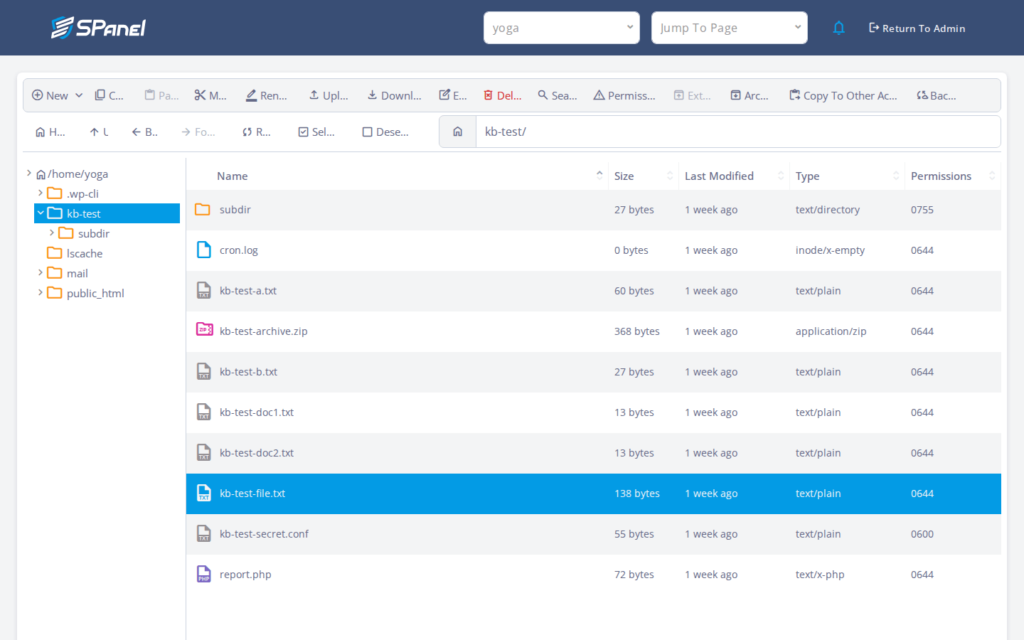
- Click Download. Your browser saves the file to its usual download location (you may be asked where to save it if your browser is configured to do that). Open the download location to confirm you have the copy you expected.
- To take a copy of a folder, select the kb-test folder and click Archive. SPanel compresses the folder into a single archive file in the same directory. Archiving only reads the folder – it does not delete or move the original, so there is nothing destructive to undo here. You can use either ZIP or TAR compression and you can protect the archive with a password.
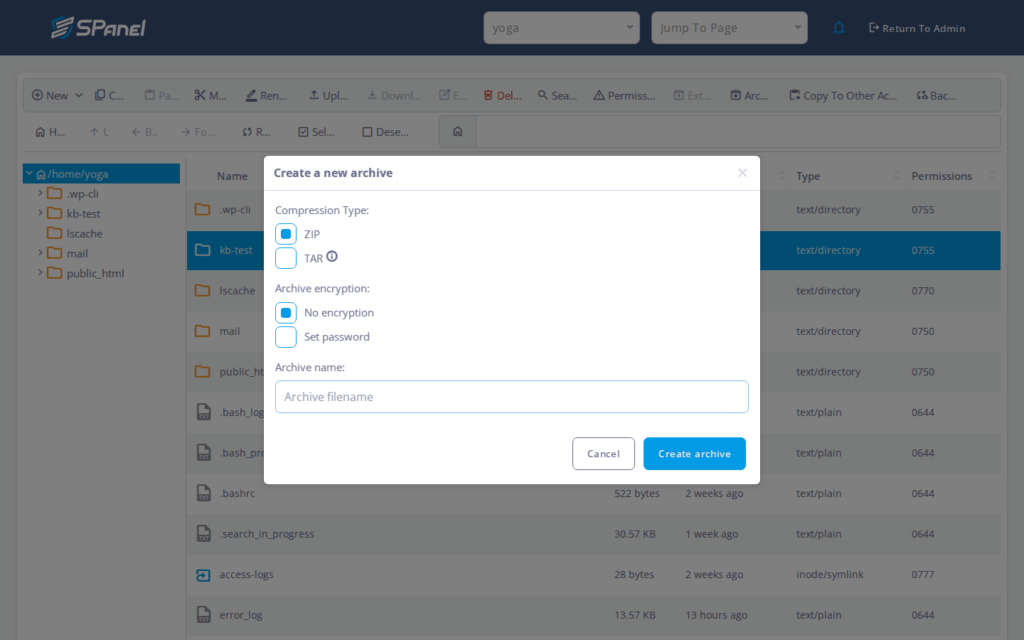
- Select the new archive file and click Download. You now have the whole folder as one file on your computer. If you ever need it back on the server in expanded form, upload the archive and use Extract.
What happens behind the scenes
A download streams the file from the account’s storage to your browser over the panel’s existing secure session – nothing is copied to a public location, and the request stays confined to your account home. Archive packs the selected folder into a standard compressed file on the server before any transfer happens, which is why a folder becomes downloadable: the browser then handles one file, not a directory. That confinement is a safety property, not just a convenience – the toolbar cannot reach files outside the account.
Limitations and edge cases
- A folder cannot be downloaded as-is. What this means: clicking Download on a folder will not produce a usable copy on your computer. What to do instead: select the folder, click Archive, then download the resulting archive.
- Very large files or slow connections can time out mid-download. What this means: a long transfer may not finish in the browser. Slow connections are usually down to factors outside ScalaHosting’s control, such as your ISP or local network. If this happens, you can retry the download, or use FTP/SFTP for large transfers where a dedicated client handles interruptions more gracefully.
Troubleshooting
| Symptom | Likely cause | What to do |
| Download button does nothing | No file is selected, or a folder is selected | Click a single file once to select it, then click Download. |
| You picked a folder and got no usable file | Folders cannot download directly | Select the folder, click Archive, then download the archive. |
| Download stops partway through | Large file or slow connection timing out | Retry, or switch to FTP/SFTP for the transfer. |
| Archive does not appear after clicking Archive | You are looking in the wrong directory | The archive is created in the same folder you archived; refresh that directory. |
When to use this / when not to use this
| Use this when | Skip or use something else when |
| You need one or a few specific files locally | You are migrating an entire account – use a full backup tool |
| You want a quick archived copy of a folder | You transfer large files often – set up FTP/SFTP |
| You do not have an FTP client handy | A transfer keeps timing out in the browser |
FAQ
Q: Can I download a whole folder at once?
A: Not directly. Select the folder, click Archive to compress it into one file, then download that archive.
Q: Where does the file go after I click Download?
A: This depends on your browser’s settings. It’s either saved straight to your default download folder, or you see a prompt asking you where you’d like to save it. SPanel does not choose the path on your computer.
Q: Does archiving a folder delete the original?
A: No. Archive reads the folder and writes a new compressed file alongside it. The original folder stays in place.
Q: Can I download files outside my account?
A: No. Downloads are confined to your account home, so File Manager only lets you download files you own.
Q: Why did my download stop before finishing?
A: Very large files or slow connections can time out. Retry the download, or use FTP/SFTP for large transfers.
Q: Can I select several files and download them together?
A: Yes. Select every file you want – hold Ctrl (or Cmd on a Mac) to pick files one by one, or Shift to select a range – then click Archive to compress them into one file and download that archive. You don’t need to move them into a folder first.