
SPanel’s Joomla Manager lets you install Joomla on your hosting account in minutes. You can also clone an existing installation to another domain or subdomain, reset a Joomla administrator’s password, and remove installations you no longer need with it. Joomla Manager is available on all SPanel plans and is accessible from the User Interface.
Setting up Joomla by hand means uploading the core files, creating a MariaDB database and database user, and running Joomla’s web installer. Joomla Manager replaces that work with one short form. SPanel downloads the latest stable Joomla release, creates the database and its user, and configures Joomla to connect to them. You fill in four fields, click Deploy Joomla, and SPanel handles the rest.
Prerequisites
Before you start, make sure you have:
- Access to SPanel’s User Interface for the hosting account where Joomla will run
- A domain or subdomain already added to that account
- An installation path with no live website or other CMS in it
- An email address for the Joomla administrator account
- A PHP version on the target domain that meets Joomla’s current requirements
How to Open Joomla Manager
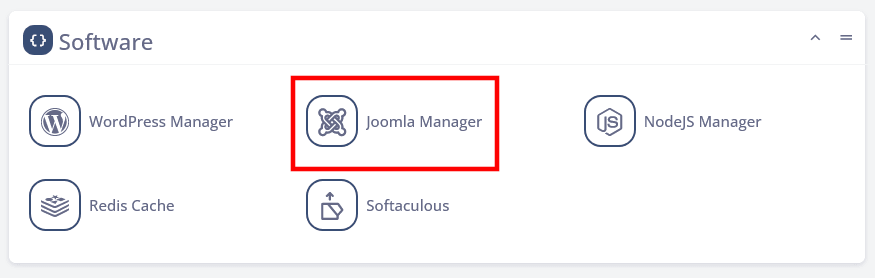
- Log in to SPanel’s User Interface.
- Scroll down to the Software section.
- Click Joomla Manager.
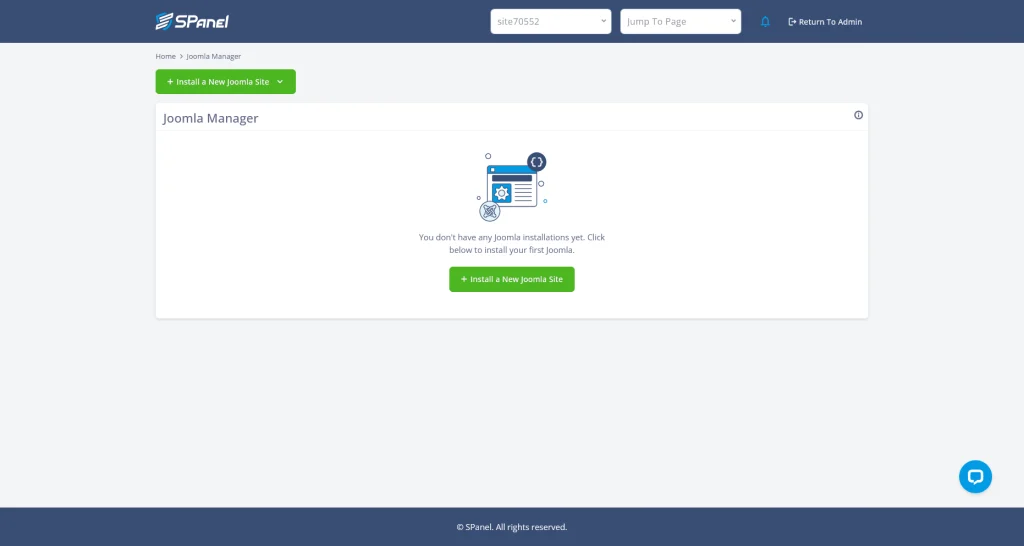
If you don’t have any Joomla sites on the account, the page only shows an Install a New Joomla Site button. Otherwise, you’ll see the list of existing installations.
How to Install Joomla in SPanel
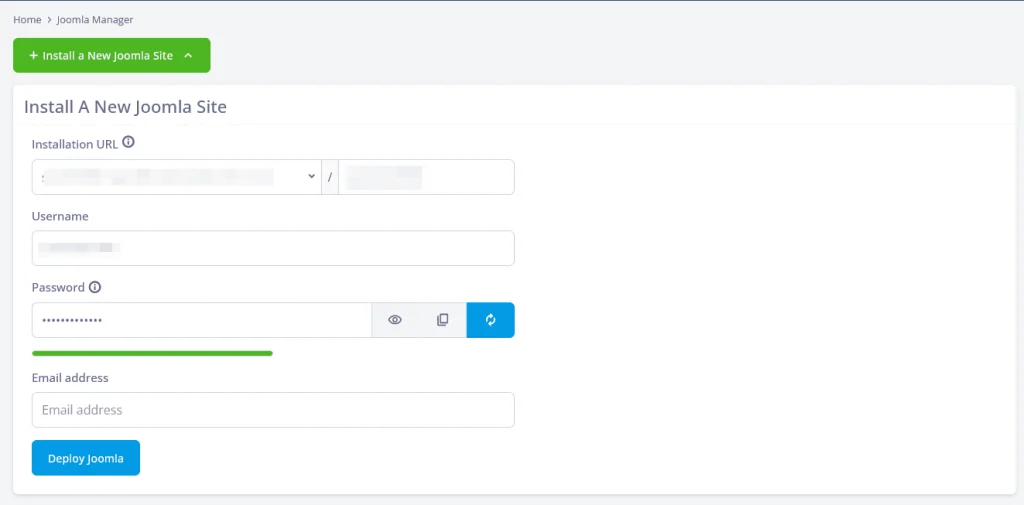
The installation form asks for four things: where Joomla goes, the administrator username, the administrator password, and the administrator email address. The location needs the most attention, so start there.
Understand the installation path
The Installation URL field has two parts: a dropdown with every domain, addon domain, and subdomain in the account, and a path field to its right. The path field decides whether Joomla runs on the domain itself or in a folder under it:
| Path field | Joomla site address | Where the files go |
| Empty | example.com | The domain’s document root |
| joomla | example.com/joomla | A joomla folder under the document root |
SPanel prefills the path field with a random folder name, such as joomla61000. If you leave it in place, the site loads from example.com/joomla61000, not from the domain itself. Clear the field if Joomla should be the main site on the domain.
⚠️ Warning: Make sure the installation path doesn’t contain a live website or another CMS installation. Installing Joomla on top of an existing project could break both the new Joomla site and the existing project. If the domain already hosts a site, install Joomla on a subdomain or in a separate folder.
Run the installation
- In Joomla Manager, click Install a New Joomla Site.
- Open the Installation URL dropdown and select the domain or subdomain for the new site.
- Set the path field to the folder Joomla should use, or clear it to install at the domain’s document root.
- Enter the administrator username in the Username field. SPanel suggests one, but you can replace it.
- Click the generate button (the circular arrows icon) next to the Password field. SPanel creates a strong random password.
- Click the copy icon and store the password in a password manager.
- Enter the administrator’s email address in the Email address field.
- Click Deploy Joomla.
SPanel downloads the latest stable Joomla release, creates a MariaDB database and database user, and configures the new site to use them.
Joomla runs on the domain’s current PHP version. When the installation finishes, a success message appears, the page refreshes, and the new site shows up in the Joomla Manager list.
💡 Tip: Use a strong password you don’t use anywhere else. The administrator account controls the entire site, so a weak or reused password puts the whole installation at risk. The eye icon next to the Password field shows the password if you want to check it before deploying.
Log in to the new site
The username and password from the installation form give you access to Joomla’s administration panel. To open it, add /administrator to the site’s address:
- Joomla at the domain root: example.com/administrator
- Joomla in a folder: example.com/joomla/administrator
How to Manage Existing Joomla Installations
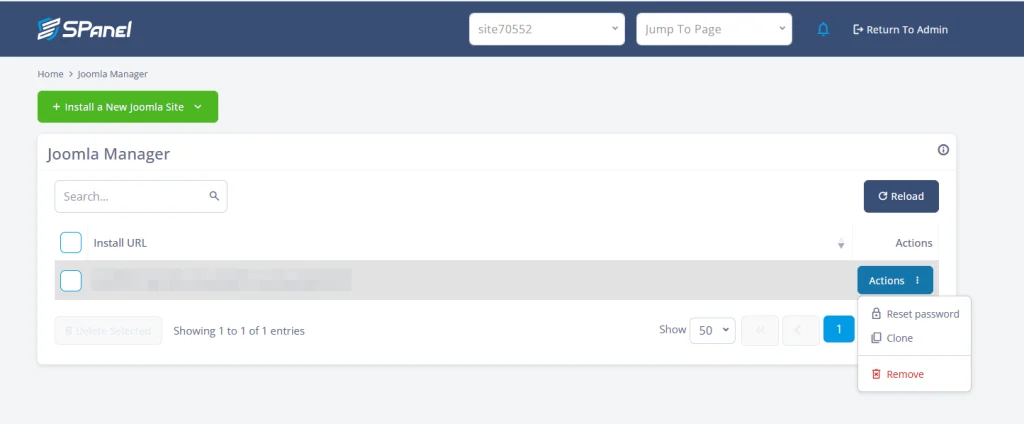
The Joomla Manager list shows every installation by its Install URL. Each row has an Actions menu with three options. A search box and a Reload button sit above the list. Use the search box to find an installation and the checkboxes on the left to select several at once.
Here are the options in the Actions menu:
| Action | What it does | Can it be undone? |
| Reset password | Replaces a Joomla administrator’s password with a new one that SPanel generates | Not applicable. You can run it again at any time. |
| Clone | Copies an installation to a different domain or subdomain | Yes. Remove the clone. The original isn’t affected. |
| Remove | Deletes the installation’s files and database | No |
Only Remove is permanent, so it’s the one action that needs a backup first.
Reset the Joomla administrator password
Reset password gives an administrator account a new password without going through Joomla’s email-based recovery. The username, the site’s content, and its settings stay the same. Only the password changes.
- In the Joomla Manager list, click Actions next to the installation.
- Select Reset password. A dialog titled “Reset the Joomla password for” the site’s URL opens.
- Enter the administrator’s username in the Login username field.
- Click Reset.
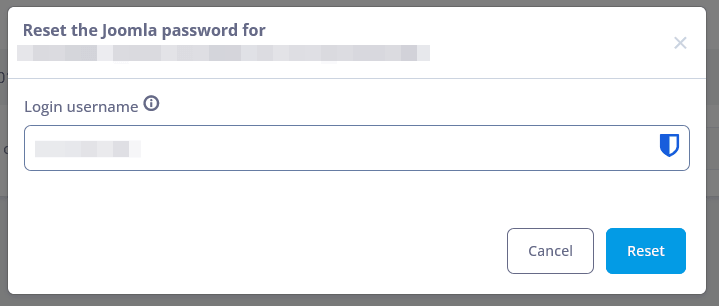
A message appears at the top of the page confirming that the password for that username has been reset, followed by the new password. Click the copy icon next to the password and save it before you close the message. The old password no longer works.
📝 Note: SPanel generates the new password, so you can’t choose it in the dialog. To set one of your own, log in with the generated password and change it in Joomla’s administration panel.
Clone a Joomla installation
Clone makes a copy of a Joomla site on a different domain or subdomain. It’s a quick way to start a new project from an existing site or to try changes on a copy before applying them to the production site. The original installation doesn’t change.
Cloning isn’t staging. The copy has no link to the original, and Joomla Manager can’t push changes from the clone back to the source site. Anything you want on the live site after testing has to be done there as well.
The copy runs on a different domain or subdomain from the original. You can pick a domain or subdomain that already exists in the account, or create a new subdomain from the Clone dialog.
⚠️ Warning: The destination has the same rule as a new installation: it shouldn’t contain a live website or another CMS. Cloning into a location that’s already in use can break both sites.
- In the Joomla Manager list, click Actions next to the installation you want to copy.
- Select Clone. The Clone dialog opens and shows the source site’s URL.
- Choose where the copy goes:
- To create a new subdomain, keep Create a new subdomain selected, type a name in the Subdomain Name field, and pick the parent domain from the dropdown next to it.
- To use a domain or subdomain that already exists, clear the Create a new subdomain checkbox and select the destination from the Destination Domain dropdown.
- If you’re creating a subdomain, click Advanced subdomain settings to review its Document Root (the folder for the cloned site’s files) and its PHP Version. Type a folder path or click Browse to pick one, and keep the current PHP version or select another from the dropdown.
- Click Clone. The button stays inactive until every required field is filled in.
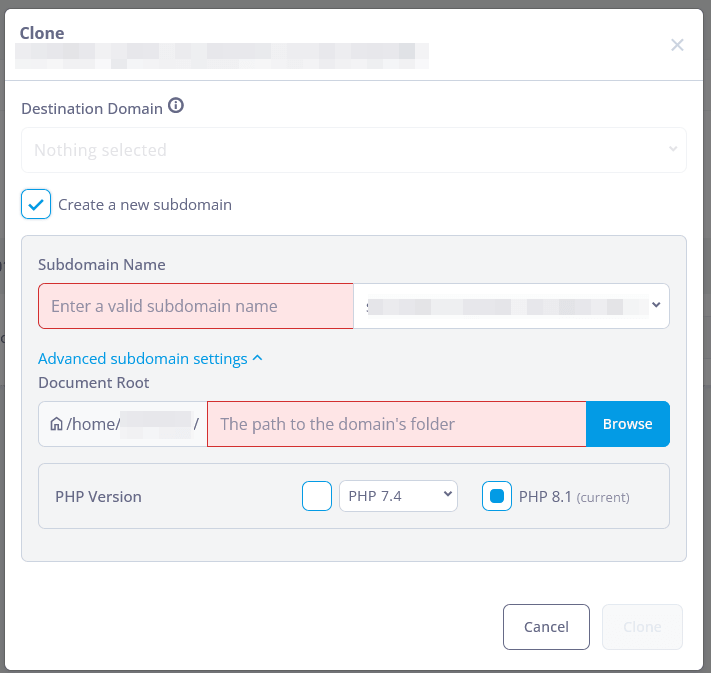
When the process finishes, the clone appears in the Joomla Manager list as a separate installation. Changes you make on one site don’t affect the other.
Remove a Joomla installation
Remove deletes an installation’s files and its database. Use it for sites you no longer need, such as an old clone.
⚠️ Warning: Removal is permanent, and Joomla Manager has no undo. If there’s any chance you’ll need the site again, create a backup with the Backups tool in SPanel’s User Interface first.
To remove a single installation:
- In the Joomla Manager list, click Actions next to the installation.
- Select Remove.
To remove several installations at once:
- Select the checkbox next to each installation you want to delete.
- Click Delete Selected.
SPanel deletes the files and database of each removed installation, and it disappears from the list. The domain or subdomain the site ran on stays in your account.
PHP Compatibility
Joomla Manager installs the latest stable Joomla release and runs it on the domain’s current PHP version. Each Joomla release sets its own minimum and recommended PHP versions, so check Joomla’s official technical requirements before you install.
To see or change a domain’s PHP version, open PHP Manager from the Tools section of SPanel’s User Interface. Make the change before you click Deploy Joomla.
Test a PHP upgrade on a cloned site
The Clone dialog can create a new subdomain and set its PHP version in the same step. That makes it a safe way to check whether a Joomla site works on a newer PHP release before you change the live domain:
- Clone the site to a new subdomain, such as test.example.com.
- Under Advanced subdomain settings, select the newer PHP version.
- Check the clone’s front end and administration panel for errors.
- If everything works, change the live domain’s PHP version in PHP Manager.
The live site keeps running on its current PHP version while you test.
Troubleshooting
These are the most common problems with Joomla Manager and where to look first:
| Problem | Likely cause | What to check |
| The domain isn’t in the Installation URL dropdown | The domain or subdomain hasn’t been added to the hosting account | Add it from Domains in SPanel’s User Interface, then open the installation form again |
| Joomla loads from a folder, such as example.com/joomla61000, not from the domain | The prefilled folder name was left in the path field | Remove the installation and install again with the path field cleared |
| An existing site stopped working after the installation | Joomla went into a path that already held a website or CMS | Check the Install URL in the Joomla Manager list and restore the affected site from a backup |
| The administration panel rejects the login | The address is missing the installation folder, or the password is wrong | Confirm the URL includes the folder (for example, example.com/joomla/administrator), then use Reset password if needed |
| The site shows a PHP error after installation | The domain’s PHP version doesn’t meet the installed Joomla release’s requirements | Compare the domain’s version in PHP Manager with Joomla’s technical requirements |
| The Clone button stays inactive | A required field is empty | Fill in the highlighted fields, such as Subdomain Name and Document Root |
| The reset message closed before you copied the password | The new password is shown only in that message | Run Reset password again to get another one |
Limitations
Joomla Manager currently covers installation, cloning, password resets, and removal. Keep these limits in mind:
- There’s no one-click login. Sign in at /administrator with your Joomla credentials.
- Joomla Manager doesn’t update Joomla core, extensions, or templates. Run updates from Joomla’s administration panel.
- Every installation gets the latest stable Joomla release. You can’t pick an older version.
- A clone must go on a different domain or subdomain, and changes don’t sync back to the original.
- Password resets generate a random password. You can’t set your own in SPanel.
- Removal permanently deletes the installation’s files and database.
Frequently Asked Questions About Joomla Manager
Q: Does SPanel have a Joomla installer?
A: Yes. SPanel’s Joomla Manager installs the latest stable Joomla release on any domain, addon domain, or subdomain in your account. It creates the database and database user for you.
Q: Can I install Joomla on my main domain instead of a folder?
A: Yes. Clear the path field next to the Installation URL dropdown, and Joomla installs in the domain’s document root.
Q: How do I reset my Joomla admin password in SPanel?
A: Open Joomla Manager, click Actions next to the site, select Reset password, enter the admin username, and click Reset. SPanel shows the new password at the top of the page.
Q: Is cloning a Joomla site the same as staging?
A: No. A clone is a standalone copy on a different domain or subdomain, and Joomla Manager can’t push its changes back to the original site.
Q: Does Joomla Manager update Joomla?
A: No. Run core, extension, and template updates from Joomla’s administration panel.
Why Use Joomla Manager Instead of Installing Joomla Manually?
A manual installation means downloading the Joomla package, uploading and extracting it, creating a database and database user, and working through Joomla’s web installer. Joomla Manager replaces those steps with one form and generates a strong administrator password for you. Cloning, password resets, and removal happen from the same screen, so routine tasks don’t require file transfers or direct database edits.
