
An SSL certificate is helpful in protecting your users from cyber attacks. It also builds a level of trust with your website visitors.
SSL is an abbreviation for Secured Socket Layer. It’s an encryption protocol that protects data in transit. Although the SSL abbreviation has stuck, modern SSL certificates actually use TLS (or Transport Layer Security), a newer and more secure version of SSL.
While most SSL certificates are usually expensive to acquire, there are a few ways to get an SSL certificate at zero cost for your WordPress site.
This is exactly what we’re going to show you in this step-by-step guide. We’ll also cover how to install the free SSL certificate on WordPress.
But first, let’s talk about why your website needs one at all:
Why Your WordPress Website Needs An SSL Certificate
An SSL certificate is not just for websites that collect and process payment and personal information. It’s one of the most reliable ways of assuring the user that they can trust your website.
By encrypting the information flow between the client and the server, the SSL certificate minimizes the chances of a successful man-in-the-middle attack.
Because it’s such an essential part of securing a website, modern browsers do not display prominent warnings whenever you try to access a page that is not protected by an SSL certificate. If you don’t have one, your search engine rankings are also likely to suffer.
That’s why you need to know how to get an SSL certificate for WordPress.
How an SSL Certificate Works
Now that we established that having an SSL certificate for your WordPress website is essential, let’s see how one works exactly.
When a user visits a website with an SSL certificate installed, their browser first verifies its validity.
The browser and the server then negotiate the encryption algorithm and start the so-called TLS handshake. During it, they exchange information encrypted with a public key that can only be decrypted with the certificate’s private key. With the handshake complete, another encryption key is generated. This is the one that will encrypt the information exchange during the session.
It’s a complex algorithm that involves both symmetric and asymmetric encryption and ensures the connection is secure.
What is Let’s Encrypt
Let’s Encrypt is a certificate authority that will give a free SSL certificate for WordPress to all site owners.
If you have a ScalaHosting account, a Let’s Encrypt certificate will be issued and installed automatically as soon as you point your domain to our servers.
You can also manage your free and paid certificates from the SSL Certificates section inside SPanel’s User Interface.
How To Activate Free SSL In WordPress
After enabling the WordPress SSL certificate, you should activate it on the website.
This action will change your URL from HTTP to HTTPS, indicating that the website is now secure. The SSL certificate won’t work until the URL is updated.
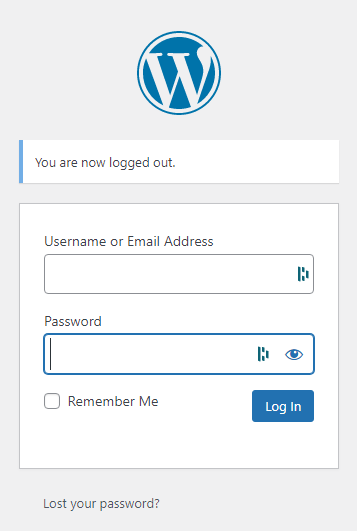
To activate the free SSL in WordPress, log in to your WordPress administration dashboard:
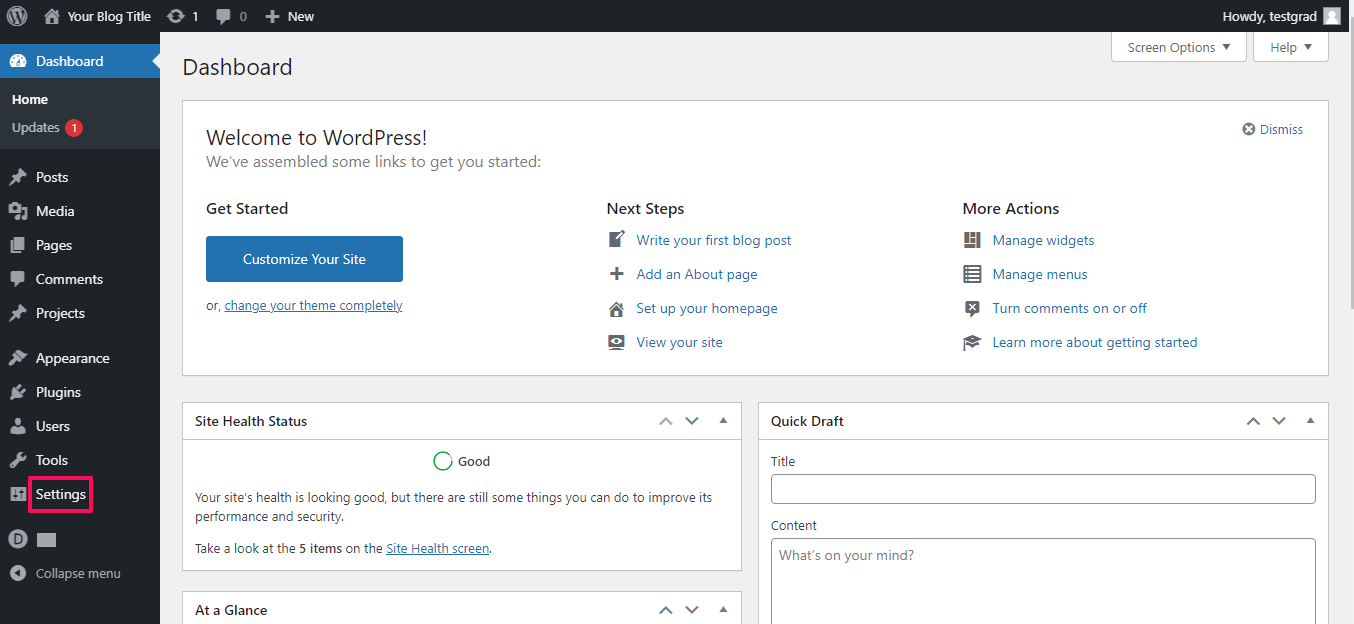
Next, go to the Settings option:
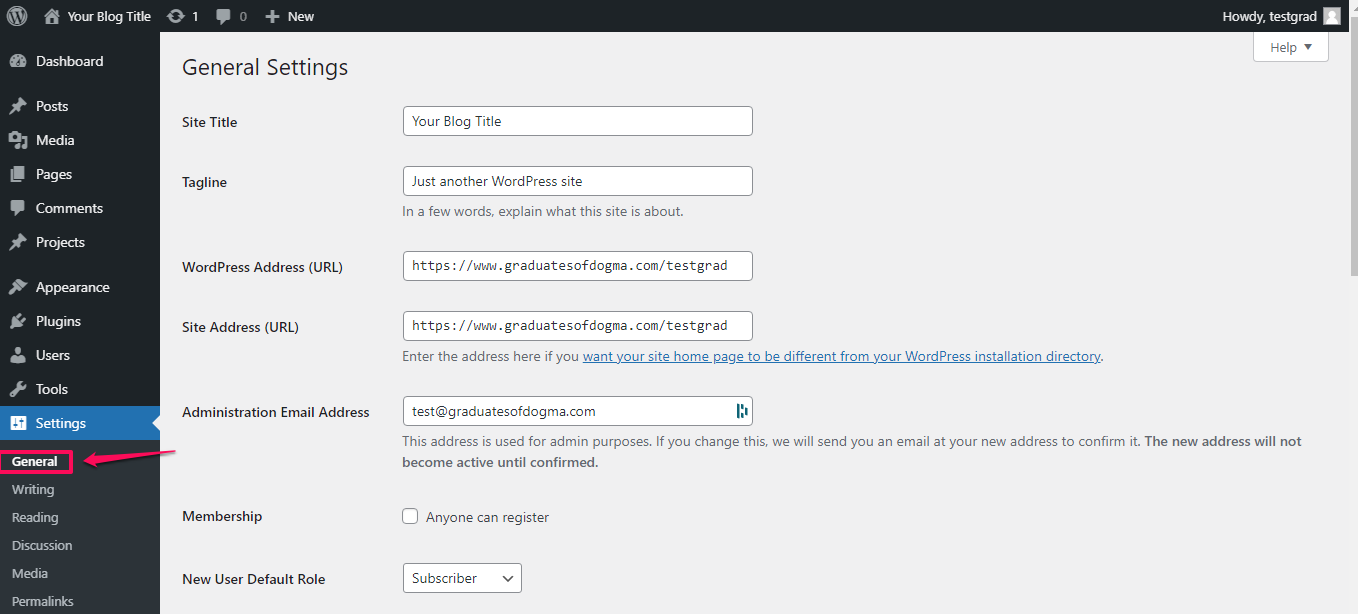
Click on General:
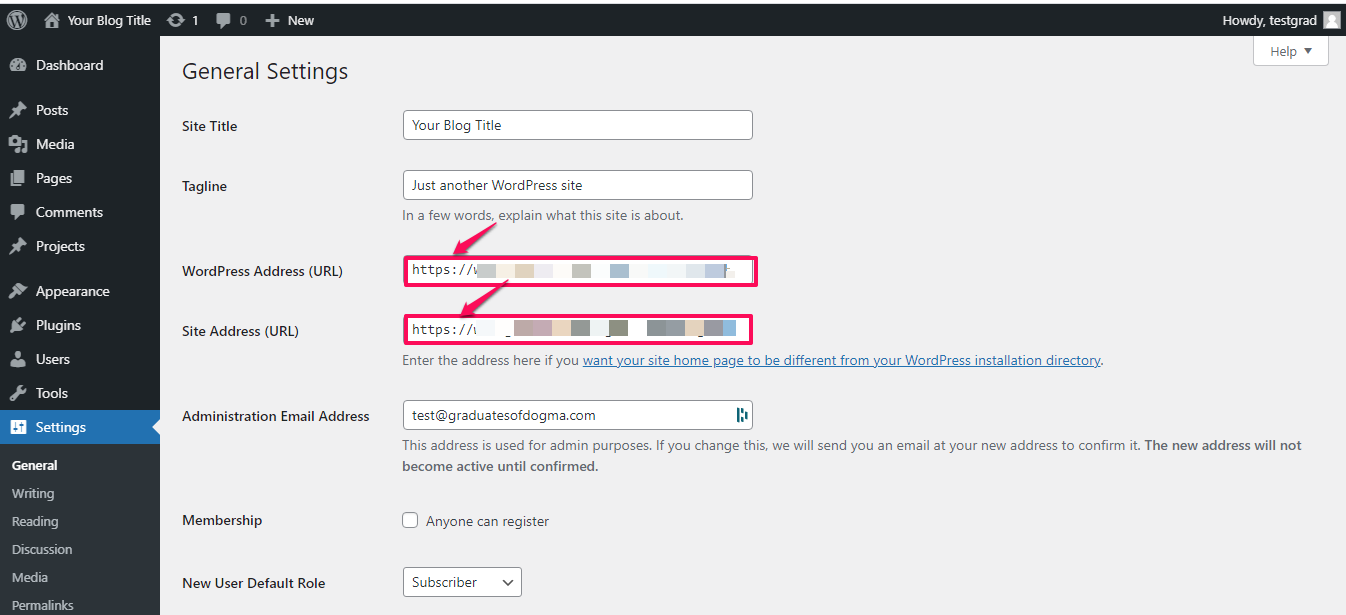
Change your WordPress URL and Site URL to HTTPS:
Click Save:
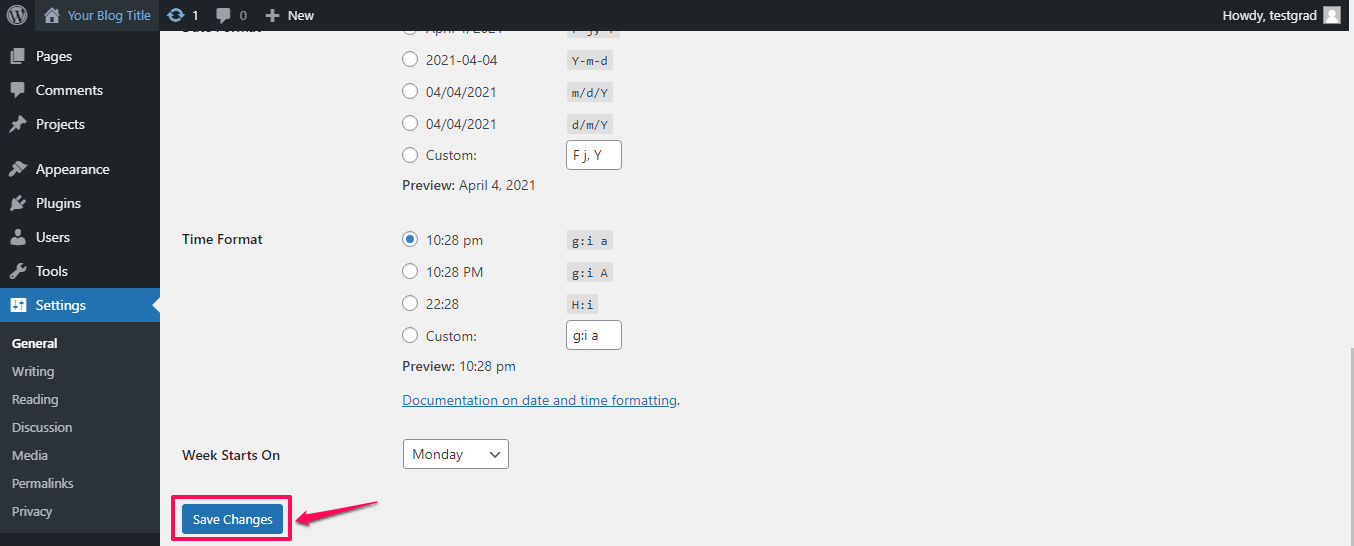
This process works well if your website is new. However if you have a website already indexed on Google, some of its pages might still load as HTTP and others as HTTPS.
Thankfully, there is an easy way out. A few WordPress plugins like ‘Really Simple SSL’ and ‘SSL Insecure Content Fixer’ help to detect a website’s SSL status and run all pages on HTTPS.
How To Update Your Website URL Using Plugins
Log in to your WordPress Administrator dashboard:
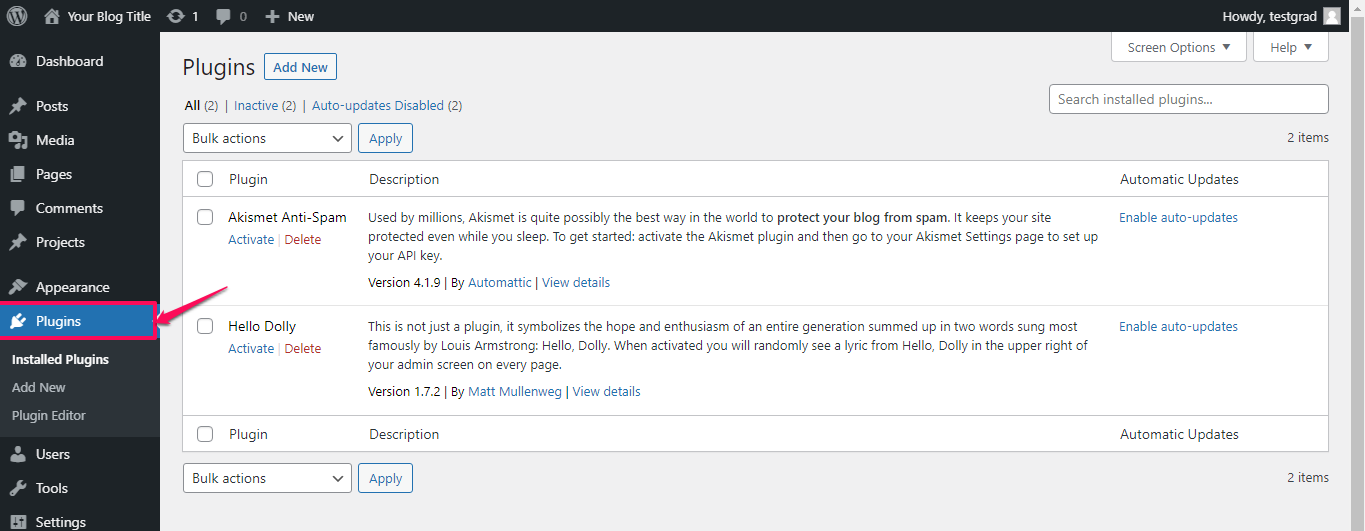
Go to the plugin option:
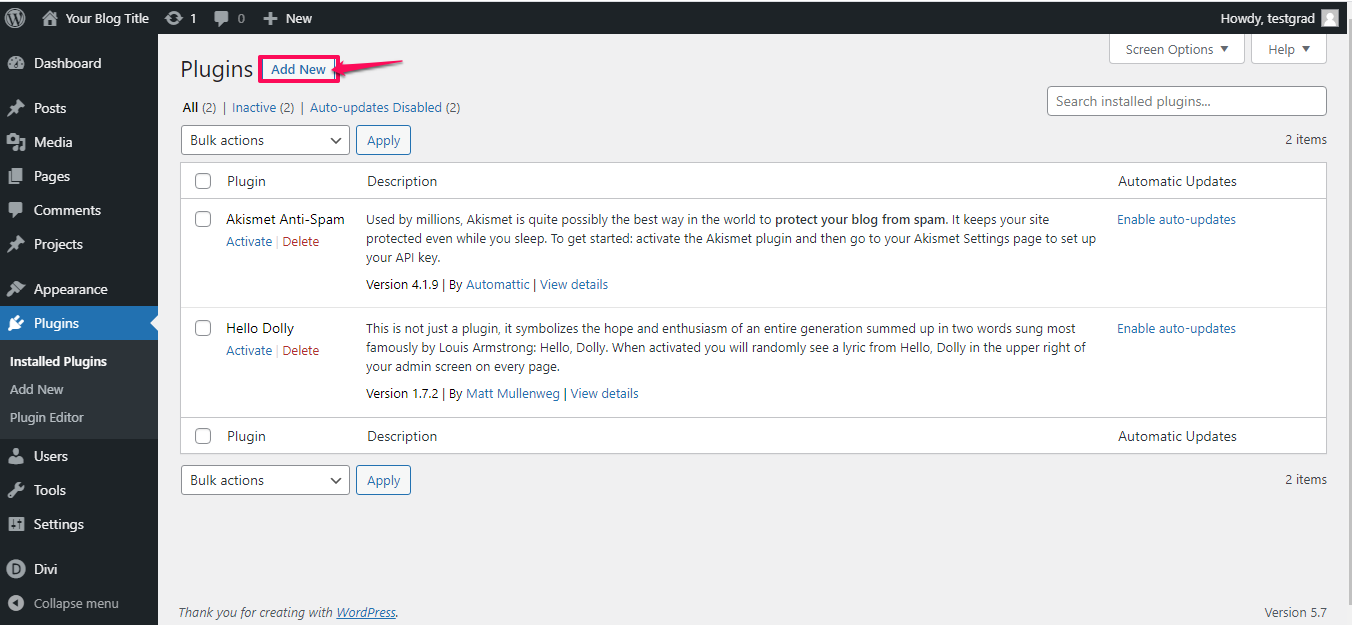
Click on Add New Plugin:
Click on Upload Plugin:
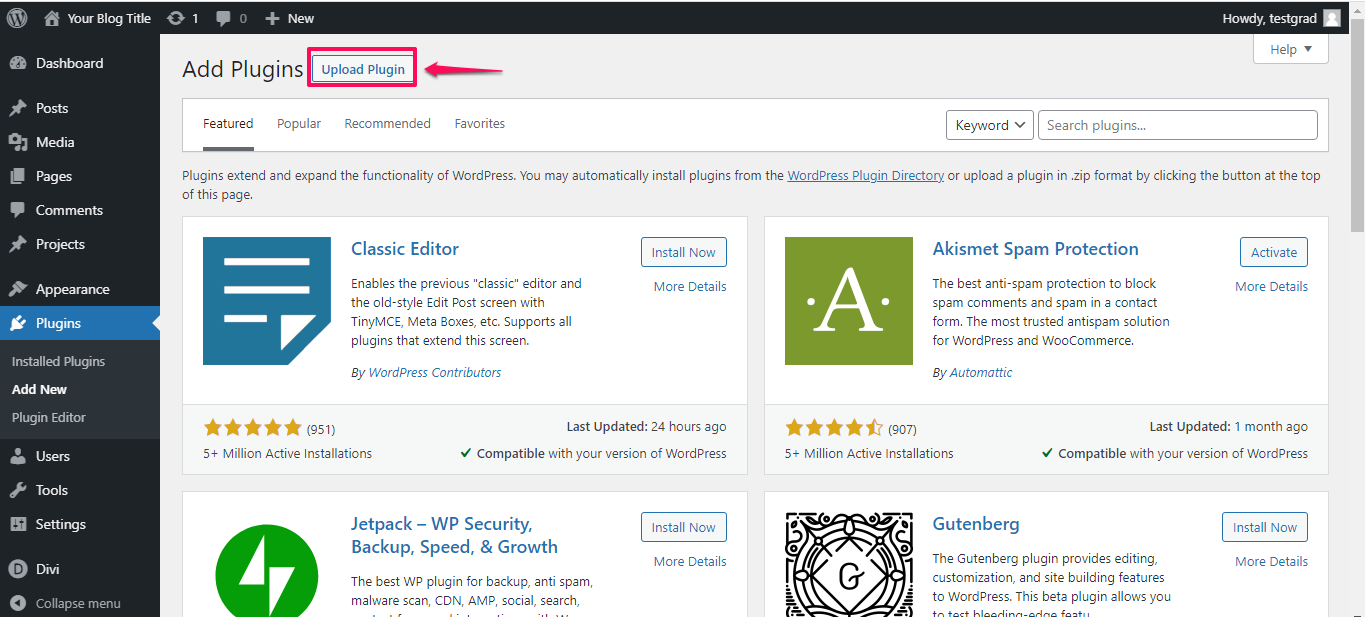
Upload the downloaded plugin file, Click on Install Now:
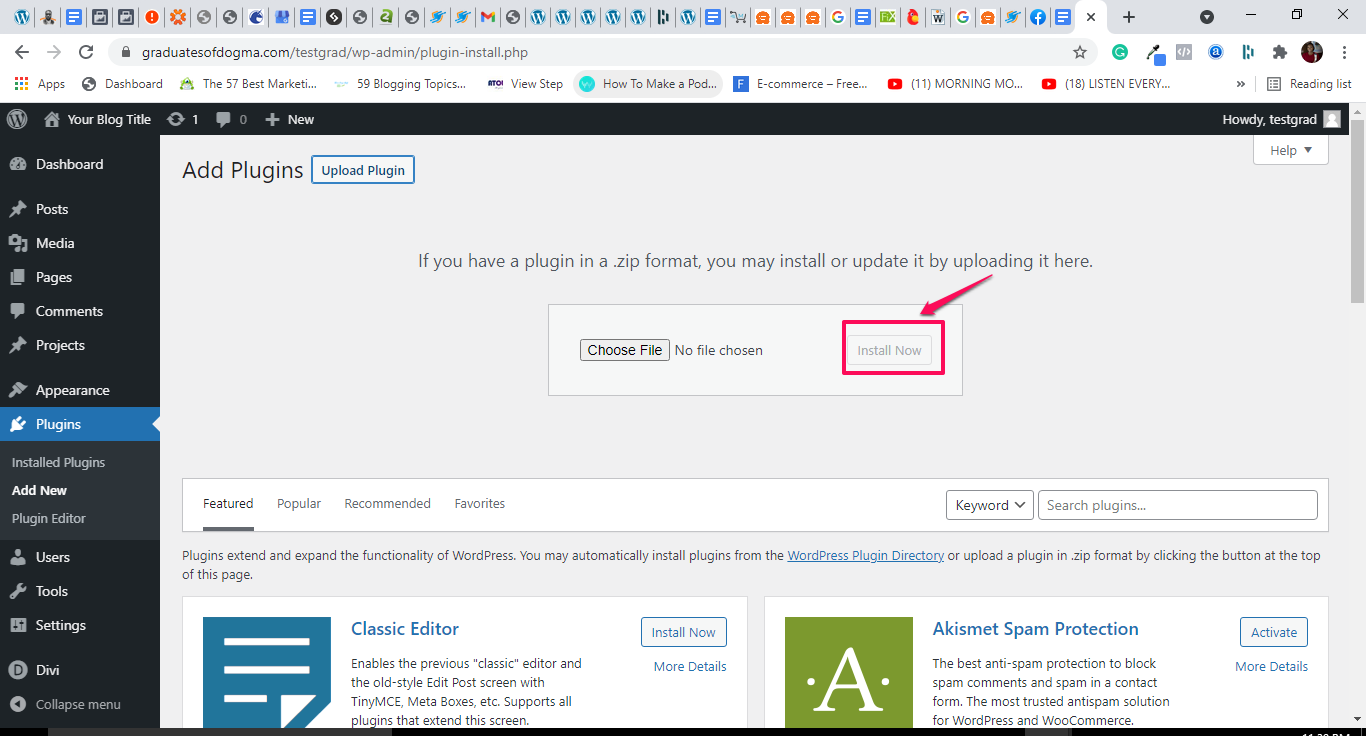
After installing the plugin, click on Activate.
The activated plugin automatically detects HTTP pages and runs them on HTTPS.
Conclusion
Your ScalaHosting account comes with a Let’s Encrypt certificate preinstalled for free. So you don’t have to worry about generating or installing a free SSL certificate in the beginning.
However, you might need extra encryption if you’re creating subdomains. You can get an SSL certificate for those specific needs, here.
If you ever need a hand with your SSL certificate installation, our support is always available to help you get it done on time.
How To Point a Domain Name To a Web Hosting Provider
