You host 40 client websites on one VPS. Every night you run a backup job. Every morning a green checkmark tells you everything is safe.
Then the server’s storage fails, and you discover that every one of those backups was sitting on the same disk as the sites they were supposed to protect.
That’s the gap SPanel backups are built to close.
SPanel, our multifunctional hosting control panel, includes a scheduled backup engine that can keep restore points on the same server, push them to a separate machine over SSH and rsync, or do both at once. And because many of our customers run dozens or hundreds of sites on a single server, we’ve added Rsync backup storage. That remote copy also lets SPanel rebuild the entire server if the original is ever lost.
Here’s how each option works with ScalaHosting, what it protects you from, and how to set up remote rsync backups in a few minutes.
What Are SPanel Backups?
SPanel backups are the built-in backup, restore, and disaster-recovery tools of SPanel, ScalaHosting’s web hosting control panel. They automatically copy website files, databases, email, and account data on hourly, daily, weekly, and monthly schedules, store copies locally or on a remote server, and let you restore anything from a single file to an entire server.
The backup engine is part of every SPanel installation.
You don’t buy a separate backup product or unlock destinations by upgrading your plan. If you’ve worked with cPanel backups before, the core ideas will feel familiar: scheduled runs, full and partial restores, and restore points you can browse.
In practice, SPanel backups cover three jobs:
Scheduled backups of every hosted account, with separate hourly, daily, weekly, and monthly retention
Custom on-demand backups you can encrypt and send to your own FTP server
Full server restore that rebuilds an entire SPanel server from local or remote backups
Why Website Backups Still Matter
Backups are the one safety net that covers almost every type of failure. Security tools stop attacks, monitoring catches outages, and staging environments catch bad updates. A backup is what you reach for when all of those miss.
The most common reasons people restore a website are rarely dramatic:
A file or folder deleted by mistake
A plugin, theme, or core update that breaks the site
A database migration that corrupts a table
A compromised site that needs to go back to its pre-infection state
A hardware or provider failure that takes the whole server offline
Ransomware is the dramatic one, and the numbers are still sobering. According to the Sophos State of Ransomware 2026 report, which surveyed 2,158 IT and security leaders across 17 countries, 56% of ransomware attacks succeeded in encrypting data, and the average recovery cost reached $1.7 million.
Here’s the part that matters for your backup setup.
The joint CISA #StopRansomware Guide warns that many ransomware variants actively search for accessible backups so they can delete or encrypt them. A backup that lives on the compromised machine is often the first thing to go.
That’s why where you store your backups matters as much as how often you take them.
Local vs. Remote Backups: What’s the Difference?
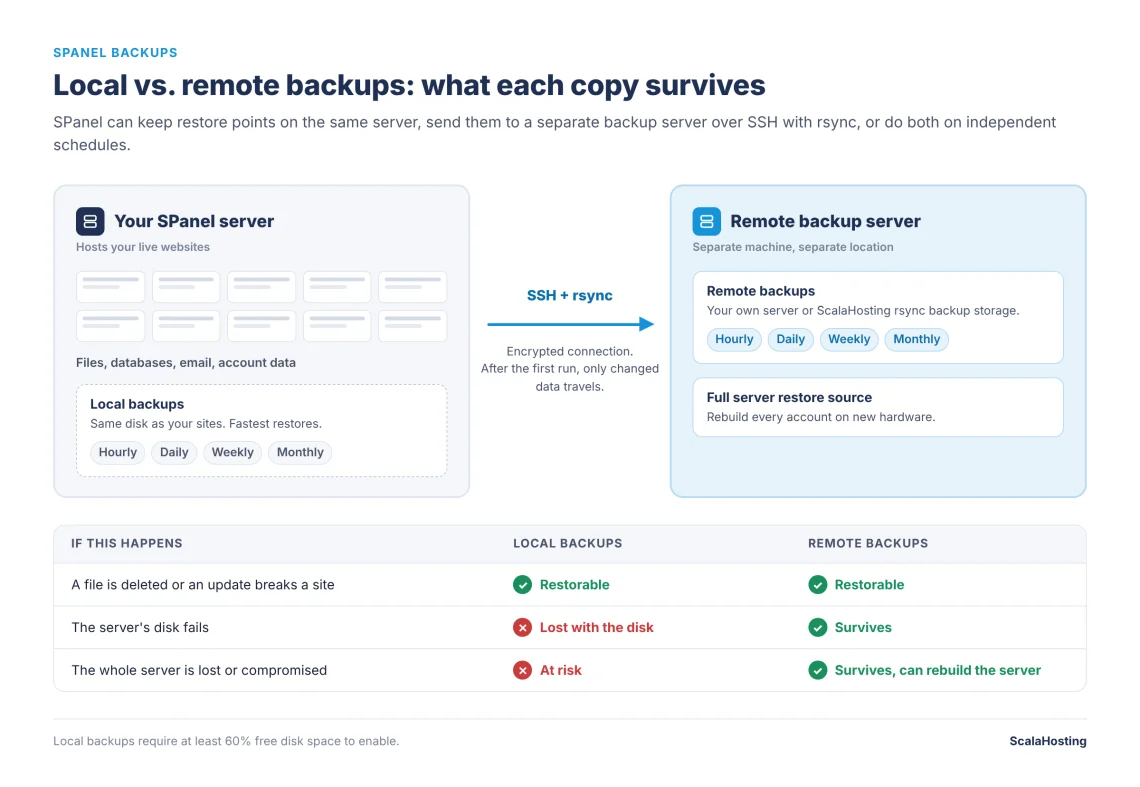
Local backups are copies stored on the same server that hosts your websites. Remote backups are copies sent to a separate server in a different location. Local backups restore fastest; remote backups survive when the original server doesn’t.
Local backups share the fate of your server. Remote backups don’t.
In SPanel, local backups live in a dedicated backup directory on your server. Remote backups travel over an encrypted SSH connection, using rsync, to a backup server you choose.
The table below compares the two side by side:
Local Backups
Remote Backups (Rsync over SSH)
Where copies live
Same server as your sites
A separate backup server
Restore speed
Fastest, no network transfer
Fast, depends on network and data size
Protects against deleted files and bad updates
✅
✅
Protects against disk or hardware failure
❌
✅
Protects against losing the entire server
❌
✅
Counts as your offsite copy
❌
✅
Uses your server’s disk space
Yes, needs 60% free space to enable
No
Extra cost
None, uses your existing storage
Storage on the remote server
When to Use Local Backups
Local backups fit quick, everyday recoveries: restoring a file someone deleted an hour ago or rolling back a theme update. Because nothing travels over the network, they’re the fastest restore points you can have.
The catch is disk space. SPanel requires at least 60% free disk space before it enables local backups, because a backup job that fills the disk of a live hosting server creates a second outage on top of the first. On a server that’s already busy, that requirement alone can rule local backups out.
When to Use Remote Backups
Remote backups fit everything local backups can’t handle: a failed disk, a corrupted file system, a lost virtual machine, or an attacker who reached the server itself. They also don’t consume your server’s storage, which matters when your sites are growing faster than your disk.
Why the Best Setup Uses Both
You don’t have to choose. SPanel runs local and remote destinations at the same time, each with its own schedule. A common pattern is frequent local backups for fast file recovery, plus daily remote backups for disaster protection.
This setup also lines up with the classic 3-2-1 rule: three copies of your data (the live site plus two backups), on two different storage systems, with one copy offsite.
The New Rsync Remote Backup Option in SPanel
SPanel’s Remote Backups feature (Admin Area -> Manage Backups) sends your scheduled backups to a separate server over SSH using rsync. You can point it at any Linux server that runs SSH and has rsync installed.
What Is Rsync?
Rsync is an open-source file synchronization tool that copies data between locations by transferring only what has changed. Its delta-transfer algorithm, described in the rsync manual page, compares source and destination files and sends only the differences instead of the whole file.
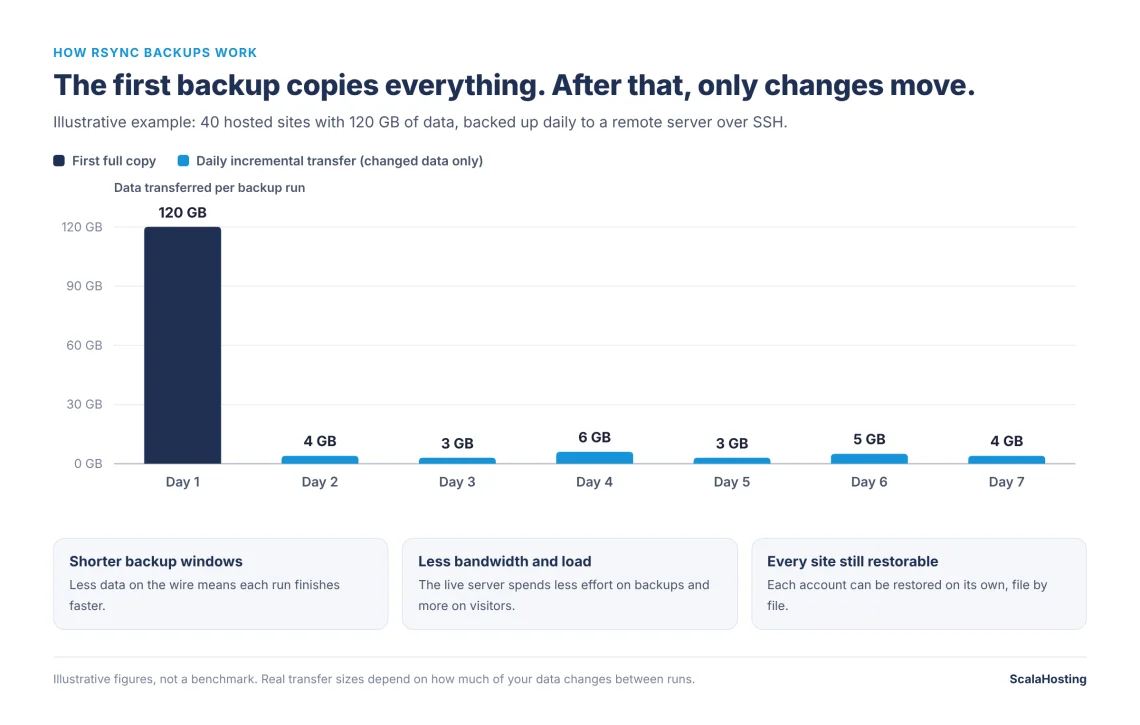
For backups, that means the first run copies everything, and every run after that moves only what changed since the last one.
Illustrative example: after the first full copy, rsync moves only what changed.
Here’s why that matters on a busy server.
Less data on the wire means shorter backup windows, less bandwidth, and less load on the machine that’s also serving your visitors.
Why Rsync Backups Make Sense When You Host Many Websites
Remote rsync backups earn their keep fastest on servers that host many sites. Agencies, freelancers, and resellers usually hit the same three problems: dozens of sites to protect, limited disk space on the live server, and no time to manage backups one site at a time.
SPanel handles those problems at the server level:
One schedule protects every account. The hourly, daily, weekly, and monthly schedule applies to every hosted account on the server, so a new client site is covered from the next backup run.
Every account stays individually restorable. You can restore one client’s site, one folder, or one database without touching anyone else’s.
Your live disk stays free. Remote copies don’t eat the storage your sites need to grow.
Sites stay responsive during backups. SPanel caps the CPU time the backup process can use, so a backup run doesn’t starve the sites your visitors are loading.
Remote rsync backups can rebuild the whole server. SPanel’s full server restore reads from local and remote backups, so a remote rsync destination doubles as your disaster-recovery source.
That last point is easy to overlook.
Object storage destinations work well for archiving, but SPanel’s full server restore can’t read from them directly. If you want a one-step path from “server gone” to “server back,” remote rsync backups are the destination that gives you that.
If you manage client sites for a living, our hosting for agencies setup is built around this kind of multi-site workload.
Do You Need Rsync Backup Storage?
Every ScalaHosting managed cloud plan already includes automatic offsite backups, so you’re never starting from zero. Rsync backup storage is for the cases where you want more than that baseline.
It’s a good fit when:
You host many sites and want longer retention or more restore points than your plan includes
You want weekly and monthly restore points kept offsite, not only recent dailies
You want the remote copy to be the source for a full server restore
Your live server doesn’t have the 60% free disk space that local backups require
The rsync option is probably unnecessary when you run one or two small sites, your included backups already cover the history you need, or you already operate your own backup server. In that last case, point SPanel’s Remote Backups at your server instead.
How to Set Up Remote Rsync Backups in SPanel
Remote backups are configured in the Manage Backups section of SPanel’s Admin Interface.
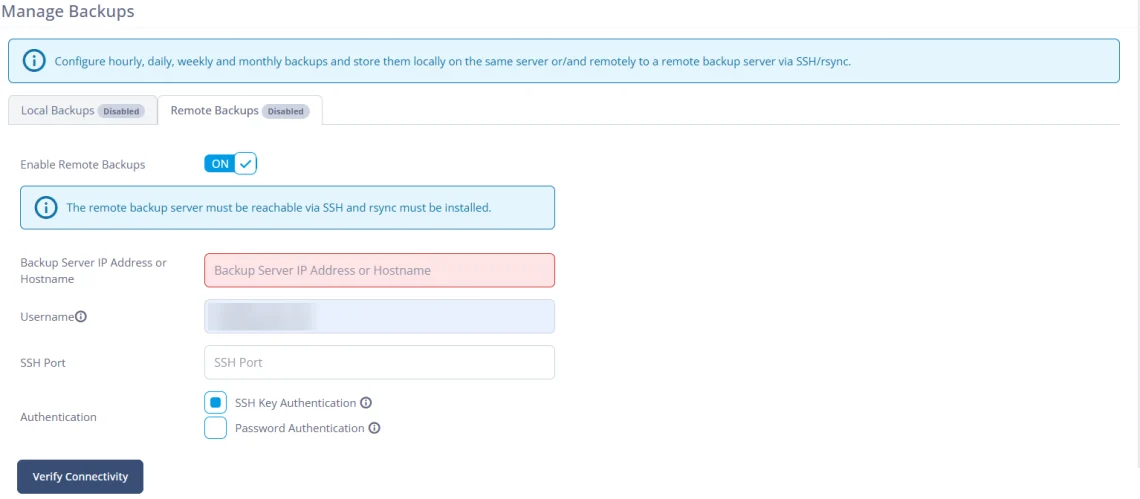
The Remote Backups tab in SPanel’s Manage Backups screen.
Before you start, make sure the remote backup server is reachable over SSH and has rsync installed. SPanel checks both before it saves anything.
Open the Remote Backups tab. In Manage Backups, switch from Local Backups to Remote Backups.
Turn on remote backups. Set the Enable Remote Backups toggle to ON.
Enter the backup server’s address. Fill in the Backup Server IP Address or Hostname field.
Add the SSH username and port. Enter the username on the backup server and the SSH Port it listens on.
Choose how SPanel authenticates. Pick SSH Key Authentication or Password Authentication.
Click Verify Connectivity. SPanel tests the connection to the backup server before you go further.
Behind the scenes, SPanel handles several steps that would otherwise require manual work. It adds the backup server’s IP address to the server firewall, generates an SSH key if one doesn’t exist, installs the public key on the backup server so future connections don’t depend on a stored password, and confirms rsync is available on the receiving end.
Every Backup Option SPanel Offers
Remote rsync backups are one part of a larger toolkit. Each option below covers a different time horizon, from five minutes ago to “the server no longer exists.”
Backup Option
What It Protects
Best For
Scheduled local backups
Files, databases, email, account data
Fast, everyday restores
Scheduled remote backups (rsync over SSH)
Files, databases, email, account data
Offsite protection and server-level recovery
S3-compatible and Backblaze B2 destinations
Files, databases, email, account data
Long-term archiving in object storage you control
Custom on-demand backups
Folders and databases you select
Snapshots before risky changes
Full server restore
The entire SPanel server
Rebuilding after the server is lost
Scheduled Backups With Hourly, Daily, Weekly, and Monthly Retention
SPanel’s scheduled backups run on four independent tiers. For each one, you pick when backups run and how many restore points to keep:
Hourly: which hours of the day, and how many recent hourly backups to retain
Daily: which days of the week, and how many daily backups to retain
Weekly: which day of the week, and how many weekly backups to retain
Monthly: which dates of the month, and how many monthly backups to retain
Each destination gets its own schedule. You could run local backups every few hours for quick file recovery, remote backups once a day for disaster protection, and object storage backups monthly for archiving.
Here’s a starting point for different types of projects:
Project Type
Local Backups
Remote Backups
Brochure or portfolio sites
Daily, keep 7
Weekly, keep 4
Blogs and content sites
Daily, keep 7
Daily, keep 7; monthly, keep 3
Online stores
Hourly during business hours, keep 12
Daily, keep 14; monthly, keep 6
Agency server with many client sites
Daily, keep 3 (if disk allows)
Daily, keep 7; weekly, keep 4; monthly, keep 3
Adjust these to how often your content changes and how much history your clients expect.
Custom On-Demand Backups With Encryption
Scheduled backups run on the clock. Custom backups run when you need them, like right before a major plugin update, a schema change, or a migration.
You choose the folders and databases to include, pick tar.gz or zip, and optionally encrypt the archive with your own passphrase using AES-256 encryption. SPanel can also upload the finished archive to your own FTP server and email you when it’s done.
Locking and Excluding Backups
Two smaller controls make the whole system easier to live with:
Locked restore points never get deleted by rotation. Lock the backup from before a big migration, or keep a snapshot for an audit, and it stays until you unlock it.
Exclusions keep specific accounts or databases out of scheduled backups. Test accounts and cache databases don’t need protection, and excluding them saves storage on every destination.
Full Server Restore for Disaster Recovery
Full server restore rebuilds an entire SPanel server on new hardware from local or remote backups. It restores every hosted account along with its databases, DNS zones, email configuration, cron jobs, and SSL certificates, then reinstalls the web server the original server ran.
It also rewrites the old IP address to the new one across configuration files, so sites and database connections work on the new machine. As a safety measure, it only runs on a server with no hosted accounts, which makes it very hard to overwrite a live server by mistake.
S3-Compatible and Backblaze B2 Destinations
For long-term archiving, SPanel can also send scheduled backups to AWS S3, any S3-compatible service (such as Wasabi, MinIO, DigitalOcean Spaces, or Cloudflare R2), or Backblaze B2. You hold the storage credentials, so the backups sit in an account you control.
How to Restore From an SPanel Backup
Restoring is where a backup system proves its worth.
SPanel gives you several ways to bring data back, and every restore runs in the background, so you can keep working in the panel while it finishes.
Single files and folders: browse inside any restore point, pick the exact files you need, and restore only those.
Standard vs. Clean restore: a standard restore copies backup files over the current ones and leaves newer files in place. A clean restore wipes the destination first, which is the better choice after a hack.
Databases: restore a database to its original name, or to a new name so you can compare versions.
Database downloads: export a database from any restore point as a .sql file in your home directory, without touching the live database.
One warning before you click restore: restoring overwrites what’s in the destination. If you’re unsure whether you’ll need the current version, take a custom backup first.
Building a Backup Strategy That Survives a Bad Day
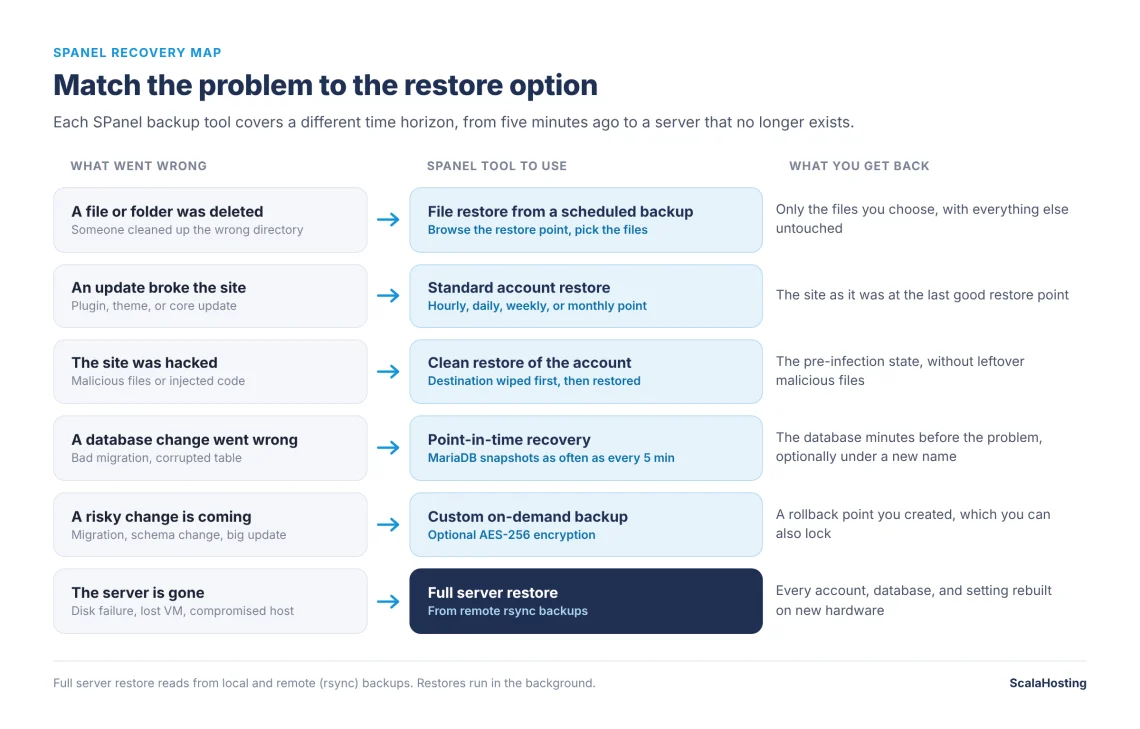
Here’s what the “recovery map” looks like when you match each problem to the SPanel tool that solves it.
Match the problem to the restore option.
A solid plan for most SPanel servers comes down to five habits:
Keep at least one copy off the server. Enable remote rsync backups so a disk failure or compromised server doesn’t take your backups with it.
Match frequency to how fast your data changes. Stores and membership sites need more frequent restore points than brochure sites. Turn on backups for databases that take orders.
Take a custom backup before risky changes. It takes a minute and gives you a clean rollback point.
Lock the restore points that matter. Pre-migration snapshots and audit copies shouldn’t depend on the rotation schedule.
Test a restore regularly. Restore one file or one database to a new name every month or so. A backup you’ve never restored is a guess.
Backups also work best alongside prevention. SPanel includes SShield, our real-time security monitor, which blocks 99.998% of web attacks before they reach your sites. Backups cover what gets through and everything that isn’t an attack at all.
SPanel Backup Limitations to Know
No backup system fits every scenario. Before you rely on SPanel backups, keep these limits in mind:
Schedules apply server-wide. Every non-excluded account on a server follows the same schedule. You can exclude accounts, but you can’t give one account its own retention.
Full server restore reads local and remote backups only. S3 and B2 copies can’t serve as a direct source for a full server restore.
Local backups need disk headroom. SPanel won’t enable them with less than 60% free disk space.
Remote destinations need a working network path. SPanel adds the firewall rule on your server automatically, but restrictive firewalls or security groups on the backup side may need manual changes.
Custom backup uploads use FTP. For backups sent over the public internet, turn on passphrase encryption so the archive itself is protected.
Your Backups Should Outlive Your Server
The most important backup decision isn’t how often you back up. It’s making sure at least one copy lives somewhere other than the server it protects.
With SPanel, that copy is a few form fields away. Explore our managed cloud hosting plans to get SPanel with backups built in from day one.
Supercharge Your Business with an All-inclusive Fully Managed Cloud
Q:Are SPanel backups included in the hosting price?
A: Yes. The backup engine, restore tools, and full server restore are part of SPanel at no extra cost. Storage on a remote backup server is separate: you can use your own server or rsync backup storage at ScalaHosting.
Q:What is the difference between local and remote backups in SPanel?
A: Local backups stay on the same server as your websites and restore fastest. Remote backups go to a separate server over SSH and rsync, so they survive disk failures, a lost server, or a compromised machine. SPanel can run both at the same time.
Q:What is an rsync backup?
A: An rsync backup is a copy of your data made with rsync, a tool that transfers only the parts of files that changed since the last run. In SPanel, rsync sends scheduled backups over an encrypted SSH connection to a separate backup server, which keeps backup windows short even on servers with many sites.
Q:Do I need rsync backup storage if my plan already includes backups?
A: Not always. Included offsite backups cover the basics. Rsync backup storage makes sense when you need longer retention, more restore points across many sites, or a remote copy that SPanel can use for a full server restore.
Q:Can I use my own server for SPanel remote backups?
A: Yes. Any server works as long as SPanel can reach it over SSH and rsync is installed on it. You enter its IP address or hostname, username, and SSH port, then verify the connection.
Q:Can I restore a single website or file from a remote backup?
A: Yes. You can browse any restore point and bring back one file, one folder, one database, or an entire account without affecting other accounts on the server.
Q:How often can SPanel back up my websites?
A: Scheduled backups can run as often as hourly, with separate daily, weekly, and monthly tiers.
Q:Do backups slow down my websites?
A: No. SPanel limits how much CPU the backup process can use, so your sites stay responsive while a backup runs.
Q:Does SPanel back up email?
A: Yes. Mail is stored as files in each account, so scheduled backups include it along with website files and databases.