Five SPanel Settings to Lock Down Team Access Today

Tighten SPanel team access in five moves: stop sharing passwords and give each team member their own account, trim each one’s permissions page by page, turn on two-factor authentication, put an expiration date on every API token, and restrict admin logins to known IPs under Control Panel Access. Then skim the activity log monthly.
Shared logins represent an enormous risk for small businesses. The more you grow, the more people you’ll have working on the website. Developers, designers, and marketing specialists will all need access to your hosting account.
The easiest option is to simply share your password with all of them. However, the problems are bound to start almost immediately. When something breaks, for example, you can’t tell who did what. And when someone leaves, you have to change the password and give the new login to all team members. If you don’t do it, you’re putting your business at risk. If you forget to share the new password with someone from your team, you’re disrupting the workflow.
SPanel gives you the pieces to fix this in a few simple steps. Today, we’re looking at the five settings worth changing first: why each one matters, where it lives, and how it should all look in the end.
Why Bother Locking Down Team Access at All?
Most account compromises don’t start with a clever exploit. Software vulnerabilities are not to be underestimated, but in most cases, we’re talking about a simple password. It could be reused, guessed, phished, or left with a former employee. Whatever the case, a compromised shared password equals a compromised hosting account.
The fix: give each person their own login, scoped to what their job needs and protected by a second factor. It’s called the principle of least privilege: the access a job requires and nothing more. Every control below is available on ScalaHosting’s managed VPS plans.
On many panels, per-seat access and audit logging sit behind a paid tier or an add-on. On SPanel, all of it is standard on every managed VPS plan: separate admin accounts, page-level permissions, server-wide 2FA, and the activity log. The log itself lives on ScalaHosting’s control server, not on your hosting account, so a compromised site can’t rewrite the record of who did what.
SPanel has two interfaces. The Admin Interface is the server-wide layer for hosting accounts, packages, and server settings. The User Interface is the per-account layer where one account’s email, databases, domains, and files live. The team access features we’ll look into today are designed to protect both. Let’s go through the steps.
1. Replace the Shared Login With Per-Person Accounts
The single most valuable change: stop sharing one login. In the Admin Interface, go to Server Management → Manage Admin Users and use the Create Admin User form to give each administrator their personal login. They’ll still have access to the tools they need to manage the server, but instead of using your username and password, they’ll have their own credentials.
A similar mechanism can be found within every account you create on your VPS. From the User Interface homepage, open Manage Users and click Add a New User. You can create a new sub-user for everyone who needs to manage the files, databases, email inboxes, etc. associated with the website hosted on the current account.
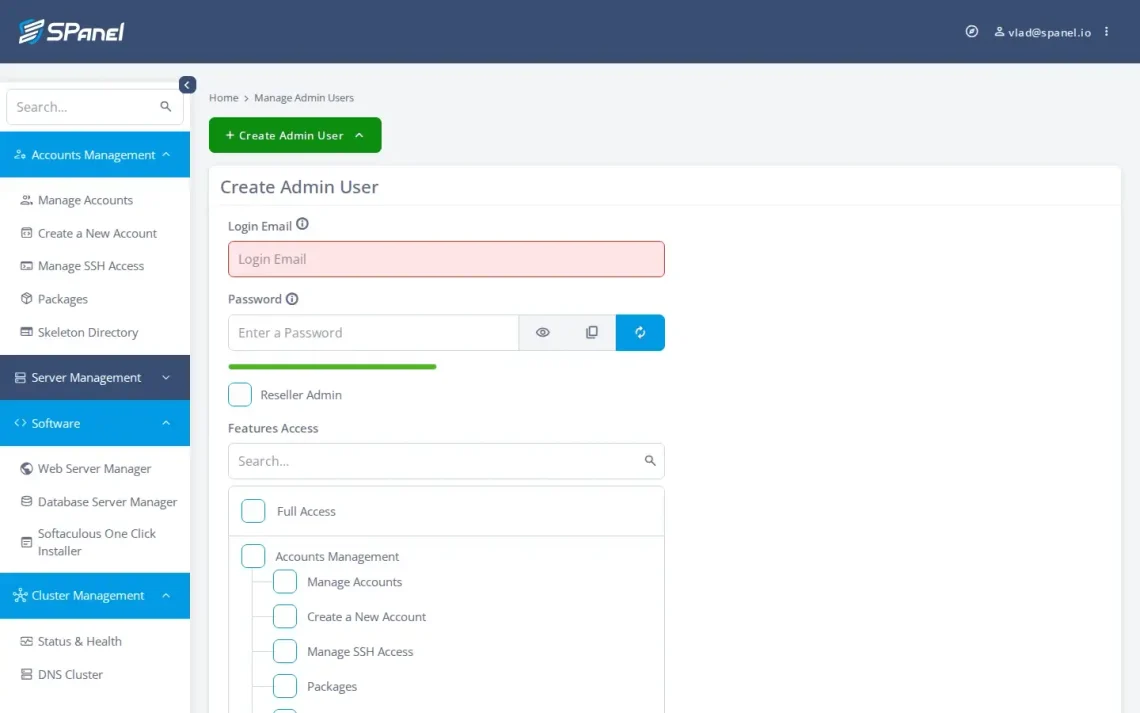
In the end, everyone who has access to SPanel has their own login. If you’ve shared your password with the team up until now, you must change it and keep it to yourself. When someone leaves, you delete their account and ensure they can no longer work on your project.
2. Trim Each Person’s Permissions to the Pages They Actually Use
Creating the account is only half the job. The other half is deciding what the user can reach. The principle of least privilege is the rule to follow here: give each account only the access its role requires, and nothing more.
SPanel has a permissions system that grants access page by page. There’s no job title to pick off a menu. On the Create Admin User screen, permissions appear as a grid of page checkboxes grouped under Accounts Management, Server Management, Software, and Cluster Management.
Sub-users work identically in the User Interface, with categories for Email, MariaDB Databases, Settings, Domains, Files, Tools, and Software.
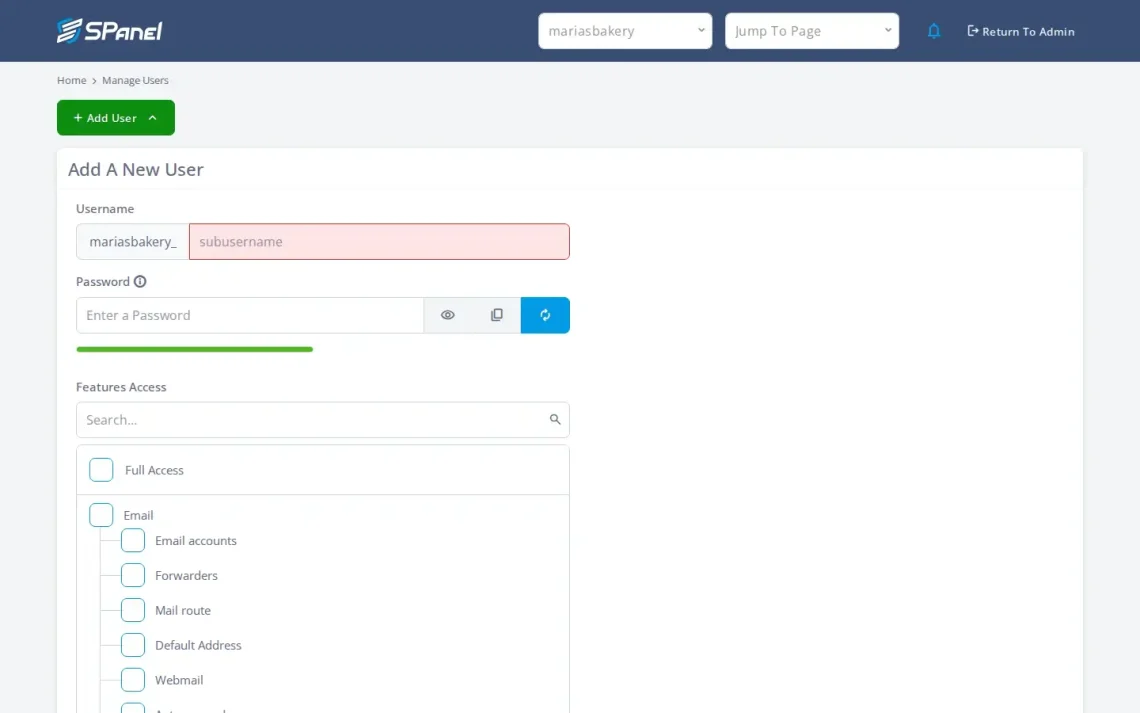
Bear in mind that these are per-user, page-level grants, not named roles. SPanel doesn’t ship preset role bundles you assign by title. Instead, you compose each person’s page set by hand.
The SPanel API documentation describes the same structure if you’d rather automate it.
3. Turn On Two-Factor Authentication
Every password is just one phishing email away from being stolen. Two-factor authentication (2FA) adds a second proof, a rotating code from an authenticator app. When 2FA is enabled, the code must be provided during login, meaning a stolen password is no longer enough to compromise an account.
In SPanel the control lives in both interfaces under Profile Settings → Login Security → Two-Factor Authentication (2FA). It uses TOTP (Time-based One-Time Password) generated by a 2FA app like Google Authenticator, the kind of second factor recommended by NIST’s digital identity guidelines. Our full walkthrough covers enabling two-factor authentication in SPanel step by step.
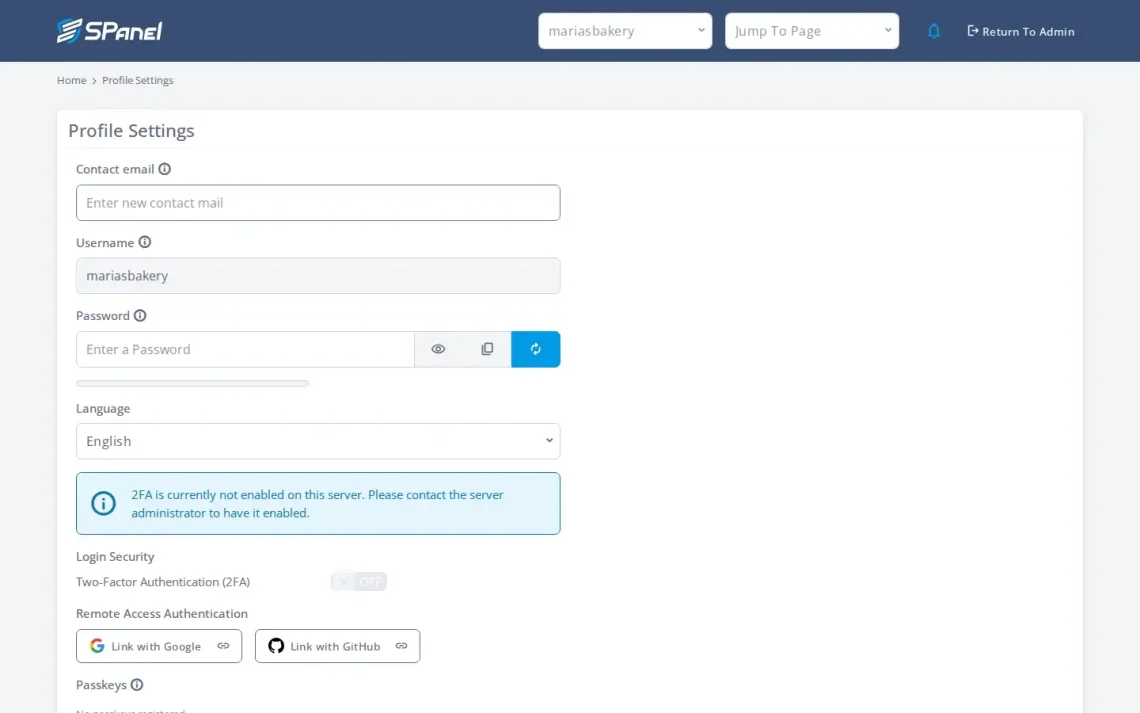
As a server owner, you can force people with SPanel access to use 2FA. In SPanel’s Admin Interface, go to Server Settings and scroll down to the Security Settings section. You’ll see three toggle switches: the first one enables two-factor authentication server-wide, and the other two enforce it for admins and users, respectively.
If you switch them on, team members will have to set up 2FA on their phones the next time they try to log in to SPanel. When enabling two-factor authentication for users, you’re also affecting sub-users on SPanel’s User Interface, as well as email account owners.
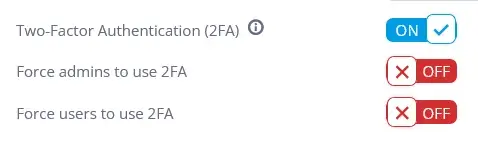
Ultimately, your company policy must determine whether 2FA is enforced across all SPanel accounts. Given how useful it is as a security mechanism, however, considering enabling it for people with access to the most vital tools is a good idea.
4. Put an Expiration Date on Your API Tokens
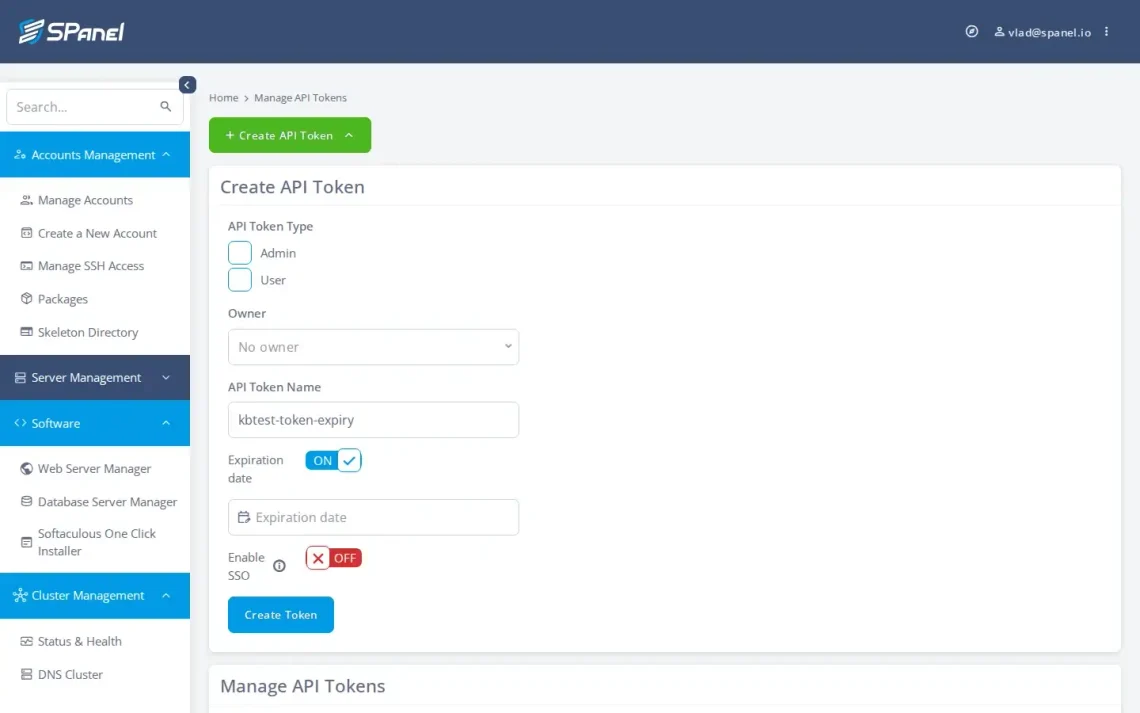
If you automate anything (provisioning, syncing, scripts, etc.), you’re using API tokens, and a token with no expiry is a key that works forever. You generate them at Server Management → Manage API Tokens via the Create API Token button.
At the top of the form, you have a couple of radio buttons that let you decide whether the token will access SPanel’s Admin or User interface. Once you click the correct one, you’ll see a Token Privileges section listing the SPanel utilities the token will have access to.
There’s also an Expiration date toggle, allowing you to choose when the token will become invalid.
By default, the Expiration date toggle is turned off, and the token privileges are set to Unrestricted, meaning if you don’t configure it manually, the API token will have access to all the tools in the chosen interface and will be valid forever.
Think about what you’ll use the token for and how long you’ll need it. Make sure you set the privileges and expiration date accordingly. The principle of least privilege applies to API tokens in the same way it does for users, and having valid tokens that are obsolete is a risk that simply isn’t worth taking.
5. Restrict Admin Logins to Known IP Addresses
If your team accesses SPanel from an office and a couple of home addresses, there’s no need for the login page to be available on every computer in the world. SPanel can limit logins by source IP.
Open Server Management → Server Settings and find the Control Panel Access section. Tick Enable Access Control and add your trusted addresses to the IP Whitelist (IPv4 entries). It’s off by default, and if you remove your own current IP from the list, SPanel warns you that you might lock yourself out.
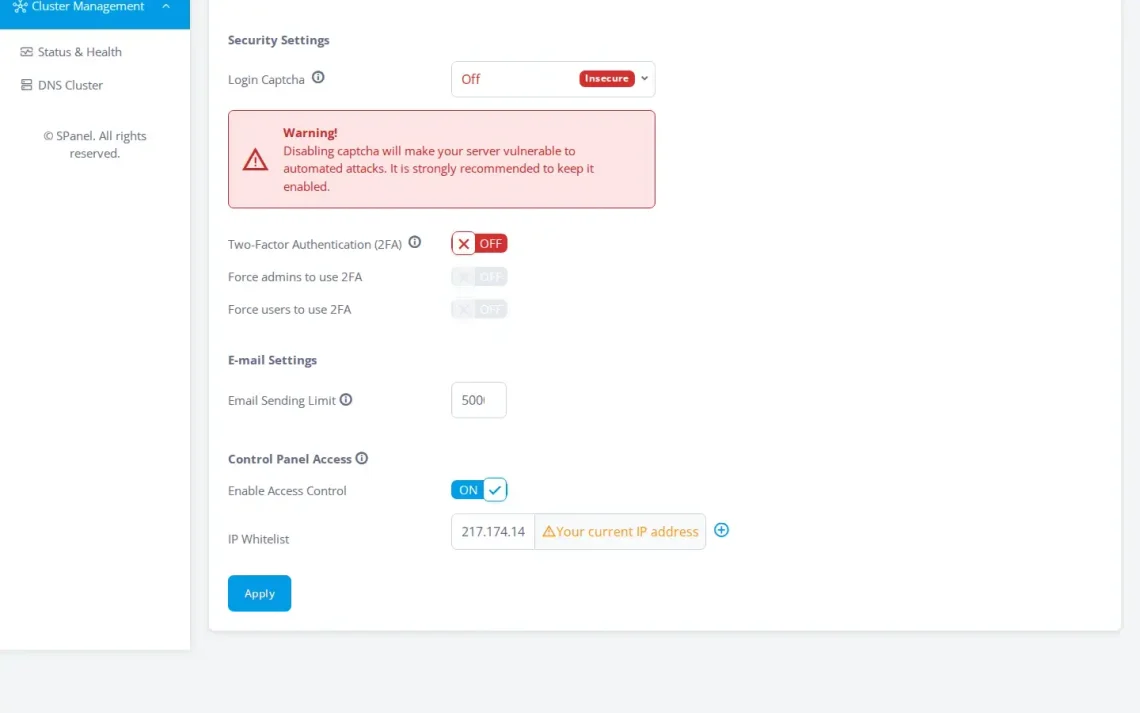
You can add multiple IPs and ensure SPanel is accessed only from trusted sources. Don’t forget to click the Apply button when you’re ready.
The Five Settings at a Glance
| Setting | Location | Correct configuration |
|---|---|---|
| Per-person accounts | Admin Interface → Manage Admin Users / User Interface → Manage Users | One login per person, no shared passwords |
| Trimmed permissions | Create Admin User / Add a New User grid | Each login reaches only the pages it needs |
| Two-factor authentication | Profile Settings → Login Security → 2FA | Login needs a password plus an app code |
| API token expiration | Manage API Tokens → Create API Token | Tokens have the correct privileges and a set expiration date |
| IP access restriction | Server Settings → Control Panel Access | Admin logins limited to known IPs |
Make It a Habit: Skim the Activity Log Monthly
Locking things down once is good; noticing when something’s off is better. SPanel records the actions performed in the interface, stored centrally on the control server, off your own hosting account. In the Admin Interface, the Admin Activity Logs page shows a timestamp, source IP, admin username, and action for each event. You can view this record; you can’t delete it, which is exactly what you want from a record of who did what.
It isn’t a tamper-proof audit system, and there’s no log export or SIEM feed; it’s a log you read. Put a monthly reminder on your calendar. Five minutes catches the “wait, who logged in from there?” moments while they still matter.
Lock It Down Before You Need To
If you change only one thing from this list, retire the shared login. Every other control here, from trimmed permissions to a second factor to expiring tokens, only starts working once you can tell one person’s actions from another’s. Setting all five up is a single sitting’s work. Untangling who did what after a shared password leaves with a former contractor is not.
Every one of these controls ships on every ScalaHosting managed VPS plan, with no per-seat fees and no security add-on to buy. Put the whole checklist in place on a real account today.
FAQ
Q: Can I have more than one admin in SPanel?
A: Yes. SPanel supports multiple admin accounts in the Admin Interface, each restricted to exactly which pages and actions it can use. Create them under Server Management → Manage Admin Users.
Q: Does SPanel have named roles like “Editor” or “Billing Admin”?
A: Not as named roles. SPanel gives you per-user, page-level permission grants; you choose the exact tools each admin or sub-user can use. It’s the control you get from preset roles, but much more granular.
Q: How do I give a client access to only their email?
A: In that account’s User Interface, open Manage Users, add a new user, and check only the email permissions. They manage their mailboxes and forwarders, and never see the databases, files, or DNS utilities. It’s the same scoped access that makes SPanel practical for agencies running multiple client sites.
Q: Does SPanel support two-factor authentication, and can I force my team to use it?
A: 2FA is supported in both interfaces under Profile Settings → Login Security, using an authenticator app (TOTP). From the Server Settings page in the Admin Interface, you can enforce 2FA for both admins and users.
Q: Do SPanel API tokens expire?
A: Expiration is optional; the Create API Token form has a toggle that is disabled by default. Turn it on and pick an Expiration date. You can also scope a token to specific API endpoints on the same form.
Q: Can I restrict admin logins to specific IP addresses?
A: Yes. In Server Settings → Control Panel Access, enable Access Control and add your trusted addresses to the IP Whitelist. It’s off by default, and the form warns before you remove your own current IP.
Q: Where are the activity logs kept, and can I export or delete them?
A: They’re stored centrally on SPanel’s control server, away from your own hosting server. You can view them under Admin Activity Logs but can’t delete them, and there’s no log export or SIEM feed today. If that’s on your wishlist, raise it on ScalaHosting’s public feature board.