Set up a mail client with the wrong port and one of two things happens: your mail either refuses to send, or it sends over a connection that was never encrypted, for anyone on the network to read.
Email server ports are the small numbers that decide both outcomes, and getting them right takes about thirty seconds once you know which is which.
This is a working reference for the three protocols every mailbox relies on – SMTP, IMAP, and POP3 – plus the exact, current settings for Gmail, Outlook, and the major desktop clients.
Email Server Ports at a Glance
The standard email server ports are 25, 587, and 465 for SMTP (sending), 143 and 993 for IMAP, and 110 and 995 for POP3 (both receiving). For a secure setup, use 465 or 587 for SMTP, 993 for IMAP, and 995 for POP3 – the ports providers document for encrypted connections.
Here is every protocol, its plain and secure ports, and what each one is for:
Protocol
Port
SSL Port
Description
SMTP
25, 587
465
Sends outgoing mail – 587 for client submission, 25 for server-to-server relay
IMAP
143
993
Retrieves mail and keeps it synced across every device
POP3
110
995
Downloads mail to a single device for local, offline access
Prefer the SSL/TLS ports (465, 993, and 995). The plain ports (25, 143, and 110) start unencrypted and only become secure if the client and server negotiate STARTTLS – so the implicit-TLS ports are the simpler, safer choice for manual setup.
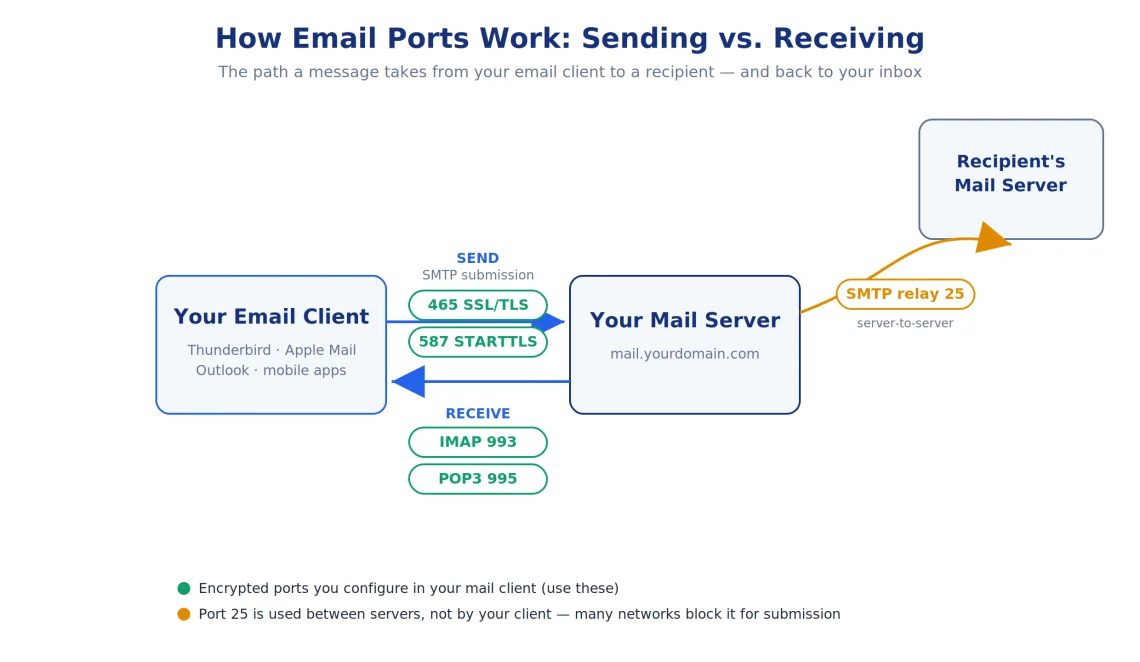
The sending path uses SMTP; the receiving path uses IMAP or POP3. Port 25 runs between servers, not from your client.
Already hosting with ScalaHosting? You don’t have to copy these from a generic example. In SPanel, open Email Accounts, use Actions → Connect devices on the mailbox you’re configuring, and it shows the exact incoming and outgoing server names, ports, and encryption for that account. You’ll find your exact server and port settings there and in your Welcome Email.
SMTP, IMAP, and POP3: What Each Protocol Does
Two jobs, three protocols. SMTP (Simple Mail Transfer Protocol) handles sending. IMAP and POP3 both handle receiving – the difference is where your mail lives.
IMAP (Internet Message Access Protocol) keeps your messages on the server and syncs them to every device you connect. Read an email on your phone, and it shows as read on your laptop. POP3 (Post Office Protocol version 3) does the opposite: it downloads messages to one device for local, offline access. Depending on the client’s settings, it can remove the server copy after download or leave it in place.
Here’s how the two receiving protocols compare at a glance:
IMAP
POP3
Where mail is stored
On the server
On your device
Syncs across devices
Yes
No
Works offline
Partially (cached mail)
Yes (fully downloaded)
Secure port
993 (SSL/TLS)
995 (SSL/TLS)
Best for
Most people; multiple devices
Single device or archiving
Here’s the practical rule. Use IMAP unless you have a specific reason not to – it’s built for the multi-device way most people actually work. Reach for POP3 only when you want mail pulled down to a single machine for offline or archival use.
SMTP Ports: 25, 587, and 465
SMTP uses three ports, and only two of them belong in your email client. Port 587 is the modern default for sending from a client, using STARTTLS encryption. Port 465 does the same job with implicit SSL/TLS. Port 25 is reserved for server-to-server delivery.
Port 25 – relay. The original SMTP port, used primarily for server-to-server relay and generally not recommended for client sending. Most networks and hosting providers block outbound port 25 to curb spam, so it usually won’t work from an app anyway.
Port 587 – submission (STARTTLS). The standards-defined message-submission port. The connection starts in plaintext and upgrades to encryption via STARTTLS before you authenticate.
Port 465 – submission (SSL/TLS). Encrypts the connection from the first byte (implicit TLS). Once deprecated, it was reinstated for submission by RFC 8314 and is fully valid today.
Which SMTP port should you pick? Either 587 or 465 is correct – use whichever your provider lists first, and try the other if a connection fails. If all three are blocked on your network, some providers (ScalaHosting included) also accept port 2525 with TLS as a non-standard fallback. It isn’t an official SMTP port, but it’s widely supported.
IMAP and POP3 Ports: 143/993 and 110/995
Incoming mail is simpler. IMAP uses port 993 with SSL/TLS; POP3 uses port 995 with SSL/TLS. Ports 143 and 110 can be upgraded to encryption with STARTTLS, but the implicit-TLS ports 993 and 995 are simpler to configure correctly – there’s no practical reason to risk sending your mailbox password over a connection that never secured itself.
Provider Settings at a Glance: Gmail, Outlook, and Microsoft 365
The port numbers barely change between providers – the differences are in the outgoing SMTP port and the authentication method. This table summarizes all three; the hostnames and the details follow below.
Provider
IMAP
POP3
SMTP
Authentication
Gmail / Workspace
993
995
465 or 587
OAuth (“Sign in with Google”); POP must be enabled
Outlook.com
993
995
587
OAuth; enable IMAP/POP in settings
Microsoft 365
993
995
587
OAuth; SMTP AUTH may be off by default
All incoming ports use SSL/TLS. Last verified July 2026 – provider menus and policies change, so confirm against the provider’s own settings page.
Gmail SMTP, IMAP, and POP Settings
To connect Gmail or Google Workspace to a mail client, use smtp.gmail.com for sending and imap.gmail.com for receiving. The hostnames and ports are identical for personal Gmail and Workspace accounts:
Incoming (IMAP): imap.gmail.com – port 993 (SSL/TLS)
Incoming (POP3): pop.gmail.com – port 995 (SSL/TLS)
Outgoing (SMTP): smtp.gmail.com – port 465 (SSL/TLS) or 587 (STARTTLS)
Two things to know about access. Personal Gmail has had IMAP always on since January 2025, so there’s no IMAP toggle to flip – but POP still has to be switched on under Settings → Forwarding and POP/IMAP if you plan to use it. And your normal Google password won’t work in a mail client: Gmail expects OAuth, so add the account with “Sign in with Google” wherever the client supports it. If it can’t, generate an App Password (which requires 2-Step Verification and isn’t offered on every account type). Google Workspace goes further. Since May 2025, Google Workspace has required OAuth for standard third-party email client access instead of traditional username-and-password authentication. App passwords remain available for certain devices and applications, depending on account settings and administrator policies.
Outlook and Microsoft 365 Settings
Outlook.com (and Hotmail) and Microsoft 365 share the same incoming server, outlook.office365.com, and both use port 587 for outgoing mail:
Outlook.com / Hotmail (personal)
Incoming (IMAP): outlook.office365.com – port 993 (SSL/TLS)
Incoming (POP3): outlook.office365.com – port 995 (SSL/TLS)
Outgoing (SMTP): smtp-mail.outlook.com – port 587 (STARTTLS)
Microsoft 365 (business)
Incoming (IMAP): outlook.office365.com – port 993 (SSL/TLS)
Incoming (POP3): outlook.office365.com – port 995 (SSL/TLS)
Outgoing (SMTP): smtp.office365.com – port 587 (STARTTLS)
Authentication is where Microsoft differs from Gmail. Exchange Online already requires modern OAuth for IMAP and POP – Basic Authentication for those protocols was removed back in 2022 – so use a client that signs in with your Microsoft account. Outlook.com users must first switch on IMAP or POP access in their mailbox settings. For Microsoft 365, authenticated SMTP submission on port 587 can be turned off at the organization or mailbox level (it’s off by default on new tenants). Microsoft is phasing out Basic Auth for SMTP submission entirely – disabled by default for existing tenants at the end of 2026. An admin may need to confirm OAuth-based submission is enabled.
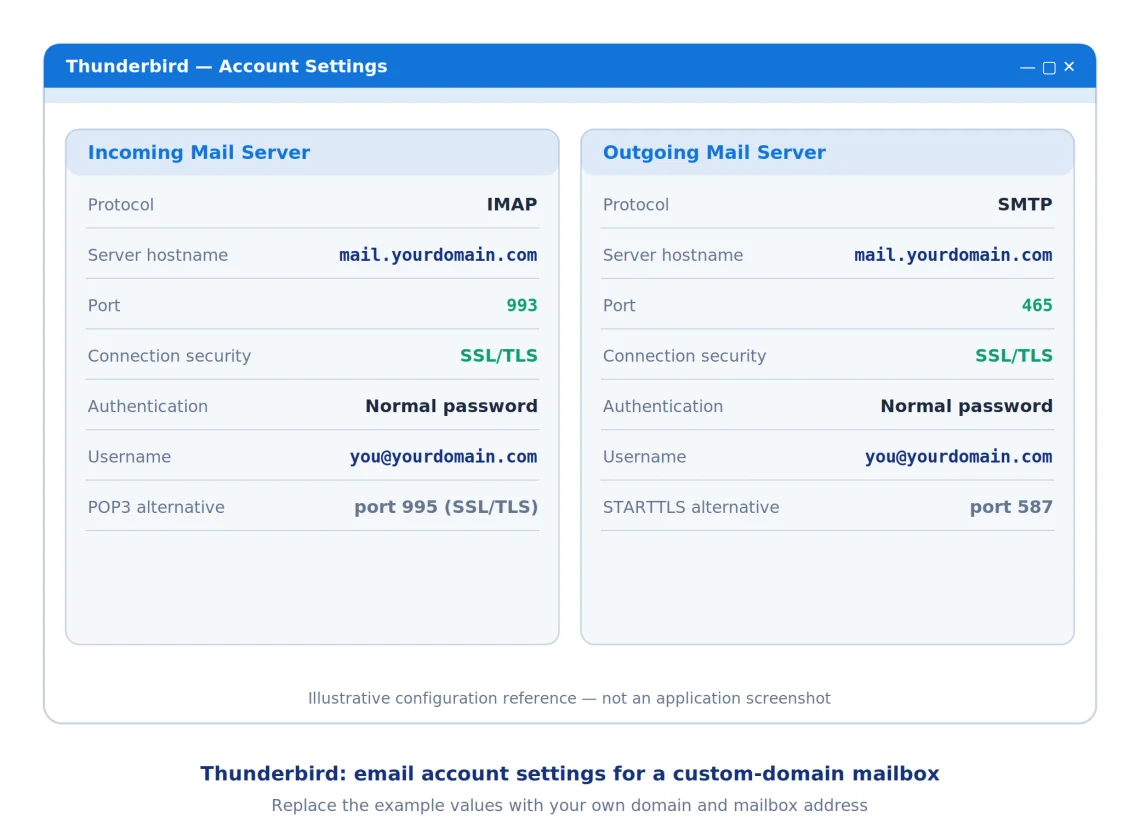
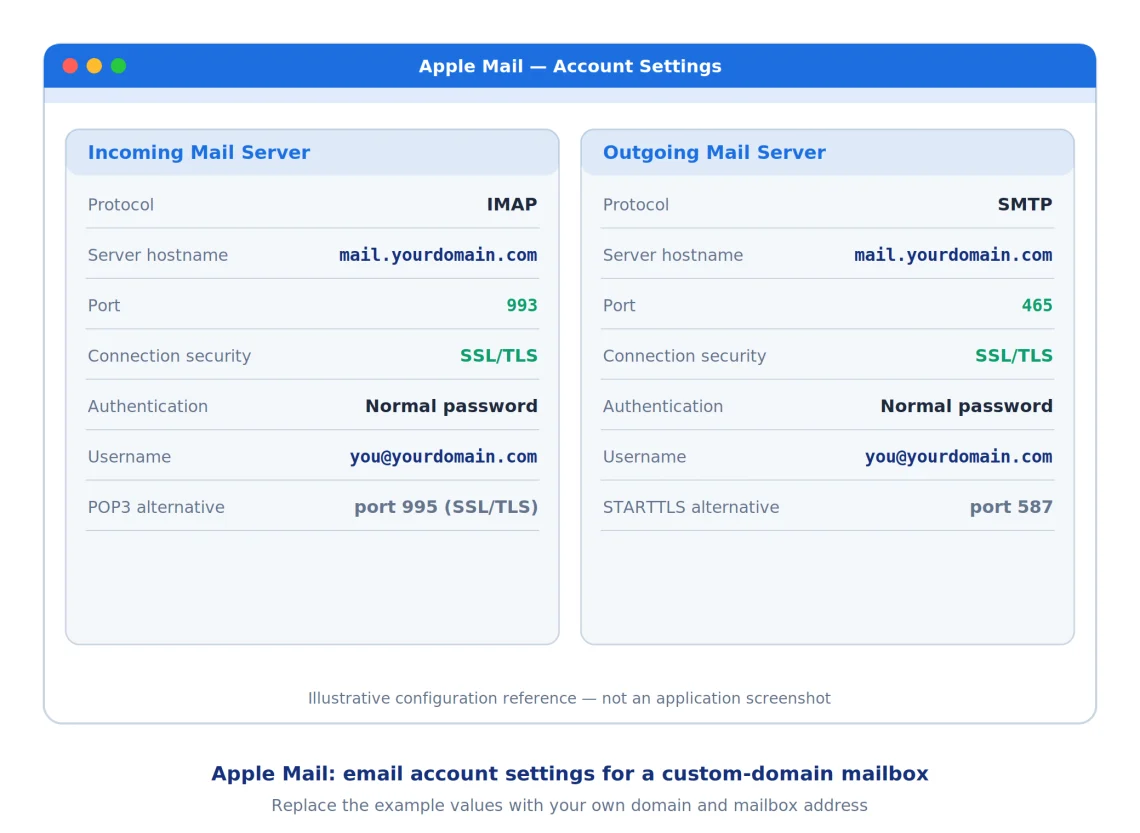
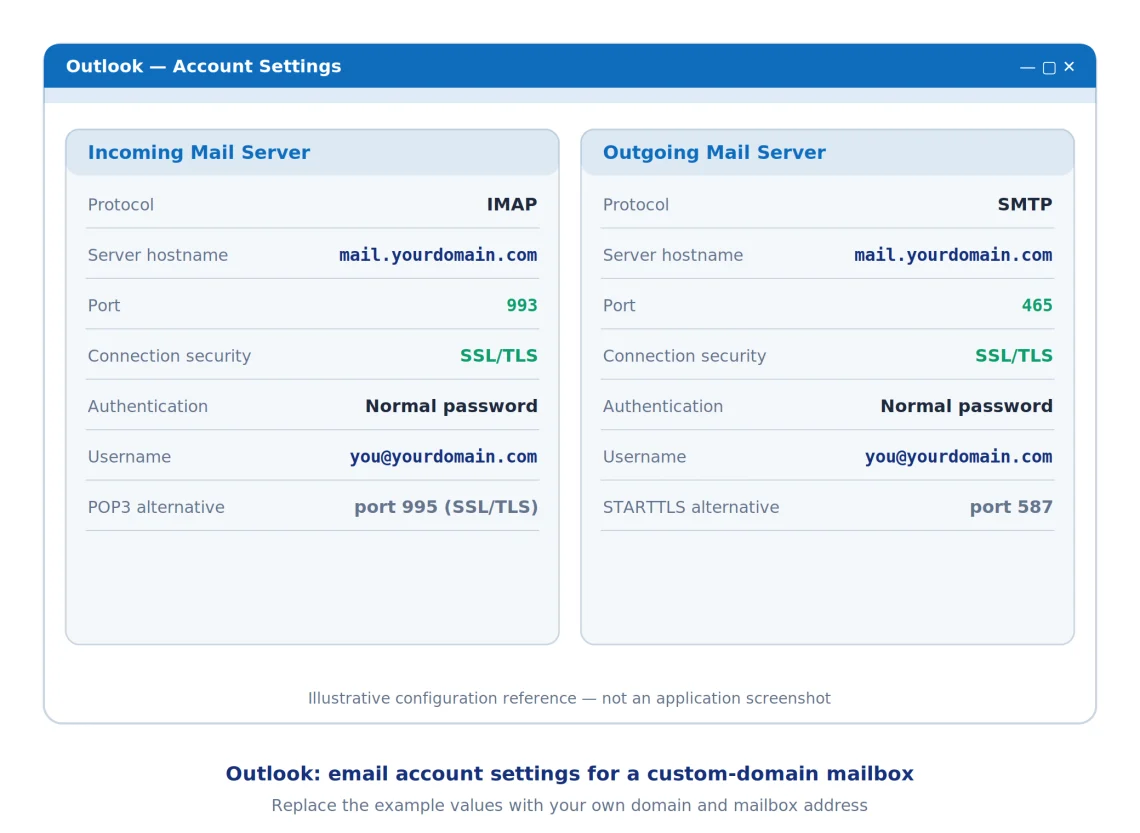
The values you enter are the same in every client – only the menu path changes. The graphics below use a custom-domain mailbox as the example (replace mail.yourdomain.com and you@yourdomain.com with your own).
Two things apply everywhere: use your full email address as the username, make sure outgoing (SMTP) authentication is enabled, and enter the exact hostname your provider shows rather than assuming a name – that’s what the server’s TLS certificate is issued for.
Thunderbird
In Thunderbird, open Account Settings, choose Account Actions, then Add Mail Account. Enter your name, address, and password; Thunderbird tries to autodetect the servers. Switch to manual configuration to confirm the incoming and outgoing values below, and set connection security to SSL/TLS on both.
Apple Mail
On macOS, go to Mail, then Settings, then Accounts, and add an account with Other Mail Account. After entering your address and password, Apple Mail asks for the incoming and outgoing server details. It often detects the right ports automatically – verify them before saving.
Outlook
In the Outlook desktop app, add the account, choose IMAP when prompted, and open the advanced or server settings to enter the values manually. Set the incoming port to 993 and the outgoing port to 465 or 587, each with the matching encryption type.
Secure Ports and Encryption: Getting SSL/TLS Right
Always choose the encrypted option – but know that a port number alone doesn’t prove a connection is secure. What matters is that the client and server actually negotiate TLS. SSL and TLS are the same idea a generation apart. TLS is the current standard, though the setting is still labeled “SSL” in most clients. A port using STARTTLS (like 587) begins in plaintext and upgrades. A port using implicit TLS (like 465, 993, and 995) is encrypted from the first byte, which is why it’s the safer default for manual setup.
One limitation worth understanding: TLS protects the link between your client and the mail server. It does not encrypt the message end-to-end between you and the recipient – that requires something like S/MIME or OpenPGP.
When a connection fails, it’s usually one of these:
Symptom
Likely cause / what to check
Mail won’t send
Outbound port 25 is blocked – switch to 587 or 465 (or 2525 with TLS)
Authentication error (535)
Wrong username (use the full email address), wrong password, OAuth or app password required, or SMTP AUTH disabled for the account
Receiving works, sending fails
Check the SMTP hostname and port, that outgoing authentication is enabled, and firewall rules
Certificate warning
Use the exact hostname your provider displays so it matches the TLS certificate
No folders appear
IMAP or POP access hasn’t been enabled, or there’s an authentication or subscription issue
Custom-Domain Email on ScalaHosting
All of the above assumes someone is running the mail server that answers on those ports. When that mail lives on a shared platform you don’t control, one noisy neighbor’s spam can land the shared IP on a blacklist, and “why is my email going to spam” becomes a support ticket with no clear answer.
If you host with ScalaHosting, you never have to guess your settings.
Open Email Accounts in SPanel, choose Actions → Connect devices on the mailbox you’re setting up, and it displays the exact incoming and outgoing server names, ports, and encryption for that account. Use the hostname SPanel shows (rather than a generic example) so it matches the server’s TLS certificate.
ScalaHosting offers business email hosting for different needs, from smaller mailbox plans to Cloud hosting with dedicated IP addresses, scalable resources, and additional security and monitoring features.
The entry plans keep fixed mailbox and domain limits. A dedicated IP isolates your sending reputation from other senders – it doesn’t guarantee inbox placement on its own, since authentication, DNS, and sending habits still matter, but it puts that reputation in your hands.
That reputation is easier to protect in SPanel, our in-house control panel. It runs a per-domain deliverability audit that scores your SPF, DKIM, and DMARC records, and for domains using SPanel-managed DNS, it can create the missing ones for you automatically. This includes a 2048-bit DKIM key, a correctly scoped SPF record, and a monitoring-mode DMARC policy.
If your DNS lives elsewhere, the audit still runs and hands you the exact records to add at your provider. That’s the difference between reading about deliverability and actually fixing it.
The Bottom Line
Match the protocol to the job, always confirm the connection is encrypted, and check your provider’s authentication method – do that and email setup stops being guesswork. The ports themselves rarely change; what changes is who’s running the server behind them, and how each provider expects you to sign in.
A: For sending, use SMTP port 587 with STARTTLS or port 465 with implicit TLS. For receiving, use IMAP port 993 or POP3 port 995 – both with SSL/TLS. Always follow the provider’s documented settings, since not every provider supports both SMTP submission ports.
Q:What port does SMTP use?
A: SMTP uses port 587 for sending mail from an email client (with STARTTLS), or port 465 for an implicit SSL/TLS connection. Port 25 also belongs to SMTP but is reserved for server-to-server delivery and is usually blocked for client sending.
Q:Should I use port 465 or 587 for SMTP?
A: Both are correct for sending mail from a client. Port 465 uses implicit SSL/TLS, and 587 uses STARTTLS; the security outcome is the same. Use whichever your provider lists, and try the other if a connection fails.
Q:Do ports 143 and 110 support encryption?
A: Yes, but not automatically. Ports 143 (IMAP) and 110 (POP3) start as plaintext and can be upgraded to TLS with STARTTLS when both client and server support it. Ports 993 and 995 use implicit TLS from the first byte and are simpler and safer for manual setup.
Q:What is the difference between IMAP and POP3 ports?
A: IMAP (port 993) keeps your mail on the server and syncs it across every device, while POP3 (port 995) downloads mail to one device for local storage. Choose IMAP for multi-device access and POP3 only for single-device or offline use.
Q:Do Gmail and Outlook use the same email ports?
A: They use the same secure incoming ports – 993 for IMAP and 995 for POP3, but their SMTP options differ. Gmail accepts port 465 (implicit TLS) or 587 (STARTTLS), while Outlook.com and Microsoft 365 document port 587 with STARTTLS. Always use the hostname, port, encryption, and authentication method the provider lists.
Q:Why won’t my email send on port 25?
A: Most networks and hosting providers block outbound port 25 to reduce spam, because it’s meant for server-to-server relay rather than client sending. Switch your outgoing port to 587 or 465 to fix it.