
Some web server error messages are more straightforward than others. For example, when a user sees a “404 Not Found” page, they know that the file or web page they’re trying to reach is MIA. As a site owner, you should be able to resolve the issue pretty quickly.
When the HTTP Error 500 (Internal Server Error) appears on the user’s screen, however, things can be much more complicated. Often, the issue affects the entire website rather than a single web page, so fixing it quickly is even more critical. The problem is, you may not have the faintest clue as to what has gone wrong.
You could end up spending hours trying to identify the root cause while your site remains down and users see a frustrating error message that doesn’t provide much insight.
The truth is, although 500 errors are notoriously vague, their root causes are often limited to a set of predictable glitches. These include misconfigured files, faulty plugins, corrupted or conflicting .htaccess rules, and excessive server load.
If you’re aware of all the potential causes of the 500 error, you can create a systematic troubleshooting process to restore your site’s full functionality within minutes. Today’s step-by-step walkthrough of all potential causes and fixes can be an excellent building block for that.
What Causes HTTP Error 500?
The HTTP 500 (Internal Server Error) message appears when the web server encounters an unexpected condition and is unable to handle it. The message itself is generic, but more often than not, the underlying cause is one of several server-side problems. Let’s have a look at them.
- Misconfigured or corrupted .htaccess file
The .htaccess file makes Apache (and other web servers that support it) incredibly versatile. Thanks to it, site administrators can implement per-directory rewrites, redirects, access rules, and controls for specific Apache modules. Directives can be added manually, but they can also be inserted into the .htaccess file by software platforms and applications, like CMS plugins, for example.
Any mistakes in the directives, be it typos, missing characters, or attempts to use modules that aren’t installed, can instantly break the site’s functionality and cause an HTTP 500 error.
- PHP errors and incompatible code
When a web server receives an incoming request, it forwards it to the application that powers your website. The app executes code, which, in most modern websites, is written in PHP. If there’s a mistake in the PHP code (a syntax error, a deprecated function, or a conflict with other scripts), the app returns a 500 response. Incorrect permissions on PHP files can also cause an HTTP 500 error.
- Plugins or themes failures
Users of content management systems like WordPress rely on plugins (or extensions) to implement new features, add functionality, or optimize performance. They also install themes to customize the look and feel of their websites. These add-ons introduce a lot of new code that must be executed every time a visitor opens a web page.
Any conflicts between this additional software can result in HTTP 500 errors.
- Server resource exhaustion
Over time, your project is likely to become more complex and more popular. Both traffic and additional functionality increase resource usage, and your site can reach a point where it exceeds the hosting account’s memory limits, CPU allocation, and other hardware – and software-related constraints. Ultimately, the web server cannot generate a valid response to incoming requests and returns an HTTP 500 error.
- Permissions problems
Permissions are designed to improve the filesystem’s security by restricting data access to specific user groups. However, for your site to operate smoothly, file and directory permissions must be configured correctly. If they’re not, you’re likely to encounter HTTP 500 errors.
- Failed updates
Most websites are powered by a content management system, and their functionality relies on anything from a few to several dozen plugins that enable various features and behaviors. If you want the best possible security and performance, you must ensure you regularly update both the CMS core and all add-ons. With most platforms, the process is fully automated and usually goes without a hitch. However, any issues during installation (loss of internet connection, server crash, etc.) could cause a failed update and return a 500 error.
- Server or hosting environment issues
Quite a lot of software is required to keep your website online at all times. In addition to the CMS, you have the web server, PHP interpreter, database management system, and a host of other platforms and applications that work in unison to create the required hosting environment. If one of them is misconfigured or goes offline for some reason, the user is likely to see a 500 error.
A 500 error message may not give you much information on what’s going on, but as you can see, the number of possible reasons for it is not limitless.
Here’s a handy table showing the most common scenarios, their symptoms, and the likelihood of encountering them.
| Cause | Symptoms | Likelihood |
| .htaccess file issues | The error messages usually appear after new directives have been added to the .htaccess file. They can occur after you migrate your website from one location to another. | Very high |
| PHP fatal errors | Sometimes, instead of a 500 error, you may see a white screen with fatal error messages. | High |
| Plugin/theme conflicts | A plugin- or theme-related 500 error is likely to appear after an add-on update or installation | High |
| High server load | Server load-related 500 errors are usually intermittent and occur when the site is under heavy traffic. | Medium |
| File permission issues | Unless there’s a server-wide misconfiguration, 500 errors related to file permissions usually appear on specific pages or scripts. | Medium |
| Outages or misconfiguration of server components | Server-level issues usually affect all websites hosted on the account, including the staging environment and testbeds. | Low |
How to Fix an HTTP 500 Error: A Troubleshooting Guide
Those of you with some website-administration experience are likely familiar with the issues listed above, and some may even have an idea of what needs to be done to fix them.
However, 500 errors can cause downtime, often affecting the entire site, so you need a quick, efficient system to identify the root cause and eliminate the dreaded white page with minimal effort and delay. Here’s what you should consider doing.
- Find out how the error impacts your site.
The 500 error message may result from a server-level configuration issue, a temporary glitch, or a traffic spike. It could appear on a single page, but it could also affect the entire website. Your first job is to find out how it’s affecting your site.
First, refresh the page a few times (Using Ctrl+R or Cmd+R) and see whether the error persists. You may be facing a temporary server overload or a hosting hiccup, in which case the 500 error should disappear on its own. Even if it does, it pays to investigate the issue and take the necessary steps to prevent it from happening again.
Next, try other URLs on your site. Determining whether you’re dealing with a page-specific or site-wide problem will help you fix it more easily.
Finally, test the site with another browser. Some applications (e.g., WordPress SEO plugins) treat different user agents differently by design. However, they’re not supposed to throw 500 errors, so if you see the message in a specific browser, you’ll know that you’re on a bug-finding mission.
- Check the server error logs.
Server logs are among the most valuable resources for fixing 500 errors. Your web server logs every interaction with your website, and when it encounters an error, it records all the details in its error log.
The good news is that if you host your website on an SPanel server, the error log is just a couple of mouse clicks away.
Simply log in to SPanel’s User Interface, and under the Domains section, click Logs.
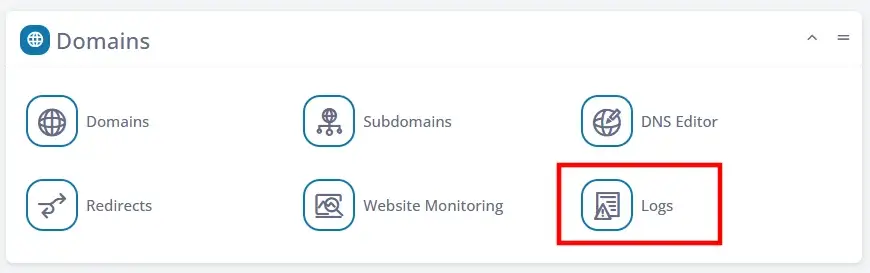
The utility provides quick access to the access log, web server error log, and PHP error log. The last 200 lines of each log are visible straight from SPanel’s User Interface, but you can also download the actual log files and examine them in detail.
If you’re not entirely sure what to make of them, you can always ask your host’s support team to have a look or even utilize an AI service to tell you what the log files contain.
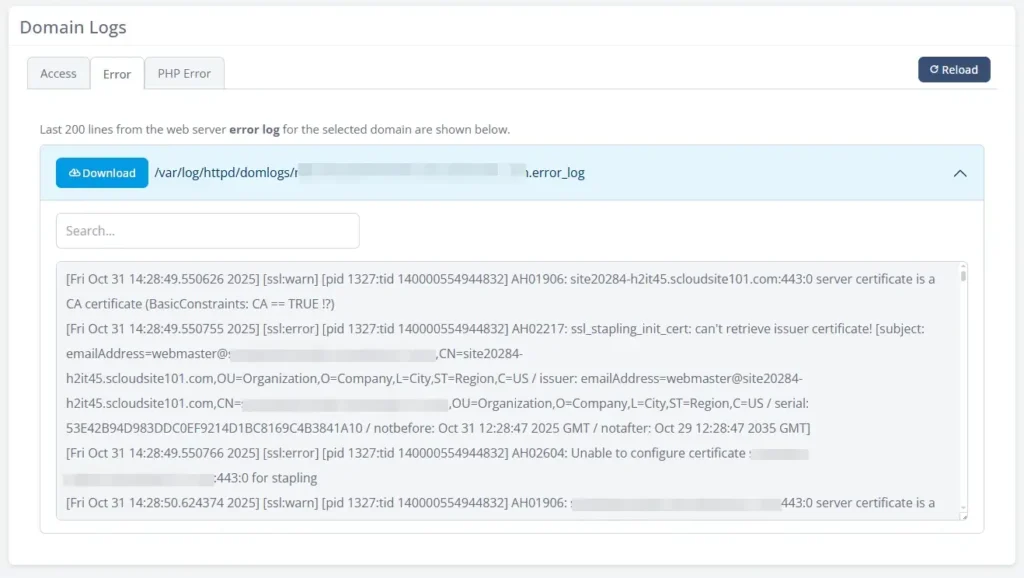
The phrases you need to look for include “Fatal error,” “Permission denied,” and “mod_rewrite.”
If SPanel isn’t available, you can also access the error logs through SSH. The exact location depends on the hosting setup. By default, Apache and OpenLiteSpeed store their logs in either /var/log/apache2 or /var/log/httpd/. If you use LiteSpeed Enterprise, you can look for them in /usr/local/lsws/logs/.
If your server is powered by Nginx, the directory you need is /var/log/nginx/.
- Regenerate the .htaccess file.
Corruption of the .htaccess file is one of the most common causes of 500 errors in Apache and Apache-like environments. Fortunately, if the problem is with the .htaccess file, bringing the site back online is fairly straightforward.
Access your account via FTP or open the File Manager in your control panel. Navigate to your website’s document root directory and rename the .htaccess file to .htaccess_old.
Now open your website in a browser or refresh the page showing the 500 error. The web server will automatically reconstruct the .htaccess file back to its default state, and the site should go back online. From then on, it’s a matter of finding the directive that caused the issue and ensuring it’s fixed.
- Increase PHP memory limits.
The bigger and more complex your website is, the more likely it is to exceed your hosting account’s default restrictions. The PHP memory limit is the first you’ll probably hit, but the good news is that it’s usually fairly easy to increase it. There are several options for doing it, but, as usual, the easiest is with SPanel.
Go to the User Interface and scroll down to the Tools section. In there, you’ll find the PHP Manager, which displays a list of all the domains hosted on your account. Click the Actions button next to your site and select PHP INI Editor.
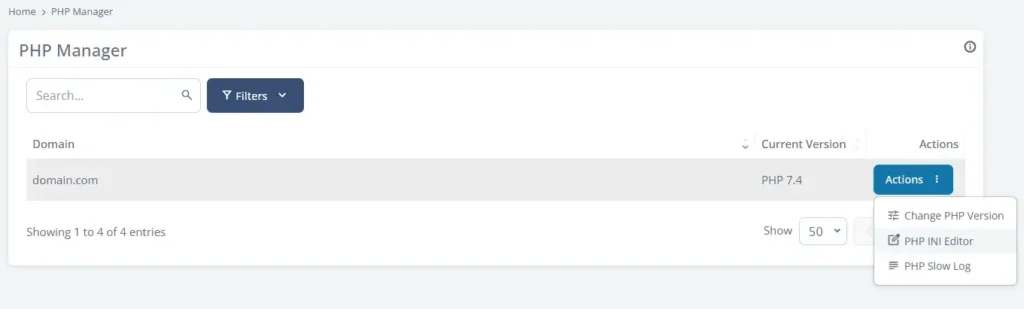
Set the desired value in the memory_limit field, then click Change to save the changes.
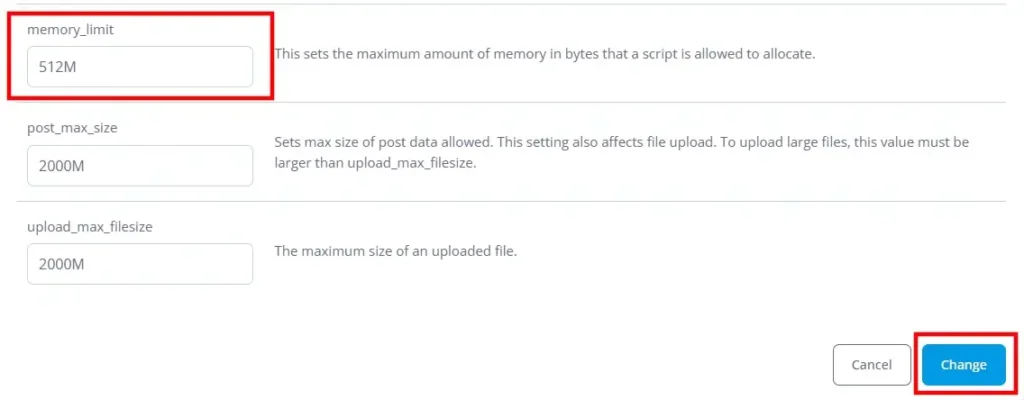
If SPanel isn’t available, you can lift the PHP Memory limit by opening the .htaccess file and entering:
php_value memory_limit [the limit you want to set, e.g., 521M]
Alternatively, you can also add the following line to the wp-config.php file if you use WordPress:
define(‘WP_MEMORY_LIMIT’, ‘[your limit]’);
- Disable plugins and extensions.
If you use WordPress, Joomla, or another content management system, you likely have a few plugins or extensions installed. The cause of your 500 errors could be among them, and luckily, identifying it is usually a matter of disabling the extensions one by one until the website starts working as usual.
If the 500 error message appears on your site’s backend, you can deactivate your plugins through the graphical user interface. However, the procedure is relatively simple. We’ll show you how to do it if you’re a WordPress user, but the principles apply to other major content management systems as well.
Access your hosting account via FTP or open your control panel’s File Manager. Go to wp-content/plugins, where you’ll find a folder for each of your installed plugins. If you rename a folder, you’re preventing WordPress from communicating with the plugin’s files, which effectively disables it.
You can follow a classic trial-and-error approach by renaming the folders one by one and checking whether that solves the problem.
- Switch to the default theme.
The theme (or template) must be fully compatible with the rest of the components on your CMS-powered website. When you install additional plugins or implement custom code, you can inadvertently introduce conflicts that result in 500 errors.
Finding out whether the theme is at the bottom of it all is pretty straightforward – you can switch back to the CMS’s default template, and if the site is back online, then you know where the issue is. How you’ll go about this depends on the website-building application you use. Yet again, we’re assuming that the 500 error affects the entire site and the backend is inaccessible.
If you use WordPress, you can open an FTP client or your control panel’s File Manager and go to wp-content/themes. Find the directory named after your currently active theme and rename it. WordPress automatically reverts to the default theme, so if the issue is with your template, the site should go back online.
Other content management systems, like Joomla and Drupal, don’t have an automatic fallback mechanism, so switching back to the default template isn’t quite as straightforward. Instead of renaming folders, you have to edit the site’s database, and the easiest way to do that is with phpMyAdmin.
In Joomla, the table you need is template_styles, and in Drupal, you have to modify the corresponding field in the config table. Joomla’s default theme is Cassiopeia, and in Drupal, it’s called Claro.
- Check the file permissions.
Incorrect file and directory permissions can prevent scripts from executing, so it’s essential to set permissions that ensure data is accessible whenever it’s needed. If you’re using a content management system that’s been set up by an automatic installer, the correct permissions should be configured by default. However, it pays to check them, especially if you see some permissions-related errors in the logs.
The rule of thumb is that files should have 644 permissions – read and write permissions for owners and read-only for other users. Meanwhile, folder permissions must be configured to 755 – read, write, and execute for owners, and read and execute for other users.
In most cases, these settings should be good enough to ensure your site’s operation. However, it pays to review your CMS’s documentation to see if it has any specific requirements. Sometimes different permissions are required for configuration files, both for security and performance reasons (e.g., the wp-config.php file in WordPress must be set to 600 or 640 permissions).
- Restore core files.
Every now and again, a failed update or custom core changes could result in broken functionality and a wide variety of error messages, including 500 (Internal Server Error) notifications. You can rectify the issue by re-uploading the CMS’s core files.
This isn’t a technically complicated task at all. Most website-building applications are open-source and can be downloaded freely as an archive. Inside are all the core files. After extracting them, you can use your favorite FTP client or File Manager to upload them, overwriting the old (and corrupted) data. This should resolve the problem and restore your site to full functionality.
However, bear in mind that if you’re not careful, you may end up overwriting files that should remain intact. For example, if you replace the wp-content folder with the one in the WordPress archive, you’ll lose all your themes and plugins.
To do it properly, you have to be familiar with the content management system’s architecture and always have a working backup ready to restore if something goes wrong.
- Review server configuration.
Changes to the hosting environment can cause internal server errors. These changes may be due to your host’s sysadmins updating the configuration, or part of a migration to a new hosting platform.
If you suspect the 500 error is due to a misconfiguration on your hosting provider’s end, get in touch with their support team and ask them to take a look.
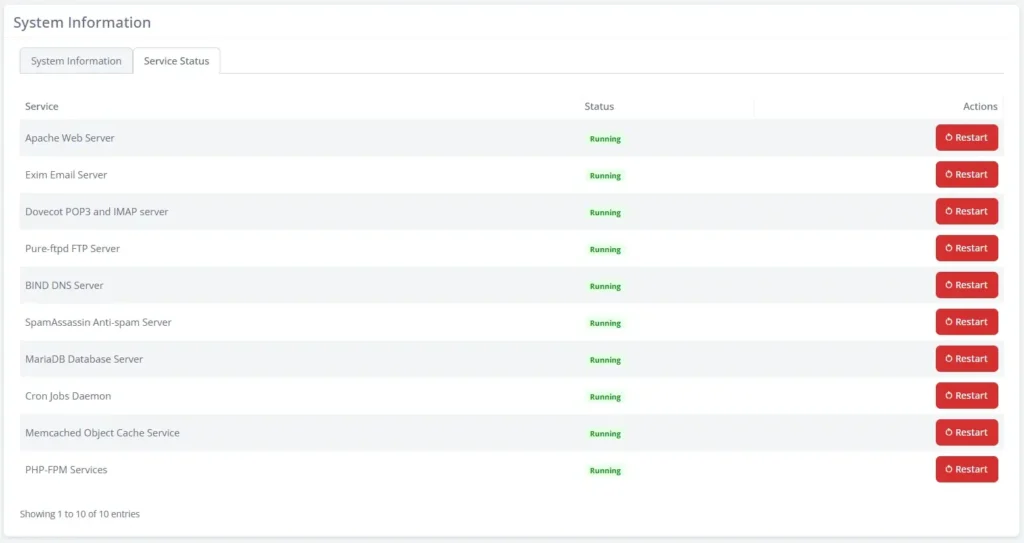
The 500 error could also be caused by a temporary glitch; in that case, restarting the web server and/or PHP-FPM services will most likely resolve the issue. If you use SPanel, doing that is easy.
Access the Admin Interface and go to Server Information > Service Status. At the top of the list is the currently active web server (Apache, Nginx, OpernLiteSpeed, or LiteSpeed Enterprise). At the bottom, you’ll find PHP-FPM. There’s a Restart button next to each service.
- Restore from a backup (if all else fails).
Sometimes, restoring your site to its last known working version may be the fastest road to recovery. Instead of trying to figure out the mechanics of all the complicated systems powering your project, it’s also often the most straightforward option, especially for site owners with limited technical experience.
However, although it sounds like the best way forward, there are a few things you need to bear in mind.
First, make sure your backup is recent. The bigger the gap between the backup’s creation and your restoring it, the more data you risk losing due to the incident. What’s more, there’s no guarantee the restoration process will fix the 500 error. Any glitches could make it harder to ensure everything is back to normal, so be sure you have a properly functioning recent backup and a reliable procedure for restoring it.
This is something you should consider when choosing a hosting platform for your project.
Preventing Future HTTP Error 500 Issues
Preventive maintenance can significantly reduce the likelihood of internal server errors.
A structured update policy is a good place to start. Test every theme, plugin, and core update before rolling it out to production. A hosting setup that lets you easily create a staging environment can be immensely helpful in that aspect.
Speaking of the hosting setup, your provider must have a robust automated backup system in place to ensure you always have a working copy of your website. Backups must be quick to restore and stored off-site to ensure reliability.
That being said, if you take a few precautions, you likely won’t need to use your backups at all.
First, make sure you make the most of the server monitoring tools that come with your control panel. You can use them to identify frequent traffic spikes and resource usage patterns that indicate a need for an upgrade. This will help you avoid overloading incidents and subsequent internal server errors.
Setting appropriate resource and PHP limits, optimizing database performance, and maintaining clean coding practices can also help.
Conclusion
The lack of a direct explanation makes HTTP 500 errors intimidating to fix. However, if you adopt a systematic approach – starting with logs and configuration files, checking plugins, themes, PHP limits, and finally going over core server settings – you should be able to pinpoint the issue and fix it efficiently.
Whether you’re managing a simple WordPress blog or a more complicated custom project, the tools and practices outlined in this guide will help you maximize uptime and eliminate frustration for you and your site’s visitors.
FAQ
Q: What is an HTTP error 500?
A: HTTP 500 errors indicate that the web server has encountered an unexpected condition. Something, somewhere, has malfunctioned, and the web server doesn’t know how to respond. As a result, it responds with a generic error.
Q: Is the HTTP 500 error my fault or the server’s?
A: A 500 error indicates a server-side issue, but it could be caused by a range of factors, including faulty updates, plugin conflicts, code bugs, or configuration issues. Getting to the bottom of the problem is the first and most crucial step in restoring your site back to normal. From then on, you can determine who’s to blame and who needs to take appropriate actions.
Q: Can a PHP syntax error cause a 500 response?
A: Yes, any fatal PHP error can cause the web server to return a 500 response. That’s why one of the first steps in troubleshooting the issue is to check the PHP error logs.
Q: How do I fix a 500 error in WordPress?
A: Reviewing (and recreating) the .htaccess file is your first port of call. If the issue persists, you’ll want to review the PHP limits and disable themes and plugins one by one until you identify the add-on causing the problem.
Q: Can clearing the browser cache help eliminate a 500 error?
A: A 500 error message indicates a server-side issue, so it has nothing to do with the browser. Still, deleting the cache could help if the browser has cached the response.
Q: Who should I contact if I can’t fix a 500 error?
A: If the 500 error is due to a coding issue, your best bet is to contact a developer. On the other hand, if it’s caused by a server glitch or a configuration problem, your hosting provider’s technical support experts are the only ones who can help.
