
SPanel, the control panel included with every ScalaHosting managed VPS, lets you suspend a hosting account immediately or schedule its suspension for a future date, each with a recorded reason. A scheduled suspension can be canceled with a single click before it fires, and it’s also possible to unsuspend the account and restore its login. Every account also carries an owner attribute, which is particularly useful for agencies that need to manage multiple accounts at once.
Here’s an example – a web studio has around 30 clients hosted on the same managed VPS from ScalaHosting. Last spring a retainer ended on March 30, the account stayed live into the next billing cycle, and nobody noticed until the client asked why their old site was still online. The fix was a sticky note that never got written.
Most agencies run on that memory – a calendar reminder, a mental note to suspend the account when a project wraps. SPanel turns this into a setting: simply set the date when you close the deal, and the server remembers for you.
What scheduled suspension actually does
Scheduled suspension tells SPanel to lock an account’s login automatically and cut off access to the site hosted on the account on a date you choose, with a reason recorded for whoever reads the account later.
Suspension in SPanel locks the account’s system login. The sites and data stay on disk, but are no longer accessible. You can suspend right now – handy for a compromised site you want offline this minute – or set a future date and let SPanel act on schedule. Either way you attach a short reason, like “retainer ended” or “awaiting payment”, so the next person to open the account sees why the account is about to be closed.
Lifting a suspension in one click
Plans change. A client extends the retainer, a payment clears, a project grows a phase two. A scheduled suspension can be lifted any time before it fires – one click, and the date is gone. If the account is already suspended, unsuspending restores the login just as cleanly. Suspension was only ever a lock on the door, and lifting it hands back the key.
| Action | Typical trigger | What SPanel does |
| Suspend now | Non-payment, abuse, a compromised site | Locks the login immediately and blocks access to the hosted website |
| Schedule suspension | A project with a known end date | Suspends the account automatically on your chosen date |
| Lift / unsuspend | Renewal, cleared payment, extended scope | Cancels the scheduled date or restores the login – one click |
Why the owner attribute matters for agencies
Every SPanel account carries an owner attribute – a label denoting who is responsible for it. It records who handles each account, so you can organize a book of business by manager instead of scrolling an undifferentiated list. Paired with the suspension state shown in the same accounts view, it answers two questions agencies ask constantly: whose account is this, and is it live?
This is housekeeping, not a headline feature, and that is the point. Lifecycle tools like SPanel’s scheduled suspension do the boring work that keeps a busy server tidy.
A suspension you have to remember is a liability. Unless, of course, SPanel is responsible for remembering it.
The Scheduled suspension feature, along with all its functionality, ships with SPanel on every ScalaHosting managed VPS, with no add-on and no separate license. If you manage client sites with end dates, it will definitely make housekeeping much easier.
Demo flow – scheduling and lifting a suspension
These steps run in the SPanel Admin Interface. Account names below are test data.
- Log in to the SPanel Admin Interface and open Manage Accounts. Its columns include each account’s Package, Owner, and Status.
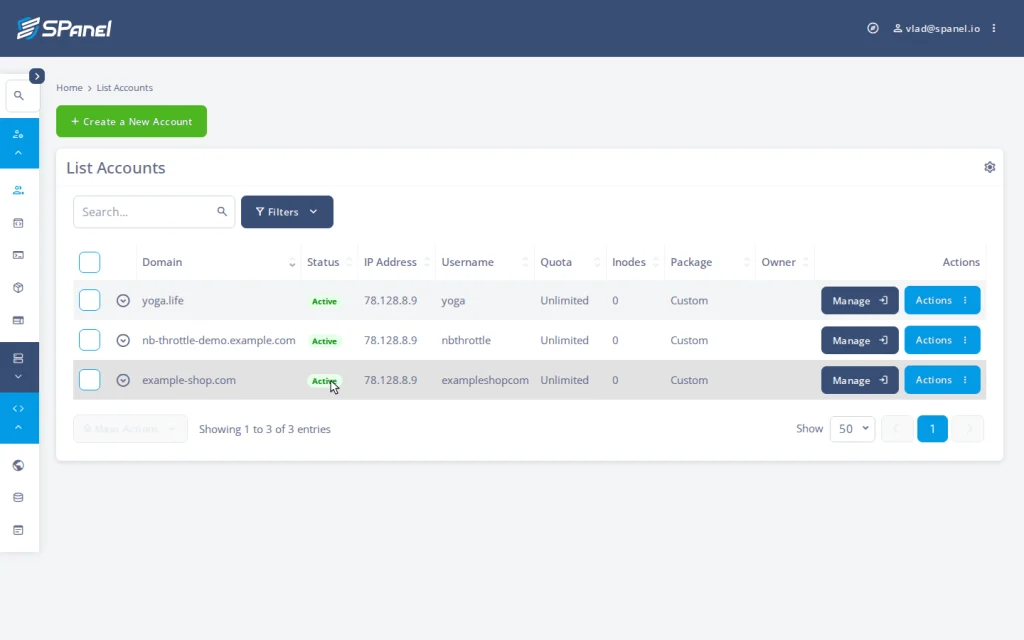
- Find the client account, open its Actions menu, and choose Suspend Account. A dialog headed “Suspending confirmation” opens.
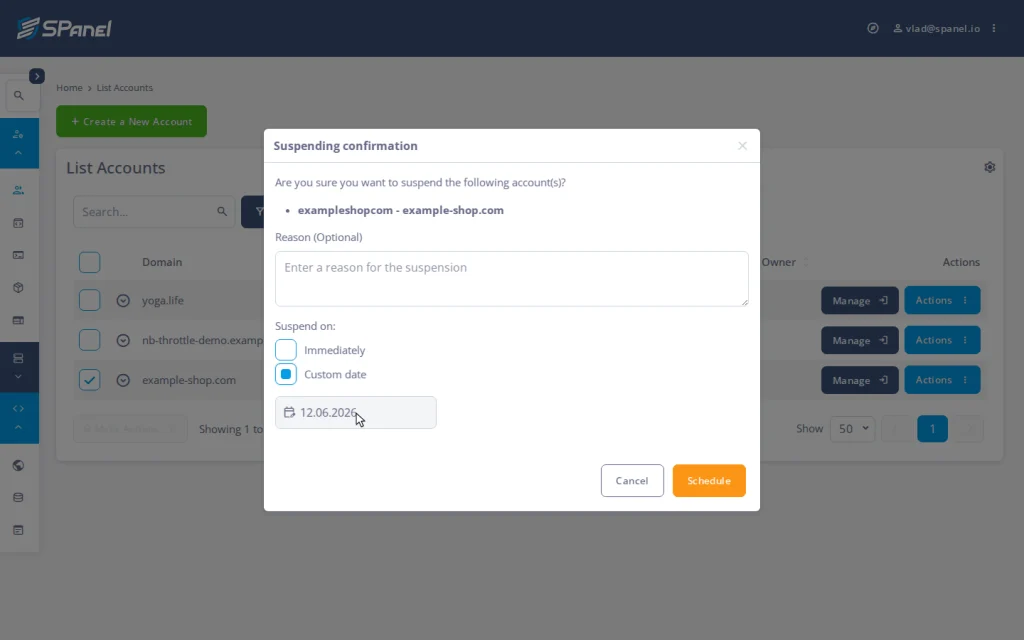
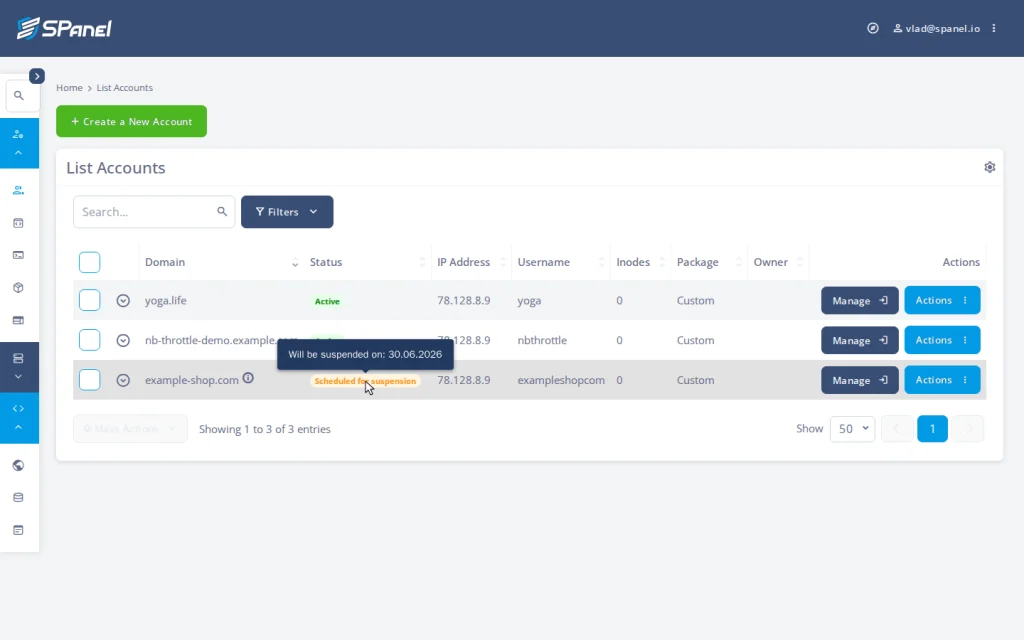
- In the “Reason (Optional)” field, you can specify why you are suspending the account. Under “Suspend on:“, switch from “Immediately” to “Custom date” and pick the suspension date – the day the project ends. Click Schedule. The account stays live until that date arrives.
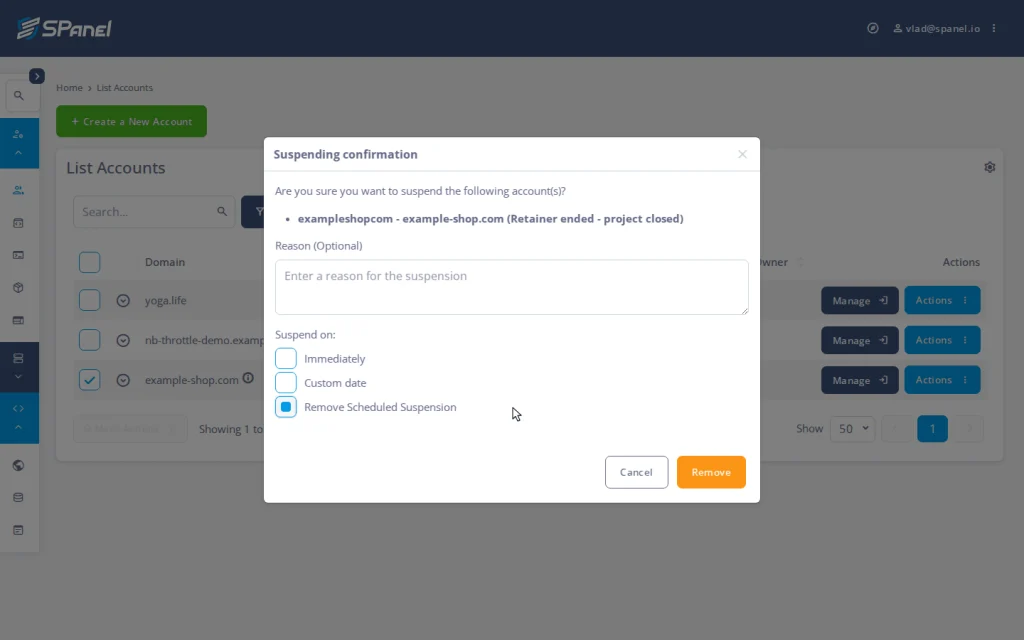
- To cancel before it fires, reopen the Suspend Account dialog, select “Remove Scheduled Suspension” and click Remove. For an account that is already suspended, use Actions → Unsuspend Account and confirm.
How agencies actually use this
When a contract is signed with an end date, you can schedule the suspension for the deadline. If the client renews, you can change the suspension data in a matter of minutes. After you set it, the lifecycle is handled by SPanel – the same platform that handles each account’s resource limits.
It’s good for agencies, but it’s also suitable if you are setting up a hosting business on SPanel. The suspension state and owner column become your daily dashboard – all exposed through the SPanel API too, so a billing system can schedule and lift suspensions automatically.
FAQ
Q: What does suspending an account in SPanel do?
A: It locks the account’s system login and makes the websites hosted on the account inaccessible. Website files, databases, and email stay on disk untouched – only access changes.
Q: Can I schedule a suspension for a future date?
A: Yes. Set a suspension date and a reason, and SPanel suspends the account automatically when that date arrives.
Q: Can I cancel a scheduled suspension?
A: Yes – lift it any time before it fires. One click removes the date and leaves no mark on the account.
Q: Does suspending an account delete the website or emails?
A: No. Suspension only locks the login and takes the website down; nothing is deleted, and unsuspending restores everything as it was.
Q: What is the owner attribute?
A: A label recording who manages each account, so an agency can organize accounts by manager rather than as one flat list.
Q: Can I automate suspensions from my billing platform?
A: Yes. The SPanel API exposes suspend, schedule, and unsuspend, and the WHMCS module maps these to your products.
Try it on a real server
Scheduled suspension is one small mercy among many in SPanel’s lifecycle tools, and the best way to judge it is to run it on a ScalaHosting managed VPS – schedule one on a test account in under a minute. Features like this started as requests on Cloud Democracy; if there is a lifecycle control you want next, that is where to ask for it.
