
We all know that the more visitors your site gets, the more processing power and memory you need. We also know that complex plugins and heavy scripts can affect resource usage.
However, there are other, less obvious factors determining server load, and ignoring them often results in CPU and RAM usage spikes that appear seemingly out of nowhere. Website administrators are often unsure where these surges come from, and they usually don’t know what to do about them.
Today, we’ll lift the curtain on one of the most common causes for unexpected server load – non-human traffic – and we’ll see what you need to do to keep it under control.
What Is Non-Human Traffic and How Does It Affect Your Site?
According to the latest data, about 51% of all online requests are the result of a machine executing an automated script rather than a person browsing a website. In other words, more than half of a server’s hardware resources could be used to serve non-human visitors rather than people.
It’s not just about traffic volume, but also how it’s generated and what it does. Let’s take a closer look at the three main sources of non-human traffic.
- Search engine crawlers
Everyone knows how search engine crawlers work. They send HTTP requests, analyze the content of the downloaded page, follow links, and gather information about what your website is about.
Without search engine crawlers, your site won’t appear on Google – the primary source of human traffic for most projects. In other words, you probably wouldn’t want to block search engine crawlers completely. However, you want to have as much control as possible over what they crawl and index and why.
The robots.txt file is the main mechanism for doing that, but in 2019, Google changed how it reads some directives, so if your site uses a legacy configuration, it may not work as expected.
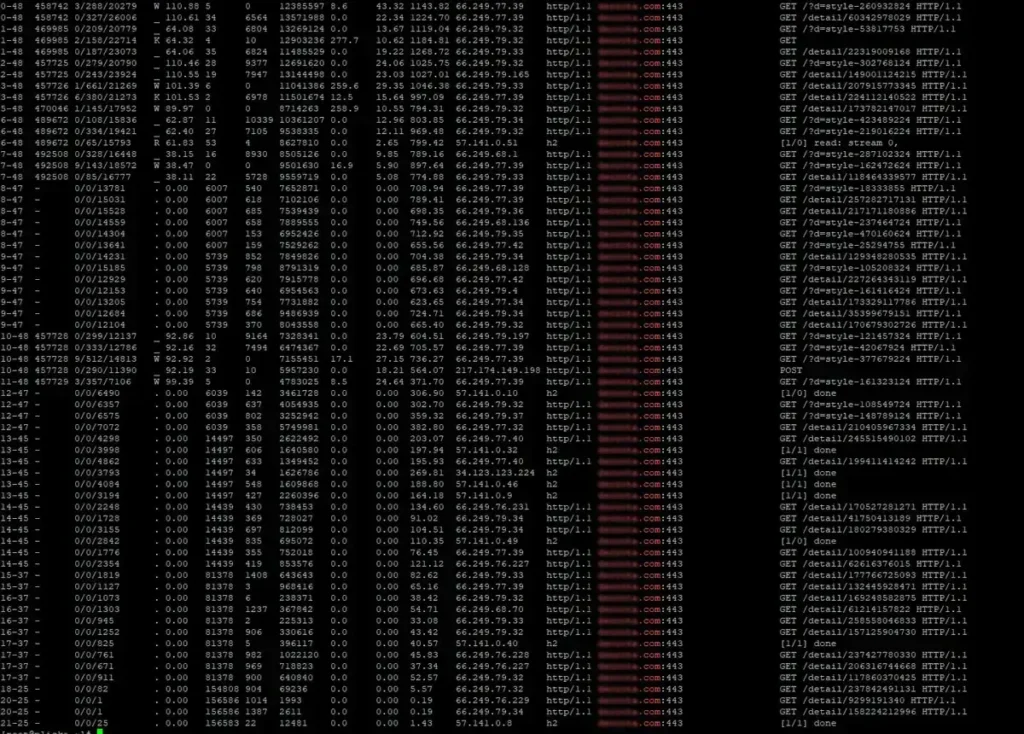
And if the search engine crawlers are let loose, they can push server load through the roof. For example, the screenshot below shows Google crawlers firing dozens upon dozens of requests per second, resulting in an average daily CPU load of around 70-80%.
- AI bots
Artificial intelligence can be an incredibly versatile tool. However, if an AI language model is to be useful, it must be trained using information available online. That information sometimes comes from your website.
When a user asks an AI a particular question, the model uses its training (based on vast amounts of text), language patterns, and learned relationships between concepts to generate an answer. However, sometimes it doesn’t have direct access to the required data and has to find it online using specialized AI bots that send requests to relevant websites.
Speed is of the essence when it comes to AI response generation, meaning bots often have to work overtime trying to find and digest information as quickly as possible. The result?
They sometimes bombard your server with 25 to 100 requests per second.
- Malicious bots
Cybercriminals usually compromise your website by exploiting a remote code execution (RCE) vulnerability in outdated software (e.g., an old WordPress plugin). Applying all updates and following established security practices helps you minimize the chances of hackers breaking in. It won’t stop them from trying, though.
The thing that can give hackers persistent access to your server is known as a PHP shell – a PHP script that can allow them to do anything from executing system commands to accessing databases to uploading additional files.
Hackers from all over the world are eager to find PHP shells on your website. They’ll use botnets (global networks of compromised devices) to send millions of requests to servers worldwide, looking for known PHP shell files.
This activity is more common than you think. In fact, according to Imperva’s 2025 Bad Bot Report, about 37% of all internet traffic is generated by malicious bots, so at any given time, your server could be hit with hundreds of requests per second.
In the best-case scenario, there are no PHP shells on your hosting account, so your site returns a 404 response to all these requests. This is easier said than done.
If you use a content management system like WordPress, displaying a 404 page involves quite a lot of database queries. For example, for every request, WP needs to retrieve the site’s title, description, and meta tags. If you use WPML, all the translations must be pulled from the database, and WooCommerce stores must automatically load product listings, descriptions, and photos.
Your server must be doing this numerous times a second while also serving legitimate visitors.
The effects?
The screenshot below shows one of our cheapest shared hosting accounts logging over 60GB of bandwidth in a single week.
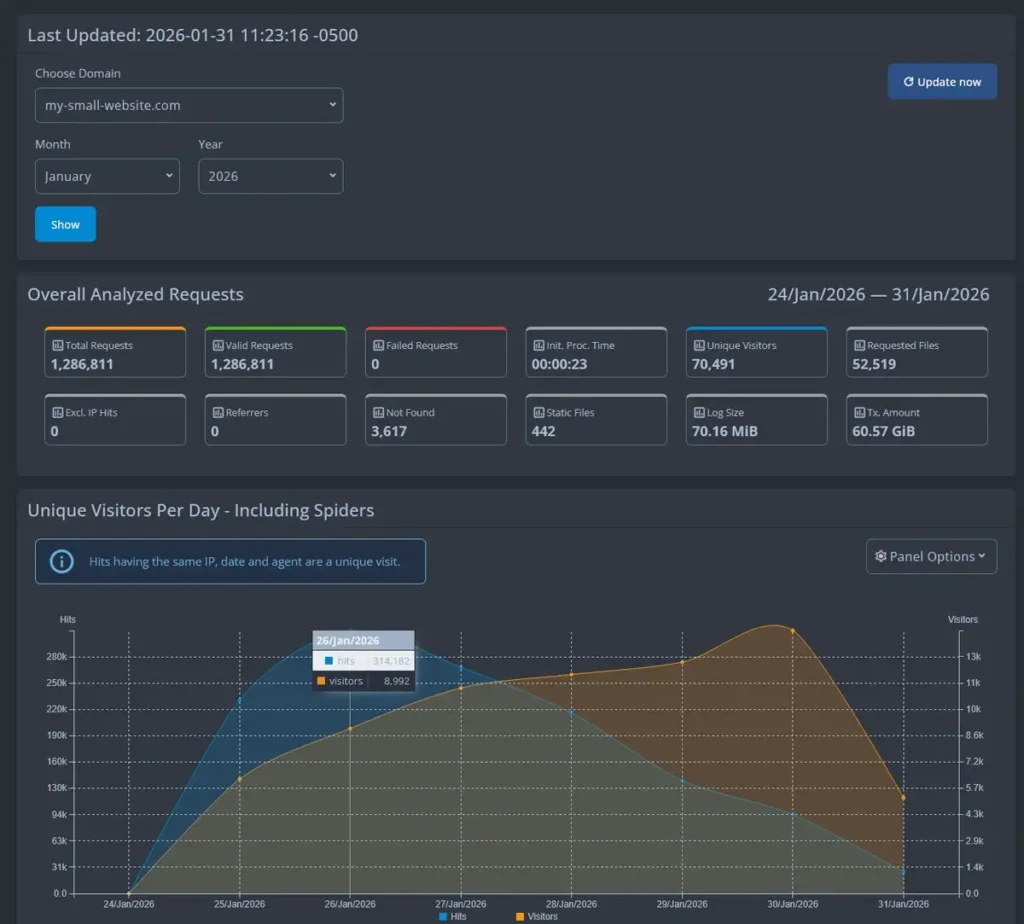
In a shared environment, these load levels disrupt the performance of all projects hosted on the server.
Ways to Protect Your Site Against Unwanted Traffic
Non-human traffic isn’t always bad, but if you don’t keep tabs on it, it could easily spin out of control and drain the hardware resources needed to maintain website performance at the desired levels.
Fortunately, there are a few simple steps you can take to ensure bots don’t affect loading speeds and server load.
- Serve a static 404 page to requests for non-existent PHP shells
You can’t stop malicious bots from trying to find PHP shells on your site. What you can do, however, is minimize their effect on the server.
You do that by eliminating the dozens of MySQL queries that your dynamic website would normally need to make to generate a 404 response. The process is pretty straightforward. Log in to your control panel, open the File Manager, and navigate to your site’s document root folder.
Open the .htaccess file and add the following to the beginning of the file:
<IfModule mod_rewrite.c>
RewriteEngine On
RewriteCond %{REQUEST_URI} \.php$ [NC]
RewriteCond %{REQUEST_FILENAME} !-f
RewriteRule .* /404.html [L,R=302]
</IfModule>
After you save the changes, the web server will return a static 404 HTML page for every request for a missing PHP file. These requests won’t reach your content management system at all, so it won’t need to execute any database queries or use server resources.
- Use Cloudflare to restrict traffic from outside your geographic region
Cloudflare’s free CDN service can be a powerful ally in limiting the impact of non-human traffic on your site.
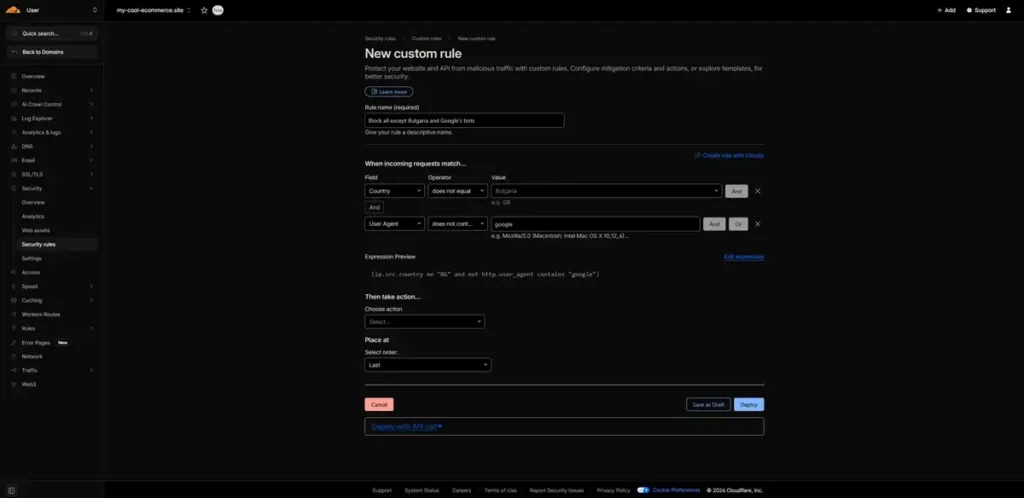
For example, if you run a regional website and don’t expect any visitors from outside your country, you can set up a custom firewall rule and block or restrict incoming requests from abroad. Log in to your CloudFlare account and go to Security > Security Rules > Create Rule > Custom Rules.
The interface is fairly intuitive. First, pick a name for your new custom rule, then use the drop-down menus and fields to set the first condition. Select Country from the Field menu, click does not equal from the Operator drop-down, and enter your country in the Value field.
As it stands, the rule covers all foreign traffic hitting your traffic, which could include many malicious bots and AI scrapers. However, it also includes search engine crawlers, and you likely don’t want to block them.
To implement an exception for them, click the And button, set the Field menu to User Agent, select does not contain from the Operator menu, and set the Value to “google.”
Finally, open the Choose action drop-down to determine what happens to incoming requests meeting your conditions. If you want to make your website inaccessible outside your country, you can select Block. If, however, you expect some human traffic from abroad, you can set up a CAPTCHA or a JS challenge to filter out bots.
- Limit AI bot activity with the help of Cloudflare
Traffic generated by AI bots is a relatively new phenomenon, but it’s becoming increasingly prominent, with some researchers estimating that it has gone up by around 80% in just 12 months.
Given AI’s increasing popularity, traffic generated by large language model bots is unlikely to decline anytime soon. Fortunately, Cloudflare can help you ensure they will not affect your server load.
After you log in to your Cloudflare account, select your domain from the menu on the left and click Overview. On the right, you’ll see the Control AI crawlers menu with a drop-down containing three options:
- Block on all pages – Cloudflare indiscriminately blocks all AI crawlers, regardless of the page they’re trying to access.
- Block only on hostnames with ads – AI crawlers are blocked only on pages, where you display ads.
- Do not block – AI bots are allowed to crawl your website freely.
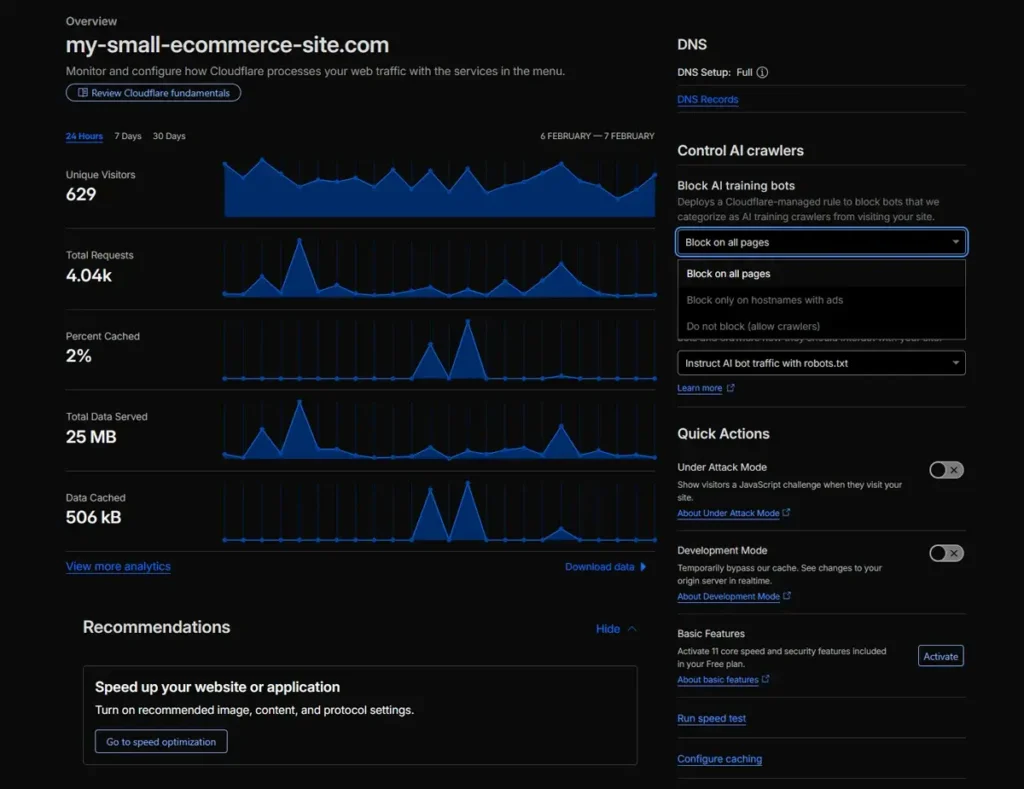
After you make the changes, it could take around 5-10 minutes for them to take effect.
- Impose rate limits on good bots
There is a crawl-delay directive in the robots.txt file that, in theory, allows you to limit the impact of search engine crawlers on your server load. However, while some search engines, like Bing and Yandex, respect it, Google doesn’t, so its effects are limited.
You obviously want your site crawled and indexed by Google, but you don’t want it to cause CPU spikes. Yet again, Cloudflare has a solution.
Log in to your account and go to Security > WAF > Rate Limiting. You can then add a rule for Selected Bots and impose a rate limit on them to ensure they don’t cause chaos. Setting it at around 30 requests per minute is pretty much guaranteed to help you avoid performance issues.
