WordPress Critical Error: How to Fix it Quickly?

“There has been a critical error on this website.” – It’s a frustrating error message for several different reasons. On the one hand, your website is down, which, if you rely on it for your livelihood, is more than just an inconvenience. On the other, it’s not exactly the most informative error message in the world.
The content visitors are trying to access is unavailable, but the error message itself doesn’t tell you what to do to fix the issue.
Fortunately, the situation isn’t as dreadful as it appears at first. The number of potential reasons for the critical error message isn’t huge, and troubleshooting the issue shouldn’t be too difficult, especially with a powerful ally like SPanel – ScalaHosting’s proprietary server management platform.
Today, we’ll delve into the details and show you how to get your site back up and running again with as little effort as possible.
WordPress Critical Error: An Overview
The issue is characterized by a single, but pretty obvious, symptom: instead of your site’s content, you see a message that says “There has been a critical error on this website.” In the past, the same errors would result in a blank page. It was known as the White Screen of Death (WSOD), and it was even more confusing because people didn’t know whether the site was loading at all.
In WordPress 5.2, the critical error message was introduced to make things more straightforward. However, if you’re not entirely sure how to troubleshoot it, the error message will still seem daunting.
The message may affect a single page, but more often than not, it takes down the entire website. The critical error can also stop the WordPress dashboard from loading, making the resolution seem even more challenging.
Sometimes the site may work intermittently, especially when server resources fluctuate.
WordPress 5.2 introduced a new feature. Before it, the White Screen of Death would bring your site down, and you’d be none the wiser until someone tells you or you try to open it. Now, when a critical error occurs, WordPress automatically sends a notification to the admin email address, allowing you to take action quickly.
Your first port of call is getting to the root of the problem.
Let’s see what typically triggers a critical error in WordPress.
What Causes the ‘There Has Been a Critical Error on This Website’ Message?
WordPress is written in PHP, and with every page load – whether you’re browsing through content on the frontend or clicking through menus in the WP dashboard – you rely on the correct execution of quite a lot of code. When PHP encounters an error serious enough to stop it from running, page output is interrupted. WordPress then displays the “critical error” message and notifies you, so you can have a look.
Because WordPress loads many of the same files and functions across the entire site, the same error can affect multiple pages. That’s why it often locks administrators out of the WP dashboard, making the situation appear worse than it actually is.
Why PHP Errors Sometimes Take Down the Entire Site
PHP often encounters numerous minor errors while it runs. These can indicate a potential bug or a temporary glitch, but they’re not severe enough to stop code execution. Usually, their effect isn’t noticeable to visitors, and you wouldn’t even know they exist unless you look at the PHP error logs.
However, PHP sometimes encounters a “fatal error.” The difference between it and the minor warnings and notices we mentioned above is that a fatal error halts the script’s execution on the spot.
When one script fails, everything else after it stops working, and if the fatal error occurs while WordPress is loading themes, plugins, and core files, the entire output is interrupted. WP then has no other choice but to display a “critical error” message and notify the administrator.
Depending on where the affected script is needed, the critical error could take down either a single page or the entire site, including the WordPress dashboard.
Let’s look at the most common scenarios that trigger the outage.
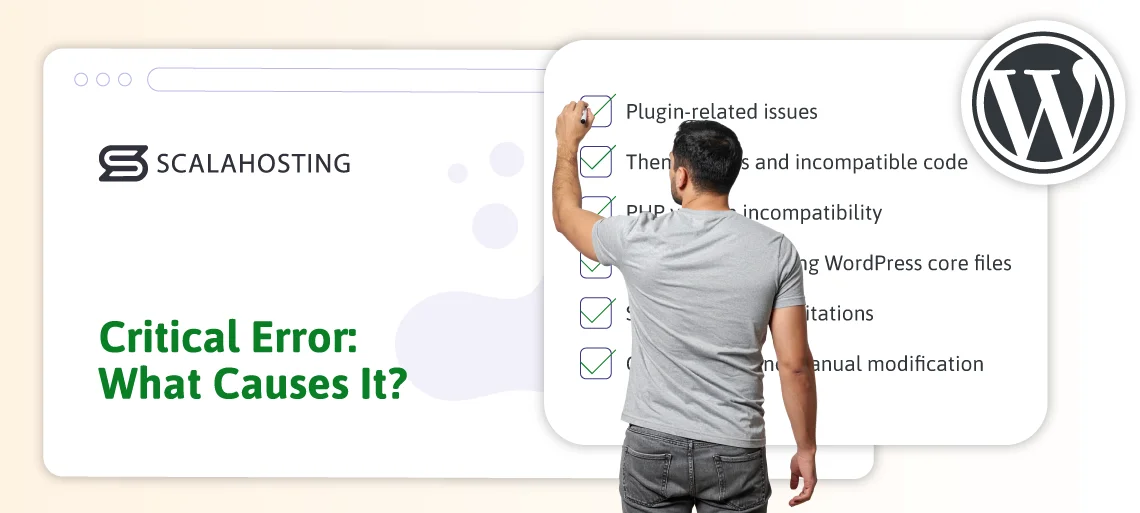
Common Causes of Critical Errors in WordPress
The critical error message doesn’t provide much insight into the cause of the issue. Still, a slightly deeper understanding of how WordPress works reveals that the list of potential scenarios isn’t enormous.
Here’s a rundown.
Plugin-related issues
Plugins are among the most common sources of critical errors. This is because each plugin adds its own PHP code that must run alongside everything else. A plugin may consist of tens of thousands of lines of code, and even a single bug, outdated function, or conflict could trigger a fatal PHP error.
Such an error typically appears immediately after:
- Installing a new plugin
- Updating a plugin
- Activating multiple plugins that serve the same purpose and/or are not compatible with each other
Plugins are loaded on almost every request, so a fault with one could take down the entire website, including the WordPress dashboard.
Theme errors and incompatible code
Like plugins, themes also add PHP files that WordPress must load in order to display content. As a result, a bug, a missing file, or incompatibility with the current PHP version could easily trigger a critical error message.
This usually happens when you’re:
- Switching to a new theme
- Updating an existing one
- Customizing your active theme
Theme-related critical errors are less common than plugin-triggered ones for two main reasons. On the one hand, you use just one theme as opposed to the multiple active plugins installed on every WordPress website. On the other, WordPress has a unique mechanism that falls back to the default theme if something goes wrong with your design. The critical error message is displayed only if a fatal PHP error occurs early in the loading process, before the fallback mechanism is activated.
Nevertheless, you shouldn’t discard your theme as a potential culprit.
PHP version incompatibility
WordPress itself supports a range of PHP versions, but that may not be true for all the plugins and themes you install. Code that works perfectly fine under one PHP version could crash under another.
Here are the most common reasons:
- The newer version removes some old PHP functions
- Change in behavior in the new PHP version
- Changes in the error handling mechanisms mean older, minor issues are now treated as fatal errors
Fatal errors due to incompatibility are caused either by a change in the PHP version or by an update to the WordPress core, a theme, or a plugin.
Corrupted or missing WordPress core files
Problems with WordPress core files can sometimes cause critical errors. This is hardly surprising, as the code inside them is responsible for initializing WordPress and coordinating plugins, themes, and database interactions.
Issues with core files may arise due to:
- Failed or interrupted WordPress updates
- File corruption due to disk malfunction or transfer errors
- Accidental deletion, modifications, or wrong permissions for system files
Problems with core WordPress files usually stop WordPress from completing the startup loading process, so they often affect the entire website rather than individual pages.
Server resource limitations
Fatal PHP errors aren’t always caused by faulty code. Lack of resources can also trigger the issue.
Sometimes, the hosting account isn’t powerful enough to meet your website’s growing requirements. In other cases, the errors could be caused by low PHP limits or other core server misconfiguration.
The most common scenarios when resource-related critical errors occur are:
- When your website experiences a traffic spike
- After you install a particularly resource-intensive plugin
- During background tasks such as backups, for example
Resource usage fluctuates all the time, so critical errors related to insufficient hardware power may be intermittent.
Custom code and manual modification
Custom code snippets added to theme, plugin, or configuration files can also cause fatal PHP errors. Often, it’s all down to a simple typo, a missing semicolon, or an incorrect function call.
Issues can appear after:
- You edit the functions.php file
- You add custom PHP snippets through the WordPress dashboard
- You modify wp-config.php and other core configuration files
Because many of the files you can modify are used at every page load, any mistakes in the added custom code can have site-wide consequences.
A Step-by-Step Guide to Resolving the WordPress Critical Error
Now that we know what typically causes the critical error message in WordPress, it’s time to look at the steps to troubleshoot, diagnose, and fix the issue. The key is to move methodically.
First, we’ll try to pinpoint the culprit, and we’ll then see what changes we can make to ensure the site is back up and running.
Check the logs first
If there is an error message, there’s bound to be some technical details stored in a log somewhere. Trying to make sense of them isn’t much fun, but it’s still a good idea to gather as much information as possible about the issue. There are a couple of places you can look.
- The WordPress debug log
WordPress has a built-in debugging feature that is disabled by default but can be turned on fairly easily. Simply navigate to your site’s document root folder, open the wp-config.php file, find the line that says define( ‘WP_DEBUG’, false ); and swap “false” for “true.”
The debug.log file is generated and stored in the /wp-content/ folder. Inside it, you should be able to see the name of the file that triggered the critical error, as well as the line on which it occurred. This information will help you further diagnose and fix the issue.
- Server error logs in SPanel
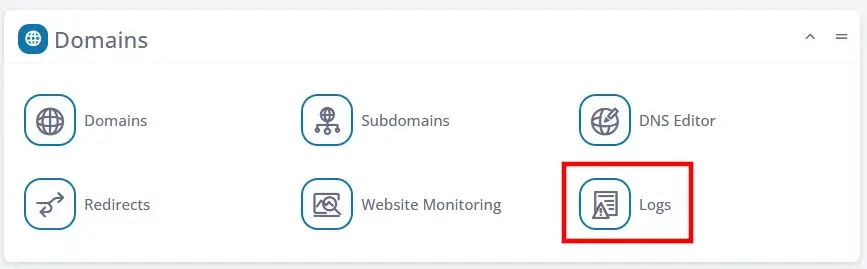
If your hosting account uses SPanel, you have a much easier way of accessing the server’s PHP error logs. All you need to do is log in to SPanel’s User Interface and click the Logs button under the Domains section.
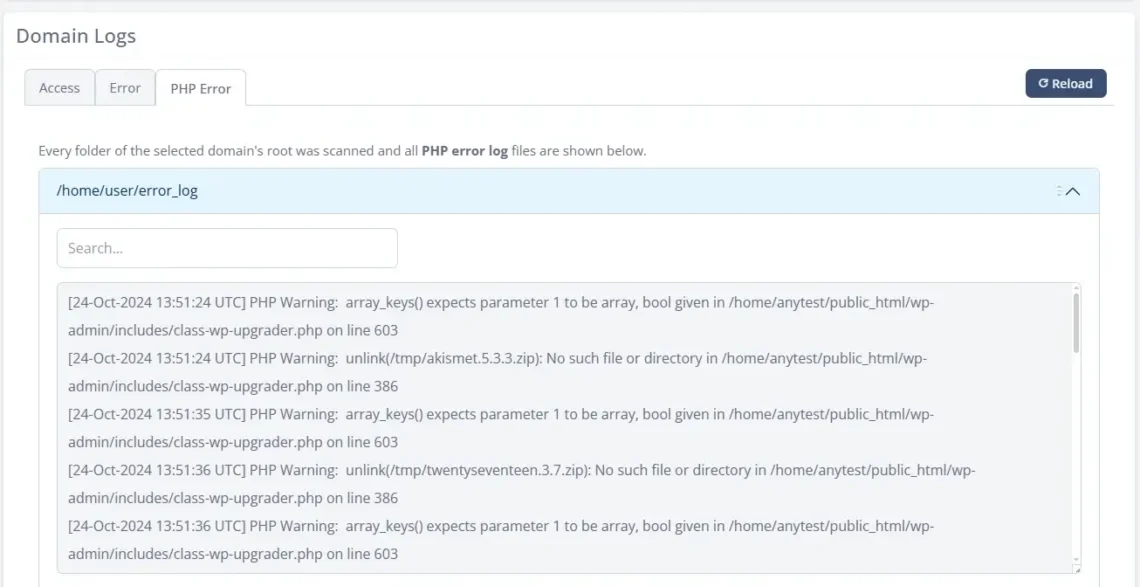
You can then click the PHP Error tab to view and download the log containing all PHP faults.
Use WP’s recovery mechanism
When WordPress’s developers replaced the White Screen of Death with the critical error message, they also rolled out a new recovery mode designed to provide a relatively pain-free way to bring your site back up. Recovery mode allows you to log in to the WordPress dashboard even if it’s otherwise inaccessible.
A link to it is included in the email notification you receive after the site crashes. If you can’t find it, you can access it at https://yourdomain.com/wp-login.php?action=entered_recovery_mode. You’ll see a standard login form with a small tooltip reminding you that this is recovery mode. Use your WP dashboard username and password to proceed.
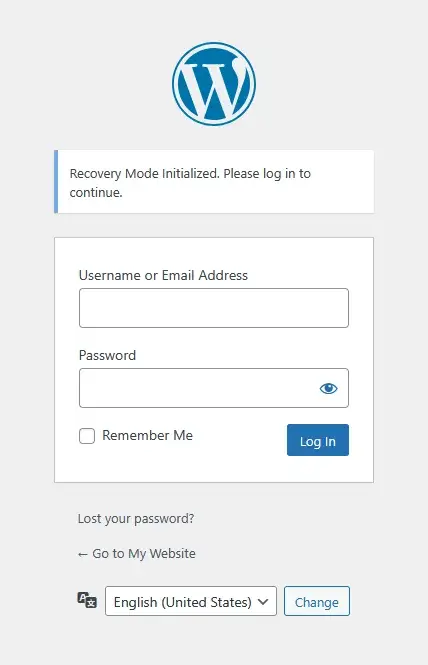
Once inside, you have the standard WP dashboard interface. If the PHP logs have already shown you which plugin or theme is causing the fatal PHP error, you can go ahead and disable it.
Usually, this is the easiest way of fixing a critical error in WordPress without touching the site’s files or database.
Apply general WordPress fixes
If recovery mode isn’t available – or if you need to dig deeper – you can try a few tricks that can solve quite a few common WordPress issues.
- Increase the PHP memory limit
When WordPress exceeds its allocated PHP memory, the site can crash during execution. Increasing the PHP memory limit gives it more room to run complex plugins and heavy processes, so it should help bring your site back up.
You can do it by opening the wp-config.php file and adding the following:
define(‘WP_MEMORY_LIMIT’, ‘256M’);
It should be placed above the line that says /* That’s all, stop editing! Happy publishing. */.
If you use SPanel, there is an easier option. Log in to the User Interface and open the PHP Manager under the Tools section.
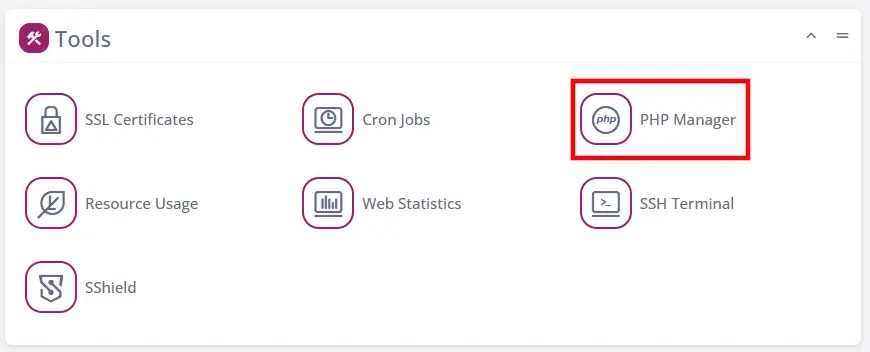
You’ll see a list of all the domains and subdomains added to your SPanel account. Open the Actions menu next to the installation URL of your WordPress site and select PHP INI Editor.
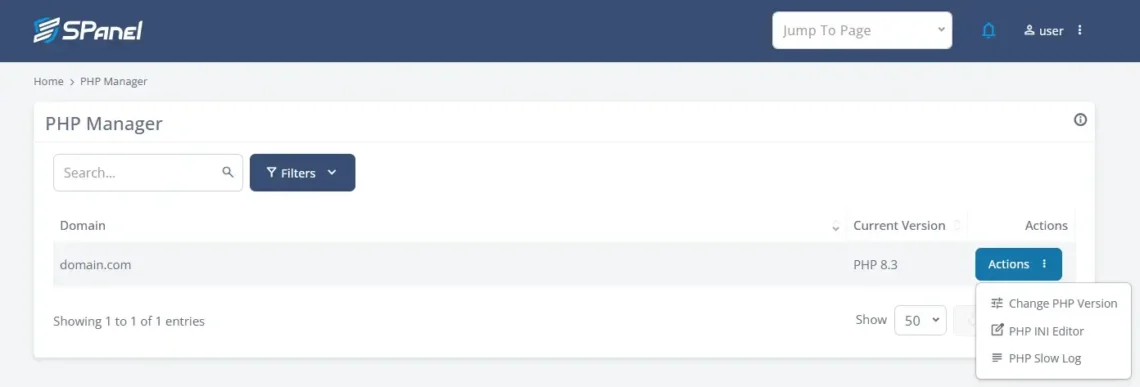
The Basic Editor tab displays variables found in the php.ini file that website owners often need to edit. One of them is memory_limit. Set the required limit and click Change to make it effective.

A 128 MB limit should be enough for blogs and simple hobby projects. 256 MB is recommended for business sites, and 512 MB or more is considered the norm for WooCommerce-based online stores. That said, every project is unique, so you should set your PHP memory limit based on your specific requirements.
- Switch to WP’s default theme
Theme files are loaded at every page request, so if one of them is broken, it’s likely to cause a site-wide outage. Switching to a different theme will solve the problem. You can do it using the WP dashboard in recovery mode. If that’s not available, there are other methods.
You can try editing the database directly from phpMyAdmin, but your best bet is to use WP-CLI, a command-line utility for managing WordPress websites.
You’ll have to log in to your hosting account via SSH, navigate to your site’s document root, and run the wp theme list command to see all installed themes. Then, enter wp theme activate followed by the slug of the default theme (e.g., wp theme activate twentytwentyfive). With the site back online, you can try reinstalling the theme you want to use to see if it works.
- Deactivate the faulty plugin
Plugins are the most common cause of critical errors in WordPress. The good news is that fixing plugin-related issues is relatively straightforward.
If you have access to the WP dashboard (with or without recovery mode), you can do it through the Plugins > Installed Plugins menu. If you’re not sure which add-on is causing the issue, try deactivating them one at a time until the site returns to normal.
Plugins can also be disabled via FTP or your control panel’s File Manager in case the dashboard is down. First, go to /wp-content/plugins/. You’ll see multiple folders, each belonging to a plugin you’ve installed. If you rename a folder, you effectively disable the plugin because WordPress can no longer access its code. If the fatal error is somewhere within it, it will no longer affect your site.
Yet again, if you’re unsure which plugin is at fault, you can try renaming the folders one by one until the site comes back up.
- Reinstall WordPress’s core files
Reinstalling the WordPress core will eliminate the critical error if the problem lies within the CMS itself. If you’re running WordPress’s latest version (recommended for security and stability) and have access to the WP dashboard, reinstalling the core is as easy as going to the Dashboard > Updates menu and clicking the Reinstall version [your current WP version] button.
If you can’t log in to the dashboard, you can use WP-CLI. Open an SSH shell, navigate to your site’s document root directory, and enter wp core download –force. WP-CLI will download the latest WordPress core version and install it without affecting your configuration, plugins, or themes. When you refresh the page, you may need to click Update Database if you’ve upgraded to a newer version.
Fixing WordPress with SPanel
SPanel, ScalaHosting’s proprietary server management platform, provides several tools that can make troubleshooting and resolving critical WordPress errors easier. Here are a few steps you can take to quickly restore your site’s full functionality.
- Changing the PHP version
It’s recommended to always use the latest PHP version on your hosting account. It provides the best security and typically offers the best environment for building a fast, reliable website. However, you may encounter compatibility issues when installing plugins or updating the core, leading to fatal PHP errors. Fortunately, with SPanel, switching to a different PHP version and bringing the website back up takes just a couple of mouse clicks.
Yet again, you have to log in to the User Interface and open the PHP Manager located in the Tools section. Click the Actions menu next to the domain or subdomain hosting your website and select Change PHP Version.
A pop-up appears with a drop-down menu containing all currently supported PHP versions in SPanel (the list is updated regularly as new PHP versions are released). Select the one you need and click Change.
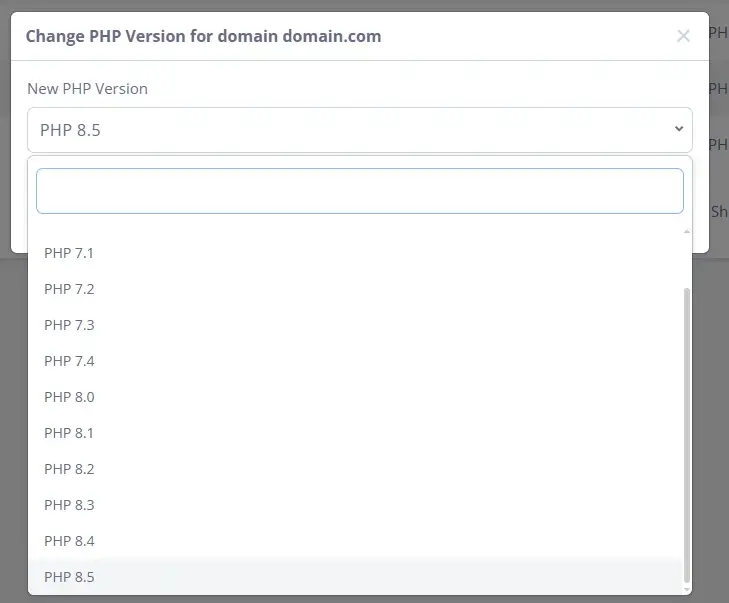
After you clear your browser’s cache, you can check whether the change has restored your site’s functionality.
- Monitoring server load
Server load can cause critical errors, but it’s sometimes tricky to determine whether a lack of resources really is the problem. Unless, of course, you use SPanel. Our proprietary server management system has built-in tools that tell you exactly how much server resources your site uses at any time.
Information about the current server load, memory, and disk usage is available on the Admin Interface homepage.

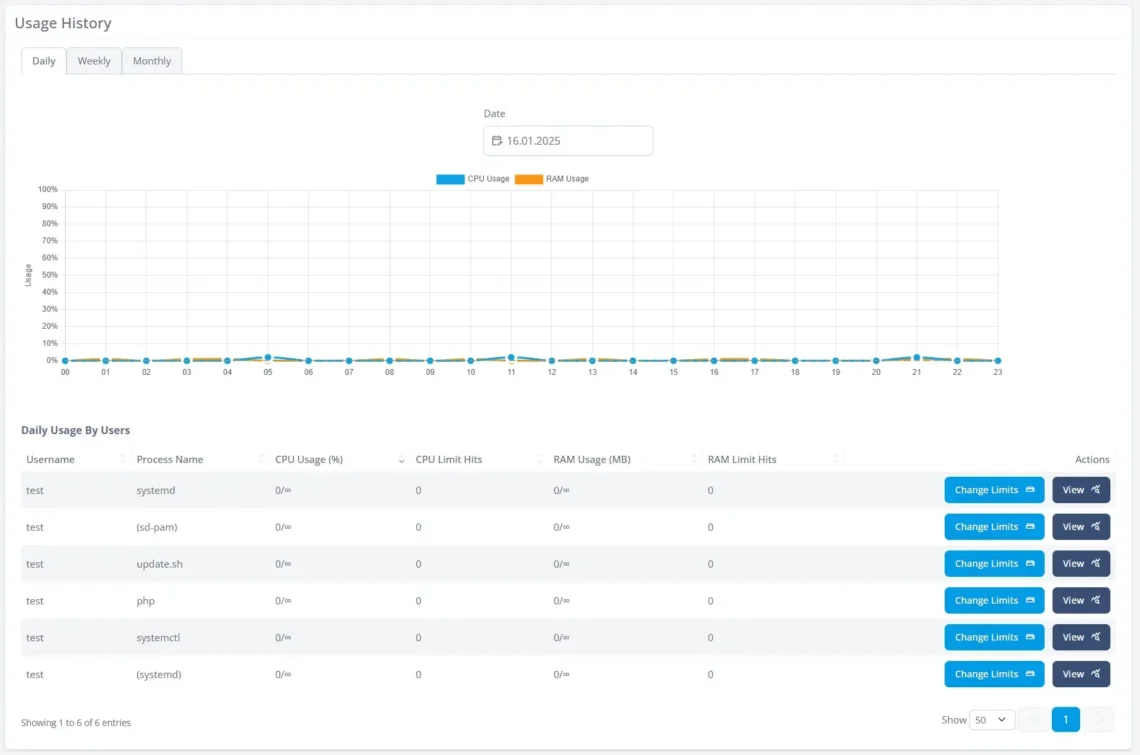
However, if you click Resource Usage, you can get much more detailed reports on how your website utilizes the server’s CPU and RAM. There are daily, weekly, and monthly reports that show resource usage by user accounts and individual processes, allowing you to modify account quotas and stop tasks or plugins that may be causing the critical WordPress error.
- Restoring from backups
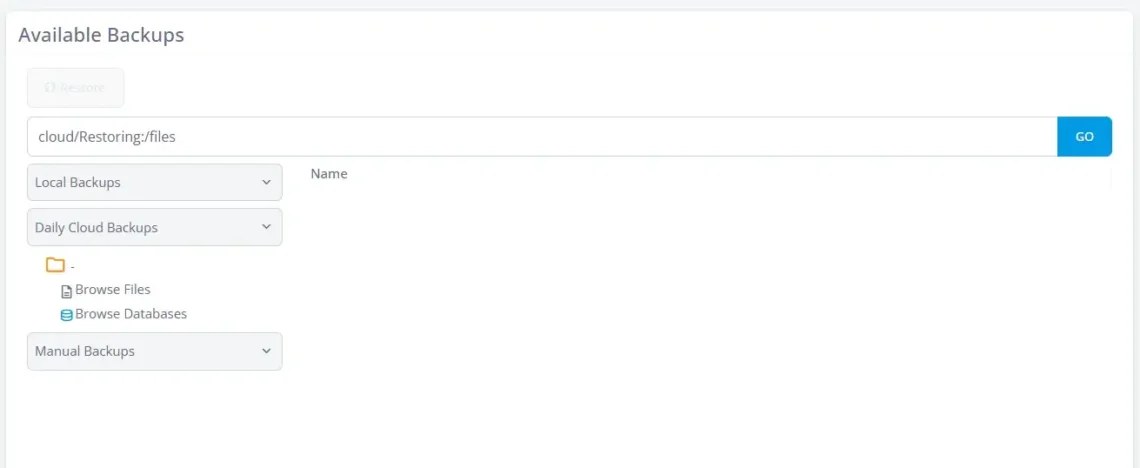
ScalaHosting’s WordPress hosting solutions feature daily automated backups that let you restore your website to a fully working condition with just a few mouse clicks. The copies of your website’s files and database are stored at an offsite location, so even if there’s an emergency at the data center that holds your main hosting server, you still won’t lose access to your data.
In SPanel, backups are managed through a dedicated utility situated under the Files section in the User Interface.
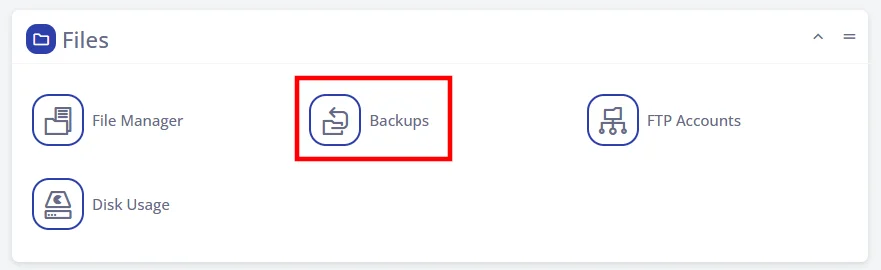
You can view manual, local, and daily cloud backups, browse and restore either individual files and databases, or the entire website.
- Scan your site with SShield
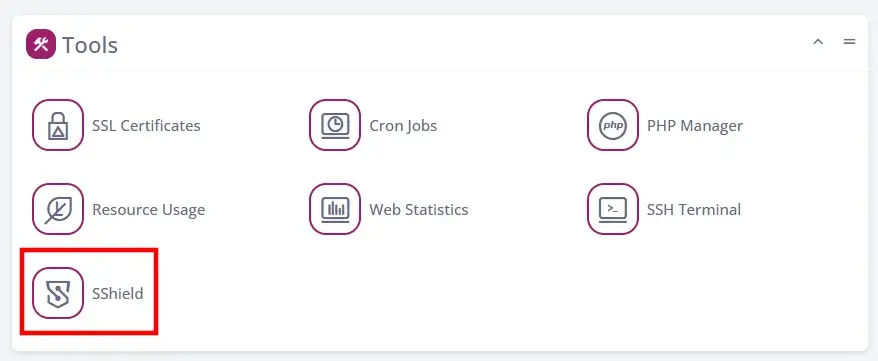
ScalaHosting customers can take advantage of SShield – a state-of-the-art AI-driven security system that can identify and block 99.998% of all cyberattacks. If you suspect that the critical WordPress error could be caused by malware, you can scan your site and quickly identify potentially suspicious files and scripts.
The utility is situated under the Tools section in SPanel’s User Interface.
You can scan the entire account or pick individual domains and subdomains. The utility also keeps a record of your previous scans.
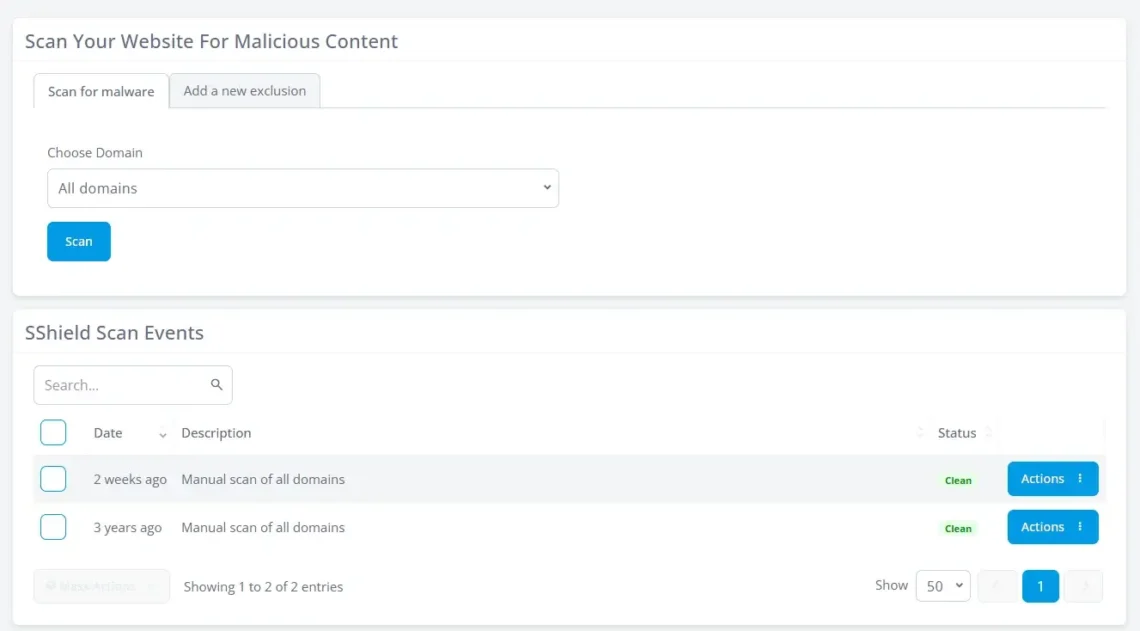
If SShield finds anything, you’ll see a list of the offending files and decide what to do with them.
Advanced Troubleshooting
Chances are, the steps above will help you eliminate the critical error and bring your site back up. If the issue persists, however, there are a couple of additional techniques you can try.
- Repair the database
Corrupted tables or structural inconsistencies can cause fatal PHP errors. Some plugins can repair the database and eliminate the critical error message, but installing them without access to the WordPress dashboard could be tricky. Fortunately, WordPress has a built-in utility that does the same job. To activate it, you first need to open the wp-config.php file with your File Manager and add the following line:
define(‘WP_ALLOW_REPAIR’, true);
Don’t forget to save the changes. Now, open a new browser window and load https://yourdomain.com/wp-admin/maint/repair.php. There are two options. If you’re in a hurry to bring the website back up, click Repair Database and wait for WordPress to locate and fix any potential database issues, restoring full functionality.
The other button – Repair and Optimize Database – resolves the same issues and, in addition, implements a few techniques to improve performance. The effect on loading speeds can be significant, especially if your database is bloated. However, during optimization, the database remains locked, meaning some of your site’s features may not work.
After the utility completes the process, it will prompt you to return to the wp-config.php file and remove the define(‘WP_ALLOW_REPAIR’, true); line.
- Roll back recent updates
If the critical error message appears immediately after an update to the WordPress core or a plugin, reverting to a previous version is almost certain to fix the issue.
Using an outdated version of the WP core or its plugins is not recommended, as it can lead to performance and security issues. However, it will bring your site back up and keep it functional while you investigate and find a workaround.
The easiest way to roll back an update is to use a backup. That’s why it’s always a good idea to create a manual backup before you update the WordPress core or any of your add-ons.
Preventing Future Critical Errors
More often than not, the reason for the critical error you see on your WordPress site is simple and relatively easy to fix. However, it still causes downtime that’s not only annoying for the visitors but can also affect its bottom line and search engine rankings.
In other words, it’s a good idea to take the necessary precautions to prevent critical WordPress errors from affecting your site in the first place. Here are some steps you can take in that direction.
- Follow update best practices
Outdated software is one of the most common triggers of fatal PHP errors. The WordPress core and all the themes and plugins you use evolve constantly to patch potential security holes, improve performance, and maintain compatibility with the platforms on which they run.
That being said, blindly updating everything at once can introduce its own risks. A safer approach includes:
- Updating regularly rather than letting versions fall far behind
- Checking plugin and theme compatibility before applying updates
- Avoiding plugins that are not actively maintained
- Regularly auditing the plugin list and removing add-ons you no longer use
All of the above can save you a lot of hassle, but perhaps the most effective way to ensure an update works as intended is to test it in a staging environment first. If you use SPanel, setting up a staging site takes just a couple of mouse clicks.
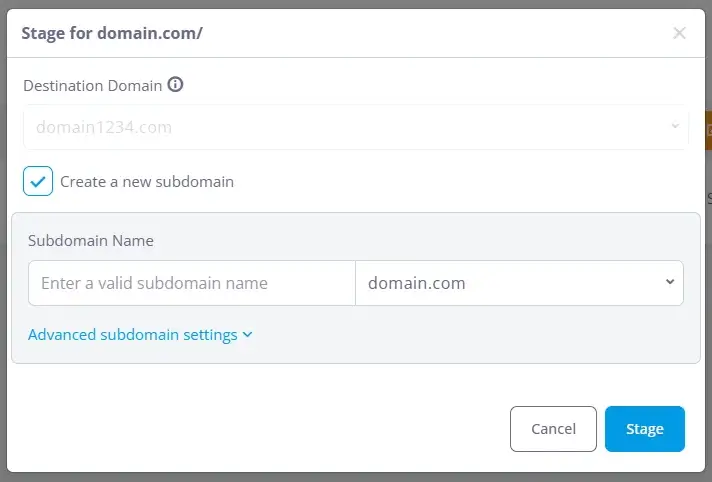
All your WP installations are available in the unique WordPress Manager, which can be found under the Software section in SPanel’s User Interface. Open the Actions menu next to your site and select Stage.
SPanel will ask you to select a destination domain (or subdomain) for the staging environment. You can also set up a new subdomain on the spot. After you click Stage, SPanel will automatically create a copy of your production site that serves as a perfect testbed for core and plugin updates, as well as other changes you’d like to try out before rolling them out to the public.
- Check PHP compatibility before upgrading
Whether you’re updating the software running your site (WP core, plugins, and themes) or upgrading the PHP version on your hosting account, it pays to double-check to ensure everything will work after you’re done.
Check the documentation for all the software you use and ensure there are no conflicts after the upgrade. You can review changelogs to see if any of the functions you use are about to be deprecated.
If you don’t have time to do all this, you can simply test the upgrade in your staging environment. SPanel lets you change the PHP versions for individual domains and subdomains, so you can ensure everything works a treat before making changes to your live site.
- Monitor server resource usage and security
Keep an eye on server load, and if you see it spike, take the necessary steps to optimize your site’s performance, adjust your account’s resource allocation, or scale up to ensure there’s enough storage space, RAM, and processing power.
Security monitoring is just as important. Malicious scripts can corrupt files, inject faulty code, and do all manner of other things that could trigger a critical error. A proactive threat monitoring system like ScalaHosting’s SShield can help you prevent compromised files from becoming the root cause of a critical crash.
Conclusion
Resolving the WordPress Critical Error is rarely about a single universal fix. More often, it’s a process of narrowing down the cause, restoring access, and stabilizing the environment. By combining WordPress’s built-in recovery features with SPanel’s logging, resource monitoring, backup, and PHP management tools, you can usually bring a site back online quickly – even when both the frontend and dashboard appear completely inaccessible.
FAQ
Q: What does “There has been a critical error on this website” mean?
A: This message appears when WordPress encounters a fatal PHP error and cannot continue loading the page. Instead of displaying a blank screen or exposing technical details, WordPress shows this generic notice to visitors while stopping execution in the background.
The error can affect just one page or bring down the entire site, including the WordPress dashboard. It is most commonly caused by a faulty plugin or theme, a PHP version incompatibility, corrupted files, or insufficient server resources.
Q: How do I fix a critical error after a plugin update?
A: If the issue started immediately after updating a plugin, that update is likely responsible. The quickest fix is to deactivate the plugin, either by using WordPress recovery mode or by disabling it manually in your hosting file manager.
If access to the dashboard is completely blocked, restoring a backup from before the update is often the fastest way to bring the site back online. Once the site is stable, you can check the plugin’s compatibility with your WordPress and PHP versions before attempting to use it again.