Drupal Migration to a New Hosting Provider

The reasons for migrating your Drupal site to a new Drupal hosting environment could be associated with something negative – for example, you’re moving to a new provider because you’re frustrated with the old one’s constant outages and poor loading speeds.
On the other hand, the switch may be triggered by a positive development – for example, your site has grown too popular for your current host, and you need to move to an environment that can handle the large volume of traffic.
Similarly, the process of transferring your Drupal project could be incredibly frustrating or fairly straightforward. Let’s focus on the latter.
How Does Drupal Work?
А typical Drupal website consists of a database and a number of files. Sounds deceptively simple, but it pays to know the details.
- Files
When you download Drupal from its official website, you get a ZIP or a TAR archive full of files. Most contain the code that determines Drupal’s out-of-the-box looks and functionality. The rest are images and media files that are part of the default theme.
The same goes for modules and themes. You can download them from the official website or install them via the command line – in both cases, an archive is extracted in one of your site’s sub-directories, and the files in it enable the new functionality.
Without the core files, themes, and modules, you have no way to display your content and allow people to interact with it. As a result, all the files must be moved from your old server to the new one.
There is one thing you must bear in mind, though – your site has a specific file structure. It must be replicated precisely, or the website won’t work on your new server.
- Database
The database is the primary storage facility for your Drupal website. It stores things like content, user data, configuration settings, revisions, etc.
Drupal uses relational databases. In them, data is stored in tables consisting of rows and columns, each representing an attribute and each row containing multiple records. Yet again, the structure is critical for your site’s correct functionality.
If a record is not in its rightful place, the website will either crash or display errors.
So, what we’ve learned so far is that to migrate your Drupal website, you need to place your files and replicate the database on the new server exactly the way they are on your current account. Let’s see how to do that.
Migrating a Drupal Website: A Step-By-Step Guide
Moving files and databases from one place to another sounds more straightforward than it actually is. There are numerous factors to consider while doing it, and if you don’t pay attention, you could face some issues.
That’s why we’ll now show you the steps and tell you what you need to consider.
Setting Up a New Hosting Account
Obviously, the first step is to set up a new hosting account.
Being one of the world’s most popular content management systems, Drupal can run in most providers’ hosting environments. You can install it and build a website even on a shared account. However, since you’re migrating an existing website, you’re more likely looking for a new VPS. It has to be the right one, though.
First, you need to ensure the new server will provide sufficient hardware resources to sustain your project. Find a service with more processing power, memory, and storage than your previous host, and check whether the new solution is scalable enough to facilitate your site’s future growth.
The hardware resources aren’t the only thing you need to consider when choosing your new account, though. Every server comes with an operating system and a collection of software applications essential for keeping your website online. This collection is often referred to as a “stack,” and it usually includes things like the web server, the database management system (DBMS), the web hosting control panel, etc.
Drupal supports several different solutions, so you can build your website in various configurations. For example, it can run under both Apache and Nginx and use both MySQL and PostgreSQL databases.
You must know what sort of stack you’ve used so far and consider it when choosing the new environment.
Sometimes, switching from one setup to another isn’t a problem. For example, if you’ve used cPanel/WHM for server management, you can easily migrate to an SPanel VPS because the two are fully compatible.
However, in other cases, some extra work is required. For example, Apache and Nginx work with different configuration files, so the directives you’ve added to your old account may not work after the transfer. And if you’re moving between PostgreSQL and MySQL, you’ll have to convert the data.
Be sure you know exactly what the migration will involve.
Archiving Files on Your Old Server
Theoretically, you can download your site files and folders one by one and meticulously upload them to the new server while keeping the same file and folder structure. However, this is way more hard work than is necessary. You’re much better off putting them in an archive file and extracting them on the new server.
You have two options to archive your Drupal files.
- Through the command line
Those more familiar with the command-line interface may prefer to create the archive via an SSH connection.
After you open a secure shell, you will be redirected to your account’s home folder (/home/[your username]). Inside it is the public_html directory – your website’s document root. Its content has to be added to the archive.
The command is:
$ tar -cvf [name of the archive].tar public_html
The server will display a list of all the files it’s archiving as it does so and then leave the archive in your account’s home folder.
With the file created, you need to save it on your computer. You can download it with an FTP client like FileZilla or use the scp command. If you prefer the second option, open a new command-line window on your local computer and enter the following:
scp [your username]@[the server’s IP or hostname]:home/[your username]/[the name of the archive].tar local/file/path
For example, if you use Windows, the command could look like this:
scp user@123.123.123.123 /home/user/website.tar C:\Users\John Doe\Desktop\website.tar
The download process will begin after you provide the password of your hosting account. Note that if your hosting provider uses a custom SSH port, you’ll need to use the -P attribute followed by a blank space and the SSH port (e.g., -P 1234).
- Through the File Manager
If you’re not interested in commands, you can always use your control panel’s File Manager. It’s undoubtedly the more novice-friendly approach.
All you need to do is navigate to the public_html folder, select everything in it, and click a button. In cPanel, the option is labeled Compress, and in other control panels, you’ll see it as Archive. The system will allow you to choose the archive file format and whether to compress the data. To save some space, it’s advisable to use gzip compression. Configure the archive and click Compress Files to create it.
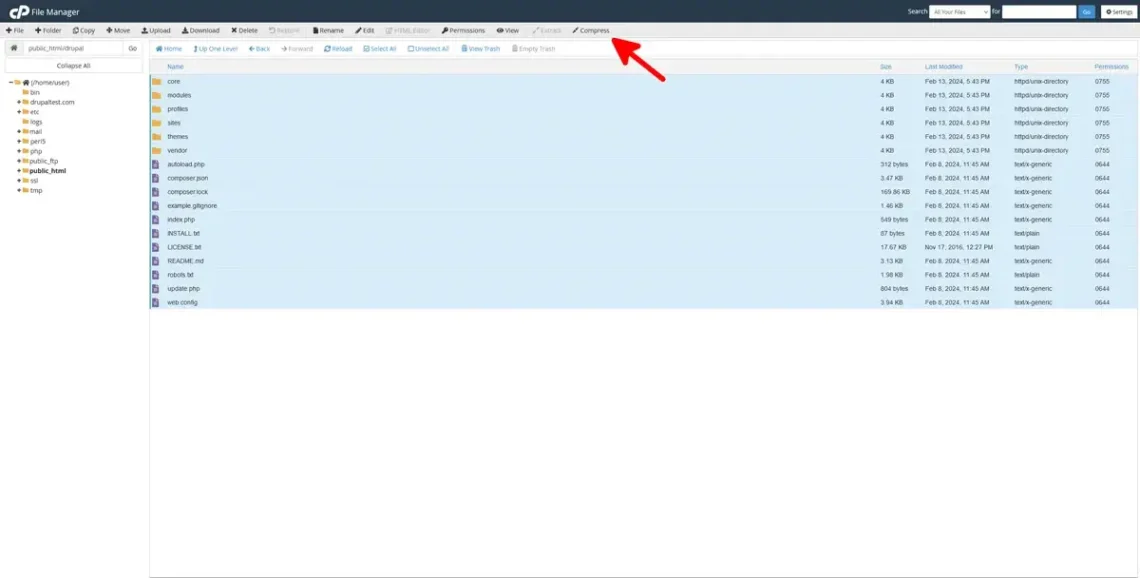
Your control panel will place the archive file in the public_html folder. If you don’t see it straight away, you may need to click the Reload button. Finally, right-click on it and download it to your local computer.
Extracting Files to The New Server
It’s time to move your site’s files to your new hosting account. Yet again, you can do it either via the command line or through a graphical user interface.
- Through the command line
As we’ll be extracting the files in the public_html folder, you must ensure you upload your archive there. Most people prefer to do it via an FTP client, but you can also use the scp utility mentioned in the previous section. The command would look like this:
scp /local/file/path [the new hosting account username]@[the new server’s IP or hostname]:/home/[the new hosting account username]
For example:
scp C:\Users\John Doe\Desktop\website.tar newuser@124.124.124.124:/home/newuser/website.tar
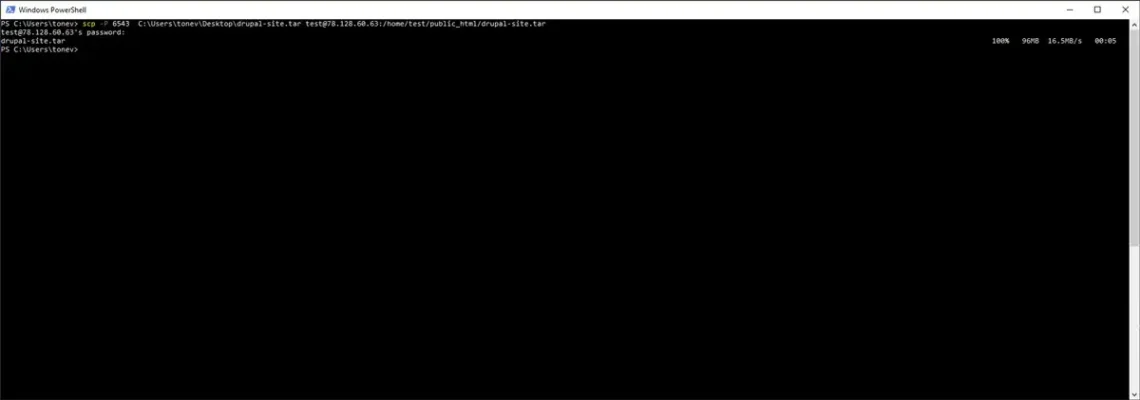
Yet again, you’ll need to provide your hosting account’s password in order to upload the file. After authentication, the command-line interface will display the progress as your computer uploads the archive to the server.
The next step is to establish an SSH connection to the new hosting server so you can extract the files. After you open the secure shell, navigate to the public_html folder and use the following command:
$ tar -xvf [the name of the archive].tar –strip-components=1
The strip-components=1 attribute ensures that the archive won’t create a new public_html folder within the existing one.
With that, your website’s files are safely stored inside the document root directory on your new server. You can confirm this with the ls command.
- Through the File Manager
Uploading and extracting your site’s files through your hosting account’s File Manager is certainly more newbie-friendly.
Open the File Manager and navigate to the public_html folder. With modern management platforms, uploading files to your server is as simple as dragging and dropping them from a folder on your local machine to the browser window.
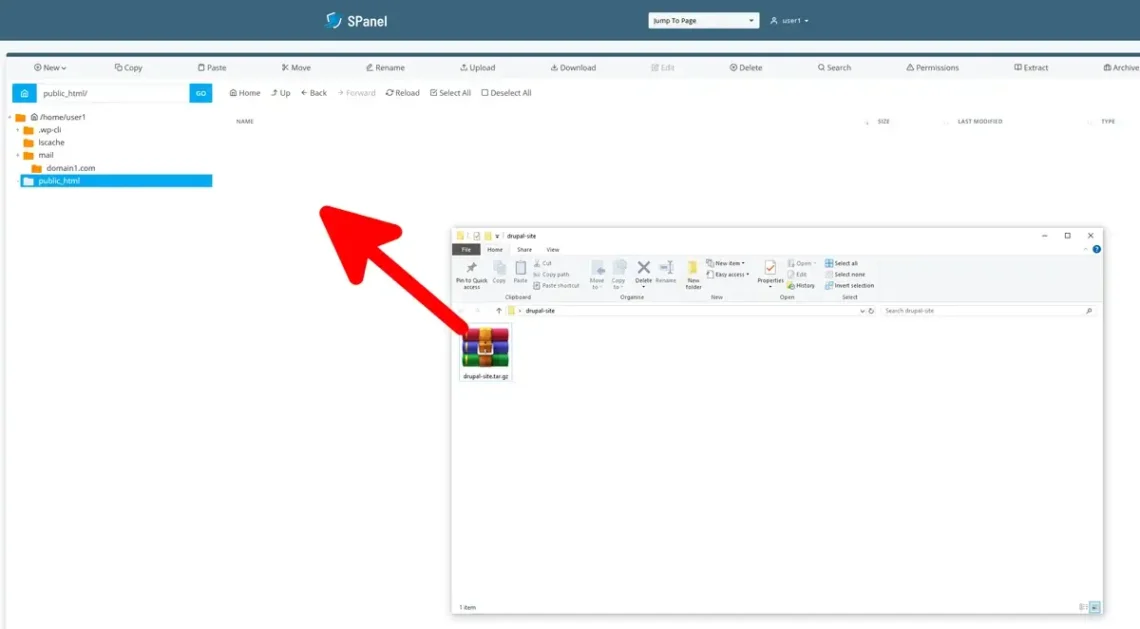
Once the archive is in the public_html folder, select it and click Extract (the option may also be available in the context menu).
Exporting The Database
Moving files from one server to another is relatively straightforward, especially if you use archives. With databases, however, things are a touch more complicated. Depending on the operating system and the configuration, your database’s files can be located in several different places on the server’s filesystem.
You don’t always have access to them, but even if you do, the database management system on your new server won’t know how to interpret them if you simply transfer them.
That’s why the standard procedure for moving a database from one place to another involves exporting the data from the old databases, creating a new database on the destination server, and importing the information into it.
Yet again, there are two methods for doing it.
- Through the command line
Every database has a user account that provides access to the information. Drupal uses this to write and read data from the database, and you utilize it to export the information to transfer it to a new server.
The account has its own username and password, which are set when it’s created. If you’ve installed Drupal automatically, you may not necessarily know what these credentials are, but you can find them inside the Databases section in your control panel. Usually, there’s a list with all account usernames, and next to them, there’s a Password Reset option.
You’ll need to know your database login credentials in order to export the data. The command you need to execute depends on the type of database. Drupal supports several different DBMSs, but today, we’ll use the two most popular ones.
- MySQL or MariaDB
MySQL and MariaDB are among the most popular database engines out there. If you use them, the easiest way to export data from a database via the command line is through the mysqldump utility.
Open an SSH connection to the server currently hosting your site and navigate to the folder where you want to place your exported data.
Use the following command:
$ mysqldump -u [your database user account’s username] -p [the name of the database] > [filename].sql
The database engine will ask you for the MySQL account password. It will export the structure and data to the specified file. You can use either scp or an FTP client to download it to your computer.
- PostgreSQL
There’s a command-line utility that is very similar to mysqldump. It’s called pg_dump, and the syntax looks like this:
$ pg_dump -U [your database user account’s username] [the name of the database] > [filename].sql
Unless passwordless authentication is enabled, pg_dump will ask you for your user account’s password. Once again, the SQL dump is stored in your current working directory and available for download.
- Via phpMyAdmin or phpPgAdmin
Even the less experienced among you can use the command line to export data if they have the time and desire to learn. The truth is, however, that many would prefer the ease of use of a graphical user interface (GUI). There are many tools for managing a database through a GUI, but few are as widespread as phpMyAdmin for MySQL and phpPgAdmin for PostgreSQL, which is why we’ll use them to show you how it’s done.
The phpMyAdmin utility is usually situated on your control panel’s homepage. It has its own interface, with all the databases hosted on the server listed in the left-hand menu.
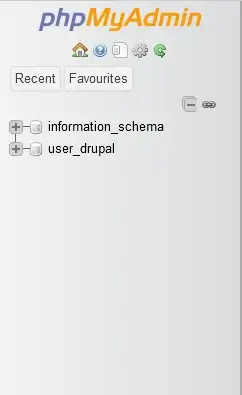
Click on the database your Drupal website uses and open the Export tab.
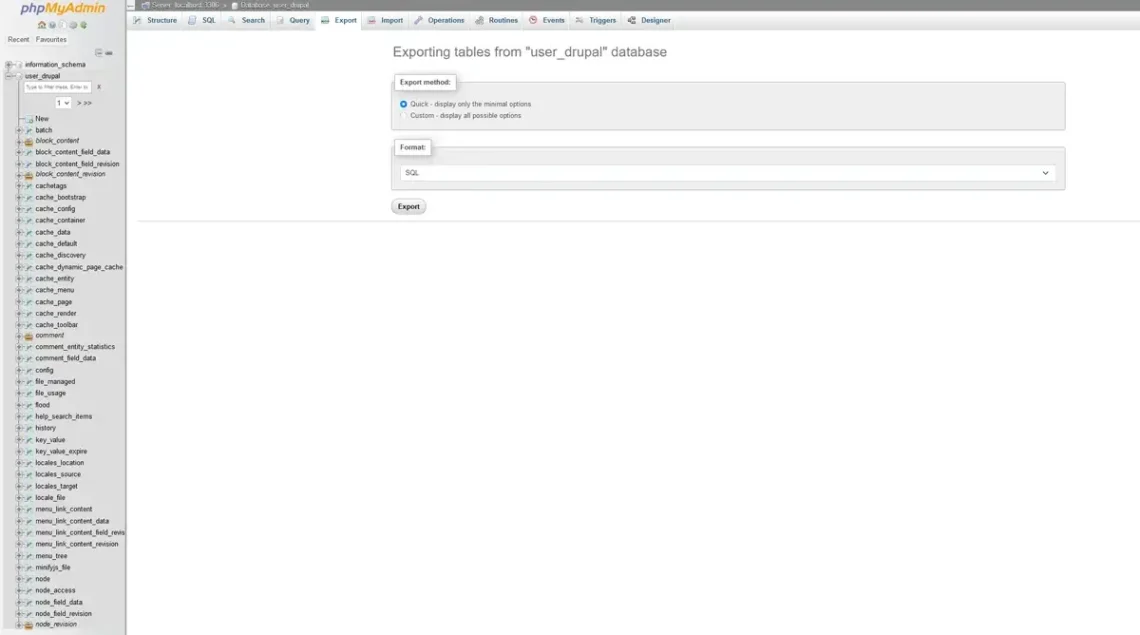
There are a few options to play with, but the default settings should work in most cases. After you click export, phpMyAdmin will dump the data and schema into an SQL file and let you download it to your computer. Because you’re accessing phpMyAdmin from your web server control panel, you don’t need to provide a username or password.
The interface of phpPgAdmin is slightly different, but the steps are pretty much identical.

Once again, you first select your Drupal site’s database from the menu on the left and then open the Export tab. You have a few drop-down menus and radio buttons to choose what to export, the format, and what to do with the file.
You need both the structure and the data dumped into an SQL file, which you’ll download to your computer.
Importing the Database
The SQL file with the database’s structure and data is now on your computer. Ultimately, you’ll upload to the new hosting server, but you need to have a new empty database before you do that.
How you create it depends on your hosting service and the tools it comes with. As usual, one option is to use commands.
- Creating a database through the command line
To create a brand new database user account and database entirely through the command line, you’ll need root MySQL and PostgreSQL privileges, which aren’t always available. If you have it, you can create and import a database using the following commands.
- MySQL
You must first log in to MySQL as a privileged user:
$ mysql -u root -p
After you’re logged in, you can create the new database with a command that looks like this:
CREATE DATABASE [the name of the new database];
Note that the line ends with a semi-colon. If you forget it and press Enter, MySQL will interpret this as a new line in the query.
Your next job is to create a new MySQL user with a command that looks like this:
CREATE USER ‘[username]’@’localhost’ IDENTIFIED BY ‘[a password]’;
Drupal will use this user account to communicate with your database. Access must be limited only to authorized applications, so it’s important to pick a password that is as good as impossible to break.
Although both the user and the database are up and running at this point, the user account doesn’t have the privileges to modify the database. To enable the correct privileges, you need the following command:
GRANT ALL PRIVILEGES ON [the database’s name].* TO ‘[the user account’s username]’@’localhost’;
Don’t forget the .* after the database’s name. This indicates that the user has the right to modify all tables in the database.
Finally, you can save the changes with the following:
FLUSH PRIVILEGES;
- PostgreSQL
Creating a PostgreSQL user and database is easier. To set up a user, enter:
$ createuser –interactive –pwprompt
PostgreSQL will ask you for the username of the new user, its password, and its privileges.
Next, you create the database and assign the user you just set up as owner. The command is:
$ createdb -0 [the user’s username] [the name of the new database]
This concludes the process.
- Importing data into the new database via the command line
So far, we have exported the data from the old server into an SQL file and created an empty new database on the new server. All that’s left is to import the information into it.
You first need to upload the SQL dump file to the server. As always, you can use the control panel’s File Manager or an FTP client, whichever is more convenient for you. It’s best to keep it out of the public_html folder. Instead, you can place it in the account’s home directory (i.e., /home/[your account’s username]). Open a secure shell and navigate to the home folder using cd ~.
If you use MySQL, the command will look like this:
$ mysql -u [the MySQL user’s username] -p [the name of the database] < [filename].sql
If your site works with a PostgreSQL database, it will look like this:
$ psql -U [your database user’s username] -d [the name of the database] -f [filename].sql
Smaller databases should be imported within seconds, but if the volume of data is more significant, you may need to wait a few minutes.
- Creating and importing databases through a graphic user interface
Almost every hosting account has a control panel, and most modern solutions incorporate tools for easily setting up and managing databases. Today, we’ll see how cPanel and SPanel handle the problem.
- cPanel
cPanel is one of the most popular control panels out there. It has worked with MySQL databases since the dawn of time, and support for PostgreSQL was introduced more than 10 years ago, so its developers have had plenty of time to polish the interface and make the database creation process as smooth as possible.
To set up a MySQL database and user:
- Click MySQL Databases on cPanel’s homepage.
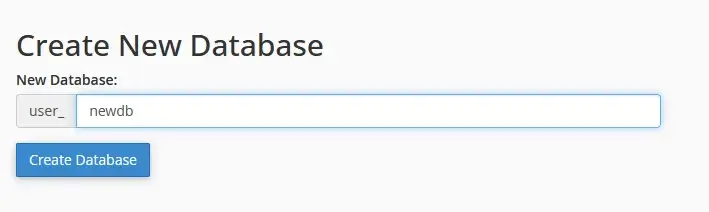
- Enter the database’s name in the New Database field and click Create Database.
- Scroll down to the MySQL Users section.
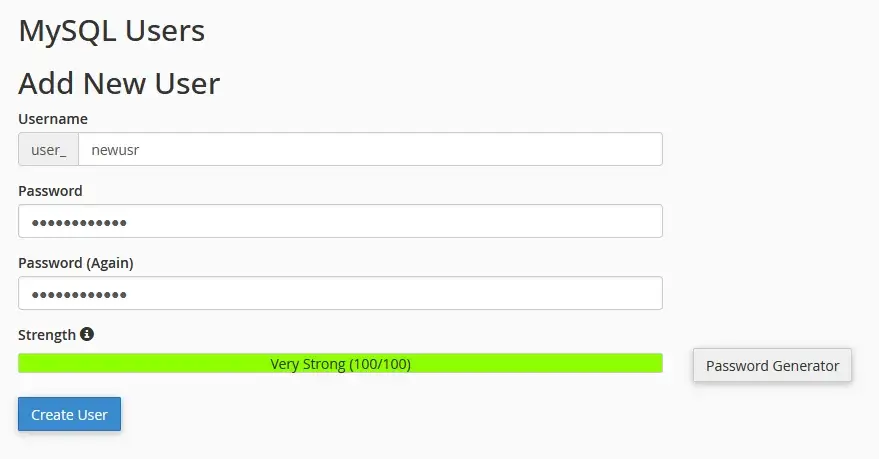
- Pick a username and password for the new user and click Create User.
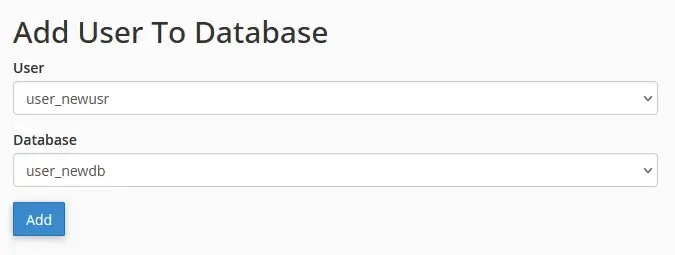
- Pick the new user and database from the drop-down menus in the Add User To Database section and click Add.
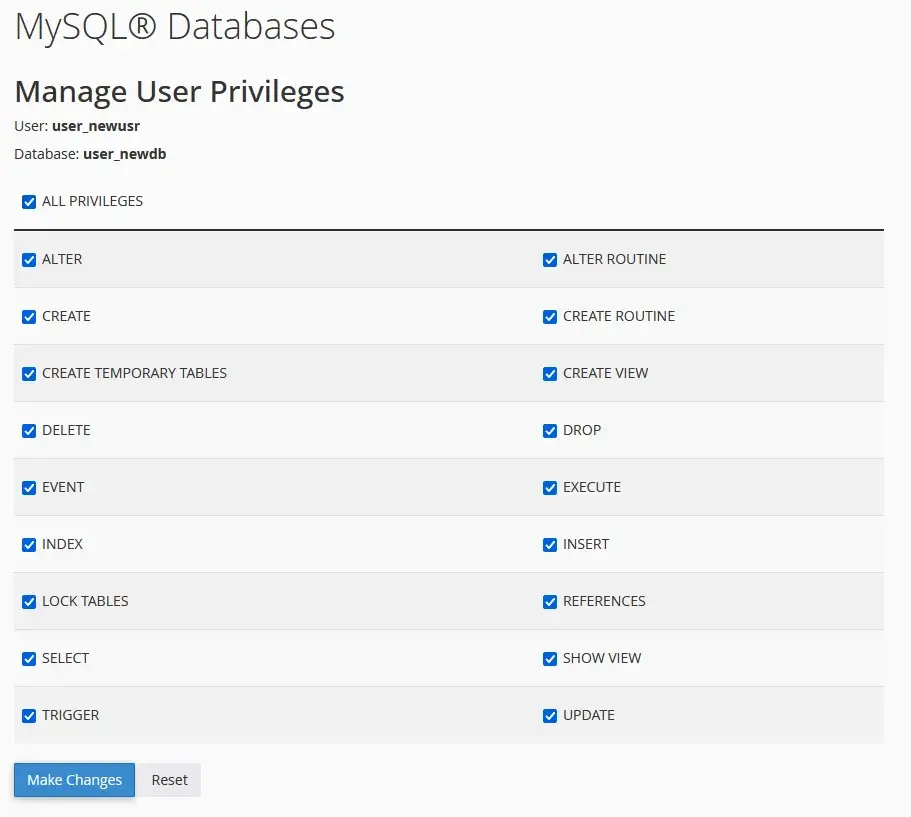
- Select ALL PRIVILEGES on the page you see and click Make Changes.
On the homepage, you also have a tool for creating and managing PostgreSQL Databases, and the steps are virtually identical. The only difference is that when you assign a PostgreSQL user account to a database, it’s automatically granted full rights over it.
With the database and user account ready, it’s time to import the data from the SQL dump file we created a few minutes ago.
For MySQL databases, open phpMyAdmin from cPanel’s homepage, select the new database from the menu on the left, and click on the Import tab.
You have plenty of settings to fiddle with, but the import should be successful with the default configuration. All you need to do is select the SQL file from your computer and click Import.
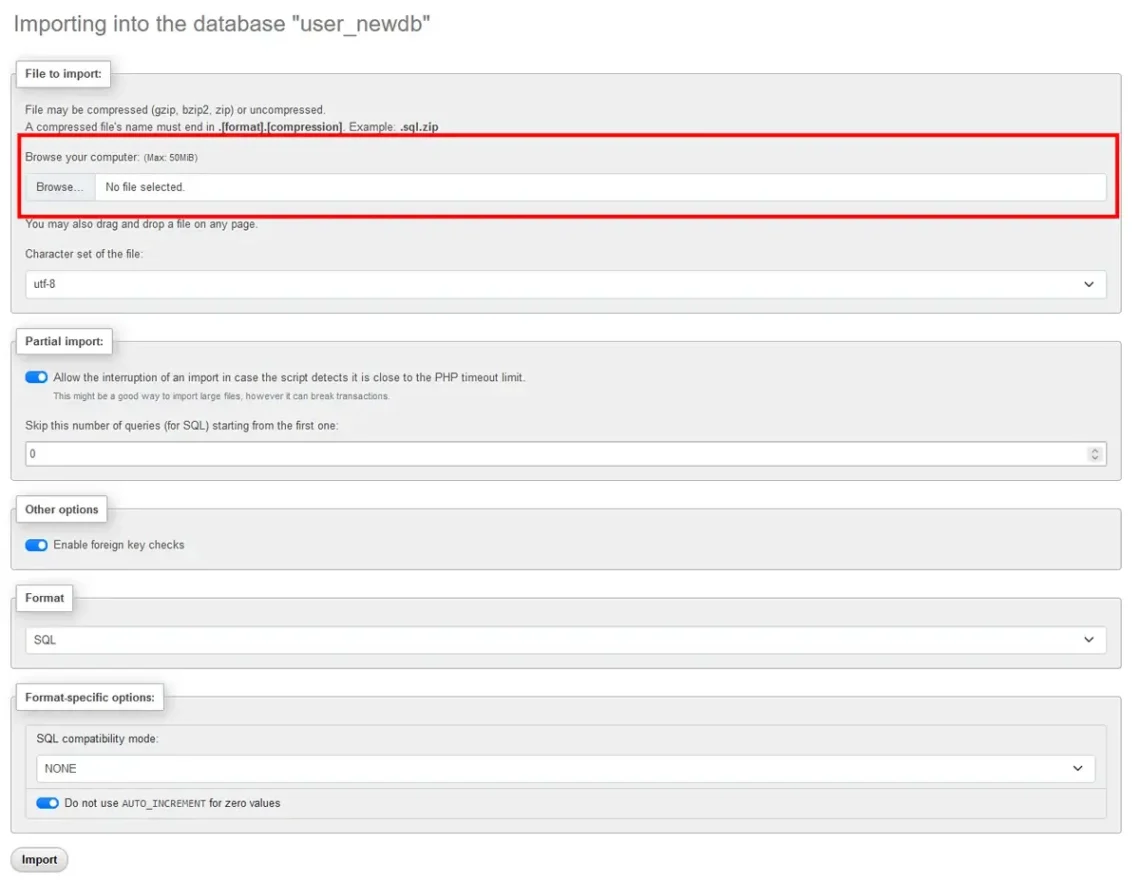
If the file is larger than 50MB, you may need to compress it with Gzip. Once the import is complete, phpMyAdmin will inform you how many queries it has executed to recreate the structure and the data.
If you’re importing data into a PostgreSQL database, you’ll have to use phpPgAdmin. Like phpMyAdmin, it displays a list of your account’s databases in the menu on the left. Select the one you created a minute ago, and click the SQL tab.
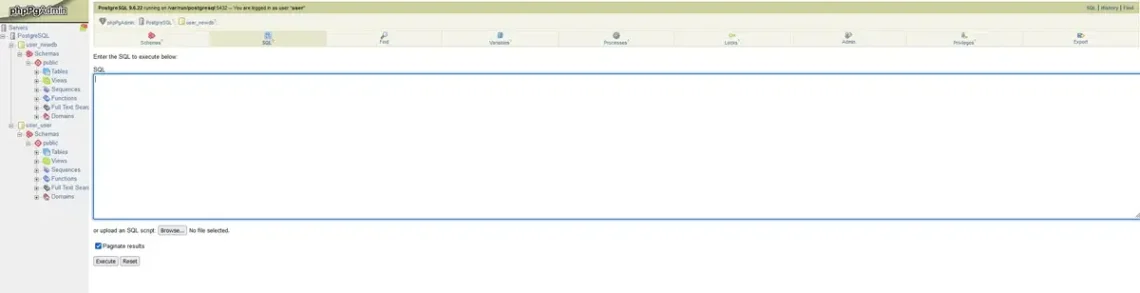
Click Browse and select the SQL file from your computer. Finally, hit Execute to import the data into the new database.
- SPanel
When we set off to create the SPanel server management platform, our goal was to build a solution that is both more functional and easier to use than cPanel. This becomes evident when you start creating a new database and user.
Our server management platform supports both MySQL and PostgreSQL. The PostgreSQL DBMS isn’t enabled by default, but you can install it with a few clicks from the Admin Interface.
The tools for deploying and managing databases are on the homepage of the User Interface.
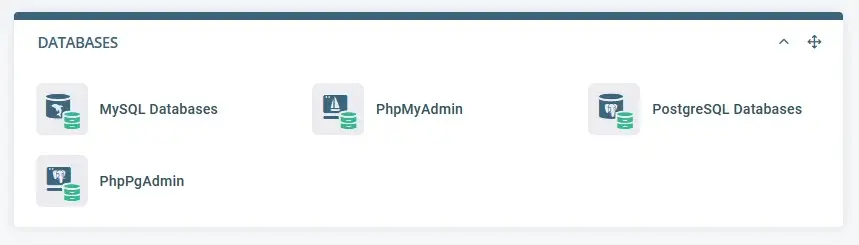
To make your life easier, we moved the forms for creating a database and user closer together. If you’re setting up a new PostgreSQL database, the interface looks like this.
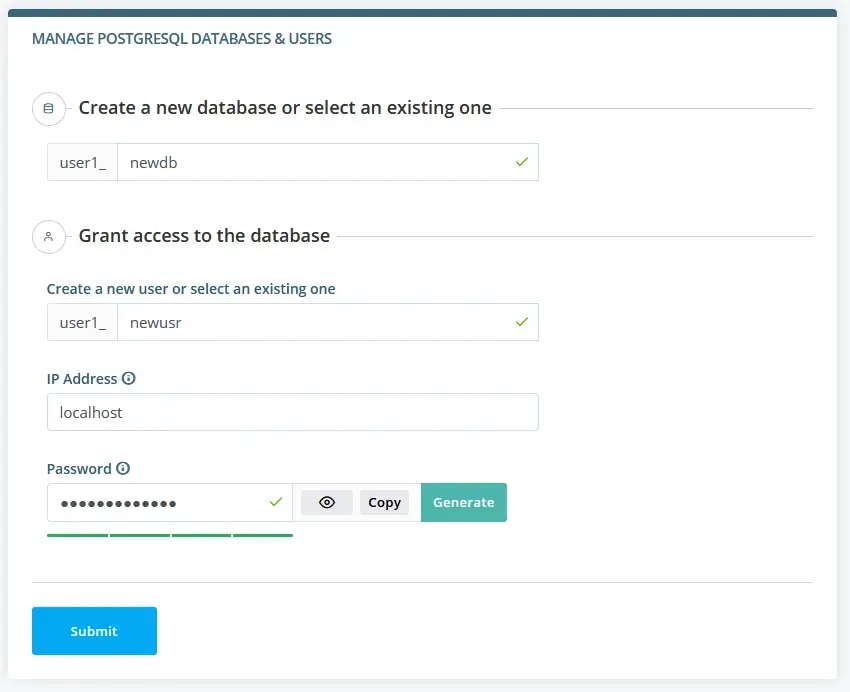
You can deploy your PostgreSQL database with fewer clicks and less hassle. Once you’re done, go back to the homepage of SPanel’s user interface and use phpPgAdmin to import the data, following the steps we outlined in the cPanel section.
If you use MySQL, the process is even more streamlined.
Using a single form, you can:
- Create a database
- Set up a user account (or use an existing one)
- Assign full privileges
- Import data from an SQL file
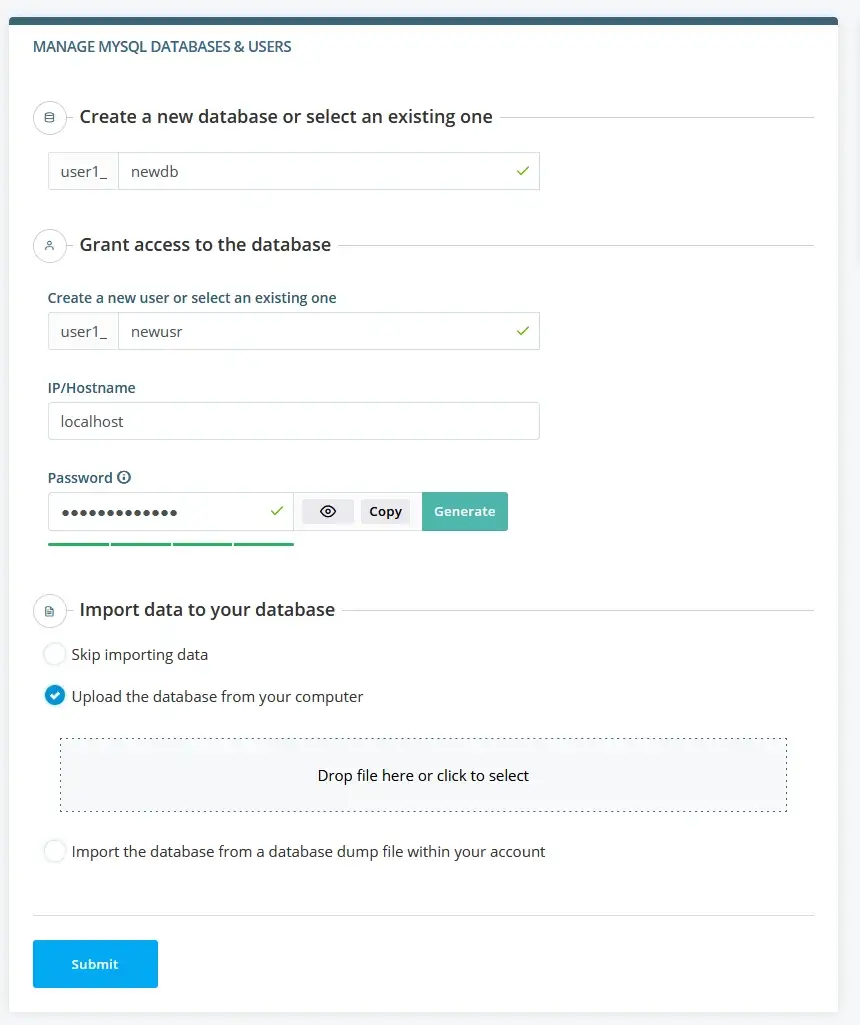
Importing the database on the new server is one of the crucial steps during your Drupal site migration, and you’d be hard-pressed to find another management platform that makes the process as simple as that.
With the website and database in place, it’s time to ensure the two work together.
Configuring Drupal to Work With Your Database
We’re nearly there now. The next step is to configure Drupal to communicate with the new database. Sounds daunting, but in reality, it’s as simple as editing a few lines in a configuration file.
The file in question is called settings.php, and it’s located in sites/default/ inside your site’s document root directory.
Theoretically, you can use an FTP client to locate the file, download it to your computer, edit it locally, and re-upload it. However, you have better options.
- Through the command line
If you find the command line more convenient, you can use your server’s built-in text editor to make the necessary changes straight on the server. Because it’s renowned as one of the most user-friendly utilities of its kind, we’ll use Nano.
To do it with as few commands as possible, establish an SSH connection and make sure your current working directory is your account’s home folder (/home/[your account’s username]). You can use:
$ cd ~
Then, enter the following:
$ nano public_html/sites/default/settings.php
The contents of Drupal’s primary configuration file will appear on the screen. You’ll need to scroll down to the bottom, where you’ll find the database section.

In their respective lines, add the name of the new database and the user account credentials. When you’re done, press ctrl+x and confirm that you want to save the changes.
- Via the File Manager
If you prefer a point-and-click interface, you can use the File Manager in your control panel. Even those with minimal experience should have no problems finding their bearings. After you navigate to public_html/sites/default, double-click on the file and start editing.
The editors on some of the control panels are pretty advanced and boast features like auto-save functionality and syntax highlighting.
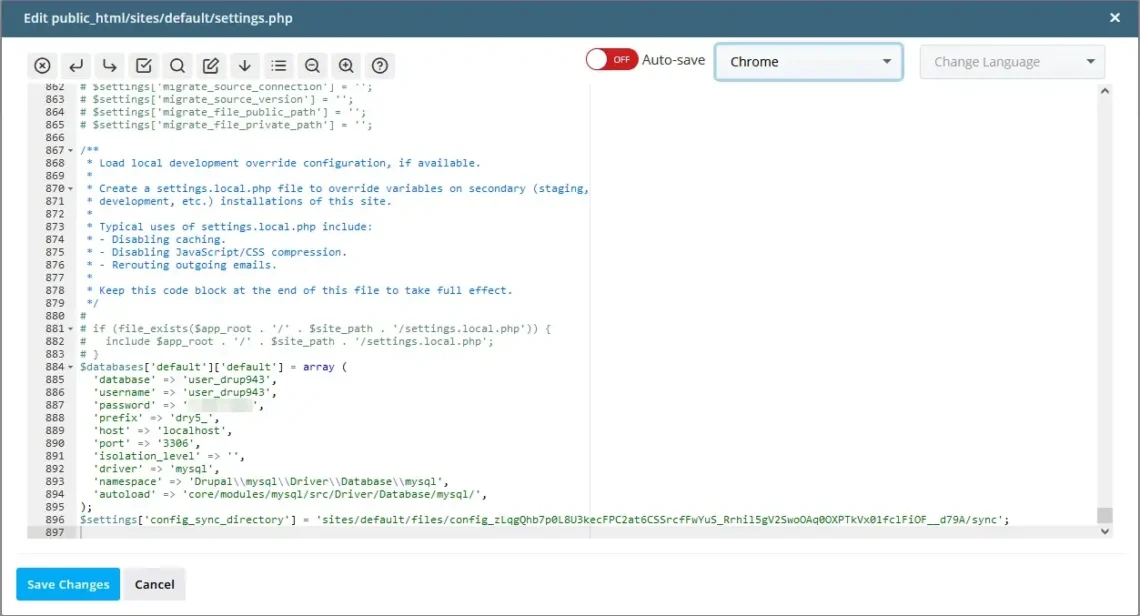
Speaking of auto-saving, before you start working on the settings.php file, creating a backup might not be a bad idea, just in case.
Testing to Make Sure Everything Works
While transferring your site, you’ll want to keep the old server running with the domain pointed to it. That way, you’ll move everything without any downtime whatsoever.
The migration is now complete, but before letting the general public access the site on the new server, you want to ensure nothing has been broken during the transfer. But how do you do that while the domain still points to the old server?
You can use your operating system’s hosts file to trick your computer into rendering the website from your new server while the domain remains pointed to the old one. This will help you test the site post-migration before you allow users to access it.
On Windows systems, the hosts file is situated in C:\Windows\System32\drivers\etc. If you use Linux, it’s inside /etc/, and on MacOS systems – in private/etc/.
The file has no extension but can be opened with a regular text editor. However, if you use Windows, you must run the app as an administrator, and on Linux or MacOS, you’ll need root access.
After you open it, you just need to add a new line and enter the new server IP address, followed by a space and your domain name. When you save the file, your computer will start loading your site from the new server.
With that, you can log in to your Drupal Admin Panel, go to Configuration > Performance, and clear the cache.
Then, start clicking as many links and buttons in the front and back end as possible. Make sure you test every functionality to guarantee that real users will experience no issues when they begin to access the migrated site.
When you’re reasonably sure everything works fine, you can open the hosts file again and restore it to its previous position. Then, it’s time to let users access the site on the new server.
Editing the Domain DNS Settings
It’s finally time to change the domain nameservers and configure them to resolve to your site’s new location.
You’ll need the welcome email from your new host. It contains the DNS settings required to point the domain correctly. If you’ve lost the email, contact the provider’s support team. They should be able to help.
With that information, sign in to the client area at the company you registered the domain with (this may be your old hosting provider or a domain registrar). There, you should be able to find the interface for changing the domain nameservers. If you’re struggling – the hosting support team should be able to assist you.
Once the new nameservers are set, there’s a propagation period that typically takes a few hours, during which the changes are reflected worldwide. When it’s done, all the traffic will be directed to your new server.
The account at your old provider is still active, so you should think about what you want to do with it.
Migrating a Drupal Website to ScalaHosting
Having worked with Drupal for nearly two decades, we know very well what the content management system needs to perform well. That’s why we have a range of Drupal hosting plans aimed specifically at users of the application.
We can provide the right hosting environment for both big and small Drupal projects.
At the affordable end of the scale, you have the shared plans, which can act as an excellent launch pad for a small website with limited traffic. As your site grows, it can be upgraded to a more powerful and highly flexible cloud VPS solution that can guarantee excellent performance even during significant traffic spikes.
The great thing about moving your site to our servers is that you don’t need to think about the migration itself. Whether you’re bringing your Drupal website from another provider or upgrading from a shared plan to a VPS – our technical experts are on hand to complete the transfer for you without charging you a penny.
You simply provide the login credentials to your old server and tell our technicians when you want the migration done. They will transfer your files and database and ensure everything works before notifying you to change your domain DNS settings and start using your new account.
The transition is as seamless and hassle-free as possible and allows our clients to start taking advantage of our services immediately. If you want to learn more – don’t hesitate to get in touch with the ScalaHosting Support Team.
Conclusion
Migrating a Drupal website sounds like a bit of a challenge, and it can be, especially if you haven’t done it before.
However, the trick is to realize how the CMS works. If you’re aware of its constituent components and how they interact with each other, you’ll know what to do. From then on, it’s a matter of working out the technical details, and our comprehensive guide above should be a lot of help in that respect.
FAQ
Q: Is Drupal more expensive than WordPress?
A: Both Drupal and WordPress are open-source projects and, therefore, completely free to use. This doesn’t mean you should build your website without a budget. You still need to pay for a domain and web hosting services, and some of the add-ons you’ll utilize are probably paid as well. The overall cost depends on all these factors and not on the CMS.
Q: How much does a Drupal migration cost?
A: If you decide to undertake the Drupal migration yourself, you don’t need to set aside a budget for it. Professionals tend to be paid by the hour, and the overall cost will depend on your site complexity as well as various factors related to the hosting environment at your old and new servers.
Q: What database does Drupal use?
A: By default, Drupal works with MySQL databases. However, since Drupal 7, other database management systems like PostgreSQL are also supported. You can select which system you’ll use during installation.