You can run a Node.js app on a VPS next to your website without paying for a separate machine. A cloud Virtual Private Server (VPS) gives you a set amount of CPU, RAM, and storage, and a Node.js or Next.js app is one more process that uses those resources.
On ScalaHosting’s cloud VPS plans, SPanel’s NodeJS Manager deploys the app from a graphical user interface. You pick a domain, upload your code, and SPanel installs the dependencies, routes traffic to the app through the web server, and keeps the process running with pm2. Two conditions shape the setup: the app shares the server’s resources with your websites, and each domain or subdomain runs one app.
This guide is for founders and small SaaS teams running a website alongside an app, and for agencies hosting applications for clients.
What Does a Node.js App Need From a Server?
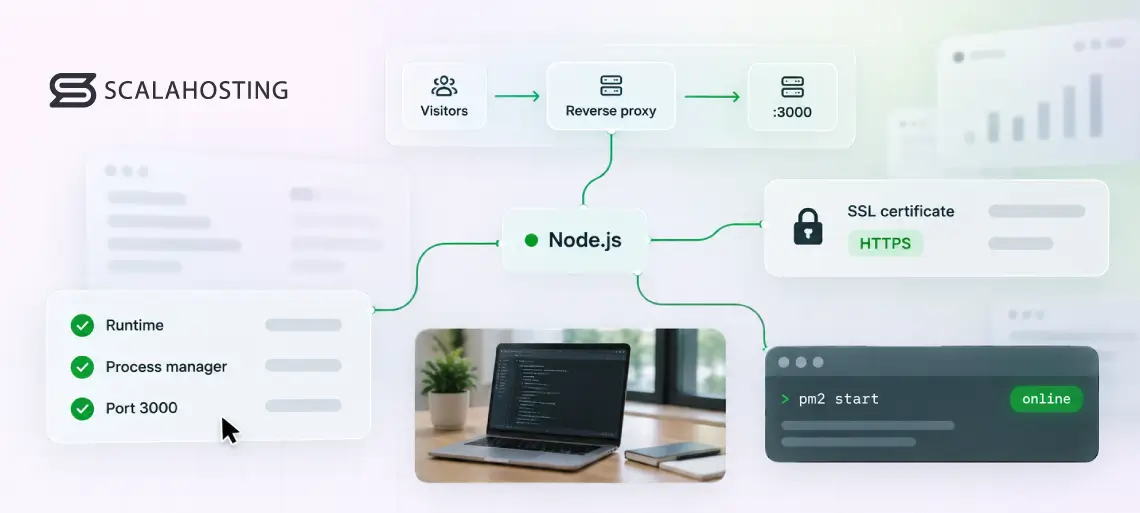
A Node.js app needs five things from a server before visitors can reach it:
A runtime. Node.js itself, installed on the server, runs your JavaScript outside a browser.
A process manager. A supervisor starts the app, keeps it running in the background, and restarts it after a crash. pm2 is one of the most common choices for Node.js.
A port. A local network port, such as 3000, is where the app listens for requests. Every app on the server needs its own.
A reverse proxy. A web server such as Apache or Nginx accepts public traffic and forwards it to the app’s port. The Next.js documentation recommends a reverse proxy in front of a self-hosted Next.js server, because the proxy deals with malformed requests, slow connections, and payload limits before they reach the app.
An SSL certificate. An SSL certificate encrypts traffic so browsers load the app over HTTPS.
The runtime is the easy part. The other four take most of the setup time on a self-managed server, because each one is configured separately and each one can fail on its own.
On a server without a management platform, you’d register the app with pm2 or a systemd service, pick a free port, write proxy rules for the web server, and renew certificates yourself. SPanel takes care of those four steps when you deploy through the NodeJS Manager. It runs every app with the Node.js version installed on the server, so if your app needs a specific version, our support team can tell you which one your server runs.
How Do You Deploy a Node.js or Next.js App in SPanel?
SPanel’s NodeJS Manager is a tool in SPanel’s User Interface that deploys Node.js and Next.js apps, assigns each one a port, routes traffic to it through the web server, and keeps it running with pm2. You deploy a Node.js or Next.js app through the NodeJS Manager in SPanel’s User Interface, in seven steps. The NodeJS Manager is available to ScalaHosting customers and comes with SPanel, the server management platform we build in-house. SPanel also runs on our self-managed cloud VPS hosting plans, so the steps are the same whether we manage the server or you do.
To deploy an app:
Upload your code. Copy the project to a folder in your home directory with SPanel’s File Manager or an FTP client. Keep it outside public_html, so visitors can’t download your source code or your .env file through the website. You don’t need to upload node_modules, because SPanel runs npm install during deployment.
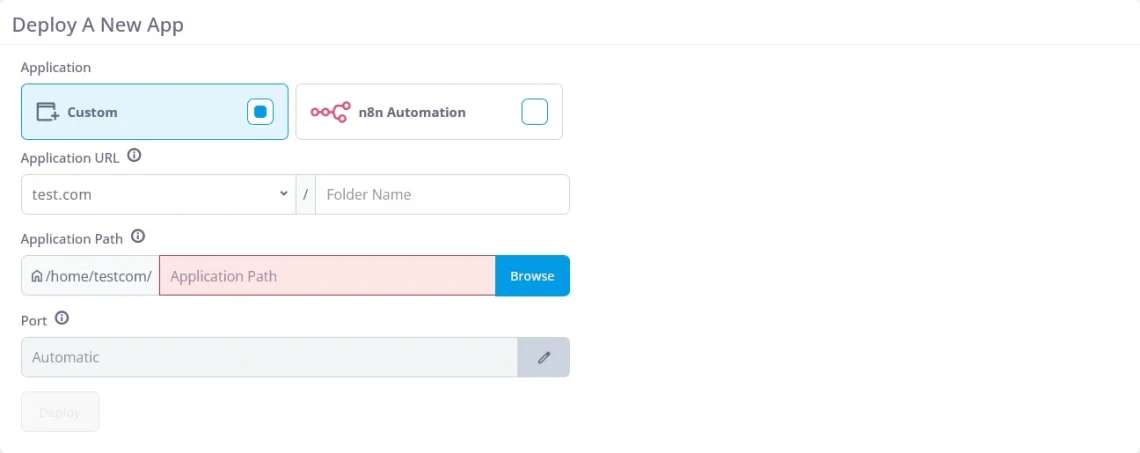
Open the NodeJS Manager. In SPanel’s User Interface, click NodeJS Manager, then Deploy a New App.
Choose the application type. Select Custom for your own Node.js or Next.js app. The other option, n8n Automation, sets up self-hosted n8n for workflow automation.
Set the application URL. Pick the domain or subdomain from the drop-down. Fill in Folder Name only if the app should live under a path, such as example.com/api.
Point SPanel at your app. Click Browse and select the project folder, or the .js file that starts a single-file app.
Leave the port on Automatic. SPanel assigns a free port in the 3000–3200 range. Click the pencil icon and enter a port only if your app is hard-coded to listen on a specific one.
Click Deploy. The app appears in the NodeJS Manager list with its port, its address, and an Online status.
Node.js app deployment form in SPanel with the port set to Automatic
Choosing where the app lives is the only real decision in the process. SPanel works out everything else from your files.
What Does SPanel Do With Your Files?
SPanel detects the app type from the files you point it at, then runs the matching deployment steps. The table shows what happens for the four project types the NodeJS Manager recognizes:
You point SPanel at
What SPanel does
A Next.js project folder
Runs npm install, builds the production version, and starts it with next start on the assigned port
A folder with a package.json file
Runs npm install and starts the app with its npm run start script
A single .js file
Creates an app.yml file next to the script and starts the script with Node.js
A folder with your own app.yml or app.json
Uses your configuration as written
For a Next.js app, you never write a start command. SPanel rewrites the project’s start script to next start -p <assigned port> -H localhost, so the app listens only on the server itself and reaches visitors through the web server in front of it.
SPanel also starts every app with NODE_ENV set to production, and it forwards HTTPS visits with an X-Forwarded-Proto: https header. Frameworks that check for secure connections, such as Express with its trust proxy setting turned on, read that header and treat the visit as HTTPS.
How Do You Update a Deployed App?
Updating a deployed Node.js app is often as simple as uploading the new code and clicking Restart in the app’s Actions menu. That’s enough when the update changes only your own code and doesn’t add or update any of the packages your app depends on.
Bigger updates need one or two extra steps, which you run over SSH in the app’s folder before restarting the app:
Installing the new packages. When an update adds or changes the packages your app relies on, the server has to download them before the new code can run.
Rebuilding a Next.js app. A Next.js app serves the production version created when you deployed it, so any code change needs a new build before visitors see it.
If a change doesn’t appear after a restart, one of these two steps is usually missing. If your code lives in a Git repository, SPanel’s Git Version Control can pull it into the app’s folder first.
What Happens When Your Node.js App Crashes?
A crashed Node.js app on SPanel restarts automatically, because SPanel runs every NodeJS Manager app under pm2. pm2’s restart strategies restart an app when it crashes or exits unexpectedly, so a one-off error, such as an unhandled exception on a rare request, costs the app a restart instead of an outage.
An app that fails to start at all shows visitors a 503 page that reads “The application failed to start,” followed by a pointer to pm2’s log folder. The log path in that message is a generic example, so the fastest way to find the cause is View Logs in the app’s Actions menu.
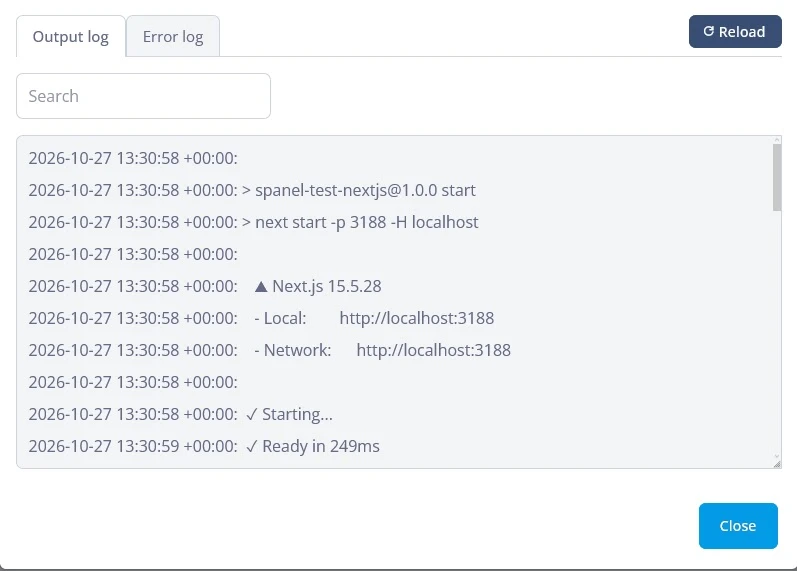
The View Logs window opens on the Output log tab, which shows everything the app prints, with a timestamp on each line. The Error log tab next to it holds errors and stack traces. Both tabs have a search box and a Reload button, so you can watch new lines arrive after you fix something and restart the app.
Node.js app crash logs in SPanel’s View Logs window, showing a Next.js app starting
Three checks cover the usual causes of a failed start:
Read the Error log first. A missing dependency or a syntax error usually appears there as the most recent stack trace.
Confirm the port. If your app is hard-coded to a specific port, the port in the NodeJS Manager list has to match it. Undeploy the app and deploy it again with that port entered in the Port field.
Check the start command. For a project folder, package.json needs a start script that launches the app.
Start with the Error log, because it usually names the problem. When the status reads Online again, visitors can reach the app.
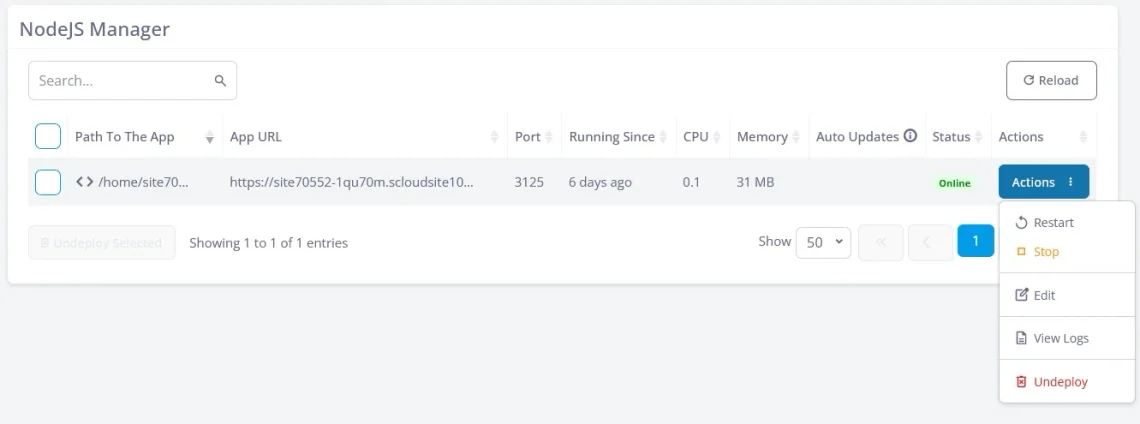
The NodeJS Manager list also shows each app’s Running Since, CPU, and Memory values. A Running Since time that keeps resetting is a quick sign that pm2 is restarting an app that crashes repeatedly.
Node.js app crash recovery controls in the SPanel NodeJS Manager, with the Actions menu open
Can You Run Several Node.js Apps on One Server?
Yes. One ScalaHosting cloud VPS runs several Node.js apps, one per domain or subdomain. SPanel allows a single NodeJS Manager app on each domain or subdomain, so the usual layout gives every app its own subdomain. The table shows that layout for a SaaS product with a marketing site, a dashboard, and an API:
Address
What runs there
How it’s served
example.com
Marketing site, such as WordPress
Files from public_html, as usual
app.example.com
Next.js dashboard
NodeJS Manager app on its own port
api.example.com
Node.js API
NodeJS Manager app on its own port
All three addresses run on the same server and the same monthly bill, and each app keeps its own port, process, logs, and HTTPS address.
An app can also live under a folder of a domain, such as example.com/api, while the main site keeps serving from the root. SPanel passes requests to the app without the folder prefix, so a request for example.com/api/users reaches the app as /users. That suits an API. A Next.js app works better on a subdomain, because Next.js builds its page and asset links from the root of the address.
For agencies, the same layout works per client: each client app gets its own domain or subdomain, and the Undeploy Selected button removes several apps in one step when a project ends. Every app shares the VPS’s CPU and RAM with your websites, and the CPU and Memory columns in the NodeJS Manager show how each one utilizes the available resources. Those numbers tell you when it’s time to upgrade the server.
What Do You Manage From One Panel?
SPanel puts your websites and your Node.js apps in the same panel, so one login covers the whole stack:
Your WordPress site in SPanel’s WordPress Manager, with updates, staging, and backups for each installation.
Your Node.js and Next.js apps in the NodeJS Manager, with each app’s port, status, CPU, and memory in one list.
Each app’s logs in View Logs, with separate Output and Error tabs.
The files behind both in File Manager, from your WordPress theme to your app’s code.
Of the four, the NodeJS Manager list is the one to check first, because it shows every app’s status and resource use on one screen.
When Does a Fixed-Price VPS Make More Sense Than a Usage-Based App Platform?
A fixed-price VPS makes more sense when your traffic is steady, you run several apps or sites together, and you want to know the monthly bill in advance. A usage-based app platform makes more sense when traffic is unpredictable or you want no involvement with servers at all. The table compares the two pricing models across five situations:
Situation
Fixed-price cloud VPS
Usage-based app platform
Steady, predictable traffic
Same bill every month
Bill follows requests, build minutes, and bandwidth
Short, unpredictable traffic spikes
Capacity set by your plan’s CPU and RAM; you scale up ahead of time
Scales per request, and the spike shows up on the bill
Website, app, and API together
One server and one bill
Often separate services, each billed on its own
Background jobs and long-running processes
Run next to your app on the same server
Subject to the platform’s execution limits and pricing
Server administration
Handled by us on managed plans, by you on self-managed plans
Handled by the platform
If most of your situations fall in the middle column, a VPS is the more predictable home for your app. If your traffic comes in sharp, unpredictable bursts, per-request pricing can be worth what it costs.
A self-managed VPS keeps the bill fixed but leaves updates and security to you. On managed cloud VPS hosting, our team handles server updates, security, and monitoring, and our support team helps when a deployment doesn’t go as planned, so your team’s time goes into the app.
Your Website and Your App on One Server
The question most teams start with, whether the app can live next to the website for one fixed price, has a plain answer: yes, one app per domain or subdomain, deployed from SPanel and kept running by pm2. If you’re paying for a separate app platform on top of your hosting, a managed cloud VPS lets you run both from one server and one bill.
A: SPanel runs every NodeJS Manager app with the Node.js version installed on the server, and the version isn’t selectable per app. If your app depends on a specific version, our support team can tell you which one your server runs before you deploy.
Q:Does a Node.js App on SPanel Get HTTPS Automatically?
A: Yes. A Node.js app deployed through the NodeJS Manager is served over HTTPS through the SSL certificate of the domain or subdomain it runs on. The web server handles the encryption and tells the app about it with an X-Forwarded-Proto: https header.
Q:Do You Need SSH Access to Run a Node.js App on SPanel?
A: Not for everyday tasks. Deploying, restarting, stopping, and reading the logs of a Node.js app all happen in SPanel’s NodeJS Manager. You need SSH only for bigger updates, when the server has to install new packages or rebuild a Next.js app.
Q:What Is the Difference Between Stop and Undeploy?
A:Stop shuts the app down but keeps it in the NodeJS Manager list, so you can start it again with the same settings. Undeploy removes the app from the list and frees its domain or subdomain for a different app.
Q:How Do You Find Which Port Your App Uses?
A: The Port column in the NodeJS Manager list shows the port SPanel assigned to each app. The same number appears in a Next.js app’s start command, which you can see at the top of the Output log in View Logs.