The short answer: your pages won’t appear in ChatGPT search answers if robots.txt disallows OAI-SearchBot or a firewall returns a 403 error to it. The same applies to Claude-SearchBot for Claude, PerplexityBot for Perplexity, and Googlebot for Google AI Overviews. Blocking training bots such as GPTBot or ClaudeBot doesn’t hide your pages from AI search answers.
A prospect asks ChatGPT for “the best IT support company near me.” The answer names three firms and links to their pages. Your company isn’t one of them, even though your service pages rank on the first page of Google.
The first cause to rule out is a block.
AI crawler access depends on settings most business owners never look at: one line in robots.txt, a CDN toggle, or a firewall rule can stop ChatGPT, Claude, Perplexity, or Google’s AI features from reading your site at all.
The check takes four steps and about 15 minutes. Below you’ll find the bots that matter, the exact file paths to check in SPanel, and a way to decide which bots to let in.
What Is an AI Crawler?
An AI crawler is an automated program that fetches web pages for an AI company, either to train models, to build a search index for AI answers, or to read a page live when a user asks a question. Each crawler identifies itself with a user-agent token, such as GPTBot or ClaudeBot, and that token is the name your robots.txt file and firewall rules match against.
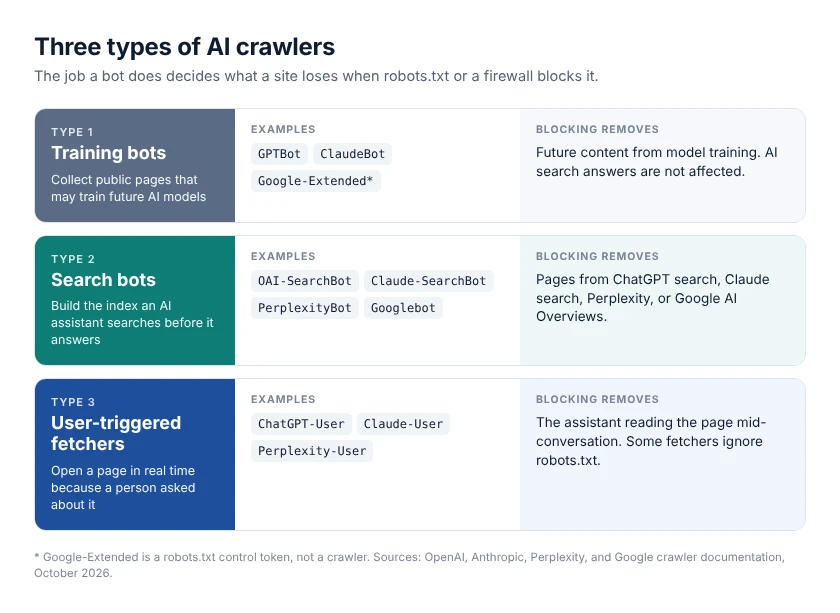
There are three types of AI crawlers, and each one does a different job:
Training bots collect public pages that may be used to train future AI models. GPTBot (OpenAI) and ClaudeBot (Anthropic) are training bots.
Search bots build the index an AI assistant searches before it writes an answer with citations. OAI-SearchBot, Claude-SearchBot, and PerplexityBot are search bots.
User-triggered fetchers open a specific page in real time because a person asked about it. ChatGPT-User, Claude-User, and Perplexity-User are user-triggered fetchers.
The job type, not the company name, decides what you lose when you block a bot.
Google works differently.
Google AI Overviews and AI Mode don’t use a separate AI crawler: Google’s guide to AI features says a page only needs to be indexed by Googlebot and eligible to show a snippet in Search. Google-Extended is a robots.txt control token, not a crawler, and it governs Gemini model training and grounding.
An AI crawler’s job type tells you what blocking it costs, so identify the job before you write a rule.
Which AI Crawlers Matter for a Business Website?
Ten user-agent tokens from four companies decide whether ChatGPT, Claude, Perplexity, and Google AI Overviews can read a business website.
The table below compares each bot’s job and what blocking it removes, based on each vendor’s own documentation as of October 2026.
Bot (user-agent token)
Company
Job
What blocking it removes
Vendor docs
GPTBot
OpenAI
Training
Your future content from OpenAI model training. No effect on ChatGPT search.
What stands out: blocking a training bot such as GPTBot or ClaudeBot keeps your pages in AI search answers, while blocking OAI-SearchBot, Claude-SearchBot, PerplexityBot, or Googlebot removes or reduces them.
Two details from the vendor docs change how you check.
First, timing: OpenAI says ChatGPT search takes about 24 hours to reflect a robots.txt update, and Perplexity says changes take up to 24 hours.
Second, identity: anyone can fake a user agent, so OpenAI, Anthropic, Perplexity, and Google publish the IP ranges their crawlers use (for example, openai.com/searchbot.json and claude.com/crawling/bots.json). A request that claims to be GPTBot from an IP outside OpenAI’s list isn’t GPTBot.
Allowing the search bots and user-triggered fetchers keeps a site eligible to be cited; the training bots are a separate business decision.
Other tokens you’ll see in robots.txt files and logs: Applebot-Extended is Apple’s control token for foundation-model training; like Google-Extended, it doesn’t crawl, and Apple says it isn’t considered in Apple Search ranking. Meta-ExternalAgent (Meta) and CCBot (Common Crawl, whose public dataset is widely used for AI training) are crawlers you can block with their own robots.txt groups.
How Do You Check if Your Site Blocks AI Crawlers?
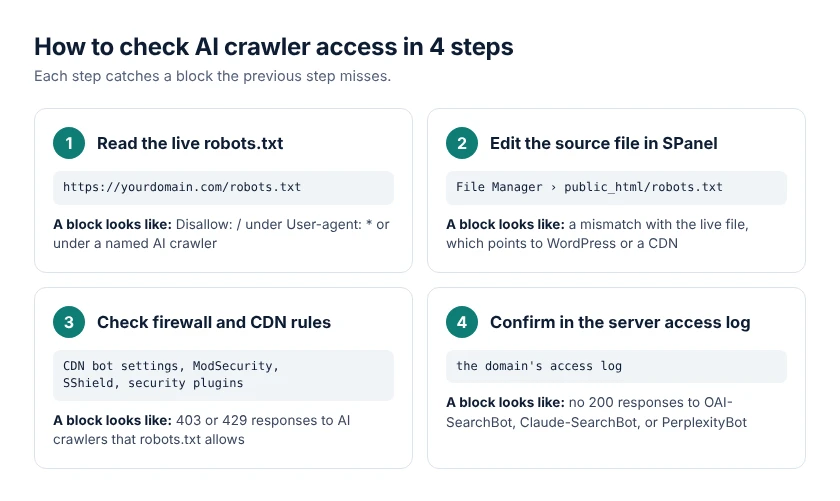
You check AI crawler access in four steps:
Read the live robots.txt
Edit the source file in SPanel’s File Manager
Review firewall and CDN rules
Confirm real bot visits in your server logs.
Run the steps in order, because each step catches blocks the previous one can’t see.
Four-step check for AI crawler access: live robots.txt, SPanel File Manager, firewall and CDN rules, and server access logs
Step 1: Read Your Live robots.txt File
Step 1 checks the public file at https://yourdomain.com/robots.txt, the exact copy every compliant crawler downloads before it requests a page. Open the URL in a browser and search the page for three patterns:
A User-agent: * group with Disallow: /, which blocks every compliant bot that has no group of its own
A named group, such as User-agent: OAI-SearchBot or User-agent: Googlebot, with Disallow: /
A Disallow: / line left over from a staging site or a redesign, which hides the whole site from every bot in that group
One Disallow: / under the wrong user agent is enough to hide every page from that bot.
Crawlers follow the most specific group that names them. If your file has a User-agent: GPTBot group, GPTBot ignores the User-agent: * group entirely, so read every group, not only the first one. Subdomains such as shop.yourdomain.com serve their own robots.txt, so check each one.
The live URL is what crawlers obey, so read it before you open any file on the server.
Step 2: Find and Edit robots.txt in SPanel’s File Manager
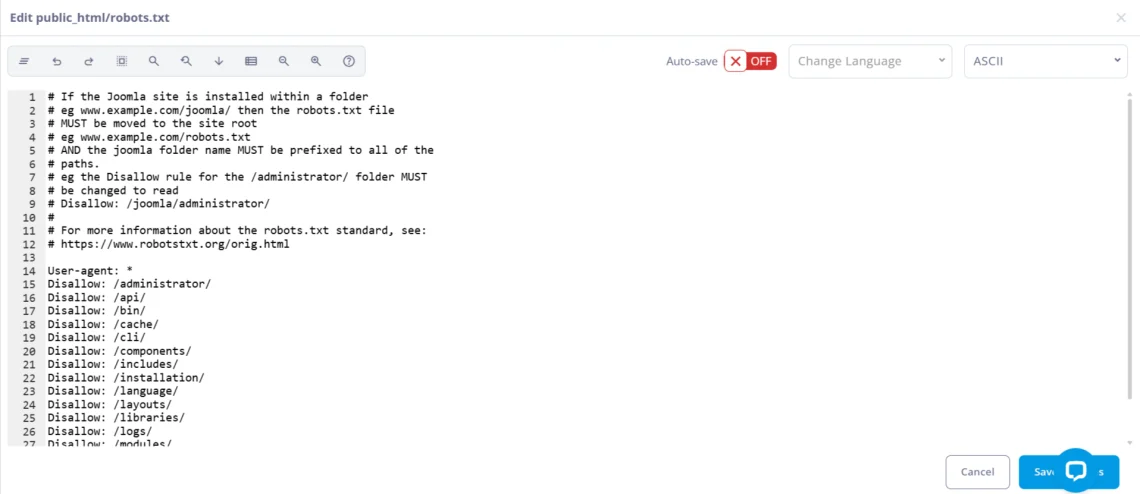
Step 2 checks the source file at public_html/robots.txt in your main domain’s document root, using the File Manager in SPanel, ScalaHosting’s control panel. Follow these five steps:
Open File Manager. Log in to SPanel’s User Interface (usually https://yourdomain.com/spanel) and open File Manager from the Files section.
Edit and save. Open robots.txt in the built-in editor, change or remove the blocking lines, and save. File Manager keeps the file’s original permissions when it saves.
Recheck the live file. Reload https://yourdomain.com/robots.txt and confirm it shows your change.
No robots.txt in public_html/, but rules still appear at the live URL? Another layer generates the file. WordPress serves a virtual robots.txt when no physical file exists, and SEO plugins such as Yoast SEO and Rank Math let you edit those rules inside WordPress. A physical robots.txt in public_html/ replaces the WordPress virtual file. A CDN can also add rules: when any AI bot category is set to block, Cloudflare’s managed robots.txt places AI crawler Disallow rules in front of your own rules, or creates a robots.txt if none exists.
When the live robots.txt and the file in public_html/ don’t match, the rule you need to change lives in WordPress or your CDN, not on disk.
Step 3: Check Firewall, CDN, and WAF Rules
Step 3 checks the three layers that can return a 403 (Forbidden) error to a bot even when robots.txt allows it:
CDN bot settings. Since July 1, 2026, Cloudflare sorts AI bots into Search, Agent, and Training categories, and from September 15, 2026, new Cloudflare domains block Training and Agent bots by default on pages that display ads. Cloudflare’s announcement adds that blocking Training also blocks multi-purpose crawlers such as Googlebot, Applebot, and BingBot.
Server web application firewall (WAF). On SPanel, the ModSecurity WAF is enabled by default on every domain and inspects each request for attack patterns.
Security plugins. WordPress security plugins with “block bad bots” or rate-limiting features can return 403 or 429 (Too Many Requests) errors to crawlers that request many pages quickly.
If ModSecurity is the layer refusing a bot, keep it on and ask support to adjust the rule. SPanel’s per-domain ModSecurity toggle switches off the whole engine for that domain, not a single rule, which removes protection against SQL injection and cross-site scripting along with the false positive.
A firewall block overrides a permissive robots.txt, so a clean robots.txt file doesn’t prove that bots get through.
To test whether a rule reacts to the ChatGPT search-crawler user-agent string from your own computer, request your homepage with this header (a simulated test, not a real OpenAI crawler visit):
curl -s -o /dev/null -w “%{http_code}\n” -A “OAI-SearchBot” https://yourdomain.com/
A 200 response indicates that your test request was accepted; a 403 indicates that this particular request was denied. Neither result proves what a verified OAI-SearchBot request would receive, because your source IP is different and a CDN or WAF may apply other rules. Check the vendor-published crawler IP ranges and any available CDN security events.
Step 4: Examine AI Crawler Requests in SPanel Domain Logs
Step 4 examines the access requests that actually reached your hosting server.
In SPanel, open Domains → Logs, select your domain, and choose the Access tab. SPanel displays the latest 200 lines of the web-server access log, with a search field and a Download button for the available log. Search for OAI-SearchBot, Claude-SearchBot, PerplexityBot, or the other relevant user-agent tokens above. Download the log if you need to investigate earlier requests; the same page also provides Error and PHP Error tabs for additional troubleshooting.
What to check: the requested URL, response status (for example 200, 403, or 429), timestamp, and source IP. A user-agent string can be faked, so compare suspected crawler source IPs with the crawler vendor’s official IP ranges. With SSH access, you can also analyze the access log with the following command if your server uses standard combined-log formatting:
The table below explains what each result means for AI crawler access.
Log result
What it means
What to do
200
The bot received the page.
Nothing; access works.
403
A firewall, WAF, or plugin refused the request.
Recheck Step 3.
429
A rate limit stopped the bot.
Raise the limit or allow the vendor’s published IP ranges.
404
The bot requested a URL that doesn’t exist.
Fix broken internal links and redirects.
No lines for 30 days
The bot hasn’t visited, or a CDN blocks it before it reaches your server.
Check your CDN’s bot analytics.
A 403 can indicate that a request was denied. No matching entries in the origin log are inconclusive: the crawler may not have visited, the entries may have rotated out, or the CDN may have handled or rejected the request upstream.
Origin logs show requests that reached the hosting server. For a complete investigation, compare them with CDN or WAF security events, verify crawler IP addresses, and check the actual page content. An HTTP 200 response does not by itself guarantee AI-search inclusion or citation.
Can SPanel Website Monitoring Catch Access Problems?
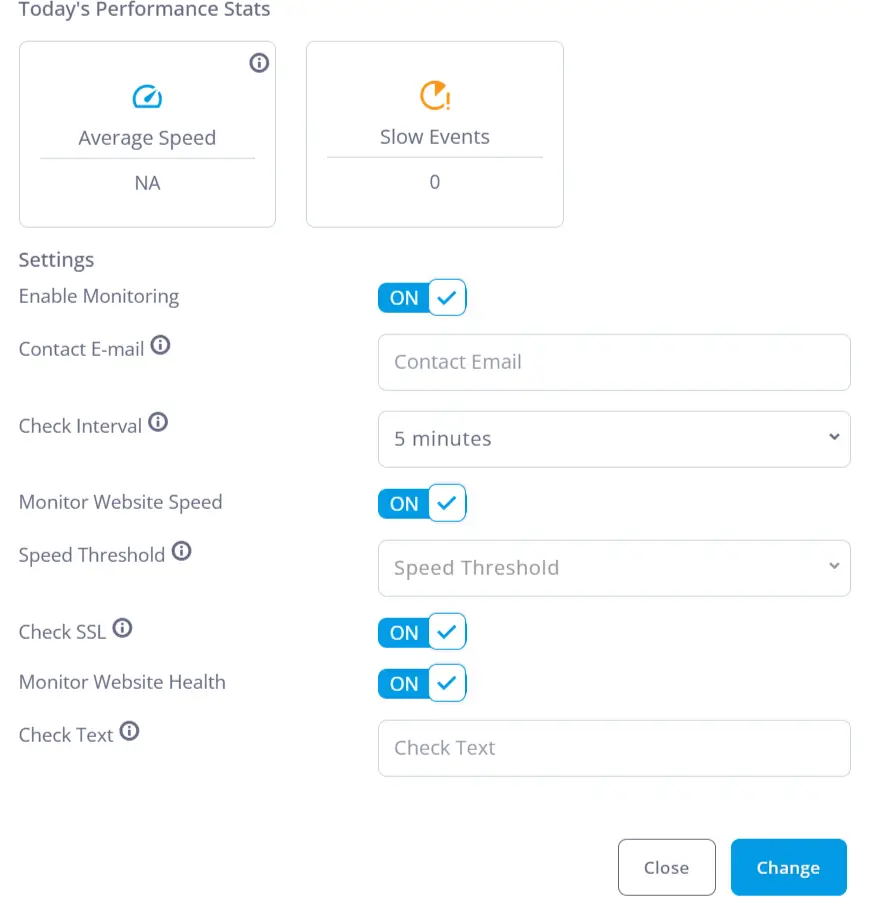
SPanel’s Website Monitoring checks on a schedule whether a page responds and still shows the content you expect, and it emails your contact address when a check fails. Its dashboard shows uptime, average response speed, time to first byte (TTFB), slow events, and SSL certificate status. Use it to catch outages and silent failures while you investigate crawler-specific blocks.
How to configure monitoring in SPanel:
1. Open SPanel → Domains → Website Monitoring, find the domain, and choose Actions to open its monitoring settings.
2. Enable Monitoring and set the contact email, check interval (1, 5, 10, or 15 minutes), website-speed threshold, and SSL and website-health checks.
3. In Check Text, enter a short, stable phrase expected in the page response, such as your site name or a consistent heading. A page returning HTTP 200 but missing that phrase can be flagged as unhealthy. Avoid text that changes by visitor, language, session, or JavaScript rendering.
4. Use Force Manual Check to run a check immediately, then review the displayed statistics and alerts.
Important limitation: Website Monitoring is a general website-health check, not an AI crawler emulator. A successful check does not prove OAI-SearchBot or another verified crawler can access the page, and it does not guarantee a citation. When monitoring runs on the same server as the website, a complete server outage may stop both the website and its monitor; use independent or cross-server monitoring when external outage detection matters.
Why Can AI Crawlers Miss Content That Visitors See?
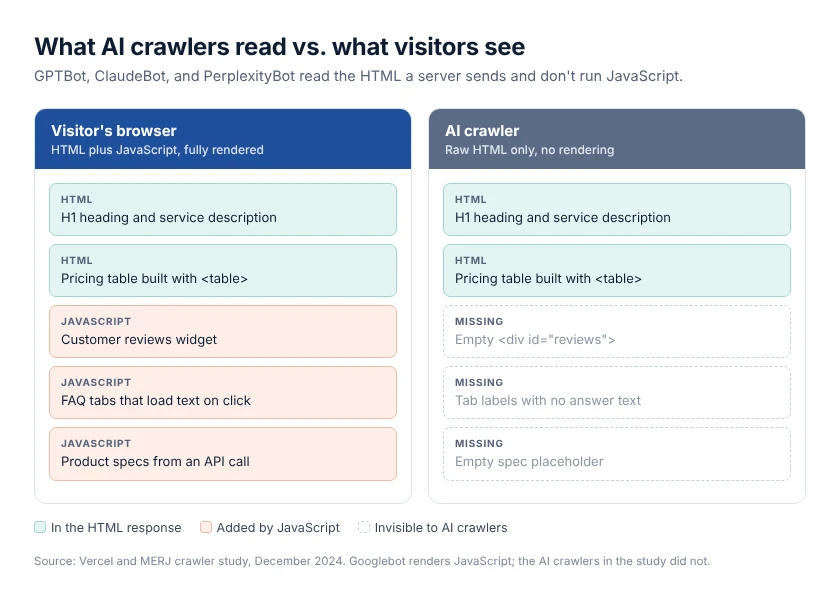
The crawlers behind ChatGPT, Claude, and Perplexity miss content that loads only through JavaScript because the major AI crawlers read the raw HTML your server sends and don’t run scripts. A December 2024 study by Vercel and MERJ found that none of the major AI crawlers it measured rendered JavaScript, including GPTBot, OAI-SearchBot, ChatGPT-User, ClaudeBot, and PerplexityBot. JavaScript files made up 11.50% of ChatGPT crawler requests and 23.84% of Claude crawler requests, yet the crawlers didn’t execute them.
Googlebot does render JavaScript, according to Google’s JavaScript SEO basics, which is why a page can rank in Google and still look empty to ChatGPT.
AI crawlers miss content loaded by JavaScript: raw HTML compared with the rendered page a visitor sees
There are four kinds of content AI crawlers commonly miss:
Content injected by JavaScript after the page loads, such as reviews, pricing widgets, and single-page app routes
Content in tabs or accordions that loads only when a visitor clicks (panels whose text is already in the HTML and only hidden with CSS stay readable)
Content inside images, such as pricing charts or infographics without an HTML version
Content behind logins, cookie walls, or pop-ups that replace the page’s HTML
What works is plain HTML: a heading, a paragraph, a list, or an HTML table that your server sends in the first response.
To test a page, open its source (Ctrl+U in Chrome on Windows, Cmd+Option+U on Mac) and search for a key sentence, a price, or a product spec. If the text isn’t in the source, AI crawlers can’t read it. The fix is server-side rendering or static HTML for the main content, with JavaScript kept for extras such as chat widgets.
If a visitor can read a sentence but View Source can’t find it, AI crawlers can’t find it either.
Should You Block AI Training Bots?
Allow AI search bots and user-triggered fetchers if you want your pages eligible for AI citations, and decide on training bots based on how your business earns money from its content. Three conditions change the answer:
If your content exists to win customers for a service or product, blocking training bots protects little, and allowing them keeps your public pages in the data future models learn from.
If you sell the content itself, such as paid research, courses, or news, blocking GPTBot, ClaudeBot, and Google-Extended keeps future content out of those companies’ model training.
If your site runs behind Cloudflare, block training with per-bot rules instead of the Training category, because from September 15, 2026, Cloudflare’s Training block also catches multi-purpose crawlers such as Googlebot.
The decision is commercial, not technical: robots.txt lets you block training and stay citable at the same time.
Blocking a training bot doesn’t remove you from AI search. OpenAI documents GPTBot and OAI-SearchBot as independent settings, and Google states that Google-Extended doesn’t affect inclusion or ranking in Google Search. To limit how Google’s AI features use a page, Google points to nosnippet, data-nosnippet, max-snippet, and noindex, which also change how the page appears in regular results.
Here’s a robots.txt pattern that blocks the main training bots and allows AI search: # AI training: blocked User-agent: GPTBot User-agent: ClaudeBot User-agent: Google-Extended Disallow: / # AI search and user-triggered fetchers: allowed User-agent: OAI-SearchBot User-agent: ChatGPT-User User-agent: Claude-SearchBot User-agent: Claude-User User-agent: PerplexityBot User-agent: Perplexity-User Allow: / # All other bots User-agent: * Disallow: /wp-admin/ Allow: /wp-admin/admin-ajax.php Sitemap: https://yourdomain.com/sitemap.xml
robots.txt is a request, not a lock. Compliant crawlers follow it, and bots that ignore it can only be stopped by a firewall rule.
Where Should You Start?
Start with the live robots.txt URL, compare it with the source in SPanel File Manager, then open Domains → Logs → Access to inspect crawler-related requests and download the log if needed. Use Website Monitoring for ongoing uptime, SSL, response-speed and expected-text checks; it complements, but does not replace, verified crawler and firewall diagnostics.
If you’d rather have the firewall layer monitored for you, ScalaHosting’s managed cloud hosting includes SPanel and SShield on every plan, with our team handling server security and updates.
Supercharge Your Business with an All-inclusive Fully Managed Cloud
Q:Does Blocking GPTBot Remove My Site From ChatGPT Search?
A: No. GPTBot controls OpenAI model training, while OAI-SearchBot controls whether your pages appear in ChatGPT search answers. OpenAI documents the two as independent settings.
Q:How Long Does a robots.txt Change Take to Reach ChatGPT and Perplexity?
A: About 24 hours. OpenAI says ChatGPT search takes about 24 hours to adjust after a robots.txt update, and Perplexity says changes take up to 24 hours.
Q:Does Google-Extended Control AI Overviews?
A: No. Google-Extended governs Gemini training and grounding in Gemini Apps and Vertex AI. AI Overviews draw on Googlebot’s index, and Google’s controls for them are nosnippet, data-nosnippet, max-snippet, and noindex.
Q:Does robots.txt Stop Every AI Bot?
A: No. robots.txt is a voluntary standard. OpenAI says robots.txt rules may not apply to ChatGPT-User, and Perplexity says Perplexity-User generally ignores robots.txt, so a firewall rule is the only way to enforce a block.
Q:Will Allowing AI Crawlers Bring More Traffic?
A: Not by itself. Allowing AI crawlers makes your pages eligible to be read and cited. Whether an AI assistant cites a page depends on the question, the competing pages, and the content.