Git Deployment vs. FTP Uploads: Why Development Teams Are Switching

Git deployment pulls your code from a repository – GitHub, GitLab, Bitbucket, or self-hosted – straight onto the server, keeps a full version history, and lets you undo a bad change in seconds. FTP copies files one at a time with no record of what changed. Furthermore, over plain FTP, credentials are sent in readable text. On a ScalaHosting managed VPS, SPanel‘s Git Version Control clones a repository, tracks branches, and deploys automatically after each push.
Here’s the quick rundown:
- Git deployment keeps a full history of every change; FTP keeps none.
- SPanel can pull code every 3, 5, or 15 minutes, on a webhook, or on click.
- An optional .autodeploy script runs your build or restart steps after each pull.
- FTP still fits a one-time upload or a static site you rarely change.
How Git Deployment Trumps FTP
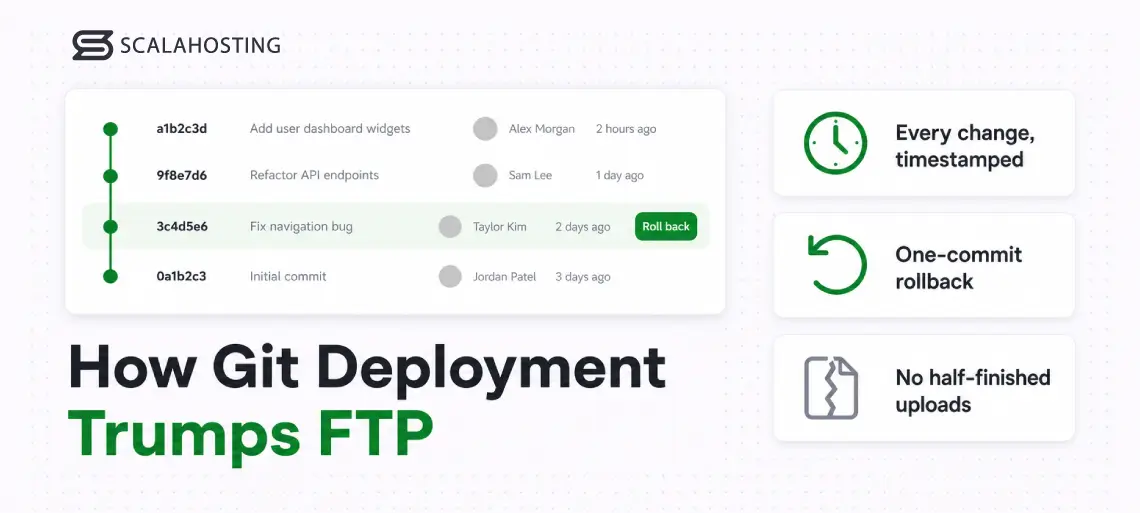
Think about the last time a deployment went wrong. An FTP connection dropped halfway through, and the site came back half-updated with no record of which uploads failed. That is the real cost of FTP as a deployment method – not transfer speed, but missing track records. Git logs every change and who made it; FTP does none of that.
Git deployment means your server pulls code from the repository you already use for version control – the source of truth – while the server holds a copy that updates on command or on a schedule. FTP means pushing files by hand. One method records history and can reverse itself; the other trusts that whoever uploaded last got it right.
Common misconceptions
The common assumption is that FTP is insecure and Git is secure. That is imprecise: plain FTP does send your password in cleartext, but SFTP and FTPS encrypt that traffic. The deeper problem with file-by-file uploading is the lack of control and history – a half-finished upload leaves a half-broken site. Git deployment pulls a known commit as one unit, and if the result is wrong, the previous commit is still right there.
How Git Works
With Git deployment, your workflow ends at git push. The server clones the repository once, then fetches new commits and checks out the branch you track. Branches let you point production at main and staging at a develop branch from one repository. Triggers let the pull run on a schedule, on push, or only when you ask. Post-pull automation handles the last mile – a dependency install, an asset build, or a restart.
Git Version Control in SPanel
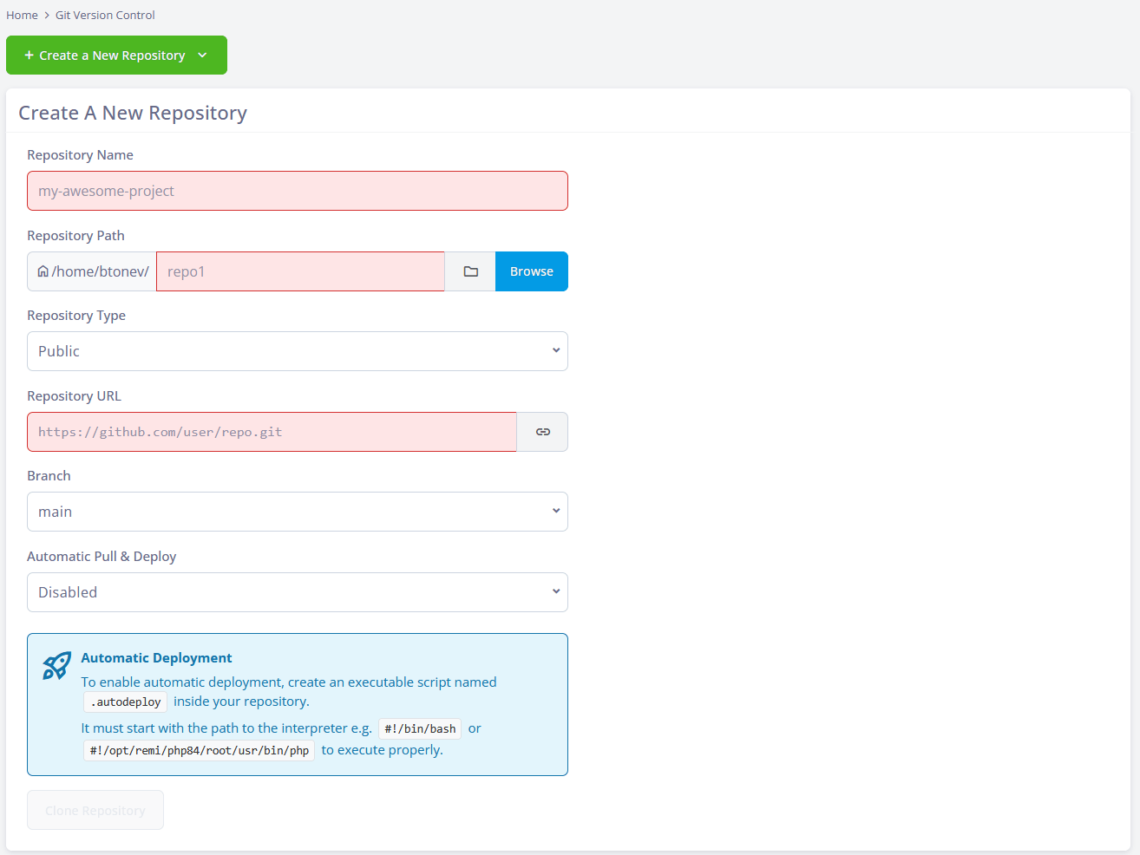
In the SPanel User Interface, Git Version Control clones any public or private repository over an HTTPS or SSH URL – GitHub, GitLab, Bitbucket, or self-hosted – into a folder under your account’s home directory.

You give the repository a Repository Name, choose a Repository Path, mark it Public or Private, paste the Repository URL, and set the Branch – main by default.
A private repository adds PAT Token and SSH Authentication fields so credentials never sit in the URL. The Automatic Pull & Deploy menu controls syncing: Disabled, Every 3 minutes, Every 5 minutes, Every 15 minutes, or Webhook for an instant pull on push. You finish with Clone Repository.
For the build step, SPanel runs an executable .autodeploy file in the repository root after every pull; the panel’s Automatic Deployment note requires it to start with an interpreter path such as #!/bin/bash or #!/opt/remi/php84/root/usr/bin/php.
The Existing Repositories list shows each repo’s Name, Path, URL, Status, and Branches, with actions to Pull & Deploy, open the Log, or Remove it from tracking without deleting files. All of it ships free on every ScalaHosting managed VPS.
A Practical Example
A two-person agency keeps a client’s theme in a private GitHub repository. They set Automatic Pull & Deploy to Webhook, so a merge to main reaches the live server within seconds and a .autodeploy script clears the cache. When an update breaks something, they can revert the commit and push, and the known-good state is back. A solo developer instead keeps syncing manual, running migrations only after testing.
Git Deployment vs. FTP: A Direct Comparison
| What you care about | Git deployment (SPanel) | FTP/SFTP upload |
|---|---|---|
| Change history | Full commit log, per author | None on the server |
| Roll back a bad release | Check out the previous commit | Re-upload old files by hand |
| Partial/failed transfer | Pulls a commit as one unit | Half-uploaded site is common |
| Team collaboration | Repository is the shared truth | Last upload silently wins |
| Automation after deploy | .autodeploy runs build steps | Manual or a separate script |
| Credential exposure | HTTPS or SSH, encrypted | Plain FTP is cleartext |
| One-off single-file edit | Overkill | Quick and direct |
Limitations and Trade-Offs
Git deployment is not the right tool for everything. For a static site you touch twice a year, cloning a repository adds steps you do not need – SFTP is simpler. It also assumes your project is actually in Git; a pile of loose files is not a repository until someone makes it one.
And it syncs source code only: it is not a backup, and it does not manage your database schema beyond the instructions in your .autodeploy script. The exact webhook URL to register and where a signing secret goes depends on your Git host.
Recommended Workflow
Start conservative. Clone the repository with Automatic Pull & Deploy set to Disabled and pull manually a few times to confirm the path and branch, watching the Log as it runs. Once a manual Pull & Deploy produces a clean release, switch the trigger to Every 15 minutes for a low-traffic site, or Webhook for instant deploys. Change files in the repository, not on the server, so the history stays honest.
Here are the steps to get everything going:
- Open the SPanel User Interface and go to Git Version Control.
- Click Create a New Repository.
- Enter a Repository Name, such as my-awesome-project.
- Set the Repository Path, using Browse if needed.
- Choose Repository Type – Public or Private. For Private, complete PAT Token or SSH Authentication.
- Paste the Repository URL and set the Branch (default main).
- Pick an Automatic Pull & Deploy option: Disabled, Every 3 minutes, Every 5 minutes, Every 15 minutes, or Webhook.
- Click Clone Repository, then use Pull & Deploy, Log, or Remove from the Existing Repositories list.
Conclusion
Git deployment beats FTP on the thing that matters most in a real workflow: a change history you can trust. It records every commit, turns a bad release into a one-commit rollback, and can deploy each push on its own, so your live site always reflects the exact code in your repository. FTP still fits a one-off upload or a static site you rarely touch, but once you deploy a project more than once, version control is what keeps the process predictable.
Ready to deploy straight from your repository instead of dragging files over FTP? See how ScalaHosting’s managed VPS plans bring Git Version Control into SPanel’s User Interface.
FAQ
Q: Is FTP still worth using in 2026?
A: In some cases, yes. FTP – and its encrypted forms SFTP and FTPS – suits a one-time upload, a single-file fix, or a static site you rarely change. What it lacks is version history, safe rollback, and a shared source of truth. Deploy a site repeatedly and Git removes the guesswork.
Q: Does Git deployment replace backups?
A: No. Git deployment keeps your source code in sync from a repository, but it is not a backup of your live server, database, or user-uploaded files. A repository records code changes; it does not capture the orders placed on your store this morning. Keep a real backup routine running alongside it.
Q: Can SPanel deploy from a private repository?
A: Yes. When you set Repository Type to Private, SPanel adds PAT Token and SSH Authentication fields so it can authenticate without putting credentials in the repository URL. It works with private repositories on GitHub, GitLab, Bitbucket, or a self-hosted Git server over HTTPS or SSH.
Q: How does automatic deployment run my build steps?
A: SPanel runs an executable .autodeploy file in your repository root after every pull. It must begin with an interpreter path such as #!/bin/bash or #!/opt/remi/php84/root/usr/bin/php. Inside it you put the commands your project needs – installing dependencies, building assets, or restarting a service.
Q: What happens if an automatic pull fails?
A: SPanel sends a notification and an email to the account’s contact address when an automatic pull fails, then a recovery notice once pulls succeed again. A broken sync – a bad credential, an unreachable repository – does not sit silently. Open the repository’s Log to see what went wrong.
Q: Can I stop tracking a repository without deleting my site?
A: Yes. The Remove action in the Existing Repositories list stops SPanel from tracking that repository but leaves the files already on the server in place. Your site keeps running on the last pulled code; SPanel simply stops syncing new commits, and you can re-clone later.