How to Use SPanel’s File Manager: A Complete Guide

It’s Friday evening. Your WordPress site is throwing a white screen of death because of a plugin update gone sideways. Your laptop’s SFTP client doesn’t work on the new operating system, and you can’t remember where you saved the server credentials anyway.
You don’t actually need any of that!
If your site runs on SPanel, the fix lives one browser tab away – log in, open the File Manager, rename the misbehaving plugin folder, and your site comes back.
This guide walks through how to use SPanel’s File Manager for everything from that two-minute rescue to the routine work of running a hosting account day to day.
What Is SPanel’s File Manager?
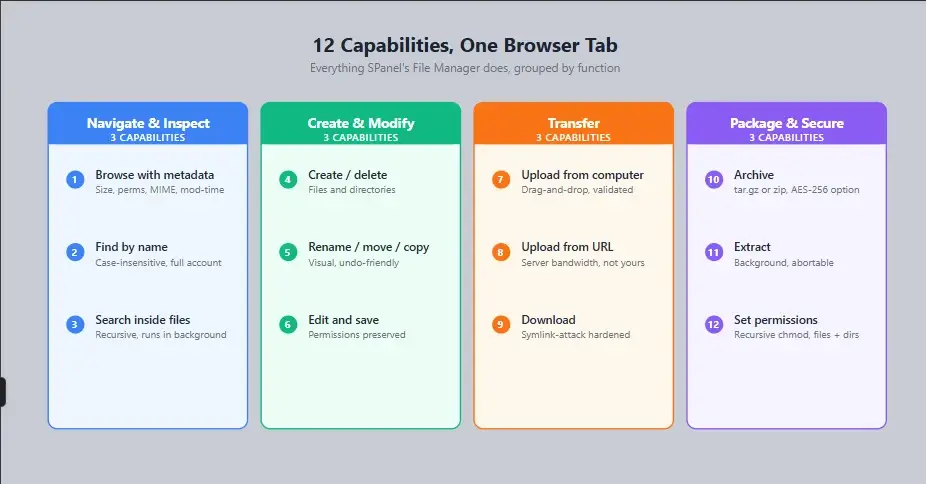
SPanel’s File Manager is a browser-based interface for managing the files on your hosting account. You can browse directories, upload and download files, edit text content in the browser, create and extract archives, search inside files, change permissions, and handle every routine file operation – without installing an SFTP client or opening an SSH session.
It’s built into SPanel, ScalaHosting’s proprietary hosting control panel, and ships free on every managed VPS plan. Twelve customer-facing capabilities sit behind one interface, and the engineering behind those capabilities is what separates a file manager you actually trust from a checkbox feature you tolerate.
Here’s a high-level look at what’s available:
How to Open the File Manager in SPanel
Three clicks. That’s the whole flow.
- Log in to your SPanel user dashboard. Your hosting provider supplies the URL; for ScalaHosting accounts, it’s typically https://yourdomain.com/spanel.
- Find the Files section. It sits near the top of the user dashboard, alongside Backups, FTP Accounts, and Disk Usage.
- Click the File Manager tile. The interface loads directly inside the panel – no separate window, no extra login.
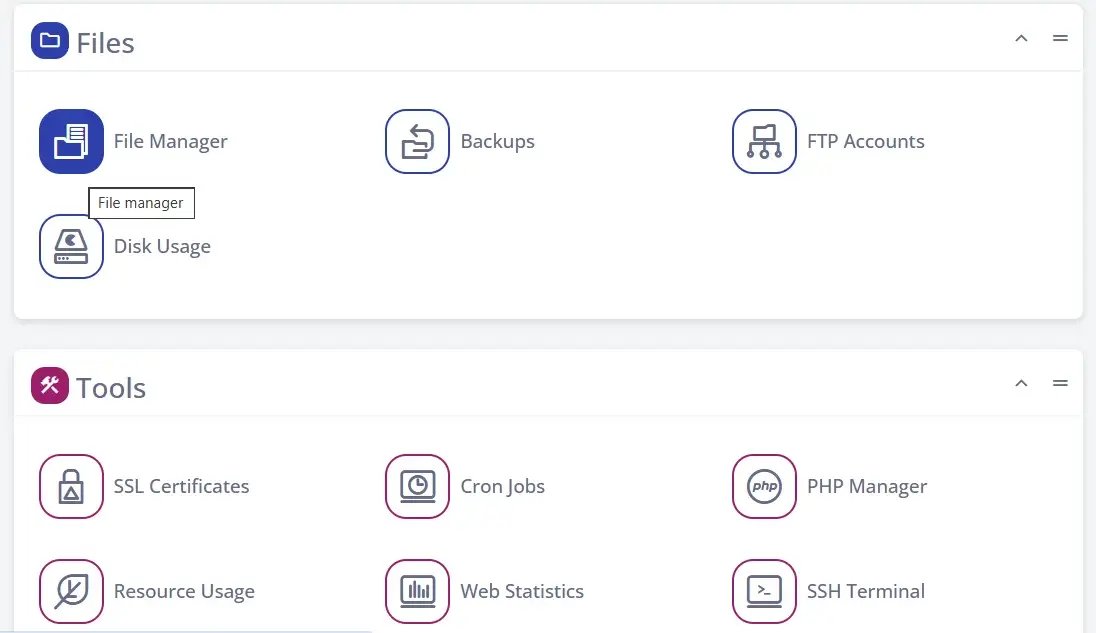
You’ll land in your hosting account’s home directory with the directory tree on the left and the file listing on the right.
The File Manager Interface at a Glance
The layout follows the conventions of every desktop file manager you’ve ever used. If you’ve moved files around in macOS Finder or Windows Explorer, you already know how this works.
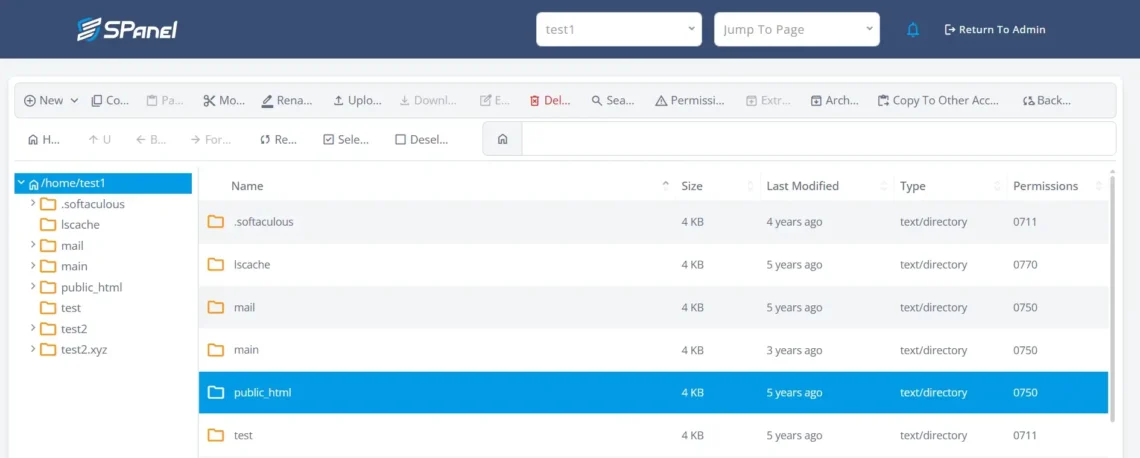
Three regions handle everything:
- The toolbar at the top holds the actions: New, Copy, Paste, Move, Rename, Upload, Download, Edit, Delete, Search, Permissions, Extract, Archive, Copy to Other Account, and Backup. Buttons grey out when no file is selected, or the action doesn’t apply to your current selection.
- The directory tree on the left lets you click through folders quickly. The standard hosting structure – public_html, mail, lscache, plus any add-on domain folders – sits right there.
- The file listing on the right shows Name, Size, Last Modified, Type, and Permissions for every item. Click any column header to sort.
A second row of navigation controls (Home, Up, Back, Forward, Refresh, Select, Deselect) handles movement around the directory tree, with a breadcrumb path that lets you jump back to any parent folder in one click.
Everyday File Operations
This is the part you’ll use most often. The mechanics are simple; the helpful bits are in the details.
- Uploading Files From Your Computer
Drag any file (or several) from your desktop onto the File Manager window. The upload starts immediately. SPanel handles validation, places the file in your selected directory, and sets ownership automatically – you don’t need to do anything by hand.
If an upload runs into an existing file with the same name, you’ll be prompted before anything gets overwritten. Progress stays visible during larger transfers.
- Uploading From a URL
Here’s a feature most hosting panels don’t have: you can pull a file directly from any HTTP or HTTPS URL straight into your account.
Why does this matter?
The download runs on your server, not your laptop. A 500 MB WordPress installer or a CDN-hosted software package downloads at gigabit server-to-server speeds – much faster than your home upload connection, and without consuming your local bandwidth at all.
To use it, click Upload, switch to the URL option, paste the link, and confirm. One caveat – URLs requiring authentication (signed S3 links, OAuth tokens, HTTP Basic Auth) won’t work through this path. For those, SSH and curl remain the right tools.
- Editing Files in the Browser
Right-click any file under 2 MB and choose Edit. The file opens in a built-in editor with syntax-aware display. Make your change, click Save, done.
One detail worth knowing.
SPanel reads each file’s permissions before opening it and reapplies them on save. That means a 0755 shell script stays 0755 after you edit it, and a 0600 config file doesn’t suddenly become world-readable because you fixed a typo. You can’t accidentally weaken file security just by clicking Edit.
The 2 MB cap covers what an editor is genuinely for – configs, scripts, templates, CSS, small data files. For larger files like big log dumps or data exports, SFTP and SSH are the right tools.
- Downloading Files
Select a file, click Download, and it streams to your browser. The workflow itself is uncomplicated. What sits behind it is more interesting – and we’ll get to those security details in a moment.
- Creating, Renaming, Moving, and Deleting
All the operations you’d expect, in the order you’d expect them:
- New creates a file or directory in the current location.
- Rename changes the name of the selected item.
- Move opens a destination picker and shifts the item to a new path.
- Delete removes selected items, with confirmation before anything is gone.
Here is a rescue trick worth memorizing.
If a misbehaving WordPress plugin breaks your site, navigate to public_html/wp-content/plugins/, rename the offending plugin folder to add a .disabled suffix (e.g., broken-plugin.disabled), and WordPress stops loading it. Your site comes back without you ever touching the database. Every WordPress site owner should know this move.
- Finding Files by Name and Searching Inside Them
Two different operations, both useful in different scenarios:
- Find by name searches your home directory for files or folders matching a name pattern. Case-insensitive substring match – type “config” and you’ll get every wp-config.php, .htconfig, and config.json across your sites.
- Search inside files looks for a specific text string within file contents. Use this to track down a hardcoded credential before an audit, find every file referencing a deprecated function, or locate which CSS file holds the rule that’s misbehaving.
Single-directory searches run instantly. The recursive version (across your whole account) runs in the background, so you can navigate away and check back when results are ready.
- Find and Replace Inside a File
The browser editor includes a find-and-replace tool that operates on whatever file you currently have open.
Hit the search panel, type the string you’re looking for, and SPanel highlights every match. Add a replacement string, and you can swap matches one at a time or all at once.
This is one of those small features that saves a disproportionate amount of time.
Updating a database connection string in a configuration file, changing a path reference across a long `.htaccess`, fixing a misspelled function name throughout a script, instead of scrolling, copying, and re-pasting, it’s one operation. Combined with permission preservation on save, you can make meaningful in-file edits without leaving the panel and without weakening file security on the way back out.
Cross-Account Transfer
If you’ve ever needed to move files from one hosting account to another, you know the usual workflow: download everything to your laptop, upload it back to the other account, fix the file ownership by hand, and hope nothing got corrupted in transit.
SPanel cuts that down to a single panel action.
The Copy to Other Account button in the toolbar moves files and folders between two hosting accounts on the same server. Select what you want to transfer, choose the destination account, pick the target path, and confirm. SPanel handles ownership rewriting and isolates the source and destination accounts throughout the operation.
For agencies and resellers, this is one of the features that quietly saves the most time. Migrating a customer’s site between hosting plans, handing a project off from your own work account to the client’s account, or consolidating files from a test account into production – operations that used to mean multi-step download-and-reupload cycles collapse into one click.
A few things worth knowing:
– Same-server only. The transfer works between two accounts that exist on the same SPanel server. Cross-server moves (account on Server A → account on Server B) require migration tooling, not the File Manager.
– Account isolation stays intact end-to-end. Behind the scenes, files are staged in a root-owned temporary area, ownership is rewritten to the destination user, and then the files move into the destination account. The source account never gets write access to the destination’s files, and symbolic-link tricks designed to escape that isolation are rejected at the transfer stage.
– It compounds at scale. A single transfer saves a few minutes; a hundred transfers a month saves several hours. If you’re managing client sites across multiple SPanel accounts, this is the kind of workflow feature that adds up.
Working With Archives
If you’ve ever tried to download 200 files one at a time, you know why archive support matters. SPanel handles both creation and extraction without leaving the panel.
To create an archive, select the files or folders you want, click Archive, choose your format (tar.gz or zip), and confirm. The compression runs in the background – close the browser tab if you want; the operation continues on the server.
Both formats support password protection:
- tar.gz with password uses AES-256-CBC encryption with PBKDF2 key derivation, which is the modern standard for archive encryption. Reach for this when the contents are genuinely sensitive.
- Password-protected zip uses zip’s built-in password feature. It’s less cryptographically strong, but it opens on every operating system without extra tools – handy when you’re sending the archive to someone who’ll just double-click it.
Extracting works the same way in reverse: right-click any archive, choose Extract, enter the password if there is one, and SPanel unpacks it in the background.
About the abort button. Archive operations all run with proper state tracking, so if you start compressing the wrong folder, you can cancel cleanly. The running process is killed, the lock file is cleared, and you can start the right operation immediately. No waiting for the wrong job to finish.
Quick File and Database Backups From the Toolbar
Archives capture files. Sometimes you need more than that – you need files AND the database driving the site, packaged together, in one operation. That’s what the Backup button at the top right of the toolbar is for.
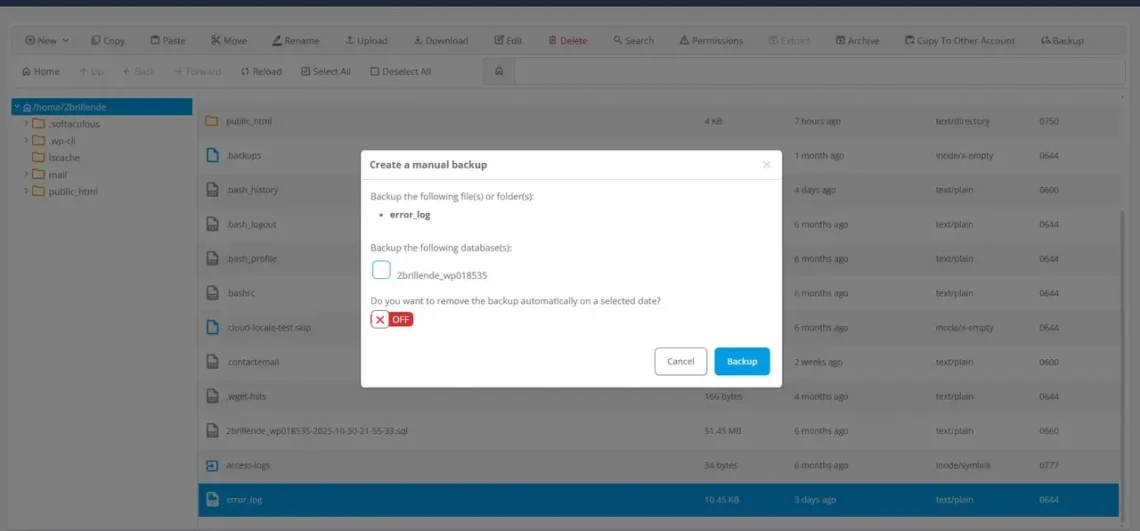
Simply select the files or folders you want included, tick the database(s) you want bundled in, and decide whether SPanel should remove the backup automatically on a specific date (useful when you’re creating a temporary snapshot before a risky change).
Click Backup, and the package is built in the background and stored under your account’s `.backups` directory.
This is the fastest way to take a “before” snapshot ahead of a plugin update, a theme switch, or any change you might want to roll back from. Quicker than configuring a scheduled job, more complete than a plain file archive.
Setting File Permissions the Right Way
Linux file permissions trip up plenty of WordPress users – and the wrong settings can either expose files to the public web or block the application from writing to its own directories. Given that WordPress powers approximately 43% of all websites online, this scenario plays out often enough that SPanel’s File Manager handles it as a first-class workflow.
The standard recommendation, straight from the official WordPress documentation, is 0644 for files and 0755 for directories:
- 0644 (files): owner can read and write; everyone else can read.
- 0755 (directories): owner can read, write, and execute; everyone else can read and execute.
Without the right tool, applying this across an entire WordPress install means running two separate find commands piped through xargs – not exactly something a non-technical site owner wants to attempt.
SPanel’s recursive chmod handles it in a single operation. Select the root WordPress folder, click Permissions, check the Recursive option, set 0644 for files and 0755 for directories, and apply.
One pass.
Done.
If you’re managing WordPress at any real scale, pair this with SPanel’s WordPress Manager for bulk updates, staging environments, and one-click backups – the permissions fix becomes a five-second step inside a much broader workflow.
The Security Layer You Don’t See
Most articles about file managers stop at “click here to upload.”
This one won’t, because the engineering behind SPanel’s File Manager is worth understanding – especially if you care about whether your hosting environment treats security as a foundation or a checkbox.
Three details worth knowing.
- Every operation runs as your account user, not as root. When the File Manager script receives a request, it validates it and then drops to your account’s user ID before touching the filesystem. From that point, Linux itself enforces what you can and cannot do. If a bug ever slipped through the validation layer, the operating system would still block any attempt to read, write, or modify files outside your account. The security guarantee doesn’t rely on the script being perfect – it relies on Linux’s user permissions, which is the strongest guarantee available.
- Downloads are hardened against symlink attacks. Here’s the part most file managers get wrong. When you click Download, a native implementation would check that the file is in your home directory, then open it. Between those two steps – a fraction of a second – an attacker who controls your account contents could swap the file for a symbolic link pointing at /etc/shadow (the server file holding hashed passwords). The download endpoint would happily stream the system password file to the attacker’s browser.
SPanel’s File Manager has three independent defenses against exactly this attack. The script verifies the file’s real path is inside your home directory, refuses to read through symbolic links, and double-checks the file’s identity after opening it. Each defense is independent; getting past one doesn’t bypass the others.
- File operations integrate with the broader security stack. Real-time security monitoring from SShield runs in the background of every managed VPS plan, blocking 99.998% of known web attacks before they reach your sites. That same protection covers File Manager operations alongside everything else hitting your server.
Most hosting providers ship a file manager. We engineered one!
The difference between the two is whether your account stays secure on a bad day.
SPanel File Manager vs. SFTP: When to Use Which
The honest framing: these are complementary tools, not competitors. Most experienced users keep both available and pick based on the task at hand.
| Task | File Manager | SFTP / SSH |
|---|---|---|
| Editing a single config file | ✅ Faster | Works |
| Uploading a handful of files | ✅ Drag and drop | Works |
| Syncing a large local project | Slow | ✅ Better |
| Recursive chmod (0644/0755 WordPress fix) | ✅ One click | Two find + xargs commands |
| Searching inside files across the account | ✅ Built in | grep -r works |
| Pulling a large file from a URL to the server | ✅ Server bandwidth | Requires SSH + wget |
| Working from an IDE with file watchers | Not designed for it | ✅ Built for it |
| Restoring a site after a broken plugin | ✅ Instant | Possible, slower |
| Editing files larger than 2 MB | Capped | ✅ No limit |
| Logging in without prior SFTP setup | ✅ Browser only | Requires keys/credentials |
For routine file work – edits, uploads, downloads, permission fixes, archive creation – the File Manager is faster. For development workflows that rely on IDE integration, large-data file editing, or specialized command-line tooling, SFTP and SSH are the right tools.
If you’re curious how SPanel’s broader approach differs from the dominant control panel in the industry, SPanel compared to cPanel walks through the feature and licensing differences side by side.
How ScalaHosting Backs the Experience
The File Manager doesn’t exist in isolation. SPanel runs on top of our managed VPS plans – fully managed virtualized infrastructure where we handle the operating system updates, security patching, server monitoring, and platform maintenance, and you focus on your sites.
That arrangement matters for a few practical reasons:
- Predictable licensing. SPanel’s cost is fixed regardless of how many domains or accounts you host. One site or one hundred – the control panel doesn’t get more expensive with scale. Agencies and resellers feel this most directly, which is why managing client sites on SPanel works at scales that would price out competing setups.
- Everything is already included. Real-time security monitoring, WordPress management, in-memory caching, Auto SSL, and daily backups all ship as standard. No add-ons, no surprise upgrades, no “premium tier” gating critical features behind a paywall.
- Support that knows the platform. Because SPanel is ours, our support engineers have direct expertise in every layer of the stack. When you hit something unusual at 3 AM, you’re talking to people whose colleagues build and ship the tool.
SPanel currently runs across more than 700,000 websites in over 120 countries. That number matters less as a vanity stat and more as evidence that the platform handles real production workloads at real scale.
The Bottom Line
You shouldn’t need an SFTP client, a key file, and a working memory of obscure command-line flags to make a small change on your own hosting account. SPanel’s File Manager exists so you don’t. Plus, the engineering behind it means you don’t have to choose between convenience and security to get there.

Frequently Asked Questions
Q: Can I edit files on my hosting account without using SFTP?
A: Yes. SPanel’s File Manager includes a built-in browser editor for files up to 2 MB. Open the file, edit, save – and original permissions are preserved automatically, so a 0600 config doesn’t accidentally become world-readable.
Q: How large can a file be in the SPanel editor?
A: The editor handles files up to 2 MB. That covers the typical configs, scripts, and content files that need browser editing. For larger files, such as log dumps or data exports, SFTP or SSH are the right tools.
Q: How do I upload a file from my computer to my hosting?
A: Drag the file (or files) from your desktop onto the File Manager window. SPanel handles the upload, validates the file, and places it in the destination directory with ownership set automatically.
Q: Can I download a file from a URL directly to my hosting account?
A: Yes. The File Manager’s URL upload option pulls files using your server’s bandwidth rather than your home internet. A 500 MB installer downloads in seconds rather than minutes. URLs requiring authentication aren’t supported through this path – use SSH and curl for those.
Q: Can I create password-protected archives?
A: Yes. SPanel supports password-encrypted tar.gz archives (AES-256-CBC with PBKDF2 key derivation) and password-protected zip archives. Select the files, choose the format, set a password, and the archive builds in the background.
Q: How do I fix WordPress file permissions across an entire install?
A: Use the File Manager’s recursive chmod with separate file and directory permissions. The standard WordPress recommendation is 0644 for files and 0755 for directories – one operation in the panel instead of multiple terminal commands.
Q: Are my files safe when I use the File Manager?
A: Yes. Every operation runs as your account user (not as root), so Linux’s own permissions enforce what you can and can’t do – the same guarantee that protects SFTP and SSH sessions. The download path additionally has multiple independent defenses against symbolic-link attacks designed to escape the home directory.
Q: What happens to a long-running archive operation if I close the browser?
A: Nothing bad. Archive, extract, and recursive search all run in the background with state tracking on the server. Close the tab, come back later, and the operation keeps going. To cancel, the abort button kills the process cleanly and clears the lockfile.