How to Test a Cron Job Before Its Scheduled Time

It’s 9 a.m. You scheduled a cron job to back up your database at 3 a.m. Six hours have gone by. Did it run? Did it quietly choke on a typo you won’t discover until the day you actually need that backup?
You have no way of knowing – and the only obvious way to find out is to wait until 3 a.m. tomorrow and check all over again.
There’s a better way, though.
You can run a cron job on demand, watch exactly what it does, and fix it before it ever touches its real schedule. In many hosting workflows, testing a cron job still means waiting for the scheduled time or running the command manually over SSH.
In SPanel, cron testing is not an SSH-only workflow. The Cron Job Manager lets you run a saved cron job immediately, then shows the combined normal output and error output after the command finishes. The job runs under your hosting account user, not root, and SPanel keeps cron silent by default unless you opt in to email notifications. That combination makes cron safer to test, easier to debug, and less likely to flood an inbox with routine output.
Why Waiting for the Scheduled Run Is the Worst Way to Find a Bug
Cron is silent by design. It runs your command at the time you specified, and unless you’ve told it otherwise, it sends the result nowhere – or to a local mailbox you almost certainly never check. So when a job fails, nothing announces it. The task simply doesn’t happen.
That silence is the whole problem.
A mistyped file path, a script calling the wrong language version, a permission error on a folder – each one fails the same quiet way. The job exits, cron moves on, and your backup (or queue processor, or cleanup task) just didn’t run. You find out days later, usually at the worst possible moment.
Here’s the thing – the cost compounds. A job scheduled once a day that’s been broken for two weeks is fourteen missed runs nobody flagged. Testing before the first scheduled run turns that whole category of slow-burn failure into a 30-second check.
How to Test a Cron Job Before Its Scheduled Time
The fastest way to test a cron job is to run it manually, on demand, and read the captured output without waiting for the scheduled time to arrive. You trigger the command, see exactly what it prints (including any errors), fix whatever’s broken, and only then trust the schedule.
That single capability catches failures that would otherwise go unnoticed for days. Here’s how to use it.
The Fastest Way – Run the Cron Job Manually
If your hosting account runs on SPanel, the Cron Job Manager has an easy way to run a manual check.
Here are the steps:
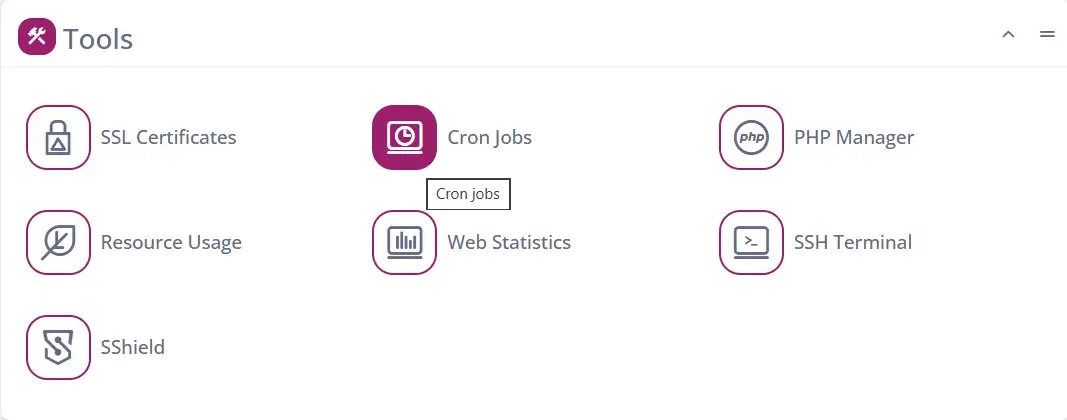
- Log in to SPanel and click the Cron Jobs option under Tools.
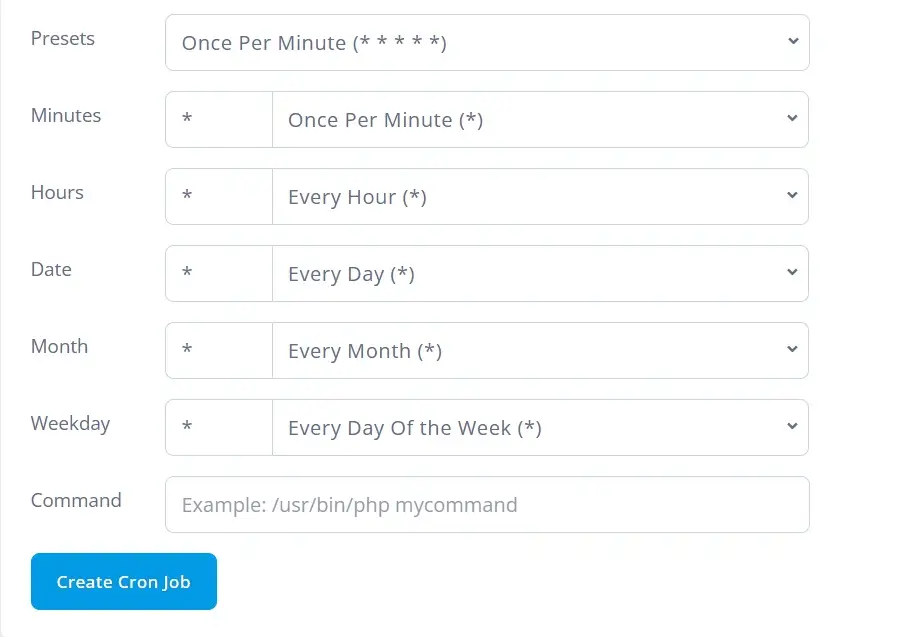
- Inside, set up the Cron Job by setting up the command and the interval at which it executes. Click the blue Create Cron Job button.
- Once you have the job configured, next to its row, click on Actions -> Run Manually
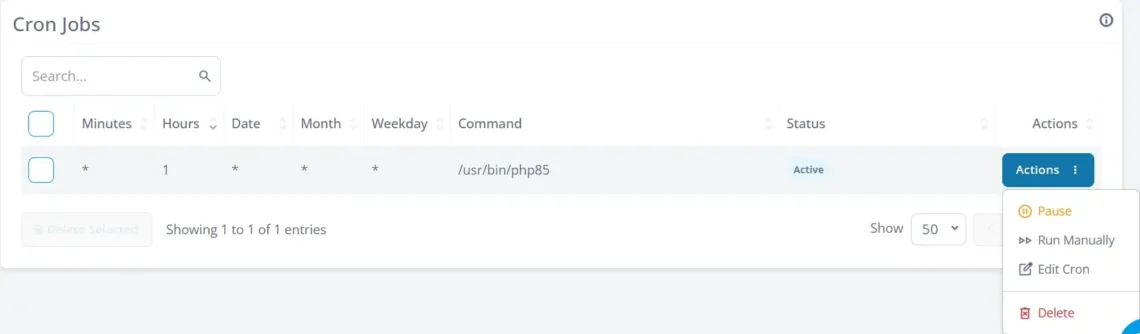
That’s it!
If the job runs normally, you will get a green pop-up confirmation.

Both normal output and any error messages are captured and shown back to you in the panel once the job finishes.
No SSH session. No editing crontab files by hand. No waiting until 3 a.m.
A few things worth knowing about how this behaves:
- Output is captured, not streamed. For a long-running command, you see the full output only when it completes, not line by line as it runs.
- It runs in the background. The panel hands off the job and polls for the result, so your session doesn’t freeze waiting on a slow command.
- It runs as you. The manual run executes under your own account user – exactly the way the scheduled job will – so what you see is a faithful preview, not an approximation.
How to Read the Output
When the job finishes, you’re looking at the combined normal output and error output of your command. A clean run shows you whatever the command was meant to print (or nothing at all, if it’s a silent task). A broken run shows you the error – and the error usually tells you exactly what to fix.
The most common ones read plainly once you’ve seen them a few times: No such file or directory means a path is wrong, Permission denied means the script or its target folder has the wrong permissions, and a PHP or Python error trace means the command reached your code, but the code threw an error. Each points at a specific fix.
The Manual Route via SSH
No control panel? You can still test the command directly. Connect over SSH and run the exact command from your cron line at the shell prompt:
/usr/bin/php /home/user/script.php
One important caveat – and it trips up even experienced developers. Your interactive shell has a fuller environment than cron does (different PATH, HOME, and language settings). A command can pass when you run it by hand, yet still fail on schedule because cron runs in a stripped-down environment.
| Testing method | Best for | Limitation |
|---|---|---|
| SPanel manual run | Testing a saved cron job from the panel and reading captured output | Output appears after completion, not live-streamed |
| SSH command test | Developer debugging with direct shell access | Shell environment may differ from cron |
| Waiting for schedule | Confirming the actual scheduled run happened | Slowest and easiest to miss if output is silent |
Why Cron Jobs Might Fail the First Time
Most first-run failures come from a short list of usual suspects. Knowing them turns “why isn’t this working?” into a quick checklist:
- Relative paths. Cron doesn’t start in your home directory the way your shell does. Use full, absolute paths to both the command and any files it touches.
- The wrong interpreter path. Calling php may work in your shell but not in cron. Use the full path – /usr/bin/php – so cron knows exactly what to run.
- Permissions. If the script isn’t executable, or the folder it writes to isn’t writable by your account user, the job fails. Match permissions to what the task actually needs.
- Environment differences. The big one. Variables your shell sets automatically often aren’t present under cron. If a command works manually but fails on schedule, this is almost always why – set the variables you need inside the command or a wrapper script.
Notice that every one of these is invisible until the job runs. That’s exactly why running it manually first – and reading the output – is the single highest-value habit in cron management.
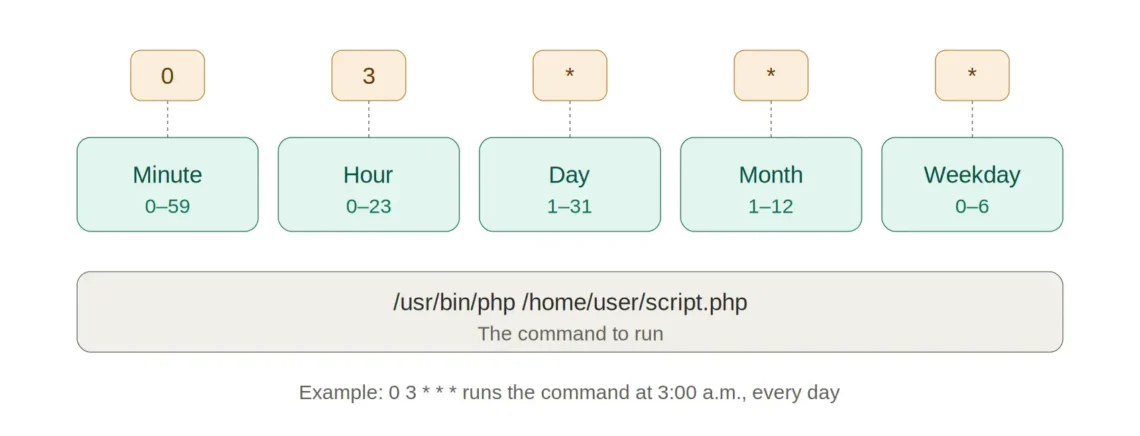
The five fields of a cron schedule pattern, left to right, followed by the command. The example 0 3 * * * runs at 3:00 a.m. every day.
Note: A manual run can prove the command runs on demand under the account user; it does not prove future external dependencies, email deliverability, retry logic, or every schedule-time condition.
How ScalaHosting Takes the Guesswork Out of Cron
Cron is a feature most hosting panels treat as a checkbox: you get a box to type a schedule into, and you’re on your own after that. We took the opposite view – that a scheduled task you can’t test is a scheduled task you can’t trust.
So the “Run Manually” testing capability is built into the SPanel Cron Job Manager on every SPanel-included plan, not bolted on as a premium add-on. Two more design choices back it up:
Silence by default. Standard Linux cron emails the output of every job to a local mailbox at <user>@<hostname> – a mailbox most people never open, which quietly fills up over time. Our default is the opposite: jobs run silently, and you opt in to email notifications only if you want them. No mystery mail, no spilling spool. When you do want alerts, a common pattern is to suppress routine output so only errors reach your inbox:
mycommand > /dev/null
Your jobs run as you, never as root. Every cron job executes under your account’s own user, with access to exactly the files your account can reach and nothing more. It’s the same isolation that makes a virtual private server secure in the first place – a compromised job in one account can’t reach into another.
All of this runs at real scale – SPanel currently powers a large global footprint of hosted sites.
The Bottom Line
A scheduled task you’ve never watched run is a guess, not a plan. Run it once, on demand, read what it actually does, and you trade a week of silent failures for a 30-second check. That’s the entire difference between cron you hope works and cron you know works.

Frequently Asked Questions
Q: What’s the Smallest Interval I Can Schedule With Cron?
A: One minute. The smallest cron schedule pattern is * * * * *, which runs every minute, and cron can’t go finer than that. For anything that needs to run more often – say, every 30 seconds – you’ll need a different approach, such as a long-running script that sleeps between executions or a dedicated job queue.
Q: My Cron Job Works When I Run It Manually but Fails on Schedule – Why?
A: This is almost always an environment difference. When you run a command by hand, your shell already has variables like PATH and HOME set; when cron runs the same command, the environment is minimal. The usual fix is to use full paths to every command (/usr/bin/php rather than php) and to set any variables the command needs directly in the cron line or a wrapper script.
Q: Do My Cron Jobs Run as Root?
A: No – they run as your own account user. Each job uses the same identity you have when you log in over SSH, which means it can touch exactly the files your account can touch and nothing outside it. This is a deliberate security boundary, not a limitation.
Q: How Do I Replace WordPress’s Built-In Cron With Real Cron?
A: WordPress’s built-in scheduler (wp-cron) only fires when someone visits your site, so low-traffic sites get delayed scheduled posts and late maintenance tasks. The fix takes two steps: disable wp-cron in wp-config.php, then add a real cron job that calls it on a fixed schedule. It’s one of the simplest wins for keeping WordPress fast and predictable, especially as a site grows. Worth knowing: WordPress runs roughly 42% of all websites, according to W3Techs, so this is a fix a huge share of site owners can use.
Q: Will My Cron Jobs Survive a Server Restart or Recovery?
A: Yes, crontabs are part of the account data restored during disaster recovery, so scheduled tasks can come back with the account after a rebuild. Missed executions during downtime are not replayed automatically; cron resumes from the next scheduled run once the service is available. When the server comes back up, the cron daemon reads your crontab and resumes the schedule with no action needed from you.