404 Error Code: What is it and how to fix it?

Clicking a link only to be greeted by 404 Not Found can be frustrating…and surprisingly common. This standard HTTP status code simply means the server can’t find the page you’re looking for.
For visitors, it’s often a minor hiccup with a few quick fixes. But for site owners, this can signal deeper issues – from deleted files to permalink changes after a migration.
In this guide, we’ll break down why 404 errors happen, how to fix them quickly as a visitor, tackle owner-side solutions using ScalaHosting tools, and even cover custom error pages, SEO impact, and prevention tips so your site stays smooth and error-free.
Let’s start with the basics.
What is the 404 Error Code (Meaning and Basics)
The 404 error code is one of the most recognizable messages on the web.
But what does it actually mean?
Technically, it’s an HTTP status code in the 4xx category, which indicates a client-side error. Specifically, 404 signals that the requested resource could not be found on the server. In other words, the server is reachable and understands the request, but the page, file, or endpoint simply doesn’t exist at the specified URL.
To understand the error code 404 better, it helps to see how it fits into the wider HTTP status code family:
- 400 Bad Request: The server can’t process the request due to a client-side syntax or formatting issue.
- 403 Forbidden: The server understood the request, but the visitor lacks permission to access the content.
- 500 Internal Server Error: The server encountered a problem and couldn’t fulfill a valid request.
- Soft 404: Sometimes a server returns a 200 OK status (normally “success”) but displays a “not found” message. Search engines treat this as a soft 404, which can harm SEO.
Knowing all that, we can safely conclude that while 404 is technically a client error, it is harmless for the users. For site owners, however, it indicates they need to locate and fix the underlying issue, which may be caused by a broken link or deleted content.
Here’s a simple diagram of a standard HTTP request-response cycle and where error 404 occurs:
[User clicks link or types URL]
↓
[HTTP Request]
↓
[Server checks resource]
↓
┌─────────┴─────────┐
│ Resource exists? │
│ Yes → 200 OK │
│ No → 404 │
└─────────┬─────────┘
↓
[Response sent to browser]
From a business perspective, such issues affect user experience (UX) and search engine optimization (SEO). Search engines may reduce your site rankings if you have persistent 404 errors, and frustrated users may leave your site prematurely.
Common Causes of 404 Errors
The 404 error code doesn’t just appear randomly, nor does it just go away with time. It signals an issue that the site owner has to address.
But where should we look for the problem?
Here are the most common culprits:
- Deleted or Missing Pages
The most common cause of 404 errors. Managing a website is a dynamic endeavour, so it’s quite common to add/remove pages, blog posts, or file locations. But if we forget to redirect that obsolete content to another page, anyone trying to find it via a link or by directly typing the URL will see the dreaded error code.
- URL or Permalink Structure Changes
Changing URL structures can easily break existing links. You might be experimenting with changing the entire permalink logic in your CMS. Or renaming your files/folders for better management. It’s not uncommon to even change the language of your URLs. But without properly redirecting your links (most often with 301 redirects), you are bound to experience heaps of 404 errors…and Google certainly wouldn’t like that.
- Website and Domain Transfers
When moving your website to another hosting provider, you have to ensure none of your files and URLs remain tied to your old host. Changing your domain name is another reason to update your site-wide links (or at least allow them to work with both domains). One other common culprit to watch out for – adding an SSL certificate to your website. This changes the URL prefix from HTTP to HTTPS, which would also affect all your links that are not configured to work with the secure version.
- Broken Internal and External Links
Changing the location or completely removing your content would inevitably influence your internal links as well. But the same goes for external links coming TO your website. Unfortunately, you have no control over the latter except by contacting the external website and asking them to update the path to point to yours.
- Server Configuration and File Access Issues
In some edge cases, the file exists but can’t be served due to:
- Incorrect file or folder permissions
- Misconfigured .htaccess or rewrite rules
- DNS records pointing to the wrong server
These issues can result in a 404 error code even though the resource is technically present. Double-checking your file/folder permissions and the .htaccess file can easily resolve that.
- Typos and Case-sensitive URLs
More often than not, the cause of your 404 errors can be a simple human error. Typos are not that uncommon, so it’s important to be very careful when setting up URLs. On some Linux servers, you also have to watch out for case-sensitive links. It is possible that things like /about-us and /About-us are not treated the same, which will result in a Page Not Found screen.
| Cause Type | Examples | Who It Affects Most |
|---|---|---|
| Client-Side | Typo in URL, outdated bookmark, browser cache | Visitors |
| Server-Side | Deleted/moved page, broken permalinks, misconfigured .htaccess | Site Owners |
| Hosting/DNS | Propagation delays, incorrect nameservers | After migrations |
| Other | Plugin conflicts (WordPress), malware | Dynamic sites |
How to Fix 404 Errors as a Website Visitor
As a site visitor, if you stumble upon a 404 error, you can make some quick checks to ensure the issue is not on your side:
- Refresh your page
- Clear your cache and cookies
- If you type your URL manually – check for typos or case-sensitive errors
- Check the link through an incognito browser window
- Try to search the URL via keyword (type site:sitename.com keyword)
If all else fails, the only thing you can really do is try to contact the site owner/administrator to ask them about the Page Not Found error. Sometimes it can be fixed in a matter of seconds, and the team behind the website should be very grateful for the heads-up.
How to Fix 404 Errors as a Site Owner
When 404 errors start appearing on your website, they’re a clear signal that something in the content, structure, or configuration needs attention. This means it’s time to identify the issue, as each case may require a different solution.
- Try to reproduce the error
Your first step is to see when and how the 404 error code appears. Is it a constant issue or something that appears infrequently? Does it appear in Incognito mode? How about when your browser cache and cookies are cleared? Running these checks will help you determine whether the issue is consistent or user-specific.
- Check whether the page or file still exists
You can use the File Manager in your control panel or an external FTP client to check whether your file or folder still exists in its supposed location. While there, you can also ensure the URL contains the right upper and lowercase letters of its destination.
If you notice a missing file, you can restore it from a backup, should you have one.
- Review CMS Settings and Permalinks
If you are using a content management system to build your website, your 404 issue might stem from some of its settings. Check your URL/permalink structure settings to confirm that the problematic URL conforms to them. You can also re-save permalink settings to refresh rewrite rules. While it might seem silly, you can also double-check if the page in question is actually published and not just in Drafts.
- Fix or Redirect the Broken Links
Once you identify the broken URL, there are a few ways to fix it. You can:
- Re-type the correct link (in case of a typo or case-sensitive URL)
- Set a 301 redirect (if the old content was moved to a new location)
- You can also use a 410 (if the old content is gone forever and you don’t have a suitable redirect page)
- Update your link (if it is an internal link, set it to point to a non-existent page)
IMPORTANT: Avoid redirecting all wrong and non-existent links to your homepage as this can severely damage your UX and SEO rankings in the long term.
- Check .htaccess and Rewrite Rules
If you have written custom rewrite rules in your .htaccess, that can be a possible culprit down the line. You can open the file to look for conflicting redirects or regex patterns. If the 404 issues have started recently, you can revert to an older version of the .htaccess file via a backup.
- Inspect Server Logs
If you have some technical experience, server logs are a go-to for finding where an issue lies. In the Access Logs, you can see which URLs trigger the 404 errors, and the Error Logs will alert you to any configuration or permalink issues.
- Verify DNS and Hosting Configurations
If the 404 issues are site-wide, you can check if your domain points to the correct nameservers. At this point, you can also review virtual host settings and look at your document root folder to ensure the paths lead to the correct files.
- Address Soft 404 Errors
If search engines report soft 404s:
- Ensure missing pages return proper 404 or 410 status codes
- Avoid serving “page not found” content with a 200 OK response
- Add meaningful content to thin or autogenerated pages
Correct HTTP status signaling is critical for SEO.
| Issue | Fix Method | Tools/Platforms |
|---|---|---|
| Broken internal links | Update links or add a 301 redirect | Redirect plugins |
| Corrupted .htaccess | Restore from backup | Backups in SPanel |
| File permissions | Set to 644 (files)/711 (folders) | ScalaHosting tool |
| Deleted files | Restore from backup | Backups in SPanel |
Platform-Specific Fixes for 404 Errors
Not all 404 errors can be treated equally. The way you diagnose and fix them depends heavily on the platform your website is running on. A missing page on WordPress might have very different causes (and solutions) than a 404 on a static site or a custom CMS. Hosting environments can also introduce quirks of their own.
Below you will find platform-specific approaches to resolving 404 errors efficiently.
Fixing 404 Errors in WordPress
WordPress is the most popular CMS in the world. The application is so versatile that you are bound to find all kinds of ways to customize things…and break things in the process.
Apart from the standard 404 culprits (missing files/pages, broken permalinks), there are also errors related to the themes and plugins you choose to use. The risks are higher when you clone and move WordPress sites as well.
So, what can you do?
- Reset Permalinks
A quick fix is to go to Settings->Permalinks and click the Save Changes button (without actually changing anything). This will reset the WordPress rewrite rules for your URLs.
- Check Page and Post Status
Another fast check you can make is if the missing post or page actually exists. To do so, simply go to the Posts/Pages menu to ensure you see the searched content. It should be in Active status, not just saved as Draft or Private. In the same section, you can also double-check if the URL slug is correctly written.
- Disable Plugins or Switch Themes
More often than not, some add-ons may have default rights to modify your URLs, which can easily lead to 404 error codes. To test if this is the case:
- Disable all plugins
- Turn them on one by one to see when the error will appear
- Once located, remove the problematic plugin and find a suitable replacement
You can do a similar check for your chosen WordPress theme. Simply revert to a default template to see if the 404 issue is solved.
- Inspect the .htaccess File
A missing or corrupted .htaccess file can easily damage your routing rules. You can exclude it from the list of possible 404 culprits by double-checking if it still exists in your WordPress root folder, verifying if the default rewrite rules are still present, and resaving the permalinks inside.
Fixing 404 Errors in Static and Custom Websites
Static websites and custom content management systems don’t benefit from WordPress’s automatic routing, which means 404 errors are often more literal: the file truly isn’t where the browser expects it to be.
As the reasons for the Page Not Found are identical, the solutions are pretty much the same as well:
- Verify the requested files/pages actually exist and are in the correct path.
- Check internal links for typos or missing symbols.
- Review directory index settings for listing permissions.
- Inspect the web server configuration rewrite rules and routing logic.
- Redeploy the website to rule out failed or partial deployment.
ScalaHosting-Specific Fixes in SPanel
SPanel is developed as an all-in-one hosting management solution. As such, you can find a wide variety of options that simplify your day-to-day tasks and possible troubleshooting. When dealing with 404 error codes, you can:
- Utilize the File Manager – the easiest way to confirm the existence and correct path of your files and folders. You can also retrieve deleted files if they are still in your Trash folder.
- Restore backup files – SPanel contains a comprehensive backup tool that lets you create manual and automated archive files of your website. Always keep a few recent backups of your production site so you can restore it if an unexpected 404 error occurs.
- Check the domain and document root settings. If you host your domain with ScalaHosting, you can easily find these details in the SPanel Domains section. Inside, you can verify its nameservers and correct root path.
- Review error logs – SPanel also gives you full access to your logs. Under Domains, you will find the Logs option. Once inside, you can review Access, Error, and PHP Error logs. This can often reveal if the cause of the 404 error is a missing file/directory, denied permission, or a failed rewrite rule.
Unlike its competitors, SPanel is completely free for Managed VPS hosting clients. The control panel is entirely customer-driven. This means you can always suggest a new feature, and the most popular ones are added promptly in subsequent updates.


Creating a Custom 404 Error Page
A great way to mitigate the negative effects of a 404 error is to build a custom page that users see when they navigate to missing or deleted content. You can really experiment here – we’ve seen a lot of quirky examples that will not only make the user forget he is actually seeing an error, but also sway them to appropriate content (even if it’s not the one they requested).
When creating a custom 404 page, you should consider:
- Avoid technical jargon – a clear and friendly message (even a funny one) can do wonders in keeping the visitor on your site.
- Include navigation options – be it to your website homepage or a popular related content, you want to give users the option to continue browsing.
- Search functionality – this is a great idea for large, content-heavy websites. Sometimes the user can find something close to their search term instead of immediately bouncing back.
- Use your brand identity – the 404 page should contain your brand elements to establish its uniqueness and reassure the visitor that they are still on the right website. Think of things like your logo, typography, and company colors.
- Return the right HTTP error code – even though it’s custom, the page should clearly show it is displaying a 404 page (and not a 200 code, for example). This is also essential for web and SEO crawlers to determine the correct page status.
The actual development of your custom 404 page can greatly vary depending on the hosting environment and tools you have available.
Let’s see an example of how you can create a custom 404 page in WordPress.
- Access your theme files (via File Manager or FTP)
- Locate or create 404.php in your active theme folder
- Add your custom layout and messaging
- Save the file
Here is a basic example of such a page (naturally, you would need to know a bit of PHP to properly code it):
<?php get_header(); ?>
<div class=”error-404″>
<h1>Oops! Page not found.</h1>
<p>The page you’re looking for doesn’t exist or has been moved.</p>
<?php get_search_form(); ?>
<a href=”<?php echo home_url(); ?>”>Back to Homepage</a>
</div>
<?php get_footer(); ?>
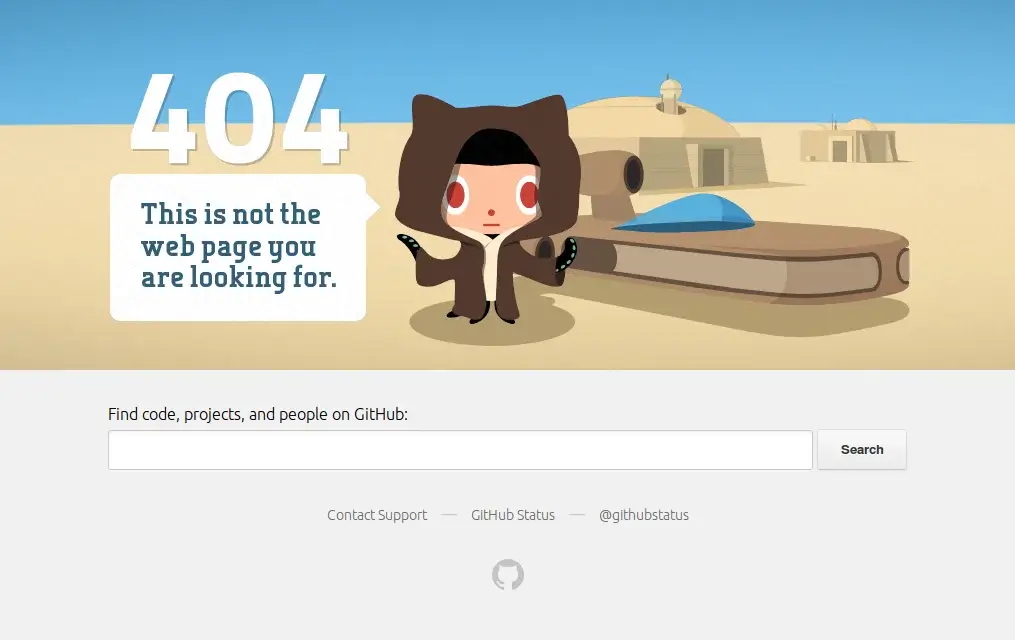
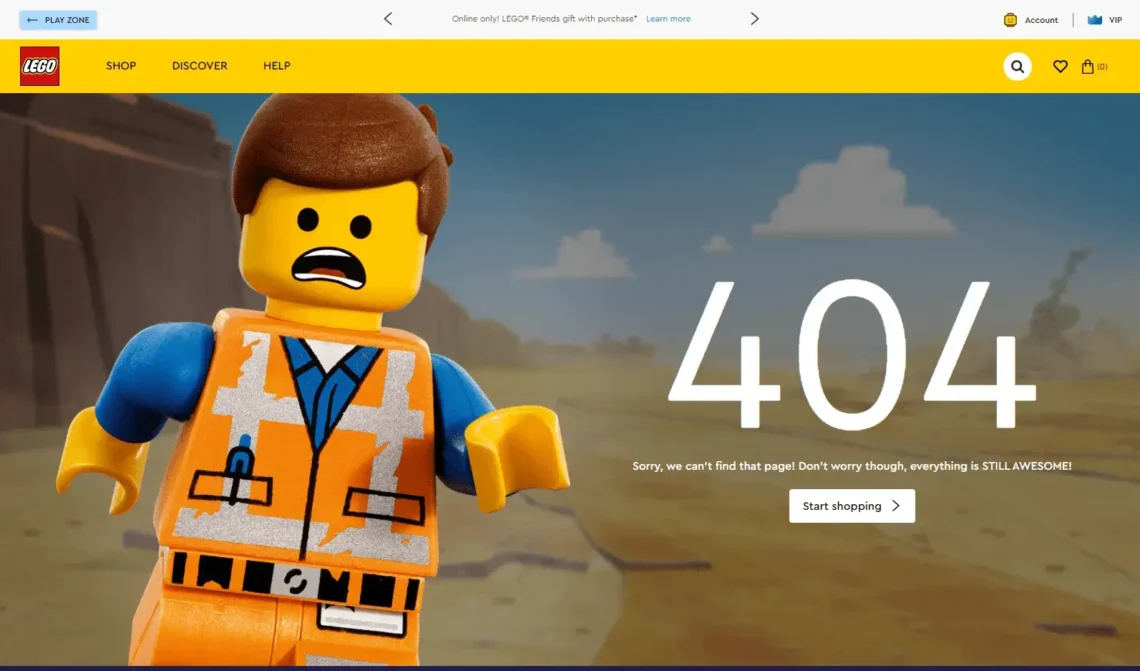
When correctly placed in your WordPress theme files, this page will automatically load when the user encounters a 404 error. Here are a couple of real-world examples of fun custom 404 pages from GitHub and Lego.
SEO Impact of 404 Errors and Possible Solutions
404 errors are often misunderstood in SEO. Many site owners panic when they see “Page not found” reports in their tools, assuming rankings are about to collapse. In reality, 404s don’t carry a direct Google penalty. Still, how you handle them absolutely matters.
Understanding the difference between normal, healthy 404s and problematic ones is key to protecting both crawl efficiency and user experience.
Let’s be clear from the beginning – 404 errors do NOT directly hurt your SEO! But that doesn’t mean there are no indirect negatives. Namely:
- Poor user experience
- Wasted crawl budget
- Lost internal and external link “juice.”
- Missed higher-ranking opportunities
Overall, a few 404 errors are no big deal if treated correctly. The real problem begins when many of them pop up throughout your website.
Understanding Soft 404 Errors
A soft 404 occurs when a page appears to be an error to users or search engines, yet technically returns a 200 (OK) status instead of a proper 404 or 410.
Common examples include:
- “Page not found” messages on live URLs
- Empty category pages with no products
- Redirecting every broken URL to the homepage
Search engines see this as misleading and may flag the page as a Soft 404.
Тo detect such errors, you can head to your Google Search Console. Click on the Pages report section, and any Soft 404 errors will be identified inside.
Best SEO Practices for Fixing 404 Errors
Redirecting 404 pages to a different location or content is a good solution, but not always the right one. This is why it’s important to know when 301 redirects should be used:
Use 301 Redirects When:
- The content has a clear replacement
- URLs changed due to a site migration or restructuring
- A page was merged into a newer, more relevant resource
Use 410 or Leave the 404 Error When:
- Content is permanently removed
- There is no suitable replacement
- The page has no SEO or business value
Monitoring, Prevention, and Advanced Troubleshooting
404 errors are inevitable on growing websites. But unmanaged 404s can quietly drain crawl budget, break user journeys, and erode SEO performance. The good news is that with the right monitoring systems, preventative practices, and troubleshooting frameworks, most 404 issues can be detected early and resolved efficiently.
Monitoring
You can’t fix what you don’t see. This is why continuous monitoring is the foundation of any 404 management strategy.
Google Search Console (GSC)
GSC is the first stop for identifying crawl-level 404 errors. The Pages report highlights URLs returning “Not Found” responses that Googlebot has attempted to crawl. These are especially important because they affect how Google understands and indexes your site.
Focus on:
- Sudden spikes in 404 errors
- URLs with inbound links or historical traffic
- Patterns tied to specific directories or templates
Additionally, there are tools that can identify broken internal and external backlinks, like the Broken Link Checker in Ahrefs. This one is particularly useful after a site migration, redesign, or large content update.
Prevention
While fixing 404s is important, preventing them is far more efficient.
Start with your sitemaps.
Your sitemap should only include URLs that return a 200 status code. Regularly audit sitemaps to remove deleted or redirected pages. Submitting a clean sitemap helps search engines avoid crawling dead URLs in the first place.
Page/content deletion should also be done with the utmost care. This is one of the most common reasons for 404 errors, so you want to check its inbound/outbound links and apply a redirect wherever needed.
The same goes for CMS core and add-on updates. It’s not uncommon for new 404 errors to pop up after applying a new application version, so make sure to check your Google Search Console afterwards.
Troubleshooting
When a 404 error appears, a structured approach saves time. Use a simple decision tree to guide your diagnosis:
Is it affecting one page or many?
- One page only
- Check internal links pointing to the URL
- Confirm whether the page was deleted, renamed, or moved
- Implement a 301 redirect if appropriate
- Multiple pages or site-wide
- Review permalink or URL structure changes
- Check CMS or framework routing rules
- Investigate DNS or server configuration issues
Is the URL supposed to exist?
- Yes → Restore the page or fix routing
- No → Redirect or let it return a clean 404 (no soft 404s)
Is traffic or crawl frequency unusually high?
- Review server logs to identify bots or malformed requests
- Block abusive crawlers if necessary
This systematic approach helps prevent guesswork and reduces mean time to resolution.
Final Takes
404 pages are an unavoidable part of running and scaling a website, but their impact depends entirely on how well they’re managed. Left unchecked, they can frustrate users, waste crawl budget, and weaken SEO performance. When monitored and handled correctly, however, 404 errors become a useful signal, highlighting outdated links, technical misconfigurations, or opportunities for better redirects.
A proactive approach that combines regular audits, clean redirects, and post-update monitoring significantly reduces long-term risk. Hosting environments also play a role: solutions like ScalaHosting’s SPanel offer built-in monitoring, log access, and server-level control that make detecting and resolving 404-related issues faster and more precise.
Ultimately, treating 404 pages as part of ongoing site maintenance helps keep both search visibility and user trust over time.
FAQ
Q: Is a 404 error bad for SEO?
A: While it wouldn’t directly hurt your search engine rankings, 404 errors can have some negative impact on your SEO efforts, especially if kept untreated. Page Not Found messages will hinder the user experience and erode trust in your brand, effectively leading to fewer visits. Moreover, a large number of 404 errors without proper redirects will trigger alarming signals in search engine crawlers.
Q: How do I fix 404 errors in WordPress?
A: There are several ways to resolve 404 errors in WordPress, depending on the cause. If the problem stems from an add-on conflict – disable all plugins and activate them one by one to see which one will make the 404 errors pop up. You can also check if the missing content is actually published and active. Resetting permalinks and the .htaccess file is another possible fix for this issue.
Q: What’s the difference between a 404 and a soft 404 error?
A: A 404 error and a soft 404 both signal that a page isn’t really there, but they do so in very different ways.
A true 404 happens when the server correctly returns an HTTP 404 status code, clearly telling browsers and search engines, “This page does not exist.” In comparison, a soft 404 looks like an error page, but the server returns a 200 (OK) or, in some cases, a 301/302 status code. This confuses search engines, wastes crawl budget, and can hurt rankings.
Q: Can I create a custom 404 error page in cPanel?
A: Yes, it is possible to create a custom 404 page in cPanel. Under the Advanced tab, you will find the Error Pages option. You simply choose the domain you’ll be creating the page for, edit the HTML, and click Save once done.
Q: How do I check for 404 errors on my site?
A: Many tools can help you identify 404 errors on your website. Google Search Console is a must-have in that aspect, as well as Ahref’s Broken Link Checker. Other solutions you can utilize include Dead Link Checker and Sitechecker.