
Git Version Control in SPanel clones a public or private Git repository into a directory on your account, then keeps it in sync. You can pull new code automatically every 3, 5, or 15 minutes, use a webhook, or manually deploy updates.
Add an executable .autodeploy script to the repository root and SPanel runs it after every pull, so git push becomes a real deploy step. In other words, SPanel handles the entire deployment while you focus on the project’s development.
Here’s the rundown:
- SPanel clones from GitHub, GitLab, Bitbucket, or a self-hosted repository over HTTPS or SSH.
- Three sync modes cover most needs: scheduled pulls, webhook-triggered pulls on push, and manual pulls.
- The optional .autodeploy script holds your build and deploy commands; SPanel does not guess them.
- A failed automatic pull sends a notification and an email, with a recovery notice when pulls work again.
- You can stop tracking a repository without deleting the files that are already on disk.
Why Automatic Git Deployment Matters
Dragging files into an FTP client is how a lot of sites still get updated, and it is where a lot of sites still break. You upload 11 files, forget the 12th, and the homepage throws an error. The upload leaves no meaningful logs, so you don’t even know what went wrong.
Git already fixes the record-keeping half: every change is a commit, and rolling back is one command. What Git does not do on its own is put those committed files onto your live server. This is what SPanel’s Git Version Control does. Thanks to it, a single git push saves your work and ships it to your server.
You only add your repository once. Through SPanel’s interface, you specify its URL, pick a branch, choose how pulls should be handled. Pushing to that branch then updates the server copy according to your chosen schedule, and a committed .autodeploy script runs after each pull to handle any build step.
What Git Deployment Does and What It Doesn’t
Some people assume that “Git deployment” means the panel builds your project for you. It does not. SPanel pulls the committed files and then runs whatever you told it to run in .autodeploy.
Plain HTML or PHP that ships as-is may need no build step at all – the pull is the deploy. If your site needs npm install or a framework’s build command, those commands are yours to write. The other misconception is that the fastest timed option, “Every 3 minutes,” is instant; it is a poll on a clock. For changes that must go out the moment you push, use Webhook.
How It Actually Works
A pull tells your server to fetch the latest committed version of your project and update its local copy. A branch is one line of your project’s history, like main for production or staging for testing.
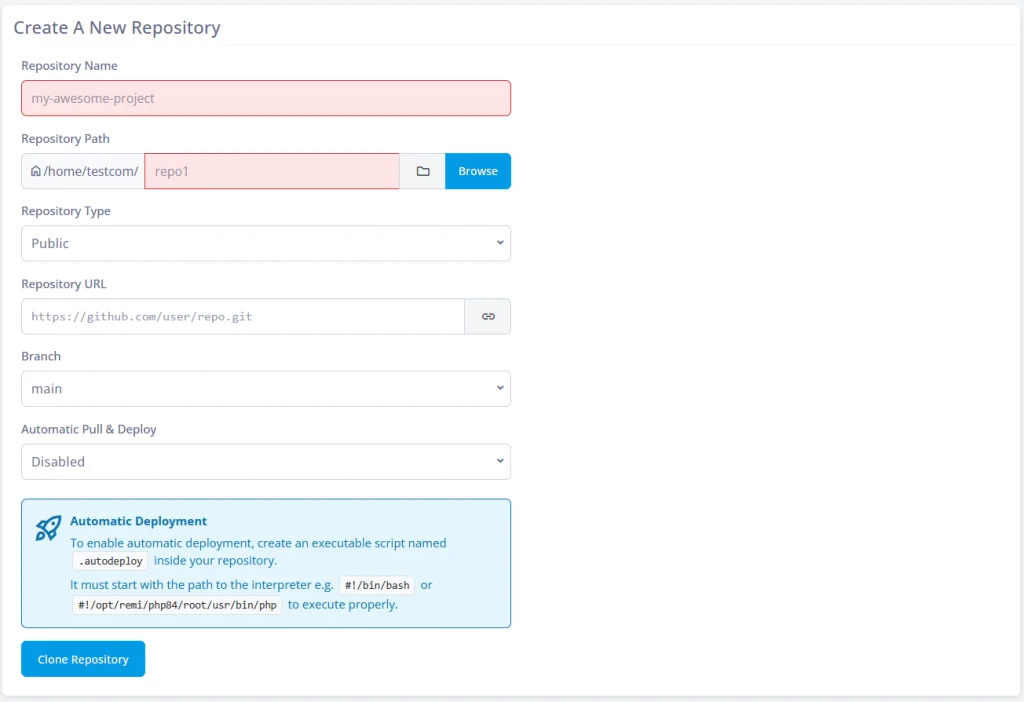
SPanel clones the repository into the Repository Path you choose. You set which Branch to track (main by default) then pick an Automatic Pull & Deploy mode.
The timed options – Every 3 minutes, Every 5 minutes, Every 15 minutes – poll the repository on a schedule. Webhook flips the direction: your Git provider tells SPanel the instant you push, and the pull happens then. Disabled leaves the repository static until you pull it yourself.
After every pull, if an executable file named .autodeploy sits in the repository root, SPanel runs it. The script must start with the path to an interpreter, such as #!/bin/bash or #!/opt/remi/php84/root/usr/bin/php. Inside it are the steps that turn fetched files into a running site.
Where SPanel Is Different
SPanel treats deployment as a panel feature, not a command-line afterthought. There is no SSH session, cron entry, or Git hook to set up by hand – clone, schedule, branch, and post-pull hook all live on one screen, with no separate licensing for the feature on managed VPS plans.
Two details are crucial here. First, private repositories are handled in the panel: choose Private as the Repository Type and SPanel exposes PAT Token and SSH Authentication for secure access. Second, failures are easy to spot. When an automatic pull doesn’t go through, SPanel raises a notification and emails the account’s contact address. When the pull succeeds on the next try, a recovery notice is sent, so the account owner knows that everything is fine. That closes the usual blind spot of scheduled deployments, and it pairs with the rest of SPanel’s alerting.
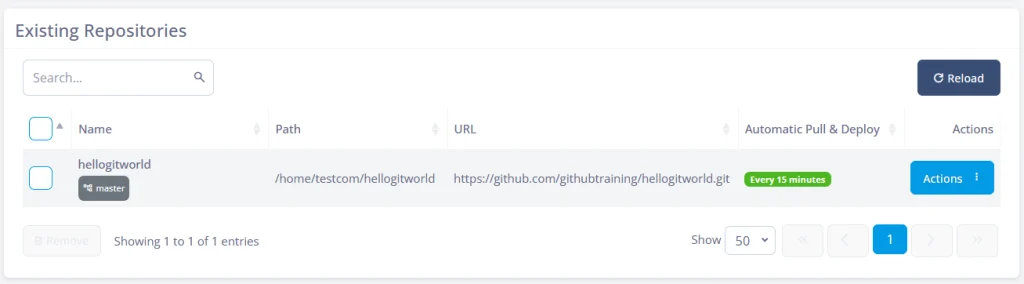
Every repository you add lands in the Existing Repositories list, where you have an Actions drop-down menu with options to Pull & Deploy, Manage (which is where you see the logs), and Remove the repository.
What you’d do without SPanel
Without a panel, the same result is a manual chain you build and maintain yourself: an SSH session, a cron job or post-pull hook to trigger each pull, a deploy script you write by hand, and your own monitoring to catch a pull that fails silently. Git Version Control folds all of that into one screen, with built-in failure and recovery alerts.
Which Sync Mode to Choose
You can use one Automatic Pull & Deploy mode for each repository. This table shows you how the different modes work and which scenarios they fit the best.
| Mode | How it triggers | Best for | Trade-off |
| Disabled | You click Pull & Deploy yourself | Deploys you want to gate manually | Nothing ships until you act |
| Every 3 minutes | Timed pull | Active sites needing quick updates | Small delay; not instant |
| Every 5 minutes | Timed pull | General-purpose active projects | Small delay |
| Every 15 minutes | Timed pull | Low-frequency edits, content sites | Longest wait of the timed options |
| Webhook | Provider pings SPanel on push | Instant deploys the moment you push | Needs webhook setup on the provider side |
In short: pick Webhook when a push must go live immediately, a timed interval when a few minutes’ delay is acceptable, and Disabled when you want to gate every deploy by hand.
Limitations and Trade-Offs
This feature deploys files; it does not design your release process. SPanel will not build your project, run database migrations, or restart services unless your .autodeploy script tells it to. The automatic deployment doesn’t save you from a bad commit – the panel only checks that the pull succeeded, not that your code works.
The timed modes trade immediacy for simplicity. Even Every 3 minutes leaves a short window between push and live, so time-critical launches should use Webhook or a manual Pull & Deploy.
Webhook setup also involves a step on your Git provider’s side, best confirmed against their current documentation. And the interpreter path in your .autodeploy file must be valid, or the script stops before it starts.
Recommended Workflow and Steps
Start on a non-production branch: clone the repository, track staging, and set Disabled so nothing deploys while you experiment. Trigger a manual Pull & Deploy, open the Log, and confirm the files land where you expect and that a minimal .autodeploy ran.
Once that loop is clean, point a second repository or branch at production. Choose Webhook for instant deploys, or a timed interval if a few minutes of delay is fine, and use PAT Token or SSH Authentication for private repositories while keeping secrets out of tracked files.
Here’s a step-by-step guide:
- In the SPanel User Interface, open Git Version Control.
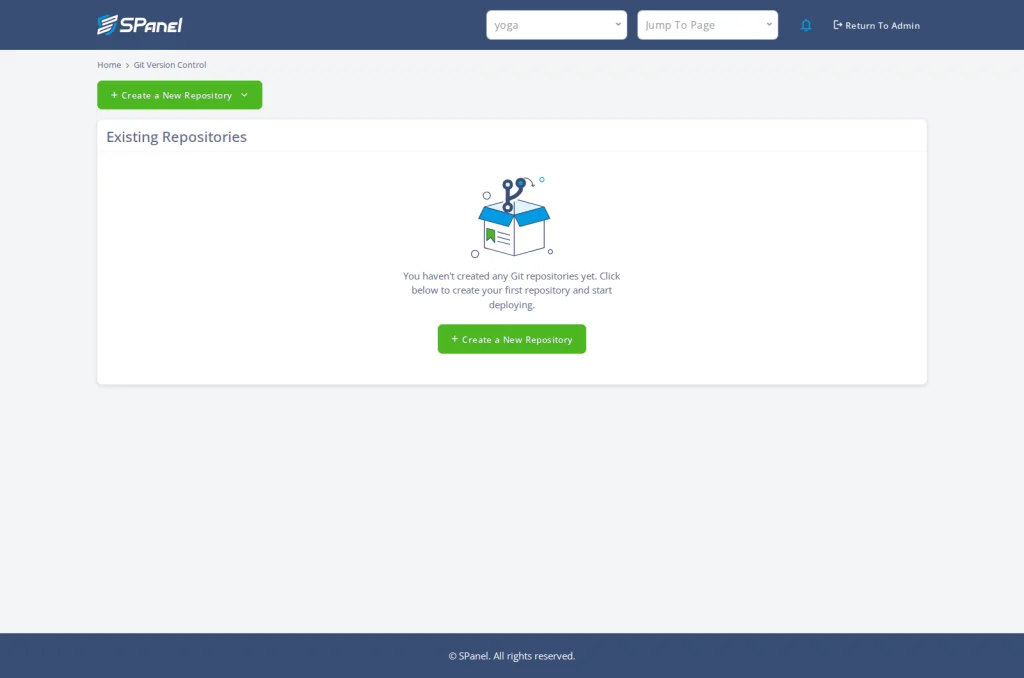
- Review the Existing Repositories panel and its columns: Name, Path, URL, Status, Branches, and Actions.
- Click Create a New Repository to open the Create A New Repository form.
- Enter a Repository Name (for example, my-awesome-project) and set the Repository Path under your account home, using the Browse button if needed.
- Choose the Repository Type. For Private, complete PAT Token or SSH Authentication.
- Paste the Repository URL (for example, https://github.com/user/repo.git) and set the Branch (default main).
- Pick an Automatic Pull & Deploy mode: Disabled, Every 3 minutes, Every 5 minutes, Every 15 minutes, or Webhook.
- Click Clone Repository. The repository appears in Existing Repositories, where you can use Pull & Deploy, Manage, or Remove.
FAQ
Q: Does SPanel build my project or just copy the files?
A: It copies the committed files on each pull, and runs a build only if you provide one. Put your build and deploy commands in an executable .autodeploy script in the repository root and SPanel runs it after every pull. Static sites need no script – the pull is the deploy.
Q: How fast is automatic deployment after I push?
A: That depends on the mode. The timed options pull on a clock – Every 3 minutes, Every 5 minutes, or Every 15 minutes – so a push goes live within that window. Webhook is different: your Git provider notifies SPanel the moment you push, and the pull happens then.
Q: Can I deploy from a private GitHub or GitLab repository?
A: Yes. Set the Repository Type to Private on the create form, and SPanel exposes PAT Token and SSH Authentication so you connect securely. This works with GitHub, GitLab, Bitbucket, or a self-hosted Git server, over HTTPS or SSH. Keep the token or key in these panel fields rather than in your repository.
Q: What happens if an automatic pull fails?
A: SPanel raises a notification and emails the account’s contact address, so a broken deploy does not sit unnoticed, and it sends a recovery notice when pulls succeed again. Test this early, before you depend on unattended deployments for a production site.
Q: Which branch does SPanel deploy?
A: The one you set in the Branch field, which defaults to main. SPanel can list and switch branches for a tracked repository, so you can point production at main and a test copy at another branch. Changing the tracked branch changes what the next pull deploys, which is why testing on a non-production branch first is safer.
Q: Can I remove a repository without deleting my site?
A: Yes. The Remove action stops SPanel from tracking a repository, but it does not delete the files already placed in the Repository Path, so your live site keeps running from them. If you want them gone too, remove them separately through the File Manager after you stop tracking.
Conclusion
It helps to pair Git deployment with the rest of SPanel’s tooling, including scheduled tasks through the Cron Job Manager and safer updates through the WordPress Manager. You can request or vote on new features through the Cloud Democracy board at features.spanel.io. To try it yourself, add your first repository on a ScalaHosting trial and follow the deploy through.
