Error 522: Connection Timed Out – What It Means and How to Fix It

Your site was fine an hour ago. Nothing shipped, nothing changed. Then the tickets start arriving: visitors are staring at a Cloudflare page reading “Error 522: Connection timed out,” and your own browser shows the same thing.
Here’s the useful part.
Error 522 narrows the failure to one segment of the request path: the connection between Cloudflare and your origin server. The visitor reached Cloudflare without trouble. What Cloudflare didn’t get was the response it expected from your side.
That still leaves several candidates – the server, its firewall, a stale DNS record, or the network in between – but it rules out a great deal, and the checks below work through what remains in a deliberate order.
The short answer: Error 522 means Cloudflare did not receive a required TCP response from a website’s origin in time – either no SYN+ACK within 19 seconds, or no acknowledgment of its request within 90 seconds after the connection opened. Common causes include blocked Cloudflare IP ranges, an overloaded or stopped origin, an incorrect origin DNS record, disabled keepalives, and packet loss between Cloudflare and the origin.
What Is Error 522?
Error 522 is a Cloudflare-specific status code meaning Cloudflare could not complete a connection to your origin server within its timeout window. It isn’t a browser fault, and it isn’t a problem with the visitor’s network – the visitor got as far as Cloudflare. What it tells you is that the required response never came back down the origin path.
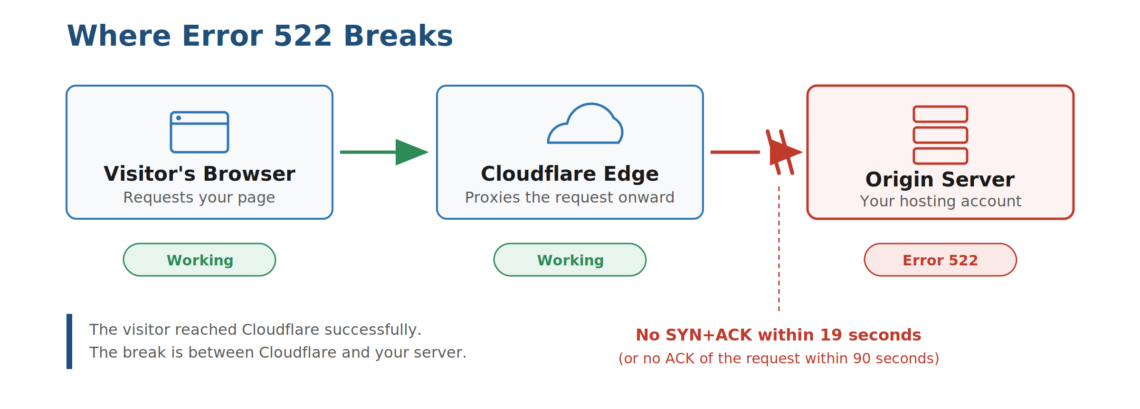
Cloudflare’s official documentation for error 522 defines two distinct timeouts, and either one produces the same page:
- Before the connection opens: your origin doesn’t return a SYN+ACK within 19 seconds of Cloudflare sending a SYN.
- After the connection opens: your origin doesn’t acknowledge Cloudflare’s resource request within 90 seconds.
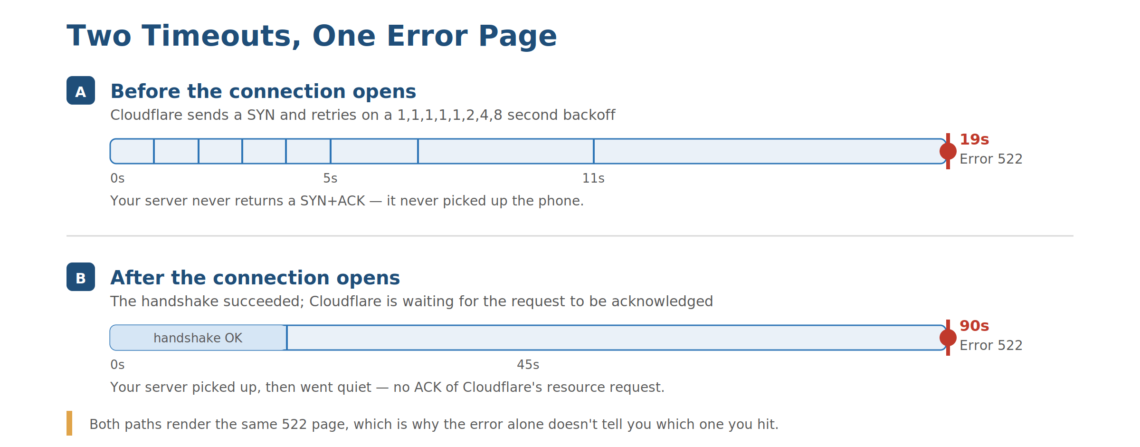
The first is a handshake failure – your server never “picked up the phone.” The second is a stalled request – it picked up, then went quiet. Both land the visitor on the same error page, which is why a 522 alone doesn’t tell you which of the two you’re dealing with.
The error page does some diagnostic work for you, too.
It shows three panels – browser, Cloudflare, host – and on a 522 the first two are marked as working while the third carries the error. That points at the origin path, which is usually where the answer is.
Two caveats keep that honest.
A Cloudflare-wide incident is far less likely than a problem at the origin, but it is worth ruling out on the status page before touching server configuration. And Cloudflare documents a few of its own configuration scenarios that return a 522, including a Worker on a custom domain fetching its own hostname.
What Causes Error 522?
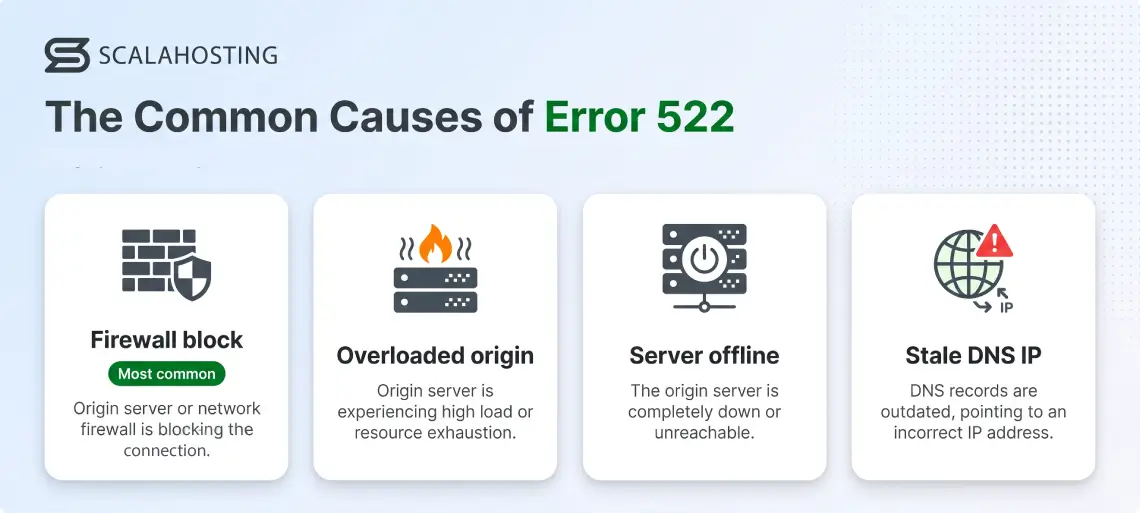
Error 522 has one underlying cause – your origin didn’t respond in time – but half a dozen paths lead there. These are the ones worth checking, roughly ordered by how often they turn out to be the culprit.
- Firewall Rules Blocking Cloudflare’s IP Ranges
This is the most common cause, and Cloudflare’s own documentation names it as such. Once a site sits behind Cloudflare, every request your origin sees arrives from a Cloudflare IP address rather than from individual visitors. To a security tool watching connection volume, that looks like a handful of addresses hammering the server thousands of times a minute.
So the firewall does exactly what you configured it to do, and starts dropping the traffic.
The distinction between dropping and rejecting matters here.
A firewall that rejects the connection produces a 521. One that silently drops the packets typically produces a 522, because Cloudflare gets no answer at all. Treat that as usual behavior rather than a guarantee. It also helps to know which layer you’re dealing with: firewalls, rate limiters, fail2ban, and cloud security groups act on the connection itself, while .htaccess rules and security plugins reject the request after the web server has already accepted it.
- An Overloaded or Resource-Starved Origin
A machine that has run out of CPU, memory, or available connection slots can’t complete a handshake even though the web server process is technically alive. A traffic spike, a runaway cron job, a plugin stuck in a loop, or a database query scanning a large table without an index will all get you there.
On shared hosting, the problem compounds – a neighbor’s traffic surge can starve your site of the connections it needs. And if the real issue is an application that’s slow under load, WordPress performance optimization will do more for you than any firewall change.
- A Stopped Web Server or an Offline Machine
Apache, Nginx, or LiteSpeed crashing – or failing to come back up after a config change – is the blunt version of this problem. So is a failed reboot, or an instance shut down and never restarted.
- A Stale Origin IP in Cloudflare’s DNS
If your server was migrated or reassigned a new address and the A or AAAA record in Cloudflare still points at the old one, Cloudflare keeps dialing a number nobody answers. This one is particularly frustrating because nothing on the server looks wrong – every local test passes.
- Disabled Keepalives
Cloudflare reuses persistent TCP connections rather than opening a fresh one per request. With keepalives switched off, every request forces a new handshake – multiplying overhead and raising the odds one of them times out under load.
- Packet Loss Between Cloudflare and Your Origin
Occasionally the fault genuinely lives in the network path – a misbehaving router, a saturated uplink, or a null route between Cloudflare’s edge and your data center. An MTR from the origin to a Cloudflare IP is how you prove it, and it’s the evidence support will ask for.
Error 522 vs. 521 vs. 524: Telling Cloudflare’s Origin Errors Apart
Cloudflare’s 5xx family looks interchangeable from the outside, but each code describes a different failure at a different moment. Reading the number correctly saves you from troubleshooting the wrong layer entirely.
| Error | What Happened | Where It Fails | Most Likely Cause | Check First |
|---|---|---|---|---|
| 521 – Web Server Is Down | Origin actively refused the connection (TCP reset) | Handshake | Web server process stopped, or firewall rejecting Cloudflare | Is Apache/Nginx/LiteSpeed actually running |
| 522 – Connection Timed Out | The required TCP response or acknowledgment never arrived in time | Handshake or early request | Firewall silently dropping Cloudflare IPs; overloaded origin | Cloudflare IP allowlist, server health, DNS, network path |
| 523 – Origin Is Unreachable | Cloudflare couldn’t route to the origin | Routing | Wrong origin IP in DNS; origin removed from the network | The A / AAAA record in Cloudflare DNS |
| 524 – A Timeout Occurred | Origin accepted the connection but returned no HTTP response before the read timeout | Application | Slow query, long-running script, heavy export or import | Application and database performance |
The 522/524 pair causes the most confusion. A 522 means Cloudflare never received the TCP response or acknowledgment it needed within the documented window. A 524 happens later in the exchange: the origin accepted the connection and acknowledged the request, then failed to return an HTTP response before Cloudflare’s Proxy Read Timeout, which defaults to 120 seconds. Cloudflare documents a separate 30-second Proxy Write Timeout that can also surface as a 524.
That difference decides where you look first.
A 522 sends you to the firewall, server availability, DNS, and the network path. A 524 sends you to a slow query, a long-running script, or a heavy import or export.
Is Error 522 on Your End? What Visitors Should Do
Short answer – No.
If you’re a visitor rather than the site owner, error 522 is almost never a problem on your end. Your browser reached Cloudflare successfully – the failure happened between Cloudflare and the website’s server, which is infrastructure you have no access to. Clearing cookies, switching browsers, and restarting the router won’t change anything.
Three checks are still worth about 30 seconds:
- Hard refresh the page. Ctrl+F5 on Windows, Cmd+Shift+R on Mac. It rarely resolves a 522, but it costs nothing and rules out a stale page.
- Try a different network. Load the site over mobile data instead of Wi-Fi. If it works there, the problem may be a local DNS or routing quirk rather than a 522.
- Confirm it’s down for everyone. A third-party uptime checker will tell you within seconds whether the outage is global.
After that, waiting is the only real option, since the fix has to happen on infrastructure you don’t control. Reporting the outage through another channel usually gets it in front of the site owner faster than waiting quietly.
What Won’t Fix Error 522
Because a 522 breaks on the origin path, a whole category of familiar troubleshooting has no effect. Skipping these saves time during an outage:
- Clearing cookies, changing browsers, or refreshing repeatedly
- Reinstalling plugins or editing application code before origin connectivity is confirmed
- Leaving Cloudflare’s proxy switched off permanently – useful as a temporary isolation test, but it exposes the origin directly and removes the protection you turned the proxy on for
- Editing firewall rules without console access and a tested way back
How to Fix Error 522 as a Website Owner
Work through these in order. The sequence moves from cheapest check to most involved, and each step rules out a whole category of cause.
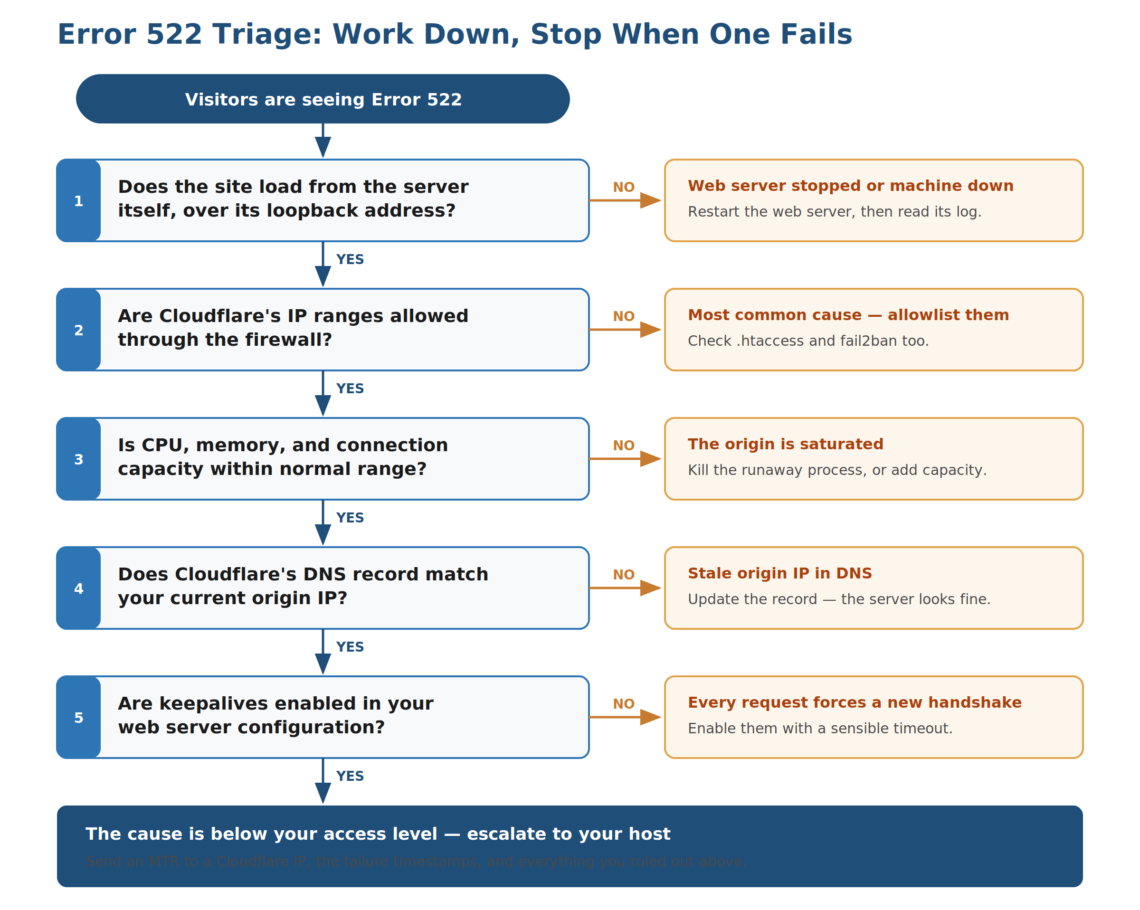
- Confirm the outage is real and global. Test from an external uptime tool, not just your browser. Record the Cloudflare Ray ID from the error page and the exact time with time zone – both are hard to recover later and are the first things support will ask for.
- Rule out Cloudflare itself. Check the Cloudflare system status page. If there’s an active incident affecting your region, there’s nothing to fix on your side.
- Verify the origin is up and serving. Confirm the web server process is running, then request the site over loopback. A loopback success only proves the local process answers locally, so follow it with a request to the origin’s public IP from an outside machine, sending the correct Host header. That is what actually tells you whether the origin accepts external traffic.
- Check the firewall for blocked Cloudflare ranges. This is where most 522 investigations end. See the allowlisting section below.
- Look at resource usage. Load average, free memory, open connection counts, and disk I/O wait. A server pinned at 100% won’t complete handshakes reliably.
- Compare Cloudflare’s DNS record to your actual origin IP. They must match exactly, including the IPv6 record if you have one.
- Confirm keepalives are enabled in your web server configuration, with a sensible timeout value.
- Run an MTR from the origin to a Cloudflare IP that appears in your access logs – the diagnostic both Cloudflare and your host will ask for.
Whitelisting Cloudflare’s IP Ranges in Your Server Firewall
For proxied records, the origin sees requests arriving from Cloudflare’s network ranges rather than from individual visitors, so your firewall and rate-limiting tools need to permit Cloudflare’s current IPv4 and IPv6 ranges on the web ports you serve. Cloudflare states that these ranges do not change frequently and that additions are published before they enter production – but always work from the official list rather than a copy-pasted out of an article.
On a ScalaHosting managed VPS, talk to support before editing production firewall rules yourself. Our team can inspect CSF, the web server, and origin-side connectivity directly. That avoids the two ways this goes wrong on a live server: locking yourself out of SSH, or opening services more widely than you intended.
If you do administer the server yourself, the shape of the rule is the same everywhere: allow the Cloudflare range, on the web port, for both address families. The example below follows the iptables approach in Cloudflare’s own documentation, plus the UFW equivalent. Prerequisites: root or sudo access, and an SSH session you keep open throughout.
⚠️ Warning: Reloading a firewall applies your rule set immediately. If a rule is malformed or ordered incorrectly, you can lock yourself out of SSH. Keep your existing session open and verify access from a second terminal before closing it. Have your provider’s console or rescue-mode access ready as a fallback.
# Allow Cloudflare to reach the origin on 443, IPv4 and IPv6.
# Run as root. Keep an existing SSH session open while testing.
# — iptables / ip6tables (the approach Cloudflare documents) —
for ip in $(curl -s https://www.cloudflare.com/ips-v4); do
iptables -I INPUT -p tcp -s “$ip” –dport 443 -j ACCEPT
done
for ip in $(curl -s https://www.cloudflare.com/ips-v6); do
ip6tables -I INPUT -p tcp -s “$ip” –dport 443 -j ACCEPT
done
# — UFW equivalent (Ubuntu, Debian) —
for ip in $(curl -s https://www.cloudflare.com/ips-v4; \
curl -s https://www.cloudflare.com/ips-v6); do
ufw allow from “$ip” to any port 443 proto tcp
done
ufw reload
Three things the snippet doesn’t handle on its own:
- IPv6. If you publish a proxied AAAA record, Cloudflare will reach the origin over IPv6, and those requests fail unless the v6 ranges are allowed too.
- Port 80. Add matching rules for port 80 if you serve any plain HTTP, including redirects.
- Application-level blocks. Firewall rules don’t override deny directives in .htaccess, a security plugin’s blocklist, or a fail2ban jail. Those operate above the firewall and need checking separately.
Because the ranges change rarely, a scheduled job that rewrites production firewall rules is usually more risk than it removes. If you do automate, watch Cloudflare’s published list or API for changes rather than blind-writing on a timer, and have the job validate what it downloaded, preserve working rules, log changes, and offer a tested rollback.
When to Escalate to Your Host
If the origin server is running, resources look healthy, Cloudflare’s ranges are allowed, and the DNS record matches, the cause is likely at a layer you can’t see – network-level packet loss, upstream routing, or hypervisor resource contention.
Whoever picks up the ticket will ask for the same evidence every time. Collecting it first turns a two-day back-and-forth into a single reply:
| Evidence | What It Establishes |
|---|---|
| Cloudflare Ray ID | Identifies the exact failed request in Cloudflare’s logs |
| Timestamp with time zone | Correlates the failure against server, firewall, and network logs |
| Direct-origin test result | Shows whether the origin answers outside Cloudflare |
| Current A / AAAA records | Detects a stale or incorrect origin IP |
| CPU, memory, I/O, connection counts | Detects overload or resource exhaustion |
| MTR or traceroute | Shows packet loss or routing problems in the path |
| Web server and firewall logs | Shows refused, dropped, or rate-limited requests |
Send that alongside what you’ve already ruled out. Talk to the ScalaHosting technical team – our support handles origin-side diagnostics directly rather than routing you to a knowledgebase article.
How to Diagnose Error 522 on a ScalaHosting Managed VPS
The layers to check at ScalaHosting are the same on any managed VPS. What differs is how much you do yourself, and how much is already running.
Start with what you can confirm without touching the server: that the proxied A and AAAA records still match the origin IP, and that the timeout lines up with a resource spike or a stopped service. SPanel’s website monitoring polls a URL every 1, 5, 10, or 15 minutes and records HTTP status and response time, so a 522 window usually has a visible shape in the history.
Worth knowing before you start restarting things: every SPanel server runs a five-minute service watchdog that checks the web server, MariaDB, Exim, Dovecot, Pure-FTPd, BIND, and each installed PHP-FPM version, and starts anything it finds stopped. A web server that crashed at 3 a.m. is generally back within five minutes without anyone being paged. That also means a persistent 522 is unlikely to be a simply-stopped service – look instead at overload, DNS, the firewall, or the network path. The watchdog checks that a process is running, not that it is responding, so a hung process is one case it won’t catch.
One caveat worth planning around: monitoring that runs on the server it watches goes down with that server. If you run more than one ScalaHosting server, configuring each to monitor the others closes that gap at no extra cost.
If the origin looks healthy and Cloudflare still returns 522, that is the point to open a ticket rather than keep changing configuration.
How to Stop Error 522 From Coming Back
Fixing a 522 once is troubleshooting. Making sure it doesn’t return is an infrastructure decision – and it comes down to three things: headroom, visibility, and redundancy.
Headroom is the one people underestimate.
A server sized precisely for average traffic has nothing left when a campaign lands or a bot sweeps the site, and connection timeouts are the first symptom of that squeeze. Managed VPS hosting isolates you from unrelated shared-hosting neighbors and lets you scale the allocation without a migration. Be precise about what that buys, though as the accounts and sites inside your VPS still share its assigned CPU, memory, and disk throughput, so a runaway process of your own can still starve the box.
Visibility turns a long outage into a short one.
The SPanel control panel covers part of it through the website monitoring described above; pair that with server-level resource visibility, since the two answer different questions. A 522 usually announces itself in response times before it becomes an outage.
Redundancy matters when one origin isn’t enough.
If your business can’t absorb the downtime – ecommerce during a sale, a SaaS product under an uptime commitment – a single machine is a single point of failure no tuning removes.
You can try a different hosting approach, though.
Managed Cluster Hosting distributes traffic across nodes, so when health checks mark one unhealthy, new requests go to the other ones. It reduces single-server risk rather than eliminating downtime: the load balancer has to detect the failure, the database cluster has to keep quorum, and a request in flight when a node drops may still need retrying.
Three habits prevent most repeat incidents: check the Cloudflare allowlist against the official list whenever you change firewall or security tooling, alert on origin response time rather than only on uptime, and audit security plugins for rules that block the traffic your CDN depends on.
Conclusion
Error 522 means Cloudflare didn’t get the response it needed from your origin path in time. Work the causes that are both common and quick to confirm: check that the origin IP in DNS is current, that the web server is answering, that Cloudflare’s published IPv4 and IPv6 ranges are permitted and that load and connection capacity are within normal range.
If all of that passes, stop changing configuration and start collecting evidence. The failure timestamp, the Ray ID, a direct-origin test, and route data let your host separate a firewall problem from overload, bad DNS, or upstream routing far faster than another round of guesses.
If your site is timing out because a single server is running closer to its limits than it should be, that’s a capacity problem rather than a configuration one – see what dedicated, scalable resources would change for your setup.
Frequently Asked Questions
Q: What Causes Error 522?
A: Error 522 happens when Cloudflare doesn’t receive a required TCP response from your origin within its timeout window – 19 seconds for the initial handshake, or 90 seconds for the request that follows. Cloudflare’s documentation names blocked or rate-limited Cloudflare IP addresses as the most common cause. Overloaded servers, stopped web server processes, stale origin IP addresses in DNS, disabled keepalives, and packet loss account for the rest.
Q: Is Error 522 on My End?
A: If you’re visiting the site, no – the failure sits between Cloudflare and the website’s server, and nothing on your device will fix it. If you own the site, it is yours to investigate, though the server isn’t necessarily at fault: the firewall, the DNS record, or the network path between Cloudflare and your data center are all candidates.
Q: How Do I Fix Error 522 on ScalaHosting?
A: Confirm the proxied A and AAAA records still match your origin IP, then check whether the timeout lines up with a resource spike or a stopped service – SPanel’s website monitoring history is the fastest place to see that. Because the watchdog restarts stopped services every five minutes, a persistent 522 is more likely due to overload, DNS, the firewall, or the network path. Open a ticket with the URL, timestamp and time zone, Cloudflare Ray ID, and the tests you’ve run; support can inspect the origin firewall and logs without you making risky changes on a live server.
Q: How Long Does Error 522 Last?
A: As long as the underlying cause persists. A 522 isn’t a state Cloudflare imposes and later lifts – it clears the moment your origin answers within the timeout window. A 522 driven by a traffic spike may resolve as load subsides, which is why intermittent ones get ignored; a firewall-driven one persists until the rule changes. Recurring 522s deserve investigation rather than patience.
Q: Does Error 522 Affect SEO?
A: Sustained 522 errors carry real SEO risk. Google documents that 5xx responses cause it to slow crawling, that indexed URLs are retained at first, and that URLs failing persistently are eventually dropped from the index. Brief incidents are generally absorbed; a site returning 522s regularly loses crawl rate and, in time, the affected URLs.