Every New WordPress Install on SPanel Comes Pre-Optimized – Here’s What’s Inside

When you create a WordPress site through SPanel’s WordPress Manager, the platform performance-tunes it during the install itself – no config files, no follow-up checklist. Here’s what SPanel does so you don’t have to:
- Every fresh install ships tuned, not blank.
- LiteSpeed Cache and a per-account Redis object cache are configured for you.
- Outdated PHP is raised to the latest stable version where available; wp-cron becomes a five-minute server cron.
- Database hygiene – revision caps, autosave interval, trash cleanup – is set at install.
- The install only reports success after the cache is warmed and verified serving a hit.
Why this matters
Out of the box, WordPress has no page cache, no object cache, and a scheduling system called wp-cron that only works when someone visits the site. On a quiet site, scheduled tasks stall and pages get rebuilt from scratch on every request. Most owners don’t notice until real traffic arrives.
Usually, fixing the inevitable performance issues involves a lot of head-scratching, experimenting with various plugins, and editing configuration files. Sometimes, all these attempts to solve the problem may make things worse. SPanel eliminates that risk at the very beginning.
The short version
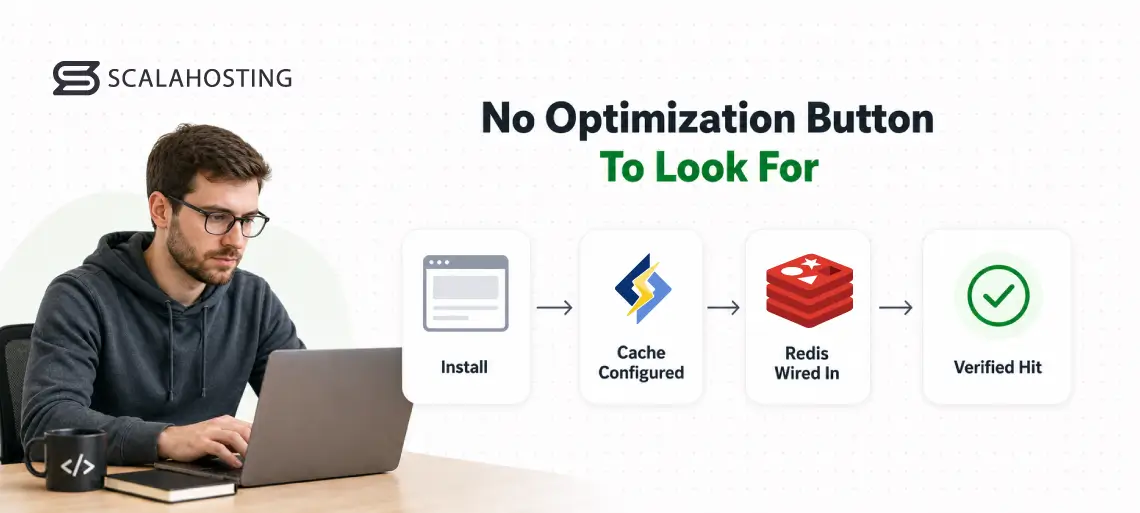
SPanel treats “optimized” as the default state of a WordPress site rather than a task you do later. It tunes the CMS during the installation process, so there is no “optimize” button to look for. SPanel installs LiteSpeed Cache on a maximum-performance profile, wires in a per-account Redis object cache, clears out conflicting caching plugins, updates PHP, and swaps wp-cron for a real server cron on its own. You don’t even need to open a support ticket.
What most people get wrong
The common assumption is that a caching plugin alone makes WordPress fast. It helps, but a page cache only stores finished HTML pages. The moment a request needs something dynamic – a logged-in user, a cart, a search – WordPress falls back to the database, and that’s where an object cache comes in.
Redis holds the results of common lookups in memory, so WordPress doesn’t waste time processing them every time there’s a request.
The second misconception is that stacking plugins helps. Two caching plugins usually fight and cache each other’s output, which is why SPanel removes conflicting ones before it installs LiteSpeed Cache – one properly configured cache layer is better than three conflicting ones.
How it actually works
You install WordPress the ordinary way. In the SPanel user area you open the WordPress Manager, fill in the Install a New WordPress Site form- Installation URL, Username, Password, Repeat Password, and Email – and click Install WordPress. A Popular WordPress plugins selector lets you add WooCommerce, WPForms, and others in the same step.
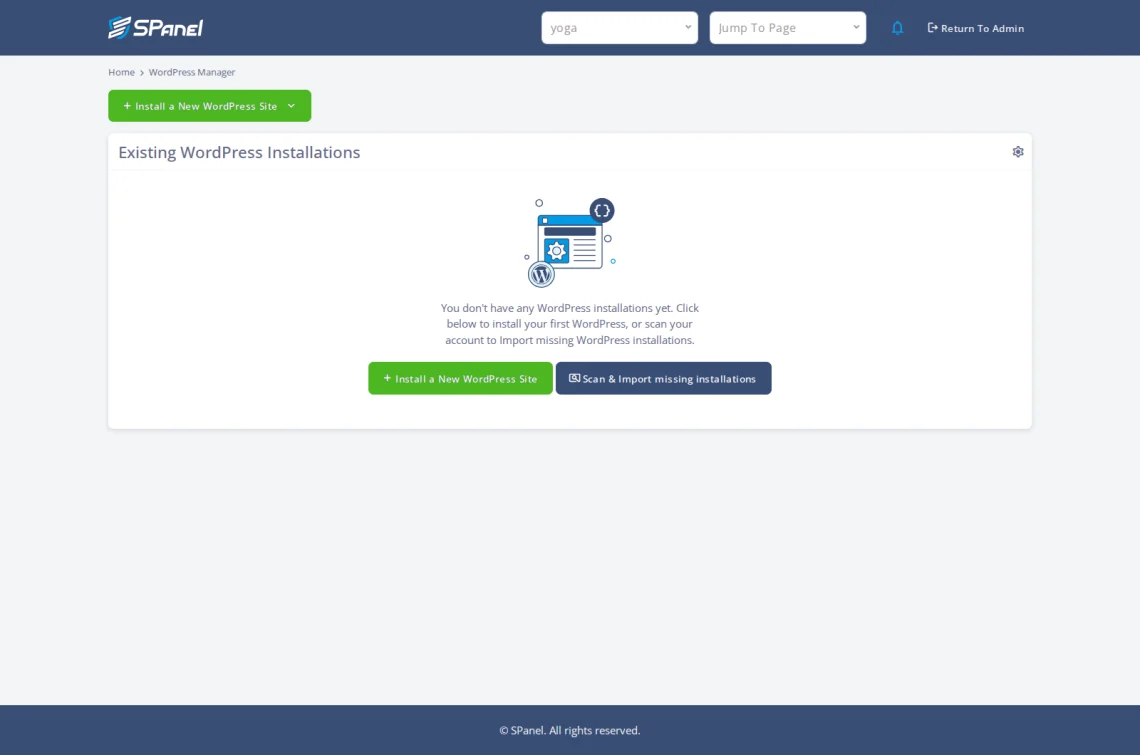
Behind the scenes, the platform does the tuning. It installs and activates LiteSpeed Cache, applying the settings that provide the best possible performance. It sets up your account’s Redis instance as the object cache, and it raises PHP to the latest stable version if the site was running an older one.
The visitor-triggered wp-cron is swapped for a real server cron with a five-minute interval, and several database hygiene rules are applied: post revisions capped at 10, the autosave interval set to 120 seconds, and trashed items emptied after 14 days. Finally, SPanel warms the cache and confirms the site is serving a cached response – an x-litespeed-cache: hit header – before the job reports success.
Where SPanel is different
Plenty of hosts hand you a caching plugin and call it optimization. The difference here is verification: SPanel checks for the x-litespeed-cache: hit response before it calls the install done, so “optimized” means confirmed, not just enabled.
The same install also hardens the site: every new WordPress gets unique security salts and a wp-content/uploads/.htaccess that blocks PHP execution in the uploads folder – the most common malware entry point – before the install finishes. The tuning isn’t limited to new sites, either; it can be applied to an existing install on demand.
Who benefits from automatic tuning
The automatic tuning pays off at every scale, and it starts with a single site. A small business owner or blogger installing one WordPress site gets a cached, database-light site from the first request, without having to learn what an object cache is or touch a single performance setting. The setup work that usually means researching plugins, comparing cache configurations, and editing configuration files is already done before the site is handed over, which removes the most error-prone part of running WordPress for someone whose expertise is their business rather than server tuning.
Agencies and larger businesses managing client sites get the same baseline, multiplied across every site they run. Each install arrives with an identical, verified configuration – the same cache profile, object cache, PHP floor, and cron schedule – so there is no per-site checklist to forget and no guessing about why one site is slower than another. A consistent starting point makes performance problems easier to diagnose, speeds up client onboarding, and lets the team spend its time on billable work instead of repeating the same setup on every new build.
What a fresh WordPress install ships with vs. what SPanel configures
WordPress’s own defaults are deliberately minimal – the project leaves performance choices to the host and the owner. Here’s the gap SPanel closes at install:
| Setting | Default fresh WordPress | On SPanel at install |
|---|---|---|
| Page cache | None (add a plugin yourself) | LiteSpeed Cache, maximum-performance profile |
| Object cache | None | Dedicated per-account Redis, wired in |
| PHP version | Whatever’s set, often older | Raised to the latest stable version where available |
| Scheduled tasks | wp-cron, fires on page visits | Real server cron every five minutes |
| Post revisions | Unlimited | Capped at 10 |
| Autosave / trash | 60 seconds / 30 days | 120 seconds / emptied at 14 days |
| Conflicting cache plugins | Left in place | Removed before setup |
| Cache verification | None | Confirmed serving a hit before success |
Limitations and trade-offs
This is automatic tuning, and it has its boundaries.
It needs the right web server. SPanel runs Apache by default, and the pre-optimization depends on OpenLiteSpeed or LiteSpeed Enterprise; switching your server over to either is quick and straightforward. On a non-LiteSpeed stack, the LiteSpeed Cache and warm-and-verify steps don’t apply until you make that switch.
It changes defaults you might have relied on. If you count on more than 10 stored revisions, a 60-second autosave, or a 30-day trash window, set those back – they’re ordinary WordPress settings you can change after the install.
It doesn’t tune your plugins or your theme. A heavy page builder or an unoptimized image library can still slow a site that’s perfectly cached. And it doesn’t replace your backups – pre-optimization is about speed at install, not recovery, so staging risky changes and keeping account-level backups still matter.
Recommended workflow
Install through the WordPress Manager and let the tuning run, then build your site and test as normal – don’t add a second caching plugin on top of LiteSpeed Cache. Once the site is stable and you’re done making frequent file changes, turn on SPanel’s file lock for a security layer that survives a compromised plugin. For sites you brought from another host, use Scan & Import missing installations to register them first, then tune those too.
Step-by-step
- Log into the SPanel user area and open WordPress Manager.
- In the Install a New WordPress Site panel, enter your Installation URL.
- Enter a Username, then a Password, and confirm it in Repeat Password.
- Enter your Email address.
- Optionally select plugins from Popular WordPress plugins – WooCommerce, Jetpack, All in One SEO, WPForms, MonsterInsights, or OptinMonster.
- Click Install WordPress and wait for the install to finish.
- Find the new site under Existing WordPress Installations and review the Install URL, Security Lock, Auto Updates, and Actions columns.
Conclusion
On SPanel’s managed WordPress hosting, an optimized site is the starting point rather than a project you take on after launch. During the install, the platform configures the cache layers, raises PHP, replaces wp-cron with a real server cron, applies database hygiene, and hardens the site, then confirms the cache is serving a live hit before it reports success. That final check is what sets the approach apart: “optimized” means verified, not just enabled.
The same automatic tuning does equal work whether you run a single site or manage many, clearing the most common performance pitfalls before they reach production and holding every install to a consistent, known-good baseline. It does not replace judgment about the rest of the site – a heavy theme or a stack of conflicting plugins can still slow a well-cached install, and pre-optimization covers speed at setup rather than backups or recovery. With the infrastructure handled at install time, the work that is left is the part only you can do: the design, the content, and the business behind the site.
FAQ
Q: Does SPanel optimize WordPress automatically when I install it?
A: Yes. The tuning runs as part of the install, not as a separate step. SPanel activates LiteSpeed Cache on a maximum-performance profile, wires in a dedicated Redis object cache, updates PHP, replaces wp-cron with a server cron, and applies database hygiene – then verifies the cache is serving before it reports success. There’s no “optimize” button to press; the work happens for you.
Q: Do I still need a caching plugin?
A: No. LiteSpeed Cache is installed and activated for you at install, and SPanel removes conflicting caching plugins first so nothing competes with it. Adding a second caching plugin on top usually causes conflicts rather than speed, so change caching behavior within LiteSpeed Cache itself.
Q: What PHP version does a new WordPress install use?
A: When a site sits on an outdated PHP version, SPanel raises it to the latest stable PHP version where available. The account offers a range of PHP versions, so you can set a specific one if a legacy theme or plugin needs it. Newer PHP runs faster and stays supported longer.
Q: Can I apply this to a WordPress site I already have?
A: Yes. The tuning isn’t limited to new sites – it can be applied to an existing install on demand. If you moved a site in from another host, use Scan & Import missing installations in the WordPress Manager to register it first so the panel tracks it, then apply the tuning to it.
Q: Why replace wp-cron with a real server cron?
A: WordPress’s built-in wp-cron only runs when someone loads a page, so on a quiet site scheduled tasks – publishing posts, sending email – can stall until the next visit. A real server cron runs on the clock instead, every five minutes, independent of traffic. That’s more reliable for anything time-sensitive.
Q: What does SPanel check before calling the install done?
A: It confirms the site is serving cached content. After warming the cache, the install looks for an x-litespeed-cache: hit response header and only reports success once it sees one. So “optimized” reflects a verified cache hit, not just a plugin that’s switched on.