Adding a Domain Is More Than DNS: What Your Hosting Panel Should Configure Automatically

Type a domain into a browser, hit enter, and a website appears on your screen from half a world away. A surprising amount of coordination goes into all this, but to enable it, you must take a critical step in building your website: adding a domain to your hosting account.
It’s not necessarily as straightforward as it sounds. Sometimes, you may register a domain, set the correct DNS records, wait for propagation, then load the site and meet a blank page, a bounced email, or a browser warning about an untrusted certificate.
Quite a few things must fall into place for everything to work seamlessly. In this article, we’ll look at where the process trips people up, and at what a good web hosting panel should handle automatically so you don’t have to.
What “Adding a Domain” Actually Means
How does domain hosting work, in plain terms? A domain is the human-readable address people type to reach your site. DNS, the Domain Name System, is the lookup service that translates the domain into the IP address of the server hosting your files.
Adding a domain to your hosting account means telling one specific server, “traffic for this name belongs here,” and preparing that machine to respond when requests arrive.
DNS handles direction. It’s the signpost pointing visitors toward the right machine. A DNS zone is the collection of records for your domain that lives on a nameserver and answers lookup queries. These include the address record (A record), which maps your domain name to an IP, the mail records that route your emails, etc.
Hosting handles arrival. When your server receives a request, it must recognize the domain, find the folder containing its files, serve them over a secure connection, and route your emails. That folder is the document root, the directory the web server opens when a request for your domain comes in.
A domain with DNS but no server-side configuration is a signpost pointing at an empty lot. The directions are perfect. There’s just nothing built at the destination yet.
The Configuration a Working Domain Actually Needs
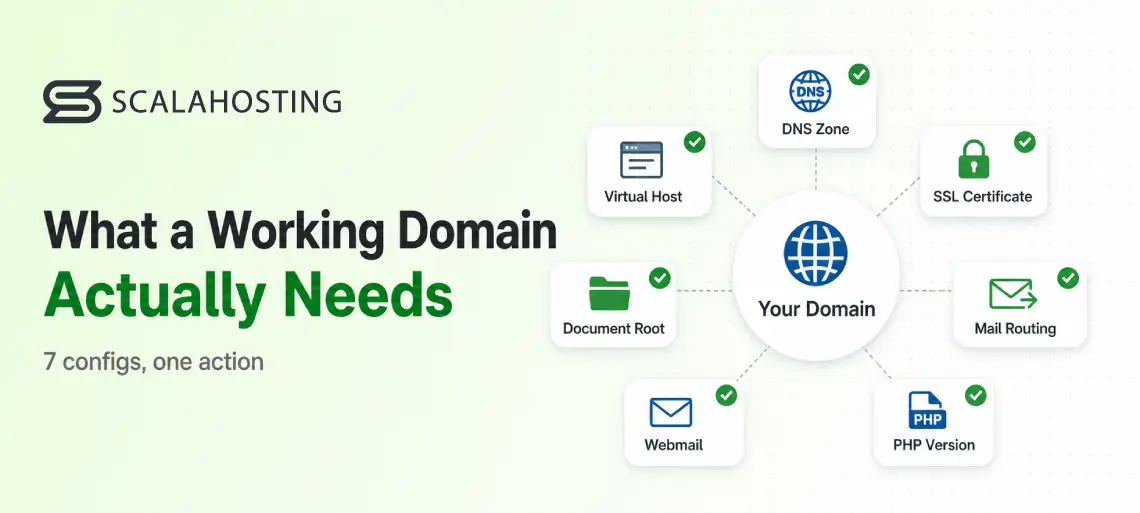
So what has to be in place before a freshly added domain can serve a site and send mail? Treat it as a checklist your hosting panel should complete on your behalf:
- A DNS zone. The server needs its own set of records for the domain, covering web, mail, and supporting entries, so that lookups resolve to the right place.
- A web server virtual host. This is the configuration block that tells the web server the domain exists, where its files live, and how to respond to requests for it. Skip it, and the server has no idea the domain is its responsibility.
- An SSL certificate. Browsers flag any site served over plain HTTP as not secure, so a certificate has to be ready from the start. A good web hosting control panel first checks whether a valid certificate already covers the domain, such as an existing wildcard certificate, and reuses it. If none applies, it installs a self-signed certificate as a placeholder, and getting a fully trusted, free Let’s Encrypt certificate in its place takes only a few clicks.
- A document root with correct permissions. Every domain needs a dedicated folder for its files, created with ownership and permissions that let the site run without exposing it. Getting permissions wrong here is a common cause of both broken sites and security holes.
- Mail routing and storage. For email to reach addresses on the domain, the server has to be configured to accept and store mail for it. This is separate from the web side, which is why a working website can still have a broken email service.
- Webmail access. Account holders expect to read and send mail in a browser, so the webmail interface must be linked to the domain’s mailboxes.
- A default PHP version. Most site software runs on PHP, so the domain needs a version assigned before anything can execute.
Seven distinct operations. On a good panel, one action triggers all of them.
What Happens When You Add a Domain to Hosting?
Adding a domain to your hosting account should:
- Make the site reachable (the DNS records, the web server virtual host, and the document root)
- Secure it (SSL handling for HTTPS)
- Enable email (mail routing and webmail)
- Make it suitable for dynamic website hosting (assigning a PHP version)
Without those steps, a domain may resolve correctly, but the site, email, or HTTPS would still fail.
What Happens When the Panel Leaves It to You
Some hosting panels treat domain setup primarily as a DNS event, leaving the remaining server configuration steps to the user. They create the zone, drop the domain into a list, and consider the job done. The rest of the tasks suddenly become your responsibility, often without you realizing it.
Here is the same checklist split by what each kind of panel does for you when a domain is added:
| Configuration step | DNS-only panel | Full-orchestration panel |
|---|---|---|
| DNS zone | Created | Created |
| Web server virtual host | Manual | Automatic |
| SSL certificate | Manual | Auto-reused, or self-signed, then quick Let’s Encrypt |
| Document root and permissions | Manual | Automatic |
| Mail routing and storage | Manual | Automatic |
| Webmail | Manual | Automatic |
| Default PHP version | Manual | Automatic |
The results are predictable. A blank page because no virtual host was created. An email that vanishes because mail routing was never configured. A browser warning because no certificate was issued. None of these announce themselves when you add the domain; they surface later, usually when a user first visits them.
Then comes the support ticket, or the hour lost configuring a web server, generating a certificate, and setting up mail by hand. For one domain, that’s a frustrating afternoon. For an agency or reseller managing client sites across dozens of domains, it’s hours of wasted time for every single project.
Web hosting control panels differ here, and the difference is worth understanding before you commit. The most popular ones have domain management tools, so the real question isn’t whether a panel can add a domain but how many of the surrounding layers it wires up in the same motion.
One Action, Any Web Server
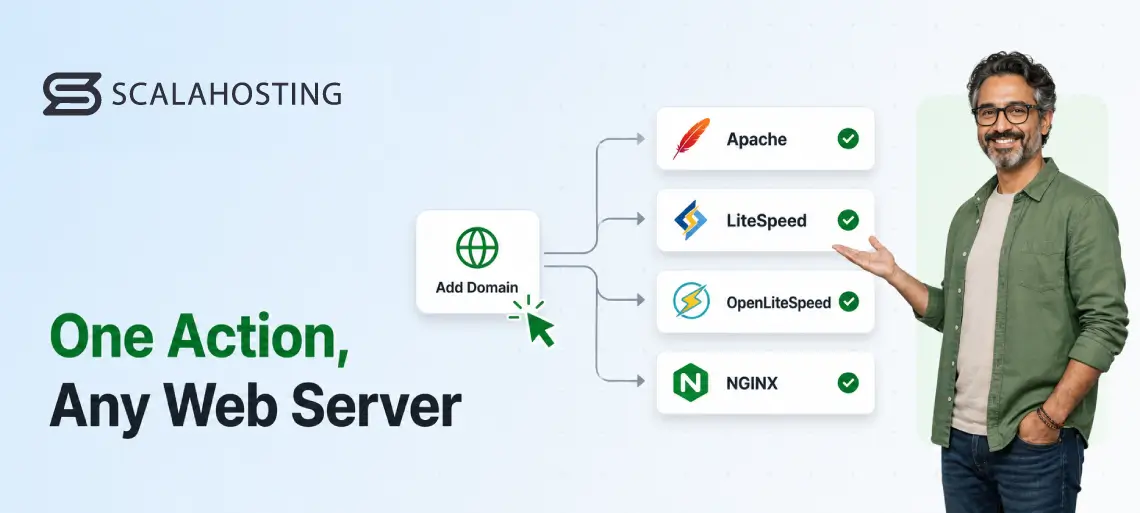
Here’s a wrinkle most domain-adding guides skip: the configuration a domain needs depends on which web server is running, and the syntax isn’t interchangeable.
Configuring a domain for Apache is not the same as configuring it for LiteSpeed Enterprise or OpenLiteSpeed, and running Nginx as a reverse proxy in front of Apache adds yet another layer.
Each expects its virtual host to be defined in its own way, and a configuration written for one won’t simply work on another. On many setups, that’s knowledge the customer is quietly expected to have, or to acquire the hard way.
SPanel, ScalaHosting’s proprietary control panel, removes that expectation. It supports Apache, LiteSpeed, and OpenLiteSpeed, and can run Nginx as a reverse proxy.
When you add a domain, it automatically sets up the virtual host for whichever web server your environment uses. You don’t pick a syntax or edit a config file; SPanel writes the right configuration underneath.
Where the Automation Honestly Stops
No honest article about automation would claim it does everything, so here’s where the work stays yours.
A hosting panel can only configure the server it runs on; it can’t reach out and change settings that live elsewhere. The common example is external DNS. If you keep your DNS with a third-party provider rather than on the hosting server, adding the domain still builds the full server-side configuration, but the panel can’t update those external records for you. You point your DNS at the server’s IP address yourself, from wherever it lives.
A couple of other things stay yours by design: you create the individual mailboxes, since the panel sets up routing but can’t know which addresses you want, and you upload your site’s files into the ready-made document root.
That’s the honest line between what should be automatic and what requires a decision only you can make. A good web hosting panel can eliminate a lot of the work, but it can’t configure systems outside your hosting account.
How ScalaHosting Handles Domain Setup
Everything described so far is how we set up domains at ScalaHosting.
When you add a domain through SPanel’s User Interface, a single action starts the entire sequence. The platform creates the DNS zone, writes the virtual host for whichever web server you’re running, prepares the document root, configures mail routing and webmail, applies a default PHP version, and handles certificate logic, reusing a valid certificate that already covers the domain or installing a self-signed placeholder when none does.
Either way, installing a fully trusted, free Let’s Encrypt certificate on the site is a quick, few-click step in SPanel’s SSL Manager, so getting onto proper HTTPS is completely painless.
One action handles the server-side configuration automatically, leaving only user-controlled tasks like external DNS updates, mailbox creation, and website uploads. SPanel also lets you manually assign different PHP versions to domains and subdomains within the same account, which is useful when running software with different requirements side by side.
The orchestration doesn’t stop at creation. If you later change the main domain on an account, SPanel rewrites the entire configuration tree in a single operation: the web server virtual hosts, DNS zones, mail and webmail config, every subdomain under the old name, and the SSL certificates.
What would otherwise mean editing a dozen scattered configuration files by hand becomes one action. The same orchestration principle is applied across a domain’s life, not just its first minute.
Because SPanel comes free with every managed VPS plan, it isn’t a premium add-on or a higher-tier upsell. There are no per-account licensing fees, either, a contrast we cover in our SPanel vs. cPanel comparison. It’s the standard experience on a platform that already powers over 700,000 websites across more than 120 countries.
For a single site owner, that means the server-side environment is ready immediately after setup, with full availability largely determined by DNS propagation. For an agency or reseller standing up dozens of domains, the per-domain setup tax disappears.
Want to see the Add Domain workflow for yourself, or talk through how it fits a portfolio of sites? Our technical team is happy to walk you through it.

Conclusion
Adding a domain isn’t simply about configuring its DNS settings. The domain, the server, the SSL certificate, and the document root all have to work together, and the panel you choose decides whether that happens in a single click or over a week of support tickets.
Judge a host by the routine moments, not just the headline features. How it handles something as ordinary as adding a domain tells you most of what you need to know.
Frequently Asked Questions
Q: Is adding a domain the same as setting up DNS?
A: No. Setting up DNS points visitors toward your server, but a working domain also needs a web server configuration, an SSL certificate, mail routing, and a document root for its files. A panel that only handles DNS leaves the rest to you, which is why a domain can resolve correctly and still fail to serve a site or deliver email.
Q: What do I need to do after adding a domain to my hosting?
A: In most cases, you have to upload your website’s files to the document root, set up the database, and create the mailboxes you want. If your DNS is hosted with a third-party provider, you also point those external records at your server’s IP address. A capable panel has already handled the web server, certificate, and mail setup.
Q: Does a new domain get email set up automatically?
A: The email infrastructure does, but the individual addresses don’t. A good panel configures mail routing and webmail the moment you add the domain, so the server is ready to accept and store messages. It’s up to you to create the email mailboxes per your requirements.
Q: Can I host more than one domain on a single hosting plan?
A: Yes. Most plans let you host multiple domains in one account, alongside subdomains, with the exact number set by your plan’s limits. Each added domain gets its own configuration, so the sites stay independent.
Q: Why does my new domain show an SSL warning?
A: A browser shows an SSL warning when the certificate covering the domain isn’t trusted, which often happens when only a temporary self-signed certificate is in place. Installing a free, trusted certificate from a provider like Let’s Encrypt resolves it. On a panel with smart certificate handling, an existing valid certificate that already covers the domain, such as a wildcard certificate, is automatically reused, so the warning never appears.
Q: If I use an external DNS service like Cloudflare, do I still need to add the domain in my panel?
A: Yes. Adding the domain in your panel builds the server-side configuration, the web server, certificate, mail, and document root, regardless of where your DNS lives. You then point your external DNS at the server’s IP address so visitors can reach it. Both steps are needed for the domain to work end-to-end.
Q: Can a domain work if only DNS is configured?
A: Yes, DNS can point traffic toward the correct server, but the site may still fail if the server itself has not been configured to recognize the domain, serve files, handle SSL, or route email.