n8n System Requirements: Do I Need a Separate Server?

n8n is an open-source automation platform, meaning you’re free to read, copy, edit, and redistribute its code however you like. It also means that you can install it on any device you want, including your personal laptop.
But can a regular home computer really handle an advanced, feature-packed automation tool like n8n? Or do you need a separate server for it?
The short answer: it depends.
If you’re using n8n for personal tasks and simple automations, setting it up on a regular home computer may do the trick. However, if you want 24/7 availability and need to create complex workflows that connect multiple platforms and applications, a separate server is likely your best choice.
Today, we’ll explore n8n’s system requirements, examine all the hosting options, and discuss how usage and future trends impact its performance.
What is n8n and Why System Requirements Matter
n8n (short for “nodenation“) is an automation tool that enables you to create complex workflows that optimize and automate everyday business operations. It connects multiple apps and platforms, allowing you to set up triggers and events that initiate processes without human intervention.
This helps automate many repetitive tasks, manage how data flows between different apps, and make your workday more efficient and secure. The great news is, you don’t need any coding skills to enjoy its benefits.
n8n provides an intuitive graphical user interface that displays your workflow as a series of interconnected nodes. Each node is connected to a specific app, and it can act as either a trigger or an event. You also have numerous options for determining how nodes behave under different scenarios.
There are hundreds of off-the-shelf integrations for everything from mailing tools to complex CRM systems. Thanks to them, n8n can offer no-code automation – the entire workflow creation process can be completed through a point-and-click interface. That said, users with programming skills can write custom integrations and implement unique logic to tailor their n8n workflows to their requirements.
n8n is far from the only platform to offer this kind of functionality. Apps like Zapier and Make have actually been around for a lot longer, offering comparable features in a similarly intuitive interface. However, what makes n8n stand out is its open-source nature.
The community-driven development makes it appealing to users and organizations of all walks of life. Anyone – from a freelance developer to a large business enterprise with dozens of departments and hundreds of employees – can use n8n to optimize processes and enhance efficiency. The former will likely pick it because they can use it without paying a penny. The latter will enjoy n8n’s incredibly powerful automation capabilities and take advantage of the endless customization options.
The versatility gives n8n a definitive advantage over much of the competition, and it also allows for three distinctive hosting options:
- n8n Cloud – A Software-as-a-Service offering where n8n’s developers handle hosting. You can use the platform as long as your subscription is active.
- Self-hosting n8n – Deploying n8n on a virtual or dedicated server rented from a hosting provider.
- Locally – Running n8n on your personal computer.
For the latter two, your environment must meet n8n’s system requirements. Otherwise, n8n may lack the resources to run workflows smoothly and could disrupt operations instead of improving them.
Official n8n System Requirements (2025)
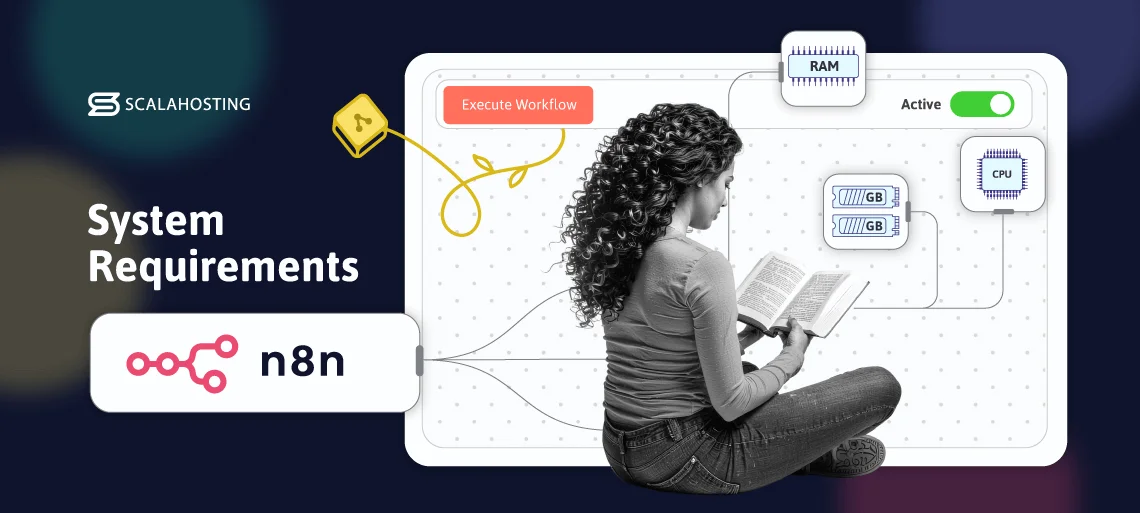
n8n can be quite resource-efficient at times. When idle, it uses roughly 100MB of RAM. However, as soon as it starts executing workflows, resource usage shoots up.
Even so, the official minimum requirements for deploying n8n don’t sound too scary:
- RAM: 2GB
- CPU: Dual-core
- Storage: 20GB
Additionally, your system must have Node.js v20.19 or higher. SQLite works out of the box, but for better scalability, PostgreSQL is recommended.
In short, your phone likely has several times the computational capacity needed to run n8n.
So why bother with a separate server?
Before you dust off a fifteen-year-old laptop and try to deploy one of the world’s most powerful automation platforms on it, a few important considerations.
First, it is essential to note that the minimum requirements listed above are suitable for simple workflows with low activity and minimal automation. For a production environment, experts recommend doubling the processing power and memory. If you add AI automation to the mix, hardware configuration will have to be much more powerful.
And that’s just the beginning.
Do You Need a Separate Server? Key Factors to Consider
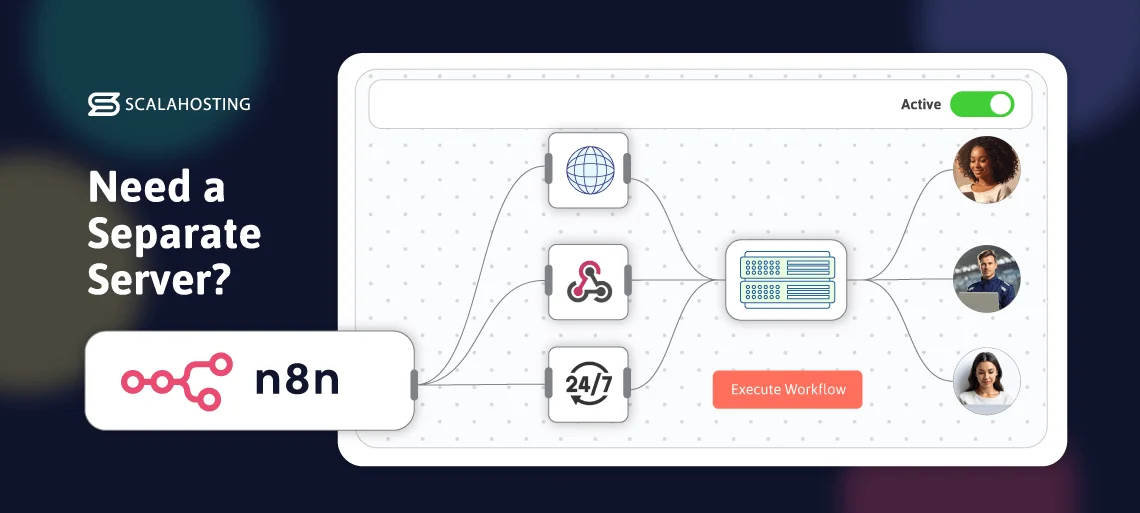
Different scenarios call for different setups. In some cases, running n8n locally makes sense, while in others, n8n Cloud may be the best fit. For more advanced needs, self-hosting is the correct approach.
Here are the key factors that will help you make the right decision.
Usage Level
Installing n8n on your local laptop is a great way to familiarize yourself with the platform and see how it works before deploying it in a production environment. It may also be a good, no-cost option if your workflow optimization needs boil down to automating weekly email reports, for example, or syncing data between a Google Sheet and Slack.
However, anything more complex, and your local machine will likely start to struggle pretty quickly.
Even smaller teams can create workflows that involve hundreds of executions per day, which are likely to exceed the limits of a local setup. AI automations and complex data processing put even more load on the hardware, and are bound to result in timeouts, delays, and excessive memory consumption. At this point, instead of saving time and effort, your efficiency will drop because you’ll have to deal with a machine that’s put under too much load.
Conclusion: A local setup serves as a testing environment, capable of handling simple workflows and a limited number of executions. More demanding automations require a separate server.
Availability
When hosting n8n locally, your workflows stop as soon as you close your laptop’s lid. Automations cannot run when your computer is off, and even minor ISP outages can disrupt workflow execution.
This could be problematic. Some automations need to run outside business hours, and many are time-sensitive.
A separate server or VPS resolves any potential issues by providing uninterrupted uptime. The hardware you hire from your hosting provider is deployed in a data center – a state-of-the-art facility that employs numerous measures to ensure all machines hosted on it are switched on and available all the time.
Conclusion: Home computers and laptops aren’t designed to work 24/7. Even if you don’t shut them down at night, you can’t guarantee they will offer the availability you need to take full advantage of n8n’s powerful automations.
Webhooks and Public Accessibility
If your workflows depend on webhooks – external triggers that connect to your n8n instance over the internet – you’ll want a public URL. Theoretically, you can register a domain and point it to your local computer, but this would require considerable effort. You can also employ a tunnelling service that redirects the data flow to your machine, but their setup is hardly straightforward, and they often need a lot of maintenance. They could be a good compromise for testing purposes, but experts advise against using them in a production environment.
By hosting n8n on a VPS, you get a stable and reliable endpoint for webhooks. Most hosting services offer easy-to-use tools for setting up subdomains and subdirectories. Once n8n is up and running, all you need to do is configure the integrated apps and services to communicate with the correct URL.
Conclusion: Most of the services you’ll integrate into your n8n instance operate online, so you’ll have to find a way of facilitating the data flow over the internet. With a local installation, this could be a challenge. On a server setup, it’s easy.
Security and Isolation
If you deploy n8n on a personal computer, you will run it alongside dozens of background processes, browser extensions, and other applications that can interfere with the environment and present security risks.
By contrast, only essential software is installed on your dedicated VPS or server. If you choose a managed service, you can rely on the expertise of professional sysadmins who set up firewalls, encryption systems, and strict access control policies to eliminate the risk of data leaks.
Even relatively simple n8n workflows handle numerous API keys, authentication tokens, and sensitive data that require proper protection, which can be challenging to ensure on a personal computer.
Conclusion: Security is one more reason for deploying n8n on a separate server. In a production environment, the stakes are too high to rely on a personal computer to keep everything safe.
Team and Collaboration Needs
If you plan to scale beyond individual projects, a local setup is simply impractical. n8n comes with numerous collaboration features, including credential management and workflow version control, allowing users to share automations and synchronize data safely and conveniently. However, all this functionality relies on stable infrastructure accessible to multiple users.
You can theoretically allow other people to connect to your personal computer through a tunnelling service, but that would require far too much effort and technical skills. A separate server provides the environment you need to enable multiple people to work on the same project.
Conclusion: A local n8n installation is only suitable if you’re the only one working on the project. If your workflow involves a team of people and multiple users need to access the nodes, you should definitely consider moving to a separate server.
Running n8n Locally
Deploying n8n locally is one of the easiest ways to get started, especially if you’re still learning the platform or experimenting with ideas. A local setup allows you to build and test workflows without managing a server and paying the associated monthly hosting fees. It’s rarely ideal for long-term production use, but it’s flexible and convenient enough for beginners, hobbyists, and developers who want a low-friction environment.
Installation
n8n can be deployed on your local computer as a Node.js application through a package manager like npm. However, most experts recommend installing it in a Docker container because it is, by far, a much quicker and more beginner-friendly option. As we’ll now demonstrate, it requires absolutely no specialized technical skills.
Step 1: Install Docker on your computer
The Docker platform is based on open-source virtualization technology, and its desktop application is free for personal use. It’s available on most popular operating systems and architectures.
You just need to pick the right platform from Docker’s official website.
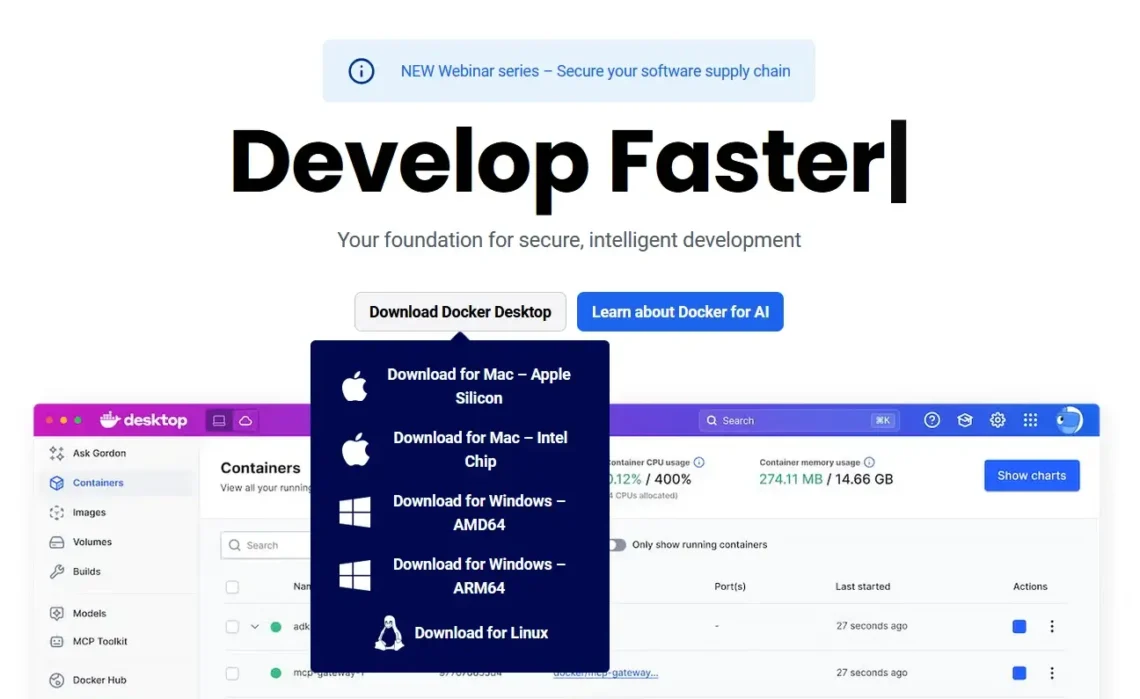
The installation procedure for Windows is fairly standard, and you can use the default settings. After you first launch Docker Desktop, it will prompt you to create a new account. The truth is, if you use the virtualization platform for personal projects, you don’t really need one. You can simply click the Skip button.
Before it runs, the Docker engine will check your system for compatibility. If you use Windows, it may alert you that your Windows Subsystem for Linux (WSL) component is out of date. The problem is fixed fairly easily by running the’ wsl –update’ command in the Command Prompt or PowerShell.
Step 2: Find and download the n8n image.
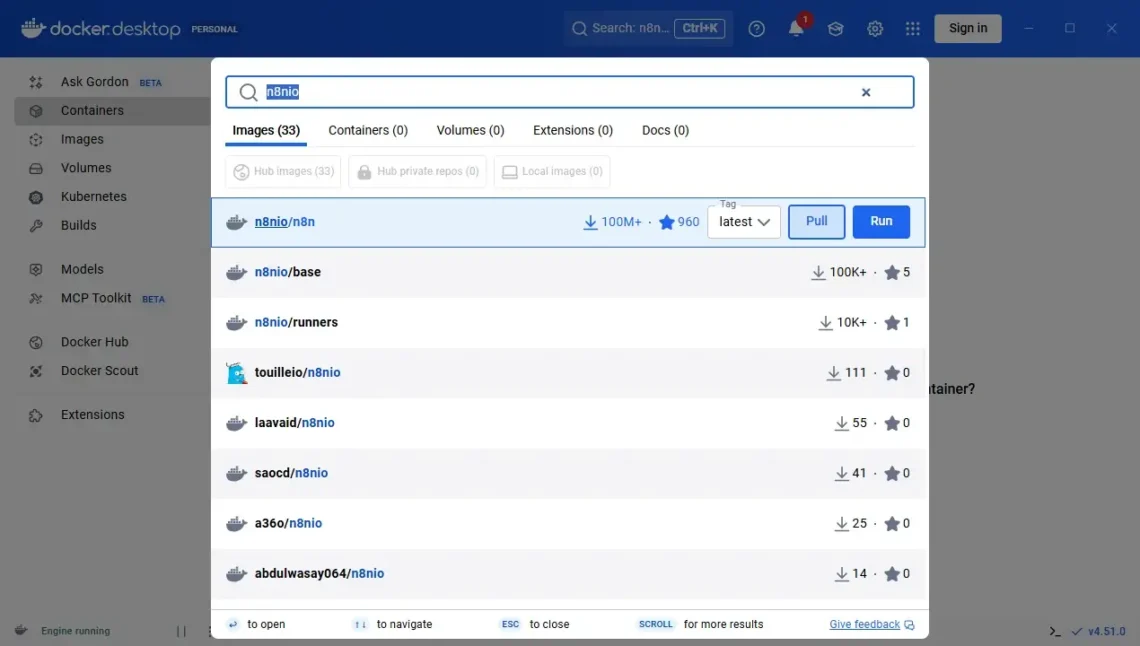
There’s a handy search box at the top of the screen. Use it to search for n8nio. The first result, n8nio/n8n, is the one you’re looking for. Use the Pull button next to it to download it. The image itself weighs in at around 1.6GB, so don’t be alarmed if the download is taking a while.
Step 3: Configure and run the n8n image.
Select Images from the menu on the left. You’ll see the n8n image you just downloaded, and under the Actions column, there is a Play button that lets you run it. The pop-up window that appears has an Optional settings menu with a few configurations you can tweak.
Usually, you won’t need to change any of them, but if the n8n image doesn’t work for you, you may need to return to this step and change the default port.
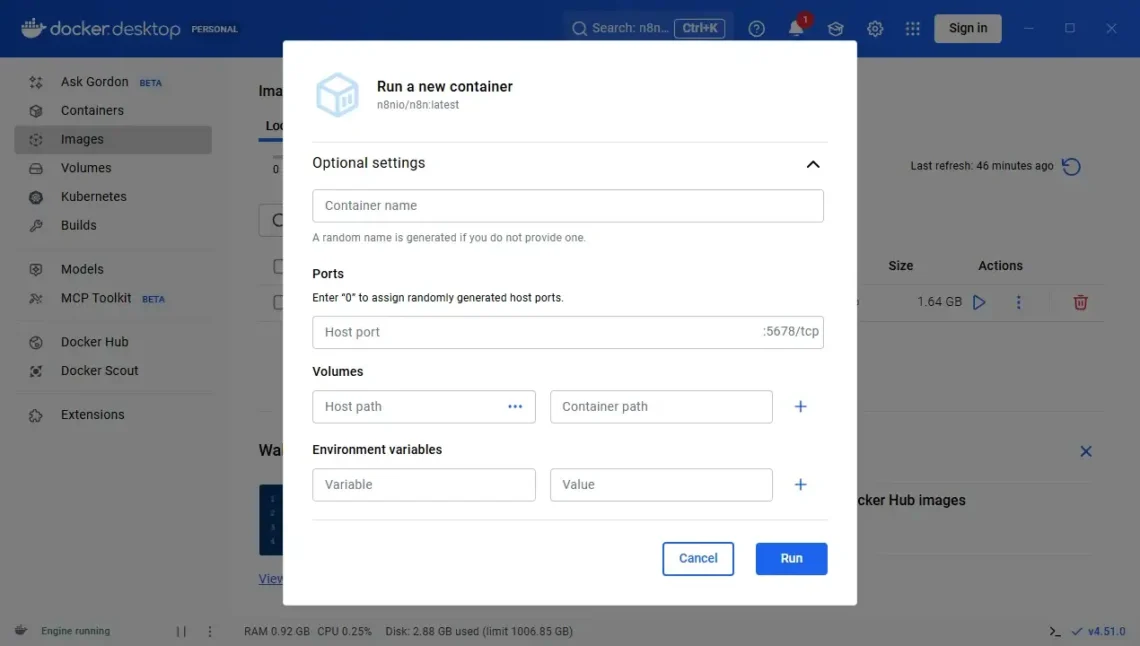
Click Run to deploy n8n on your local computer.
Step 4: Open n8n, create an account, and start work on your first workflow.
When you go back to the Containers page, you’ll see the newly created n8n instance on the screen. Under the Port(s) column, there’s a link leading you to the automation platform itself.
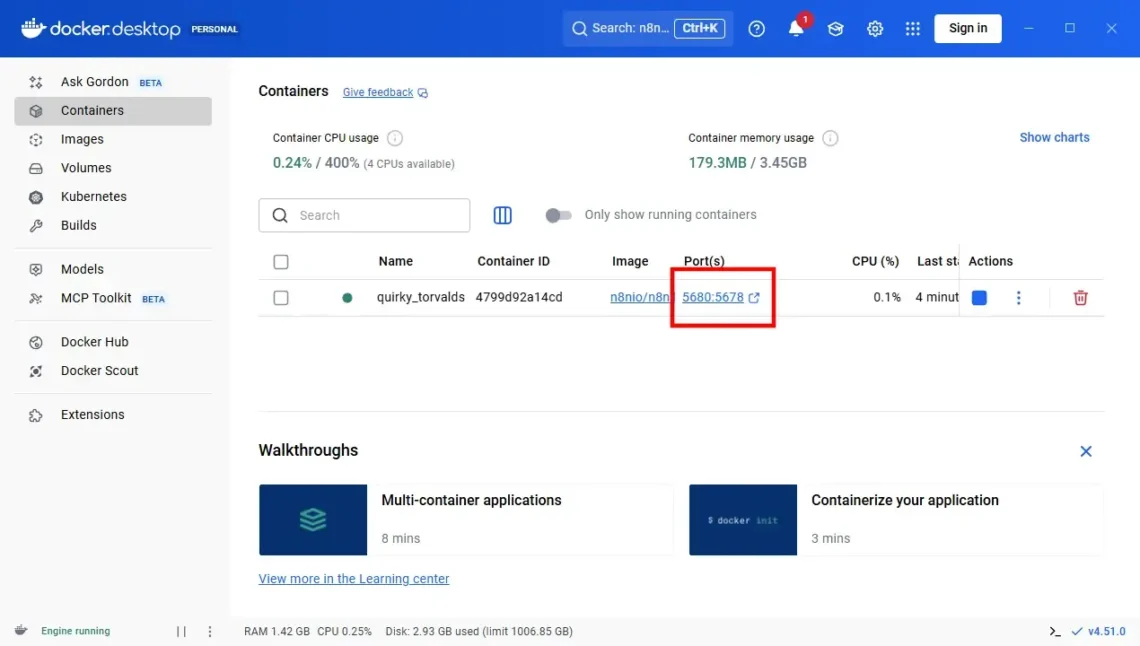
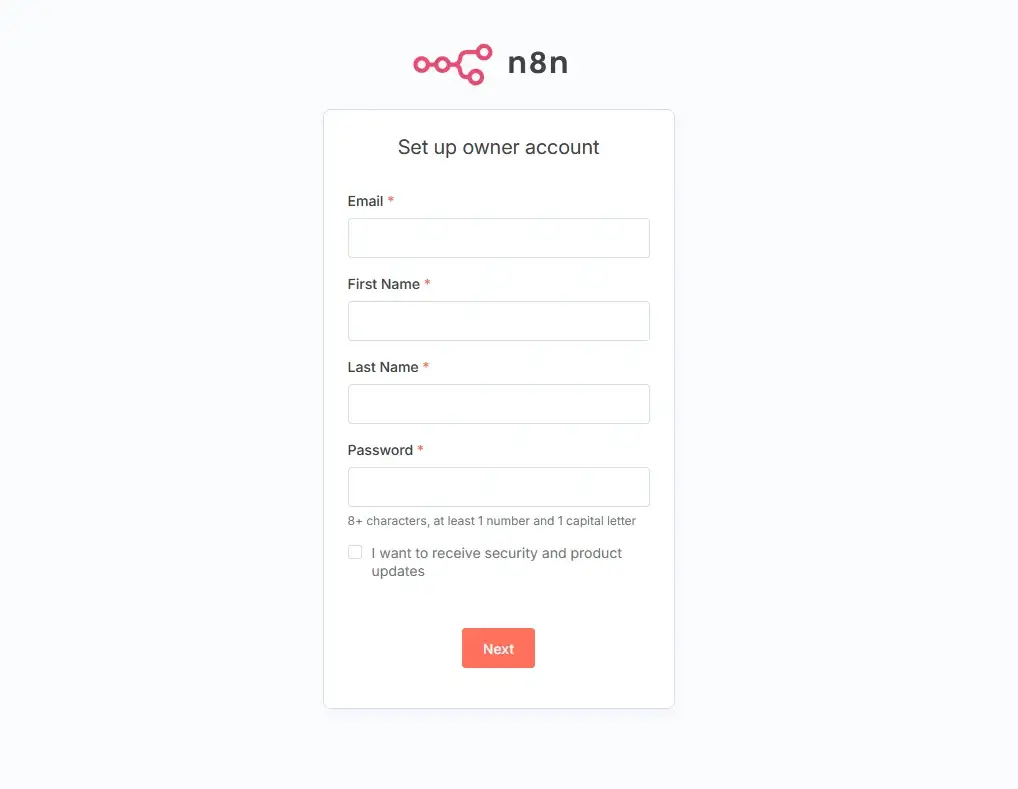
Clicking it leads you to n8n’s startup screen, where you enter your personal information and create a new admin account.
Recommended Specs for Running n8n Locally
Although usage depends on numerous factors, more often than not, the most critical component determining your n8n instance’s performance is the operating memory (RAM).
Docker’s desktop app features convenient charts displaying your CPU and memory usage. If you monitor them closely, you’ll notice that the demand for RAM spikes when n8n performs executions.
It’s not just the nodes that affect resource usage, though. Every operating system has its own characteristics, which you need to consider when deciding whether you have the right machine for deploying an n8n installation.
Here’s what you need to consider:
- macOS: The unified memory architecture and efficient cores featured in macOS machines help them handle n8n instances pretty well. The automation platform should run smoothly on machines built on top of M1, M2, and M3 chipsets, and even an 8GB MacBook Air should be able to run workflows without any issues.
- Windows: As a general rule, Microsoft’s operating system runs more background processes, so extra RAM is required to ensure smooth performance. Even so, a mid-range machine with a quad-core CPU and about 16GB of RAM should perform reliably.
- Linux: The more lightweight the distribution, the better. Distributions like Rocky Linux, Ubuntu, and Fedora are excellent choices for local n8n instances. The required specs depend entirely on your requirements. For moderately complex workflows, you may need 8–16 GB of RAM. However, if you want to do something elementary, like simple API calls, file automation, or smart home routines, you can even use Raspberry Pi 4 and 5 models.
When Running n8n Locally Makes Sense
Experts rarely recommend local n8n installations, and indeed, automation and workflow optimization on a personal computer rarely work for most production purposes. However, in certain scenarios, installing n8n on a local computer is actually the better option. Here are a few examples:
Learning and experimenting
A local installation can be the ideal environment for exploring how automations work, testing node configurations, and developing your n8n skills. You get a personal, low-overhead environment that lets you focus on the job in hand without worrying about server security, DNS, ports, or deployment pipelines. Crucially, it’s an environment where mistakes come without consequences and without monthly hosting bills.
Personal productivity workflows
n8n is suitable for both businesses and individuals. When you’re using it in a corporate environment, you need the power and the flexibility of a separate server. If you’re employing it to streamline your personal workday, however, you may be able to take advantage of its features on your local machine.
Your computer is likely powerful enough for stuff like organizing files, syncing data between documents, and scheduling reminders. If you need these only during working hours, n8n can automate them on your local machine without incurring additional hosting costs.
Offline and privacy-focused automations
A separate server or VPS can be extremely secure, especially when you’re getting a managed service that is deployed and configured by your host’s experienced sysadmins. However, the saying goes that if you don’t need to put something on the internet, you probably shouldn’t.
So, if your automations involve a lot of sensitive data that should not be put online, a local n8n automation is one of the best setups you can choose.
Running n8n on a Separate Server
Deploying n8n on a separate server – be it a VPS or a dedicated physical machine – is the most reliable and scalable way to run the platform. Although local installations may make sense in certain scenarios, they’re always dependent on your personal computer’s uptime and resources. By contrast, a server-based setup provides a stable, always-on environment that can handle production loads, webhooks, and complex automations without interruption or hesitation. For business tasks, client projects, and AI-driven workflows, this is the most effective approach.
A server-based environment is also much more easily scalable, especially if you pick a properly configured cloud-based VPS. You can customize the virtual server’s hardware configuration to ensure your n8n instance has access to the optimum amount of processing power, memory, and storage. Then, as the project grows and the automations become more complex, you can add resources and ensure n8n remains stable despite the higher number of executions.
Unlike local deployments, servers don’t get bogged down by unrelated applications, updates, or user activity. The environment is fully isolated, allowing you to set up backups, monitoring, and security tools that keep your automation ecosystem healthy at all times.
Installation
When choosing a hosting service for your n8n installation, it’s essential to consider not only the hardware resources but also the tools and features that come with the package. Depending on them, the installation process could be a quick and easy affair, or it could be rather more complicated.
Here, for example, is how the control panel can affect the installation procedure.
Installing n8n on an SPanel-powered server
If you’re looking for a quick and hassle-free n8n installation, your best bet is to find a server that uses SPanel. No other management platform makes it as easy to install n8n. Here are the steps:
- Log in to the SPanel User Interface.
You can access the User Interface using your account’s login credentials on the main login page, or you can first go to the Admin Interface and click Manage next to your account.

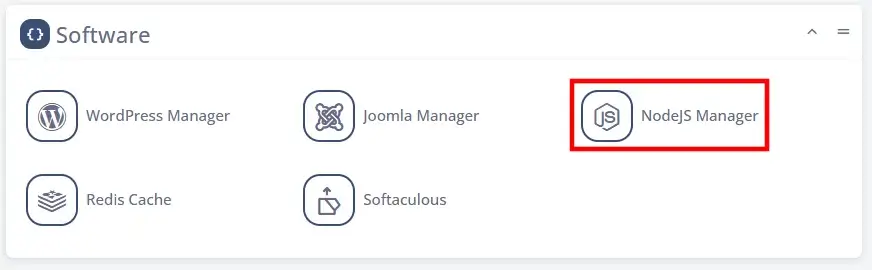
- Go to the NodeJS Manager and click Deploy a New App
The NodeJS Manager can be accessed from the Software section in SPanel’s User Interface.
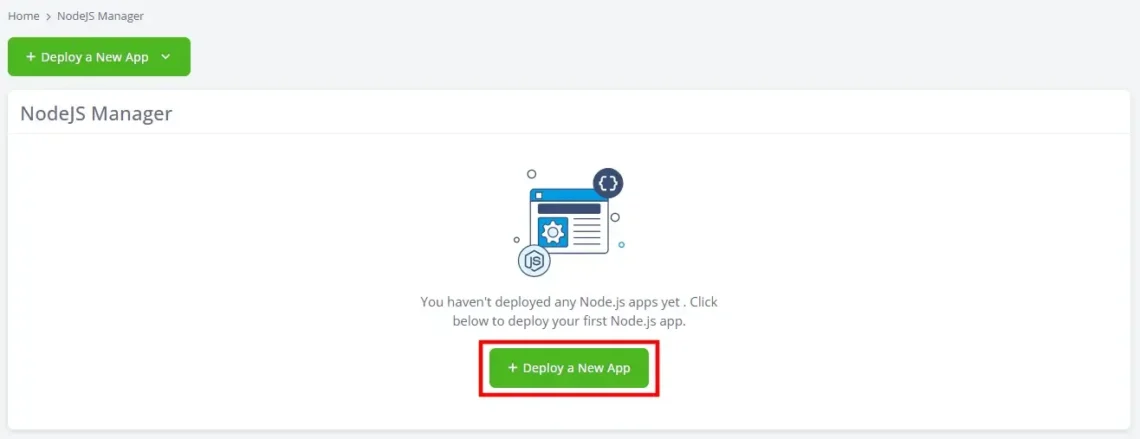
Any NodeJS applications you’ve installed on your account will appear in a list on the NodeJS Manager homepage. If there aren’t any, you’ll see the Deploy a New App button in the middle of the screen.
- Select n8n Automation and configure the application URL
You can install n8n just like you would any other NodeJS application in SPanel – uploading the app to a folder on your server and then configuring SPanel to deploy it. However, to make the process as smooth as possible, we’ve made n8n deployments even easier.
You just need to choose the n8n Automation option at the top of the page and configure the URL.
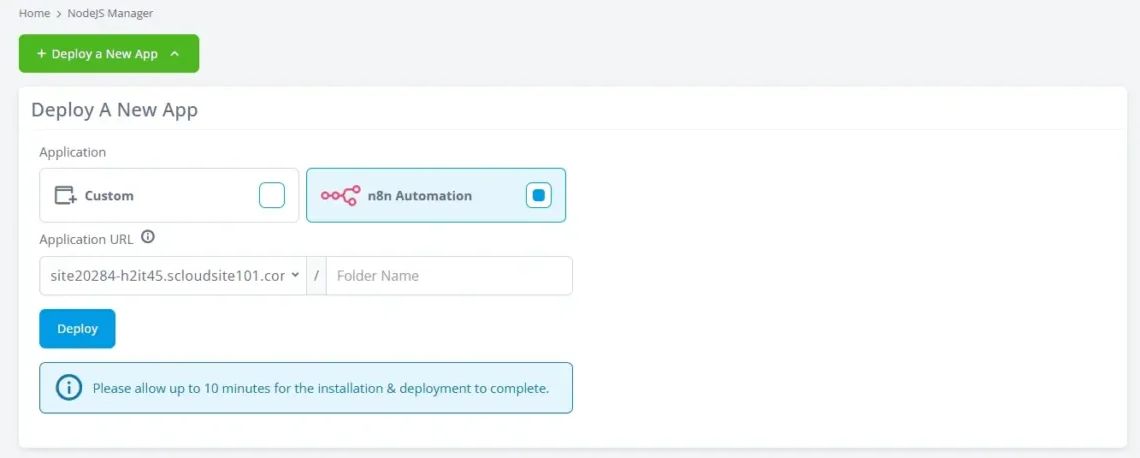
For ease of access, experts recommend deploying n8n under a subdomain.
Here’s a convenient video that guides you through the entire process.
How to Install and Self Host n8n with SPanel
Installing n8n on a server without SPanel
If SPanel isn’t available, there are several ways to install n8n on a server or VPS. However, Docker remains the most widely recommended method, mainly because it standardizes the installation process across all hosting environments and eliminates the risk of dependency conflicts.
The steps below outline a typical Docker-based n8n deployment on a Linux server.
- Access the server via SSH and ensure you have all the prerequisites
For this method, we don’t have the convenience of SPanel’s graphical user interface, so we’ll need to work through the command line. SSH access to the server must be enabled, and you’ll need to connect to it via a client such as PuTTY or through your operating system’s command-line utility.
Review your hosting plan to determine what features are included. Docker must be installed on your server for the steps to work. If it’s not, you’ll need to set it up yourself, which, in turn, requires root access.
After opening a new SSH session, update the operating system and package index files. Depending on the package manager, the command is either:
$ sudo apt update && sudo apt upgrade -y
or
$ sudo dnf update && sudo dnf upgrade
You next need to check whether Docker is installed with:
$ docker –version
If it’s not, you have multiple options for setting it up. However, your best option is to use Docker’s installation script, which handles the configuration for you:
curl -fsSL https://get.docker.com | sudo sh
Finally, add your user to the Docker group:
sudo usermod -aG docker $USER
- Create your n8n Compose file
Navigate to the directory where you’ll deploy n8n and create a new file called docker-compose.yml. If you use the GNU nano text editor, the command is:
$ nano docker-compose.yml
Paste the following in the file:
version: ‘3’
services:
n8n:
image: docker.n8n.io/n8nio/n8n
ports:
– “5678:5678”
volumes:
– ./n8n_data:/home/node/.n8n
restart: always
This is the main configuration file that sets up a persistent data directory and ensures the n8n container is automatically restarted every time the server reboots.
- Start the n8n container
With the Compose file ready, you can launch your n8n container with:
$ docker compose up -d
Docker automatically downloads the image, creates the n8n container, and launches the automation platform in the background.
- Access n8n from your browser
Finally, you can access the new n8n installation through the app URL in your browser and proceed to set up a new admin account.
Recommended Specifications for Running n8n on a Server
Correctly configured cloud-based servers let you fine-tune the available hardware resources according to the requirements of your workflows.
On the one hand, you have to take into account your workflow’s complexity and the number of executions. The more tasks n8n needs to perform, the more hardware resources it will require.
However, it’s just as important to consider how heavily you’ll use AI in your workflows. Artificial intelligence integration can be quite resource-intensive, and if it plays a significant role in your automations, you’ll definitely need a more robust hardware configuration to ensure everything runs smoothly.
It’s tricky to calculate the exact volume of resources needed for every specific project. However, there are a few rules you can follow.
- Memory: 4GB of RAM is generally considered the minimum for production-level workflows. If you plan to implement AI models into your automations or if you’ll have a large number of simultaneous executions, you’ll want to jump to at least 8GB.
- CPU: Between 2 and 4 CPU cores should be enough to power most standard workflows.
- Storage: 50GB of SSD storage should be enough for the n8n platform, the logs, files, and other data related to your automations. If your executions involve the processing of a large volume of information, you may need to expand the server’s capacity.
PostgreSQL and Redis are recommended for better performance and scalability of the automation platform.
Proper core server configuration and efficiency enhancements can improve n8n’s speed. Therefore, it may not be a bad idea to consider a managed service deployed by experienced sysadmins.
When Running n8n on a Separate Server Makes Sense
A local installation is ideal for getting started, but if you rely on automations for real-world tasks, you could reach its limits fairly quickly. That’s why deploying n8n on a dedicated or virtual server is often the only way forward.
A separate hosting environment ensures reliability, uptime, and performance that you simply can’t get from a local n8n deployment.
Here are a few situations when these advantages can be particularly important.
Production workloads, where uptime is crucial
A server-based installation is the only option if your workflows must run continuously. Unlike your local computer, a dedicated or virtual server doesn’t need to be turned off, and there are no background processes or user activity that may interfere with your automations.
A server is pretty much essential if your workflows depend heavily on customer activity. For example, ticketing systems and businesses that require real-time data processing often rely on heavy API interactions and aren’t suitable for local installations at all.
Team environments and collaboration
Once n8n becomes a part of a company’s operations, a separate server becomes indispensable. Allowing multiple people to access the same automation environment deployed on a personal computer isn’t strictly impossible. Still, it’s impractical at best, and it can never give you the control required to keep your executions efficient.
Security, compliance, and access control
If your workflows involve customer data or business records, only a separate server environment can provide you with the required level of isolation and control to ensure secure automation.
On a server, you won’t find personal apps, background processes, and browser extensions that can pose an unnecessary risk. Instead, you have firewalls, encryption mechanisms, and strict security policies in place to protect your workflows and the data they process.
Future-Proofing: n8n Requirements in 2025 and Beyond
As automation becomes more deeply ingrained in business operations, the demand placed on workflow optimization tools like n8n evolves rapidly. If you plan to implement it now, it pays to take into account several trends that will be shaping how its system requirements change in the future. That way, your n8n setup can remain stable, secure, and scalable over the years to come.
First, consider the rise of AI-driven workflows. Artificial intelligence is now an integral part of our everyday lives, and this trend is unlikely to be reversed anytime soon. Increasingly, n8n users are incorporating large language models, embedding generators, vector databases, and a wide range of AI tools into their automations.
They all add tremendous power and can open up numerous opportunities for further optimizing your workflows. However, they also introduce significantly higher RAM and CPU requirements – something you should definitely consider when configuring your hosting server.
The second trend you may need to consider is the expansion of microservice-based hosting. Plenty of providers now offer instances that can support n8n and adapt to your workflows’ requirements in real time. These setups are referred to as serverless and can be highly flexible, which is why many people are starting to employ them for their automations.
However, more often than not, they are fully self-managed. You have to set up and maintain everything manually, so they’re not the best choice for those looking for a quick and straightforward setup.
Finally, there is a growing industry-wide emphasis on sustainability and green hosting. Renewable energy is high on the priority list for many data centers nowadays, and for good reason. Regulations are getting stricter, so it’s a good idea to ensure the facility containing your hosting infrastructure is capable of complying with them. Additionally, as a responsible business, you want to minimize your carbon footprint.

Conclusion
Choosing where and how to run n8n ultimately boils down to understanding your needs. The platform is flexible enough to grow with you. Starting locally is often the most straightforward approach. You can learn the basics, test ideas, and dip your toes in the world of automation on something as cheap as a Raspberry Pi.
And when you’re ready to implement the platform in a production environment, you still have plenty of options for hosting n8n on a server. You don’t even need to break the bank to get the performance, stability, and scalability you want from your automation platform.
FAQ
Q: Do I need a separate server for n8n?
A: Not always. Desktop and laptop computers, as well as certain Raspberry Pi models, can support n8n for lightweight automation and testing purposes. However, if you want 24/7 uptime, reliable webhooks, or collaboration tools, you should consider deploying it on a separate server.
(See the section “Do You Need a Separate Server? Key Factors to Consider” for a full breakdown.)
Q: What are the minimum system requirements for n8n?
A: The minimum recommended specs are:
- 2GB RAM
- 2CPU cores
- 20GB storage
These requirements work for testing and light workflows. For production purposes, you will need at least 4–8GB of RAM and additional processing power.
Q: Can n8n run on my laptop/desktop?
A: Yes, most modern computers have well over 4GB of RAM, and their processors are usually powerful enough to support n8n. However, the limitations of the local environment mean that it’s rarely suitable for anything more than testing and personal workflows with a limited number of executions.
Q: Is n8n Cloud worth it over self-hosting?
A: n8n Cloud is a Software-as-a-Service (SaaS) platform that offers n8n pre-installed and ready to go. The service is fully managed by n8n’s operators, so you don’t need to worry about installing it or configuring the server. It’s a quick and easy way of using n8n, but it’s rarely the most cost-efficient option. Furthermore, you don’t have full control over your installation.
Q: How much RAM does n8n need for AI workflows?
A: AI workflows, especially those using Large Language Models, are significantly more demanding. If your automations involve more complex artificial intelligence implementations, consider a server with at least 8 GB of RAM and additional processing power. Some implementations are heavier still and could struggle even on servers with around 16GB of memory.
Q: Can n8n run on a Raspberry Pi?
A: Yes, n8n runs on Raspberry Pi 4 and 5 models, especially those with more than 4GB RAM. For optimal results, it is recommended to deploy it via Docker.
Q: Common mistakes with the n8n system requirements
A: Deploying n8n in an environment with insufficient operating memory is one of the most common mistakes users make when building their automation platforms. Trying to run the tool outside Docker is another error that can cause headaches, and other frequently overlooked but important considerations, such as backups and performance optimizations, can also hinder n8n’s automations.