How to Install Magento

Starting a new online store sounds tempting. The global ecommerce business recorded sales exceeding $6 trillion in 2025, and by 2028, this figure is expected to reach $8 trillion. At the same time, launching a new online retailing business has never been easier.
For example, a shopping cart application like Magento can help with pretty much everything – products, pricing, payments, deliveries, etc.
However, to take full advantage of it, you need to invest some time in getting to know it and learning about its features and architecture.
Learning how to install Magento is the very first step. So, let’s get to it.
Before You Begin
Magento is one of the world’s most popular ecommerce platforms, but it rarely comes pre-deployed with any host, so you have to install it yourself. There are a couple of ways to do it, but whichever you choose, you first have to ensure your hosting environment meets Magento’s requirements.
Let’s start with the software.
Software requirements
Magento started off as an open-source platform written in PHP. Most applications of this kind are usually deployed on top of LAMP and LNMP stacks. In other words, it works on Linux servers with either Apache or Nginx, MySQL, and PHP.
Pretty much any modern Linux distribution can support Magento. As for the rest of the critical software components, the versions you need to look for are:
- Apache 2.4 or higher or Nginx 1.x or higher
- MySQL 8.0 or MariaDB 10.6
- PHP 8.1 or higher
Any website nowadays must have an SSL certificate, so make sure that’s also included in the hosting package.
Magento’s loading speeds can be influenced by caching systems like Redis, Varnish, and Memcached, and the Composer command-line utility can streamline and simplify many website management tasks. Check with your host to see if they’re supported.
Hardware requirements
Some people might tell you that Magento can run in a shared hosting environment, but the truth is a little bit different. While you can technically deploy the app on a shared hosting account, as soon as you start getting any sort of traffic, you will immediately run into performance issues. Furthermore, shared hosting doesn’t provide the security and reliable loading speeds you expect from an online store.
If you’re serious about your project, you have to deploy it in an isolated environment. A managed cloud VPS gives you the perfect mixture of performance, stability, and flexibility.


The virtualization layer ensures your Magento store can’t be affected by other websites or projects. Performance is consistent thanks to the guaranteed resources, and the platform is infinitely scalable, so you can be confident your hosting platform is powerful enough to handle your store at any time.
Because you have a managed server, you don’t need to worry about handling core configuration, software updates, or other highly technical tasks. Your host’s technicians are responsible for all this, while you concentrate on deploying and running your business.
Your account’s web hosting control panel is one of the most essential tools you’ll use. It helps you with all aspects of building an online store, including Magento’s installation.
Here’s how.
How to Install Magento With SPanel
SPanel is ScalaHosting’s proprietary server management platform. It gives you the tools you need to launch and build a fully functional website, covering all stages of the process, including the installation of the application of your choice.
Built into it is Softaculous – an automatic installer that can deploy over 400 website-building applications with no more than a few clicks. Here’s how to do it.
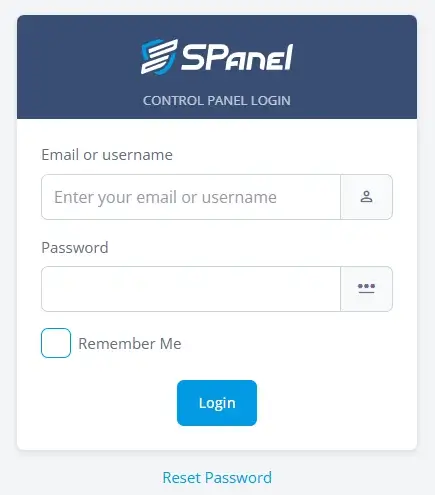
1. Open SPanel’s User Interface
After you create a new SPanel user account for your Magento store, you can access it either via the Admin Interface or at http://[your domain]/spanel/.
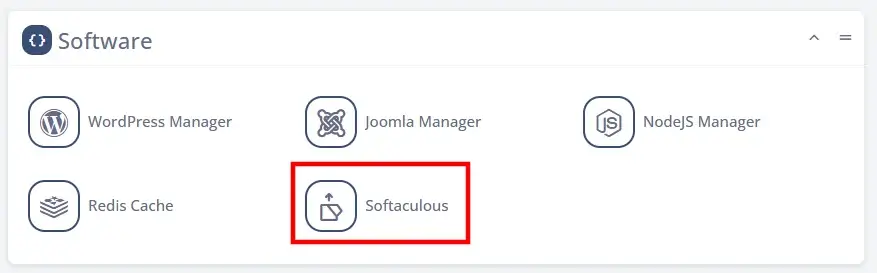
2. Open Softaculous
The Softaculous app installer is available under the Software section situated at the bottom of the page.
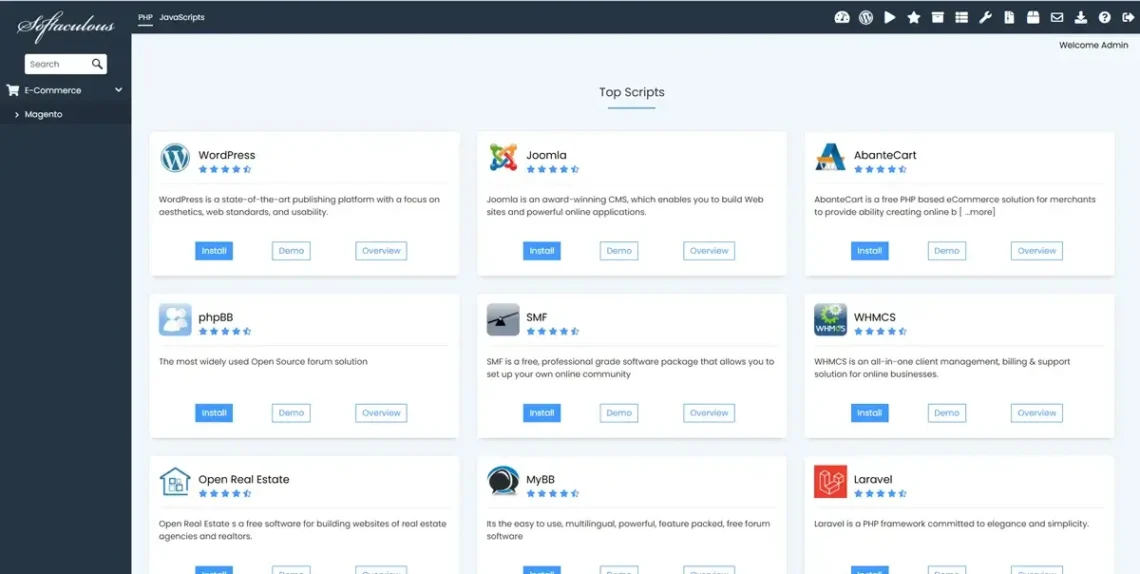
3. Use the search bar to find the Magento ecommerce app
All 400+ Softaculous-supported applications are listed in the left-hand menu. Instead of scrolling through them, it’s easier to enter “Magento” into the search bar and click the first result.
4. Click Install Now and enter the installation’s details
Softaculous first displays a Magento overview page with a screenshot and a brief explanation of what Magento does. When you click Install Now, you’ll see an interface for specifying the installation details.
The Software Setup section at the top lets you choose the installation URL. After you select the protocol, a drop-down menu lists all the domains and subdomains added to your account. You can also install it in a subdirectory (e.g., https://domain.com/shop/).
Below the installation URL, you’ll see that Softaculous is also setting up a cron job that will handle various tasks, including clearing cached data, indexing new prices and products, etc. Unless your store has some unique requirements, it’s best to leave the values in their default settings.
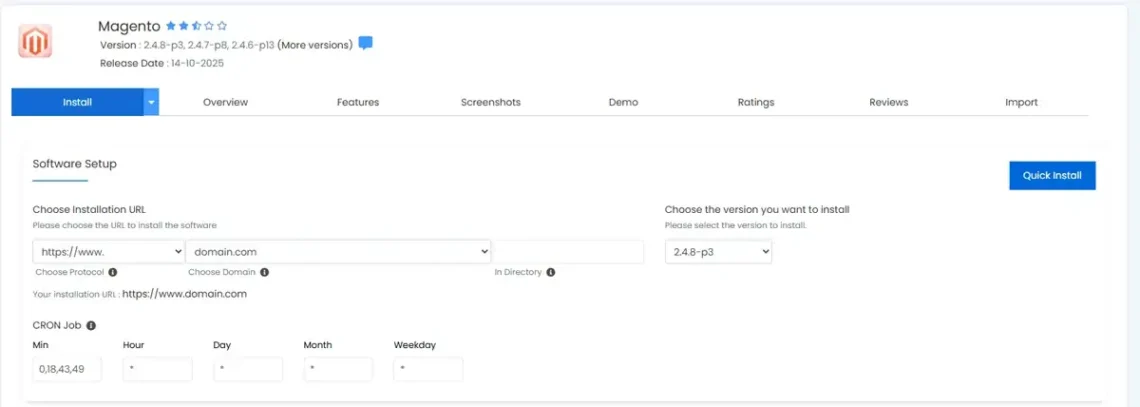
Below the Software Setup option, you effectively need to choose the login credentials for your site’s backend. On the left, you specify the Magento dashboard’s URL, and on the right, you enter the username, password, and the administrator’s personal information.
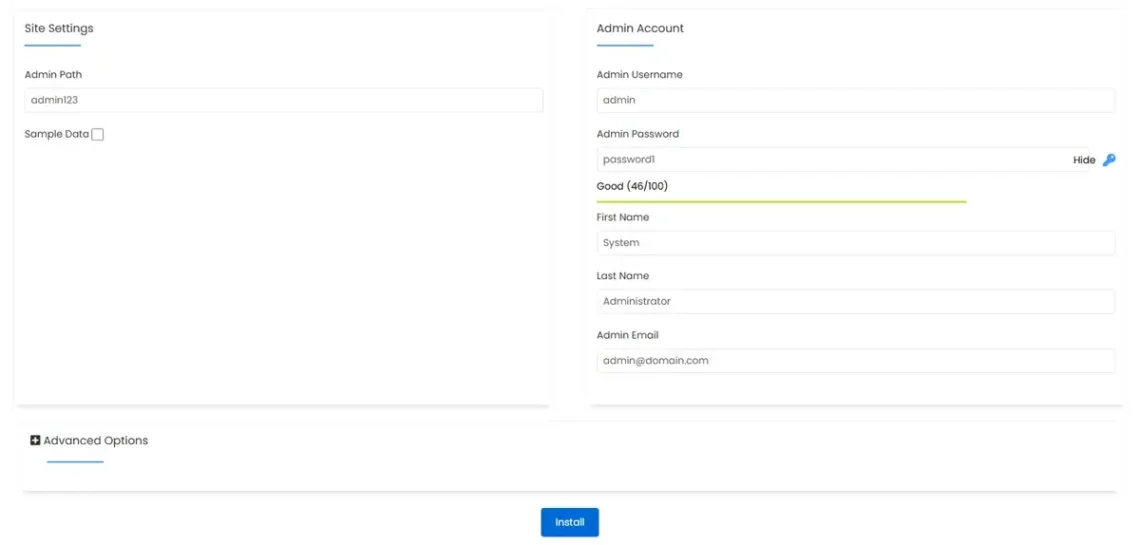
In the Advanced Options section, you can configure various database settings. If you’re setting up a brand new website, you’ll probably want to leave them as they are.
5. Click Install and wait for the installation to complete
The Install button is at the bottom of the page. Before starting the installation, Softaculous will warn you that you must use a valid address for the admin email, as it will be used for the two-factor authentication system that secures your Magento dashboard.
Depending on server load and available hardware resources, the installation may take up to a couple of minutes.
How to Install Magento Manually
If SPanel and Softaculous aren’t available, you can install Magento manually. This route is more complex, requiring greater technical skills and a better understanding of how Magento works.
Here are the steps.
1. Set up an Adobe account and create a new access key
In May 2018, Adobe acquired the Magento project, and since then, they’ve been integrating it with their products. As a result, if you want to install the open-source version of Magento on your server, you need to create an Adobe ID first.
Fortunately, the process is pretty straightforward.
In our case, it’s better to start at the Magento account page. Follow the steps for creating a new account and make sure you use the same email address you’ll use for your Magento admin account.
Once you’re logged in, click the drop-down menu next to your name in the top-right corner and select My Profile. Then, under the Marketplace tab, click Access Keys.
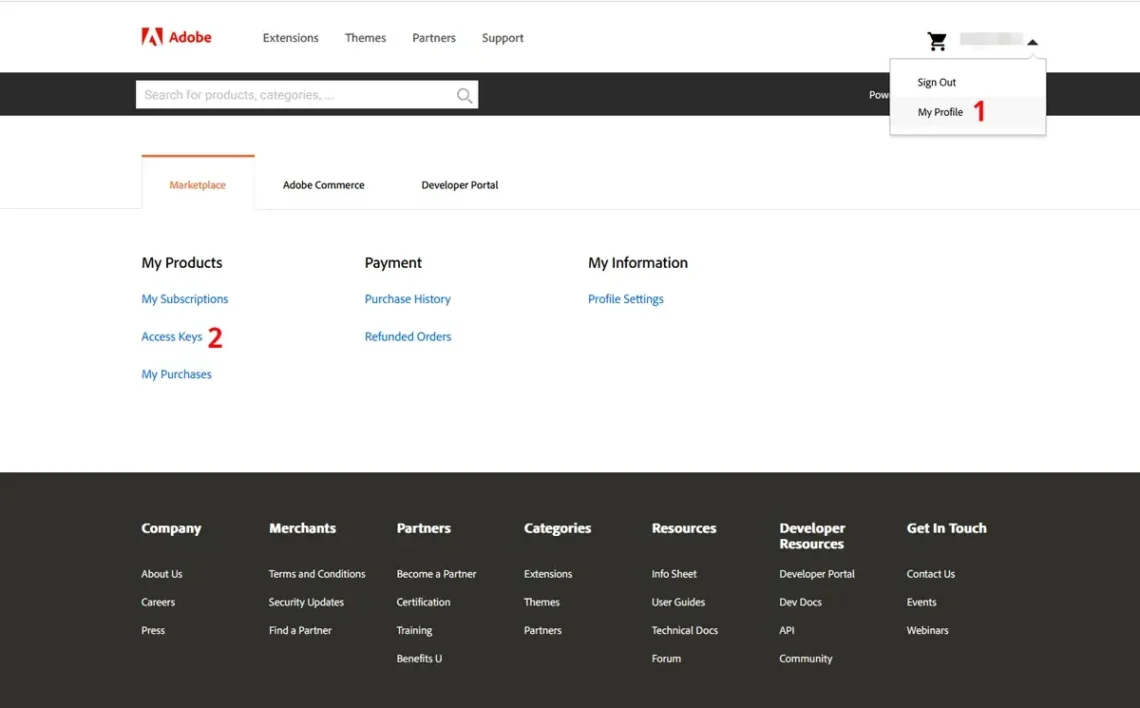
Click Create A New Access Key, pick a name, and click OK. This will generate a public and private key pair, which we’ll need in a minute. At this stage, you can leave the tab open, as we’ll come back to it shortly.
2. Connect to your account via SSH
You can use a dedicated SSH client, such as PuTTY, or a command-line utility built into your operating system to connect to your server via SSH. Once you’re in, navigate to the installation directory for your new Magento store.
3. Download the Magento files using Composer
We’ll use Composer to retrieve Magento’s files from the official repository. The command is:
$ composer create-project –repository-url=https://repo.magento.com/ magento/project-community-edition .
NOTE: Don’t forget to put the period at the end. It tells Composer to place the files in the current directory.
Shortly after you press Enter, Composer will ask you for a username and password. It’s time to go back to the browser tab with your Magento access keys.
The public key acts as your username, and the private one is your password.
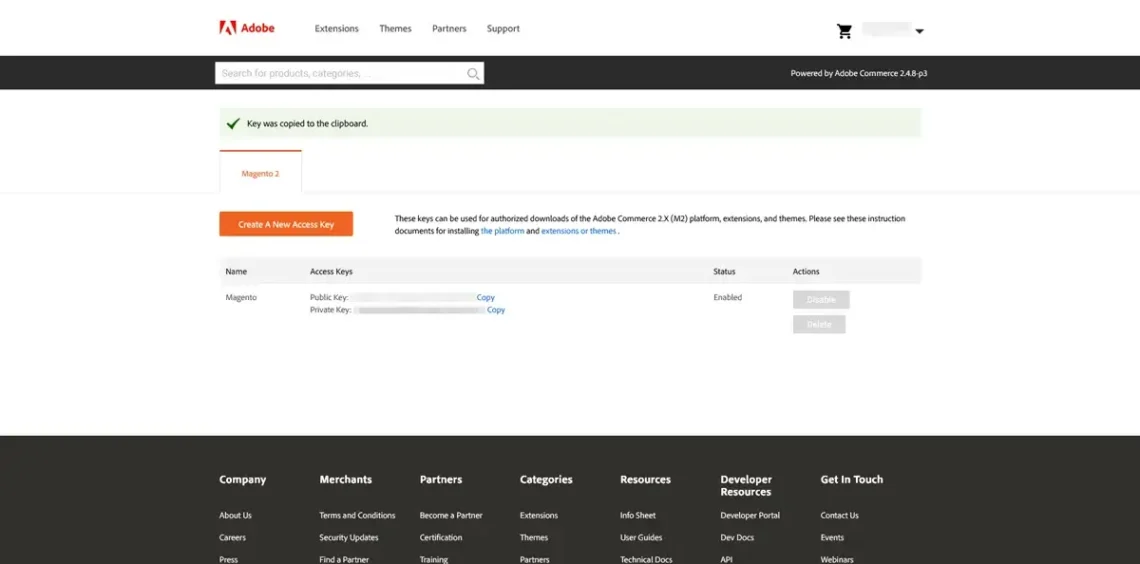
After you paste the login credentials, hit Enter and wait for the process to complete. A lot of data needs to be downloaded, so it could take a few minutes.
4. Create a database
It’s now time to set up the database that will hold your online store’s vital information. You can do it through the command line, but using the database utility in your control panel is a much easier option. In SPanel, it’s available on the home page of the User Interface, and it looks like this:
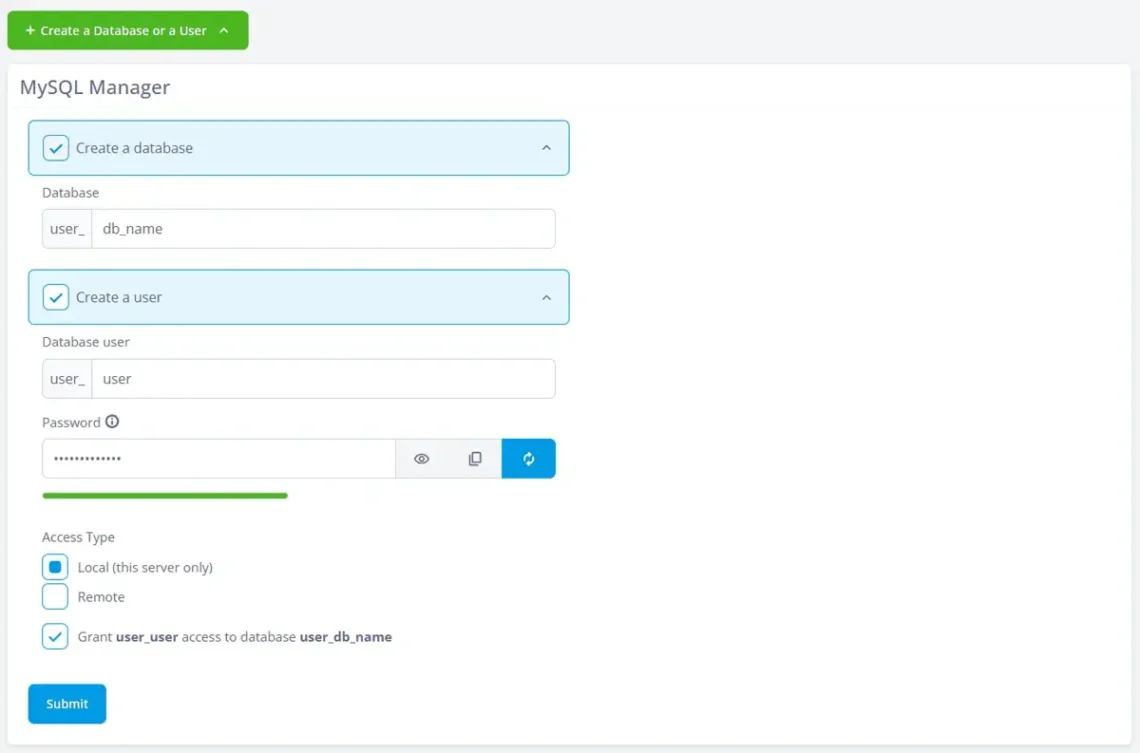
Along with the database, you also need to create a MySQL user and grant it access to the data. You get to choose the login credentials. Make sure they’re strong and keep them handy, as you’ll need them in a minute.
5. Run the Magento installation script
With the database set up and ready to go, you can go back to the command-line interface and run the installation script. From the site’s document root directory, run the following command:
bin/magento setup:install \
–base-url=[your domain name] \
–db-host=localhost \
–db-name=[the database’s name] \
–db-user=[the MySQL username] \
–db-password=[the MySQL user’s password] \
–admin-firstname=[first name] \
–admin-lastname=[last name] \
–admin-email=[your email address] \
–admin-user=[admin username] \
–admin-password=[admin password] \
–language=en_US \
–currency=USD \
–timezone=UTC \
–use-rewrites=1 \
–search-engine=elasticsearch7 \
–elasticsearch-host=localhost \
–elasticsearch-port=9200
After you press Enter, Magento’s installation script will configure the shopping cart to work with your new database and will display the URL of Magento’s backend dashboard.
With that, you are ready to start working on your new online store.
Conclusion
Installing Magento can sound intimidating to less experienced users, and indeed, there are quite a few things to consider before you even start. However, in the right hosting environment, the setup process is about as straightforward as it gets.
By choosing ScalaHosting as your hosting provider, you have two easy ways to install Magento – via Softaculous in the SPanel and by a technical support request. The process takes less than a few minutes, and you can start building your new ecommerce shop right after.
FAQ
Q: What is Magento?
A: Magento is a powerful open-source eCommerce platform designed for building scalable online stores. The free version, Magento Open Source, can be installed and hosted on your own VPS or dedicated server.
Q: What is the difference between Magento Open Source and Adobe Commerce?
A: Magento Open Source is free and self-hosted, while Adobe Commerce (formerly Magento Commerce) is a paid version that includes advanced features, cloud hosting options, and official Adobe support.
Q: What are the minimum system requirements to install Magento?
A: Magento requires a Linux-based server, PHP 8.2 or newer, a supported database (MySQL or MariaDB), Elasticsearch or OpenSearch, and sufficient server resources (at least 2 GB RAM, with 4 GB or more recommended).
Q: Can Magento be installed on shared hosting?
A: Magento is not recommended for shared hosting due to its resource requirements. A VPS, especially one deployed in a cloud environment, provides the performance, control, and scalability Magento needs to run properly.
What is a VPS – Everything you need to know!